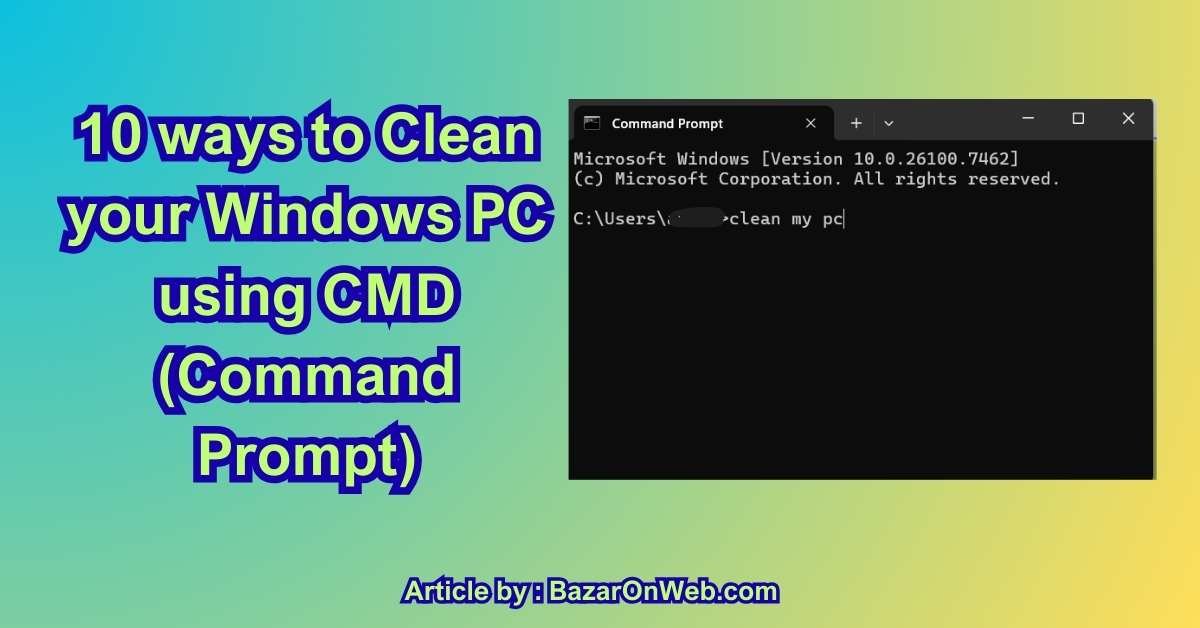
10 ways to Clean your Windows PC using CMD (Command Prompt)

10 powerful CMD commands to clean your Windows PC

If you’re like me, you probably love the feeling of a fresh, speedy computer but dread the gradual slowdown that happens over time. Between software updates, browsing history, and countless temporary files, our PCs collect digital clutter that can make them feel sluggish.

While there are plenty of fancy cleanup tools you can download, some of the most effective cleaners are already built into Windows, hiding in plain sight within the Command Prompt. These aren’t just for IT experts—they’re powerful, one-line commands that can free up significant space and even fix hidden system problems. Let’s walk through the first three essential methods to safely clean your PC using the command line.

Here’s a quick overview of what we’ll cover as first 3 Methods:

Method Primary Command What It Cleans Best For
1. Automated Disk Cleanup cleanmgr / cleanmgr /sageset System cache, update files, recycle bin A safe, thorough, and guided cleanup of common junk files.
2. Clearing Temporary Files del /q/f/s %TEMP%\* Current user’s temporary application files Quick, immediate space recovery from a known clutter hotspot.
3. Repairing System Files sfc /scannow Corrupted or missing Windows system files Fixing strange errors, crashes, or instability, not just freeing space.

Method 1: The Guided Cleanup with Disk Cleanup (cleanmgr)

Think of the Disk Cleanup tool as your PC’s built-in janitor. You’ve likely seen its friendly interface before. Using it from the Command Prompt with a special switch gives you more control and lets you save your preferences for next time.

This method is perfect if you want a comprehensive clean but prefer to check boxes and see what will be deleted before it happens.

How to Do It (Step-by-Step)

Step 1: Open Command Prompt as Administrator
This is crucial for accessing all cleanup options. Press the Windows key, type cmd, then right-click on “Command Prompt” and select “Run as administrator”.

Step 2: Set Your Cleanup Preferences
In the black Command Prompt window, type the following command and press Enter:

cmd
cleanmgr /sageset:1

This opens the Disk Cleanup Settings window without first asking you to pick a drive. Here, you can select exactly which categories of files you want to clean. Common and safe choices include:

  • Temporary Internet Files

  • Temporary Windows files

  • Recycle Bin

  • Windows Update Cleanup (this can be very large)

Step 3: Run the Cleanup
Once you’ve checked your boxes and clicked OK, your preferences are saved under the number 1. To run the cleanup with those exact settings, type:

cmd
cleanmgr /sagerun:1

The tool will now scan and clean your primary drive based on your selections. You can use different numbers (like :2:3) to save multiple cleanup profiles.

Pro Tip: For a faster, one-time cleanup where you select the drive each time, you can simply type cleanmgr and press Enter.


Method 2: The Quick Sweep – Manually Clearing Temp Files

Your computer’s Temp folder is a designated dumping ground for files that programs only need temporarily. Often, these files aren’t deleted properly and just pile up. Clearing them manually is a fast way to reclaim space.

This is my go-to method when I need a quick burst of free space without going through menus.

How to Do It (Step-by-Step)

Step 1: Launch Command Prompt (Admin)
Again, start by opening Command Prompt as an Administrator as shown in Method 1.

Step 2: Execute the Cleanup Command
Type or paste the following command and press Enter:

cmd
del /q /f /s %TEMP%\*

Let’s break down what this powerful little command does:

  • del is the “delete” command.

  • /q means “quiet”—it won’t ask for confirmation on every file.

  • /f forces the deletion of read-only files.

  • /s tells it to delete files in all subfolders too.

  • %TEMP% is a system variable that always points to your current user’s Temp folder path.

Step 3: Let It Run
You’ll see the cursor blinking as the command works. It will automatically skip any files currently in use by the system, so it’s safe. When it’s done, you’ll just see the command prompt again—no fanfare, but potentially gigabytes of junk are now gone.

Important Note: This only cleans the Temp folder for the user you are currently logged in as. Other user profiles on the same PC will have their own separate Temp folders.


Method 3: The Deep Fix – Repairing System Files with sfc /scannow

This method is less about “cleaning” junk and more about “repairing” your PC’s core foundation. Over time, essential Windows system files can become corrupted or go missing, leading to errors, app crashes, or general instability. The System File Checker (SFC) tool scans and restores these files to their correct state.

Use this if your PC is acting strangely—not just slowly—or if you want to ensure its core health.

How to Do It (Step-by-Step)

Step 1: Open Command Prompt as Administrator
This tool absolutely requires administrator privileges to repair protected system files.

Step 2: Run the System File Checker
Type the following command and press Enter:

cmd
sfc /scannow

This scan will take a while (often 10-15 minutes). It’s very important that you do not close the Command Prompt window until it is 100% complete.

Step 3: Understand the Results
Once finished, you’ll get one of a few possible messages:

  • “Windows Resource Protection did not find any integrity violations.” Great! Your system files are healthy.

  • “Windows Resource Protection found corrupt files and successfully repaired them.” Perfect—the tool found and fixed problems.

  • “Windows Resource Protection found corrupt files but was unable to fix some of them.” This requires a further step.

Advanced Follow-Up: If sfc /scannow can’t fix everything, Microsoft recommends running the DISM (Deployment Image Servicing and Management) tool first to repair the Windows image that SFC uses. Run this command before trying sfc /scannow again:

cmd
DISM.exe /Online /Cleanup-Image /RestoreHealth

By mastering these three methods, you’ve learned how to tackle everything from everyday clutter (cleanmgr) to quick sweeps (Temp folder) and foundational system repair (sfc). Each serves a different purpose and together they form a powerful first line of defense for keeping your Windows PC clean and running well.

7 More Command Prompt Tricks for a Cleaner, Faster Windows PC

Welcome back! Now that you’ve mastered those first three essential commands, let’s dive deeper into your Command Prompt toolkit. These next methods range from advanced cleanup and driver management to automating the whole process. Think of them as moving from routine housekeeping to professional-grade system maintenance.

Here’s what we’ll cover next:

Method Primary Command What It Does Best For
4. Deep System Clean with DISM DISM /Online /Cleanup-Image /StartComponentCleanup Aggressively removes old Windows Update files Reclaiming major space after big updates
5. Clear Windows Store Cache wsreset.exe Resets the Microsoft Store app cache Fixing download/update errors in the Microsoft Store
6. Manage Startup Programs shell:startup Opens folder for user startup programs Controlling what auto-starts with Windows
7. Check Disk Health chkdsk /f Scans & fixes disk errors Diagnosing disk problems or crashes
8. View Disk Usage powercfg /energy Generates detailed energy/usage report Finding power-hungry apps and processes
9. Reset Windows Update net stop wuauserv + net start wuauserv Restarts Update service Fixing stuck Windows updates
10. Automate with Task Scheduler Schedule cleanmgr /sagerun:1 Runs cleanup automatically Set-and-forget maintenance

🗜️ Method 4: The Deep System Clean with DISM

Sometimes, your PC needs more than surface cleaning—especially after major Windows updates. The Deployment Image Servicing and Management (DISM) tool has a powerful cleanup switch that can remove outdated update packages and system files that regular Disk Cleanup might miss.

This is perfect when you need to reclaim significant space (sometimes several gigabytes) after upgrading Windows versions.

How to Use DISM for Cleanup

  1. Open Command Prompt as Administrator.

  2. Type the following command and press Enter:

    cmd
    DISM.exe /Online /Cleanup-Image /StartComponentCleanup
  3. Be patient. This scan can take 10-20 minutes. It’s cleaning deep system files, so don’t interrupt it.

Pro Tip: For the most aggressive cleanup (great after moving to a new Windows version), use:

cmd
DISM.exe /Online /Cleanup-Image /StartComponentCleanup /ResetBase

Note: Using /ResetBase removes the ability to uninstall recent updates, so only use this if you’re sure you won’t need to roll back.


🛒 Method 5: Clear the Windows Store Cache

If you’ve ever had the Microsoft Store fail to download apps or get stuck updating, a corrupted cache is often the culprit. The wsreset command provides a quick fix by clearing this cache and resetting the Store app.

How to Reset the Windows Store

  1. Open Command Prompt (regular or Admin both work for this).

  2. Simply type wsreset.exe and press Enter.

  3. A blank command window will appear, and after a few moments, the Microsoft Store will automatically reopen. Your cache is now cleared!


🚀 Method 6: Manage Startup Programs (The Manual Way)

Too many programs launching at startup is a major cause of slow boot times. While Windows Settings has a startup manager, you can also manually manage user-level startup items via Command Prompt.

How to Access the Startup Folder

  1. Open Command Prompt.

  2. Type this command and press Enter:

    cmd
    shell:startup
  3. This opens your personal Startup folder in File Explorer. Any program shortcut placed here will launch when you log in.

  4. To clean up: Review the shortcuts here. If you see programs that don’t need to auto-start, simply delete their shortcuts from this folder (this won’t uninstall the programs).

Note: This only affects startup programs for your user account. System-level startup items require different management.


💾 Method 7: Check Your Disk’s Health with CHKDSK

The Check Disk utility is like a doctor for your hard drive or SSD. It scans for file system errors and bad sectors, and can fix many issues automatically. If your PC has been crashing, files are corrupting, or you hear unusual disk noises, this should be your first diagnostic step.

How to Run a Disk Check

  1. Open Command Prompt as Administrator.

  2. Type the following command and press Enter:

    cmd
    chkdsk C: /f

    (Replace C: with the letter of the drive you want to check.)

  3. If the drive is in use, it will schedule the check for your next restart. Type Y and restart your computer to begin the scan.

For a more thorough scan that also checks for physical disk errors, use:

cmd
chkdsk C: /f /r

Note: The /r scan can take several hours on large traditional hard drives.


📊 Method 8: Analyze System Performance & Power Usage

Hidden in Windows is a powerful diagnostic tool that creates a detailed energy efficiency report. While designed for power management, it brilliantly highlights apps and processes that are consuming excessive resources in the background.

How to Generate an Energy Report

  1. Open Command Prompt as Administrator.

  2. Type this command and press Enter:

    cmd
    powercfg /energy
  3. Wait about 60 seconds for the analysis to complete.

  4. The tool will save an HTML report. Look for the file path it displays (usually C:\Windows\system32\energy-report.html).

  5. Open this file in your web browser to see a detailed list of performance issues, warnings, and resource-hungry applications.


🔄 Method 9: Reset the Windows Update Components

When Windows Update gets stuck or fails repeatedly, the problem is often with the update service itself. You can use Command Prompt to completely reset these components—a common fix recommended by Microsoft support.

How to Reset Windows Update

  1. Open Command Prompt as Administrator.

  2. Stop the update services by entering these commands one by one, pressing Enter after each:

    cmd
    net stop wuauserv
    net stop cryptSvc
    net stop bits
    net stop msiserver
  3. Rename the update cache folders (this clears corrupted data):

    cmd
    ren C:\Windows\SoftwareDistribution SoftwareDistribution.old
    ren C:\Windows\System32\catroot2 catroot2.old
  4. Restart the services:

    cmd
    net start wuauserv
    net start cryptSvc
    net start bits
    net start msiserver
  5. Restart your PC and try Windows Update again.


🤖 Method 10: Automate Your Cleanup with Task Scheduler

The real secret to a consistently clean PC? Automation. You can use Windows Task Scheduler to run your favorite cleanup commands automatically on a schedule.

How to Schedule Automatic Cleanups

  1. First, create a cleanup profile (as in Method 1) by running cleanmgr /sageset:100 and choosing your options. Save it.

  2. Press Windows + R, type taskschd.msc, and press Enter to open Task Scheduler.

  3. Click “Create Basic Task…” in the right panel.

  4. Name it (e.g., “Monthly PC Cleanup”) and set a schedule (like monthly).

  5. For the action, choose “Start a program.”

  6. In the program field, type: cleanmgr.exe

  7. In the arguments field, type: /sagerun:100

  8. Finish the wizard. Your cleanup will now run automatically!


📝 Disclaimer

Important Notice: The information and commands provided in this guide are for educational purposes only. While these methods are standard Windows maintenance procedures:

  1. Back up important data before using advanced system commands

  2. Run Command Prompt as Administrator only when necessary—some commands require elevated privileges

  3. Understand what each command does before executing it

  4. I am not responsible for any data loss, system instability, or other issues resulting from using these commands

  5. These methods are intended for Windows 10 and 11—older Windows versions may respond differently

  6. When in doubt, consult with a professional or Microsoft’s official documentation

These commands are powerful tools. Used correctly, they can significantly improve your PC’s performance. Always proceed with caution and ensure you have recent backups of critical files.

Happy cleaning! 🧹💻

Leave a Reply

Your email address will not be published. Required fields are marked *

Select the fields to be shown. Others will be hidden. Drag and drop to rearrange the order.
  • Image
  • SKU
  • Rating
  • Price
  • Stock
  • Availability
  • Add to cart
  • Description
  • Content
  • Weight
  • Dimensions
  • Additional information
Click outside to hide the comparison bar
Compare