Discounted Products
-
 Leo Creation 144 TC Cotton Double Jaipuri Prints Flat Bedsheet(Pack of 1, Blue, Gree, Red, Grey, Light Grey)
Original price was: ₹2,999.00.₹329.00Current price is: ₹329.00.
Leo Creation 144 TC Cotton Double Jaipuri Prints Flat Bedsheet(Pack of 1, Blue, Gree, Red, Grey, Light Grey)
Original price was: ₹2,999.00.₹329.00Current price is: ₹329.00.
-
 Home Garage 210 TC Cotton King Floral Fitted (Elastic) Bedsheet(Pack of 1, Grey)
Original price was: ₹999.00.₹299.00Current price is: ₹299.00.
Home Garage 210 TC Cotton King Floral Fitted (Elastic) Bedsheet(Pack of 1, Grey)
Original price was: ₹999.00.₹299.00Current price is: ₹299.00.
-
 Goodrik 140 TC Cotton Double 3D Printed Flat Bedsheet(Pack of 1, Brown)
Original price was: ₹499.00.₹229.00Current price is: ₹229.00.
Goodrik 140 TC Cotton Double 3D Printed Flat Bedsheet(Pack of 1, Brown)
Original price was: ₹499.00.₹229.00Current price is: ₹229.00.
-
 GLOBALSHOP 350 TC Microfiber Double Floral Flat Bedsheet(Pack of 1, Multicolor)
Original price was: ₹1,250.00.₹263.00Current price is: ₹263.00.
GLOBALSHOP 350 TC Microfiber Double Floral Flat Bedsheet(Pack of 1, Multicolor)
Original price was: ₹1,250.00.₹263.00Current price is: ₹263.00.
-
 RisingStar 250 TC Microfiber King Printed Fitted (Elastic) Bedsheet(Pack of 1, FITTED-ROUND-CIRCLES-PREMIUM)
Original price was: ₹2,299.00.₹299.00Current price is: ₹299.00.
RisingStar 250 TC Microfiber King Printed Fitted (Elastic) Bedsheet(Pack of 1, FITTED-ROUND-CIRCLES-PREMIUM)
Original price was: ₹2,299.00.₹299.00Current price is: ₹299.00.
-
 Home Garage 210 TC Cotton King Floral Fitted (Elastic) Bedsheet(Pack of 1, Fitted Black Green)
Original price was: ₹1,299.00.₹299.00Current price is: ₹299.00.
Home Garage 210 TC Cotton King Floral Fitted (Elastic) Bedsheet(Pack of 1, Fitted Black Green)
Original price was: ₹1,299.00.₹299.00Current price is: ₹299.00.
-
 Home Garage 180 TC Cotton King 3D Printed Flat Bedsheet(Pack of 1, White)
Original price was: ₹999.00.₹229.00Current price is: ₹229.00.
Home Garage 180 TC Cotton King 3D Printed Flat Bedsheet(Pack of 1, White)
Original price was: ₹999.00.₹229.00Current price is: ₹229.00.
-
 Home Sizzler 153 cm (5 ft) Polyester Room Darkening Window Curtain (Pack Of 2)(Floral, Maroon)
Original price was: ₹799.00.₹299.00Current price is: ₹299.00.
Home Sizzler 153 cm (5 ft) Polyester Room Darkening Window Curtain (Pack Of 2)(Floral, Maroon)
Original price was: ₹799.00.₹299.00Current price is: ₹299.00.
-
 Panipat Textile Hub 152.4 cm (5 ft) Polyester Window Curtain (Pack Of 2)(Solid, Aqua)
Original price was: ₹1,899.00.₹299.00Current price is: ₹299.00.
Panipat Textile Hub 152.4 cm (5 ft) Polyester Window Curtain (Pack Of 2)(Solid, Aqua)
Original price was: ₹1,899.00.₹299.00Current price is: ₹299.00.
-
 Home Sizzler 214 cm (7 ft) Polyester Semi Transparent Door Curtain (Pack Of 2)(Floral, Maroon)
Original price was: ₹1,199.00.₹399.00Current price is: ₹399.00.
Home Sizzler 214 cm (7 ft) Polyester Semi Transparent Door Curtain (Pack Of 2)(Floral, Maroon)
Original price was: ₹1,199.00.₹399.00Current price is: ₹399.00.
-
 Home Sizzler 153 cm (5 ft) Polyester Room Darkening Window Curtain (Pack Of 2)(Floral, Brown)
Original price was: ₹799.00.₹299.00Current price is: ₹299.00.
Home Sizzler 153 cm (5 ft) Polyester Room Darkening Window Curtain (Pack Of 2)(Floral, Brown)
Original price was: ₹799.00.₹299.00Current price is: ₹299.00.
-
 Stella Creations 214 cm (7 ft) Polyester Room Darkening Door Curtain (Pack Of 2)(Abstract, Brown)
Original price was: ₹1,299.00.₹449.00Current price is: ₹449.00.
Stella Creations 214 cm (7 ft) Polyester Room Darkening Door Curtain (Pack Of 2)(Abstract, Brown)
Original price was: ₹1,299.00.₹449.00Current price is: ₹449.00.
-
 Homefab India 152.5 cm (5 ft) Polyester Room Darkening Window Curtain (Pack Of 2)(Floral, Light Blue)
Original price was: ₹1,199.00.₹319.00Current price is: ₹319.00.
Homefab India 152.5 cm (5 ft) Polyester Room Darkening Window Curtain (Pack Of 2)(Floral, Light Blue)
Original price was: ₹1,199.00.₹319.00Current price is: ₹319.00.
-
 Urban Home 214 cm (7 ft) PVC Transparent Door Curtain Single Curtain(Solid, Off White)
Original price was: ₹699.00.₹203.00Current price is: ₹203.00.
Urban Home 214 cm (7 ft) PVC Transparent Door Curtain Single Curtain(Solid, Off White)
Original price was: ₹699.00.₹203.00Current price is: ₹203.00.
-
 Panipat Textile Hub 213 cm (7 ft) Polyester Door Curtain (Pack Of 2)(Solid, Brown)
Original price was: ₹1,199.00.₹349.00Current price is: ₹349.00.
Panipat Textile Hub 213 cm (7 ft) Polyester Door Curtain (Pack Of 2)(Solid, Brown)
Original price was: ₹1,199.00.₹349.00Current price is: ₹349.00.

Method 1: Find Your Laptop Serial Number Using Built-In System Information Tools
The easiest and most reliable way to find your laptop’s serial number is by using Windows’ built-in System Information tool. This feature requires no special software, no manual inspection of your device, and no command lines — just a few clicks. System Information pulls hardware details directly from your device’s internal registry, making it accurate and manufacturer-verified. For everyday users, students, professionals, and remote workers, this method is as simple as it gets.
Below is a detailed walkthrough of how to locate your laptop serial number using this approach, along with tips, variations, troubleshooting notes, and examples for different laptop brands.
Why This Method Works
Every Windows laptop stores its serial number in the system firmware. When you open System Information, it displays exactly what the manufacturer wrote into your device profile during assembly. Because the data is saved digitally, it stays available even if:
-
the laptop case is damaged
-
stickers have worn off
-
packaging is lost
-
documentation isn’t handy
-
the device has been repaired or refurbished
This makes System Information useful in situations where physical access to the laptop’s underside may be inconvenient — like when working on the go, using docking stations, or dealing with corporate devices that have protective cases.
How to Find Your Serial Number Using System Information
Here are the simplest steps to follow:
Step 1: Open the Start Menu
Click the Windows Start button or press the Windows key on your keyboard.
Step 2: Search for System Information
In the search bar, type:
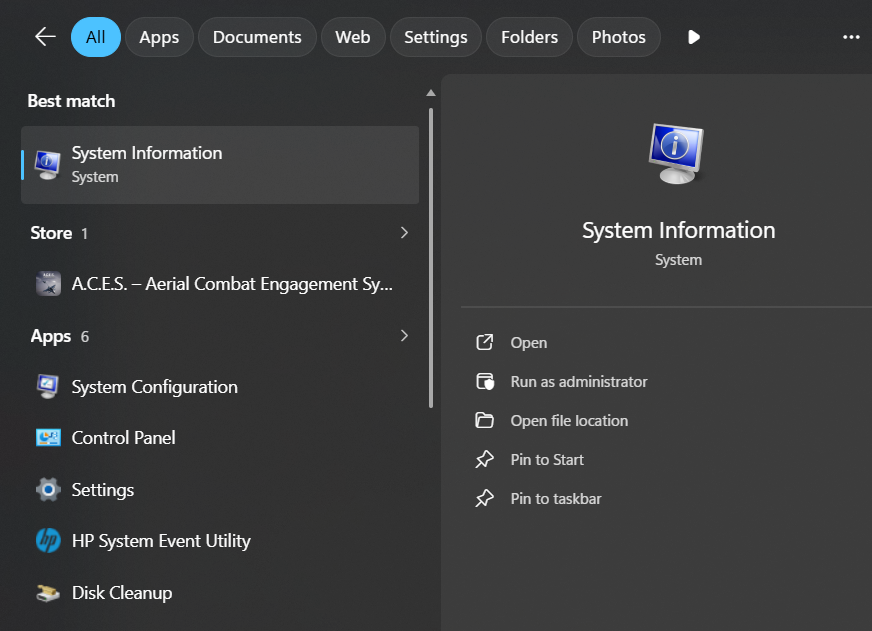
You’ll see an app titled System Information or msinfo32 appear in the results list.
Step 3: Open the Tool
Click the app to launch it. A window will open showing detailed technical info about your laptop — including processor model, BIOS version, device name, manufacturer details, and more.
Step 4: Locate the Serial Number Field
In the right-hand pane, scroll through the list until you see the line labeled:
Serial Number
This field displays your unique device identifier, usually formatted as a string of letters and numbers.
For example, it may look like:
or
That’s your official laptop serial number.
If You Can’t Find the Serial Number Displayed
On very rare occasions, System Information may show the serial number field as:
-
“Not Available”
-
“None”
-
Blank
-
A placeholder value
This usually only happens on:
-
DIY custom-built computers
-
older legacy laptops
-
devices with motherboard replacements
-
certain refurbished or off-brand systems
If this occurs, don’t worry — you can still retrieve your serial number using other methods (coming up next in the article), such as Command Prompt, PowerShell, BIOS/UEFI screens, or the physical laptop label.
Extra Tip: Copying the Serial Number
To save or document your serial number, you can copy it directly from System Information.
-
Click the Serial Number line
-
Press Ctrl + C to copy it
-
Paste it into any document, note app, cloud storage tool, or customer support form
This is especially helpful if you’re preparing for a warranty or insurance claim, or saving the number for long-term records.
Why System Information Is a Popular Choice
Users love this method because:
-
It requires no technical skill
-
It takes under 60 seconds
-
It avoids inspection of hardware
-
It works on nearly all Windows laptops
-
It doesn’t require administrator permissions
-
It pulls accurate manufacturer data
For someone like me — juggling work, kids, errands, and a busy life — the convenience of this method makes it a first stop. I don’t need to flip the laptop over, unplug it from a docking station, or hunt for the original packaging. It’s simple and stress-free.
Real-World Use Case
Imagine this: You’re filing a support ticket with Dell because your laptop battery is draining faster than it used to. Before the call begins, the support portal asks for your serial number so it can look up your warranty profile. With System Information, you can retrieve that number in seconds — even while the laptop is still in use.
Another example: You’re buying new RAM for a Lenovo ThinkPad and want to make sure the parts are compatible. The retailer requests your serial number for an exact match. Again, you just open System Information, locate the number, and paste it.
For families, classrooms, or office environments, this becomes even more useful. If multiple laptops look identical, the serial number is the only reliable way to identify which device belongs to which user.
Brand-Specific Notes
This method works on all major laptop brands including:
-
HP
-
Dell
-
Lenovo
-
ASUS
-
Acer
-
Microsoft Surface
-
MSI
-
Samsung
No matter the vendor, the serial number stored in System Information will match what the manufacturer has on file. That means you can use the number for troubleshooting, account lookup, part replacement, and warranty checks without worrying about mismatched data.
Troubleshooting Tips
If System Information fails to launch or does not display properly:
-
Restart your laptop and try again
-
Run Windows Update
-
Check for manufacturer firmware updates
-
Make sure Windows search services are active
-
Try launching using Run command:
msinfo32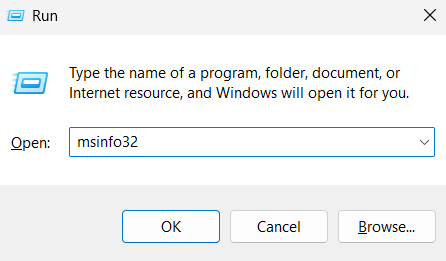
If that still doesn’t work, don’t panic — Method 2 and Method 3 offer alternative retrieval paths.
When to Use This Method
Choose this approach when you need:
-
a fast lookup
-
a digital record
-
a copy/paste response for support teams
-
a warranty or insurance form number
-
a parts reference
-
confirmation during repair or resale
-
a remote lookup while laptop remains stationary
For busy professionals and parents, it’s especially valuable because it avoids handling the physical laptop. I often use this method while the laptop is in use on a stand or riser — no lifting, tipping, or unplugging needed.
Bottom Line
Finding your laptop serial number in System Information is the quickest and most user-friendly method available. With just a few clicks, you can access official manufacturer data and save it for future use. This one step alone can save you hours of stress during troubleshooting or replacement planning.
Up next, you can cover Method 2 and Method 3, which include using the Command Prompt and checking BIOS/UEFI screens — perfect options if System Information is unavailable or you want alternate pathways.
Method 2: Find Your Laptop Serial Number Using Command Prompt
If System Information doesn’t display the serial number, or if you prefer a faster, more direct method, Command Prompt is an excellent alternative. This method works even when other tools fail. It pulls the device serial number straight from the system firmware using a WMI (Windows Management Instrumentation) query.
The best part? It works instantly — no menus, no scrolling, no windows to navigate. One command, one result.
This makes Command Prompt especially helpful for:
-
IT professionals
-
remote workers
-
corporate support staff
-
technicians repairing systems
-
users managing multiple devices
-
anyone who needs fast retrieval
Even if you’re not technical, don’t worry — the steps are straightforward.
Why Command Prompt Works for Serial Number Lookup
Every Windows machine stores embedded hardware identifiers in the BIOS or UEFI firmware. That’s where the serial number lives. Command Prompt allows you to query that firmware directly and extract the value.
Because the data is hardware-based and stored outside the operating system, this method works even if:
-
Windows apps are corrupted
-
system UI fails to load
-
drivers are missing
-
the laptop has display issues
-
registry fields are damaged
-
third-party software is broken
As long as the laptop can boot into Windows, Command Prompt can pull the serial number.
Even better, the method works on Windows 11, Windows 10, Windows 8, and Windows 7 — making it universally compatible.
How to Find Your Serial Number Using Command Prompt
Follow these steps carefully:
Step 1: Open Command Prompt
There are several ways to open it:
Option A (Fastest):
-
Press:
-
Type:
-
Press Enter.
Option B (Search Menu):
-
Press Windows key
-
Type
-
Open the app
Option C (Admin Mode):
Right-click Command Prompt → Run as Administrator
You do not need admin mode for this method, but opening it can be helpful if running commands later.
Step 2: Enter the Serial Number Command
In the Command Prompt window, type or paste the following line:
Then press Enter.
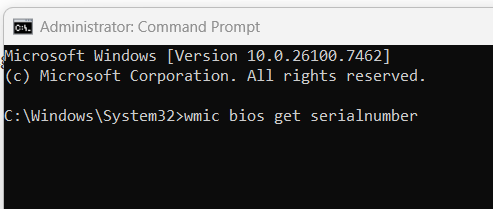
Within seconds, Command Prompt will return your laptop serial number.
It will look something like this:
or
That result is your official device serial number.
What to Do If You See “To be filled by O.E.M.” or “Unavailable”
Some users may see this message instead of a number:
or
This doesn’t mean the laptop lacks a serial number — it simply means the manufacturer didn’t write it into the BIOS firmware when assembling the system.
This is more common on:
-
white-label PCs
-
custom-built systems
-
refurbished laptops
-
low-budget brands
-
older legacy hardware
If this happens, don’t worry — upcoming methods will still help locate the number using:
-
BIOS Setup Mode
-
physical label
-
device paperwork
-
manufacturer support accounts
Command Prompt is highly reliable, but it cannot generate data that does not exist.
Copying the Serial Number From Command Prompt
You can manually copy the number using your mouse or keyboard:
-
Highlight the serial number with your cursor
-
Press Ctrl + C to copy
-
Paste into a note app, support form, or document using Ctrl + V
If you frequently work with warranty, inventory, or IT records, this speeds up workflow tremendously.
Why Professionals Prefer Command Prompt
Command Prompt offers several benefits that graphical tools don’t:
-
fast, repeatable results
-
no GUI navigation
-
less memory usage
-
works across user profiles
-
supports remote queries
-
usable in Safe Mode
-
perfect for bulk device inventory
IT administrators also love this method because it can be automated.
For example, running this script collects serial numbers from multiple devices:
This creates a file containing multiple laptop serial numbers for asset tracking.
For businesses managing dozens or hundreds of machines, that’s invaluable.
Troubleshooting Command Prompt Not Working
In rare cases, Command Prompt may fail to load or WMI queries may produce errors. Here’s how to handle that:
If Command Prompt won’t open:
-
Restart Windows
-
Run as administrator
-
Disable antivirus blocking
-
Try Windows Terminal instead
If WMI returns errors:
Type this command:
If corruption appears, repair WMI with:
These steps rebuild WMI’s internal database.
If the problem continues, PowerShell can retrieve the same data using:
That method will be covered in a later section.
Command Prompt vs System Information — Which Is Better?
Both methods are excellent, but each serves a different purpose:
| Feature | System Information | Command Prompt |
|---|---|---|
| Speed | Fast | Very fast |
| Skill Required | Beginner | Beginner to Intermediate |
| Accuracy | High | Highest |
| Works if UI breaks | No | Yes |
| Works in Safe Mode | Sometimes | Yes |
| Works remotely | No | Yes |
For casual users, System Information is simpler.
For advanced users, Command Prompt is more flexible.
I personally use Command Prompt most often because it gives the cleanest, most direct response — no scrolling, no filtering, no menus.
When to Use This Method
Choose Command Prompt when you:
-
need fast results
-
are troubleshooting hardware
-
can’t physically access the laptop body
-
need a copy/paste response
-
are working remotely
-
want to avoid navigating Windows menus
-
are gathering data from multiple devices
It’s especially helpful in corporate environments where laptops are stacked on charging racks or mounted on workstations — no lifting, flipping, or unplugging needed.
Bottom Line
Finding your laptop serial number using Command Prompt is one of the fastest, most reliable, and most universal methods available. Whether you’re filing a warranty claim, ordering replacement parts, reporting theft, or creating an inventory list, this single line of text gives you exactly what you need.
Up next, you can continue with Method 3, using BIOS or UEFI — an excellent fallback if Windows won’t boot or access to the operating system is limited.
Method 3: Find Your Laptop Serial Number in BIOS/UEFI
If Windows isn’t loading, if the screen is damaged, or if other software-based methods fail, BIOS/UEFI is the most reliable way to find your laptop serial number. Unlike Windows tools, BIOS runs underneath the operating system — stored directly on the motherboard firmware — which means it works even when the OS is corrupted or missing entirely.
This makes BIOS/UEFI especially useful when:
-
Windows won’t boot
-
the laptop is factory resetting
-
the hard drive is removed or damaged
-
the serial number field is hidden in software
-
you’re repairing or replacing internal parts
Even if the laptop is only partially functional, BIOS usually remains accessible.
How to Access BIOS/UEFI to View the Serial Number
The steps vary slightly between manufacturers, but the general process is:
Step 1: Shut Down Your Laptop Completely
Don’t click restart — perform a full shutdown.
Step 2: Power On and Immediately Press the BIOS Key
There is usually a short time window of 1–2 seconds.
Common BIOS keys include:
-
F2 (Dell, Acer, Asus, MSI)
-
ESC (HP, Lenovo, Surface)
-
Delete (gaming laptops)
-
F10 or F12 (various brands)
If you see a brand logo splash screen, keep tapping the key repeatedly — not just once.
Step 3: Open the Main System Information Screen
Most BIOS dashboards include a summary page such as:
-
Main
-
System Information
-
Device Info
-
Product Info
Your serial number will be listed next to a label like:
-
Serial Number
-
Product Number
-
Service Tag
-
Asset Tag
It typically appears as a string of letters and numbers.
Example:
That’s your official laptop serial number — confirmed directly from the motherboard.
When BIOS Is the Best Method
BIOS serial lookup is ideal if you:
-
cannot sign into Windows
-
are reinstalling the OS
-
are troubleshooting hardware
-
need to confirm authenticity
-
suspect internal damage
-
bought a used or refurbished laptop
-
want to verify against manufacturer records
For field technicians, warehouse systems, or enterprise fleets, BIOS access is a lifesaver.
Limitations
While reliable, BIOS lookup has a few challenges:
-
requires physical access to the laptop
-
may be intimidating for beginners
-
keys differ across brands
-
older systems may hide the label deeper in menus
In very rare cases, a BIOS update or motherboard replacement may erase the stored serial number. If that happens, you’ll need Method 4 (physical label) or 5 (manufacturer support database).
Still, for most users, this is one of the most trustworthy retrieval methods available.
Conclusion
No matter what brand of laptop you own — Dell, HP, Lenovo, Asus, Acer, MSI, Samsung, or Surface — your serial number is a critical piece of information you’ll want to keep somewhere safe. Whether you’re troubleshooting, buying replacement parts, filing a warranty claim, or reporting a lost or stolen device, the serial number is the fastest way to identify your exact machine.
This guide shows how easy it is to find that number using three simple, reliable methods:
-
System Information — great for quick lookups
-
Command Prompt — fast, efficient, copy-friendly
-
BIOS/UEFI — perfect when Windows won’t load
Together, these methods cover almost every situation. You don’t need special apps, training, or tools — just a few clicks or keystrokes.
As a busy professional and tech enthusiast, I love knowing that even if something goes wrong, I can retrieve that serial number instantly. It helps protect both the investment in the laptop itself and the important files stored on it.
If you haven’t already, take two minutes today to locate your serial number and store it somewhere safe. The peace of mind is worth it.
Disclaimer (Bazaronweb.com)
The information provided in this article is intended for general educational and troubleshooting purposes only. Results may vary depending on device model, operating system version, BIOS/UEFI configuration, manufacturer settings, and hardware condition. Users are responsible for ensuring that any actions taken are appropriate for their specific device.
Bazaronweb.com is not liable for data loss, system changes, device failures, warranty impacts, or damages resulting from the use or misuse of the information in this guide.
All product names, trademarks, and brand references belong to their respective owners. Bazaronweb.com is not affiliated with any laptop manufacturer mentioned in this article.

- 7 Best Methods to Fix “Undoing Changes Made to Your PC” Error (Complete Guide)

- How to Turn On Spam Blocker on Android: Stop Unwanted Calls and Messages Easily

- Can’t View Comments on YouTube Shorts? 6 Ways to Fix It (Complete Guide)

- How to Block Users From Installing Programs in Windows 11 Complete Step-by-Step Guide for Better Security

- How to Fix Chrome Automatically Deleting Downloaded Files (Complete Step-by-Step Guide)

Products
-
![Apple Watch Ultra 3 [GPS + Cellular 49mm] Running & Multisport Smartwatch w/Rugged Titanium Case w/Black Titanium Milanese Loop - M. Satellite Communications, Advanced Health & Fitness Tracking](https://bazaronweb.com/retailstores/wp-content/uploads/2025/09/apple-watch-320x320.jpg) Apple Watch Ultra 3 [GPS + Cellular 49mm] Running & Multisport Smartwatch w/Rugged Titanium Case w/Black Titanium Milanese Loop - M. Satellite Communications, Advanced Health & Fitness Tracking
Apple Watch Ultra 3 [GPS + Cellular 49mm] Running & Multisport Smartwatch w/Rugged Titanium Case w/Black Titanium Milanese Loop - M. Satellite Communications, Advanced Health & Fitness Tracking
-
 Apple iPad mini (A17 Pro): Apple Intelligence, 8.3-inch Liquid Retina Display, 256GB, Wi-Fi 6E, 12MP Front/12MP Back Camera, Touch ID, All-Day Battery Life — Purple
-
 Apple AirPods Max Wireless Over-Ear Headphones, Active Noise Cancelling, Transparency Mode, Personalized Spatial Audio, Dolby Atmos, Bluetooth Headphones for iPhone – Space Gray
-
 Apple AirPods Pro 2 Wireless Earbuds, Active Noise Cancellation, Hearing Aid Feature, Bluetooth Headphones, Transparency, Personalized Spatial Audio, High-Fidelity Sound, H2 Chip, USB-C Charging
-
Leo Creation 144 TC Cotton Double Jaipuri Prints Flat Bedsheet(Pack of 1, Blue, Gree, Red, Grey, Light Grey)
Original price was: ₹2,999.00.₹329.00Current price is: ₹329.00.
Leave a Reply