Discounted Products
-
 Leo Creation 144 TC Cotton Double Jaipuri Prints Flat Bedsheet(Pack of 1, Blue, Gree, Red, Grey, Light Grey)
Original price was: ₹2,999.00.₹329.00Current price is: ₹329.00.
Leo Creation 144 TC Cotton Double Jaipuri Prints Flat Bedsheet(Pack of 1, Blue, Gree, Red, Grey, Light Grey)
Original price was: ₹2,999.00.₹329.00Current price is: ₹329.00.
-
 Home Garage 210 TC Cotton King Floral Fitted (Elastic) Bedsheet(Pack of 1, Grey)
Original price was: ₹999.00.₹299.00Current price is: ₹299.00.
Home Garage 210 TC Cotton King Floral Fitted (Elastic) Bedsheet(Pack of 1, Grey)
Original price was: ₹999.00.₹299.00Current price is: ₹299.00.
-
 Goodrik 140 TC Cotton Double 3D Printed Flat Bedsheet(Pack of 1, Brown)
Original price was: ₹499.00.₹229.00Current price is: ₹229.00.
Goodrik 140 TC Cotton Double 3D Printed Flat Bedsheet(Pack of 1, Brown)
Original price was: ₹499.00.₹229.00Current price is: ₹229.00.
-
 GLOBALSHOP 350 TC Microfiber Double Floral Flat Bedsheet(Pack of 1, Multicolor)
Original price was: ₹1,250.00.₹263.00Current price is: ₹263.00.
GLOBALSHOP 350 TC Microfiber Double Floral Flat Bedsheet(Pack of 1, Multicolor)
Original price was: ₹1,250.00.₹263.00Current price is: ₹263.00.
-
 RisingStar 250 TC Microfiber King Printed Fitted (Elastic) Bedsheet(Pack of 1, FITTED-ROUND-CIRCLES-PREMIUM)
Original price was: ₹2,299.00.₹299.00Current price is: ₹299.00.
RisingStar 250 TC Microfiber King Printed Fitted (Elastic) Bedsheet(Pack of 1, FITTED-ROUND-CIRCLES-PREMIUM)
Original price was: ₹2,299.00.₹299.00Current price is: ₹299.00.
-
 Home Garage 210 TC Cotton King Floral Fitted (Elastic) Bedsheet(Pack of 1, Fitted Black Green)
Original price was: ₹1,299.00.₹299.00Current price is: ₹299.00.
Home Garage 210 TC Cotton King Floral Fitted (Elastic) Bedsheet(Pack of 1, Fitted Black Green)
Original price was: ₹1,299.00.₹299.00Current price is: ₹299.00.
-
 Home Garage 180 TC Cotton King 3D Printed Flat Bedsheet(Pack of 1, White)
Original price was: ₹999.00.₹229.00Current price is: ₹229.00.
Home Garage 180 TC Cotton King 3D Printed Flat Bedsheet(Pack of 1, White)
Original price was: ₹999.00.₹229.00Current price is: ₹229.00.
-
 Home Sizzler 153 cm (5 ft) Polyester Room Darkening Window Curtain (Pack Of 2)(Floral, Maroon)
Original price was: ₹799.00.₹299.00Current price is: ₹299.00.
Home Sizzler 153 cm (5 ft) Polyester Room Darkening Window Curtain (Pack Of 2)(Floral, Maroon)
Original price was: ₹799.00.₹299.00Current price is: ₹299.00.
-
 Panipat Textile Hub 152.4 cm (5 ft) Polyester Window Curtain (Pack Of 2)(Solid, Aqua)
Original price was: ₹1,899.00.₹299.00Current price is: ₹299.00.
Panipat Textile Hub 152.4 cm (5 ft) Polyester Window Curtain (Pack Of 2)(Solid, Aqua)
Original price was: ₹1,899.00.₹299.00Current price is: ₹299.00.
-
 Home Sizzler 214 cm (7 ft) Polyester Semi Transparent Door Curtain (Pack Of 2)(Floral, Maroon)
Original price was: ₹1,199.00.₹399.00Current price is: ₹399.00.
Home Sizzler 214 cm (7 ft) Polyester Semi Transparent Door Curtain (Pack Of 2)(Floral, Maroon)
Original price was: ₹1,199.00.₹399.00Current price is: ₹399.00.
-
 Home Sizzler 153 cm (5 ft) Polyester Room Darkening Window Curtain (Pack Of 2)(Floral, Brown)
Original price was: ₹799.00.₹299.00Current price is: ₹299.00.
Home Sizzler 153 cm (5 ft) Polyester Room Darkening Window Curtain (Pack Of 2)(Floral, Brown)
Original price was: ₹799.00.₹299.00Current price is: ₹299.00.
-
 Stella Creations 214 cm (7 ft) Polyester Room Darkening Door Curtain (Pack Of 2)(Abstract, Brown)
Original price was: ₹1,299.00.₹449.00Current price is: ₹449.00.
Stella Creations 214 cm (7 ft) Polyester Room Darkening Door Curtain (Pack Of 2)(Abstract, Brown)
Original price was: ₹1,299.00.₹449.00Current price is: ₹449.00.
-
 Homefab India 152.5 cm (5 ft) Polyester Room Darkening Window Curtain (Pack Of 2)(Floral, Light Blue)
Original price was: ₹1,199.00.₹319.00Current price is: ₹319.00.
Homefab India 152.5 cm (5 ft) Polyester Room Darkening Window Curtain (Pack Of 2)(Floral, Light Blue)
Original price was: ₹1,199.00.₹319.00Current price is: ₹319.00.
-
 Urban Home 214 cm (7 ft) PVC Transparent Door Curtain Single Curtain(Solid, Off White)
Original price was: ₹699.00.₹203.00Current price is: ₹203.00.
Urban Home 214 cm (7 ft) PVC Transparent Door Curtain Single Curtain(Solid, Off White)
Original price was: ₹699.00.₹203.00Current price is: ₹203.00.
-
 Panipat Textile Hub 213 cm (7 ft) Polyester Door Curtain (Pack Of 2)(Solid, Brown)
Original price was: ₹1,199.00.₹349.00Current price is: ₹349.00.
Panipat Textile Hub 213 cm (7 ft) Polyester Door Curtain (Pack Of 2)(Solid, Brown)
Original price was: ₹1,199.00.₹349.00Current price is: ₹349.00.
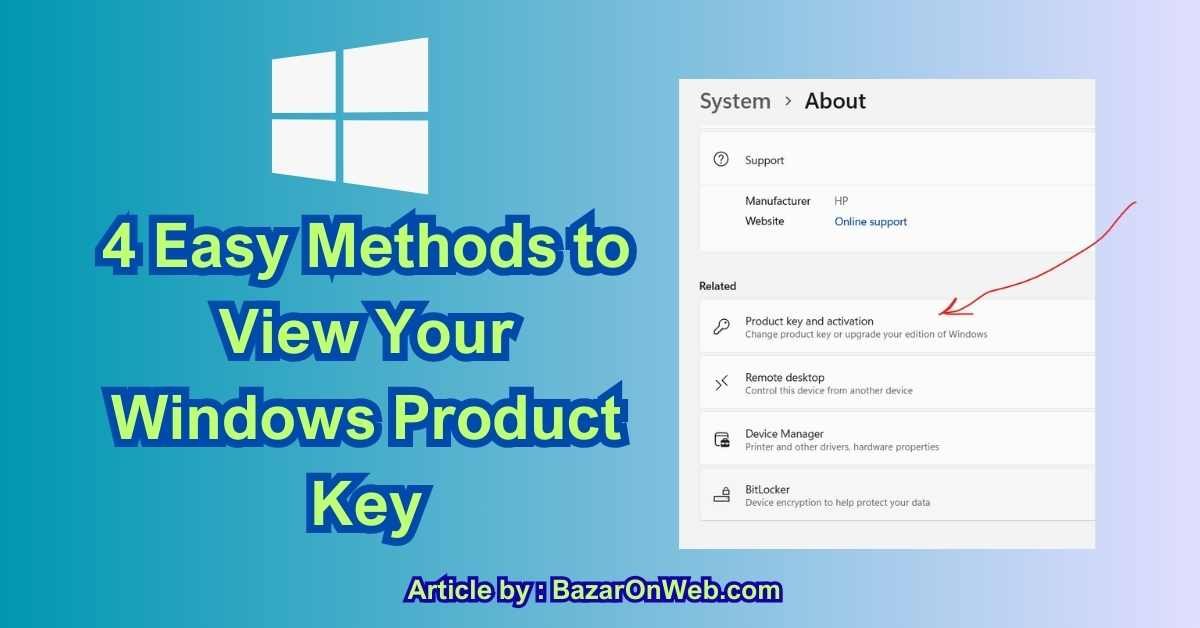
Introduction: Why Knowing Your Windows Product Key Still Matters
Even though modern versions of Windows rely heavily on digital licenses linked to your Microsoft account or hardware, the Windows Product Key hasn’t become obsolete. In fact, there are several real-world situations where having access to your product key becomes essential.
If your Windows installation is already activated, you might assume there’s no need to worry about the key anymore. But that’s not always true.
You may need your Windows product key if:
-
You’re planning a clean installation of Windows
-
You want to reinstall Windows on a different computer or laptop
-
You’re upgrading hardware (especially motherboard changes)
-
You bought a retail license and want to transfer it
-
You’re troubleshooting activation issues
-
You want to document licenses for business or IT records
Many users only realize they need the key after formatting their system—when it’s already too late. That’s why it’s smart to retrieve and save your Windows product key before reinstalling or upgrading.
The good news?
Windows provides multiple ways to retrieve your product key—some built into the system itself. In this guide, we’ll walk through easy, safe, and official methods to view your Windows product key.
Let’s start with the simplest and most commonly used method.
Method 1: View Windows Product Key Using Command Prompt (CMD)
This method works using a built-in Windows utility and does not require any third-party software. It’s quick, reliable, and beginner-friendly.
What This Method Does
This command fetches the original product key embedded in the system firmware (BIOS/UEFI).
It works best for:
-
OEM licenses (Windows pre-installed by manufacturer)
-
Laptops and branded desktops
-
Systems that shipped with Windows 8, 10, or 11
⚠️ Note:
If your Windows was activated using a digital license only, this command may return a blank result. That’s normal—we’ll cover alternatives in other methods.
Step-by-Step Instructions
Step 1: Open Command Prompt as Administrator
-
Press Windows + S
-
Type cmd
-
Right-click Command Prompt
-
Select Run as administrator
You may see a User Account Control (UAC) prompt—click Yes.
Step 2: Enter the Product Key Command
In the Command Prompt window, type the following command exactly as shown:
Then press Enter.
Step 3: View Your Windows Product Key
If your system has an embedded product key, you’ll see a result like:
That 25-character alphanumeric code is your Windows product key.
What If Nothing Appears?
Don’t panic. This can happen for several reasons:
-
Your Windows is activated via a digital license
-
The product key isn’t stored in BIOS/UEFI
-
Windows was upgraded from an older version
-
The system uses volume or enterprise activation
In such cases, Windows activates automatically when you sign in with your Microsoft account—but the key itself isn’t directly stored in firmware.
That doesn’t mean your license is invalid—it just means this specific method can’t retrieve it.
When This Method Works Best
| Scenario | Result |
|---|---|
| Factory-installed Windows laptop | ✅ Works |
| OEM desktop PC | ✅ Works |
| Windows upgraded from 7/8 | ❌ May not |
| Digital license via Microsoft account | ❌ Usually blank |
| Volume/Enterprise license | ❌ Not shown |
Why This Method Is Safe
-
Uses official Windows tools
-
No software downloads
-
No risk of malware
-
No registry editing
-
Works offline
This makes it ideal for non-technical users, IT admins, and business users who want a quick check without installing tools.
Important Tips After You Retrieve the Key
Once you see your product key:
-
Save it securely (password manager, encrypted note)
-
Do not share it publicly
-
Avoid storing it in plain text files
-
If you’re transferring Windows, verify it’s a retail license
💡 Pro Tip:
Retail licenses can be transferred to a new PC, but OEM licenses are usually tied to the original hardware.
Common Questions About This Method
Q: Does this work on Windows 11?
Yes. The command works on Windows 10 and Windows 11.
Q: Can I use this key on another PC?
Only if your license type allows transfer (retail license).
Q: Is Command Prompt safe to use?
Absolutely. This command is read-only and doesn’t modify anything.
Method 2: View Windows Product Key Using PowerShell
PowerShell is a more advanced and powerful version of Command Prompt. If you’re comfortable using system tools—or if CMD didn’t work for you—this method is a strong alternative.
This method is especially useful for:
-
IT professionals
-
Advanced users
-
Systems where CMD output is inconsistent
-
Automated or scripted environments
What This Method Does
PowerShell uses Windows Management Instrumentation (WMI) to query licensing information stored in your system firmware (BIOS/UEFI).
Just like Method 1, it works best on:
-
OEM-installed Windows systems
-
Laptops and branded desktops
-
Windows 10 and Windows 11 PCs
Step-by-Step Instructions
Step 1: Open PowerShell as Administrator
-
Press Windows + X
-
Click Windows Terminal (Admin)
(or “PowerShell (Admin)” on older versions) -
Approve the UAC prompt by clicking Yes
Step 2: Run the Product Key Command
Copy and paste the following command into PowerShell:
Then press Enter.
Step 3: Check the Output
If your system has a firmware-embedded key, PowerShell will display:
That’s your Windows product key.
Why PowerShell Sometimes Works When CMD Doesn’t
PowerShell can:
-
Access deeper system-level data
-
Handle WMI queries more reliably
-
Work better on newer Windows builds
Some users report that PowerShell retrieves the key even when CMD returns a blank result—especially after Windows upgrades.
What If PowerShell Shows No Key?
This usually means:
-
Your Windows is activated via digital license
-
No product key is stored in BIOS
-
Windows was activated through a Microsoft account
-
You’re using a volume or enterprise license
Again, this doesn’t mean Windows isn’t activated—only that there’s no retrievable key stored locally.
Advantages of Using PowerShell
-
Built into Windows
-
No third-party tools
-
Scriptable for multiple machines
-
Safe and read-only
-
Ideal for admins and technicians
Limitations of Method 2
-
Won’t show keys for digital-only activations
-
Doesn’t work for Microsoft Store licenses
-
Cannot extract encrypted registry keys
If PowerShell fails, move to Method 3, which focuses on license status rather than raw keys.
Method 3: Check Windows Activation via Settings & Microsoft Account
This method doesn’t always display the actual 25-character key—but it is extremely important, especially for modern Windows installations.
In many cases, you don’t even need the product key if your license is digitally linked.
Understanding Digital Licenses (Very Important)
Starting with Windows 10, Microsoft introduced digital entitlement, now called digital license.
This means:
-
Your Windows activation is linked to your hardware
-
Often connected to your Microsoft account
-
Reinstallation happens automatically
-
No key entry is required
This is why many users cannot “find” a product key—it simply isn’t needed anymore.
How to Check Activation Status
Step 1: Open Windows Settings
-
Press Windows + I
-
Go to System
-
Click Activation
Step 2: Read the Activation Message
You’ll see one of these messages:
-
“Windows is activated with a digital license”
-
“Windows is activated with a digital license linked to your Microsoft account”
-
“Windows is activated using your organization’s activation service”
What Each Activation Message Means
Digital License
-
Activation tied to your hardware
-
Clean reinstall works automatically
-
No key needed
Digital License Linked to Microsoft Account
-
Best option for upgrades
-
You can change hardware and reactivate
-
Simply sign in after reinstall
Organization’s Activation Service
-
Volume or enterprise license
-
Key not transferable
-
Usually managed by IT admin
How to Confirm Microsoft Account Link
-
On the Activation page
-
Look for:
“Linked to your Microsoft account” -
Click Add an account if not already linked
-
Sign in using your Microsoft credentials
Once linked, your license is safely stored in Microsoft’s servers.
Why This Method Is Critical Before Reinstalling Windows
If your license is digitally linked:
-
You don’t need to recover any key
-
Windows activates automatically after reinstall
-
Even replacing SSD/HDD won’t break activation
-
You avoid activation errors completely
Many users waste time searching for keys when activation is already guaranteed.
Can You Reinstall Windows Without a Product Key?
Yes—if:
-
Windows shows activated
-
You’re installing the same edition (Home → Home, Pro → Pro)
-
You sign in with the same Microsoft account
During installation:
-
Click “I don’t have a product key”
-
Activation will occur automatically after setup
When Method 3 Is Better Than Finding a Key
| Situation | Best Method |
|---|---|
| Reinstalling on same PC | Method 3 |
| SSD/HDD replacement | Method 3 |
| Laptop with Microsoft account | Method 3 |
| Hardware upgrade | Method 3 |
| New PC transfer | Method 1 or 2 |
Common Misconceptions
❌ “I must have a product key”
✅ Digital license works without it
❌ “Windows won’t activate after reinstall”
✅ It will, if linked correctly
❌ “Activation depends on storage drive”
✅ It’s tied to hardware + account
Important Precautions
Before formatting or reinstalling:
-
Check activation status
-
Confirm Microsoft account linkage
-
Note Windows edition (Home/Pro)
-
Backup important data
-
Disconnect unnecessary hardware
This prevents activation headaches later.
Method 4: Use Trusted Third-Party Tools to Retrieve Your Windows Product Key
If built-in Windows methods (Command Prompt, PowerShell, and Activation settings) didn’t reveal your product key, this method is your last and most powerful option.
Third-party product key finder tools are designed to extract:
-
Encrypted keys stored in the Windows Registry
-
Keys used during upgrades
-
Previously activated retail keys
-
Backup keys from old installations
This method is especially helpful when:
-
Windows was upgraded from Windows 7 or 8
-
The product key is not embedded in BIOS
-
You need the last installed key, not firmware key
-
You’re recovering licenses for documentation or audits
Why Third-Party Tools Can Succeed Where Windows Fails
Windows protects licensing information aggressively. Many keys are:
-
Stored in encrypted registry values
-
Abstracted through digital licensing
-
Hidden from standard system commands
Key finder tools decode this encrypted information and display it in readable format.
Best Trusted Windows Product Key Finder Tools
⚠️ Important:
Only download tools from official sources. Avoid random websites, cracks, or pirated software.
1. ShowKeyPlus (Recommended & Microsoft Store Available)
ShowKeyPlus is one of the safest and most accurate tools available.
Why It’s Trusted
-
Available on Microsoft Store
-
No ads or malware
-
Open-source
-
Lightweight and fast
What It Shows
-
Installed Windows product key
-
OEM key (if available)
-
Original Windows version
-
Edition and build info
How to Use ShowKeyPlus
-
Install ShowKeyPlus from Microsoft Store
-
Launch the app
-
Wait a few seconds for scan
-
View details such as:
-
Installed Key
-
OEM Key
-
Original Edition
-
💡 Tip:
If “Installed Key” and “OEM Key” differ, the OEM key is usually the one embedded by the manufacturer.
2. ProduKey by NirSoft (Advanced Users)
ProduKey is popular among technicians and system administrators.
Key Features
-
Displays Windows + Office keys
-
Works on older Windows versions
-
Can load keys from offline Windows installations
-
Portable (no installation required)
Steps to Use
-
Download ProduKey from NirSoft’s official site
-
Extract the ZIP file
-
Run
produkey.exe -
View your Windows product key instantly
⚠️ Important Warning:
Some antivirus programs flag ProduKey as “riskware” because it accesses registry keys. This is a false positive if downloaded from the official site.
3. Magical Jelly Bean Keyfinder
A long-standing utility used by IT professionals.
What It Does Well
-
Recovers Windows product keys
-
Works on older systems
-
Simple interface
Limitations
-
Free version may not always show Windows 10/11 keys
-
May show generic upgrade keys instead of usable retail keys
Understanding the Results from Third-Party Tools
When you run a key finder, you may see different types of keys:
| Key Type | Meaning |
|---|---|
| OEM Key | Manufacturer-installed, tied to hardware |
| Installed Key | Key currently used by Windows |
| Generic Key | Upgrade placeholder (not reusable) |
| Retail Key | Transferable license |
| Volume Key | Organization license |
❗ Not all displayed keys are reusable.
Generic upgrade keys cannot activate Windows on another PC.
How to Know If the Key Is Transferable
You can usually transfer your Windows license if:
-
It’s a Retail license
-
You purchased Windows separately
-
It’s linked to your Microsoft account
You usually cannot transfer:
-
OEM licenses (preinstalled)
-
Volume/enterprise licenses
Security & Safety Best Practices
When using key finder tools:
-
Disconnect from internet (optional)
-
Avoid cracked software
-
Scan downloads with antivirus
-
Never upload screenshots publicly
-
Store keys securely
Recommended storage:
-
Password manager
-
Encrypted notes
-
Offline secure document
When Method 4 Is the Best Choice
| Situation | Method 4 |
|---|---|
| Windows upgraded from older version | ✅ |
| Key not in BIOS | ✅ |
| Digital license confusion | ✅ |
| License recovery for records | ✅ |
| IT audits | ✅ |
Conclusion: Which Method Should You Use?
Finding your Windows product key isn’t always straightforward—mainly because modern Windows doesn’t rely on keys the way it used to. Microsoft has intentionally moved toward digital licensing to make life easier for users.
However, that also creates confusion when people actively look for a key.
Let’s simplify everything you’ve learned.
Quick Method Comparison
| Method | Best For |
|---|---|
| Command Prompt | OEM laptops & desktops |
| PowerShell | Advanced users & admins |
| Activation Settings | Digital license users |
| Third-Party Tools | Legacy & hidden keys |
The Most Important Takeaway
👉 If Windows shows “Activated with a digital license,” you usually don’t need the product key at all.
For most users:
-
Clean reinstall works automatically
-
Activation happens online
-
Microsoft account handles everything
Searching for a product key is only necessary when:
-
Transferring Windows to a new PC
-
Recovering a retail license
-
Managing multiple systems
-
Documenting licenses for business use
Before You Reinstall Windows, Always Do This
✔ Check activation status
✔ Confirm Microsoft account linkage
✔ Note your Windows edition
✔ Backup your data
✔ Save your key (if available)
These five steps prevent activation errors, wasted time, and frustration.
Final Advice
Windows licensing has evolved—but understanding how it works gives you control. Whether you’re a casual user reinstalling Windows or a professional managing systems, knowing when you need a product key and when you don’t is the real skill.

- How to Change the Default Audio Output Device on Windows 11

- How to Fix Taskbar and Settings Not Working After a Windows 11 Update
- How to Fix Microsoft Store Logging You Out Randomly on Windows 11

- How to Fix Volume Shadow Copy Service Errors in Windows (Complete Troubleshooting Guide)
- How to Fix Game Lag After a Windows Update (10 Proven Solutions)

Products
-
![Apple Watch Ultra 3 [GPS + Cellular 49mm] Running & Multisport Smartwatch w/Rugged Titanium Case w/Black Titanium Milanese Loop - M. Satellite Communications, Advanced Health & Fitness Tracking](https://bazaronweb.com/retailstores/wp-content/uploads/2025/09/apple-watch-320x320.jpg) Apple Watch Ultra 3 [GPS + Cellular 49mm] Running & Multisport Smartwatch w/Rugged Titanium Case w/Black Titanium Milanese Loop - M. Satellite Communications, Advanced Health & Fitness Tracking
Apple Watch Ultra 3 [GPS + Cellular 49mm] Running & Multisport Smartwatch w/Rugged Titanium Case w/Black Titanium Milanese Loop - M. Satellite Communications, Advanced Health & Fitness Tracking
-
 Apple iPad mini (A17 Pro): Apple Intelligence, 8.3-inch Liquid Retina Display, 256GB, Wi-Fi 6E, 12MP Front/12MP Back Camera, Touch ID, All-Day Battery Life — Purple
-
 Apple AirPods Max Wireless Over-Ear Headphones, Active Noise Cancelling, Transparency Mode, Personalized Spatial Audio, Dolby Atmos, Bluetooth Headphones for iPhone – Space Gray
-
 Apple AirPods Pro 2 Wireless Earbuds, Active Noise Cancellation, Hearing Aid Feature, Bluetooth Headphones, Transparency, Personalized Spatial Audio, High-Fidelity Sound, H2 Chip, USB-C Charging
-
Leo Creation 144 TC Cotton Double Jaipuri Prints Flat Bedsheet(Pack of 1, Blue, Gree, Red, Grey, Light Grey)
Original price was: ₹2,999.00.₹329.00Current price is: ₹329.00.
Leave a Reply