Discounted Products
-
 Leo Creation 144 TC Cotton Double Jaipuri Prints Flat Bedsheet(Pack of 1, Blue, Gree, Red, Grey, Light Grey)
Original price was: ₹2,999.00.₹329.00Current price is: ₹329.00.
Leo Creation 144 TC Cotton Double Jaipuri Prints Flat Bedsheet(Pack of 1, Blue, Gree, Red, Grey, Light Grey)
Original price was: ₹2,999.00.₹329.00Current price is: ₹329.00.
-
 Home Garage 210 TC Cotton King Floral Fitted (Elastic) Bedsheet(Pack of 1, Grey)
Original price was: ₹999.00.₹299.00Current price is: ₹299.00.
Home Garage 210 TC Cotton King Floral Fitted (Elastic) Bedsheet(Pack of 1, Grey)
Original price was: ₹999.00.₹299.00Current price is: ₹299.00.
-
 Goodrik 140 TC Cotton Double 3D Printed Flat Bedsheet(Pack of 1, Brown)
Original price was: ₹499.00.₹229.00Current price is: ₹229.00.
Goodrik 140 TC Cotton Double 3D Printed Flat Bedsheet(Pack of 1, Brown)
Original price was: ₹499.00.₹229.00Current price is: ₹229.00.
-
 GLOBALSHOP 350 TC Microfiber Double Floral Flat Bedsheet(Pack of 1, Multicolor)
Original price was: ₹1,250.00.₹263.00Current price is: ₹263.00.
GLOBALSHOP 350 TC Microfiber Double Floral Flat Bedsheet(Pack of 1, Multicolor)
Original price was: ₹1,250.00.₹263.00Current price is: ₹263.00.
-
 RisingStar 250 TC Microfiber King Printed Fitted (Elastic) Bedsheet(Pack of 1, FITTED-ROUND-CIRCLES-PREMIUM)
Original price was: ₹2,299.00.₹299.00Current price is: ₹299.00.
RisingStar 250 TC Microfiber King Printed Fitted (Elastic) Bedsheet(Pack of 1, FITTED-ROUND-CIRCLES-PREMIUM)
Original price was: ₹2,299.00.₹299.00Current price is: ₹299.00.
-
 Home Garage 210 TC Cotton King Floral Fitted (Elastic) Bedsheet(Pack of 1, Fitted Black Green)
Original price was: ₹1,299.00.₹299.00Current price is: ₹299.00.
Home Garage 210 TC Cotton King Floral Fitted (Elastic) Bedsheet(Pack of 1, Fitted Black Green)
Original price was: ₹1,299.00.₹299.00Current price is: ₹299.00.
-
 Home Garage 180 TC Cotton King 3D Printed Flat Bedsheet(Pack of 1, White)
Original price was: ₹999.00.₹229.00Current price is: ₹229.00.
Home Garage 180 TC Cotton King 3D Printed Flat Bedsheet(Pack of 1, White)
Original price was: ₹999.00.₹229.00Current price is: ₹229.00.
-
 Home Sizzler 153 cm (5 ft) Polyester Room Darkening Window Curtain (Pack Of 2)(Floral, Maroon)
Original price was: ₹799.00.₹299.00Current price is: ₹299.00.
Home Sizzler 153 cm (5 ft) Polyester Room Darkening Window Curtain (Pack Of 2)(Floral, Maroon)
Original price was: ₹799.00.₹299.00Current price is: ₹299.00.
-
 Panipat Textile Hub 152.4 cm (5 ft) Polyester Window Curtain (Pack Of 2)(Solid, Aqua)
Original price was: ₹1,899.00.₹299.00Current price is: ₹299.00.
Panipat Textile Hub 152.4 cm (5 ft) Polyester Window Curtain (Pack Of 2)(Solid, Aqua)
Original price was: ₹1,899.00.₹299.00Current price is: ₹299.00.
-
 Home Sizzler 214 cm (7 ft) Polyester Semi Transparent Door Curtain (Pack Of 2)(Floral, Maroon)
Original price was: ₹1,199.00.₹399.00Current price is: ₹399.00.
Home Sizzler 214 cm (7 ft) Polyester Semi Transparent Door Curtain (Pack Of 2)(Floral, Maroon)
Original price was: ₹1,199.00.₹399.00Current price is: ₹399.00.
-
 Home Sizzler 153 cm (5 ft) Polyester Room Darkening Window Curtain (Pack Of 2)(Floral, Brown)
Original price was: ₹799.00.₹299.00Current price is: ₹299.00.
Home Sizzler 153 cm (5 ft) Polyester Room Darkening Window Curtain (Pack Of 2)(Floral, Brown)
Original price was: ₹799.00.₹299.00Current price is: ₹299.00.
-
 Stella Creations 214 cm (7 ft) Polyester Room Darkening Door Curtain (Pack Of 2)(Abstract, Brown)
Original price was: ₹1,299.00.₹449.00Current price is: ₹449.00.
Stella Creations 214 cm (7 ft) Polyester Room Darkening Door Curtain (Pack Of 2)(Abstract, Brown)
Original price was: ₹1,299.00.₹449.00Current price is: ₹449.00.
-
 Homefab India 152.5 cm (5 ft) Polyester Room Darkening Window Curtain (Pack Of 2)(Floral, Light Blue)
Original price was: ₹1,199.00.₹319.00Current price is: ₹319.00.
Homefab India 152.5 cm (5 ft) Polyester Room Darkening Window Curtain (Pack Of 2)(Floral, Light Blue)
Original price was: ₹1,199.00.₹319.00Current price is: ₹319.00.
-
 Urban Home 214 cm (7 ft) PVC Transparent Door Curtain Single Curtain(Solid, Off White)
Original price was: ₹699.00.₹203.00Current price is: ₹203.00.
Urban Home 214 cm (7 ft) PVC Transparent Door Curtain Single Curtain(Solid, Off White)
Original price was: ₹699.00.₹203.00Current price is: ₹203.00.
-
 Panipat Textile Hub 213 cm (7 ft) Polyester Door Curtain (Pack Of 2)(Solid, Brown)
Original price was: ₹1,199.00.₹349.00Current price is: ₹349.00.
Panipat Textile Hub 213 cm (7 ft) Polyester Door Curtain (Pack Of 2)(Solid, Brown)
Original price was: ₹1,199.00.₹349.00Current price is: ₹349.00.
Learn How to Unlock the Full Potential of Your Device
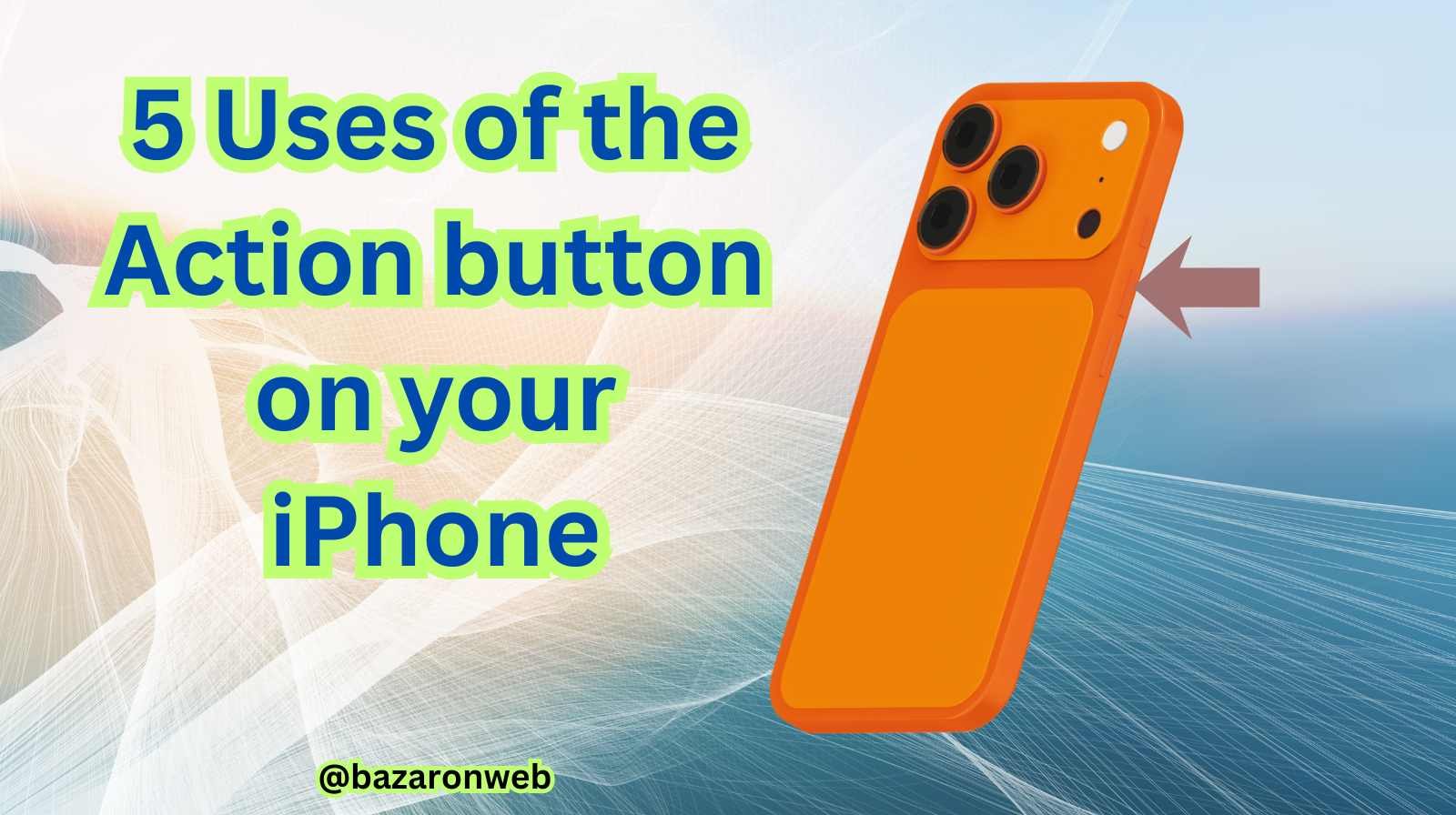
Apple introduced the Action Button as a modern, smarter replacement for the classic Ring/Silent switch on the latest iPhones. Instead of just flipping between silent and ring modes, this button can now trigger a variety of powerful tools, automations, and shortcuts. If you’ve recently upgraded to an iPhone with the Action Button, you might be wondering: What can I do with this button, and how do I make the most of it?
In this guide, we’ll explore the top five most useful and creative ways to use the Action Button on your iPhone so you can boost productivity, stay organized, and take advantage of all the smart things this feature can do. Whether you’re a student, professional, traveler, or someone who loves convenience, the Action Button will quickly become one of your favorite features.
1. Quick Launch the Camera
One of the best uses for the Action Button is launching the camera instantly. Instead of searching for the Camera app or swiping on the lock screen, a single press can open the camera and help you capture that moment before it’s gone.
Why It’s Useful
- Perfect for parents trying to capture cute kid moments.
- Ideal for content creators who need fast access.
- Useful while traveling—sunsets don’t wait.
Tip for Power Users
You can customize the Action Button to open a specific camera mode like:
- Portrait Mode
- Video Mode
- Selfie Camera
- Pro Mode (on supported models)
This gives you photography-ready access in seconds.
2. Turn On Flashlight Instantly
The flashlight feature is one we all use—whether you’re finding something under your seat, navigating dark hallways, or searching inside a bag. Assigning the Action Button to your flashlight gives you instant access without swiping into control center.
Why It’s Handy
- Fast and functional in emergencies.
- No need to unlock your phone.
- Prevents fumbling when entering a dark room.
Pro Tip
If you want more control, you can create a shortcut that toggles different brightness levels depending on how long you press the button.
3. Launch Any Shortcut You Want
This is where the Action Button truly shines. You can trigger Apple Shortcuts—small automations that can perform multiple actions with a single button press.
Ideas for Useful Shortcuts
- Start a voice memo journal
- Send your live location to a trusted contact
- Trigger a home automation (lights, thermostat, door locks)
- Start a workout or meditation session
- Launch Google Maps instead of Apple Maps
- Activate a productivity timer (Pomodoro mode)
Example Automation
Press Action Button → Turn on Do Not Disturb + Start Focus Playlist + Open Notes app for writing
It’s like having a personal assistant in your pocket.
4. Enable Accessibility Functions
Apple has long been known for its accessibility leadership, and the Action Button fits perfectly into that ecosystem. If you or someone you know needs accessibility features often, this button becomes incredibly valuable.
Top Accessibility Options
- VoiceOver
- AssistiveTouch
- Live Speech or Type to Speak
- Magnifier
- Background Sounds (for focus and calmness)
Real-Life Benefits
Imagine quickly activating the Magnifier at a restaurant to read small menu text or enabling Background Sounds to block distractions during travel. This button adds instant convenience for accessibility needs.
5. Activate Focus Modes for Productivity
Focus Modes help you control distractions, and the Action Button makes switching between them effortless. Whether you’re working, sleeping, driving, or studying, a single press can shift your phone into the right mode.
Useful Focus Modes
- Work Focus: Only important notifications allowed
- Sleep Focus: Quiet hours with dim display
- Driving Focus: Avoid distractions while on the road
- Fitness Focus: Stay motivated during gym sessions
Bonus Productivity Setup
Assign the Action Button to trigger a Work Focus + open productivity apps like Notes, Reminders, or Calendar. This can instantly move you into work mode when needed.
Bonus Tip: Set the Action Button to Silent Mode
If you like things simple, you can still use the Action Button just like the classic mute switch—but with upgraded control. Instead of a mechanical toggle, you get software control with subtle haptic feedback.
You can even add extra functions like:
- Haptic confirmation
- Silent mode automation
- Vibration change for quiet settings
This brings the best of both worlds—modern flexibility with the familiar mute gesture.
Final Thoughts
The Action Button on your iPhone isn’t just another button. It’s a smart, customizable shortcut to your favorite tasks, productivity habits, and accessibility features. With the ability to trigger shortcuts, automate routines, launch apps, and control essential functions, this button transforms the way you interact with your device.
If you haven’t customized your Action Button yet, open Settings > Action Button and explore its possibilities. Start simple—camera or flashlight—and gradually build automations that support your lifestyle.
The more you use it, the more you’ll appreciate how powerful and convenient this tiny button is. Apple didn’t just replace the mute switch—they gave users a more meaningful tool to personalize their iPhone experience and save time every day.
Want more Apple guides, iPhone tips, and smart device tricks? Keep browsing our tech learning hub for helpful articles, how-to tutorials, and everyday tech solutions.

- Microsoft Edge Not Responding on Windows 11? 9 Proven Fixes That Actually Work in 2026

- How to Create a Device Manager Shortcut on Windows (Fastest Desktop Access Guide for 2026)
- How to Record Videos With Background Music on iPhone (iOS 18 Guide)
- How to Unhide Apps on iPhone in 2026: Step-by-Step Guide

- Fix iPhone App Icons Turn Grey or Show “Waiting” After iOS Update

Products
-
![Apple Watch Ultra 3 [GPS + Cellular 49mm] Running & Multisport Smartwatch w/Rugged Titanium Case w/Black Titanium Milanese Loop - M. Satellite Communications, Advanced Health & Fitness Tracking](https://bazaronweb.com/retailstores/wp-content/uploads/2025/09/apple-watch-320x320.jpg) Apple Watch Ultra 3 [GPS + Cellular 49mm] Running & Multisport Smartwatch w/Rugged Titanium Case w/Black Titanium Milanese Loop - M. Satellite Communications, Advanced Health & Fitness Tracking
Apple Watch Ultra 3 [GPS + Cellular 49mm] Running & Multisport Smartwatch w/Rugged Titanium Case w/Black Titanium Milanese Loop - M. Satellite Communications, Advanced Health & Fitness Tracking
-
 Apple iPad mini (A17 Pro): Apple Intelligence, 8.3-inch Liquid Retina Display, 256GB, Wi-Fi 6E, 12MP Front/12MP Back Camera, Touch ID, All-Day Battery Life — Purple
-
 Apple AirPods Max Wireless Over-Ear Headphones, Active Noise Cancelling, Transparency Mode, Personalized Spatial Audio, Dolby Atmos, Bluetooth Headphones for iPhone – Space Gray
-
 Apple AirPods Pro 2 Wireless Earbuds, Active Noise Cancellation, Hearing Aid Feature, Bluetooth Headphones, Transparency, Personalized Spatial Audio, High-Fidelity Sound, H2 Chip, USB-C Charging
-
Leo Creation 144 TC Cotton Double Jaipuri Prints Flat Bedsheet(Pack of 1, Blue, Gree, Red, Grey, Light Grey)
Original price was: ₹2,999.00.₹329.00Current price is: ₹329.00.
Leave a Reply