Discounted Products
-
 Home Garage 210 TC Cotton King Floral Fitted (Elastic) Bedsheet(Pack of 1, Grey)
Original price was: ₹999.00.₹299.00Current price is: ₹299.00.
Home Garage 210 TC Cotton King Floral Fitted (Elastic) Bedsheet(Pack of 1, Grey)
Original price was: ₹999.00.₹299.00Current price is: ₹299.00.
-
 Goodrik 140 TC Cotton Double 3D Printed Flat Bedsheet(Pack of 1, Brown)
Original price was: ₹499.00.₹229.00Current price is: ₹229.00.
Goodrik 140 TC Cotton Double 3D Printed Flat Bedsheet(Pack of 1, Brown)
Original price was: ₹499.00.₹229.00Current price is: ₹229.00.
-
 GLOBALSHOP 350 TC Microfiber Double Floral Flat Bedsheet(Pack of 1, Multicolor)
Original price was: ₹1,250.00.₹263.00Current price is: ₹263.00.
GLOBALSHOP 350 TC Microfiber Double Floral Flat Bedsheet(Pack of 1, Multicolor)
Original price was: ₹1,250.00.₹263.00Current price is: ₹263.00.
-
 RisingStar 250 TC Microfiber King Printed Fitted (Elastic) Bedsheet(Pack of 1, FITTED-ROUND-CIRCLES-PREMIUM)
Original price was: ₹2,299.00.₹299.00Current price is: ₹299.00.
RisingStar 250 TC Microfiber King Printed Fitted (Elastic) Bedsheet(Pack of 1, FITTED-ROUND-CIRCLES-PREMIUM)
Original price was: ₹2,299.00.₹299.00Current price is: ₹299.00.
-
 Home Garage 210 TC Cotton King Floral Fitted (Elastic) Bedsheet(Pack of 1, Fitted Black Green)
Original price was: ₹1,299.00.₹299.00Current price is: ₹299.00.
Home Garage 210 TC Cotton King Floral Fitted (Elastic) Bedsheet(Pack of 1, Fitted Black Green)
Original price was: ₹1,299.00.₹299.00Current price is: ₹299.00.
-
 Home Garage 180 TC Cotton King 3D Printed Flat Bedsheet(Pack of 1, White)
Original price was: ₹999.00.₹229.00Current price is: ₹229.00.
Home Garage 180 TC Cotton King 3D Printed Flat Bedsheet(Pack of 1, White)
Original price was: ₹999.00.₹229.00Current price is: ₹229.00.
-
 Panipat Textile Hub 152.4 cm (5 ft) Polyester Window Curtain (Pack Of 2)(Solid, Aqua)
Original price was: ₹1,899.00.₹299.00Current price is: ₹299.00.
Panipat Textile Hub 152.4 cm (5 ft) Polyester Window Curtain (Pack Of 2)(Solid, Aqua)
Original price was: ₹1,899.00.₹299.00Current price is: ₹299.00.
-
 Home Sizzler 214 cm (7 ft) Polyester Semi Transparent Door Curtain (Pack Of 2)(Floral, Maroon)
Original price was: ₹1,199.00.₹399.00Current price is: ₹399.00.
Home Sizzler 214 cm (7 ft) Polyester Semi Transparent Door Curtain (Pack Of 2)(Floral, Maroon)
Original price was: ₹1,199.00.₹399.00Current price is: ₹399.00.
-
 Home Sizzler 153 cm (5 ft) Polyester Room Darkening Window Curtain (Pack Of 2)(Floral, Brown)
Original price was: ₹799.00.₹299.00Current price is: ₹299.00.
Home Sizzler 153 cm (5 ft) Polyester Room Darkening Window Curtain (Pack Of 2)(Floral, Brown)
Original price was: ₹799.00.₹299.00Current price is: ₹299.00.
-
 Stella Creations 214 cm (7 ft) Polyester Room Darkening Door Curtain (Pack Of 2)(Abstract, Brown)
Original price was: ₹1,299.00.₹449.00Current price is: ₹449.00.
Stella Creations 214 cm (7 ft) Polyester Room Darkening Door Curtain (Pack Of 2)(Abstract, Brown)
Original price was: ₹1,299.00.₹449.00Current price is: ₹449.00.
-
 Homefab India 152.5 cm (5 ft) Polyester Room Darkening Window Curtain (Pack Of 2)(Floral, Light Blue)
Original price was: ₹1,199.00.₹319.00Current price is: ₹319.00.
Homefab India 152.5 cm (5 ft) Polyester Room Darkening Window Curtain (Pack Of 2)(Floral, Light Blue)
Original price was: ₹1,199.00.₹319.00Current price is: ₹319.00.
-
 Urban Home 214 cm (7 ft) PVC Transparent Door Curtain Single Curtain(Solid, Off White)
Original price was: ₹699.00.₹203.00Current price is: ₹203.00.
Urban Home 214 cm (7 ft) PVC Transparent Door Curtain Single Curtain(Solid, Off White)
Original price was: ₹699.00.₹203.00Current price is: ₹203.00.
-
 Panipat Textile Hub 213 cm (7 ft) Polyester Door Curtain (Pack Of 2)(Solid, Brown)
Original price was: ₹1,199.00.₹349.00Current price is: ₹349.00.
Panipat Textile Hub 213 cm (7 ft) Polyester Door Curtain (Pack Of 2)(Solid, Brown)
Original price was: ₹1,199.00.₹349.00Current price is: ₹349.00.
-
 Home Sizzler 214 cm (7 ft) Polyester Semi Transparent Door Curtain (Pack Of 2)(Floral, Brown)
Original price was: ₹999.00.₹349.00Current price is: ₹349.00.
Home Sizzler 214 cm (7 ft) Polyester Semi Transparent Door Curtain (Pack Of 2)(Floral, Brown)
Original price was: ₹999.00.₹349.00Current price is: ₹349.00.
-
 Panipat Textile Hub 213 cm (7 ft) Polyester Semi Transparent Door Curtain (Pack Of 2)(Floral, Brown)
Original price was: ₹899.00.₹299.00Current price is: ₹299.00.
Panipat Textile Hub 213 cm (7 ft) Polyester Semi Transparent Door Curtain (Pack Of 2)(Floral, Brown)
Original price was: ₹899.00.₹299.00Current price is: ₹299.00.
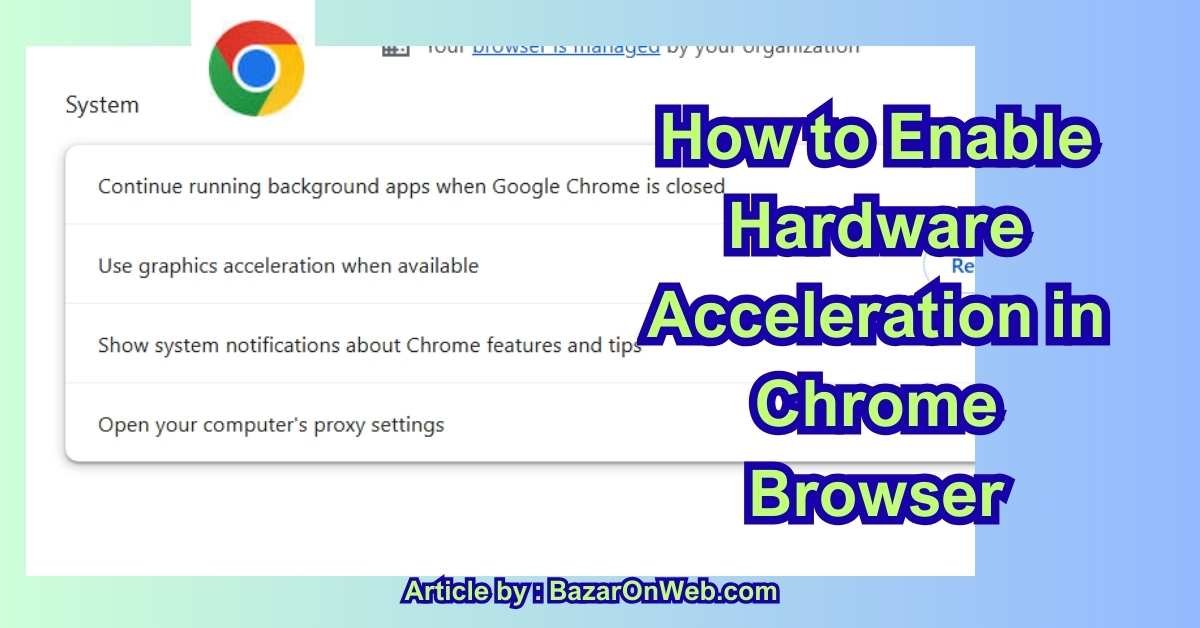
If you’re like me and spend a large portion of your day working, streaming, researching, and multitasking inside Google Chrome, you already know how demanding this browser can be. Chrome is fast and powerful, but it also has a reputation for eating memory and slowing down when tabs start piling up. That’s where Hardware Acceleration comes in — a built-in feature that can dramatically improve performance, especially during tasks that include high-resolution graphics, video playback, gaming, or even web-based design work.
Before diving deeper into the “how-to,” I want to clarify something upfront: Chrome doesn’t struggle because it’s poorly built… it struggles because the modern internet is intensive. Websites are no longer simple pages with text and images. They’re interactive, animated, GPU-driven experiences. Think about streaming platforms like Netflix, complex web apps like Canva or Figma, and even 3D shopping experiences — these all require more than what a CPU alone was designed to handle.
So, where does hardware acceleration fit in?
By default, your computer might be letting the CPU handle everything, even the heavy-lifting graphic tasks. That leads to lag, frame drops, and heating issues — especially noticeable on laptops. When we enable hardware acceleration, Chrome offloads graphic-intensive processes to the GPU (Graphics Processing Unit) — the same component responsible for gaming visuals and animation rendering. That means faster playback, smoother scrolling, and an overall better browsing experience.
I’ve personally seen a noticeable improvement when handling multiple streaming tabs, editing product mockups, viewing cloud-rendered dashboards for work, and even running browser-based video calls. It feels like Chrome gets a performance-boost — without upgrading your PC.
However… and this is important… hardware acceleration isn’t perfect for every machine.
Some devices — especially older PCs, mismatched GPUs, or drivers with bugs — can have issues like:
- Screen tearing
- Chrome freezing unexpectedly
- Black screen during video playback
- UI glitches with scrolling or animations
If you ever notice things getting worse instead of better, turning this feature OFF is just as easy — and you can experiment to see what works best for your device.
That said, for most modern laptops and desktops running Windows, macOS, or ChromeOS, enabling hardware acceleration is often the best free optimization trick you can activate in less than 30 seconds.
And today, I’ll guide you through everything you need to know:
- What Hardware Acceleration really does
- How it affects performance in Chrome
- Step-by-step instructions to turn it on
- How to troubleshoot if something goes wrong
Let’s start with a deeper look at what this feature is and why tech professionals strongly recommend using it.
What is Hardware Acceleration?
To understand hardware acceleration, imagine working in a busy office. Your CPU is like the manager — excellent at overseeing everything but overwhelmed when forced to do every single task. Now imagine bringing in a specialized assistant — the GPU — who is trained specifically for intense visual workloads like video rendering, animations, 3D environments, and graphic calculations.
That’s exactly what hardware acceleration enables:
✨ “Let the GPU handle all the heavy visual work while the CPU handles logic and multitasking.”
Without hardware acceleration, all graphic processing — even something as simple as playing a 1080p video on YouTube — is handled by the CPU. And when the CPU gets overloaded, you start noticing:
- Choppy video
- Delayed mouse movement
- Slow tab switching
- Loud fan noise
- Battery drain
Modern GPUs, even the ones inside slim laptops, are designed to take over these specific tasks. They are more efficient, faster, and optimized for visual performance.
Here are examples of what hardware acceleration improves inside Chrome:
| Activity | Without Hardware Acceleration | With Hardware Acceleration |
|---|---|---|
| YouTube 4K streaming | Frame drops, lag | Smooth playback |
| Web gaming | Slow, CPU overheating | Faster rendering |
| Video conferencing | Stutters, desync | Stable and clear |
| Scrolling animations | Choppy | Fluid experience |
| Online creative tools | Delayed response | Quick, real-time performance |
How Chrome Uses the GPU
Chrome taps into your GPU using WebGL, ANGLE, and GPU compositing. These technologies allow websites to display:
- 3D graphics
- Animated content
- HD/4K videos
- Accelerated image processing
Without the GPU, your computer simply cannot keep up with modern multimedia websites.
Why Some Users Have It Disabled
Hardware acceleration is usually turned ON by default… but not for everyone. If Chrome detects:
✔ Outdated drivers
✔ GPU compatibility issues
✔ Instability during updates
✔ Hybrid GPU systems misconfiguration
…it automatically disables the feature to avoid crashes.
That’s why some users experience smoother performance after enabling it manually (another reason this guide exists!).
Quick Summary
Hardware acceleration is like giving Chrome a performance co-pilot:
🔹 CPU → handles browsing, logic, scripts
🔹 GPU → handles graphics, motion, visuals
When both work together, Chrome becomes snappier, cooler, and more battery-friendly.
If you’d like, I will now continue with:
✨ Step-by-step instructions to enable hardware acceleration on Windows, macOS, Chromebook
🧩 Troubleshooting tips (black screen, freezes, driver issues)
🔒 When you should disable it instead
Step-by-Step Guide: How to Enable Hardware Acceleration in Chrome Browser
When you enable hardware acceleration in Google Chrome, the browser shifts many heavy graphical and video-related tasks from your CPU to your GPU (graphics card). This can dramatically improve your browsing performance, especially when you frequently use media-rich websites, streaming platforms, or browser-based games. But the process of enabling it correctly and ensuring it actually works involves more than just flipping one switch inside Chrome.
Below is a comprehensive and beginner-friendly guide that will walk you through every step, including verification, troubleshooting, GPU driver configuration, and system-level adjustments to ensure Chrome fully utilizes your hardware for the best possible performance.
Step 1 — Check Whether Hardware Acceleration is Already Enabled
Before changing anything, it’s smart to check Chrome’s current configuration:
- Open Chrome.
- In the address bar, type:
chrome://settings/system - Press Enter.
- Look for this setting:
- Use hardware acceleration when available
- If the toggle is ON, then hardware acceleration is already enabled.
- If it’s OFF, don’t worry — we will enable it in the next step.
But even if it is ON, Chrome may still be using software rendering instead of hardware rendering.
To confirm the actual status:
- In the address bar, type:
chrome://gpu - Press Enter.
- Look for these categories:
- Graphics Feature Status
- Hardware-accelerated should appear beside items like:
- Video Decode
- Canvas
- WebGL
- Rasterization
- If most items say Software only or Disabled, Chrome isn’t fully benefiting from acceleration.
This quick check tells us the current situation, so we know what to fix next.
Step 2 — Enable Hardware Acceleration Through Chrome Settings
If the option was previously switched off, enable it:
- Go again to:
chrome://settings/system - Turn ON Use hardware acceleration when available
- Restart Chrome → Chrome will show a “Relaunch” button. Click it.
📌 After restarting, repeat the chrome://gpu check to see improved “Hardware-accelerated” statuses.
If you still see “Software only”, continue with next steps.
Step 3 — Update Your GPU Drivers (Windows/macOS/Linux)
One of the biggest reasons Chrome fails to activate hardware acceleration is outdated or missing graphics drivers.
For Windows Users:
- Press Win + X
- Select Device Manager
- Expand Display adapters
- Right-click your GPU (NVIDIA, AMD, Intel)
- Click Update driver
- Choose Search automatically
Better Option: Use official software
- NVIDIA GeForce Experience
- AMD Radeon Software
- Intel Driver & Support Assistant
Install the latest recommended drivers, then restart your PC.
For macOS Users:
Graphics driver updates come bundled with macOS updates:
- Go to System Settings → General → Software Update
- Install the latest update if available
For Linux Users:
Commands depend on your Linux distribution. Example for Ubuntu:
sudo apt update
sudo apt upgrade
or install proprietary GPU drivers via Software & Updates → Additional Drivers.
After updating, restart Chrome and recheck chrome://gpu.
Step 4 — Disable Conflicting Chrome Flags
Sometimes Chrome flags override the default hardware acceleration behavior.
- Open:
chrome://flags - In the search bar type Override software rendering list
- Set it to:
- Enabled, then Relaunch Chrome
- Also search for these flags and adjust them:
- Zero-copy rasterizer → Enabled
- GPU rasterization → Enabled
- Out-of-process rasterization → Enabled
⚠️ Note: Flags may change with newer versions of Chrome, so your list might differ.
After enabling these options, restart Chrome again and inspect chrome://gpu.
If you still experience “Blocked” messages, continue below.
Step 5 — Allow Chrome to Use the GPU at System Level (Windows)
Windows has a Graphics Settings panel that controls which apps can use GPU power:
- Press Start
- Type Graphics Settings → Open it
- Under Custom settings for apps click Browse
- Navigate to your Chrome installation:
C:\Program Files\Google\Chrome\Application\chrome.exe - Select it → Add
- Click Options
- Choose High performance
- Save & Restart PC
This forces Chrome to use the dedicated GPU instead of integrated graphics, improving performance especially in laptops with dual GPUs.
Step 6 — Enable Hardware-Accelerated Video Decode and WebGL
Chrome sometimes disables advanced video decoding even when acceleration is ON.
- Go to:
chrome://flags/#enable-accelerated-video-decode→ Set Enabled
- Then check:
chrome://flags/#enable-webgl→ Set WebGL as Enabled
- Relaunch the browser.
Now Chrome should handle YouTube streaming and web visual content more efficiently.
Step 7 — Fix Conflicts with Extensions and Antivirus Tools
Some extensions can disable acceleration, especially:
- Ad blockers
- Browser recording tools
- Video downloaders
- Hardware-monitoring extensions
Try this:
- Open Extensions:
chrome://extensions - Disable all extensions
- Restart Chrome
- Check
chrome://gpu
If “Hardware-accelerated” appears → one of your extensions is the culprit.
Enable extensions one by one to find the problematic one.
Also check antivirus settings:
- Some security tools block GPU processes
- Add Chrome as a trusted application
- Disable browser sandboxing features in antivirus (if safe and supported)
Step 8 — Use Chrome Cleanup Tools (Windows)
Hidden malware or adware can disable GPU acceleration.
Google has a built-in cleanup engine for Windows users:
- Go to:
chrome://settings/cleanup - Click Find
- Remove detected harmful software
Restart Chrome afterward.
Step 9 — Reset Chrome Profile and Settings (If Still Not Working)
Corrupt Chrome data can interfere with GPU functions.
To reset settings:
- Go to:
chrome://settings/reset - Choose Restore settings to their original defaults
- Confirm
Chrome will restart fresh but keep bookmarks and passwords.
Now re-enable hardware acceleration again in Settings and check chrome://gpu.
Step 10 — Verify WebGL and GPU Performance
To confirm everything is working perfectly:
- Visit:
- WebGL Test (Search “WebGL test”)
- Click Begin Test
- If you see smooth 3D animations → acceleration is active
You can also observe CPU usage:
- Press Shift + Esc (Chrome Task Manager)
- Stream a 1080p or 4K video on YouTube
- If CPU usage drops from 60-80% down to 5-20% → SUCCESS 🎉
Step 11 — Optional: Enable Vulkan (Advanced Users Only)
On some systems, the Vulkan graphics API can outperform older engines.
- Open:
chrome://flags/#use-vulkan - Set Enabled
- Relaunch
⚠️ This is experimental — disable it If you face crashes or screen tearing.
Step 12 — Reinstall Chrome (Last Resort)
If nothing works:
- Uninstall Chrome completely
- Restart PC
- Download the latest version from Google’s official site
- Reinstall and log back into your Google account
Then repeat:
- Enable hardware acceleration
- Recheck
chrome://gpu
Very often, this final reset fixes all remaining issues.
Bonus Tips for Best Results
| Issue | Fix |
|---|---|
| Screen flickering | Disable “Smooth Scrolling” in chrome://flags |
| Games lag despite acceleration | Force GPU in Windows Graphics Settings |
| YouTube stuttering | Enable VP9 codecs or lower resolution |
| High battery use on laptops | Use balanced mode or switch GPU in settings when on battery |
After You Finish All Steps
✔ Check chrome://gpu again
✔ Test a hardware-intensive website
✔ Monitor CPU usage for improvements
If you now see things like:
- WebGL: Hardware Accelerated
- Video Decode: Hardware Accelerated
- Rasterization: Hardware Accelerated
Then congratulations — Chrome is now using your GPU efficiently!
Expect smoother streaming, more responsive web apps, and fluid visuals.
Below are the final requested sections:
Conclusion
Hardware acceleration is one of those behind-the-scenes features most people don’t think about—but once you turn it on, the difference can feel like night and day. Today’s internet isn’t just about static pages; we’re watching 4K videos, playing browser-based games, running online design tools, and multitasking across dozens of tabs. All of this can put a heavy load on your computer’s CPU. That’s exactly why hardware acceleration matters—because it shifts that burden to your GPU, the component built specifically for handling graphics and visual processing.
If you followed all the steps in this guide—from checking Chrome’s current hardware acceleration status to updating GPU drivers, tweaking advanced flags, clearing conflicts with extensions, and fine-tuning system settings—your browser should now be significantly faster and more responsive. You’ll notice smoother scrolling on websites with a lot of graphics, reduced lag while streaming on platforms like Netflix, YouTube, or Spotify Web Player, and better performance in applications such as Google Earth or browser-based video editing tools.
The best part is that enabling hardware acceleration in Chrome is not just about speed—it’s also about efficiency. By giving your CPU a break, your system runs cooler, powers tasks more efficiently, and prevents those annoying slowdowns when multitasking. For laptops that have a dedicated GPU, the benefit is even greater because the browser can fully tap into that extra power. Even devices with integrated graphics can see noticeable improvements when Chrome switches from software rendering to true hardware-accelerated rendering.
However, it’s important to understand that no feature is perfect for every system. In some rare cases, users may encounter flickering, freezing, or unusual graphics behavior after enabling hardware acceleration. That’s usually due to outdated drivers, older GPUs, or incompatible system settings. If you ever face those issues, you can easily turn the option back off while troubleshooting. The beauty of this feature is its flexibility—you can enable or disable it in seconds.
Hardware acceleration is a performance booster, but the key to maximizing it lies in keeping your browser and GPU drivers updated regularly. Technology evolves fast, and updates often improve performance, add support for new techniques, and fix known incompatibilities. So if you want to keep Chrome running at peak performance, make habits like browser updates, driver maintenance, and occasional cleanup part of your digital routine.
Now that your browser is optimized, enjoy everything the modern web has to offer—high-definition streaming, immersive graphics, and smooth, glitch-free browsing. With hardware acceleration enabled and properly configured, you’re getting the most out of your system’s hardware. For users who multitask, create content, or simply want a smoother and faster browsing experience, this is one of the most valuable tweaks you can make.
Your computer already has the power—this guide helped Chrome finally use it!
Disclaimer
The information provided in this article is for educational and troubleshooting purposes only. Bazaronweb.com does not guarantee that the methods described will work on every device or Chrome version, as performance may vary depending on hardware specifications, system settings, and driver compatibility. Always make sure you download software and drivers from official sources only. Bazaronweb.com is not responsible for any data loss, application issues, or hardware problems that may occur as a result of following these instructions. Proceed at your own discretion.

- Samsung Phone’s Keyboard Not Working? Here’s How to Fix It

- How to Take Screenshot While in Gaming on My Windows 11 PC

- Microsoft Store Blocked on Windows 11 Error 0x800704EC, How to Fix It

- What Is Spotlight Search on Mac and How Do You Open It?

- Windows 11 Lagging After an Update? Here’s How to Fix It

Products
-
![Apple Watch Ultra 3 [GPS + Cellular 49mm] Running & Multisport Smartwatch w/Rugged Titanium Case w/Black Titanium Milanese Loop - M. Satellite Communications, Advanced Health & Fitness Tracking](https://bazaronweb.com/retailstores/wp-content/uploads/2025/09/apple-watch-320x320.jpg) Apple Watch Ultra 3 [GPS + Cellular 49mm] Running & Multisport Smartwatch w/Rugged Titanium Case w/Black Titanium Milanese Loop - M. Satellite Communications, Advanced Health & Fitness Tracking
Apple Watch Ultra 3 [GPS + Cellular 49mm] Running & Multisport Smartwatch w/Rugged Titanium Case w/Black Titanium Milanese Loop - M. Satellite Communications, Advanced Health & Fitness Tracking
-
 Apple iPad mini (A17 Pro): Apple Intelligence, 8.3-inch Liquid Retina Display, 256GB, Wi-Fi 6E, 12MP Front/12MP Back Camera, Touch ID, All-Day Battery Life — Purple
-
 Apple AirPods Max Wireless Over-Ear Headphones, Active Noise Cancelling, Transparency Mode, Personalized Spatial Audio, Dolby Atmos, Bluetooth Headphones for iPhone – Space Gray
-
 Apple AirPods Pro 2 Wireless Earbuds, Active Noise Cancellation, Hearing Aid Feature, Bluetooth Headphones, Transparency, Personalized Spatial Audio, High-Fidelity Sound, H2 Chip, USB-C Charging
-
Home Garage 210 TC Cotton King Floral Fitted (Elastic) Bedsheet(Pack of 1, Grey)
Original price was: ₹999.00.₹299.00Current price is: ₹299.00.
Leave a Reply