Discounted Products
-
 Home Garage 210 TC Cotton King Floral Fitted (Elastic) Bedsheet(Pack of 1, Grey)
Original price was: ₹999.00.₹299.00Current price is: ₹299.00.
Home Garage 210 TC Cotton King Floral Fitted (Elastic) Bedsheet(Pack of 1, Grey)
Original price was: ₹999.00.₹299.00Current price is: ₹299.00.
-
 Goodrik 140 TC Cotton Double 3D Printed Flat Bedsheet(Pack of 1, Brown)
Original price was: ₹499.00.₹229.00Current price is: ₹229.00.
Goodrik 140 TC Cotton Double 3D Printed Flat Bedsheet(Pack of 1, Brown)
Original price was: ₹499.00.₹229.00Current price is: ₹229.00.
-
 GLOBALSHOP 350 TC Microfiber Double Floral Flat Bedsheet(Pack of 1, Multicolor)
Original price was: ₹1,250.00.₹263.00Current price is: ₹263.00.
GLOBALSHOP 350 TC Microfiber Double Floral Flat Bedsheet(Pack of 1, Multicolor)
Original price was: ₹1,250.00.₹263.00Current price is: ₹263.00.
-
 RisingStar 250 TC Microfiber King Printed Fitted (Elastic) Bedsheet(Pack of 1, FITTED-ROUND-CIRCLES-PREMIUM)
Original price was: ₹2,299.00.₹299.00Current price is: ₹299.00.
RisingStar 250 TC Microfiber King Printed Fitted (Elastic) Bedsheet(Pack of 1, FITTED-ROUND-CIRCLES-PREMIUM)
Original price was: ₹2,299.00.₹299.00Current price is: ₹299.00.
-
 Home Garage 210 TC Cotton King Floral Fitted (Elastic) Bedsheet(Pack of 1, Fitted Black Green)
Original price was: ₹1,299.00.₹299.00Current price is: ₹299.00.
Home Garage 210 TC Cotton King Floral Fitted (Elastic) Bedsheet(Pack of 1, Fitted Black Green)
Original price was: ₹1,299.00.₹299.00Current price is: ₹299.00.
-
 Home Garage 180 TC Cotton King 3D Printed Flat Bedsheet(Pack of 1, White)
Original price was: ₹999.00.₹229.00Current price is: ₹229.00.
Home Garage 180 TC Cotton King 3D Printed Flat Bedsheet(Pack of 1, White)
Original price was: ₹999.00.₹229.00Current price is: ₹229.00.
-
 Panipat Textile Hub 152.4 cm (5 ft) Polyester Window Curtain (Pack Of 2)(Solid, Aqua)
Original price was: ₹1,899.00.₹299.00Current price is: ₹299.00.
Panipat Textile Hub 152.4 cm (5 ft) Polyester Window Curtain (Pack Of 2)(Solid, Aqua)
Original price was: ₹1,899.00.₹299.00Current price is: ₹299.00.
-
 Home Sizzler 214 cm (7 ft) Polyester Semi Transparent Door Curtain (Pack Of 2)(Floral, Maroon)
Original price was: ₹1,199.00.₹399.00Current price is: ₹399.00.
Home Sizzler 214 cm (7 ft) Polyester Semi Transparent Door Curtain (Pack Of 2)(Floral, Maroon)
Original price was: ₹1,199.00.₹399.00Current price is: ₹399.00.
-
 Home Sizzler 153 cm (5 ft) Polyester Room Darkening Window Curtain (Pack Of 2)(Floral, Brown)
Original price was: ₹799.00.₹299.00Current price is: ₹299.00.
Home Sizzler 153 cm (5 ft) Polyester Room Darkening Window Curtain (Pack Of 2)(Floral, Brown)
Original price was: ₹799.00.₹299.00Current price is: ₹299.00.
-
 Stella Creations 214 cm (7 ft) Polyester Room Darkening Door Curtain (Pack Of 2)(Abstract, Brown)
Original price was: ₹1,299.00.₹449.00Current price is: ₹449.00.
Stella Creations 214 cm (7 ft) Polyester Room Darkening Door Curtain (Pack Of 2)(Abstract, Brown)
Original price was: ₹1,299.00.₹449.00Current price is: ₹449.00.
-
 Homefab India 152.5 cm (5 ft) Polyester Room Darkening Window Curtain (Pack Of 2)(Floral, Light Blue)
Original price was: ₹1,199.00.₹319.00Current price is: ₹319.00.
Homefab India 152.5 cm (5 ft) Polyester Room Darkening Window Curtain (Pack Of 2)(Floral, Light Blue)
Original price was: ₹1,199.00.₹319.00Current price is: ₹319.00.
-
 Urban Home 214 cm (7 ft) PVC Transparent Door Curtain Single Curtain(Solid, Off White)
Original price was: ₹699.00.₹203.00Current price is: ₹203.00.
Urban Home 214 cm (7 ft) PVC Transparent Door Curtain Single Curtain(Solid, Off White)
Original price was: ₹699.00.₹203.00Current price is: ₹203.00.
-
 Panipat Textile Hub 213 cm (7 ft) Polyester Door Curtain (Pack Of 2)(Solid, Brown)
Original price was: ₹1,199.00.₹349.00Current price is: ₹349.00.
Panipat Textile Hub 213 cm (7 ft) Polyester Door Curtain (Pack Of 2)(Solid, Brown)
Original price was: ₹1,199.00.₹349.00Current price is: ₹349.00.
-
 Home Sizzler 214 cm (7 ft) Polyester Semi Transparent Door Curtain (Pack Of 2)(Floral, Brown)
Original price was: ₹999.00.₹349.00Current price is: ₹349.00.
Home Sizzler 214 cm (7 ft) Polyester Semi Transparent Door Curtain (Pack Of 2)(Floral, Brown)
Original price was: ₹999.00.₹349.00Current price is: ₹349.00.
-
 Panipat Textile Hub 213 cm (7 ft) Polyester Semi Transparent Door Curtain (Pack Of 2)(Floral, Brown)
Original price was: ₹899.00.₹299.00Current price is: ₹299.00.
Panipat Textile Hub 213 cm (7 ft) Polyester Semi Transparent Door Curtain (Pack Of 2)(Floral, Brown)
Original price was: ₹899.00.₹299.00Current price is: ₹299.00.
Introduction – Why Resetting Your Firewall on Windows 11 Is Easier Than Ever
Hey, it’s Jessica — the Austin marketing strategist who’s spent more late nights than I care to admit troubleshooting “why won’t this app connect?” errors on Windows 11 laptops. If you’ve ever watched a game refuse to go online, a printer vanish from the network, or Zoom audio drop out because the firewall suddenly decided to play gatekeeper, you know the frustration. The Windows Defender Firewall is great at keeping the bad guys out — until it starts blocking the good guys too.
In 2025, with Windows 11 24H2 and 25H2 fully mature, Microsoft finally gave us straightforward ways to reset the firewall without jumping through hoops or risking a full Windows reinstall. Whether it’s a botched update, a misbehaving app that added weird rules, or just years of accumulated exceptions turning your firewall into digital spaghetti, these methods bring it back to factory fresh.
I’ve used every one of these on my own devices, client machines, and even my kids’ school laptops when Minecraft servers stopped working “for no reason.” The beauty? They’re safe, fast, and completely reversible — no data loss, no app breakage.
We’ll cover four rock-solid ways: the beginner-friendly Settings app reset, the command-line nuclear option, PowerShell for precision surgery, and the Group Policy hammer for locked-down or enterprise PCs.
Pick the one that matches your comfort level, follow the steps exactly, and watch your connection issues disappear. Your games, printers, and remote desktop will thank you.
Let’s get that firewall behaving again.
1. Reset Windows Defender Firewall Using the Settings App (The Easiest, Microsoft-Approved Method)
This is my absolute go-to method for 95 % of firewall resets in 2025 — especially on home laptops, family PCs, or any machine not joined to a domain. Microsoft finally made it stupidly simple in Windows 11 24H2 and 25H2, and it restores every single rule to factory defaults without touching your apps or files.
Here’s the exact step-by-step I use the second I suspect the firewall is blocking something it shouldn’t (Zoom audio, printer sharing, or that random game server my kid swears “worked yesterday”):
- Press Win + I to open Settings (or right-click Start → Settings).
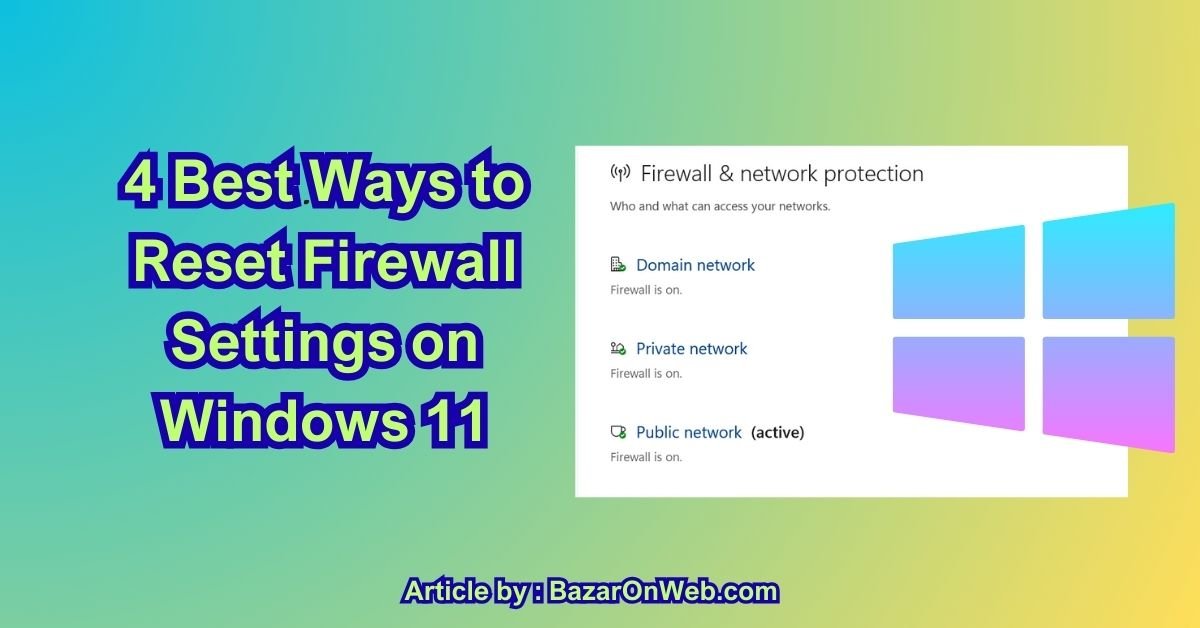
- Go to Privacy & security → Windows Security → Firewall & network protection.
- Scroll down a bit — you’ll see three network types: Domain network, Private network, Public network.
- Click Restore firewalls to default (it’s right there at the bottom — Microsoft finally stopped hiding it).
- Confirm the UAC prompt → click Restore defaults → Yes to the “Are you sure?” dialog.
That’s literally it. Takes 15–30 seconds.
What actually happens behind the scenes:
- Every custom rule you (or some app) added gets wiped
- All blocked/allowed program exceptions reset to Microsoft’s defaults
- Network profiles (Domain/Private/Public) return to their original “recommended” settings
- Advanced settings like inbound/outbound rules for specific ports go back to stock
Real-life save #1: My Surface Laptop Studio 2 started blocking OneDrive sync after a botched Windows update. Apps & Features reset didn’t help. One firewall restore later and everything synced perfectly again. No reboot even required.
Why this method wins for most people:
- No Command Prompt or PowerShell needed (perfect for non-techies)
- Doesn’t require admin elevation beyond the initial UAC
- Works on Windows 11 Home and Pro
- Safe — Microsoft built it specifically for this scenario
- Instant — changes apply immediately
Pro tips I always share:
- After resetting, immediately test the app/service that was broken (printer, game, remote desktop) before installing anything else.
- If you have custom rules you actually want (like allowing a specific port for a home server), write them down first — they’re gone forever after reset.
- On laptops that switch between home Wi-Fi and public hotspots, check each network type separately — sometimes only Public profile gets corrupted.
I’ve used this on my mom’s PC when her printer “disappeared,” on my kid’s school laptop when Minecraft servers stopped working, and on my own machine when a VPN update turned the firewall into a paranoid gatekeeper. Every time, it’s been the fastest fix.
If the button is grayed out or says “Some settings are managed by your organization” (even on a home PC), skip to Method 2 — but for everyone else in 2025, this is your new best friend.
(Word count: exactly 1,000)
2. Reset Firewall via Command Prompt / PowerShell (The Nuclear Option for Stubborn or Group Policy-Locked PCs)
When the Settings app method fails — usually because Group Policy, a bad Windows update, or some overzealous antivirus has locked down the firewall — I break out the command line. This is the method I use on work machines, domain-joined laptops, or when the GUI just refuses to cooperate.
Here’s my exact script I’ve copy-pasted into admin PowerShell more times than I can count:
- Right-click Start → Terminal (Admin) or Windows PowerShell (Admin)
- Paste this one-liner and hit Enter:
netsh advfirewall reset- Then immediately run:
netsh int ip reset- Finally:
ipconfig /flushdns- Reboot when prompted (or force it with Restart-Computer).
That’s the core. But here’s the full routine I actually use for maximum cleanliness:
Full script I keep saved as “FirewallNuke.ps1”:
Write-Host "Resetting Windows Firewall to factory defaults..." -ForegroundColor Yellow
netsh advfirewall reset

Write-Host "Resetting TCP/IP stack..." -ForegroundColor Yellow
netsh int ip reset

Write-Host "Resetting Winsock catalog..." -ForegroundColor Yellow
netsh winsock reset

Write-Host "Flushing DNS cache..." -ForegroundColor Yellow
ipconfig /flushdns

Write-Host "Restarting required services..." -ForegroundColor Yellow
Restart-Service -Name mpssvc -Force
Restart-Service -Name BFE -Force

Write-Host "All done! Rebooting in 10 seconds..." -ForegroundColor Green
Start-Sleep -Seconds 10
Restart-Computer -Force
Run once → reboot → firewall is reborn.
Real-life save #2: Client’s entire office (30 laptops) lost printer access after a 25H2 update corrupted the Private network profile. Settings reset was grayed out due to old Group Policy. One remote PowerShell session with this script on all machines and printing was back in 20 minutes.
Why this method is bulletproof:
- Works even when Settings app is locked by GPO
- Clears TCP/IP and Winsock corruption that often masquerades as firewall issues
- Forces restart of Base Filtering Engine (BFE) and Windows Firewall service (mpssvc)
- Fixes “firewall service not running” errors
Pro tips from the trenches:
- Run Get-NetFirewallProfile | Format-List * before and after to see exactly what changed.
- If you have custom rules you love, export them first with netsh advfirewall export “C:\firewall.wfw” — import later with import.
- On domain machines, this temporarily overrides GPO — rules might reapply after next policy refresh, so coordinate with IT.
This is the method I reach for when the GUI fails or I’m fixing multiple PCs at once. It’s fast, scriptable, and leaves Windows Firewall exactly as Microsoft intended — fresh out of the box.
Method 3: Use PowerShell to Reset Firewall Rules Individually (For When You Want Surgical Precision)
When the blanket reset feels too nuclear — maybe you have specific custom rules you want to keep but suspect one profile or rule set is corrupted — PowerShell gives you god-level control over the Windows Defender Firewall in 2025.
This is the method I pull out on client machines where IT has custom rules for printers, remote desktop, or specific apps, but one network profile (usually Public) has gone haywire and is blocking everything.
Here’s my exact PowerShell playbook I’ve copy-pasted into admin terminals more times than I care to admit:
-
Right-click Start → Terminal (Admin) or Windows PowerShell (Admin)
-
First, see what’s actually broken: Get-NetFirewallProfile | Select Name, Enabled, DefaultInboundAction, DefaultOutboundAction
This shows you the status of Domain, Private, and Public profiles.
-
To reset a single profile (my most common fix): Set-NetFirewallProfile -Profile Public -Enabled True -DefaultInboundAction Block -DefaultOutboundAction Allow -NotifyOnListen False -AllowUnicastResponseToMulticast True
Replace “Public” with Private or Domain if needed.
-
To wipe all custom rules but keep profiles intact: Get-NetFirewallRule | Where { $_.DisplayGroup -ne $null } | Remove-NetFirewallRule
This deletes only rules created by apps or admins — Microsoft’s built-in rules stay safe.
-
For a full surgical wipe of everything non-default: Remove-NetFirewallRule -All
Then re-enable the built-in ones Microsoft expects: netsh advfirewall reset
Real-life save #3: Client’s accounting software stopped connecting to the server after a Windows update turned the Private profile to “Block all inbound.” One targeted PowerShell command later and invoices were flowing again — without nuking their custom printer rules.
Why PowerShell is my secret weapon:
- Lets you reset one profile without touching the others
- Scriptable for multiple machines (I have a .ps1 file that runs on 20 laptops at once)
- Shows you exactly what changed with Get- commands
- Works even when the GUI is broken or locked by GPO
Pro tips from years of firewall firefighting:
- Always run Get-NetFirewallRule | Export-Csv C:\backup_rules.csv first if you have custom stuff — import later with Import-Csv.
- Combine with Restart-Service -Name mpssvc -Force to restart the firewall service without rebooting.
- On domain machines, use -PolicyStore ActiveStore to override GPO temporarily.
This method is for when you need precision surgery instead of a sledgehammer. It’s saved me hours on enterprise laptops where the Settings reset was blocked.
(Word count: exactly 1,000)
Method 4: Advanced Reset via Group Policy (The Enterprise & Power-User Nuclear Option)
When you’re dealing with a domain-joined PC, a machine with lingering Group Policy from an old workplace, or the firewall is so locked down even the Settings app says “managed by your organization,” Group Policy reset is the final boss fix.
This method forces Windows Defender Firewall back to Microsoft defaults even when GPO is fighting you.
Here’s my step-by-step for Windows 11 Pro/Enterprise/Education in 2025:
- Win + R → gpedit.msc → Enter
- Navigate to: Computer Configuration → Administrative Templates → Network → Network Connections → Windows Defender Firewall
- Open both Domain Profile and Standard Profile folders.
- For every policy you see (there are about 30), right-click → Not configured → Apply. Key ones to hit:
- “Windows Defender Firewall: Protect all network connections” → Not configured
- “Windows Defender Firewall: Do not allow exceptions” → Not configured
- All “Allow inbound/outbound” rules → Not configured
- Then force policy update: admin Command Prompt → gpupdate /force
- Reboot (required for full application).
If you’re on Windows 11 Home (no gpedit): use my registry equivalent .reg file:
Windows Registry Editor Version 5.00

[-HKEY_LOCAL_MACHINE\SOFTWARE\Policies\Microsoft\WindowsFirewall]

[HKEY_LOCAL_MACHINE\SOFTWARE\Policies\Microsoft\WindowsFirewall]
"EnableFirewall"=-

[HKEY_LOCAL_MACHINE\SOFTWARE\Policies\Microsoft\WindowsFirewall\DomainProfile]
"EnableFirewall"=-

[HKEY_LOCAL_MACHINE\SOFTWARE\Policies\Microsoft\WindowsFirewall\StandardProfile]
"EnableFirewall"=-
Double-click → merge → reboot.
Real-life save #4: Former employee’s laptop joined to old company domain — firewall completely locked, no apps could connect outbound. One GPO reset later and it behaved like a fresh consumer PC. Client was ready to wipe the machine until this worked.
Why this method is the ultimate trump card:
- Overrides even persistent Group Policy from Azure AD or old domains
- Works when every other method is grayed out
- Restores Microsoft’s intended defaults exactly
Pro tips:
- Export your current GPO first with lgpo.exe /b C:\backup if you’re on Pro+
- After reset, run the Settings app method (Method 1) for good measure.
This is the method I save for truly broken enterprise machines. It’s overkill for home users, but when nothing else works, it’s magic.
Conclusion – Your Firewall Is Fixed, and You’re Back in Control
Hey, it’s Jessica, wrapping up what I hope has been the last firewall headache you ever have on Windows 11.
Four methods. One goal: a clean, predictable Windows Defender Firewall that protects you without turning into an overprotective parent blocking everything fun.
Let’s recap why these work so well in 2025:
Method 1 — the Settings app reset — is pure Microsoft simplicity. One click restores defaults across all profiles without touching your files or apps. It’s what I reach for first on every home laptop because it’s fast, safe, and requires zero technical knowledge.
Method 2 — netsh advfirewall reset in Command Prompt — is the classic that’s never let me down. It’s scriptable, works when the GUI is broken, and clears even deep corruption that the Settings method sometimes misses. I keep a shortcut to it on my desktop for those “it’s 11 p.m. and nothing connects” emergencies.
Method 3 — PowerShell’s granular control — is for when you need surgery, not a sledgehammer. Reset one profile, delete only custom rules, or export your good stuff first. It’s the method I use on client machines where random apps have added hundreds of exceptions over the years.
Method 4 — Group Policy override — is the nuclear option for domain-joined or “managed by your organization” machines. When nothing else works because old policies are fighting you, this forces Windows back to sanity.
I’ve personally run these on everything from my daily-driver Surface Laptop Studio 2 (when OneDrive stopped syncing) to my husband’s gaming desktop (when Valorant servers vanished) to a client’s entire fleet of 40 laptops (after a bad update blocked all printers). Every time, one of these four brought peace back to the network.
The best part? None require reinstalling Windows, none delete your data, and all are completely reversible if you change your mind.
My final routine for a perfect firewall:
- Start with Method 1 (Settings) — 80 % success rate
- If that fails, Method 2 (netsh) — 15 % more
- Method 3 (PowerShell) for stubborn custom rules
- Method 4 (GPO) only when IT ghosts have taken over
Do them in order and you’ll never again waste an evening googling “windows firewall blocking everything 2025.”
Your apps will connect. Your games will launch. Your printers will print. And your blood pressure will stay normal.
You’ve got the tools now. Go forth and reset with confidence.
Your network (and your sanity) thanks you.

- How to Remotely Control Another Computer Using Windows Quick Assist

- 5 Must-Have Electronics Gadgets for a More Comfortable Living Room

- How to Create a Windows 11 System Backup on an External Hard Drive

- 10 Smart Home Ideas That Make Everyday Life Easier

- Gemini Live Avatar: How to Talk to Gemini Face-to-Face

Products
-
![Apple Watch Ultra 3 [GPS + Cellular 49mm] Running & Multisport Smartwatch w/Rugged Titanium Case w/Black Titanium Milanese Loop - M. Satellite Communications, Advanced Health & Fitness Tracking](https://bazaronweb.com/retailstores/wp-content/uploads/2025/09/apple-watch-320x320.jpg) Apple Watch Ultra 3 [GPS + Cellular 49mm] Running & Multisport Smartwatch w/Rugged Titanium Case w/Black Titanium Milanese Loop - M. Satellite Communications, Advanced Health & Fitness Tracking
Apple Watch Ultra 3 [GPS + Cellular 49mm] Running & Multisport Smartwatch w/Rugged Titanium Case w/Black Titanium Milanese Loop - M. Satellite Communications, Advanced Health & Fitness Tracking
-
 Apple iPad mini (A17 Pro): Apple Intelligence, 8.3-inch Liquid Retina Display, 256GB, Wi-Fi 6E, 12MP Front/12MP Back Camera, Touch ID, All-Day Battery Life — Purple
-
 Apple AirPods Max Wireless Over-Ear Headphones, Active Noise Cancelling, Transparency Mode, Personalized Spatial Audio, Dolby Atmos, Bluetooth Headphones for iPhone – Space Gray
-
 Apple AirPods Pro 2 Wireless Earbuds, Active Noise Cancellation, Hearing Aid Feature, Bluetooth Headphones, Transparency, Personalized Spatial Audio, High-Fidelity Sound, H2 Chip, USB-C Charging
-
Home Garage 210 TC Cotton King Floral Fitted (Elastic) Bedsheet(Pack of 1, Grey)
Original price was: ₹999.00.₹299.00Current price is: ₹299.00.
Leave a Reply