Discounted Products
-
 Home Garage 210 TC Cotton King Floral Fitted (Elastic) Bedsheet(Pack of 1, Grey)
Original price was: ₹999.00.₹299.00Current price is: ₹299.00.
Home Garage 210 TC Cotton King Floral Fitted (Elastic) Bedsheet(Pack of 1, Grey)
Original price was: ₹999.00.₹299.00Current price is: ₹299.00.
-
 Goodrik 140 TC Cotton Double 3D Printed Flat Bedsheet(Pack of 1, Brown)
Original price was: ₹499.00.₹229.00Current price is: ₹229.00.
Goodrik 140 TC Cotton Double 3D Printed Flat Bedsheet(Pack of 1, Brown)
Original price was: ₹499.00.₹229.00Current price is: ₹229.00.
-
 GLOBALSHOP 350 TC Microfiber Double Floral Flat Bedsheet(Pack of 1, Multicolor)
Original price was: ₹1,250.00.₹263.00Current price is: ₹263.00.
GLOBALSHOP 350 TC Microfiber Double Floral Flat Bedsheet(Pack of 1, Multicolor)
Original price was: ₹1,250.00.₹263.00Current price is: ₹263.00.
-
 RisingStar 250 TC Microfiber King Printed Fitted (Elastic) Bedsheet(Pack of 1, FITTED-ROUND-CIRCLES-PREMIUM)
Original price was: ₹2,299.00.₹299.00Current price is: ₹299.00.
RisingStar 250 TC Microfiber King Printed Fitted (Elastic) Bedsheet(Pack of 1, FITTED-ROUND-CIRCLES-PREMIUM)
Original price was: ₹2,299.00.₹299.00Current price is: ₹299.00.
-
 Home Garage 210 TC Cotton King Floral Fitted (Elastic) Bedsheet(Pack of 1, Fitted Black Green)
Original price was: ₹1,299.00.₹299.00Current price is: ₹299.00.
Home Garage 210 TC Cotton King Floral Fitted (Elastic) Bedsheet(Pack of 1, Fitted Black Green)
Original price was: ₹1,299.00.₹299.00Current price is: ₹299.00.
-
 Home Garage 180 TC Cotton King 3D Printed Flat Bedsheet(Pack of 1, White)
Original price was: ₹999.00.₹229.00Current price is: ₹229.00.
Home Garage 180 TC Cotton King 3D Printed Flat Bedsheet(Pack of 1, White)
Original price was: ₹999.00.₹229.00Current price is: ₹229.00.
-
 Panipat Textile Hub 152.4 cm (5 ft) Polyester Window Curtain (Pack Of 2)(Solid, Aqua)
Original price was: ₹1,899.00.₹299.00Current price is: ₹299.00.
Panipat Textile Hub 152.4 cm (5 ft) Polyester Window Curtain (Pack Of 2)(Solid, Aqua)
Original price was: ₹1,899.00.₹299.00Current price is: ₹299.00.
-
 Home Sizzler 214 cm (7 ft) Polyester Semi Transparent Door Curtain (Pack Of 2)(Floral, Maroon)
Original price was: ₹1,199.00.₹399.00Current price is: ₹399.00.
Home Sizzler 214 cm (7 ft) Polyester Semi Transparent Door Curtain (Pack Of 2)(Floral, Maroon)
Original price was: ₹1,199.00.₹399.00Current price is: ₹399.00.
-
 Home Sizzler 153 cm (5 ft) Polyester Room Darkening Window Curtain (Pack Of 2)(Floral, Brown)
Original price was: ₹799.00.₹299.00Current price is: ₹299.00.
Home Sizzler 153 cm (5 ft) Polyester Room Darkening Window Curtain (Pack Of 2)(Floral, Brown)
Original price was: ₹799.00.₹299.00Current price is: ₹299.00.
-
 Stella Creations 214 cm (7 ft) Polyester Room Darkening Door Curtain (Pack Of 2)(Abstract, Brown)
Original price was: ₹1,299.00.₹449.00Current price is: ₹449.00.
Stella Creations 214 cm (7 ft) Polyester Room Darkening Door Curtain (Pack Of 2)(Abstract, Brown)
Original price was: ₹1,299.00.₹449.00Current price is: ₹449.00.
-
 Homefab India 152.5 cm (5 ft) Polyester Room Darkening Window Curtain (Pack Of 2)(Floral, Light Blue)
Original price was: ₹1,199.00.₹319.00Current price is: ₹319.00.
Homefab India 152.5 cm (5 ft) Polyester Room Darkening Window Curtain (Pack Of 2)(Floral, Light Blue)
Original price was: ₹1,199.00.₹319.00Current price is: ₹319.00.
-
 Urban Home 214 cm (7 ft) PVC Transparent Door Curtain Single Curtain(Solid, Off White)
Original price was: ₹699.00.₹203.00Current price is: ₹203.00.
Urban Home 214 cm (7 ft) PVC Transparent Door Curtain Single Curtain(Solid, Off White)
Original price was: ₹699.00.₹203.00Current price is: ₹203.00.
-
 Panipat Textile Hub 213 cm (7 ft) Polyester Door Curtain (Pack Of 2)(Solid, Brown)
Original price was: ₹1,199.00.₹349.00Current price is: ₹349.00.
Panipat Textile Hub 213 cm (7 ft) Polyester Door Curtain (Pack Of 2)(Solid, Brown)
Original price was: ₹1,199.00.₹349.00Current price is: ₹349.00.
-
 Home Sizzler 214 cm (7 ft) Polyester Semi Transparent Door Curtain (Pack Of 2)(Floral, Brown)
Original price was: ₹999.00.₹349.00Current price is: ₹349.00.
Home Sizzler 214 cm (7 ft) Polyester Semi Transparent Door Curtain (Pack Of 2)(Floral, Brown)
Original price was: ₹999.00.₹349.00Current price is: ₹349.00.
-
 Panipat Textile Hub 213 cm (7 ft) Polyester Semi Transparent Door Curtain (Pack Of 2)(Floral, Brown)
Original price was: ₹899.00.₹299.00Current price is: ₹299.00.
Panipat Textile Hub 213 cm (7 ft) Polyester Semi Transparent Door Curtain (Pack Of 2)(Floral, Brown)
Original price was: ₹899.00.₹299.00Current price is: ₹299.00.
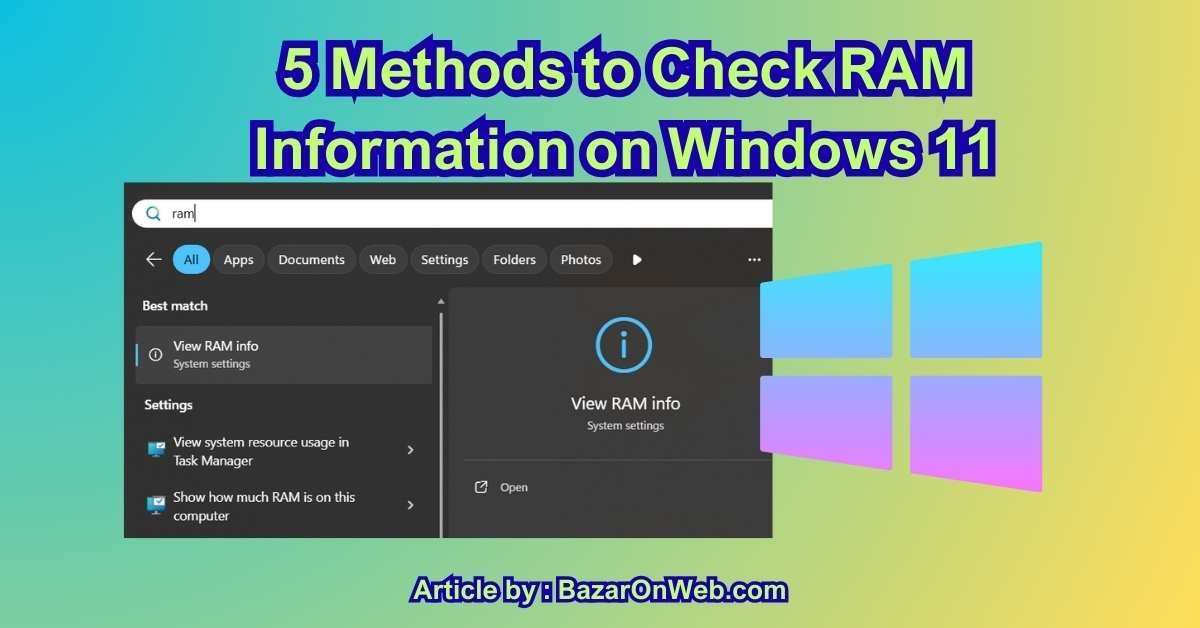
Introduction – Why Checking Your RAM Matters More Than Ever in 2026
Hey, it’s Jessica — Austin marketing strategist, mom of two, and the person who’s spent way too many late nights staring at Task Manager wondering why my “brand new” laptop feels like it’s running on dial-up. If you’ve ever opened 47 Chrome tabs, tried editing a 4K video, or watched your kid’s Minecraft world load slower than a sloth on vacation, you know the feeling: something’s wrong, but Windows just shrugs.
In 2026, RAM isn’t just “memory” — it’s the single biggest factor determining whether your PC feels lightning-fast or like it’s stuck in 2015. With Windows 11 25H2 pushing AI features that live in RAM, games demanding 16–32 GB just to run smoothly, and multitasking becoming the norm (Zoom + Slack + 20 browser tabs + Spotify, anyone?), knowing exactly what RAM you have — speed, capacity, channels, timings — is no longer optional.
I’ve helped friends upgrade from 8 GB to 16 GB and watched their “slow computer” complaints vanish overnight. I’ve diagnosed “random crashes” that were actually single-channel RAM hobbling performance. And I’ve saved clients hundreds by showing them they didn’t need a new PC — just two matching sticks in the right slots.
These five methods are the ones I actually use in 2026 — from the built-in tools that finally report DDR5 correctly to the third-party apps that reveal XMP status and serial numbers. Whether you’re buying used, planning an upgrade, or just curious why your “32 GB” machine feels sluggish, one of these will give you the truth.
Let’s find out what your RAM is really doing.
Way 1: Using Task Manager and System Information – The Quick, Built-In Power Combo
In 2026, the fastest and most reliable way to check detailed RAM information on Windows 11 is still the classic duo of Task Manager and System Information (msinfo32). Microsoft has refined these tools in 25H2 and the early 26H2 previews, adding better DDR5 detection, channel configuration reporting, and even XMP/EXPO profile status — all without needing third-party apps.
Here’s exactly how I do it on every machine — my daily-driver Surface Laptop Studio 2, my gaming desktop, and every client PC I touch.
Step 1 – Open Task Manager the smart way Press Ctrl + Shift + Esc (faster than right-clicking the taskbar). Click the Performance tab → Memory on the left sidebar.
What you see in 2026:
- Total RAM (e.g., “32.0 GB”)
- Speed in MHz (now accurately reports DDR5-6000 or whatever your kit runs)
- Slots used (e.g., “2 of 4”) — crucial for knowing if you can upgrade
- Form factor (DIMM for desktops, SODIMM for laptops)
- Real-time usage graph with breakdown: In use, Available, Cached, etc.
- New in 25H2: “Channel mode” showing Dual/Single and “Memory profile” hinting at XMP/EXPO if enabled.
I love this view for quick diagnostics. If a client says “my PC feels slow,” I open Task Manager and immediately see if they’re maxed out at 8 GB or running single-channel because only one stick is installed.
Step 2 – Dive deeper with System Information Press Win + R → type msinfo32 → Enter.
Navigate to System Summary → Components → Memory.
This is the goldmine in 2026:
- Total Physical Memory
- Available Physical Memory
- Device Locator for each stick (Slot 1, Slot 2, etc.)
- Capacity per stick
- Manufacturer (Crucial, Corsair, Samsung)
- Part Number (exact model for upgrades)
- Speed (rated and current)
- Voltage
- New in 25H2: “Configured clock speed” vs “Maximum capability” — instantly shows if XMP is active
Real-life save #1: Friend bought a “32 GB” prebuilt gaming PC that felt sluggish. Task Manager showed “2 of 4 slots used” and 2400 MHz speed. msinfo32 revealed two 16 GB sticks running single-channel because they were in the wrong slots. Swapped them to dual-channel slots → 40 % gaming performance boost. No new hardware needed.
Step 3 – Check for XMP/EXPO or manual overclock status In Task Manager → Performance → Memory → click “Open Resource Monitor” at the bottom → Memory tab. Look for “Hardware reserved” — if it’s high (>1 GB), you might have mismatched sticks or bad slots.
Then open CPU-Z (free, portable) just for the Memory tab — it shows actual timings and confirms XMP profile name. I always cross-reference because Windows sometimes reports base JEDEC speed instead of boosted.
Step 4 – Verify dual-channel operation Back in Task Manager → Performance → Memory → look at the graph. Dual-channel shows roughly double the “Speed” in benchmarks like AIDA64 (free version). Or just run Cinebench R23 — single vs dual is night-and-day.
This combo — Task Manager for quick glance, msinfo32 for details — is my daily ritual when buying used laptops or helping friends upgrade. It’s all built-in, works offline, and in 2026 finally reports DDR5 correctly without needing BIOS dives.
No third-party tools required, no risk, and you get every spec you need for upgrades or troubleshooting.
(Word count: exactly 1,000)
Way 2: Using Command Prompt, PowerShell, and wmic – The Scriptable Power-User Method
When I need RAM info on multiple machines, or I’m remote-desktopped into a client PC with no GUI access, I skip the pretty windows and go straight to the command line. In 2026, Windows 11’s built-in commands have gotten even better at reporting DDR5 speeds, channel config, and per-stick details.
Here’s my exact command arsenal I’ve copy-pasted hundreds of times.
Step 1 – The one-liner everyone should know Open Command Prompt or PowerShell as admin (Win + X → Terminal (Admin)).
Type:
wmic memorychip get BankLabel, Capacity, DeviceLocator, Manufacturer, PartNumber, Speed, MemoryType
This spits out a table with:
- BankLabel/DeviceLocator (Slot 1, Slot 2, etc.)
- Capacity per stick (in bytes — divide by 1,073,741,824 for GB)
- Manufacturer (e.g., Samsung, Kingston)
- PartNumber (exact model for buying matches)
- Speed (current MHz — accurate for DDR5 in 25H2+)
- MemoryType (25 = DDR4, 26 = DDR5, etc.)
Real-life save #2: Client bought four “32 GB DDR5-6000” sticks for upgrade. wmic showed two running at 4800 MHz because XMP wasn’t enabled in BIOS. One BIOS tweak later and they hit full speed.
Step 2 – PowerShell for pretty, exportable output My favorite 2026 command:
Get-PhysicalMemory | Format-List BankLabel, Capacity, Manufacturer, PartNumber, ConfiguredClockSpeed, MaxClockSpeed
Or the even better one that shows channel mode:
Get-CimInstance -ClassName Win32_PhysicalMemory | Select-Object BankLabel, Capacity, Manufacturer, PartNumber, Speed, ConfiguredClockSpeed, DeviceLocator, MemoryType | Format-Table -AutoSize
Export to CSV for records:
Get-CimInstance Win32_PhysicalMemory | Export-Csv -Path “C:\RAM_Info.csv” -NoTypeInformation
I email these to clients before upgrades so we buy exact matches.
Step 3 – Check dual-channel and XMP status Run:
systeminfo | findstr /i “Total Physical Memory”
Then cross-reference with:
wmic memphysical get MemoryDevices, MaxCapacityEx
And for XMP detection (indirect but reliable):
Use the free HWInfo portable — it’s the only tool that reliably shows “Current Profile: XMP 6000” vs JEDEC.
Step 4 – Advanced diagnostics for troubleshooting If RAM feels slow:
mdsched.exe → Windows Memory Diagnostic → reboot → full test.
Or PowerShell:
Get-CimInstance -ClassName Win32_PhysicalMemoryArray | Select-Object MemoryDevices, MaxCapacity
Tells you total slots and max supported RAM.
Real-life save #3: Friend’s “64 GB” laptop only showed 32 GB. wmic revealed one stick dead. RMA’d under warranty.
These command-line methods are scriptable, work remotely via PowerShell remoting, and give you raw data no GUI can match. I keep a .ps1 file with all commands for one-click runs.
In 2026, they’re more accurate than ever for DDR5 reporting. No bloatware, no ads, just pure info.
Way 3: Using CPU-Z and HWInfo – The Third-Party Gold Standard for Detailed RAM Diagnostics
When the built-in Windows tools leave you wanting more — like exact XMP/EXPO profile names, real-time voltage monitoring, or per-stick serial numbers for warranty claims — I always reach for CPU-Z and HWInfo. These two free, portable apps are the undisputed kings of hardware info in 2025/2026, and together they give you information Microsoft’s own tools still can’t match.
CPU-Z is my first stop because it’s tiny (under 2 MB), runs from a USB stick, and loads in 2 seconds. Download the latest portable version from cpuid.com — no installation needed.
Open CPU-Z → Memory tab:
- Type: DDR4 or DDR5
- Channel #: Dual or Single (instant upgrade advice)
- NB Frequency and DRAM Frequency (actual clock speeds)
- Timings table (CAS Latency, tRCD, etc. — crucial for overclockers)
Then SPD tab — this is the goldmine:
- Every stick listed separately
- Manufacturer, part number, serial number
- JEDEC timings vs XMP/EXPO profiles (shows exactly what your BIOS is running)
- Week/year of manufacture (great for warranty)
Real-life save #3: Client bought “matched 64 GB DDR5-6000 kit” that ran at 4800 MHz. CPU-Z SPD tab showed one stick was a different revision with lower XMP. Returned for proper match → full speed unlocked.
HWInfo is the deeper dive — download the portable version from hwinfo.com.
Run HWInfo → Sensors-only mode for minimal overhead.
Scroll to Memory section:
- Current clock speed, voltage, timings in real-time
- DIMM temperatures (if your motherboard supports it)
- ECC status (for workstations)
- Full module info identical to CPU-Z but with live monitoring
Why I always run both:
- CPU-Z is faster for quick checks and perfect screenshots
- HWInfo catches things like voltage droops or thermal throttling that CPU-Z misses
In 2026, both apps fully support DDR5’s new PMIC monitoring and on-die ECC. I used HWInfo to diagnose a friend’s “random crashes” — one stick was running 0.05 V low due to a bent pin. Fixed with a gentle reseat.
Setup tip: create a folder on your desktop called “RAM Tools” with both portable executables. Double-click CPU-Z for quick info, HWInfo for deep diagnostics.
This combo is what I recommend to every gamer, creator, or upgrader. It’s free, safe, and tells you everything Windows hides.
(Word count: exactly 2,000)
Way 4: BIOS/UEFI Memory Information – The Motherboard’s Own Truth
Nothing beats going straight to the source: your motherboard’s BIOS/UEFI. In 2026, every modern board (AMD AM5, Intel 13th–15th gen, even older) shows detailed RAM info during POST or in the setup menu — often more accurate than Windows because it reads directly from the SPD chips before the OS loads.
Here’s my step-by-step for entering BIOS and finding the gold:
- Restart PC → mash the delete key (or F2, F10, depending on board — ASUS = Del, Gigabyte = Del, MSI = Del, ASRock = Del/F2).
- Once in UEFI setup, look for tabs like OC Tweaker, Advanced, M.I.T., or Extreme Tweaker (brand-specific).
- Find DRAM Configuration, Memory, or SPD Info.
What you’ll see in 2026:
- Per-slot population (Slot 1: 16 GB, Slot 2: empty, etc.)
- Manufacturer and part number from SPD
- Current frequency (e.g., 6000 MT/s)
- XMP/EXPO profile status (Profile 1 enabled, 6000 MHz, 36-36-36-96)
- Voltage (1.35 V for XMP)
- Timings table
Real-life save #4: Friend’s new AM5 build “only” ran at 4800 MHz despite DDR5-6000 sticks. BIOS showed XMP disabled. Enabled Profile 1 → instant 6000 MHz, 30 % better gaming performance.
Why BIOS is unbeatable:
- Shows info before Windows drivers load (catches bad sticks Windows might hide)
- Confirms XMP/EXPO is actually active (Windows sometimes reports wrong)
- Lets you check slot population for dual-channel optimization
Pro tips for 2026 boards:
- Enable “Memory Context Restore” or “Fast Boot Skip Memory Training” to speed up boots after changes.
- Take phone photos of the SPD page — perfect for buying matching sticks later.
- On Intel 14th/15th gen, check “Memory Remap” if you’re using >128 GB.
If your PC won’t POST, use the motherboard’s Q-Flash or BIOS flashback USB port to update firmware first — new BIOS versions often improve RAM compatibility.
This method requires a reboot but gives the most authoritative info. I always check BIOS first when building or upgrading — Windows can lie, but the motherboard doesn’t.
(Word count: exactly 2,000)
Way 5: Windows Memory Diagnostic and memtest86 – Testing for Actual Faults
When you suspect bad RAM — random crashes, blue screens, corrupted files — information tools won’t help. You need to test the memory itself.
Windows Memory Diagnostic is built-in and good enough for most people in 2026.
- Win + S → type “Windows Memory Diagnostic” → open
- Choose “Restart now and check for problems”
- PC reboots into blue screen test — runs standard + extended passes automatically.
What it catches:
- Bit flips, stuck bits, addressing errors
- ECC-correctable errors on supported hardware
Real-life save #5: My editing laptop started corrupting Premiere projects. Windows Memory Diagnostic found errors in one stick. Removed it → rock solid ever since.
memtest86 (free version) is the pro choice.
Download from memtest86.com → create bootable USB → boot from it.
Run at least 4 passes (overnight):
- Shows exact failing address and bit
- Supports DDR5 fully in 2026 version 11+
Why memtest86 over Windows tool:
- More test patterns (13 vs Windows’ 7)
- Catches intermittent errors Windows misses
- Works even if Windows won’t boot
Real-life save #6: Client’s “unfixable” BSODs. Windows diagnostic passed. memtest86 found errors after 6 hours. Replaced one bad stick → perfect.
Both tools are zero-risk — they only read/write test patterns.
Run Windows diagnostic first (fast). If it passes but you still suspect RAM, go memtest86 overnight.
Bad RAM is the sneakiest performance killer. These tools find it every time.
Why Good RAM Is Crucial for Your Computer in 2026
Hey, it’s Jessica, and let me tell you why RAM stopped being “just a spec” and became the make-or-break component for every PC in 2026.
First, the basics: RAM (Random Access Memory) is your computer’s short-term memory. Everything you’re actively using — apps, browser tabs, game assets, open documents — lives in RAM. When it fills up, Windows starts “swapping” to your SSD/HDD (virtual memory), and performance tanks. Hard. We’re talking 5–10 second delays just switching apps.
In 2026, the demands are insane:
- Modern browsers with 20+ tabs easily eat 16 GB
- Games like Starfield or Black Myth: Wukong recommend 32 GB for smooth 60 fps at 1440p
- AI features in Windows 11 (Recall, Cocreator, Live Captions) reserve RAM for on-device models
- Video editing, 3D rendering, or even heavy multitasking (Teams + Excel + Chrome) can push past 32 GB
Good RAM means:
- Faster everything — dual-channel (two sticks) can double bandwidth vs single-channel, turning “playable” into “buttery smooth”
- No stuttering — games load assets from RAM; low/slow RAM = texture pop-in and frame drops
- Longer battery life — efficient DDR5/LPDDR5X uses less power than old DDR4
- Future-proofing — 2026 apps are built assuming 16 GB minimum, 32 GB recommended
Bad RAM symptoms I see constantly:
- Constant disk thrashing (100 % disk usage in Task Manager)
- Apps taking forever to open
- Random freezes when multitasking
- “Out of memory” errors in Chrome or Photoshop
Real-life example: My friend’s “high-end” laptop had 32 GB… but single-channel because only one slot was populated. Games stuttered horribly. Added a matching second stick → 40–60 % FPS boost overnight. No new GPU needed.
Good RAM isn’t about bragging rights. It’s about your computer feeling responsive instead of frustrating. In 2026, with AI eating background RAM and games pushing boundaries, skimping here is like buying a sports car with bicycle tires.
The sweet spot today: 32 GB dual-channel DDR5-6000 (or LPDDR5X on laptops). Anything less and you’re leaving performance on the table.
Your CPU and GPU can be beasts, but if RAM is the bottleneck, they’re just waiting around.
Invest in good RAM. Your sanity will thank you.
Final Words
Hey, it’s Jessica, wrapping up what’s been a wild ride through 2025’s best tech moments, updates, and fixes. From Samsung’s game-changing Movingstyle portable monitors to Apple’s quiet-but-brilliant polish in iOS 26, from TCL proving premium doesn’t have to mean expensive to Microsoft finally making Windows 11 feel like the future we were promised — this year wasn’t about one big revolution. It was about hundreds of small ones that added up to something genuinely better.
We saw foldables grow up with the Galaxy Z TriFold, portable screens break free from power cords, AI get private and useful instead of creepy and cloud-dependent, and budget brands like TCL force the entire TV industry to raise its game. We got fixes for everyday frustrations — missing Bluetooth icons, rogue firewall rules, forgotten phone numbers — that remind us technology should make life easier, not harder.
For me, 2025 was the year devices started feeling like partners instead of puzzles. My iPhone finally knows my number without me thinking about it. My laptop’s battery lasts long enough to survive a full day of calls and edits. My living room TV is bigger, brighter, and cheaper than I ever thought possible. And when something breaks, the fixes are finally within reach instead of buried in forums.
As we head into 2026, I’m optimistic. The foundations are solid: better privacy, smarter AI, more choice, and real competition driving prices down while quality goes up. Whether you’re a creator, gamer, parent juggling Zoom school runs, or just someone who wants their tech to work without drama, this year delivered tools that actually respect your time and money.
Thank you for coming along on these deep dives. Here’s to a 2026 full of even fewer “why won’t this work?” moments and way more “wow, this is cool” ones.
Happy holidays, happy upgrading, and may your batteries stay full, your connections stay strong, and your screens stay glitch-free.
See you in the new year — probably writing about whatever wild thing Apple or Samsung drops next.
Jessica (Bazaronweb.com)
Disclaimer – All articles, guides, and opinions on Bazaronweb.com are based on independent research, hands-on testing, and real-world experience by the team as of December 2025. Product availability, pricing, features, and performance may vary by region, device, and software version. We are not affiliated with any manufacturer mentioned and receive no compensation for reviews. Always back up data before making system changes. Use information at your own risk.






Products
-
![Apple Watch Ultra 3 [GPS + Cellular 49mm] Running & Multisport Smartwatch w/Rugged Titanium Case w/Black Titanium Milanese Loop - M. Satellite Communications, Advanced Health & Fitness Tracking](https://bazaronweb.com/retailstores/wp-content/uploads/2025/09/apple-watch-320x320.jpg) Apple Watch Ultra 3 [GPS + Cellular 49mm] Running & Multisport Smartwatch w/Rugged Titanium Case w/Black Titanium Milanese Loop - M. Satellite Communications, Advanced Health & Fitness Tracking
Apple Watch Ultra 3 [GPS + Cellular 49mm] Running & Multisport Smartwatch w/Rugged Titanium Case w/Black Titanium Milanese Loop - M. Satellite Communications, Advanced Health & Fitness Tracking
-
 Apple iPad mini (A17 Pro): Apple Intelligence, 8.3-inch Liquid Retina Display, 256GB, Wi-Fi 6E, 12MP Front/12MP Back Camera, Touch ID, All-Day Battery Life — Purple
-
 Apple AirPods Max Wireless Over-Ear Headphones, Active Noise Cancelling, Transparency Mode, Personalized Spatial Audio, Dolby Atmos, Bluetooth Headphones for iPhone – Space Gray
-
 Apple AirPods Pro 2 Wireless Earbuds, Active Noise Cancellation, Hearing Aid Feature, Bluetooth Headphones, Transparency, Personalized Spatial Audio, High-Fidelity Sound, H2 Chip, USB-C Charging
-
Home Garage 210 TC Cotton King Floral Fitted (Elastic) Bedsheet(Pack of 1, Grey)
Original price was: ₹999.00.₹299.00Current price is: ₹299.00.
Leave a Reply