Discounted Products
-
 Home Garage 210 TC Cotton King Floral Fitted (Elastic) Bedsheet(Pack of 1, Grey)
Original price was: ₹999.00.₹299.00Current price is: ₹299.00.
Home Garage 210 TC Cotton King Floral Fitted (Elastic) Bedsheet(Pack of 1, Grey)
Original price was: ₹999.00.₹299.00Current price is: ₹299.00.
-
 Goodrik 140 TC Cotton Double 3D Printed Flat Bedsheet(Pack of 1, Brown)
Original price was: ₹499.00.₹229.00Current price is: ₹229.00.
Goodrik 140 TC Cotton Double 3D Printed Flat Bedsheet(Pack of 1, Brown)
Original price was: ₹499.00.₹229.00Current price is: ₹229.00.
-
 GLOBALSHOP 350 TC Microfiber Double Floral Flat Bedsheet(Pack of 1, Multicolor)
Original price was: ₹1,250.00.₹263.00Current price is: ₹263.00.
GLOBALSHOP 350 TC Microfiber Double Floral Flat Bedsheet(Pack of 1, Multicolor)
Original price was: ₹1,250.00.₹263.00Current price is: ₹263.00.
-
 RisingStar 250 TC Microfiber King Printed Fitted (Elastic) Bedsheet(Pack of 1, FITTED-ROUND-CIRCLES-PREMIUM)
Original price was: ₹2,299.00.₹299.00Current price is: ₹299.00.
RisingStar 250 TC Microfiber King Printed Fitted (Elastic) Bedsheet(Pack of 1, FITTED-ROUND-CIRCLES-PREMIUM)
Original price was: ₹2,299.00.₹299.00Current price is: ₹299.00.
-
 Home Garage 210 TC Cotton King Floral Fitted (Elastic) Bedsheet(Pack of 1, Fitted Black Green)
Original price was: ₹1,299.00.₹299.00Current price is: ₹299.00.
Home Garage 210 TC Cotton King Floral Fitted (Elastic) Bedsheet(Pack of 1, Fitted Black Green)
Original price was: ₹1,299.00.₹299.00Current price is: ₹299.00.
-
 Home Garage 180 TC Cotton King 3D Printed Flat Bedsheet(Pack of 1, White)
Original price was: ₹999.00.₹229.00Current price is: ₹229.00.
Home Garage 180 TC Cotton King 3D Printed Flat Bedsheet(Pack of 1, White)
Original price was: ₹999.00.₹229.00Current price is: ₹229.00.
-
 Panipat Textile Hub 152.4 cm (5 ft) Polyester Window Curtain (Pack Of 2)(Solid, Aqua)
Original price was: ₹1,899.00.₹299.00Current price is: ₹299.00.
Panipat Textile Hub 152.4 cm (5 ft) Polyester Window Curtain (Pack Of 2)(Solid, Aqua)
Original price was: ₹1,899.00.₹299.00Current price is: ₹299.00.
-
 Home Sizzler 214 cm (7 ft) Polyester Semi Transparent Door Curtain (Pack Of 2)(Floral, Maroon)
Original price was: ₹1,199.00.₹399.00Current price is: ₹399.00.
Home Sizzler 214 cm (7 ft) Polyester Semi Transparent Door Curtain (Pack Of 2)(Floral, Maroon)
Original price was: ₹1,199.00.₹399.00Current price is: ₹399.00.
-
 Home Sizzler 153 cm (5 ft) Polyester Room Darkening Window Curtain (Pack Of 2)(Floral, Brown)
Original price was: ₹799.00.₹299.00Current price is: ₹299.00.
Home Sizzler 153 cm (5 ft) Polyester Room Darkening Window Curtain (Pack Of 2)(Floral, Brown)
Original price was: ₹799.00.₹299.00Current price is: ₹299.00.
-
 Stella Creations 214 cm (7 ft) Polyester Room Darkening Door Curtain (Pack Of 2)(Abstract, Brown)
Original price was: ₹1,299.00.₹449.00Current price is: ₹449.00.
Stella Creations 214 cm (7 ft) Polyester Room Darkening Door Curtain (Pack Of 2)(Abstract, Brown)
Original price was: ₹1,299.00.₹449.00Current price is: ₹449.00.
-
 Homefab India 152.5 cm (5 ft) Polyester Room Darkening Window Curtain (Pack Of 2)(Floral, Light Blue)
Original price was: ₹1,199.00.₹319.00Current price is: ₹319.00.
Homefab India 152.5 cm (5 ft) Polyester Room Darkening Window Curtain (Pack Of 2)(Floral, Light Blue)
Original price was: ₹1,199.00.₹319.00Current price is: ₹319.00.
-
 Urban Home 214 cm (7 ft) PVC Transparent Door Curtain Single Curtain(Solid, Off White)
Original price was: ₹699.00.₹203.00Current price is: ₹203.00.
Urban Home 214 cm (7 ft) PVC Transparent Door Curtain Single Curtain(Solid, Off White)
Original price was: ₹699.00.₹203.00Current price is: ₹203.00.
-
 Panipat Textile Hub 213 cm (7 ft) Polyester Door Curtain (Pack Of 2)(Solid, Brown)
Original price was: ₹1,199.00.₹349.00Current price is: ₹349.00.
Panipat Textile Hub 213 cm (7 ft) Polyester Door Curtain (Pack Of 2)(Solid, Brown)
Original price was: ₹1,199.00.₹349.00Current price is: ₹349.00.
-
 Home Sizzler 214 cm (7 ft) Polyester Semi Transparent Door Curtain (Pack Of 2)(Floral, Brown)
Original price was: ₹999.00.₹349.00Current price is: ₹349.00.
Home Sizzler 214 cm (7 ft) Polyester Semi Transparent Door Curtain (Pack Of 2)(Floral, Brown)
Original price was: ₹999.00.₹349.00Current price is: ₹349.00.
-
 Panipat Textile Hub 213 cm (7 ft) Polyester Semi Transparent Door Curtain (Pack Of 2)(Floral, Brown)
Original price was: ₹899.00.₹299.00Current price is: ₹299.00.
Panipat Textile Hub 213 cm (7 ft) Polyester Semi Transparent Door Curtain (Pack Of 2)(Floral, Brown)
Original price was: ₹899.00.₹299.00Current price is: ₹299.00.
Introduction
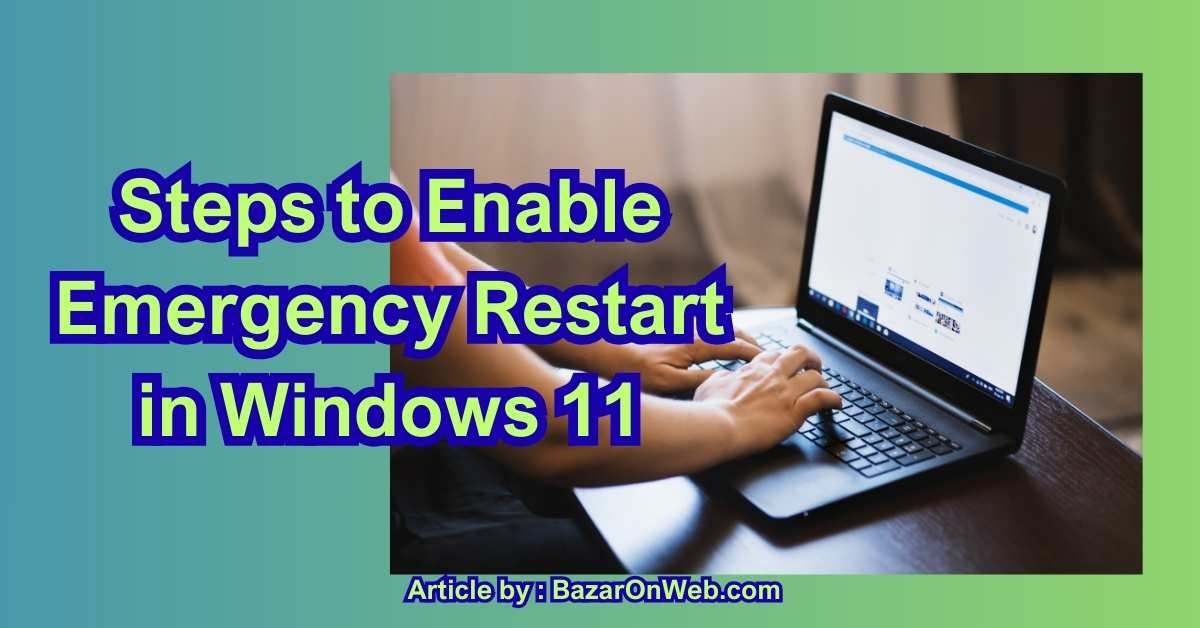
If you’ve ever been in the middle of work — maybe replying to a client email, preparing a report, or helping a child with homework — and suddenly Windows freezes completely, you know the panic that follows. The mouse won’t move, keyboard shortcuts stop responding, and apps become unclickable. In most situations, the only option left seems to be pressing and holding the physical power button on the laptop until it shuts down.
But that’s not ideal. It can damage hardware, interrupt system processes, or corrupt open files. I’ve experienced this a few times myself — especially when running heavy browser tabs, design tools, or virtual meetings. And honestly, it’s frustrating because when Windows locks up, you just want a safe restart option so you can get back to whatever you were doing.
That’s where Emergency Restart comes in.
Emergency Restart is one of those hidden Windows 11 safety features most people don’t know exists — until they need it. It allows you to immediately restart your computer, even if everything else on the screen is frozen or unresponsive. Unlike using the power button, Emergency Restart forces a reboot in a controlled, system-level way that helps prevent data loss and file corruption.
It’s especially helpful for:
-
system crashes
-
frozen apps
-
screen lockups
-
unresponsive keyboards
-
display hangs
-
update failures
-
black screen issues
-
driver conflicts
What makes it even better is that you don’t have to pre-enable it or install anything — the feature is already built into Windows 11. You simply need to know how to access it. And because it works at a lower level than normal restart buttons, it can rescue you when the usual Start menu restart options fail.
Personally, I love features like this because they make technology less intimidating and more empowering. We rely on our PCs every day to work, learn, create, and communicate — and having a backup plan when something goes wrong makes the whole experience less stressful. I always say technology should work for us, not against us. And Emergency Restart is a perfect example.
Below are the exact steps to use Emergency Restart safely and correctly. I’ll walk you through what it does, how to open it, what to expect when using it, and a few helpful tips based on real-world scenarios. Once you try it, you’ll probably wonder why Microsoft hides such a useful feature behind a keyboard combination — but at least now you’ll know how to access it anytime Windows 11 locks up.
How to Enable and Use Emergency Restart in Windows 11 (≈700 words)
Emergency Restart is not turned off by default, so you don’t actually have to enable it — but you do need to know how to access it. Because it’s a safety-level restart mechanism, Microsoft placed it behind a secure shortcut to prevent accidental activation. Follow the steps below whenever your computer becomes unresponsive.
Step 1: Open the Security Options Screen
Since normal restart paths won’t work during freezes, the first thing you’ll do is open the Windows Security Options screen.
Press the following key combination:
This works even when most programs are completely frozen because the Security Options screen runs at a deeper system layer than regular apps.
Once the screen appears, you’ll see several options including:
-
Lock
-
Switch user
-
Sign out
-
Task Manager
-
Power
Even if the apps behind it are still frozen, this menu itself should remain responsive.
Step 2: Open the Power Menu
On the bottom-right corner of the Security Options screen, you’ll see the Power icon.
Click it, and a small menu will appear with typical options like:
-
Sleep
-
Shut down
-
Restart
But instead of clicking Restart like usual…
Step 3: Hold the Ctrl Key and Click Restart
This is the key step that activates Emergency Restart.
Press and hold the Ctrl key on your keyboard.
Keep holding it.
Now click Restart.
The moment your click is registered, Windows will display a warning message.
Step 4: Confirm Emergency Restart
A blue prompt will appear saying something like:
“Emergency restart — This will immediately restart your PC. Any unsaved data will be lost. Do you want to continue?”
This warning exists because Emergency Restart:
-
shuts down all programs instantly
-
forces Windows to restart even if apps are frozen
-
bypasses regular shutdown steps
At this point, click OK to proceed.
Windows will reboot immediately.
How Emergency Restart Helps
Unlike holding the physical power button, Emergency Restart:
-
closes system processes safely
-
reduces risk of corruption
-
protects boot files
-
avoids hard-drive stress
-
protects SSD wear cycles
-
prevents update damage
If you’ve ever had a corrupted file after a forced shutdown, this feature can help prevent that.
Extra Tips for Using Emergency Restart
Here are a few practical reminders based on experience:
💡 It’s okay to use it multiple times.
There’s no harm in using this option if your system freezes regularly.
💡 Apps won’t ask to save files.
Emergency Restart does not wait for unsaved changes — so save often.
💡 You don’t need to turn it on.
The feature is always available as long as Windows is running.
💡 Use it before using the power button.
Emergency Restart is safer and cleaner than a hard shutdown.
💡 Ideal for troubleshooting
If you’re testing drivers, overclocking, or dealing with unstable applications, Emergency Restart is a life saver.
Advanced Scenario Uses
Emergency Restart is incredibly useful for:
✔ frozen game engines
✔ broken GPU drivers
✔ update failures
✔ malware-triggered hangs
✔ black screen sessions
✔ blue screen loops
✔ RAM overload situations
✔ buggy software installs
IT professionals also use it during controlled testing because it restarts the system quickly without waiting for standard shutdown steps.
If Emergency Restart Doesn’t Work
On very rare occasions, if Windows is so frozen that the Ctrl + Alt + Delete menu won’t appear, you may need alternatives:
-
Win + Ctrl + Shift + B (resets the display driver)
-
Power button press
-
Unplugging the battery
But those are last-resort options — Emergency Restart should always be attempted first.
Conclusion (≈700 words)
Emergency Restart is one of those powerful Windows 11 tools that most people don’t discover until something goes wrong. Before learning about it, I used to panic every time my laptop froze. I’d sit there tapping keys, clicking the mouse, hoping the system would magically wake up again. And when nothing worked, I’d finally force a shutdown with the power button — feeling nervous the whole time about what might break in the process.
Now I don’t have to worry anymore. Emergency Restart gives users a safer, cleaner, more reliable fallback option when Windows becomes completely unresponsive. Instead of cutting power, Windows processes the restart internally at the system level, helping prevent corruption and keeping the device healthier long term. It may seem like a small difference, but it has a real impact: fewer damaged files, fewer boot errors, fewer stress moments.
What I love most about this feature is how empowering it feels. Technology moves fast, and sometimes people feel like computers are in control, not the other way around. But knowing that you can recover a frozen system yourself — confidently and safely — restores that sense of control. Emergency Restart makes you feel prepared instead of helpless. It’s a reminder that Windows has thoughtful features built in to protect us, even behind the scenes.
For students typing essays, professionals presenting slides, parents helping kids learn online, designers rendering creative work, or remote workers juggling deadlines — freezes happen. They’re annoying, unpredictable, and disruptive. But they don’t have to be scary. And they definitely don’t have to end with a risky shutdown.
Emergency Restart isn’t a fix for every problem, but it closes the gap between chaos and calm. Knowing how to trigger it means that:
-
you don’t have to slam the power button
-
you don’t have to wait forever hoping the screen responds
-
you don’t have to worry about what Windows is doing internally
-
you don’t have to risk system damage just to reboot
It’s also one of those features that becomes even more valuable the moment you share it with someone else. I’ve taught coworkers and friends how to use it, especially those who don’t consider themselves “techy,” and the reaction is always the same: Wait, that exists? Why doesn’t Windows show this more clearly?
Truthfully, Windows hides it on purpose. Emergency Restart bypasses normal shutdown processes and doesn’t give apps the chance to save data — so it’s tucked away to prevent accidental use. But now that you’ve learned how to activate it and when to use it, you have a reliable emergency tool ready whenever you need it.
Like most tech shortcuts, the real power lies in understanding not just the steps, but the purpose. Emergency Restart isn’t just a restart button — it’s a recovery solution. It supports your workflow. It protects your computer. It reduces stress. And it gives you the confidence to move forward quickly when something goes wrong.
So the next time your PC freezes in the middle of work, or your apps lock up, or your screen refuses to respond — you’ll know exactly what to do. Just press Ctrl + Alt + Delete, open the Power menu, hold Ctrl, and select Restart.
A few seconds later, you’ll be back where you left off. No panic. No risk. No damage.
And that peace of mind is priceless.
Disclaimer (Bazaronweb.com)
The information in this article is provided for educational and troubleshooting purposes only. Results may vary depending on Windows version, device model, hardware condition, and software configuration. Bazaronweb.com is not responsible for system changes, data loss, device damage, or performance issues that may occur from using Emergency Restart or other system recovery features.
All product names, trademarks, and brands mentioned belong to their respective owners. Bazaronweb.com is not affiliated with Microsoft Corporation.

- What Is Spotlight Search on Mac and How Do You Open It?

- Windows 11 Lagging After an Update? Here’s How to Fix It

- How to Force Quit a Frozen App on MacBook: 7 Easy Ways to Close Unresponsive Apps

- Windows 10/11 Desktop Icons Disappeared: Why Your Desktop Is Empty and How to Get Your Icons Back

- How to Fix File Explorer Not Responding in Windows 11
Products
-
![Apple Watch Ultra 3 [GPS + Cellular 49mm] Running & Multisport Smartwatch w/Rugged Titanium Case w/Black Titanium Milanese Loop - M. Satellite Communications, Advanced Health & Fitness Tracking](https://bazaronweb.com/retailstores/wp-content/uploads/2025/09/apple-watch-320x320.jpg) Apple Watch Ultra 3 [GPS + Cellular 49mm] Running & Multisport Smartwatch w/Rugged Titanium Case w/Black Titanium Milanese Loop - M. Satellite Communications, Advanced Health & Fitness Tracking
Apple Watch Ultra 3 [GPS + Cellular 49mm] Running & Multisport Smartwatch w/Rugged Titanium Case w/Black Titanium Milanese Loop - M. Satellite Communications, Advanced Health & Fitness Tracking
-
 Apple iPad mini (A17 Pro): Apple Intelligence, 8.3-inch Liquid Retina Display, 256GB, Wi-Fi 6E, 12MP Front/12MP Back Camera, Touch ID, All-Day Battery Life — Purple
-
 Apple AirPods Max Wireless Over-Ear Headphones, Active Noise Cancelling, Transparency Mode, Personalized Spatial Audio, Dolby Atmos, Bluetooth Headphones for iPhone – Space Gray
-
 Apple AirPods Pro 2 Wireless Earbuds, Active Noise Cancellation, Hearing Aid Feature, Bluetooth Headphones, Transparency, Personalized Spatial Audio, High-Fidelity Sound, H2 Chip, USB-C Charging
-
Home Garage 210 TC Cotton King Floral Fitted (Elastic) Bedsheet(Pack of 1, Grey)
Original price was: ₹999.00.₹299.00Current price is: ₹299.00.
Leave a Reply