Discounted Products
-
 Home Garage 210 TC Cotton King Floral Fitted (Elastic) Bedsheet(Pack of 1, Grey)
Original price was: ₹999.00.₹299.00Current price is: ₹299.00.
Home Garage 210 TC Cotton King Floral Fitted (Elastic) Bedsheet(Pack of 1, Grey)
Original price was: ₹999.00.₹299.00Current price is: ₹299.00.
-
 Goodrik 140 TC Cotton Double 3D Printed Flat Bedsheet(Pack of 1, Brown)
Original price was: ₹499.00.₹229.00Current price is: ₹229.00.
Goodrik 140 TC Cotton Double 3D Printed Flat Bedsheet(Pack of 1, Brown)
Original price was: ₹499.00.₹229.00Current price is: ₹229.00.
-
 GLOBALSHOP 350 TC Microfiber Double Floral Flat Bedsheet(Pack of 1, Multicolor)
Original price was: ₹1,250.00.₹263.00Current price is: ₹263.00.
GLOBALSHOP 350 TC Microfiber Double Floral Flat Bedsheet(Pack of 1, Multicolor)
Original price was: ₹1,250.00.₹263.00Current price is: ₹263.00.
-
 RisingStar 250 TC Microfiber King Printed Fitted (Elastic) Bedsheet(Pack of 1, FITTED-ROUND-CIRCLES-PREMIUM)
Original price was: ₹2,299.00.₹299.00Current price is: ₹299.00.
RisingStar 250 TC Microfiber King Printed Fitted (Elastic) Bedsheet(Pack of 1, FITTED-ROUND-CIRCLES-PREMIUM)
Original price was: ₹2,299.00.₹299.00Current price is: ₹299.00.
-
 Home Garage 210 TC Cotton King Floral Fitted (Elastic) Bedsheet(Pack of 1, Fitted Black Green)
Original price was: ₹1,299.00.₹299.00Current price is: ₹299.00.
Home Garage 210 TC Cotton King Floral Fitted (Elastic) Bedsheet(Pack of 1, Fitted Black Green)
Original price was: ₹1,299.00.₹299.00Current price is: ₹299.00.
-
 Home Garage 180 TC Cotton King 3D Printed Flat Bedsheet(Pack of 1, White)
Original price was: ₹999.00.₹229.00Current price is: ₹229.00.
Home Garage 180 TC Cotton King 3D Printed Flat Bedsheet(Pack of 1, White)
Original price was: ₹999.00.₹229.00Current price is: ₹229.00.
-
 Panipat Textile Hub 152.4 cm (5 ft) Polyester Window Curtain (Pack Of 2)(Solid, Aqua)
Original price was: ₹1,899.00.₹299.00Current price is: ₹299.00.
Panipat Textile Hub 152.4 cm (5 ft) Polyester Window Curtain (Pack Of 2)(Solid, Aqua)
Original price was: ₹1,899.00.₹299.00Current price is: ₹299.00.
-
 Home Sizzler 214 cm (7 ft) Polyester Semi Transparent Door Curtain (Pack Of 2)(Floral, Maroon)
Original price was: ₹1,199.00.₹399.00Current price is: ₹399.00.
Home Sizzler 214 cm (7 ft) Polyester Semi Transparent Door Curtain (Pack Of 2)(Floral, Maroon)
Original price was: ₹1,199.00.₹399.00Current price is: ₹399.00.
-
 Home Sizzler 153 cm (5 ft) Polyester Room Darkening Window Curtain (Pack Of 2)(Floral, Brown)
Original price was: ₹799.00.₹299.00Current price is: ₹299.00.
Home Sizzler 153 cm (5 ft) Polyester Room Darkening Window Curtain (Pack Of 2)(Floral, Brown)
Original price was: ₹799.00.₹299.00Current price is: ₹299.00.
-
 Stella Creations 214 cm (7 ft) Polyester Room Darkening Door Curtain (Pack Of 2)(Abstract, Brown)
Original price was: ₹1,299.00.₹449.00Current price is: ₹449.00.
Stella Creations 214 cm (7 ft) Polyester Room Darkening Door Curtain (Pack Of 2)(Abstract, Brown)
Original price was: ₹1,299.00.₹449.00Current price is: ₹449.00.
-
 Homefab India 152.5 cm (5 ft) Polyester Room Darkening Window Curtain (Pack Of 2)(Floral, Light Blue)
Original price was: ₹1,199.00.₹319.00Current price is: ₹319.00.
Homefab India 152.5 cm (5 ft) Polyester Room Darkening Window Curtain (Pack Of 2)(Floral, Light Blue)
Original price was: ₹1,199.00.₹319.00Current price is: ₹319.00.
-
 Urban Home 214 cm (7 ft) PVC Transparent Door Curtain Single Curtain(Solid, Off White)
Original price was: ₹699.00.₹203.00Current price is: ₹203.00.
Urban Home 214 cm (7 ft) PVC Transparent Door Curtain Single Curtain(Solid, Off White)
Original price was: ₹699.00.₹203.00Current price is: ₹203.00.
-
 Panipat Textile Hub 213 cm (7 ft) Polyester Door Curtain (Pack Of 2)(Solid, Brown)
Original price was: ₹1,199.00.₹349.00Current price is: ₹349.00.
Panipat Textile Hub 213 cm (7 ft) Polyester Door Curtain (Pack Of 2)(Solid, Brown)
Original price was: ₹1,199.00.₹349.00Current price is: ₹349.00.
-
 Home Sizzler 214 cm (7 ft) Polyester Semi Transparent Door Curtain (Pack Of 2)(Floral, Brown)
Original price was: ₹999.00.₹349.00Current price is: ₹349.00.
Home Sizzler 214 cm (7 ft) Polyester Semi Transparent Door Curtain (Pack Of 2)(Floral, Brown)
Original price was: ₹999.00.₹349.00Current price is: ₹349.00.
-
 Panipat Textile Hub 213 cm (7 ft) Polyester Semi Transparent Door Curtain (Pack Of 2)(Floral, Brown)
Original price was: ₹899.00.₹299.00Current price is: ₹299.00.
Panipat Textile Hub 213 cm (7 ft) Polyester Semi Transparent Door Curtain (Pack Of 2)(Floral, Brown)
Original price was: ₹899.00.₹299.00Current price is: ₹299.00.
I still remember the first time I installed a VPN. I felt instantly “secure”—like I had put an invisibility cloak over my internet activity. As someone who works in marketing, shops online a lot, manages kids’ devices, and frequently uses public Wi-Fi at cafés and airports, a VPN felt like a no-brainer.
But then I learned something uncomfortable: just using a VPN doesn’t automatically mean your IP address is hidden.
Many people don’t realize that even with a VPN turned on, your real IP address can still leak—sometimes silently—through DNS requests, WebRTC, or IPv6. That means websites, advertisers, or even malicious actors could still identify your approximate location or ISP.
Let’s break this down in a practical, non-technical way—what IP leaks are, why they happen, how to check if your VPN is leaking, and what each type of leak really means for your privacy.
What Is an IP Address (and Why It Matters So Much)?
Your IP address is essentially your device’s public identity on the internet. It tells websites:
-
Your approximate geographic location
-
Your internet service provider (ISP)
-
Whether you’re on a home network, office network, or mobile data
Think of it like the return address on a package. Even if you don’t put your name on it, that address still reveals a lot.
A VPN is supposed to replace your real IP with one from its own servers. When that doesn’t happen consistently, you have an IP leak.
What Does an IP Leak Actually Mean?
An IP leak happens when your device bypasses the VPN tunnel and communicates directly with the internet using your real network connection.
This can happen even when:
-
Your VPN app says “Connected”
-
You’re browsing normally
-
You haven’t changed any settings manually
That’s what makes IP leaks dangerous—they’re often invisible unless you actively test for them.
Common Types of VPN Leaks You Should Know About
Before checking for leaks, it’s important to understand what kind of leak you’re testing for.
1. IP Address Leak
This is the most obvious and serious type. Your real public IP becomes visible to websites.
Impact:
-
Websites can identify your real location
-
Streaming services may block you
-
Privacy protection is essentially broken
2. DNS Leak
DNS (Domain Name System) requests translate website names into IP addresses. If these requests go through your ISP instead of the VPN, that’s a DNS leak.
Impact:
-
Your ISP can still see which websites you visit
-
Your browsing history isn’t fully private
-
VPN protection is only partial
3. WebRTC Leak
WebRTC is a browser feature used for video calls and live communication. It can expose your real IP even when a VPN is active.
Impact:
-
Affects Chrome, Edge, Firefox, and Brave
-
Especially risky on laptops and desktops
-
Common in browser-based leak tests
4. IPv6 Leak
Many VPNs still focus mainly on IPv4 traffic. If your system uses IPv6 and your VPN doesn’t handle it properly, your real IP may leak.
Impact:
-
Common on modern Windows, macOS, and mobile networks
-
Hard to notice without specific testing
Why VPN IP Leaks Happen (Even With “Good” VPNs)
This was the most surprising part for me. IP leaks don’t always mean your VPN is bad.
Here are the most common reasons:
-
VPN software not configured correctly
-
Operating system prioritizes default network routes
-
Browser features like WebRTC left enabled
-
Split tunneling enabled unintentionally
-
VPN disconnects briefly and reconnects silently
-
IPv6 not supported or disabled
In short, technology defaults don’t always favor privacy.
How to Check If Your VPN Is Leaking Your IP Address (Step-by-Step)
This is the part everyone should do at least once.
Step 1: Check Your IP Without a VPN
Before connecting to your VPN:
-
Disconnect your VPN completely
-
Open your browser in normal mode
-
Visit a reliable IP-check website
Note down:
-
Your IP address
-
Your country and city
This is your baseline.
Step 2: Connect Your VPN
Now:
-
Turn on your VPN
-
Choose a server in a different country (important)
-
Wait until the app shows “Connected”
Step 3: Recheck Your IP Address
Visit the same IP-check website again.
If your VPN is working correctly:
-
The IP address should be different
-
The location should match the VPN server, not your real location
If you still see your original location → You have an IP leak.
Best Tools to Test for IP and DNS Leaks
These tools are widely trusted and free to use.
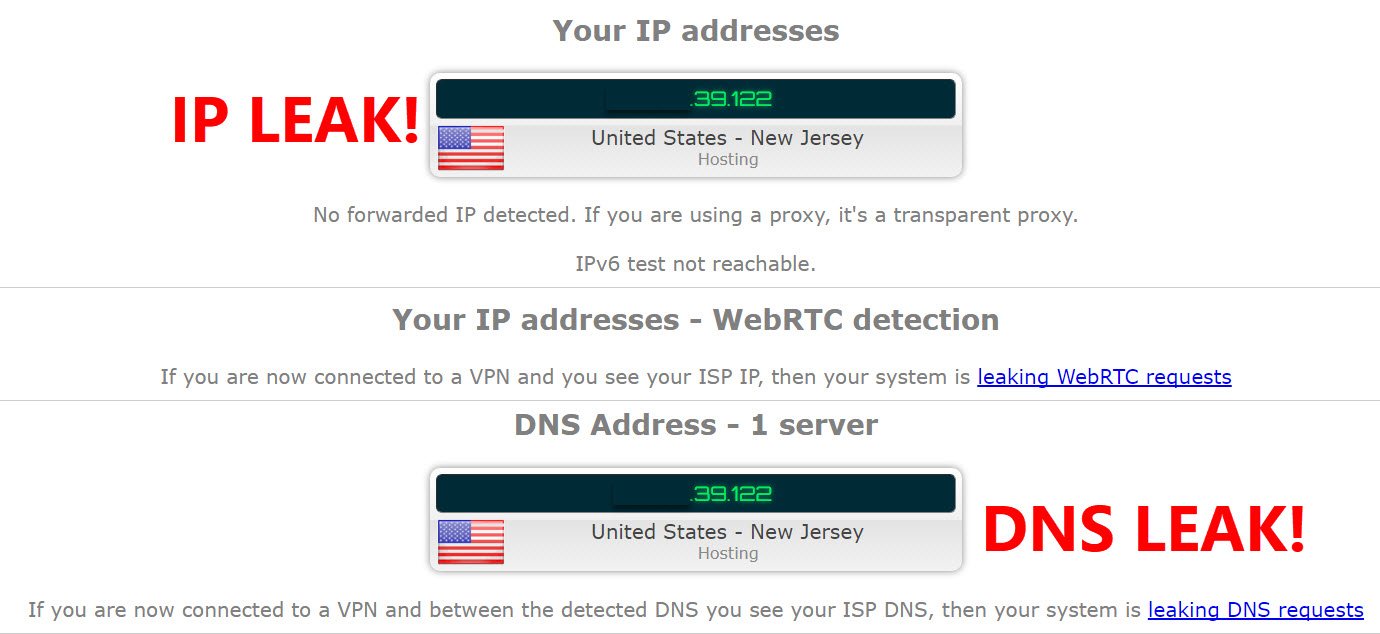
1. IPLeak
-
Shows IPv4 and IPv6 addresses
-
Detects DNS leaks
-
Displays WebRTC IPs
What I like about it: everything is on one page—very clear.
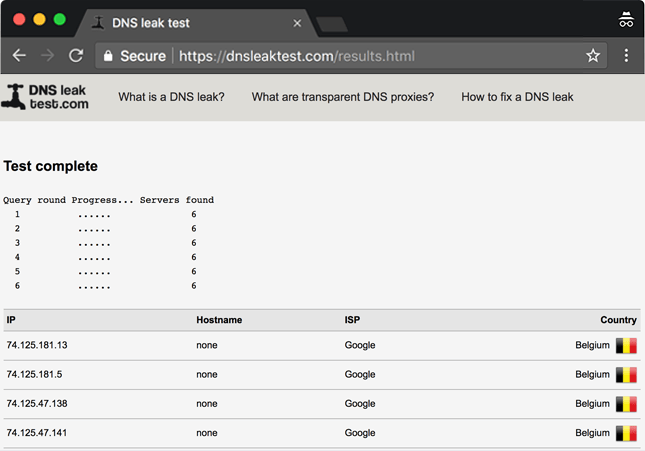
2. DNS Leak Test
-
Focused specifically on DNS requests
-
Shows which servers are handling your DNS queries
If you see your ISP listed instead of your VPN provider, that’s a DNS leak.
3. BrowserLeaks
-
Advanced tests for WebRTC
-
Browser fingerprinting checks
-
Great for desktop users
This one is eye-opening, especially if you care about browser privacy.
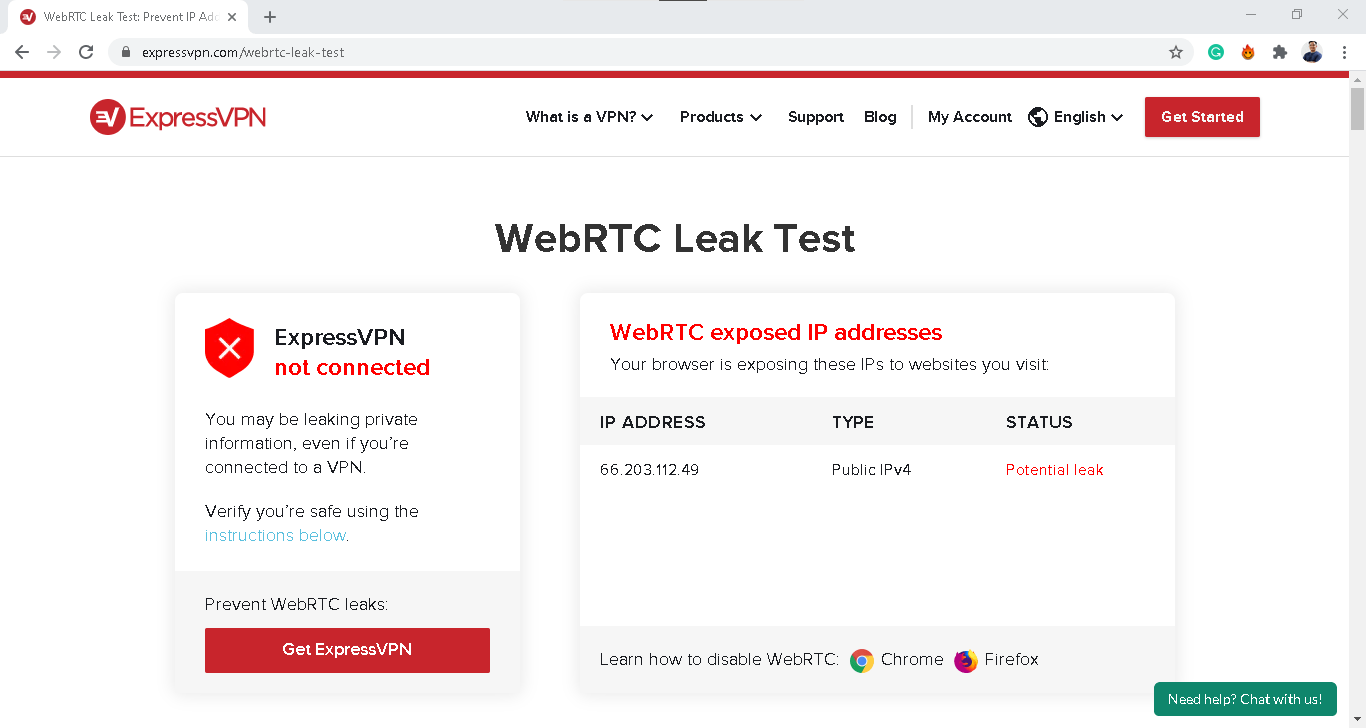
How to Check for WebRTC Leaks (Especially Important)
WebRTC leaks are sneaky and very common.
Here’s how to test:
-
Connect your VPN
-
Open a WebRTC leak test page
-
Look for Local IP Address or Public IP Address
If you see:
-
Your real ISP IP
-
A local network IP (like 192.168.x.x) exposed publicly
You likely have a WebRTC leak.
Browsers most affected:
-
Chrome
-
Edge
-
Firefox (if not configured properly)
How to Check for IPv6 Leaks
Many users don’t even realize IPv6 is enabled.
To test:
-
Use an IP leak site that lists IPv6
-
Look for entries marked “IPv6”
If:
-
IPv4 shows VPN location
-
IPv6 shows your real ISP location
That’s an IPv6 leak.
Real-World Scenarios Where IP Leaks Matter
This is where it becomes very real.
Streaming Services
Netflix, Prime Video, and others actively detect IP leaks. Even a small DNS leak can trigger blocks.
Public Wi-Fi
Coffee shops, airports, hotels—if your IP leaks here, attackers can:
-
Identify your network
-
Attempt targeted attacks
Work & Client Research
As a marketer, I often research competitors and ads. An IP leak can:
-
Skew results
-
Expose location-based targeting data
Online Shopping
Prices can vary by location. IP leaks defeat location masking.
Why “Connected” Doesn’t Always Mean “Protected”
This was a hard lesson.
A VPN app can show:
-
Green status
-
Secure tunnel icon
-
No error messages
And still:
-
Leak DNS
-
Expose WebRTC IPs
-
Fail during brief reconnections
That’s why manual testing matters more than trust.
Quick Checklist: Signs Your VPN Might Be Leaking
-
Websites still show your real country
-
Ads remain highly localized
-
Streaming services block content unexpectedly
-
DNS tests show ISP servers
-
WebRTC tests reveal local IPs
If any of these sound familiar, testing is overdue.
Conclusion
After spending time understanding IP leaks, one thing becomes very clear to me: privacy online is not a “set it and forget it” thing anymore. Installing a VPN is a great first step, but it’s not the final step. Just like we lock our homes but still double-check the doors at night, our digital privacy also needs occasional verification.
What surprised me most while learning about IP leaks is how quietly they can happen. There’s no warning message, no pop-up, and no obvious sign that something is wrong. Your VPN app might say “Connected,” yet behind the scenes, your device could still be sending DNS requests to your ISP, exposing your real IP through WebRTC, or leaking traffic over IPv6. That gap between perception and reality is where most people unknowingly lose their privacy.
Checking for IP leaks isn’t about being paranoid—it’s about being informed and proactive. Once you know how to test your connection, it only takes a couple of minutes. And those few minutes can make the difference between true anonymity and a false sense of security. For parents managing multiple devices, professionals working remotely, or anyone using public Wi-Fi, this habit becomes even more important.
Another key takeaway is that not all leaks mean your VPN is “bad.” Sometimes the issue lies in browser settings, operating system behavior, or default network configurations that prioritize speed and compatibility over privacy. That’s why understanding the different types of leaks—IP, DNS, WebRTC, and IPv6—really matters. Each one has a different cause and a different fix, and treating them as a single problem often leads to incomplete protection.
I also realized how relevant this topic is beyond just “hiding your location.” IP leaks affect streaming access, online shopping prices, ad targeting, research accuracy, and even basic online safety. Whether you’re comparing flight prices, accessing region-specific content, or simply trying to keep your browsing habits private, an IP leak quietly undermines all of it.
What I appreciate most is that once you’re aware, the solution is usually straightforward. Regular testing, choosing a VPN that handles DNS and IPv6 properly, enabling kill switches, and adjusting browser settings can dramatically improve your privacy. These aren’t advanced, technical steps—they’re practical actions that anyone can take with a little guidance.
Ultimately, a VPN is a tool. Like any tool, it works best when you understand its limitations and use it correctly. Testing for IP leaks should be seen as routine maintenance, not damage control. The internet isn’t getting simpler or safer by default, but with the right habits, we can still stay one step ahead.
If there’s one thing I’d encourage everyone to do after reading this, it’s simple: run a leak test today. Not tomorrow, not “when you have time.” Just a quick check. Peace of mind online is worth those few minutes.
Disclaimer
The information provided in this article is for educational and informational purposes only. While every effort has been made to ensure accuracy, VPN technologies, browsers, and operating systems change frequently. Results may vary depending on your device, network, VPN provider, and configuration. This content does not constitute professional cybersecurity advice. Always follow your VPN provider’s official documentation and privacy policies. The author and publisher are not responsible for any data loss, security issues, or misuse arising from the application of this information.

- Killer Network Service: Is It a Virus or Safe to Disable?

- How to Set Up Parental Controls on Windows 11: A Step-by-Step Guide

- How to Extract Audio From a Video: Easy Ways to Save Audio

- How to Set a Photo Album as Your Wallpaper on iPhone: Step-by-Step Guide

- How to Convert a Bootable USB Drive to an ISO File in Windows

Products
-
![Apple Watch Ultra 3 [GPS + Cellular 49mm] Running & Multisport Smartwatch w/Rugged Titanium Case w/Black Titanium Milanese Loop - M. Satellite Communications, Advanced Health & Fitness Tracking](https://bazaronweb.com/retailstores/wp-content/uploads/2025/09/apple-watch-320x320.jpg) Apple Watch Ultra 3 [GPS + Cellular 49mm] Running & Multisport Smartwatch w/Rugged Titanium Case w/Black Titanium Milanese Loop - M. Satellite Communications, Advanced Health & Fitness Tracking
Apple Watch Ultra 3 [GPS + Cellular 49mm] Running & Multisport Smartwatch w/Rugged Titanium Case w/Black Titanium Milanese Loop - M. Satellite Communications, Advanced Health & Fitness Tracking
-
 Apple iPad mini (A17 Pro): Apple Intelligence, 8.3-inch Liquid Retina Display, 256GB, Wi-Fi 6E, 12MP Front/12MP Back Camera, Touch ID, All-Day Battery Life — Purple
-
 Apple AirPods Max Wireless Over-Ear Headphones, Active Noise Cancelling, Transparency Mode, Personalized Spatial Audio, Dolby Atmos, Bluetooth Headphones for iPhone – Space Gray
-
 Apple AirPods Pro 2 Wireless Earbuds, Active Noise Cancellation, Hearing Aid Feature, Bluetooth Headphones, Transparency, Personalized Spatial Audio, High-Fidelity Sound, H2 Chip, USB-C Charging
-
Home Garage 210 TC Cotton King Floral Fitted (Elastic) Bedsheet(Pack of 1, Grey)
Original price was: ₹999.00.₹299.00Current price is: ₹299.00.
Leave a Reply