Discounted Products
-
 Home Garage 210 TC Cotton King Floral Fitted (Elastic) Bedsheet(Pack of 1, Grey)
Original price was: ₹999.00.₹299.00Current price is: ₹299.00.
Home Garage 210 TC Cotton King Floral Fitted (Elastic) Bedsheet(Pack of 1, Grey)
Original price was: ₹999.00.₹299.00Current price is: ₹299.00.
-
 Goodrik 140 TC Cotton Double 3D Printed Flat Bedsheet(Pack of 1, Brown)
Original price was: ₹499.00.₹229.00Current price is: ₹229.00.
Goodrik 140 TC Cotton Double 3D Printed Flat Bedsheet(Pack of 1, Brown)
Original price was: ₹499.00.₹229.00Current price is: ₹229.00.
-
 GLOBALSHOP 350 TC Microfiber Double Floral Flat Bedsheet(Pack of 1, Multicolor)
Original price was: ₹1,250.00.₹263.00Current price is: ₹263.00.
GLOBALSHOP 350 TC Microfiber Double Floral Flat Bedsheet(Pack of 1, Multicolor)
Original price was: ₹1,250.00.₹263.00Current price is: ₹263.00.
-
 RisingStar 250 TC Microfiber King Printed Fitted (Elastic) Bedsheet(Pack of 1, FITTED-ROUND-CIRCLES-PREMIUM)
Original price was: ₹2,299.00.₹299.00Current price is: ₹299.00.
RisingStar 250 TC Microfiber King Printed Fitted (Elastic) Bedsheet(Pack of 1, FITTED-ROUND-CIRCLES-PREMIUM)
Original price was: ₹2,299.00.₹299.00Current price is: ₹299.00.
-
 Home Garage 210 TC Cotton King Floral Fitted (Elastic) Bedsheet(Pack of 1, Fitted Black Green)
Original price was: ₹1,299.00.₹299.00Current price is: ₹299.00.
Home Garage 210 TC Cotton King Floral Fitted (Elastic) Bedsheet(Pack of 1, Fitted Black Green)
Original price was: ₹1,299.00.₹299.00Current price is: ₹299.00.
-
 Home Garage 180 TC Cotton King 3D Printed Flat Bedsheet(Pack of 1, White)
Original price was: ₹999.00.₹229.00Current price is: ₹229.00.
Home Garage 180 TC Cotton King 3D Printed Flat Bedsheet(Pack of 1, White)
Original price was: ₹999.00.₹229.00Current price is: ₹229.00.
-
 Panipat Textile Hub 152.4 cm (5 ft) Polyester Window Curtain (Pack Of 2)(Solid, Aqua)
Original price was: ₹1,899.00.₹299.00Current price is: ₹299.00.
Panipat Textile Hub 152.4 cm (5 ft) Polyester Window Curtain (Pack Of 2)(Solid, Aqua)
Original price was: ₹1,899.00.₹299.00Current price is: ₹299.00.
-
 Home Sizzler 214 cm (7 ft) Polyester Semi Transparent Door Curtain (Pack Of 2)(Floral, Maroon)
Original price was: ₹1,199.00.₹399.00Current price is: ₹399.00.
Home Sizzler 214 cm (7 ft) Polyester Semi Transparent Door Curtain (Pack Of 2)(Floral, Maroon)
Original price was: ₹1,199.00.₹399.00Current price is: ₹399.00.
-
 Home Sizzler 153 cm (5 ft) Polyester Room Darkening Window Curtain (Pack Of 2)(Floral, Brown)
Original price was: ₹799.00.₹299.00Current price is: ₹299.00.
Home Sizzler 153 cm (5 ft) Polyester Room Darkening Window Curtain (Pack Of 2)(Floral, Brown)
Original price was: ₹799.00.₹299.00Current price is: ₹299.00.
-
 Stella Creations 214 cm (7 ft) Polyester Room Darkening Door Curtain (Pack Of 2)(Abstract, Brown)
Original price was: ₹1,299.00.₹449.00Current price is: ₹449.00.
Stella Creations 214 cm (7 ft) Polyester Room Darkening Door Curtain (Pack Of 2)(Abstract, Brown)
Original price was: ₹1,299.00.₹449.00Current price is: ₹449.00.
-
 Homefab India 152.5 cm (5 ft) Polyester Room Darkening Window Curtain (Pack Of 2)(Floral, Light Blue)
Original price was: ₹1,199.00.₹319.00Current price is: ₹319.00.
Homefab India 152.5 cm (5 ft) Polyester Room Darkening Window Curtain (Pack Of 2)(Floral, Light Blue)
Original price was: ₹1,199.00.₹319.00Current price is: ₹319.00.
-
 Urban Home 214 cm (7 ft) PVC Transparent Door Curtain Single Curtain(Solid, Off White)
Original price was: ₹699.00.₹203.00Current price is: ₹203.00.
Urban Home 214 cm (7 ft) PVC Transparent Door Curtain Single Curtain(Solid, Off White)
Original price was: ₹699.00.₹203.00Current price is: ₹203.00.
-
 Panipat Textile Hub 213 cm (7 ft) Polyester Door Curtain (Pack Of 2)(Solid, Brown)
Original price was: ₹1,199.00.₹349.00Current price is: ₹349.00.
Panipat Textile Hub 213 cm (7 ft) Polyester Door Curtain (Pack Of 2)(Solid, Brown)
Original price was: ₹1,199.00.₹349.00Current price is: ₹349.00.
-
 Home Sizzler 214 cm (7 ft) Polyester Semi Transparent Door Curtain (Pack Of 2)(Floral, Brown)
Original price was: ₹999.00.₹349.00Current price is: ₹349.00.
Home Sizzler 214 cm (7 ft) Polyester Semi Transparent Door Curtain (Pack Of 2)(Floral, Brown)
Original price was: ₹999.00.₹349.00Current price is: ₹349.00.
-
 Panipat Textile Hub 213 cm (7 ft) Polyester Semi Transparent Door Curtain (Pack Of 2)(Floral, Brown)
Original price was: ₹899.00.₹299.00Current price is: ₹299.00.
Panipat Textile Hub 213 cm (7 ft) Polyester Semi Transparent Door Curtain (Pack Of 2)(Floral, Brown)
Original price was: ₹899.00.₹299.00Current price is: ₹299.00.
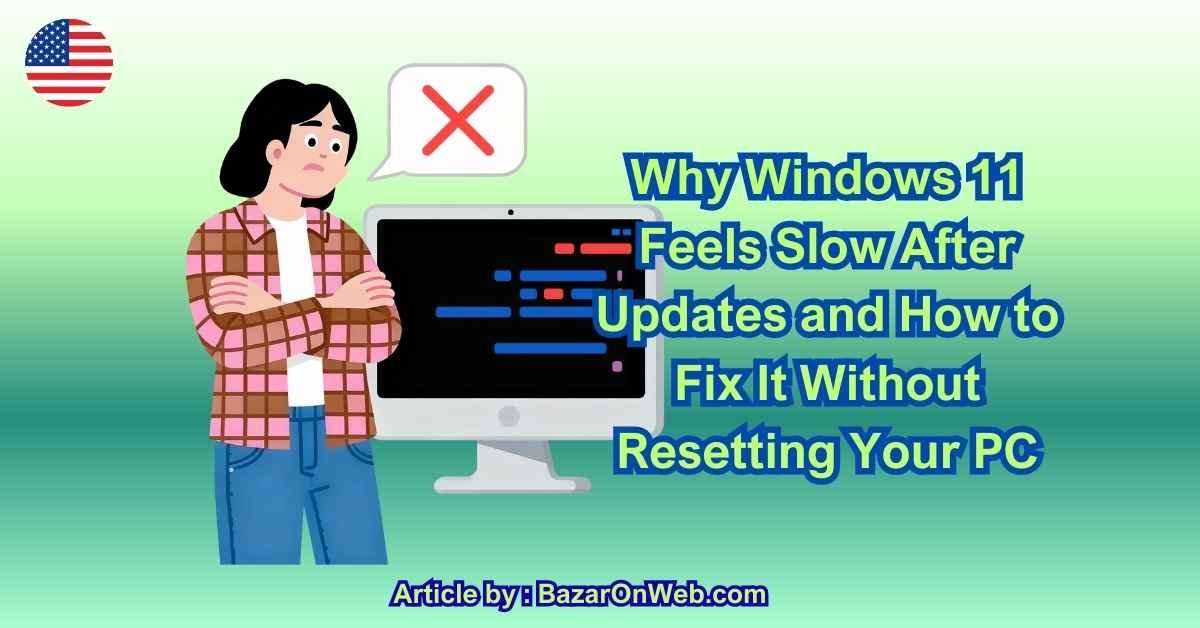
Hey, it’s Jessica. If your Windows 11 PC suddenly feels slower right after an update, you’re not imagining it—and no, it doesn’t mean your laptop is “getting old.” I’ve gone through this exact cycle more times than I can count. One day everything feels smooth, then Windows installs an update overnight, and suddenly apps take longer to open, the system feels heavier, and even simple tasks feel oddly delayed. The most frustrating part is that updates are supposed to improve performance and security, not make things worse. Yet for many users, the opposite seems to happen. Understanding why this slowdown occurs is the first step to fixing it without resorting to drastic solutions like resetting your PC or reinstalling Windows.
What most people don’t realize is that Windows updates don’t just replace files and move on. They trigger a chain of background processes that can continue running long after the update itself appears “finished.” Windows reindexes files, rebuilds search databases, recalibrates system services, and rechecks hardware compatibility in the background. All of this consumes CPU power, memory, and disk activity—sometimes for hours or even days depending on your system. If you start using your PC normally during this period, it feels sluggish because the system is essentially multitasking behind your back. The slowdown isn’t permanent, but without intervention, it can linger longer than necessary.
Another reason Windows 11 feels slower after updates is that updates often reset or re-enable features you may have previously optimized. Background apps, startup programs, system animations, and telemetry services can quietly turn themselves back on. I’ve personally noticed settings I had carefully adjusted suddenly behaving differently after major updates. Windows assumes default configurations are safest, not fastest. This means your system might be doing more work than before—running background services, syncing data, or refreshing apps that don’t need constant attention. When multiple small changes stack together, the result is a PC that feels noticeably heavier.
Driver behavior also plays a huge role. Windows updates frequently include generic drivers that prioritize compatibility over performance. While this ensures your hardware works reliably, it doesn’t always deliver the best speed. Graphics drivers, storage controllers, and chipset drivers are especially sensitive to this. After an update, your system may technically be “up to date” but not optimized. This mismatch often shows up as laggy animations, delayed app launches, or slower boot times. It’s subtle, but once you notice it, it’s hard to ignore.
Storage activity is another hidden factor. Updates leave behind temporary installation files, update backups, and rollback data in case something goes wrong. While these files are useful as a safety net, they also take up space and increase disk activity. On systems with limited SSD capacity, this extra load can slow everything down. The PC isn’t broken—it’s just busy managing files you’ll probably never need again. Without cleaning this up intentionally, performance suffers quietly.
Startup behavior can also change after updates. New services may be added to startup, and existing ones may be delayed or reordered. Even small changes here can affect how responsive your PC feels when you first turn it on. I’ve had updates that didn’t obviously “break” anything, yet every boot suddenly took longer, and background processes spiked for several minutes. Windows doesn’t always explain these changes, which makes the slowdown feel mysterious and uncontrollable.
What’s important to understand is that post-update slowness doesn’t mean your system is permanently damaged. It means Windows is recalibrating itself—and sometimes doing so inefficiently. The mistake most people make is panicking and assuming the only fix is a full reset. In reality, most performance drops after updates can be fixed by guiding Windows back into an optimized state. Once you know where to look and what to adjust, your PC can feel just as fast as it did before the update, if not faster.
The key is patience combined with intentional optimization. Windows 11 is designed to work for millions of different devices, so it takes a conservative approach after updates. It assumes you want everything running, everything syncing, and everything available. But not every user needs that. Performance improves dramatically when you tailor the system back to your actual usage. That’s where control comes back into your hands—not by fighting Windows, but by understanding how it behaves after updates and nudging it in the right direction.
Once you accept that post-update slowness is usually temporary but preventable, the focus shifts to helping Windows 11 settle down faster. The first thing I always do after a major update is simply give the system a little breathing room. Windows often finishes background tasks like indexing, optimization, and system checks hours after the update screen disappears. Leaving the PC idle for a while—plugged in, connected to the internet, and not overloaded with apps—allows those processes to complete sooner. This alone can noticeably reduce lag, especially on mid-range laptops.
Next, I check startup apps, because updates often sneak new entries into the startup list or re-enable ones I previously disabled. Too many startup programs slow down boot time and keep system resources tied up even after the desktop loads. Disabling anything non-essential immediately makes the system feel more responsive. The goal isn’t to strip Windows down to nothing, but to make sure only apps you truly need at startup are allowed to run automatically. This step alone has saved me from countless “why is my PC still slow?” moments.
Background activity is another area that deserves attention. Windows 11 runs many background services by default, and updates can reset permissions for background apps. I always review which apps are allowed to run in the background and turn off anything that doesn’t need constant access. This reduces CPU usage, memory pressure, and unnecessary disk activity. What surprised me most was how many apps I barely used were quietly active all the time. Once limited, the system felt lighter almost immediately.
Storage cleanup is a critical step after updates. Windows keeps update backups, temporary installation files, and rollback data in case something goes wrong. While this is helpful, it also adds extra load to your storage drive. Clearing these files through built-in cleanup tools frees space and reduces background disk activity. On SSD-based systems, this often translates directly into faster app launches and smoother multitasking. The key is waiting until you’re confident the update is stable, then removing what you no longer need.
Drivers deserve special attention because they directly affect performance. Windows updates often install generic drivers that prioritize stability over speed. Graphics drivers, in particular, can make or break how smooth Windows feels. After updates, I always check whether better drivers are available from the hardware manufacturer. Updating them doesn’t just improve visuals—it often fixes stuttering, lag, and delayed response across the entire system. This step is especially important for laptops and PCs used for creative work or multitasking.
Visual effects and animations are another subtle factor. Windows 11 emphasizes modern design, but those effects consume resources. Updates can reset visual settings to default, re-enabling animations you may have previously toned down. Adjusting these settings doesn’t make Windows look “old”—it simply prioritizes responsiveness. I’ve found that even small changes here can make the interface feel noticeably snappier, especially on systems without high-end hardware.
Power settings can also change after updates. Windows may switch back to balanced or power-saving modes, limiting performance to conserve energy. While this is great for battery life, it can make the system feel sluggish when plugged in. Switching back to a performance-oriented power profile restores responsiveness without harming long-term stability. This is one of those fixes that takes seconds but makes a big difference.
Finally, I always check for secondary updates. Major updates often trigger additional patches, driver updates, and compatibility fixes that don’t install immediately. Running update checks again ensures you’re not stuck in a half-optimized state. Many users skip this step and wonder why performance never fully recovers. In my experience, the last round of updates often resolves lingering issues.
By following these steps, Windows 11 doesn’t just return to normal—it often feels better than before. The system stops fighting itself, background noise quiets down, and performance stabilizes. The key takeaway is that Windows updates aren’t the enemy. They just need guidance afterward.
Conclusion
Windows 11 feeling slow after updates is common, but it’s rarely permanent or serious. Most slowdowns come from background recalibration, reset settings, generic drivers, and leftover update data. Once you understand this behavior, the solution becomes calm and methodical rather than frustrating. You don’t need to reset your PC, reinstall Windows, or assume your hardware is failing. With a few intentional adjustments, Windows settles back into an optimized state. Performance isn’t lost—it’s just temporarily misplaced, and reclaiming it is well within your control.
Disclaimer
This article is intended for informational purposes only. System performance and update behavior may vary depending on hardware configuration, Windows version, and individual usage patterns. Always review system settings carefully and follow official Windows guidelines when making changes.

- How to Convert a Bootable USB Drive to an ISO File in Windows

- How to Enable End Task on the Windows 11 Taskbar
- How to Add a Clock Widget to Your Windows 11 Desktop

- How to Check Battery Health on Android Phones: Samsung, Pixel, OnePlus, Xiaomi and More

- How to Turn Off Auto Capitalization on a Samsung Phone
Products
-
![Apple Watch Ultra 3 [GPS + Cellular 49mm] Running & Multisport Smartwatch w/Rugged Titanium Case w/Black Titanium Milanese Loop - M. Satellite Communications, Advanced Health & Fitness Tracking](https://bazaronweb.com/retailstores/wp-content/uploads/2025/09/apple-watch-320x320.jpg) Apple Watch Ultra 3 [GPS + Cellular 49mm] Running & Multisport Smartwatch w/Rugged Titanium Case w/Black Titanium Milanese Loop - M. Satellite Communications, Advanced Health & Fitness Tracking
Apple Watch Ultra 3 [GPS + Cellular 49mm] Running & Multisport Smartwatch w/Rugged Titanium Case w/Black Titanium Milanese Loop - M. Satellite Communications, Advanced Health & Fitness Tracking
-
 Apple iPad mini (A17 Pro): Apple Intelligence, 8.3-inch Liquid Retina Display, 256GB, Wi-Fi 6E, 12MP Front/12MP Back Camera, Touch ID, All-Day Battery Life — Purple
-
 Apple AirPods Max Wireless Over-Ear Headphones, Active Noise Cancelling, Transparency Mode, Personalized Spatial Audio, Dolby Atmos, Bluetooth Headphones for iPhone – Space Gray
-
 Apple AirPods Pro 2 Wireless Earbuds, Active Noise Cancellation, Hearing Aid Feature, Bluetooth Headphones, Transparency, Personalized Spatial Audio, High-Fidelity Sound, H2 Chip, USB-C Charging
-
Home Garage 210 TC Cotton King Floral Fitted (Elastic) Bedsheet(Pack of 1, Grey)
Original price was: ₹999.00.₹299.00Current price is: ₹299.00.
Leave a Reply