Discounted Products
-
 Home Garage 210 TC Cotton King Floral Fitted (Elastic) Bedsheet(Pack of 1, Grey)
Original price was: ₹999.00.₹299.00Current price is: ₹299.00.
Home Garage 210 TC Cotton King Floral Fitted (Elastic) Bedsheet(Pack of 1, Grey)
Original price was: ₹999.00.₹299.00Current price is: ₹299.00.
-
 Goodrik 140 TC Cotton Double 3D Printed Flat Bedsheet(Pack of 1, Brown)
Original price was: ₹499.00.₹229.00Current price is: ₹229.00.
Goodrik 140 TC Cotton Double 3D Printed Flat Bedsheet(Pack of 1, Brown)
Original price was: ₹499.00.₹229.00Current price is: ₹229.00.
-
 GLOBALSHOP 350 TC Microfiber Double Floral Flat Bedsheet(Pack of 1, Multicolor)
Original price was: ₹1,250.00.₹263.00Current price is: ₹263.00.
GLOBALSHOP 350 TC Microfiber Double Floral Flat Bedsheet(Pack of 1, Multicolor)
Original price was: ₹1,250.00.₹263.00Current price is: ₹263.00.
-
 RisingStar 250 TC Microfiber King Printed Fitted (Elastic) Bedsheet(Pack of 1, FITTED-ROUND-CIRCLES-PREMIUM)
Original price was: ₹2,299.00.₹299.00Current price is: ₹299.00.
RisingStar 250 TC Microfiber King Printed Fitted (Elastic) Bedsheet(Pack of 1, FITTED-ROUND-CIRCLES-PREMIUM)
Original price was: ₹2,299.00.₹299.00Current price is: ₹299.00.
-
 Home Garage 210 TC Cotton King Floral Fitted (Elastic) Bedsheet(Pack of 1, Fitted Black Green)
Original price was: ₹1,299.00.₹299.00Current price is: ₹299.00.
Home Garage 210 TC Cotton King Floral Fitted (Elastic) Bedsheet(Pack of 1, Fitted Black Green)
Original price was: ₹1,299.00.₹299.00Current price is: ₹299.00.
-
 Home Garage 180 TC Cotton King 3D Printed Flat Bedsheet(Pack of 1, White)
Original price was: ₹999.00.₹229.00Current price is: ₹229.00.
Home Garage 180 TC Cotton King 3D Printed Flat Bedsheet(Pack of 1, White)
Original price was: ₹999.00.₹229.00Current price is: ₹229.00.
-
 Panipat Textile Hub 152.4 cm (5 ft) Polyester Window Curtain (Pack Of 2)(Solid, Aqua)
Original price was: ₹1,899.00.₹299.00Current price is: ₹299.00.
Panipat Textile Hub 152.4 cm (5 ft) Polyester Window Curtain (Pack Of 2)(Solid, Aqua)
Original price was: ₹1,899.00.₹299.00Current price is: ₹299.00.
-
 Home Sizzler 214 cm (7 ft) Polyester Semi Transparent Door Curtain (Pack Of 2)(Floral, Maroon)
Original price was: ₹1,199.00.₹399.00Current price is: ₹399.00.
Home Sizzler 214 cm (7 ft) Polyester Semi Transparent Door Curtain (Pack Of 2)(Floral, Maroon)
Original price was: ₹1,199.00.₹399.00Current price is: ₹399.00.
-
 Home Sizzler 153 cm (5 ft) Polyester Room Darkening Window Curtain (Pack Of 2)(Floral, Brown)
Original price was: ₹799.00.₹299.00Current price is: ₹299.00.
Home Sizzler 153 cm (5 ft) Polyester Room Darkening Window Curtain (Pack Of 2)(Floral, Brown)
Original price was: ₹799.00.₹299.00Current price is: ₹299.00.
-
 Stella Creations 214 cm (7 ft) Polyester Room Darkening Door Curtain (Pack Of 2)(Abstract, Brown)
Original price was: ₹1,299.00.₹449.00Current price is: ₹449.00.
Stella Creations 214 cm (7 ft) Polyester Room Darkening Door Curtain (Pack Of 2)(Abstract, Brown)
Original price was: ₹1,299.00.₹449.00Current price is: ₹449.00.
-
 Homefab India 152.5 cm (5 ft) Polyester Room Darkening Window Curtain (Pack Of 2)(Floral, Light Blue)
Original price was: ₹1,199.00.₹319.00Current price is: ₹319.00.
Homefab India 152.5 cm (5 ft) Polyester Room Darkening Window Curtain (Pack Of 2)(Floral, Light Blue)
Original price was: ₹1,199.00.₹319.00Current price is: ₹319.00.
-
 Urban Home 214 cm (7 ft) PVC Transparent Door Curtain Single Curtain(Solid, Off White)
Original price was: ₹699.00.₹203.00Current price is: ₹203.00.
Urban Home 214 cm (7 ft) PVC Transparent Door Curtain Single Curtain(Solid, Off White)
Original price was: ₹699.00.₹203.00Current price is: ₹203.00.
-
 Panipat Textile Hub 213 cm (7 ft) Polyester Door Curtain (Pack Of 2)(Solid, Brown)
Original price was: ₹1,199.00.₹349.00Current price is: ₹349.00.
Panipat Textile Hub 213 cm (7 ft) Polyester Door Curtain (Pack Of 2)(Solid, Brown)
Original price was: ₹1,199.00.₹349.00Current price is: ₹349.00.
-
 Home Sizzler 214 cm (7 ft) Polyester Semi Transparent Door Curtain (Pack Of 2)(Floral, Brown)
Original price was: ₹999.00.₹349.00Current price is: ₹349.00.
Home Sizzler 214 cm (7 ft) Polyester Semi Transparent Door Curtain (Pack Of 2)(Floral, Brown)
Original price was: ₹999.00.₹349.00Current price is: ₹349.00.
-
 Panipat Textile Hub 213 cm (7 ft) Polyester Semi Transparent Door Curtain (Pack Of 2)(Floral, Brown)
Original price was: ₹899.00.₹299.00Current price is: ₹299.00.
Panipat Textile Hub 213 cm (7 ft) Polyester Semi Transparent Door Curtain (Pack Of 2)(Floral, Brown)
Original price was: ₹899.00.₹299.00Current price is: ₹299.00.
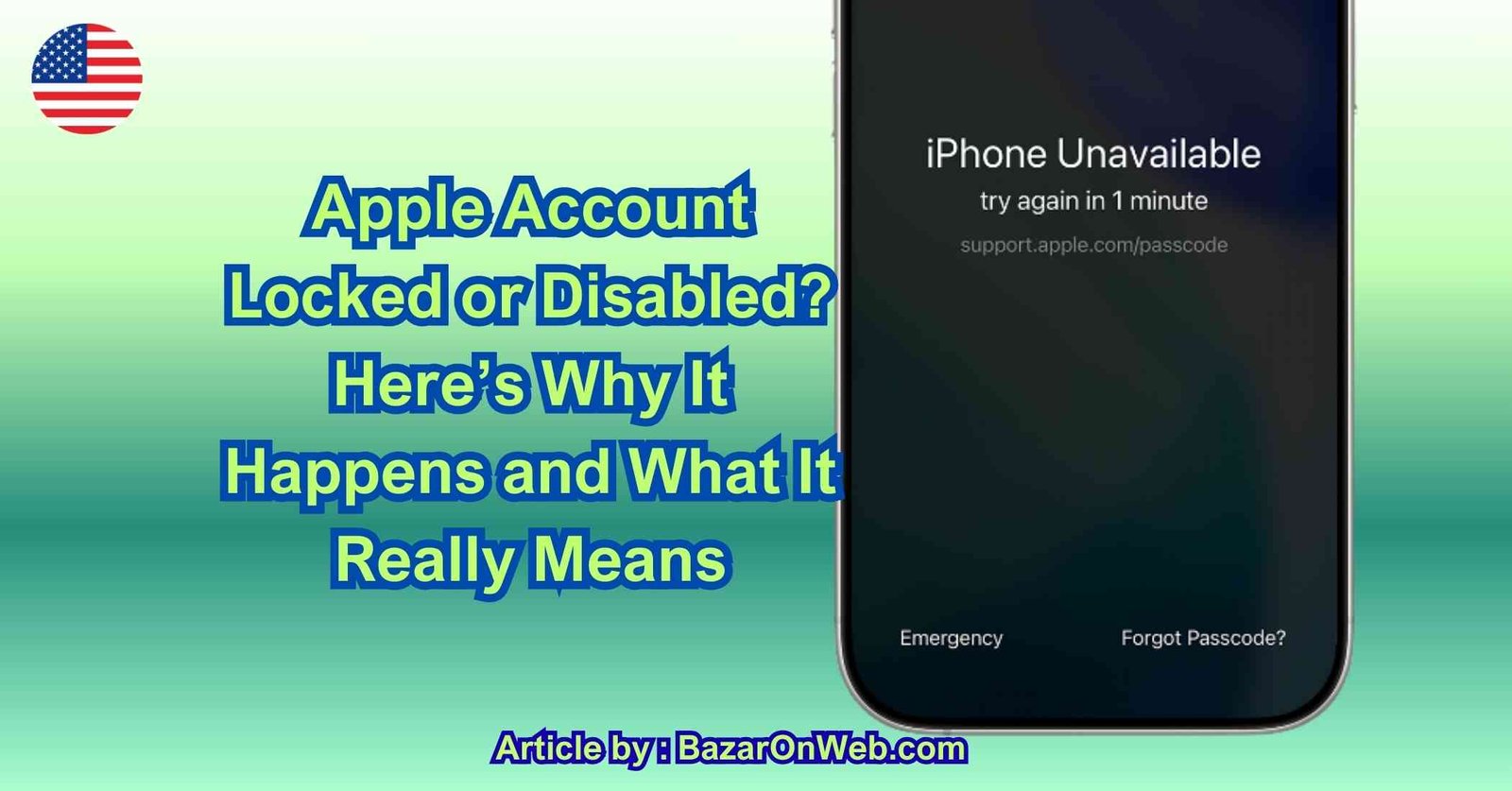
Hey, it’s Jessica. Few things feel more stressful than trying to sign in to your Apple Account and seeing a message that says your account is locked, disabled, or not active. You might be trying to download an app, access iCloud, check email, restore a device, or log in to a new iPhone—and suddenly you’re completely blocked. It feels urgent. It feels serious. And if you rely on your Apple Account daily, it can feel overwhelming. I’ve helped friends and family through this exact situation, and the first thing I always say is this: a locked Apple Account does not mean your account is gone. It means Apple’s security system has stepped in.
Your Apple Account Is Your Digital Identity
Before we talk about why accounts get locked, it’s important to understand what your Apple Account represents. It’s not just a login. It controls access to:
-
iCloud data (photos, files, backups)
-
App Store purchases
-
Apple Music and subscriptions
-
Messages and FaceTime
-
Find My iPhone
-
Device activation
-
Payment information
Because it holds so much personal data, Apple builds aggressive security protections around it. When the system detects something unusual, it locks access immediately to prevent potential damage.
A locked account is not punishment. It’s protection.
Why Apple Locks or Disables Accounts
There are several common reasons this happens, and most of them are security-related rather than technical errors.
1. Too Many Incorrect Password Attempts
This is the most common cause. If someone (including you) enters the wrong password multiple times, Apple assumes the account may be under attack. It automatically locks sign-in attempts to prevent brute-force access.
This can happen if:
-
You forgot your password.
-
A saved password is outdated.
-
A device keeps trying to log in with an old password.
-
Someone else tries to guess your credentials.
Even a child using your iPad can trigger this without realizing it.
2. Suspicious Login Activity
Apple monitors login patterns. If your account suddenly attempts to sign in from a new country, unusual location, or unfamiliar device, the system flags it.
You might see:
-
“This Apple Account has been locked for security reasons.”
-
“Your account is not active.”
-
“You can’t sign in because your account was disabled.”
This doesn’t mean someone successfully accessed your account. It means Apple detected a pattern that didn’t match your normal behavior.
3. Billing or Payment Issues
In some cases, repeated failed payment attempts or charge disputes can temporarily restrict account functionality. If subscription renewals fail multiple times or there’s a payment dispute, Apple may limit certain services.
This is less common than password issues, but it does happen.
4. Two-Factor Authentication Problems
If two-factor authentication is enabled and verification fails repeatedly, Apple may temporarily disable sign-in.
For example:
-
Entering incorrect verification codes multiple times.
-
Losing access to trusted devices.
-
Changing phone numbers without updating account settings.
Security layers are designed to protect you—but when access to recovery options is lost, they can lock you out too.
5. Account Recovery in Progress
If you’ve already started account recovery, Apple may temporarily block sign-ins while the recovery process completes. During this time, the account may appear inactive.
This waiting period is intentional. Apple delays recovery to ensure that the request is legitimate and not initiated by an attacker.
6. Violation of Terms or Fraud Detection
In rare cases, accounts can be disabled due to suspected fraud, policy violations, or abuse of services. This usually involves unusual purchasing patterns or suspicious activity tied to payment methods.
Most everyday users never encounter this scenario, but it’s part of Apple’s security framework.
What “Locked,” “Disabled,” and “Not Active” Actually Mean
The wording can be confusing, but the core issue is the same: Apple has temporarily restricted access.
-
Locked usually means security triggers were activated.
-
Disabled often refers to repeated incorrect sign-in attempts.
-
Not active may indicate recovery mode or temporary restriction.
None of these automatically mean permanent deletion.
The Emotional Side of Being Locked Out
What makes this situation stressful isn’t just the message—it’s the fear of losing access to personal data. Photos, contacts, backups, and subscriptions feel at risk.
The key thing to remember is this: Apple doesn’t lock accounts casually. It does so to prevent unauthorized access. In most cases, accounts are fully recoverable once identity is verified.
The system isn’t working against you. It’s protecting your digital identity.
Common Mistakes People Make When Locked Out
When people see the locked message, they often react quickly and make things worse unintentionally.
Common reactions include:
-
Repeatedly guessing passwords (which extends lock duration)
-
Creating a new Apple Account (which complicates recovery)
-
Resetting devices unnecessarily
-
Attempting too many recovery attempts in a short period
The system interprets repeated attempts as continued suspicious activity.
Slowing down is actually the fastest way forward.
Security First, Convenience Second
Apple’s philosophy prioritizes security over instant convenience. That’s why recovery sometimes takes time. The system doesn’t assume you’re the rightful owner—it verifies it.
This can feel frustrating in the moment, but it’s exactly what protects your data from real attackers.
Why This Happens More Often Now
Over the past few years, Apple has strengthened account security dramatically. Two-factor authentication is standard. Device verification is stricter. Suspicious activity detection is more aggressive.
As security improves, temporary lockouts become more common—not because the system is failing, but because it’s better at detecting unusual patterns.
In many cases, the trigger isn’t malicious activity at all. It could be:
-
Logging in from a new work laptop
-
Using a VPN
-
Traveling internationally
-
Resetting a device
-
Changing SIM cards
All of these can look “unusual” to automated systems.
The Good News: Most Lockouts Are Temporary
In the vast majority of cases, a locked or disabled Apple Account can be restored. The system is designed to protect access—not eliminate it.
The real issue isn’t whether recovery is possible. It’s knowing the correct steps and avoiding actions that delay the process.
Shift From Panic to Process
When your Apple Account is locked, the natural reaction is urgency. But the fastest solution comes from understanding the process.
Instead of asking:
“Why is Apple blocking me?”
Ask:
“What triggered the security system?”
That shift changes everything.
Now let’s move from understanding the problem to actually fixing it calmly and correctly.
Step 1: Stop Guessing the Password
If your Apple Account is locked because of incorrect password attempts, the worst thing you can do is keep trying.
Every failed attempt can:
-
Extend the lock duration
-
Trigger additional security flags
-
Complicate recovery
Instead of guessing, go directly to Apple’s official recovery page. This ensures you’re following the verified process rather than escalating the issue.
Step 2: Use Apple’s Account Recovery Tool
Go to Apple’s official account recovery website and enter your Apple ID (usually your email address).
From there, Apple will guide you through identity verification. Depending on your settings, you may need:
-
Access to a trusted device
-
Access to your trusted phone number
-
The ability to receive a verification code
-
Answers to security prompts
If you still have your trusted iPhone or Mac signed in, recovery is usually quick.
Step 3: If You Have a Trusted Device
If you’re signed in on another Apple device:
-
Go to Settings
-
Tap your name at the top
-
Choose Password & Security
-
Tap Change Password
This is the fastest recovery method because your identity is already verified on that device.
Step 4: If You Lost Access to Trusted Devices
If you no longer have access to trusted devices or your phone number, you’ll need to start Account Recovery.
This process:
-
Verifies your identity using account history
-
May require a waiting period
-
Sends updates to your recovery contact or email
The waiting period can range from a few hours to several days. This delay is intentional and designed to prevent attackers from quickly taking over accounts.
It feels inconvenient, but it protects you long-term.
Step 5: Check Your Email for Recovery Updates
During account recovery, Apple sends status updates to your email. Missing these messages can delay the process.
Make sure:
-
You check spam/junk folders
-
Your email account is accessible
-
You respond promptly if additional verification is requested
Ignoring recovery messages can reset the timeline.
Step 6: Verify Your Trusted Phone Number
Apple often requires confirmation via your trusted phone number.
If:
-
You changed your number recently
-
Your SIM card is inactive
-
You’re traveling internationally
You may need temporary access to that number to complete verification.
If the number is permanently inaccessible, account recovery becomes mandatory.
Step 7: Avoid Creating a New Apple Account
Many users panic and create a new Apple ID. This causes more complications:
-
Purchases remain tied to the old account
-
iCloud data doesn’t transfer
-
Device activation may remain linked to the original account
Recovery is almost always better than starting over.
Step 8: If Billing Issues Caused the Lock
If your account was restricted due to payment problems:
-
Update your payment method
-
Resolve any declined charges
-
Contact Apple Support directly
Billing-related restrictions are usually resolved faster than security-based lockouts.
Step 9: Contact Apple Support When Necessary
If automated recovery doesn’t work or you’re stuck in a loop, contact Apple Support directly.
Have ready:
-
Your Apple ID email
-
Serial number of a trusted device
-
Proof of purchase (if required)
Apple may escalate identity verification manually in rare cases.
How Long Does Recovery Take?
If you have access to trusted devices:
→ Recovery can be immediate.
If you need full account recovery:
→ It can take several days.
This waiting period cannot be sped up by repeated attempts. In fact, retrying too often can reset the process.
Patience is part of the security design.
What NOT to Do During Recovery
Avoid:
-
Repeated password guesses
-
Submitting multiple recovery requests
-
Resetting your iPhone unnecessarily
-
Using unofficial third-party unlock services
Third-party services claiming instant unlocks are almost always scams.
How to Prevent Future Lockouts
Once your account is restored, take preventive steps:
-
Enable two-factor authentication (if not already active)
-
Add a recovery contact
-
Keep your trusted phone number updated
-
Use a password manager
-
Avoid frequent login attempts on unfamiliar devices
Prevention is much easier than recovery.
Conclusion
If your Apple Account is locked, disabled, or not active, it’s almost always a security safeguard—not permanent loss. Apple’s system prioritizes protecting your identity and data above convenience. While the process may require patience, most accounts are fully recoverable with the correct steps. The key is staying calm, following official recovery methods, and avoiding repeated login attempts that trigger additional locks. Once restored, strengthening your security settings ensures the situation doesn’t repeat.
Disclaimer
This article is for informational purposes only. Account recovery timelines and procedures may vary depending on Apple policies, security settings, device access, and regional regulations. Always use official Apple recovery channels.

- Killer Network Service: Is It a Virus or Safe to Disable?

- How to Set Up Parental Controls on Windows 11: A Step-by-Step Guide

- How to Extract Audio From a Video: Easy Ways to Save Audio

- How to Set a Photo Album as Your Wallpaper on iPhone: Step-by-Step Guide

- How to Convert a Bootable USB Drive to an ISO File in Windows

Products
-
![Apple Watch Ultra 3 [GPS + Cellular 49mm] Running & Multisport Smartwatch w/Rugged Titanium Case w/Black Titanium Milanese Loop - M. Satellite Communications, Advanced Health & Fitness Tracking](https://bazaronweb.com/retailstores/wp-content/uploads/2025/09/apple-watch-320x320.jpg) Apple Watch Ultra 3 [GPS + Cellular 49mm] Running & Multisport Smartwatch w/Rugged Titanium Case w/Black Titanium Milanese Loop - M. Satellite Communications, Advanced Health & Fitness Tracking
Apple Watch Ultra 3 [GPS + Cellular 49mm] Running & Multisport Smartwatch w/Rugged Titanium Case w/Black Titanium Milanese Loop - M. Satellite Communications, Advanced Health & Fitness Tracking
-
 Apple iPad mini (A17 Pro): Apple Intelligence, 8.3-inch Liquid Retina Display, 256GB, Wi-Fi 6E, 12MP Front/12MP Back Camera, Touch ID, All-Day Battery Life — Purple
-
 Apple AirPods Max Wireless Over-Ear Headphones, Active Noise Cancelling, Transparency Mode, Personalized Spatial Audio, Dolby Atmos, Bluetooth Headphones for iPhone – Space Gray
-
 Apple AirPods Pro 2 Wireless Earbuds, Active Noise Cancellation, Hearing Aid Feature, Bluetooth Headphones, Transparency, Personalized Spatial Audio, High-Fidelity Sound, H2 Chip, USB-C Charging
-
Home Garage 210 TC Cotton King Floral Fitted (Elastic) Bedsheet(Pack of 1, Grey)
Original price was: ₹999.00.₹299.00Current price is: ₹299.00.
Leave a Reply