Discounted Products
-
 Home Garage 210 TC Cotton King Floral Fitted (Elastic) Bedsheet(Pack of 1, Grey)
Original price was: ₹999.00.₹299.00Current price is: ₹299.00.
Home Garage 210 TC Cotton King Floral Fitted (Elastic) Bedsheet(Pack of 1, Grey)
Original price was: ₹999.00.₹299.00Current price is: ₹299.00.
-
 Goodrik 140 TC Cotton Double 3D Printed Flat Bedsheet(Pack of 1, Brown)
Original price was: ₹499.00.₹229.00Current price is: ₹229.00.
Goodrik 140 TC Cotton Double 3D Printed Flat Bedsheet(Pack of 1, Brown)
Original price was: ₹499.00.₹229.00Current price is: ₹229.00.
-
 GLOBALSHOP 350 TC Microfiber Double Floral Flat Bedsheet(Pack of 1, Multicolor)
Original price was: ₹1,250.00.₹263.00Current price is: ₹263.00.
GLOBALSHOP 350 TC Microfiber Double Floral Flat Bedsheet(Pack of 1, Multicolor)
Original price was: ₹1,250.00.₹263.00Current price is: ₹263.00.
-
 RisingStar 250 TC Microfiber King Printed Fitted (Elastic) Bedsheet(Pack of 1, FITTED-ROUND-CIRCLES-PREMIUM)
Original price was: ₹2,299.00.₹299.00Current price is: ₹299.00.
RisingStar 250 TC Microfiber King Printed Fitted (Elastic) Bedsheet(Pack of 1, FITTED-ROUND-CIRCLES-PREMIUM)
Original price was: ₹2,299.00.₹299.00Current price is: ₹299.00.
-
 Home Garage 210 TC Cotton King Floral Fitted (Elastic) Bedsheet(Pack of 1, Fitted Black Green)
Original price was: ₹1,299.00.₹299.00Current price is: ₹299.00.
Home Garage 210 TC Cotton King Floral Fitted (Elastic) Bedsheet(Pack of 1, Fitted Black Green)
Original price was: ₹1,299.00.₹299.00Current price is: ₹299.00.
-
 Home Garage 180 TC Cotton King 3D Printed Flat Bedsheet(Pack of 1, White)
Original price was: ₹999.00.₹229.00Current price is: ₹229.00.
Home Garage 180 TC Cotton King 3D Printed Flat Bedsheet(Pack of 1, White)
Original price was: ₹999.00.₹229.00Current price is: ₹229.00.
-
 Panipat Textile Hub 152.4 cm (5 ft) Polyester Window Curtain (Pack Of 2)(Solid, Aqua)
Original price was: ₹1,899.00.₹299.00Current price is: ₹299.00.
Panipat Textile Hub 152.4 cm (5 ft) Polyester Window Curtain (Pack Of 2)(Solid, Aqua)
Original price was: ₹1,899.00.₹299.00Current price is: ₹299.00.
-
 Home Sizzler 214 cm (7 ft) Polyester Semi Transparent Door Curtain (Pack Of 2)(Floral, Maroon)
Original price was: ₹1,199.00.₹399.00Current price is: ₹399.00.
Home Sizzler 214 cm (7 ft) Polyester Semi Transparent Door Curtain (Pack Of 2)(Floral, Maroon)
Original price was: ₹1,199.00.₹399.00Current price is: ₹399.00.
-
 Home Sizzler 153 cm (5 ft) Polyester Room Darkening Window Curtain (Pack Of 2)(Floral, Brown)
Original price was: ₹799.00.₹299.00Current price is: ₹299.00.
Home Sizzler 153 cm (5 ft) Polyester Room Darkening Window Curtain (Pack Of 2)(Floral, Brown)
Original price was: ₹799.00.₹299.00Current price is: ₹299.00.
-
 Stella Creations 214 cm (7 ft) Polyester Room Darkening Door Curtain (Pack Of 2)(Abstract, Brown)
Original price was: ₹1,299.00.₹449.00Current price is: ₹449.00.
Stella Creations 214 cm (7 ft) Polyester Room Darkening Door Curtain (Pack Of 2)(Abstract, Brown)
Original price was: ₹1,299.00.₹449.00Current price is: ₹449.00.
-
 Homefab India 152.5 cm (5 ft) Polyester Room Darkening Window Curtain (Pack Of 2)(Floral, Light Blue)
Original price was: ₹1,199.00.₹319.00Current price is: ₹319.00.
Homefab India 152.5 cm (5 ft) Polyester Room Darkening Window Curtain (Pack Of 2)(Floral, Light Blue)
Original price was: ₹1,199.00.₹319.00Current price is: ₹319.00.
-
 Urban Home 214 cm (7 ft) PVC Transparent Door Curtain Single Curtain(Solid, Off White)
Original price was: ₹699.00.₹203.00Current price is: ₹203.00.
Urban Home 214 cm (7 ft) PVC Transparent Door Curtain Single Curtain(Solid, Off White)
Original price was: ₹699.00.₹203.00Current price is: ₹203.00.
-
 Panipat Textile Hub 213 cm (7 ft) Polyester Door Curtain (Pack Of 2)(Solid, Brown)
Original price was: ₹1,199.00.₹349.00Current price is: ₹349.00.
Panipat Textile Hub 213 cm (7 ft) Polyester Door Curtain (Pack Of 2)(Solid, Brown)
Original price was: ₹1,199.00.₹349.00Current price is: ₹349.00.
-
 Home Sizzler 214 cm (7 ft) Polyester Semi Transparent Door Curtain (Pack Of 2)(Floral, Brown)
Original price was: ₹999.00.₹349.00Current price is: ₹349.00.
Home Sizzler 214 cm (7 ft) Polyester Semi Transparent Door Curtain (Pack Of 2)(Floral, Brown)
Original price was: ₹999.00.₹349.00Current price is: ₹349.00.
-
 Panipat Textile Hub 213 cm (7 ft) Polyester Semi Transparent Door Curtain (Pack Of 2)(Floral, Brown)
Original price was: ₹899.00.₹299.00Current price is: ₹299.00.
Panipat Textile Hub 213 cm (7 ft) Polyester Semi Transparent Door Curtain (Pack Of 2)(Floral, Brown)
Original price was: ₹899.00.₹299.00Current price is: ₹299.00.
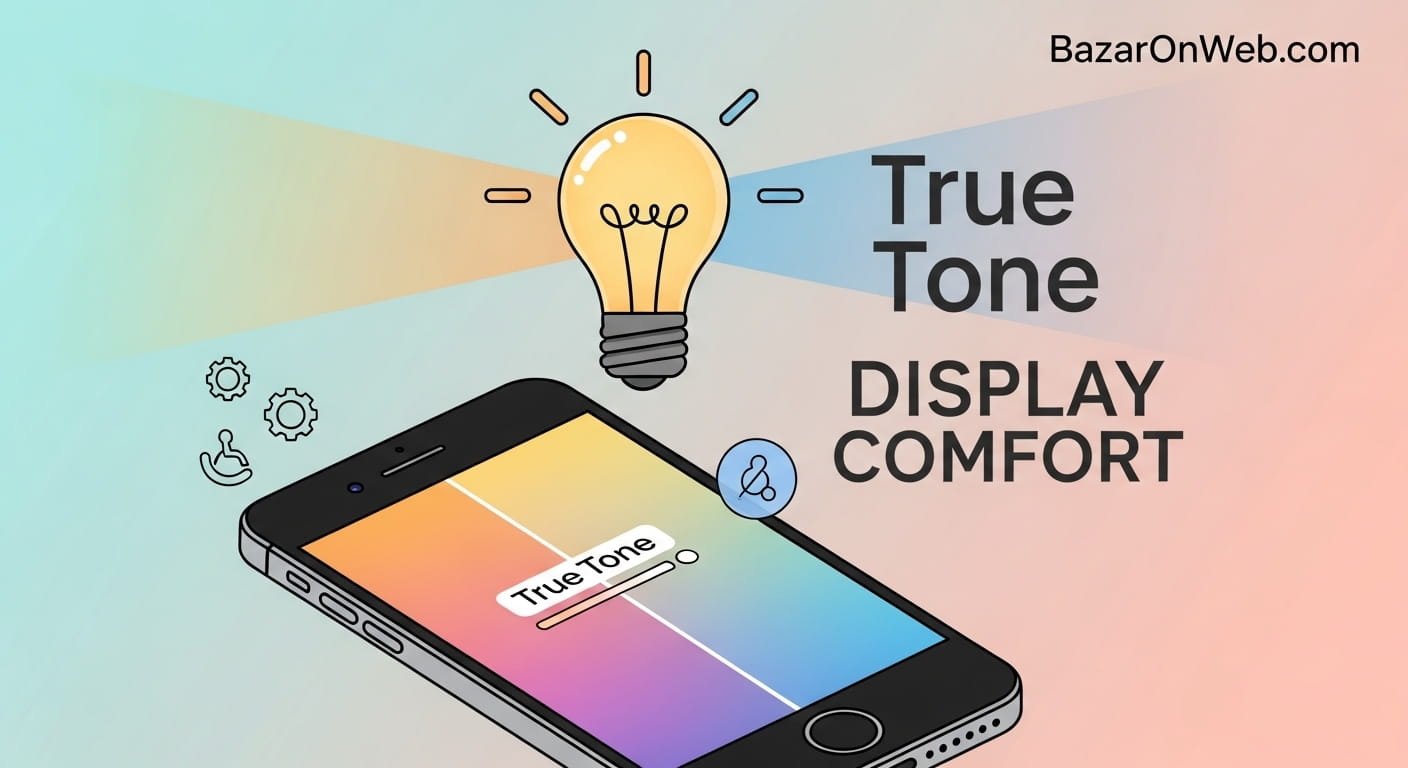
Hi, I’m Jessica, and if you’ve ever picked up your iPhone and thought, “Why does my screen suddenly look warmer or slightly yellow?” — trust me, you’re not alone. I remember the first time I noticed it on my iPhone; I thought something was wrong with my display. But it turns out, it was actually a smart feature doing exactly what it was designed to do. That feature is called True Tone.
True Tone is a display technology by Apple Inc. that automatically adjusts your screen’s color temperature based on the lighting around you. Whether you’re indoors under warm lighting or outside in bright daylight, your iPhone adapts to make colors look more natural and comfortable to your eyes. In this guide, I’ll walk you through what True Tone really is, how it works, when you should use it, and how to turn it on or off easily.
What Is True Tone on iPhone?
True Tone is a built-in display feature available on many iPhones, including models like the iPhone 8 and newer. It uses advanced ambient light sensors to detect the color and intensity of your surroundings and then adjusts the white balance of your screen accordingly. This means your display won’t always look the same — and that’s intentional.
Instead of sticking to a fixed color tone, True Tone shifts your screen to match your environment. For example, if you’re in a room with warm yellow lighting, your iPhone display will also appear warmer. If you step outside into natural daylight, the screen becomes cooler and brighter. This creates a more consistent and natural viewing experience.
The goal is to reduce eye strain and make on-screen content appear more like it would in real life. Without True Tone, screens often look too blue or harsh, especially in dim lighting conditions. With it enabled, everything feels softer and easier to look at for extended periods.
How True Tone Works Behind the Scenes
True Tone relies on a combination of multi-channel ambient light sensors and software algorithms. These sensors continuously measure the color temperature of your environment. Based on this data, your iPhone dynamically adjusts its display’s white balance.
The process happens in real time, meaning your screen adapts instantly as your surroundings change. For example, moving from a bright office to a dimly lit room triggers a subtle shift in display warmth. You may not notice the change happening, but your eyes definitely feel the difference.
This technology is similar to what’s used in professional color-calibrated displays. It ensures that whites appear truly white in any lighting condition. Without it, screens can look overly cool or artificially bright, which may not be ideal for prolonged usage.
Apple designed True Tone to work seamlessly without requiring user input, making it a passive yet powerful feature that enhances your daily phone usage.
Benefits of Using True Tone on iPhone
One of the biggest advantages of True Tone is improved visual comfort. By adapting to your environment, it reduces the strain on your eyes, especially when you’re using your phone for long periods. This is particularly helpful during nighttime use or in low-light environments.
Another benefit is color accuracy in real-world conditions. Photos, videos, and text appear more natural because the screen mimics the lighting around you. This makes reading and browsing feel more pleasant and less artificial.
True Tone also contributes to a more immersive experience. When your display matches your surroundings, it feels less like you’re staring at a screen and more like you’re interacting with real content. This subtle shift can make a big difference in how you perceive your device.
Additionally, users who frequently switch environments — such as moving between indoor and outdoor spaces — will find True Tone especially useful as it automatically adapts without manual adjustments.
Drawbacks of True Tone You Should Know
While True Tone is helpful, it isn’t perfect for every situation. One common complaint is that it can make the screen appear slightly yellow or warm, which may not appeal to everyone. Some users prefer the crisp, cool look of a standard display.
Another drawback is for professionals who require accurate color representation, such as graphic designers or photographers. Since True Tone adjusts colors dynamically, it may not display content exactly as intended. In such cases, turning it off is often recommended.
It can also create inconsistencies when comparing your screen to another device that doesn’t have True Tone enabled. For example, two phones side by side might show slightly different tones, which can be confusing.
Despite these downsides, most casual users benefit from the feature, especially when it comes to comfort and usability.
How to Enable True Tone on iPhone
Enabling True Tone is simple and only takes a few seconds. First, open your iPhone’s Settings app. Then, scroll down and tap on Display & Brightness. Inside this section, you’ll find a toggle labeled True Tone.
Switch the toggle on, and your iPhone will immediately begin adjusting the display based on your surroundings. There’s no need for additional setup or calibration.
You can also enable True Tone through the Control Center. Swipe down from the top-right corner of your screen, press and hold the brightness slider, and then tap the True Tone option to turn it on.
Once enabled, the feature runs automatically in the background, adapting your screen without requiring any further action.
How to Disable True Tone on iPhone
If you prefer a consistent display tone, disabling True Tone is just as easy. Go to Settings, tap Display & Brightness, and turn off the True Tone toggle.
Your screen will instantly revert to its default color profile, which is typically cooler and more neutral. This is often preferred by users who want a fixed display appearance.
You can also turn it off from the Control Center by accessing the brightness controls and tapping the True Tone button again.
Disabling True Tone does not affect other display features like brightness or Night Shift. It simply stops your iPhone from dynamically adjusting color temperature.
True Tone vs Night Shift: What’s the Difference?
Many users confuse True Tone with Night Shift, but they serve different purposes. True Tone adjusts your screen based on ambient lighting, while Night Shift reduces blue light by shifting your display to warmer tones, especially at night.
Night Shift is designed to improve sleep by minimizing blue light exposure, which can interfere with your body’s natural sleep cycle. True Tone, on the other hand, focuses on visual consistency and comfort.
You can use both features together. For example, True Tone will adapt to your environment, while Night Shift adds an extra warm filter during evening hours.
Understanding the difference helps you use each feature more effectively depending on your needs.
Does True Tone Affect Battery Life?
True Tone has a minimal impact on battery life. Since it relies on sensors that are already active for other features like auto-brightness, it doesn’t significantly increase power consumption.
The adjustments made by True Tone are subtle and handled efficiently by the iPhone’s system. Most users won’t notice any difference in battery performance whether the feature is on or off.
However, if you’re trying to maximize battery life in extreme situations, disabling features like True Tone might provide a very slight improvement. Still, the difference is usually negligible.
For everyday use, keeping True Tone enabled won’t harm your battery in any meaningful way.
When Should You Turn Off True Tone?
There are certain situations where turning off True Tone makes sense. If you’re editing photos or videos and need accurate color representation, disabling it ensures consistency.
Gamers might also prefer a fixed display tone for a more predictable visual experience. Similarly, if you simply don’t like the warmer appearance, turning it off is a matter of personal preference.
Some users disable True Tone when comparing screens or showcasing content to others, as it ensures everyone sees the same color output.
Ultimately, whether to use True Tone depends on your usage habits and visual preferences.
Which iPhones Support True Tone?
True Tone is available on several iPhone models starting from the iPhone 8 and iPhone X onward. Most modern iPhones, including recent models, come with this feature built in.
Apple has also included True Tone in other devices such as iPads and MacBooks, making it a consistent part of their ecosystem.
If you’re unsure whether your device supports True Tone, you can check the Display & Brightness settings. If the option is present, your device supports it.
As Apple continues to improve display technology, True Tone remains a key feature for enhancing visual comfort.
Final Thoughts on True Tone
True Tone is one of those features that quietly improves your experience without demanding attention. It works in the background to make your screen feel more natural and easier on your eyes.
While it may not be perfect for every use case, it offers significant benefits for everyday users. Whether you’re reading, browsing, or watching videos, True Tone helps create a more comfortable viewing environment.
If you haven’t tried it yet, it’s definitely worth enabling and seeing how it feels in your daily routine.
Disclaimer
This article is for informational purposes only. Features and functionality may vary depending on your iPhone model and iOS version. Always refer to official documentation from Apple Inc. for the most accurate and updated information.






Products
-
![Apple Watch Ultra 3 [GPS + Cellular 49mm] Running & Multisport Smartwatch w/Rugged Titanium Case w/Black Titanium Milanese Loop - M. Satellite Communications, Advanced Health & Fitness Tracking](https://bazaronweb.com/retailstores/wp-content/uploads/2025/09/apple-watch-320x320.jpg) Apple Watch Ultra 3 [GPS + Cellular 49mm] Running & Multisport Smartwatch w/Rugged Titanium Case w/Black Titanium Milanese Loop - M. Satellite Communications, Advanced Health & Fitness Tracking
Apple Watch Ultra 3 [GPS + Cellular 49mm] Running & Multisport Smartwatch w/Rugged Titanium Case w/Black Titanium Milanese Loop - M. Satellite Communications, Advanced Health & Fitness Tracking
-
 Apple iPad mini (A17 Pro): Apple Intelligence, 8.3-inch Liquid Retina Display, 256GB, Wi-Fi 6E, 12MP Front/12MP Back Camera, Touch ID, All-Day Battery Life — Purple
-
 Apple AirPods Max Wireless Over-Ear Headphones, Active Noise Cancelling, Transparency Mode, Personalized Spatial Audio, Dolby Atmos, Bluetooth Headphones for iPhone – Space Gray
-
 Apple AirPods Pro 2 Wireless Earbuds, Active Noise Cancellation, Hearing Aid Feature, Bluetooth Headphones, Transparency, Personalized Spatial Audio, High-Fidelity Sound, H2 Chip, USB-C Charging
-
Home Garage 210 TC Cotton King Floral Fitted (Elastic) Bedsheet(Pack of 1, Grey)
Original price was: ₹999.00.₹299.00Current price is: ₹299.00.
Leave a Reply