Category
Popular Articles
- AI (18)
- Android (50)
- App Suggest (13)
- Apple (42)
- Apple TV (4)
- Bluetooth (3)
- Cars (2)
- ChatGpt (1)
- Chrome (2)
- Did you know? (1)
- E-Commerce News (1)
- Ecommerce Websites business (7)
- Electronics Shopping (5)
- Fashion Tips (3)
- Gaming (6)
- Google Gemini (3)
- Hair Care Tips (2)
- How to (13)
- iCloud (1)
- Infotainment System (1)
- Iphone (146)
- Job Posting (1)
- Lifestyle (3)
- Mac (25)
- Mobile Games (1)
- Netflix (1)
- Online Shopping Websites (2)
- Personal Finance Management (3)
- Product Reviews (3)
- Roku TV (4)
- Samsung (10)
- Shopping Tips (13)
- Spotify (1)
- Tech (157)
- VPN (2)
- Windows 11 (69)
- Zero Waste (3)
Discounted Products
-

Leo Creation 144 TC Cotton Double Jaipuri Prints Flat Bedsheet(Pack of 1, Blue, Gree, Red, Grey, Light Grey)
₹2,999.00Original price was: ₹2,999.00.₹329.00Current price is: ₹329.00. -

Home Garage 210 TC Cotton King Floral Fitted (Elastic) Bedsheet(Pack of 1, Grey)
₹999.00Original price was: ₹999.00.₹299.00Current price is: ₹299.00. -

Goodrik 140 TC Cotton Double 3D Printed Flat Bedsheet(Pack of 1, Brown)
₹499.00Original price was: ₹499.00.₹229.00Current price is: ₹229.00. -

GLOBALSHOP 350 TC Microfiber Double Floral Flat Bedsheet(Pack of 1, Multicolor)
₹1,250.00Original price was: ₹1,250.00.₹263.00Current price is: ₹263.00. -

RisingStar 250 TC Microfiber King Printed Fitted (Elastic) Bedsheet(Pack of 1, FITTED-ROUND-CIRCLES-PREMIUM)
₹2,299.00Original price was: ₹2,299.00.₹299.00Current price is: ₹299.00. -

Home Garage 210 TC Cotton King Floral Fitted (Elastic) Bedsheet(Pack of 1, Fitted Black Green)
₹1,299.00Original price was: ₹1,299.00.₹299.00Current price is: ₹299.00. -

Home Garage 180 TC Cotton King 3D Printed Flat Bedsheet(Pack of 1, White)
₹999.00Original price was: ₹999.00.₹229.00Current price is: ₹229.00. -

Home Sizzler 153 cm (5 ft) Polyester Room Darkening Window Curtain (Pack Of 2)(Floral, Maroon)
₹799.00Original price was: ₹799.00.₹299.00Current price is: ₹299.00. -

Panipat Textile Hub 152.4 cm (5 ft) Polyester Window Curtain (Pack Of 2)(Solid, Aqua)
₹1,899.00Original price was: ₹1,899.00.₹299.00Current price is: ₹299.00. -

Home Sizzler 214 cm (7 ft) Polyester Semi Transparent Door Curtain (Pack Of 2)(Floral, Maroon)
₹1,199.00Original price was: ₹1,199.00.₹399.00Current price is: ₹399.00. -

Home Sizzler 153 cm (5 ft) Polyester Room Darkening Window Curtain (Pack Of 2)(Floral, Brown)
₹799.00Original price was: ₹799.00.₹299.00Current price is: ₹299.00. -

Stella Creations 214 cm (7 ft) Polyester Room Darkening Door Curtain (Pack Of 2)(Abstract, Brown)
₹1,299.00Original price was: ₹1,299.00.₹449.00Current price is: ₹449.00. -

Homefab India 152.5 cm (5 ft) Polyester Room Darkening Window Curtain (Pack Of 2)(Floral, Light Blue)
₹1,199.00Original price was: ₹1,199.00.₹319.00Current price is: ₹319.00. -

Urban Home 214 cm (7 ft) PVC Transparent Door Curtain Single Curtain(Solid, Off White)
₹699.00Original price was: ₹699.00.₹203.00Current price is: ₹203.00. -

Panipat Textile Hub 213 cm (7 ft) Polyester Door Curtain (Pack Of 2)(Solid, Brown)
₹1,199.00Original price was: ₹1,199.00.₹349.00Current price is: ₹349.00.
Affiliate Links
Promotion
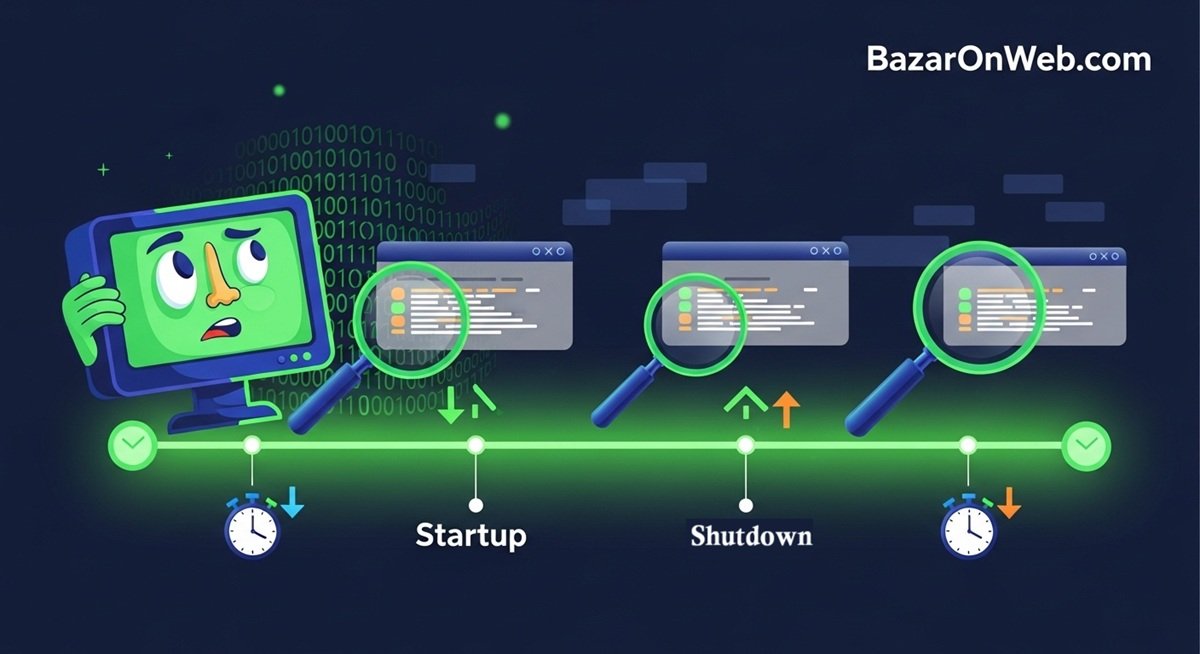
Hi, I’m Jessica, and I still remember the frustration of dealing with a sluggish laptop that randomly restarted without any warning. At first, I thought it was just a minor glitch, but over time, it became clear that something deeper was wrong. That’s when I discovered how useful it is to check startup and shutdown history in Microsoft Windows. This simple yet powerful feature helped me understand exactly when my system was turning on, shutting down, or crashing unexpectedly.
If you’ve ever wondered why your computer restarted overnight, shut down suddenly, or took longer than usual to boot, checking this history can provide valuable insights. It allows you to identify patterns, diagnose issues, and even detect unauthorized usage.
Whether you are a casual user or someone managing systems professionally, learning how to access this information can save you time and frustration.
In this guide, I’ll walk you through the most effective methods to check your Windows startup and shutdown history, along with practical tips to interpret the data and use it for troubleshooting. Let’s dive into the details and uncover what your system has been doing behind the scenes.
Using Event Viewer to Track Startup and Shutdown Logs
One of the most reliable ways to check your startup and shutdown history is through the Event Viewer tool in Windows. This built-in utility records detailed logs about everything happening on your system, including boot times, shutdown events, and unexpected crashes. By accessing these logs, you can gain a clear understanding of your system’s behavior over time.
To begin, open Event Viewer by typing it into the Windows search bar and selecting the application. Once inside, navigate to Windows Logs and then click on System. This section contains all system-related events, including startup and shutdown activities. You can filter these logs using specific Event IDs such as 6005 for startup and 6006 for shutdown.
The Event Viewer interface may look complex at first, but it becomes easier once you understand how to filter and interpret the logs. Each entry includes a timestamp, event type, and description, allowing you to pinpoint exactly when your system started or stopped. This method is particularly useful for diagnosing issues like unexpected restarts or system crashes.
By regularly checking Event Viewer, you can proactively monitor your system’s health and quickly identify any irregularities before they become serious problems.
Understanding Important Event IDs for System Activity
When using Event Viewer, understanding Event IDs is crucial for interpreting startup and shutdown history accurately. These IDs act as identifiers for specific system actions, making it easier to filter and analyze logs without going through unnecessary data.
Some of the most important Event IDs include 6005, which indicates that the Event Log service has started, effectively marking system startup. Event ID 6006 represents a clean shutdown, showing that the system was turned off properly. Event ID 6008, on the other hand, indicates an unexpected shutdown, which could be caused by power failures, system crashes, or forced restarts.
Another important Event ID is 41, which relates to critical system errors such as sudden reboots due to hardware or driver issues. By focusing on these IDs, you can quickly identify whether your system is shutting down normally or encountering problems.
Learning these Event IDs allows you to filter logs efficiently and focus only on relevant data. This not only saves time but also helps you troubleshoot issues more effectively by understanding the exact cause of system interruptions.
Checking Startup and Shutdown History Using Reliability Monitor
The Reliability Monitor is another powerful yet often overlooked tool in Windows that provides a visual representation of system events. Unlike Event Viewer, which presents data in a list format, Reliability Monitor displays a timeline of system stability, making it easier to identify patterns and issues.
To access it, type “Reliability Monitor” in the search bar and open the “View reliability history” option. You will see a graph showing your system’s stability index over time. Each day is marked with symbols indicating warnings, errors, and critical events such as unexpected shutdowns.
Clicking on any specific day reveals detailed information about what happened, including system crashes, software failures, and shutdown events. This visual approach makes it easier to correlate issues with specific actions, such as installing new software or updating drivers.
Reliability Monitor is especially useful for users who prefer a more intuitive way to analyze system behavior. It complements Event Viewer by providing a broader overview while still offering detailed insights into individual events.
Using Command Prompt to Retrieve System Logs
For users who prefer a more technical approach, the Command Prompt offers a quick way to retrieve startup and shutdown history. This method is particularly useful for advanced users or IT professionals who want to automate log retrieval or analyze data more efficiently.
You can use the “wevtutil” command to query system logs directly from the Command Prompt. For example, running a command that filters Event ID 6005 will display all startup events, while filtering Event ID 6006 will show shutdown records. This approach eliminates the need to manually navigate through Event Viewer.
Additionally, you can export these logs into a text file for further analysis or documentation. This is especially helpful when troubleshooting recurring issues or sharing logs with technical support teams.
Using Command Prompt not only saves time but also provides greater flexibility in how you access and analyze system data. It is an excellent option for users who are comfortable working with command-line tools and want more control over their system diagnostics.
Identifying Unexpected Shutdowns and Their Causes
Unexpected shutdowns can be frustrating and often indicate underlying problems with your system. By checking startup and shutdown history, you can identify these events and investigate their causes more effectively.
Event ID 6008 is a key indicator of unexpected shutdowns. When you see this event in your logs, it means the system did not shut down properly. This could be due to power outages, hardware failures, overheating, or software crashes.
To diagnose the issue, look for related events around the same timestamp. For example, critical errors or warnings may provide clues about what caused the shutdown. Checking hardware components such as the power supply and cooling system can also help identify potential problems.
Understanding the cause of unexpected shutdowns allows you to take corrective action, such as updating drivers, replacing faulty hardware, or improving system cooling. This proactive approach can prevent future issues and ensure your system runs smoothly.
Monitoring System Boot Performance
Startup history is not just about knowing when your system turns on; it can also help you analyze boot performance. Slow startup times can indicate issues such as too many startup programs, outdated drivers, or hardware limitations.
By reviewing startup events in Event Viewer, you can identify how long your system takes to boot and whether there are any delays or errors during the process. Some logs provide detailed information about boot phases, allowing you to pinpoint where the slowdown occurs.
Disabling unnecessary startup programs through Task Manager can significantly improve boot performance. Additionally, keeping your system updated and optimizing storage can further enhance startup speed.
Monitoring boot performance regularly ensures that your system remains efficient and responsive. It also helps you identify potential issues early, allowing you to address them before they impact your productivity.
Detecting Unauthorized Access Using System Logs
Startup and shutdown history can also be used as a security tool to detect unauthorized access. By reviewing logs, you can determine when your system was turned on or off and identify any unusual activity.
For example, if you notice startup events at times when you were not using your computer, it could indicate that someone else accessed your system. Combining this information with login logs can provide a clearer picture of user activity.
To enhance security, consider enabling additional logging features and setting up strong passwords. You can also use Windows security settings to track login attempts and monitor user activity more closely.
Using system logs for security purposes adds an extra layer of protection and helps you maintain control over your device. It is a simple yet effective way to ensure that your system is used only by authorized individuals.
Automating Log Monitoring for Efficiency
Manually checking logs can be time-consuming, especially if you need to monitor your system regularly. Automating this process can save time and ensure that you are always aware of important events.
You can create scripts or use third-party tools to automatically retrieve and analyze startup and shutdown logs. These tools can send notifications when specific events occur, such as unexpected shutdowns or system errors.
Automation is particularly useful for businesses or IT professionals managing multiple systems. It allows you to monitor system health proactively and respond to issues तुरंत.
By setting up automated monitoring, you can streamline your workflow and focus on more important tasks while still keeping an eye on your system’s performance and security.
Exporting and Analyzing Logs for Troubleshooting
Exporting system logs is an essential step when troubleshooting complex issues. It allows you to share detailed information with technical support teams or analyze data over a longer period.
In Event Viewer, you can export logs in various formats, including XML and text files. These files can be reviewed using specialized tools or shared with experts for further analysis.
Analyzing exported logs helps you identify patterns and recurring issues, making it easier to diagnose problems. For example, frequent unexpected shutdowns at specific times may indicate a hardware issue or scheduled task causing conflicts.
Keeping a record of your system logs also provides valuable insights into long-term performance trends. This information can be used to optimize your system and prevent future issues.
Best Practices for Maintaining System Stability
Checking startup and shutdown history is just one part of maintaining a stable system. Following best practices can help you avoid issues and ensure optimal performance.
Regularly updating your operating system and drivers is crucial for preventing compatibility issues and security vulnerabilities. Keeping your system clean by removing unnecessary files and programs can also improve performance.
Monitoring system logs should be a routine task, allowing you to identify and address issues early. Additionally, using reliable antivirus software and maintaining proper hardware conditions, such as adequate cooling, can further enhance system stability.
By combining these practices with regular log analysis, you can keep your system running smoothly and minimize the risk of unexpected problems.
Disclaimer
This article is for informational purposes only. The steps and methods described may vary depending on your version of Windows and system configuration. Always proceed with caution when accessing system logs or making changes to system settings. If you are unsure, consult a professional or refer to official Microsoft documentation.
Written by Bazaronweb
Latest Tech Articles
- How to Check Startup and Shutdown History in Windows for Better Troubleshooting

- How to Reset Windows Security App in Windows 11 (Fix Errors & Restore Protection Easily)

- How to Enable Dynamic Refresh Rate on Windows 11 PC (Step-by-Step Guide for Smoother Performance)
- How to Fix ‘A Firewall May Be Blocking Spotify’ Error: Complete Step-by-Step Guide for Smooth Streaming

- How to Add Trusted Sites in Windows: A Complete Step-by-Step Guide for Safe Browsing

Products
-
Apple Watch Ultra 3 [GPS + Cellular 49mm] Running & Multisport Smartwatch w/Rugged Titanium Case w/Black Titanium Milanese Loop - M. Satellite Communications, Advanced Health & Fitness Tracking
-

Apple iPad mini (A17 Pro): Apple Intelligence, 8.3-inch Liquid Retina Display, 256GB, Wi-Fi 6E, 12MP Front/12MP Back Camera, Touch ID, All-Day Battery Life — Purple
-

Apple AirPods Max Wireless Over-Ear Headphones, Active Noise Cancelling, Transparency Mode, Personalized Spatial Audio, Dolby Atmos, Bluetooth Headphones for iPhone – Space Gray
-

Apple AirPods Pro 2 Wireless Earbuds, Active Noise Cancellation, Hearing Aid Feature, Bluetooth Headphones, Transparency, Personalized Spatial Audio, High-Fidelity Sound, H2 Chip, USB-C Charging
-
Leo Creation 144 TC Cotton Double Jaipuri Prints Flat Bedsheet(Pack of 1, Blue, Gree, Red, Grey, Light Grey)
₹2,999.00Original price was: ₹2,999.00.₹329.00Current price is: ₹329.00.
Leave a Reply