Discounted Products
-
 Leo Creation 144 TC Cotton Double Jaipuri Prints Flat Bedsheet(Pack of 1, Blue, Gree, Red, Grey, Light Grey)
Original price was: ₹2,999.00.₹329.00Current price is: ₹329.00.
Leo Creation 144 TC Cotton Double Jaipuri Prints Flat Bedsheet(Pack of 1, Blue, Gree, Red, Grey, Light Grey)
Original price was: ₹2,999.00.₹329.00Current price is: ₹329.00.
-
 Home Garage 210 TC Cotton King Floral Fitted (Elastic) Bedsheet(Pack of 1, Grey)
Original price was: ₹999.00.₹299.00Current price is: ₹299.00.
Home Garage 210 TC Cotton King Floral Fitted (Elastic) Bedsheet(Pack of 1, Grey)
Original price was: ₹999.00.₹299.00Current price is: ₹299.00.
-
 Goodrik 140 TC Cotton Double 3D Printed Flat Bedsheet(Pack of 1, Brown)
Original price was: ₹499.00.₹229.00Current price is: ₹229.00.
Goodrik 140 TC Cotton Double 3D Printed Flat Bedsheet(Pack of 1, Brown)
Original price was: ₹499.00.₹229.00Current price is: ₹229.00.
-
 GLOBALSHOP 350 TC Microfiber Double Floral Flat Bedsheet(Pack of 1, Multicolor)
Original price was: ₹1,250.00.₹263.00Current price is: ₹263.00.
GLOBALSHOP 350 TC Microfiber Double Floral Flat Bedsheet(Pack of 1, Multicolor)
Original price was: ₹1,250.00.₹263.00Current price is: ₹263.00.
-
 RisingStar 250 TC Microfiber King Printed Fitted (Elastic) Bedsheet(Pack of 1, FITTED-ROUND-CIRCLES-PREMIUM)
Original price was: ₹2,299.00.₹299.00Current price is: ₹299.00.
RisingStar 250 TC Microfiber King Printed Fitted (Elastic) Bedsheet(Pack of 1, FITTED-ROUND-CIRCLES-PREMIUM)
Original price was: ₹2,299.00.₹299.00Current price is: ₹299.00.
-
 Home Garage 210 TC Cotton King Floral Fitted (Elastic) Bedsheet(Pack of 1, Fitted Black Green)
Original price was: ₹1,299.00.₹299.00Current price is: ₹299.00.
Home Garage 210 TC Cotton King Floral Fitted (Elastic) Bedsheet(Pack of 1, Fitted Black Green)
Original price was: ₹1,299.00.₹299.00Current price is: ₹299.00.
-
 Home Garage 180 TC Cotton King 3D Printed Flat Bedsheet(Pack of 1, White)
Original price was: ₹999.00.₹229.00Current price is: ₹229.00.
Home Garage 180 TC Cotton King 3D Printed Flat Bedsheet(Pack of 1, White)
Original price was: ₹999.00.₹229.00Current price is: ₹229.00.
-
 Home Sizzler 153 cm (5 ft) Polyester Room Darkening Window Curtain (Pack Of 2)(Floral, Maroon)
Original price was: ₹799.00.₹299.00Current price is: ₹299.00.
Home Sizzler 153 cm (5 ft) Polyester Room Darkening Window Curtain (Pack Of 2)(Floral, Maroon)
Original price was: ₹799.00.₹299.00Current price is: ₹299.00.
-
 Panipat Textile Hub 152.4 cm (5 ft) Polyester Window Curtain (Pack Of 2)(Solid, Aqua)
Original price was: ₹1,899.00.₹299.00Current price is: ₹299.00.
Panipat Textile Hub 152.4 cm (5 ft) Polyester Window Curtain (Pack Of 2)(Solid, Aqua)
Original price was: ₹1,899.00.₹299.00Current price is: ₹299.00.
-
 Home Sizzler 214 cm (7 ft) Polyester Semi Transparent Door Curtain (Pack Of 2)(Floral, Maroon)
Original price was: ₹1,199.00.₹399.00Current price is: ₹399.00.
Home Sizzler 214 cm (7 ft) Polyester Semi Transparent Door Curtain (Pack Of 2)(Floral, Maroon)
Original price was: ₹1,199.00.₹399.00Current price is: ₹399.00.
-
 Home Sizzler 153 cm (5 ft) Polyester Room Darkening Window Curtain (Pack Of 2)(Floral, Brown)
Original price was: ₹799.00.₹299.00Current price is: ₹299.00.
Home Sizzler 153 cm (5 ft) Polyester Room Darkening Window Curtain (Pack Of 2)(Floral, Brown)
Original price was: ₹799.00.₹299.00Current price is: ₹299.00.
-
 Stella Creations 214 cm (7 ft) Polyester Room Darkening Door Curtain (Pack Of 2)(Abstract, Brown)
Original price was: ₹1,299.00.₹449.00Current price is: ₹449.00.
Stella Creations 214 cm (7 ft) Polyester Room Darkening Door Curtain (Pack Of 2)(Abstract, Brown)
Original price was: ₹1,299.00.₹449.00Current price is: ₹449.00.
-
 Homefab India 152.5 cm (5 ft) Polyester Room Darkening Window Curtain (Pack Of 2)(Floral, Light Blue)
Original price was: ₹1,199.00.₹319.00Current price is: ₹319.00.
Homefab India 152.5 cm (5 ft) Polyester Room Darkening Window Curtain (Pack Of 2)(Floral, Light Blue)
Original price was: ₹1,199.00.₹319.00Current price is: ₹319.00.
-
 Urban Home 214 cm (7 ft) PVC Transparent Door Curtain Single Curtain(Solid, Off White)
Original price was: ₹699.00.₹203.00Current price is: ₹203.00.
Urban Home 214 cm (7 ft) PVC Transparent Door Curtain Single Curtain(Solid, Off White)
Original price was: ₹699.00.₹203.00Current price is: ₹203.00.
-
 Panipat Textile Hub 213 cm (7 ft) Polyester Door Curtain (Pack Of 2)(Solid, Brown)
Original price was: ₹1,199.00.₹349.00Current price is: ₹349.00.
Panipat Textile Hub 213 cm (7 ft) Polyester Door Curtain (Pack Of 2)(Solid, Brown)
Original price was: ₹1,199.00.₹349.00Current price is: ₹349.00.
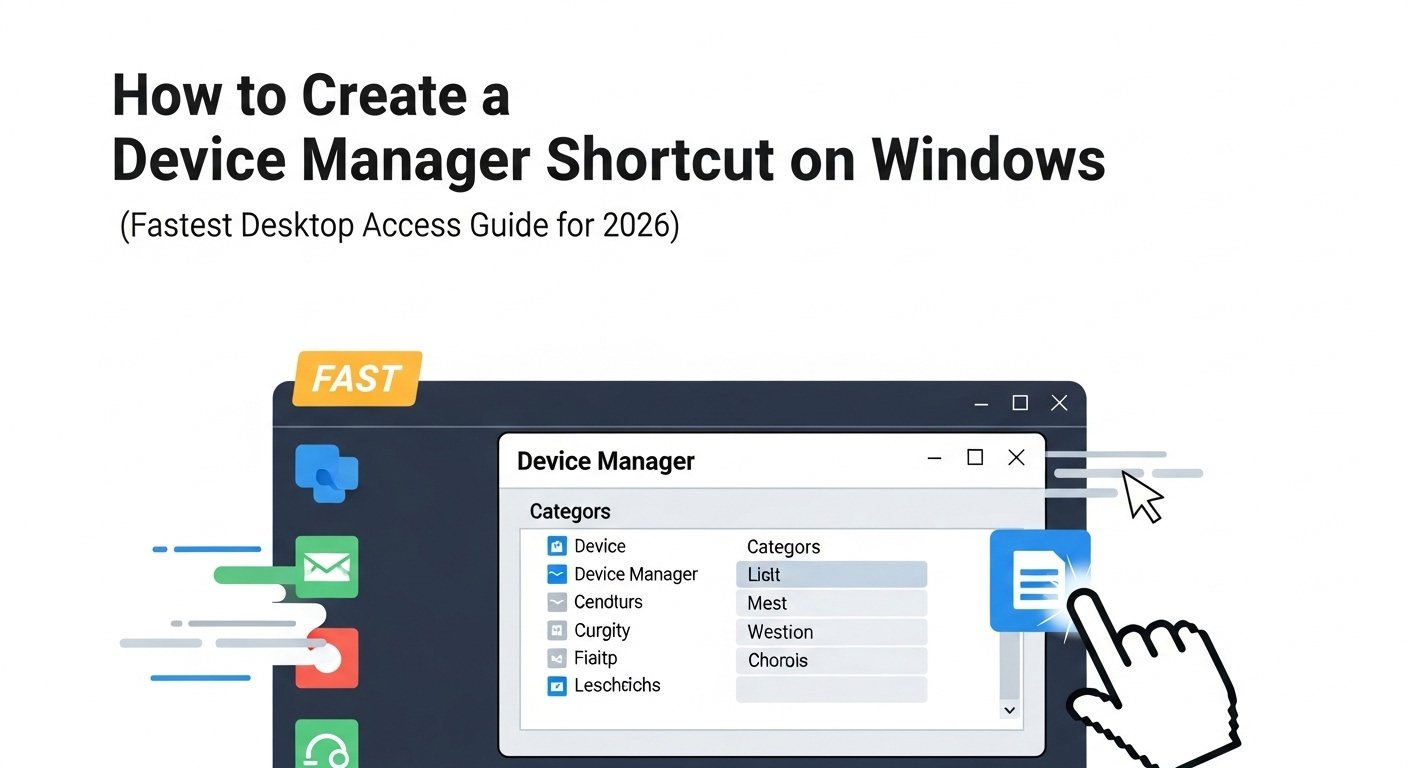
If you’ve ever needed to fix a driver issue, troubleshoot a USB device, check your graphics card, or enable a network adapter, you’ve probably opened Device Manager. And if you’re anything like me, you’ve likely Googled “how to open Device Manager” at least once because Windows doesn’t exactly make it obvious.
Yes, there are multiple ways to access it — right-clicking the Start button, using the Run dialog, searching from the Start menu, or navigating through Control Panel. But when you’re troubleshooting something urgently — like your printer refusing to cooperate five minutes before a deadline — even those extra clicks feel like too much.
That’s why creating a desktop shortcut for Device Manager is one of those small productivity tweaks that makes a surprisingly big difference.
Device Manager is a built-in administrative tool inside Microsoft Windows that lets you view and control hardware connected to your computer. It shows everything from display adapters and network cards to USB controllers, audio devices, keyboards, and even hidden system components. When something stops working, this is usually where you go first.
On my home laptop, I access Device Manager more often than I expected. Between external hard drives, Bluetooth headphones, webcams, and occasional driver glitches, having instant access saves time. Instead of right-clicking, navigating menus, and digging through options, I simply double-click the shortcut on my desktop.
And here’s the thing — creating that shortcut takes less than a minute.
Before we dive into the step-by-step method, let’s quickly understand why this shortcut is useful.
Why Create a Desktop Shortcut for Device Manager?
While Windows provides built-in access points, they aren’t always convenient:
-
The Start menu search sometimes requires typing the full name.
-
The Control Panel path involves multiple clicks.
-
The Run command requires remembering specific commands.
-
Administrative tools can be buried depending on your Windows version.
A desktop shortcut eliminates all that friction.
With one click, you can:
-
Update drivers
-
Disable or enable hardware
-
Troubleshoot device conflicts
-
Scan for hardware changes
-
View driver details
-
Check for missing devices
If you frequently manage peripherals — printers, monitors, USB devices, or external storage — this shortcut becomes especially helpful.
For people who work remotely, manage multiple devices, or help family members troubleshoot tech issues, having Device Manager accessible instantly is a small but powerful efficiency upgrade.
Who Should Create This Shortcut?
Honestly? Almost anyone using a Windows PC.
But especially:
-
Remote workers
-
IT support beginners
-
Students handling project hardware
-
Content creators using external devices
-
Gamers troubleshooting GPU or controller issues
-
Parents managing shared family PCs
Even if you don’t use Device Manager daily, when you do need it, you’ll want fast access.
Is It Safe to Create a Device Manager Shortcut?
Yes.
You’re not modifying system files. You’re simply creating a shortcut that points to a built-in Windows management console file. This doesn’t affect performance, security, or system stability.
It’s similar to creating a shortcut for any other Windows feature.
Understanding What Device Manager Actually Does
Before creating the shortcut, it helps to understand what you’re accessing.
Device Manager allows you to:
-
View installed hardware
-
Update device drivers
-
Roll back drivers
-
Disable malfunctioning devices
-
Identify unknown devices
-
Scan for hardware changes
-
View device properties and event logs
If your Wi-Fi stops working, your Bluetooth disappears, your graphics driver crashes, or your printer won’t connect — Device Manager is usually step one.
Windows stores it as a Microsoft Management Console (MMC) file. That’s why we can directly create a shortcut pointing to it.
And once it’s on your desktop, accessing it becomes instant.
What Windows Versions Support This?
This method works on:
-
Windows 11
-
Windows 10
-
Windows 8
-
Windows 7
The interface may look slightly different, but the shortcut creation process remains the same.
Why Not Just Use the Run Command?
Yes, you can press:
Windows + R
Type: devmgmt.msc
Press Enter
And Device Manager will open.
But remembering commands isn’t always convenient. Especially if you’re not very technical or you’re helping someone else troubleshoot remotely.
A desktop shortcut removes that mental load.
Real-Life Example
Last month, my external webcam stopped working right before a virtual meeting. Instead of navigating through menus, I opened Device Manager instantly from my desktop shortcut, updated the driver, and fixed the issue within minutes.
Those small time savings matter — especially when you’re multitasking between work, home, and everything in between.
What We’ll Cover Next
In the next section, I’ll walk you step by step through:
-
The fastest method to create the shortcut
-
How to rename it properly
-
How to change its icon
-
How to pin it to Taskbar or Start
-
How to create a keyboard shortcut
-
Alternative access methods
-
Troubleshooting if it doesn’t open
Once you create this shortcut, you’ll wonder why you didn’t do it sooner.
Small tweaks like this don’t feel dramatic — but over time, they improve workflow, reduce friction, and make your Windows experience smoother.
Let’s move on and create your Device Manager desktop shortcut the right way.
Step-by-Step: Create a Device Manager Desktop Shortcut on Windows
Now let’s create the shortcut. This works on both Windows 10 and Windows 11 running Microsoft Windows.
Method 1: Create Shortcut Using the MSC Command (Recommended)
This is the cleanest and fastest method.
-
Right-click on an empty area of your Desktop
-
Click New → Shortcut
-
In the location field, type:
-
Click Next
-
Name it Device Manager
-
Click Finish
That’s it.
Double-click the shortcut and Device Manager will open instantly.
Method 2: Create Shortcut Using Full System Path
If the first method doesn’t work (rare but possible), use the full path:
-
Right-click Desktop → New → Shortcut
-
Enter:
-
Click Next
-
Name it Device Manager
-
Click Finish
This directly points to the Microsoft Management Console file.
Optional: Change the Shortcut Icon
By default, the icon may look plain. You can customize it.
-
Right-click the new shortcut
-
Select Properties
-
Click Change Icon
-
If prompted, browse to:
-
Choose an appropriate system icon
-
Click OK
This makes it visually easier to spot on your desktop.
Optional: Run as Administrator Automatically
Some driver changes require admin rights.
To ensure it always runs with full permissions:
-
Right-click shortcut
-
Click Properties
-
Select Advanced
-
Check Run as administrator
-
Click OK
Now every time you open Device Manager, it will launch with elevated privileges.
Optional: Pin to Taskbar or Start Menu
If you prefer faster access:
-
Right-click shortcut → Pin to Taskbar
-
Or → Pin to Start
This removes the need to keep your desktop visible.
Create a Keyboard Shortcut (Power Users)
You can also assign a custom key combination:
-
Right-click shortcut → Properties
-
Click inside the Shortcut key field
-
Press a key combination (example: Ctrl + Alt + D)
-
Click Apply
Now pressing that key combo opens Device Manager instantly.
Alternative Ways to Open Device Manager (Without Shortcut)
Just in case you ever need them:
-
Press Windows + X → Device Manager
-
Press Windows + R, type
devmgmt.msc -
Search “Device Manager” from Start menu
-
Open via Control Panel
But once you create the shortcut, you probably won’t use these again.
When You’ll Actually Use Device Manager
Here are common real-world scenarios:
-
USB device not recognized
-
Printer not connecting
-
Wi-Fi adapter missing
-
Bluetooth not working
-
Graphics driver crash
-
Audio device not detected
-
Updating GPU driver manually
Having Device Manager accessible in one click saves time during troubleshooting.
Troubleshooting: Shortcut Not Opening?
If double-clicking doesn’t work:
-
Make sure the file path is correct
-
Check if your Windows account has admin rights
-
Restart your PC
-
Run Windows updates
-
Ensure system files are intact
Device Manager is a core system component, so it rarely fails unless deeper system corruption exists.
Final Thoughts
Creating a desktop shortcut for Device Manager may seem like a small tweak — but it significantly improves convenience.
Instead of navigating menus every time, you get:
-
One-click access
-
Faster troubleshooting
-
Less friction
-
Better workflow efficiency
Whether you manage external devices regularly or just want quicker access when something breaks, this shortcut is worth setting up.
It takes less than a minute — and saves time every time you need it.
Small optimizations like this make your Windows experience smoother and more efficient.
Disclaimer
This guide is for informational purposes only. Editing device settings or updating drivers improperly may cause system instability. Always ensure you download drivers from trusted sources. BazaarOnWeb.com is not responsible for hardware damage or data loss resulting from incorrect system configuration.

- How to Fix Volume Buttons Not Working on iPhone Complete Step-by-Step Guide
- Chris Titus Download for Windows (Latest Version): Complete Guide to Optimize and Debloat Your PC

- Google Chrome Not Saving Password 8 Proven Ways to Fix It Quickly

- WiFi Settings Turning Off on iPhone? Try These 6 Fixes That Actually Work

- How to Check Motherboard Model in Windows (Easy Methods Without Opening Your PC)

Products
-
![Apple Watch Ultra 3 [GPS + Cellular 49mm] Running & Multisport Smartwatch w/Rugged Titanium Case w/Black Titanium Milanese Loop - M. Satellite Communications, Advanced Health & Fitness Tracking](https://bazaronweb.com/retailstores/wp-content/uploads/2025/09/apple-watch-320x320.jpg) Apple Watch Ultra 3 [GPS + Cellular 49mm] Running & Multisport Smartwatch w/Rugged Titanium Case w/Black Titanium Milanese Loop - M. Satellite Communications, Advanced Health & Fitness Tracking
Apple Watch Ultra 3 [GPS + Cellular 49mm] Running & Multisport Smartwatch w/Rugged Titanium Case w/Black Titanium Milanese Loop - M. Satellite Communications, Advanced Health & Fitness Tracking
-
 Apple iPad mini (A17 Pro): Apple Intelligence, 8.3-inch Liquid Retina Display, 256GB, Wi-Fi 6E, 12MP Front/12MP Back Camera, Touch ID, All-Day Battery Life — Purple
-
 Apple AirPods Max Wireless Over-Ear Headphones, Active Noise Cancelling, Transparency Mode, Personalized Spatial Audio, Dolby Atmos, Bluetooth Headphones for iPhone – Space Gray
-
 Apple AirPods Pro 2 Wireless Earbuds, Active Noise Cancellation, Hearing Aid Feature, Bluetooth Headphones, Transparency, Personalized Spatial Audio, High-Fidelity Sound, H2 Chip, USB-C Charging
-
Leo Creation 144 TC Cotton Double Jaipuri Prints Flat Bedsheet(Pack of 1, Blue, Gree, Red, Grey, Light Grey)
Original price was: ₹2,999.00.₹329.00Current price is: ₹329.00.
Leave a Reply