Discounted Products
-
 Leo Creation 144 TC Cotton Double Jaipuri Prints Flat Bedsheet(Pack of 1, Blue, Gree, Red, Grey, Light Grey)
Original price was: ₹2,999.00.₹329.00Current price is: ₹329.00.
Leo Creation 144 TC Cotton Double Jaipuri Prints Flat Bedsheet(Pack of 1, Blue, Gree, Red, Grey, Light Grey)
Original price was: ₹2,999.00.₹329.00Current price is: ₹329.00.
-
 Home Garage 210 TC Cotton King Floral Fitted (Elastic) Bedsheet(Pack of 1, Grey)
Original price was: ₹999.00.₹299.00Current price is: ₹299.00.
Home Garage 210 TC Cotton King Floral Fitted (Elastic) Bedsheet(Pack of 1, Grey)
Original price was: ₹999.00.₹299.00Current price is: ₹299.00.
-
 Goodrik 140 TC Cotton Double 3D Printed Flat Bedsheet(Pack of 1, Brown)
Original price was: ₹499.00.₹229.00Current price is: ₹229.00.
Goodrik 140 TC Cotton Double 3D Printed Flat Bedsheet(Pack of 1, Brown)
Original price was: ₹499.00.₹229.00Current price is: ₹229.00.
-
 GLOBALSHOP 350 TC Microfiber Double Floral Flat Bedsheet(Pack of 1, Multicolor)
Original price was: ₹1,250.00.₹263.00Current price is: ₹263.00.
GLOBALSHOP 350 TC Microfiber Double Floral Flat Bedsheet(Pack of 1, Multicolor)
Original price was: ₹1,250.00.₹263.00Current price is: ₹263.00.
-
 RisingStar 250 TC Microfiber King Printed Fitted (Elastic) Bedsheet(Pack of 1, FITTED-ROUND-CIRCLES-PREMIUM)
Original price was: ₹2,299.00.₹299.00Current price is: ₹299.00.
RisingStar 250 TC Microfiber King Printed Fitted (Elastic) Bedsheet(Pack of 1, FITTED-ROUND-CIRCLES-PREMIUM)
Original price was: ₹2,299.00.₹299.00Current price is: ₹299.00.
-
 Home Garage 210 TC Cotton King Floral Fitted (Elastic) Bedsheet(Pack of 1, Fitted Black Green)
Original price was: ₹1,299.00.₹299.00Current price is: ₹299.00.
Home Garage 210 TC Cotton King Floral Fitted (Elastic) Bedsheet(Pack of 1, Fitted Black Green)
Original price was: ₹1,299.00.₹299.00Current price is: ₹299.00.
-
 Home Garage 180 TC Cotton King 3D Printed Flat Bedsheet(Pack of 1, White)
Original price was: ₹999.00.₹229.00Current price is: ₹229.00.
Home Garage 180 TC Cotton King 3D Printed Flat Bedsheet(Pack of 1, White)
Original price was: ₹999.00.₹229.00Current price is: ₹229.00.
-
 Home Sizzler 153 cm (5 ft) Polyester Room Darkening Window Curtain (Pack Of 2)(Floral, Maroon)
Original price was: ₹799.00.₹299.00Current price is: ₹299.00.
Home Sizzler 153 cm (5 ft) Polyester Room Darkening Window Curtain (Pack Of 2)(Floral, Maroon)
Original price was: ₹799.00.₹299.00Current price is: ₹299.00.
-
 Panipat Textile Hub 152.4 cm (5 ft) Polyester Window Curtain (Pack Of 2)(Solid, Aqua)
Original price was: ₹1,899.00.₹299.00Current price is: ₹299.00.
Panipat Textile Hub 152.4 cm (5 ft) Polyester Window Curtain (Pack Of 2)(Solid, Aqua)
Original price was: ₹1,899.00.₹299.00Current price is: ₹299.00.
-
 Home Sizzler 214 cm (7 ft) Polyester Semi Transparent Door Curtain (Pack Of 2)(Floral, Maroon)
Original price was: ₹1,199.00.₹399.00Current price is: ₹399.00.
Home Sizzler 214 cm (7 ft) Polyester Semi Transparent Door Curtain (Pack Of 2)(Floral, Maroon)
Original price was: ₹1,199.00.₹399.00Current price is: ₹399.00.
-
 Home Sizzler 153 cm (5 ft) Polyester Room Darkening Window Curtain (Pack Of 2)(Floral, Brown)
Original price was: ₹799.00.₹299.00Current price is: ₹299.00.
Home Sizzler 153 cm (5 ft) Polyester Room Darkening Window Curtain (Pack Of 2)(Floral, Brown)
Original price was: ₹799.00.₹299.00Current price is: ₹299.00.
-
 Stella Creations 214 cm (7 ft) Polyester Room Darkening Door Curtain (Pack Of 2)(Abstract, Brown)
Original price was: ₹1,299.00.₹449.00Current price is: ₹449.00.
Stella Creations 214 cm (7 ft) Polyester Room Darkening Door Curtain (Pack Of 2)(Abstract, Brown)
Original price was: ₹1,299.00.₹449.00Current price is: ₹449.00.
-
 Homefab India 152.5 cm (5 ft) Polyester Room Darkening Window Curtain (Pack Of 2)(Floral, Light Blue)
Original price was: ₹1,199.00.₹319.00Current price is: ₹319.00.
Homefab India 152.5 cm (5 ft) Polyester Room Darkening Window Curtain (Pack Of 2)(Floral, Light Blue)
Original price was: ₹1,199.00.₹319.00Current price is: ₹319.00.
-
 Urban Home 214 cm (7 ft) PVC Transparent Door Curtain Single Curtain(Solid, Off White)
Original price was: ₹699.00.₹203.00Current price is: ₹203.00.
Urban Home 214 cm (7 ft) PVC Transparent Door Curtain Single Curtain(Solid, Off White)
Original price was: ₹699.00.₹203.00Current price is: ₹203.00.
-
 Panipat Textile Hub 213 cm (7 ft) Polyester Door Curtain (Pack Of 2)(Solid, Brown)
Original price was: ₹1,199.00.₹349.00Current price is: ₹349.00.
Panipat Textile Hub 213 cm (7 ft) Polyester Door Curtain (Pack Of 2)(Solid, Brown)
Original price was: ₹1,199.00.₹349.00Current price is: ₹349.00.
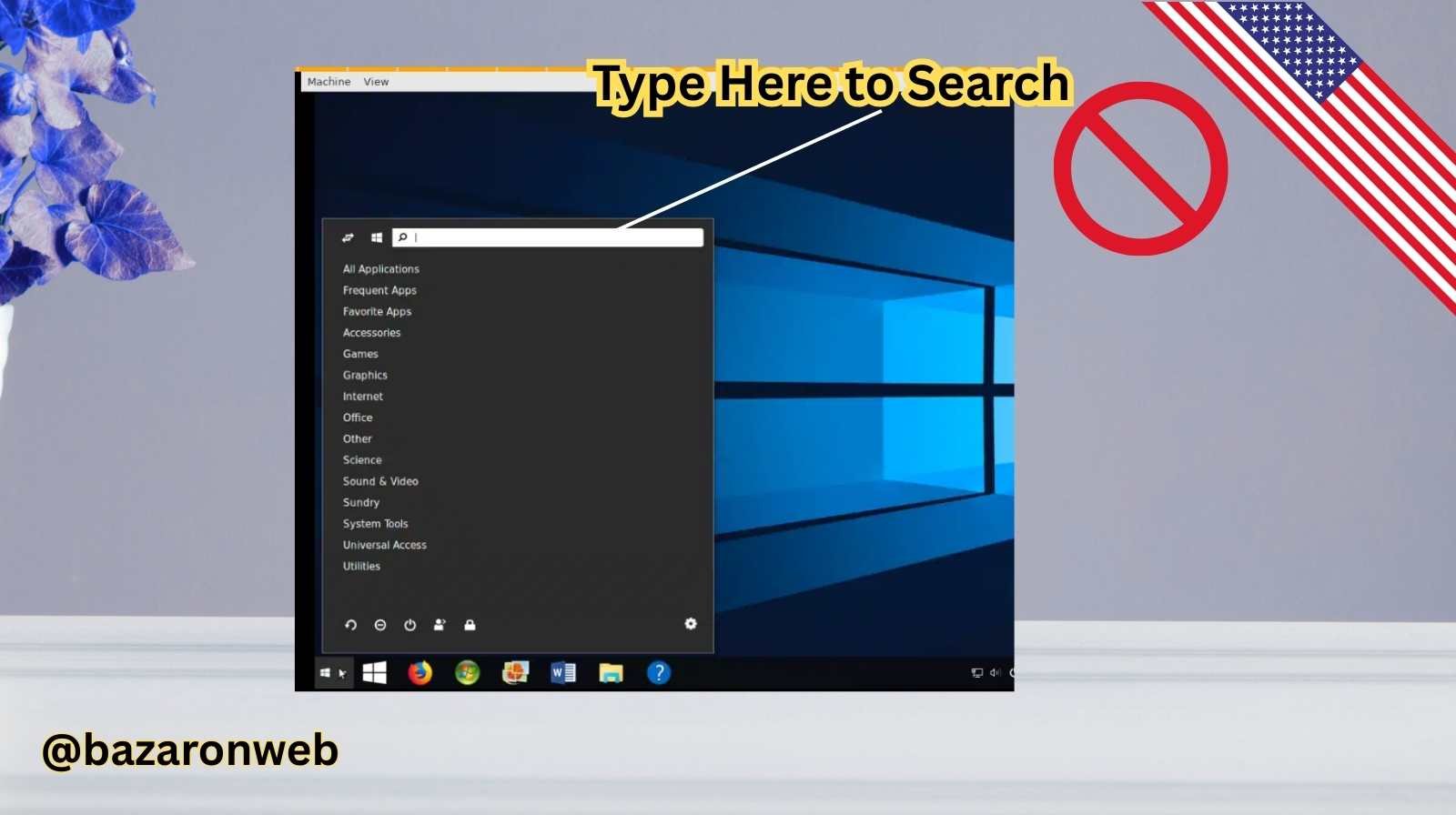
Hi friends, Jessica here! 💻 As someone who spends a good part of the day working on my Windows 10 laptop—whether it’s for my marketing job, helping my kids with school projects, or just managing family life—I rely heavily on the search box in the taskbar. You know, that little space that says “Type here to search.”
So when it suddenly stops working—like it won’t open, it freezes, or it just doesn’t respond—it’s beyond frustrating. I’ve dealt with this issue myself, and after some research and trial-and-error, I’ve learned that it’s usually tied to small glitches with Windows services, updates, or even corrupt files. The good news is, it’s totally fixable!
In this post, I’ll walk you through several ways to troubleshoot and fix the Windows 10 search bar not working issue.
1. Restart Your Computer
This sounds obvious, but sometimes the search bar stops responding because of a temporary glitch. Restarting clears out memory and resets services.
- Click on the Start Menu → select Power → choose Restart.
- After reboot, check if the search bar works.
Honestly, this alone has fixed the problem for me on more than one occasion.
2. Restart the Windows Explorer Process
The search function is closely tied to Windows Explorer. Restarting it can refresh the taskbar and fix unresponsive search.
- Press Ctrl + Shift + Esc to open Task Manager.
- Scroll down, find Windows Explorer, right-click it, and select Restart.
You’ll notice your taskbar flicker for a second, but don’t worry—that’s normal.
3. Check the Windows Search Service
Windows Search relies on a background service. If it’s not running, the search bar won’t work.
- Press Windows + R, type
services.msc, and hit Enter. - Find Windows Search in the list.
- Right-click → Properties.
- Make sure the Startup type is set to Automatic, and the service status is Running.
If it’s stopped, click Start, then Apply.
4. Run the Search and Indexing Troubleshooter
Windows has a built-in troubleshooter for these kinds of problems.
- Go to Settings → Update & Security → Troubleshoot.
- Click Additional troubleshooters.
- Select Search and Indexing → Run the troubleshooter.
Follow the prompts—it usually identifies and fixes common problems automatically.
5. Use Windows PowerShell to Re-register Cortana/Search
Sometimes the search bar (powered by Cortana in Windows 10) needs to be re-registered. Don’t worry, it’s easier than it sounds.
- Right-click the Start Menu and select Windows PowerShell (Admin).
- Paste this command and press Enter:
Get-AppXPackage -Name Microsoft.Windows.Cortana | Foreach {Add-AppxPackage -DisableDevelopmentMode -Register "$($_.InstallLocation)\AppXManifest.xml"}
Restart your computer and test the search bar again.
6. Update Windows 10
Outdated versions of Windows sometimes cause compatibility issues.
- Go to Settings → Update & Security → Windows Update.
- Click Check for updates.
If an update is available, install it and restart.
7. Run System File Checker (SFC Scan)
Corrupt system files can break the search function. Windows has a built-in repair tool.
- Open Command Prompt as Administrator.
- Type:
sfc /scannow
- Press Enter and wait for the scan to complete.
If it finds corrupted files, it will repair them automatically.
8. Check for Third-Party Software Conflicts
Sometimes antivirus or third-party apps interfere with search. Try:
- Booting into Safe Mode and checking if search works.
- If it does, a third-party program is causing the issue. Try disabling/uninstalling apps one by one.
9. Create a New User Profile
If nothing else works, your user profile might be corrupted.
- Go to Settings → Accounts → Family & other users.
- Select Add someone else to this PC.
- Create a new account, log in, and test the search bar.
If it works there, the issue is limited to your old profile.
10. Reset Windows 10 (Last Resort)
If absolutely nothing helps, you may need to reset your system.
- Go to Settings → Update & Security → Recovery.
- Under Reset this PC, click Get started.
Choose whether to keep your files or remove everything. Only do this if you’ve tried all other fixes.
Final Thoughts
When the “Type here to search” bar stops working, it can feel like your whole workflow is disrupted—trust me, I know the pain. But as you can see, there are plenty of fixes, ranging from simple restarts to advanced scans. Personally, restarting Windows Explorer or running the troubleshooter usually works for me.
If you’re someone who depends on search as much as I do for everything—finding apps, settings, and even documents—don’t panic. With these steps, you’ll almost always get it working again without needing to call in tech support.

- Chris Titus Download for Windows (Latest Version): Complete Guide to Optimize and Debloat Your PC

- Google Chrome Not Saving Password 8 Proven Ways to Fix It Quickly

- WiFi Settings Turning Off on iPhone? Try These 6 Fixes That Actually Work

- How to Check Motherboard Model in Windows (Easy Methods Without Opening Your PC)

- 7 Best Methods to Fix “Undoing Changes Made to Your PC” Error (Complete Guide)

Products
-
![Apple Watch Ultra 3 [GPS + Cellular 49mm] Running & Multisport Smartwatch w/Rugged Titanium Case w/Black Titanium Milanese Loop - M. Satellite Communications, Advanced Health & Fitness Tracking](https://bazaronweb.com/retailstores/wp-content/uploads/2025/09/apple-watch-320x320.jpg) Apple Watch Ultra 3 [GPS + Cellular 49mm] Running & Multisport Smartwatch w/Rugged Titanium Case w/Black Titanium Milanese Loop - M. Satellite Communications, Advanced Health & Fitness Tracking
Apple Watch Ultra 3 [GPS + Cellular 49mm] Running & Multisport Smartwatch w/Rugged Titanium Case w/Black Titanium Milanese Loop - M. Satellite Communications, Advanced Health & Fitness Tracking
-
 Apple iPad mini (A17 Pro): Apple Intelligence, 8.3-inch Liquid Retina Display, 256GB, Wi-Fi 6E, 12MP Front/12MP Back Camera, Touch ID, All-Day Battery Life — Purple
-
 Apple AirPods Max Wireless Over-Ear Headphones, Active Noise Cancelling, Transparency Mode, Personalized Spatial Audio, Dolby Atmos, Bluetooth Headphones for iPhone – Space Gray
-
 Apple AirPods Pro 2 Wireless Earbuds, Active Noise Cancellation, Hearing Aid Feature, Bluetooth Headphones, Transparency, Personalized Spatial Audio, High-Fidelity Sound, H2 Chip, USB-C Charging
-
Leo Creation 144 TC Cotton Double Jaipuri Prints Flat Bedsheet(Pack of 1, Blue, Gree, Red, Grey, Light Grey)
Original price was: ₹2,999.00.₹329.00Current price is: ₹329.00.
Leave a Reply