Discounted Products
-
 Leo Creation 144 TC Cotton Double Jaipuri Prints Flat Bedsheet(Pack of 1, Blue, Gree, Red, Grey, Light Grey)
Original price was: ₹2,999.00.₹329.00Current price is: ₹329.00.
Leo Creation 144 TC Cotton Double Jaipuri Prints Flat Bedsheet(Pack of 1, Blue, Gree, Red, Grey, Light Grey)
Original price was: ₹2,999.00.₹329.00Current price is: ₹329.00.
-
 Home Garage 210 TC Cotton King Floral Fitted (Elastic) Bedsheet(Pack of 1, Grey)
Original price was: ₹999.00.₹299.00Current price is: ₹299.00.
Home Garage 210 TC Cotton King Floral Fitted (Elastic) Bedsheet(Pack of 1, Grey)
Original price was: ₹999.00.₹299.00Current price is: ₹299.00.
-
 Goodrik 140 TC Cotton Double 3D Printed Flat Bedsheet(Pack of 1, Brown)
Original price was: ₹499.00.₹229.00Current price is: ₹229.00.
Goodrik 140 TC Cotton Double 3D Printed Flat Bedsheet(Pack of 1, Brown)
Original price was: ₹499.00.₹229.00Current price is: ₹229.00.
-
 GLOBALSHOP 350 TC Microfiber Double Floral Flat Bedsheet(Pack of 1, Multicolor)
Original price was: ₹1,250.00.₹263.00Current price is: ₹263.00.
GLOBALSHOP 350 TC Microfiber Double Floral Flat Bedsheet(Pack of 1, Multicolor)
Original price was: ₹1,250.00.₹263.00Current price is: ₹263.00.
-
 RisingStar 250 TC Microfiber King Printed Fitted (Elastic) Bedsheet(Pack of 1, FITTED-ROUND-CIRCLES-PREMIUM)
Original price was: ₹2,299.00.₹299.00Current price is: ₹299.00.
RisingStar 250 TC Microfiber King Printed Fitted (Elastic) Bedsheet(Pack of 1, FITTED-ROUND-CIRCLES-PREMIUM)
Original price was: ₹2,299.00.₹299.00Current price is: ₹299.00.
-
 Home Garage 210 TC Cotton King Floral Fitted (Elastic) Bedsheet(Pack of 1, Fitted Black Green)
Original price was: ₹1,299.00.₹299.00Current price is: ₹299.00.
Home Garage 210 TC Cotton King Floral Fitted (Elastic) Bedsheet(Pack of 1, Fitted Black Green)
Original price was: ₹1,299.00.₹299.00Current price is: ₹299.00.
-
 Home Garage 180 TC Cotton King 3D Printed Flat Bedsheet(Pack of 1, White)
Original price was: ₹999.00.₹229.00Current price is: ₹229.00.
Home Garage 180 TC Cotton King 3D Printed Flat Bedsheet(Pack of 1, White)
Original price was: ₹999.00.₹229.00Current price is: ₹229.00.
-
 Home Sizzler 153 cm (5 ft) Polyester Room Darkening Window Curtain (Pack Of 2)(Floral, Maroon)
Original price was: ₹799.00.₹299.00Current price is: ₹299.00.
Home Sizzler 153 cm (5 ft) Polyester Room Darkening Window Curtain (Pack Of 2)(Floral, Maroon)
Original price was: ₹799.00.₹299.00Current price is: ₹299.00.
-
 Panipat Textile Hub 152.4 cm (5 ft) Polyester Window Curtain (Pack Of 2)(Solid, Aqua)
Original price was: ₹1,899.00.₹299.00Current price is: ₹299.00.
Panipat Textile Hub 152.4 cm (5 ft) Polyester Window Curtain (Pack Of 2)(Solid, Aqua)
Original price was: ₹1,899.00.₹299.00Current price is: ₹299.00.
-
 Home Sizzler 214 cm (7 ft) Polyester Semi Transparent Door Curtain (Pack Of 2)(Floral, Maroon)
Original price was: ₹1,199.00.₹399.00Current price is: ₹399.00.
Home Sizzler 214 cm (7 ft) Polyester Semi Transparent Door Curtain (Pack Of 2)(Floral, Maroon)
Original price was: ₹1,199.00.₹399.00Current price is: ₹399.00.
-
 Home Sizzler 153 cm (5 ft) Polyester Room Darkening Window Curtain (Pack Of 2)(Floral, Brown)
Original price was: ₹799.00.₹299.00Current price is: ₹299.00.
Home Sizzler 153 cm (5 ft) Polyester Room Darkening Window Curtain (Pack Of 2)(Floral, Brown)
Original price was: ₹799.00.₹299.00Current price is: ₹299.00.
-
 Stella Creations 214 cm (7 ft) Polyester Room Darkening Door Curtain (Pack Of 2)(Abstract, Brown)
Original price was: ₹1,299.00.₹449.00Current price is: ₹449.00.
Stella Creations 214 cm (7 ft) Polyester Room Darkening Door Curtain (Pack Of 2)(Abstract, Brown)
Original price was: ₹1,299.00.₹449.00Current price is: ₹449.00.
-
 Homefab India 152.5 cm (5 ft) Polyester Room Darkening Window Curtain (Pack Of 2)(Floral, Light Blue)
Original price was: ₹1,199.00.₹319.00Current price is: ₹319.00.
Homefab India 152.5 cm (5 ft) Polyester Room Darkening Window Curtain (Pack Of 2)(Floral, Light Blue)
Original price was: ₹1,199.00.₹319.00Current price is: ₹319.00.
-
 Urban Home 214 cm (7 ft) PVC Transparent Door Curtain Single Curtain(Solid, Off White)
Original price was: ₹699.00.₹203.00Current price is: ₹203.00.
Urban Home 214 cm (7 ft) PVC Transparent Door Curtain Single Curtain(Solid, Off White)
Original price was: ₹699.00.₹203.00Current price is: ₹203.00.
-
 Panipat Textile Hub 213 cm (7 ft) Polyester Door Curtain (Pack Of 2)(Solid, Brown)
Original price was: ₹1,199.00.₹349.00Current price is: ₹349.00.
Panipat Textile Hub 213 cm (7 ft) Polyester Door Curtain (Pack Of 2)(Solid, Brown)
Original price was: ₹1,199.00.₹349.00Current price is: ₹349.00.
Hey, it’s Jessica.
You press the power button on your Windows 11 PC… and wait.
And wait.
And wait.
The spinning dots take forever. The login screen loads slowly. After signing in, the desktop feels heavy and unresponsive. Programs lag. The taskbar freezes.
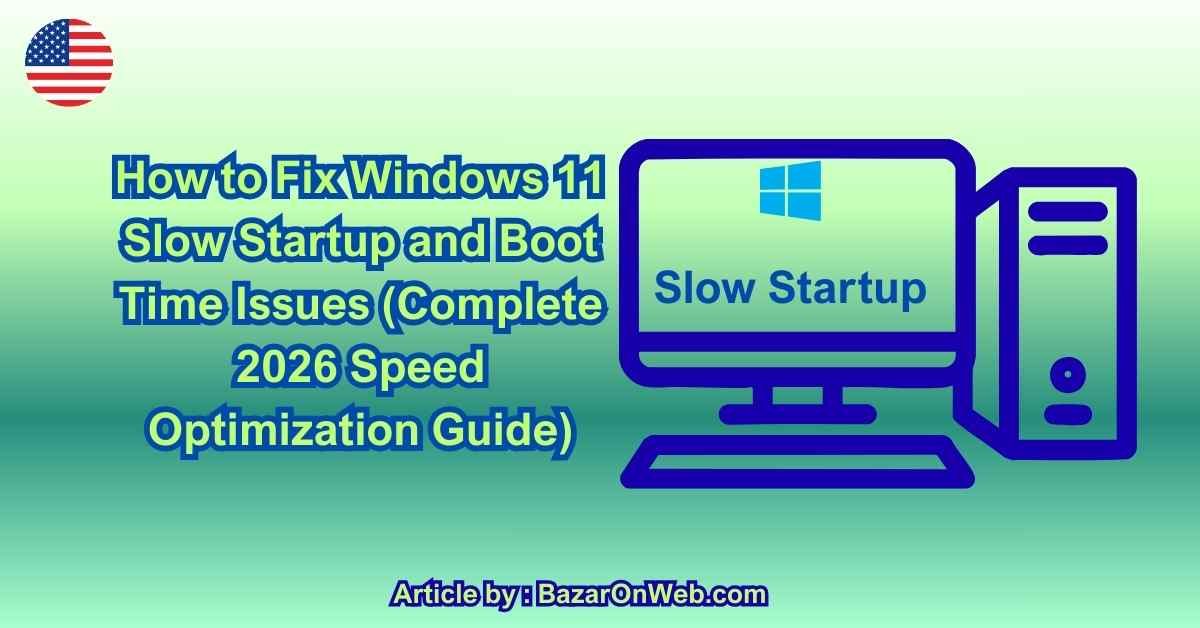
If your Windows 11 computer takes too long to boot, you’re not alone. Slow startup is one of the most common complaints in 2026 — especially after Windows updates, installing new software, or using the PC for a few years.
The good news? Slow boot times are almost always fixable.
In this guide, I’ll walk you step-by-step through why Windows 11 starts slowly and exactly how to make it boot significantly faster — without risky “optimizer” software.
Let’s speed it up properly.
Why Windows 11 Boot Time Becomes Slow
Boot slowdown usually happens because of:
-
Too many startup programs
-
Outdated drivers
-
Hard drive instead of SSD
-
Corrupted system files
-
Fast Startup conflicts
-
Background services overload
-
Nearly full storage
-
Malware or bloatware
Boot time has two parts:
-
BIOS/Hardware initialization
-
Windows loading + startup programs
We’ll optimize both.
Step 1: Disable Unnecessary Startup Programs (Biggest Impact)
Startup apps are the #1 cause of slow boot.
When Windows starts, it launches:
-
Cloud sync tools
-
Chat apps
-
Update managers
-
Printer software
-
Game launchers
-
Antivirus dashboards
Even if you don’t use them immediately.
Here’s how to fix it:
-
Press Ctrl + Shift + Esc
-
Open Task Manager
-
Click Startup Apps
-
Disable everything non-essential
Keep enabled only:
-
Security software
-
Touchpad drivers
-
Audio drivers
Restart your PC and test.
You’ll often see a dramatic improvement instantly.
Step 2: Check Your Startup Impact Score
In Task Manager, you’ll see:
-
Low impact
-
Medium impact
-
High impact
Disable High impact programs first.
They delay login screen the most.
Step 3: Enable Fast Startup (If Disabled)
Fast Startup speeds boot by saving system state.
To check:
-
Open Control Panel.
-
Go to Power Options.
-
Click “Choose what power buttons do.”
-
Click “Change settings that are currently unavailable.”
-
Make sure Turn on fast startup is checked.
If already enabled but causing issues, try disabling it and testing both ways.
Sometimes hybrid boot conflicts cause slowdown.
Step 4: Check Storage Health and Free Space
If your system drive is nearly full, boot slows down significantly.
Go to:
Settings → System → Storage
Try to keep:
At least 20–25% free space.
Delete:
-
Old downloads
-
Temporary files
-
Windows update leftovers
-
Unused programs
Storage breathing room improves boot performance.
Step 5: Check If You’re Using HDD Instead of SSD
If your PC still runs on a traditional hard drive (HDD), boot times will always be slower.
Typical HDD boot:
45–120 seconds
Typical SSD boot:
10–20 seconds
If you’re on HDD, upgrading to SSD is the single biggest performance improvement possible.
It transforms boot speed completely.
Step 6: Update Storage and Chipset Drivers
Outdated drivers can delay hardware initialization.
-
Right-click Start.
-
Open Device Manager.
-
Expand:
-
Disk Drives
-
IDE ATA/ATAPI Controllers
-
-
Update drivers.
Also check manufacturer website for chipset updates.
Step 7: Run System File Checker
Corrupted files slow startup.
Open Command Prompt as Administrator and type:
Wait until it completes.
Restart.
Step 8: Disable Unnecessary Windows Services
Some background services start at boot unnecessarily.
Press:
Windows + R
Type:
Go to:
Services tab
Check “Hide Microsoft services”
Disable unnecessary third-party services.
Restart.
Be careful not to disable essential system services.
Step 9: Scan for Malware
Malware and adware often insert themselves into startup.
Run:
Windows Security → Virus & Threat Protection → Full Scan
Remove anything suspicious.
Avoid third-party “speed booster” apps.
Step 10: Check Boot Time in Task Manager
In Task Manager → Startup Apps
You’ll see:
Last BIOS Time
If BIOS time is high (20+ seconds), issue may be:
-
Hardware initialization
-
Too many USB devices
-
Old firmware
-
BIOS settings
Try:
-
Disconnecting unnecessary USB devices
-
Updating BIOS (carefully)
Step 11: Disable Startup Delay (Advanced Tweak)
Windows intentionally delays startup apps to prevent overload.
You can remove this delay via registry tweak (advanced users only).
But most users don’t need this — optimizing startup programs is enough.
Step 12: Reset Windows (If Nothing Works)
If boot remains extremely slow after optimization:
Settings → System → Recovery → Reset this PC → Keep my files
This removes:
-
Corrupted software
-
Startup clutter
-
Registry bloat
Often restoring near-original boot performance.
Daily Habits That Keep Boot Fast
-
Restart at least once per week
-
Avoid installing unnecessary background apps
-
Keep Windows updated
-
Keep storage under 80% usage
-
Use SSD for system drive
-
Avoid forced shutdowns
Conclusion
Windows 11 slow startup is usually caused by:
-
Too many startup apps
-
Storage overload
-
Driver conflicts
-
HDD limitations
-
Corrupted files
The biggest improvements come from:
Disabling startup programs
Freeing storage
Using SSD
Updating drivers
You don’t need risky cleaner software.
Structured optimization restores fast boot times safely.
If your PC takes minutes to start, following these steps can cut that time dramatically — sometimes by more than half.
Disclaimer
This guide is for informational purposes only. System configuration changes such as disabling startup programs, modifying services, updating drivers, or adjusting BIOS settings should be performed carefully. Always back up important data before making advanced system changes.

- How to Download & Install Wispr Flow AI on Android (Step-by-Step Guide)

- How to Fix Memory Management Error 0x0000001A on Windows 11 (Complete Troubleshooting Guide)

- Fix “The Recycle Bin on C:\ is Corrupted” Error on Windows 11 (Step-by-Step Guide)

- How to Reset Graphics Driver on Windows 11: Easy Fix for Screen Freezes, Lag, and Display Glitches
- What Is Killer Network Service in Windows Complete Guide for Gamers and Laptop Users

Products
-
![Apple Watch Ultra 3 [GPS + Cellular 49mm] Running & Multisport Smartwatch w/Rugged Titanium Case w/Black Titanium Milanese Loop - M. Satellite Communications, Advanced Health & Fitness Tracking](https://bazaronweb.com/retailstores/wp-content/uploads/2025/09/apple-watch-320x320.jpg) Apple Watch Ultra 3 [GPS + Cellular 49mm] Running & Multisport Smartwatch w/Rugged Titanium Case w/Black Titanium Milanese Loop - M. Satellite Communications, Advanced Health & Fitness Tracking
Apple Watch Ultra 3 [GPS + Cellular 49mm] Running & Multisport Smartwatch w/Rugged Titanium Case w/Black Titanium Milanese Loop - M. Satellite Communications, Advanced Health & Fitness Tracking
-
 Apple iPad mini (A17 Pro): Apple Intelligence, 8.3-inch Liquid Retina Display, 256GB, Wi-Fi 6E, 12MP Front/12MP Back Camera, Touch ID, All-Day Battery Life — Purple
-
 Apple AirPods Max Wireless Over-Ear Headphones, Active Noise Cancelling, Transparency Mode, Personalized Spatial Audio, Dolby Atmos, Bluetooth Headphones for iPhone – Space Gray
-
 Apple AirPods Pro 2 Wireless Earbuds, Active Noise Cancellation, Hearing Aid Feature, Bluetooth Headphones, Transparency, Personalized Spatial Audio, High-Fidelity Sound, H2 Chip, USB-C Charging
-
Leo Creation 144 TC Cotton Double Jaipuri Prints Flat Bedsheet(Pack of 1, Blue, Gree, Red, Grey, Light Grey)
Original price was: ₹2,999.00.₹329.00Current price is: ₹329.00.
Leave a Reply