Discounted Products
-
 Leo Creation 144 TC Cotton Double Jaipuri Prints Flat Bedsheet(Pack of 1, Blue, Gree, Red, Grey, Light Grey)
Original price was: ₹2,999.00.₹329.00Current price is: ₹329.00.
Leo Creation 144 TC Cotton Double Jaipuri Prints Flat Bedsheet(Pack of 1, Blue, Gree, Red, Grey, Light Grey)
Original price was: ₹2,999.00.₹329.00Current price is: ₹329.00.
-
 Home Garage 210 TC Cotton King Floral Fitted (Elastic) Bedsheet(Pack of 1, Grey)
Original price was: ₹999.00.₹299.00Current price is: ₹299.00.
Home Garage 210 TC Cotton King Floral Fitted (Elastic) Bedsheet(Pack of 1, Grey)
Original price was: ₹999.00.₹299.00Current price is: ₹299.00.
-
 Goodrik 140 TC Cotton Double 3D Printed Flat Bedsheet(Pack of 1, Brown)
Original price was: ₹499.00.₹229.00Current price is: ₹229.00.
Goodrik 140 TC Cotton Double 3D Printed Flat Bedsheet(Pack of 1, Brown)
Original price was: ₹499.00.₹229.00Current price is: ₹229.00.
-
 GLOBALSHOP 350 TC Microfiber Double Floral Flat Bedsheet(Pack of 1, Multicolor)
Original price was: ₹1,250.00.₹263.00Current price is: ₹263.00.
GLOBALSHOP 350 TC Microfiber Double Floral Flat Bedsheet(Pack of 1, Multicolor)
Original price was: ₹1,250.00.₹263.00Current price is: ₹263.00.
-
 RisingStar 250 TC Microfiber King Printed Fitted (Elastic) Bedsheet(Pack of 1, FITTED-ROUND-CIRCLES-PREMIUM)
Original price was: ₹2,299.00.₹299.00Current price is: ₹299.00.
RisingStar 250 TC Microfiber King Printed Fitted (Elastic) Bedsheet(Pack of 1, FITTED-ROUND-CIRCLES-PREMIUM)
Original price was: ₹2,299.00.₹299.00Current price is: ₹299.00.
-
 Home Garage 210 TC Cotton King Floral Fitted (Elastic) Bedsheet(Pack of 1, Fitted Black Green)
Original price was: ₹1,299.00.₹299.00Current price is: ₹299.00.
Home Garage 210 TC Cotton King Floral Fitted (Elastic) Bedsheet(Pack of 1, Fitted Black Green)
Original price was: ₹1,299.00.₹299.00Current price is: ₹299.00.
-
 Home Garage 180 TC Cotton King 3D Printed Flat Bedsheet(Pack of 1, White)
Original price was: ₹999.00.₹229.00Current price is: ₹229.00.
Home Garage 180 TC Cotton King 3D Printed Flat Bedsheet(Pack of 1, White)
Original price was: ₹999.00.₹229.00Current price is: ₹229.00.
-
 Home Sizzler 153 cm (5 ft) Polyester Room Darkening Window Curtain (Pack Of 2)(Floral, Maroon)
Original price was: ₹799.00.₹299.00Current price is: ₹299.00.
Home Sizzler 153 cm (5 ft) Polyester Room Darkening Window Curtain (Pack Of 2)(Floral, Maroon)
Original price was: ₹799.00.₹299.00Current price is: ₹299.00.
-
 Panipat Textile Hub 152.4 cm (5 ft) Polyester Window Curtain (Pack Of 2)(Solid, Aqua)
Original price was: ₹1,899.00.₹299.00Current price is: ₹299.00.
Panipat Textile Hub 152.4 cm (5 ft) Polyester Window Curtain (Pack Of 2)(Solid, Aqua)
Original price was: ₹1,899.00.₹299.00Current price is: ₹299.00.
-
 Home Sizzler 214 cm (7 ft) Polyester Semi Transparent Door Curtain (Pack Of 2)(Floral, Maroon)
Original price was: ₹1,199.00.₹399.00Current price is: ₹399.00.
Home Sizzler 214 cm (7 ft) Polyester Semi Transparent Door Curtain (Pack Of 2)(Floral, Maroon)
Original price was: ₹1,199.00.₹399.00Current price is: ₹399.00.
-
 Home Sizzler 153 cm (5 ft) Polyester Room Darkening Window Curtain (Pack Of 2)(Floral, Brown)
Original price was: ₹799.00.₹299.00Current price is: ₹299.00.
Home Sizzler 153 cm (5 ft) Polyester Room Darkening Window Curtain (Pack Of 2)(Floral, Brown)
Original price was: ₹799.00.₹299.00Current price is: ₹299.00.
-
 Stella Creations 214 cm (7 ft) Polyester Room Darkening Door Curtain (Pack Of 2)(Abstract, Brown)
Original price was: ₹1,299.00.₹449.00Current price is: ₹449.00.
Stella Creations 214 cm (7 ft) Polyester Room Darkening Door Curtain (Pack Of 2)(Abstract, Brown)
Original price was: ₹1,299.00.₹449.00Current price is: ₹449.00.
-
 Homefab India 152.5 cm (5 ft) Polyester Room Darkening Window Curtain (Pack Of 2)(Floral, Light Blue)
Original price was: ₹1,199.00.₹319.00Current price is: ₹319.00.
Homefab India 152.5 cm (5 ft) Polyester Room Darkening Window Curtain (Pack Of 2)(Floral, Light Blue)
Original price was: ₹1,199.00.₹319.00Current price is: ₹319.00.
-
 Urban Home 214 cm (7 ft) PVC Transparent Door Curtain Single Curtain(Solid, Off White)
Original price was: ₹699.00.₹203.00Current price is: ₹203.00.
Urban Home 214 cm (7 ft) PVC Transparent Door Curtain Single Curtain(Solid, Off White)
Original price was: ₹699.00.₹203.00Current price is: ₹203.00.
-
 Panipat Textile Hub 213 cm (7 ft) Polyester Door Curtain (Pack Of 2)(Solid, Brown)
Original price was: ₹1,199.00.₹349.00Current price is: ₹349.00.
Panipat Textile Hub 213 cm (7 ft) Polyester Door Curtain (Pack Of 2)(Solid, Brown)
Original price was: ₹1,199.00.₹349.00Current price is: ₹349.00.
Hey, it’s Jessica 👋,
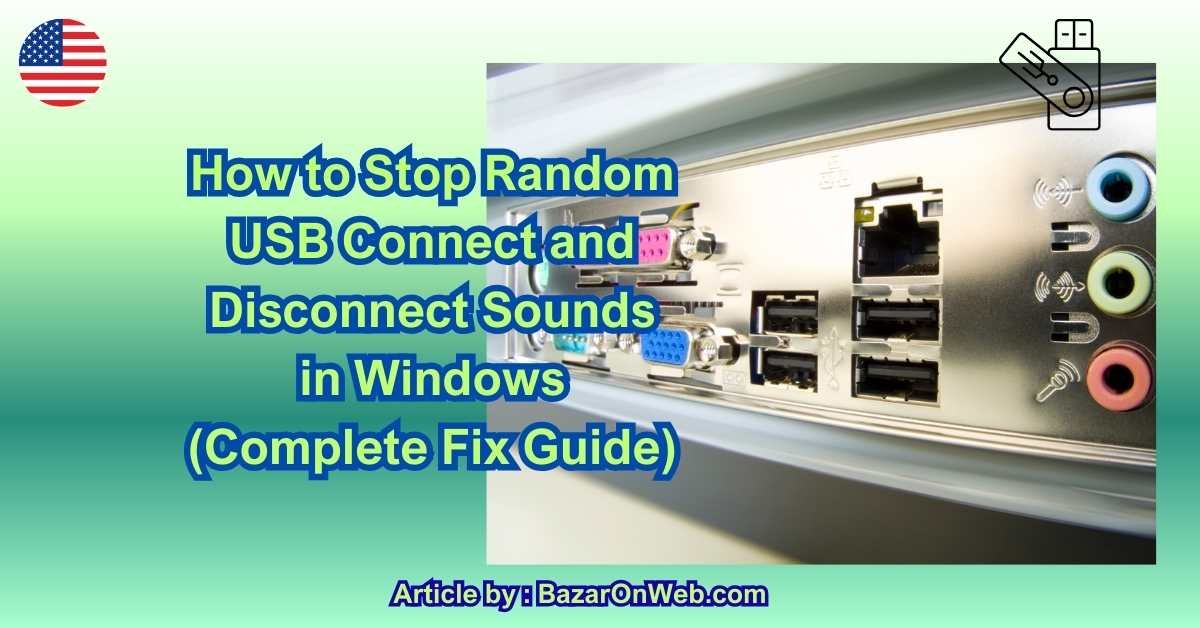
If you’re using a Windows PC and keep hearing that ding–dong USB connect and disconnect sound—again and again—without touching anything, you’re not alone. It’s one of those small problems that quickly becomes maddening. You’re working, watching a video, or in a meeting, and suddenly Windows acts like a USB device was plugged in… then unplugged… then plugged in again. Over and over.
The worst part? Most of the time, nothing is actually being connected or removed.
This guide is here to help you understand why random USB connect/disconnect noises happen in Windows and how to stop them permanently, not just mute the sound and ignore the real issue. I’ll walk you through practical fixes—from simple checks to deeper system-level solutions—without unnecessary tech jargon.
Why Windows Keeps Making USB Connect/Disconnect Sounds
Before we jump into fixes, it helps to understand what’s actually happening.
Windows plays USB connection sounds whenever it detects:
-
A device drawing power
-
A device losing power
-
A driver resetting
-
A USB controller briefly disconnecting and reconnecting
So even if you didn’t plug or unplug anything, Windows might think something changed. The most common culprits include:
-
Faulty USB ports
-
Loose internal or external USB connections
-
Power management settings
-
Bad or outdated USB drivers
-
USB hubs (especially unpowered ones)
-
Peripherals with unstable cables
Now let’s fix it—step by step.
Step 1: Identify the Problem Device (This Is Crucial)
The most important step is figuring out which device is triggering the sound.
Open Device Manager
-
Press Windows + X
-
Click Device Manager
-
Leave it open and wait for the USB sound to occur
When the sound happens, watch Device Manager closely. If you see:
-
A device refreshing
-
A category expanding/collapsing
-
A device briefly appearing and disappearing
That’s your troublemaker.
Tip: Expand these sections first:
-
Universal Serial Bus controllers
-
Human Interface Devices
-
Disk drives
Even something small like a USB mouse receiver can cause repeated reconnects.
Step 2: Physically Check All USB Ports and Cables
This may sound basic, but it solves a surprising number of cases.
What to Do
-
Unplug all USB devices
-
Plug them back in one at a time
-
Wait a few minutes between each device
Pay special attention to:
-
USB hubs
-
External hard drives
-
Webcams
-
Printers
-
Bluetooth or wireless dongles
If the noise starts after plugging in a specific device, you’ve found the cause.
Check for Loose Ports
If a USB port feels loose or only works at certain angles, it can cause constant connect/disconnect signals. Try moving the device to a different port.
Step 3: Disable USB Power Management (Big Fix)
Windows aggressively manages power—and sometimes it’s too aggressive.
How to Disable USB Power Saving
-
Open Device Manager
-
Expand Universal Serial Bus controllers
-
Right-click each USB Root Hub
-
Choose Properties
-
Go to the Power Management tab
-
Uncheck Allow the computer to turn off this device to save power
-
Click OK
Repeat this for every USB Root Hub listed.
This step alone fixes the issue for many people, especially on laptops.
Step 4: Check Event Viewer for USB Errors
If the noise keeps happening and you can’t see which device is responsible, Windows logs the errors.
How to Check
-
Press Windows + R
-
Type
eventvwr.msc -
Go to Windows Logs → System
-
Look for warnings or errors related to:
-
USB
-
Kernel-PnP
-
HID
-
Device setup manager
-
These logs can confirm whether the issue is driver-related or hardware-related.
Step 5: Update or Reinstall USB Drivers
Corrupted or outdated drivers can cause Windows to repeatedly reset USB connections.
Update Drivers
-
Open Device Manager
-
Right-click suspicious devices
-
Select Update driver
-
Choose Search automatically
Reinstall USB Controllers (Safe to Do)
-
Expand Universal Serial Bus controllers
-
Right-click each controller
-
Choose Uninstall device
-
Restart your PC
Windows will automatically reinstall fresh drivers on boot.
Step 6: Check BIOS and Chipset Drivers
If the problem persists across multiple ports, it may be system-level.
What to Do
-
Update your motherboard or laptop chipset drivers
-
Check your manufacturer’s website for BIOS updates
-
Reset BIOS settings to default if USB behavior seems unstable
This is especially important if the issue started after a Windows update.
Step 7: USB Hubs Are Often the Hidden Villain
Cheap or unpowered USB hubs are notorious for causing random disconnects.
Fixes
-
Avoid unpowered hubs for high-draw devices
-
Use powered USB hubs instead
-
Plug critical devices directly into the PC
If removing the hub stops the sound, you’ve found the root cause.
Temporary Fix: Disable USB Sounds (Not Recommended as a Final Solution)
If you need immediate peace and quiet:
-
Open Sound Settings
-
Go to Sounds
-
Change Program Events → Device Connect/Disconnect to None
This stops the noise—but not the underlying issue. Use this only as a temporary workaround.
When the Problem Is Internal Hardware
If none of the fixes work, the issue may be:
-
A failing motherboard USB controller
-
Internal USB headers (front panel ports)
-
Internal Bluetooth or Wi-Fi modules
Try disconnecting front-panel USB ports internally (desktop PCs) or testing with an external USB card.
Power, Drivers, and System-Level Causes You Shouldn’t Ignore
If you’ve already checked physical devices, ports, and basic USB power settings, and the random connect/disconnect sound is still happening, the issue is usually deeper than a single faulty accessory. At this stage, Windows itself is often reacting to subtle power changes or background driver resets that aren’t obvious on the surface.
Modern versions of Windows aggressively manage hardware power to improve battery life and efficiency. While this works well most of the time, USB devices are particularly sensitive to sudden power state changes. When Windows briefly cuts power to a USB controller or fails to wake it correctly, it treats that moment as a disconnect followed immediately by a reconnect—triggering the familiar sound.
This is why the noise can happen even when your PC is sitting idle.
USB Selective Suspend: The Silent Trigger
One of the most common system-level causes is USB Selective Suspend. This feature allows Windows to turn off individual USB ports when it thinks they aren’t being used. Unfortunately, not all USB devices handle this well.
Devices like wireless receivers, webcams, external drives, and Bluetooth adapters may briefly drop out and reconnect when Windows suspends and resumes the port. Even if the interruption lasts less than a second, Windows still plays the sound.
Disabling USB Selective Suspend ensures that power to USB ports remains stable, which often eliminates the problem entirely—especially on laptops and compact PCs.
Ghost USB Devices and Why Windows Won’t Let Them Go
Windows keeps a history of every USB device that has ever been connected to your system. These “phantom” devices aren’t visible by default, but they can still interfere with normal detection behavior.
If Windows repeatedly tries to reinitialize a device that no longer exists—or one that failed during installation—it can trigger background USB events without showing anything obvious on screen.
Cleaning up hidden USB entries helps reset this internal memory and prevents Windows from chasing devices that aren’t actually there anymore.
Front USB Ports and Internal Connections (Desktop PCs)
On desktop systems, front USB ports are connected to the motherboard using internal cables. Over time, these cables can loosen slightly or degrade, especially in older cabinets.
What makes this tricky is that nothing needs to be plugged into the front ports for them to cause issues. A loose internal connection can still generate electrical noise or intermittent signals that Windows interprets as device activity.
If the USB sounds stop when you stop using front panel ports—or disconnect them temporarily—you’ve found a surprisingly common root cause.
Bluetooth: The USB Device You Didn’t Know You Had
Here’s an important detail most users miss: internal Bluetooth modules usually connect to Windows via USB.
That means Bluetooth-related issues—such as:
-
Wireless mouse dropouts
-
Keyboard lag
-
Bluetooth turning on and off
-
Power-saving conflicts
…can all trigger USB connect/disconnect sounds.
If the noise coincides with Bluetooth behavior, updating Bluetooth drivers, disabling Bluetooth power management, or temporarily turning Bluetooth off can quickly confirm whether it’s involved.
Windows Updates and Driver Resets
If the problem appeared suddenly after a Windows update, you’re not imagining things. Updates can:
-
Replace chipset drivers
-
Reset USB power settings
-
Reinstall generic USB drivers
This can undo fixes that were previously working. After major updates, it’s always worth revisiting USB power settings and reinstalling chipset drivers directly from your PC or motherboard manufacturer—not just relying on Windows Update.
Power Quality Matters More Than You Think
USB devices rely on consistent power. Even small fluctuations can cause brief disconnects.
This is more likely if:
-
You’re using a low-quality power strip
-
Your laptop charger is damaged
-
Your desktop PSU is aging
-
Multiple high-power devices share the same outlet
Testing your system with a direct wall connection or a different charger can rule out power instability as the cause.
Muting USB Sounds: When It’s Okay—and When It’s Not
Disabling USB connect/disconnect sounds can restore peace, but it should be the last step, not the first.
It’s acceptable when:
-
You’ve confirmed the issue is harmless
-
No data-transfer devices are affected
-
The system is otherwise stable
However, muting the sound without fixing the cause can hide warning signs of failing hardware or driver corruption. Think of it as silencing an alarm—you should only do it once you know there’s no fire.
How You Know the Problem Is Truly Solved
You’ll know the fix worked when:
-
The USB sound doesn’t occur for days at a time
-
Sleep and wake cycles are quiet
-
Bluetooth and peripherals remain stable
-
No new USB-related errors appear in Event Viewer
Consistency is the real test—not just silence for a few minutes.
Conclusion
Random USB connect and disconnect noises in Windows are frustrating because they feel unpredictable, but they’re rarely random. Almost every case comes down to power management, driver behavior, internal USB connections, or background device resets.
Once you stop treating the sound as the problem and start treating it as a symptom, the fix becomes much clearer. With stable power settings, clean drivers, and a bit of patience, your system can go back to doing what it should—working quietly in the background.
Disclaimer
This article is for informational purposes only. Results may vary depending on Windows version, hardware configuration, and installed drivers. Always back up important data before making system-level changes.

- How to Fix Volume Buttons Not Working on iPhone Complete Step-by-Step Guide
- Chris Titus Download for Windows (Latest Version): Complete Guide to Optimize and Debloat Your PC

- Google Chrome Not Saving Password 8 Proven Ways to Fix It Quickly

- WiFi Settings Turning Off on iPhone? Try These 6 Fixes That Actually Work

- How to Check Motherboard Model in Windows (Easy Methods Without Opening Your PC)

Products
-
![Apple Watch Ultra 3 [GPS + Cellular 49mm] Running & Multisport Smartwatch w/Rugged Titanium Case w/Black Titanium Milanese Loop - M. Satellite Communications, Advanced Health & Fitness Tracking](https://bazaronweb.com/retailstores/wp-content/uploads/2025/09/apple-watch-320x320.jpg) Apple Watch Ultra 3 [GPS + Cellular 49mm] Running & Multisport Smartwatch w/Rugged Titanium Case w/Black Titanium Milanese Loop - M. Satellite Communications, Advanced Health & Fitness Tracking
Apple Watch Ultra 3 [GPS + Cellular 49mm] Running & Multisport Smartwatch w/Rugged Titanium Case w/Black Titanium Milanese Loop - M. Satellite Communications, Advanced Health & Fitness Tracking
-
 Apple iPad mini (A17 Pro): Apple Intelligence, 8.3-inch Liquid Retina Display, 256GB, Wi-Fi 6E, 12MP Front/12MP Back Camera, Touch ID, All-Day Battery Life — Purple
-
 Apple AirPods Max Wireless Over-Ear Headphones, Active Noise Cancelling, Transparency Mode, Personalized Spatial Audio, Dolby Atmos, Bluetooth Headphones for iPhone – Space Gray
-
 Apple AirPods Pro 2 Wireless Earbuds, Active Noise Cancellation, Hearing Aid Feature, Bluetooth Headphones, Transparency, Personalized Spatial Audio, High-Fidelity Sound, H2 Chip, USB-C Charging
-
Leo Creation 144 TC Cotton Double Jaipuri Prints Flat Bedsheet(Pack of 1, Blue, Gree, Red, Grey, Light Grey)
Original price was: ₹2,999.00.₹329.00Current price is: ₹329.00.
Leave a Reply