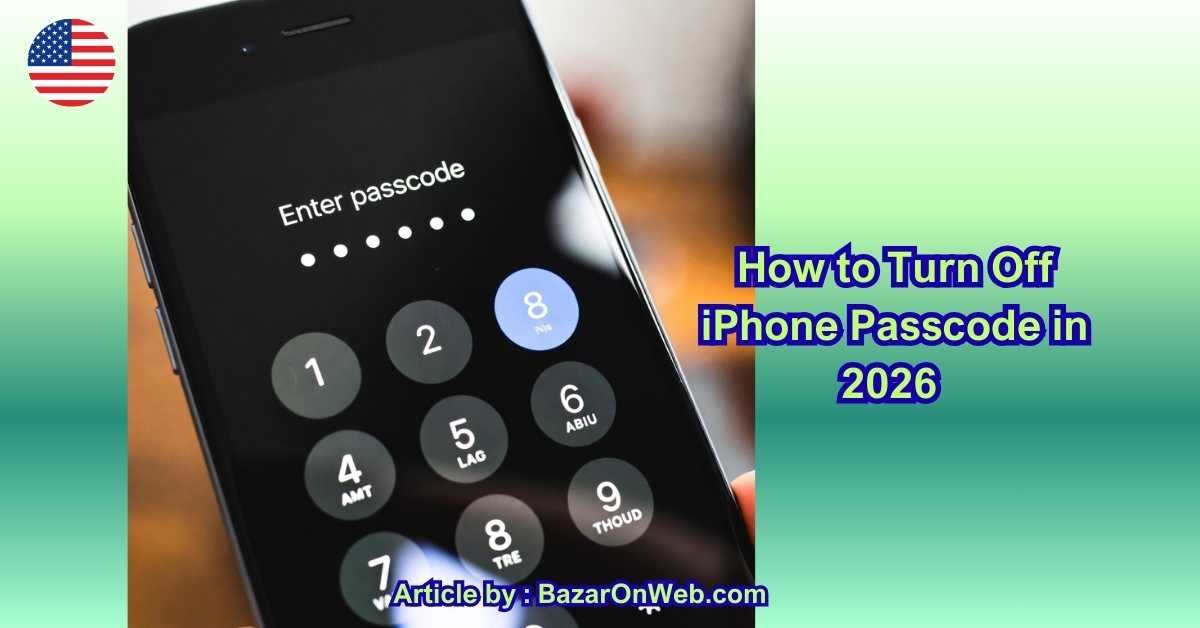
How to Turn Off iPhone Passcode in 2026 (Step-by-Step Guide for All iPhone Models)

How to Turn Off iPhone Passcode in 2026

Introduction

In 2026, iPhones are more secure than ever, but there are still many situations where users may want to turn off their iPhone passcode temporarily or permanently. Whether you’re handing your phone to a child, using it as a home device, troubleshooting Face ID issues, or simply tired of entering a passcode multiple times a day, Apple does allow you to disable the passcode—if you know where to look. However, because Apple prioritizes privacy and security, the option to turn off the passcode is intentionally not very obvious, and it comes with important consequences that users should fully understand before proceeding.

As someone who uses an iPhone daily for work, family coordination, and personal tasks, I’ve noticed that many users hesitate to change security settings simply because they fear doing something wrong. The good news is that turning off the iPhone passcode in 2026 is still straightforward, provided your device is working normally and you remember your current passcode. Apple hasn’t removed this feature, but it has added additional warnings to make sure users are aware of the risks involved.

In this guide, I’ll walk you through everything you need to know before disabling your iPhone passcode, including what happens when you turn it off, which features stop working, and how it affects Face ID and Apple Pay. I’ll also explain the exact steps to disable the passcode on iPhones running the latest iOS versions in 2026. By the end of this article, you’ll be able to confidently decide whether turning off your passcode is right for you—and how to do it safely without losing access to your data.


Understanding What Happens When You Turn Off iPhone Passcode

Turning off your iPhone passcode doesn’t just remove a lock screen—it changes how your entire device behaves. In 2026, Apple tightly integrates passcode security with many core features, so disabling it affects more than most users expect. When you turn off your passcode, your iPhone no longer requires authentication to unlock, meaning anyone who picks up your phone can immediately access your apps, messages, photos, and emails.

One of the most significant changes is that Face ID and Touch ID are automatically disabled. These biometric features rely on a passcode as a backup authentication method, and without it, they simply cannot function. This also means Apple Pay stops working, since Apple requires a passcode or biometric confirmation to authorize payments. Wallet cards, saved passes, and transit cards may also become unavailable.

Another important impact is on data protection. iPhones encrypt data using keys tied to your passcode. When you remove it, certain layers of encryption are weakened, which could make your data more vulnerable if your phone is lost or stolen. Apple clearly warns users about this during the process, which is why many people hesitate at this step.

Despite these drawbacks, there are valid reasons for turning off the passcode. Some users keep an old iPhone at home for music, smart home controls, or children’s learning apps. Others disable the passcode temporarily while fixing Face ID issues or setting up automation workflows. Understanding these consequences upfront helps you make an informed decision rather than clicking through warnings without reading them.


Step-by-Step Process to Turn Off iPhone Passcode in 2026

The actual process of turning off the iPhone passcode in 2026 remains simple, but Apple has refined the layout of settings slightly in recent iOS updates. Start by opening the Settings app from your home screen. Scroll down and tap on Face ID & Passcode or Touch ID & Passcode, depending on your iPhone model. You will immediately be asked to enter your current passcode to access these settings.

Once inside, scroll down until you see the option labeled Turn Passcode Off. Tap on it, and Apple will display a detailed warning explaining what features will stop working and how your data security will change. This screen is designed to slow users down and make sure the decision is intentional. If you’re confident, tap Turn Off again to confirm.

You will then be prompted to enter your passcode one more time. This final step ensures that only the device owner can disable security settings. After entering the passcode, the lock screen will be removed instantly. The next time your iPhone screen wakes, it will open directly to the home screen without requiring any authentication.

It’s important to note that if your iPhone is managed by an organization, has Screen Time restrictions, or is enrolled in Mobile Device Management, the option to turn off the passcode may be disabled. In such cases, you’ll need to adjust restrictions or contact the administrator before proceeding.


Situations Where Turning Off the Passcode Makes Sense

While Apple strongly encourages keeping a passcode enabled, there are practical scenarios where turning it off is reasonable. One common use case is converting an old iPhone into a shared household device. Parents often repurpose older phones for children to watch videos, attend online classes, or play educational games. In such cases, repeatedly entering a passcode can be inconvenient and unnecessary, especially if the device never leaves the house.

Another scenario involves accessibility. Some users with motor impairments or cognitive challenges find passcodes difficult to manage, even with Face ID. Removing the passcode can make the device more usable and less frustrating, particularly when paired with other accessibility features like AssistiveTouch or voice control.

Temporary passcode removal can also help during troubleshooting. If Face ID is malfunctioning or an automation requires uninterrupted access, disabling the passcode briefly can help isolate issues. Many users turn the passcode back on once the problem is resolved.

However, it’s essential to balance convenience with risk. If you carry your iPhone outside, use banking apps, or store sensitive work data, turning off the passcode is rarely advisable. Understanding your usage pattern helps determine whether the benefits outweigh the potential security concerns.


Common Problems Users Face While Disabling Passcode

Even though the process is straightforward, some users encounter obstacles when trying to turn off their iPhone passcode. One of the most common issues is forgetting the current passcode. Without it, Apple does not allow passcode removal, and the only solution involves resetting the device using a computer, which erases all data.

Another issue arises from Screen Time restrictions. If Screen Time is enabled with a separate passcode, it may block changes to passcode settings. Users often forget they set this up years ago, especially on older devices. Disabling or modifying Screen Time settings usually resolves the issue.

Enterprise or school-managed iPhones present another challenge. These devices often enforce security policies that prevent passcode removal entirely. In such cases, the option simply won’t appear, and no workaround exists without administrative approval.

Lastly, some users expect that turning off the passcode will keep Face ID active, which is not possible. Apple’s system design requires a passcode as a fallback, and understanding this limitation avoids confusion and frustration during setup.


Things to Consider Before Turning the Passcode Back On

Although this guide focuses on turning the passcode off, it’s worth thinking ahead about re-enabling it. When you turn the passcode back on, you’ll need to set up Face ID or Touch ID again from scratch. Apple Pay cards may need re-authentication, and some apps will ask you to sign in again for security reasons.

Choosing a passcode that balances security and convenience is key. In 2026, Apple still allows six-digit numeric codes, custom numeric codes, and alphanumeric passcodes. If you previously turned off your passcode due to convenience issues, switching to a simpler but still secure option may be a better long-term solution.

Understanding both sides of the decision ensures that you stay in control of your iPhone rather than feeling locked into a setting you regret later.

Re-Enabling iPhone Passcode Safely After Turning It Off

Once you’ve used your iPhone without a passcode for some time, re-enabling it is often the smartest next step—especially if your usage changes. The process is simple, but it’s important to understand that turning the passcode back on restores multiple layers of security at once. When you enable a new passcode, iOS immediately reactivates encrypted data protection, which safeguards stored messages, health data, saved passwords, and app data from unauthorized access.

Re-enabling a passcode also allows Face ID or Touch ID to work again. Apple requires a passcode as a fallback for biometric authentication, so once it’s set, you’ll be prompted to configure Face ID or Touch ID again. This may feel repetitive, but it ensures that your biometric data is freshly secured and aligned with your current settings. Apple Pay, Wallet cards, and secure app logins will also resume normal operation once authentication is restored.

It’s worth taking a moment to choose the right type of passcode. In 2026, Apple still offers six-digit, custom numeric, and alphanumeric options. If convenience was your main reason for disabling the passcode earlier, a six-digit code paired with Face ID is usually the best balance between security and ease of use.


Choosing the Right Passcode for Daily Convenience

One mistake many users make is assuming all passcodes are equally annoying. In reality, the way you configure your passcode can dramatically change your day-to-day experience. A long alphanumeric passcode may be secure, but it can slow you down if you unlock your phone dozens of times a day. On the other hand, a simple six-digit code combined with Face ID often feels nearly invisible during normal use.

Apple’s Face ID has become extremely reliable by 2026, even in low light or with partial face obstructions. This means most users rarely need to enter their passcode manually. Choosing a reasonable passcode allows you to keep security enabled without sacrificing speed or comfort.

If you previously turned off your passcode due to frustration, consider adjusting related settings instead. Features like “Require Attention for Face ID” or immediate lock timing can be fine-tuned to reduce interruptions. Sometimes the issue isn’t the passcode itself, but how aggressively iOS locks the device.


How Passcode Settings Affect Apps and iCloud Data

Another important consideration when turning your passcode back on is how it affects apps and iCloud-linked services. Many banking, password manager, and work apps rely on the system passcode to enable biometric login. Without it, these apps often fall back to manual passwords or restrict access entirely.

Once the passcode is restored, these apps usually recognize the change automatically and prompt you to re-enable Face ID or Touch ID. iCloud Keychain, saved Wi-Fi passwords, and autofill features also regain full functionality, making everyday tasks smoother and more secure.

In professional or work-from-home setups, having a passcode is often essential. Corporate email accounts and collaboration apps may require device-level security before allowing sign-in. If you ever noticed apps refusing to work while the passcode was off, this is usually the reason.


Security Risks of Staying Without a Passcode Long-Term

While using an iPhone without a passcode may feel liberating at first, it comes with real risks that grow over time. A misplaced phone, even inside your home or car, can instantly expose personal messages, photos, emails, and saved accounts. Unlike a forgotten password, lost data privacy can’t always be undone.

In 2026, smartphones store far more sensitive information than they did just a few years ago. Health data, payment details, smart home controls, and personal notes are often one tap away. Without a passcode, anyone holding your phone has unrestricted access to this information.

Apple’s repeated warnings aren’t meant to scare users, but to reflect how central passcode protection is to iOS security. For most people, disabling the passcode should be a temporary decision, not a permanent one.


Best Practices for Managing iPhone Security Settings

Managing your iPhone’s security doesn’t have to be all-or-nothing. Instead of permanently disabling the passcode, consider smarter compromises. Use automation settings to reduce lock frequency at home, enable Face ID for most apps, and keep your passcode simple but secure.

Regularly reviewing your security settings also helps. iOS updates sometimes introduce new protections or defaults that change how your phone behaves. Spending a few minutes checking these options can prevent frustration later.

Ultimately, the goal is to make your iPhone work for you—secure when it needs to be, and convenient when possible. Understanding how passcodes fit into this balance gives you full control over your device.


Conclusion

Turning off the iPhone passcode in 2026 is still possible, but it’s a decision that should be made with awareness and intention. While there are valid reasons to disable it temporarily—such as accessibility needs, home-only usage, or troubleshooting—going without a passcode long-term exposes your personal data to unnecessary risk. Apple’s security ecosystem is built around the passcode, and many essential features simply don’t function properly without it.

The good news is that iOS offers flexibility. You can turn the passcode off when needed and restore it just as easily when circumstances change. By choosing the right type of passcode and pairing it with Face ID or Touch ID, you can maintain strong security without sacrificing convenience. In the end, the best setup is one that matches your lifestyle while still protecting what matters most.


Disclaimer

This article is for informational purposes only. iOS features and security settings may change with future updates. Always ensure your device is backed up before making significant security changes. Apple is not affiliated with this content.

Leave a Reply

Your email address will not be published. Required fields are marked *

Select the fields to be shown. Others will be hidden. Drag and drop to rearrange the order.
  • Image
  • SKU
  • Rating
  • Price
  • Stock
  • Availability
  • Add to cart
  • Description
  • Content
  • Weight
  • Dimensions
  • Additional information
Click outside to hide the comparison bar
Compare