Category
Popular Articles
- AI (19)
- Android (50)
- App Suggest (13)
- Apple (42)
- Apple TV (4)
- Bluetooth (3)
- Cars (2)
- ChatGpt (1)
- Chrome (2)
- Did you know? (1)
- E-Commerce News (1)
- Ecommerce Websites business (7)
- Electronics Shopping (5)
- Fashion Tips (3)
- Gaming (6)
- Google Gemini (3)
- Hair Care Tips (2)
- How to (13)
- iCloud (1)
- Infotainment System (1)
- Iphone (147)
- Job Posting (1)
- Lifestyle (3)
- Mac (25)
- Mobile Games (1)
- Netflix (1)
- Online Shopping Websites (2)
- Personal Finance Management (3)
- Product Reviews (3)
- Roku TV (4)
- Samsung (10)
- Shopping Tips (13)
- Spotify (1)
- Tech (157)
- VPN (2)
- Windows 11 (71)
- Zero Waste (3)
Discounted Products
-

Leo Creation 144 TC Cotton Double Jaipuri Prints Flat Bedsheet(Pack of 1, Blue, Gree, Red, Grey, Light Grey)
₹2,999.00Original price was: ₹2,999.00.₹329.00Current price is: ₹329.00. -

Home Garage 210 TC Cotton King Floral Fitted (Elastic) Bedsheet(Pack of 1, Grey)
₹999.00Original price was: ₹999.00.₹299.00Current price is: ₹299.00. -

Goodrik 140 TC Cotton Double 3D Printed Flat Bedsheet(Pack of 1, Brown)
₹499.00Original price was: ₹499.00.₹229.00Current price is: ₹229.00. -

GLOBALSHOP 350 TC Microfiber Double Floral Flat Bedsheet(Pack of 1, Multicolor)
₹1,250.00Original price was: ₹1,250.00.₹263.00Current price is: ₹263.00. -

RisingStar 250 TC Microfiber King Printed Fitted (Elastic) Bedsheet(Pack of 1, FITTED-ROUND-CIRCLES-PREMIUM)
₹2,299.00Original price was: ₹2,299.00.₹299.00Current price is: ₹299.00. -

Home Garage 210 TC Cotton King Floral Fitted (Elastic) Bedsheet(Pack of 1, Fitted Black Green)
₹1,299.00Original price was: ₹1,299.00.₹299.00Current price is: ₹299.00. -

Home Garage 180 TC Cotton King 3D Printed Flat Bedsheet(Pack of 1, White)
₹999.00Original price was: ₹999.00.₹229.00Current price is: ₹229.00. -

Home Sizzler 153 cm (5 ft) Polyester Room Darkening Window Curtain (Pack Of 2)(Floral, Maroon)
₹799.00Original price was: ₹799.00.₹299.00Current price is: ₹299.00. -

Panipat Textile Hub 152.4 cm (5 ft) Polyester Window Curtain (Pack Of 2)(Solid, Aqua)
₹1,899.00Original price was: ₹1,899.00.₹299.00Current price is: ₹299.00. -

Home Sizzler 214 cm (7 ft) Polyester Semi Transparent Door Curtain (Pack Of 2)(Floral, Maroon)
₹1,199.00Original price was: ₹1,199.00.₹399.00Current price is: ₹399.00. -

Home Sizzler 153 cm (5 ft) Polyester Room Darkening Window Curtain (Pack Of 2)(Floral, Brown)
₹799.00Original price was: ₹799.00.₹299.00Current price is: ₹299.00. -

Stella Creations 214 cm (7 ft) Polyester Room Darkening Door Curtain (Pack Of 2)(Abstract, Brown)
₹1,299.00Original price was: ₹1,299.00.₹449.00Current price is: ₹449.00. -

Homefab India 152.5 cm (5 ft) Polyester Room Darkening Window Curtain (Pack Of 2)(Floral, Light Blue)
₹1,199.00Original price was: ₹1,199.00.₹319.00Current price is: ₹319.00. -

Urban Home 214 cm (7 ft) PVC Transparent Door Curtain Single Curtain(Solid, Off White)
₹699.00Original price was: ₹699.00.₹203.00Current price is: ₹203.00. -

Panipat Textile Hub 213 cm (7 ft) Polyester Door Curtain (Pack Of 2)(Solid, Brown)
₹1,199.00Original price was: ₹1,199.00.₹349.00Current price is: ₹349.00.
Affiliate Links
Promotion
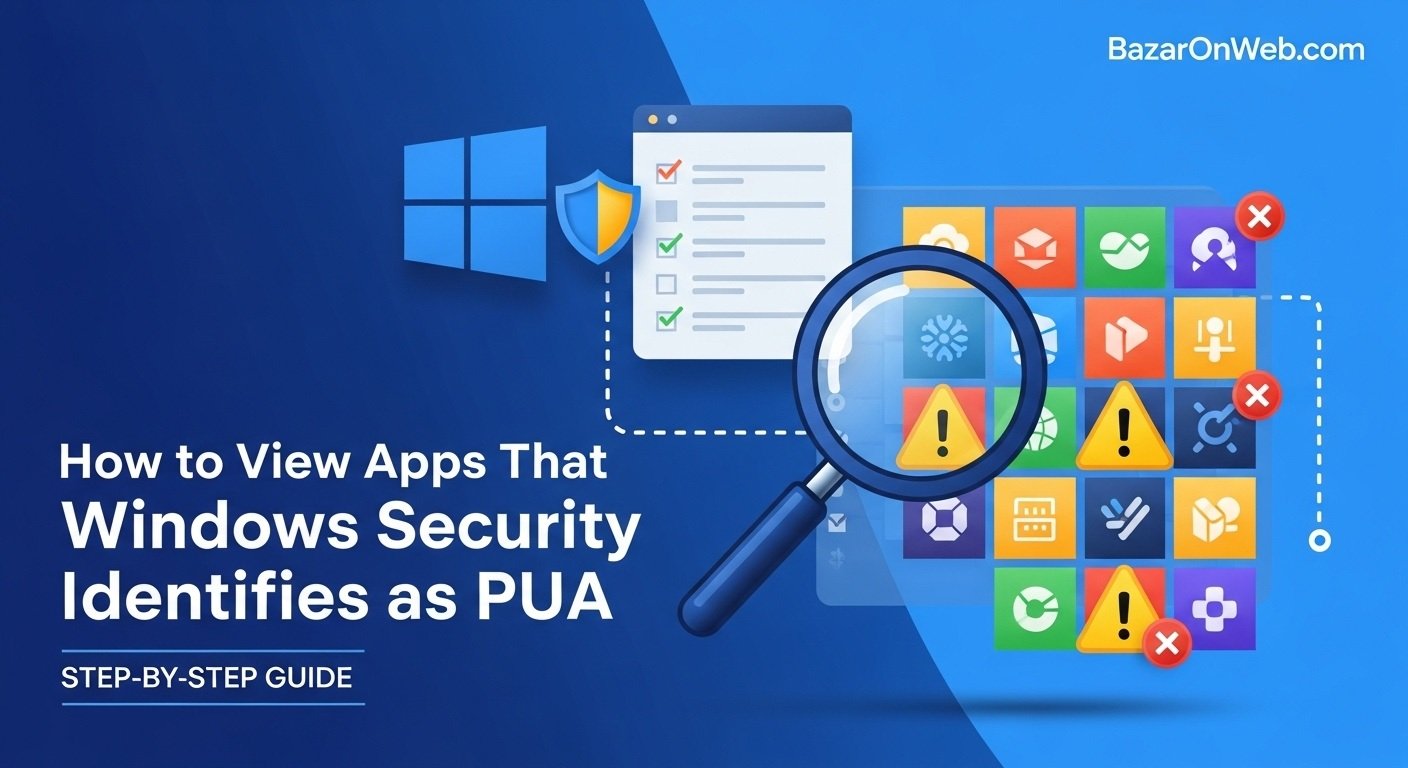
Hi, I’m Jessica, and if you’re anything like me, you’ve probably had those frustrating moments where your laptop suddenly slows down for no obvious reason. I remember once trying to finish a presentation while my system kept lagging—it turned out there were several hidden apps running quietly in the background. That’s when I discovered how useful Windows Security can be in identifying Potentially Unwanted Applications (PUAs).
PUAs aren’t exactly viruses, but they can clutter your system, consume resources, and degrade performance. The good news is that Windows Security keeps track of these apps and even blocks them automatically.
By checking the Protection History section, you can view all detected PUAs and understand what’s been affecting your system. This guide will walk you through everything you need to know—from understanding PUAs to viewing and managing them effectively.
What Are Potentially Unwanted Applications (PUAs)?
Potentially Unwanted Applications, commonly referred to as PUAs, are software programs that may not be outright malicious but can negatively impact your computer’s performance and user experience. These applications often get installed alongside legitimate software without your full awareness, usually bundled within free downloads or deceptive installation prompts.
PUAs typically run silently in the background, consuming system resources such as CPU, memory, and internet bandwidth. While they may not directly harm your data, they can introduce unwanted ads, alter browser settings, or slow down your overall system performance. In some cases, they can even track user behavior for advertising purposes.
Unlike traditional malware, PUAs operate in a gray area. They are technically allowed but not recommended, which is why tools like Windows Security flag them instead of treating them as severe threats. Recognizing PUAs is essential because they can accumulate over time, gradually reducing your system’s efficiency.
Understanding the nature of PUAs helps you take proactive steps to maintain your computer’s health. By regularly monitoring your system, you can identify and remove these unnecessary programs before they cause noticeable slowdowns or disruptions.
Why Windows Security Flags PUAs
Windows Security is designed to protect users not only from viruses and malware but also from software that can degrade performance or compromise user experience. PUAs fall into this category because they often behave in ways that are intrusive or inefficient.
Windows Security flags PUAs based on specific criteria, such as unwanted advertising behavior, unauthorized system changes, or excessive background activity. For example, if an application modifies your browser homepage without permission or installs additional software silently, it may be flagged as a PUA.
Another reason Windows Security identifies these apps is user protection. Many users unknowingly install such programs, assuming they are part of legitimate software. By flagging them, Windows ensures that users are aware of what’s happening behind the scenes.
The detection process is backed by Microsoft’s extensive threat intelligence database, which continuously updates to identify new forms of unwanted applications. This ensures that even newly emerging PUAs are detected and managed effectively.
Ultimately, the goal is to provide a cleaner, safer, and more efficient computing experience by minimizing unnecessary software clutter.
How PUAs Affect Your System Performance
PUAs may seem harmless at first, but their impact on system performance can be significant over time. These applications often run background processes that consume valuable system resources, leading to slower performance and reduced efficiency.
One of the most noticeable effects is decreased system speed. When multiple PUAs are active simultaneously, they can overload your CPU and memory, making tasks like browsing, gaming, or working on documents frustratingly slow. Additionally, they may increase startup time, causing your computer to take longer to boot.
Another issue is network usage. Some PUAs continuously connect to the internet to display ads or collect data, which can slow down your internet connection. This can be particularly problematic if you rely on a stable connection for work or streaming.
PUAs can also interfere with other applications, causing crashes or unexpected behavior. Over time, this can lead to a degraded user experience and reduced productivity.
By identifying and removing these applications through Windows Security, you can restore your system’s performance and ensure a smoother computing experience.
Enabling PUA Protection in Windows Security
Before you can view or manage PUAs, it’s important to ensure that PUA protection is enabled in Windows Security. This feature is not always turned on by default, so enabling it is a crucial first step.
To enable PUA protection, open Windows Security and navigate to “App & browser control.” From there, look for the “Reputation-based protection settings” option. Inside this menu, you will find a toggle for blocking potentially unwanted apps.
Once enabled, Windows Security will actively scan for PUAs during downloads, installations, and regular system checks. This proactive approach helps prevent unwanted applications from being installed in the first place.
Enabling this feature also ensures that any detected PUAs are logged in the Protection History section. This makes it easier for you to review past detections and take appropriate action.
Taking a few minutes to enable PUA protection can save you from dealing with performance issues later, making it an essential step for maintaining a clean and efficient system.
Step-by-Step: How to View PUA in Protection History
Viewing PUAs in Protection History is straightforward once you know where to look. Start by opening Windows Security from your system settings or search bar.
Once inside, click on “Virus & threat protection.” This section provides an overview of your system’s security status. From here, locate and click on “Protection history.”
In the Protection History window, you will see a list of recent security events, including detected PUAs. These entries typically include details such as the name of the application, the date of detection, and the action taken by Windows Security.
You can filter or scroll through the list to find specific PUA detections. Clicking on an entry will reveal additional details, helping you understand why the application was flagged.
This section serves as a comprehensive log of your system’s security activity, allowing you to stay informed about potential threats and unwanted applications.
Understanding Protection History Details
The Protection History section provides more than just a list of detected PUAs—it offers detailed insights into each event. Understanding these details can help you make informed decisions about whether to remove or allow a specific application.
Each entry typically includes the threat level, detection type, and recommended action. For PUAs, the threat level is usually categorized as low or moderate, reflecting their non-malicious nature. However, this doesn’t mean they should be ignored.
You’ll also see information about the file path and the specific behavior that triggered the detection. This can help you identify whether the application is something you intentionally installed or an unwanted addition.
Another useful feature is the action history. Windows Security records whether the app was blocked, removed, or allowed. This helps you track changes and understand how your system is being protected.
By carefully reviewing these details, you can take control of your system and ensure that only necessary applications are running.
How to Remove or Allow Detected PUAs
Once you’ve identified a PUA in Protection History, the next step is deciding what to do with it. Windows Security gives you the flexibility to either remove or allow the application.
If you choose to remove the PUA, Windows Security will delete the associated files and prevent the application from running. This is the recommended action for most users, especially if the app was installed without your knowledge.
On the other hand, you may decide to allow the application if you trust it and understand its purpose. This can be done by selecting the “Allow on device” option within the Protection History entry.
It’s important to exercise caution when allowing PUAs, as they can still impact system performance. Always ensure that the application is from a reliable source before making this decision.
Managing PUAs effectively helps maintain system stability and ensures a better overall computing experience.
Common Examples of PUAs
PUAs come in various forms, and recognizing them can help you avoid installing them in the future. Common examples include adware programs that display excessive advertisements, browser toolbars that modify settings, and software bundles that install additional applications without clear consent.
Another common type is system optimizers that promise to improve performance but often deliver minimal benefits while consuming resources. Similarly, some free software may include hidden components that run background processes or collect data.
Download managers and media players are also known to bundle PUAs, especially when downloaded from unofficial sources. These programs may appear useful but often come with unwanted extras.
Being aware of these examples helps you make better decisions when installing software. Always read installation prompts carefully and opt for custom installation options to avoid unwanted additions.
By staying informed, you can reduce the chances of encountering PUAs and keep your system running smoothly.
Tips to Prevent PUAs on Your PC
Preventing PUAs is much easier than dealing with them after installation. One of the most effective strategies is to download software only from official or trusted sources. Avoid third-party websites that bundle additional programs with downloads.
Always choose the custom or advanced installation option when installing new software. This allows you to review and deselect any additional components that may be included.
Keeping Windows Security updated is another important step. Regular updates ensure that your system can detect and block the latest PUAs.
You should also avoid clicking on suspicious ads or pop-ups, as they often lead to downloads containing unwanted applications.
By following these simple practices, you can significantly reduce the risk of installing PUAs and maintain a clean, efficient system.
Why Regular Monitoring of Protection History Matters
Regularly checking the Protection History in Windows Security is an essential habit for maintaining system health. This section provides a clear overview of all recent security activities, including detected PUAs.
By monitoring this history, you can quickly identify patterns or recurring issues. For example, if the same type of PUA appears multiple times, it may indicate a specific source or behavior that needs attention.
Regular checks also help you stay informed about your system’s security status. This proactive approach allows you to address issues before they escalate into more serious problems.
Additionally, reviewing Protection History helps you understand how Windows Security is protecting your system, giving you greater confidence in its capabilities.
Making this a routine practice ensures that your computer remains secure, efficient, and free from unnecessary clutter.
Disclaimer
This article is for informational purposes only. While Windows Security provides tools to detect and manage Potentially Unwanted Applications, users should exercise their own judgment when allowing or removing applications. Always verify software sources and consult official documentation or IT professionals if unsure about specific actions.
Written by Bazaronweb
Latest Tech Articles
- How to Fix Chrome Automatically Deleting Downloaded Files (Complete Step-by-Step Guide)

- How to View Apps That Windows Security Identifies as PUA (Step-by-Step Guide)
- How to Add Custom DNS Server on iPhone to Fix DNS Errors and Improve Internet Speed

- AI Automation in 2026: How It’s Transforming Jobs, Businesses, and Everyday Life

- How to Check Startup and Shutdown History in Windows for Better Troubleshooting

Products
-
Apple Watch Ultra 3 [GPS + Cellular 49mm] Running & Multisport Smartwatch w/Rugged Titanium Case w/Black Titanium Milanese Loop - M. Satellite Communications, Advanced Health & Fitness Tracking
-

Apple iPad mini (A17 Pro): Apple Intelligence, 8.3-inch Liquid Retina Display, 256GB, Wi-Fi 6E, 12MP Front/12MP Back Camera, Touch ID, All-Day Battery Life — Purple
-

Apple AirPods Max Wireless Over-Ear Headphones, Active Noise Cancelling, Transparency Mode, Personalized Spatial Audio, Dolby Atmos, Bluetooth Headphones for iPhone – Space Gray
-

Apple AirPods Pro 2 Wireless Earbuds, Active Noise Cancellation, Hearing Aid Feature, Bluetooth Headphones, Transparency, Personalized Spatial Audio, High-Fidelity Sound, H2 Chip, USB-C Charging
-
Leo Creation 144 TC Cotton Double Jaipuri Prints Flat Bedsheet(Pack of 1, Blue, Gree, Red, Grey, Light Grey)
₹2,999.00Original price was: ₹2,999.00.₹329.00Current price is: ₹329.00.
Leave a Reply