Discounted Products
-
 Leo Creation 144 TC Cotton Double Jaipuri Prints Flat Bedsheet(Pack of 1, Blue, Gree, Red, Grey, Light Grey)
Original price was: ₹2,999.00.₹329.00Current price is: ₹329.00.
Leo Creation 144 TC Cotton Double Jaipuri Prints Flat Bedsheet(Pack of 1, Blue, Gree, Red, Grey, Light Grey)
Original price was: ₹2,999.00.₹329.00Current price is: ₹329.00.
-
 Home Garage 210 TC Cotton King Floral Fitted (Elastic) Bedsheet(Pack of 1, Grey)
Original price was: ₹999.00.₹299.00Current price is: ₹299.00.
Home Garage 210 TC Cotton King Floral Fitted (Elastic) Bedsheet(Pack of 1, Grey)
Original price was: ₹999.00.₹299.00Current price is: ₹299.00.
-
 Goodrik 140 TC Cotton Double 3D Printed Flat Bedsheet(Pack of 1, Brown)
Original price was: ₹499.00.₹229.00Current price is: ₹229.00.
Goodrik 140 TC Cotton Double 3D Printed Flat Bedsheet(Pack of 1, Brown)
Original price was: ₹499.00.₹229.00Current price is: ₹229.00.
-
 GLOBALSHOP 350 TC Microfiber Double Floral Flat Bedsheet(Pack of 1, Multicolor)
Original price was: ₹1,250.00.₹263.00Current price is: ₹263.00.
GLOBALSHOP 350 TC Microfiber Double Floral Flat Bedsheet(Pack of 1, Multicolor)
Original price was: ₹1,250.00.₹263.00Current price is: ₹263.00.
-
 RisingStar 250 TC Microfiber King Printed Fitted (Elastic) Bedsheet(Pack of 1, FITTED-ROUND-CIRCLES-PREMIUM)
Original price was: ₹2,299.00.₹299.00Current price is: ₹299.00.
RisingStar 250 TC Microfiber King Printed Fitted (Elastic) Bedsheet(Pack of 1, FITTED-ROUND-CIRCLES-PREMIUM)
Original price was: ₹2,299.00.₹299.00Current price is: ₹299.00.
-
 Home Garage 210 TC Cotton King Floral Fitted (Elastic) Bedsheet(Pack of 1, Fitted Black Green)
Original price was: ₹1,299.00.₹299.00Current price is: ₹299.00.
Home Garage 210 TC Cotton King Floral Fitted (Elastic) Bedsheet(Pack of 1, Fitted Black Green)
Original price was: ₹1,299.00.₹299.00Current price is: ₹299.00.
-
 Home Garage 180 TC Cotton King 3D Printed Flat Bedsheet(Pack of 1, White)
Original price was: ₹999.00.₹229.00Current price is: ₹229.00.
Home Garage 180 TC Cotton King 3D Printed Flat Bedsheet(Pack of 1, White)
Original price was: ₹999.00.₹229.00Current price is: ₹229.00.
-
 Home Sizzler 153 cm (5 ft) Polyester Room Darkening Window Curtain (Pack Of 2)(Floral, Maroon)
Original price was: ₹799.00.₹299.00Current price is: ₹299.00.
Home Sizzler 153 cm (5 ft) Polyester Room Darkening Window Curtain (Pack Of 2)(Floral, Maroon)
Original price was: ₹799.00.₹299.00Current price is: ₹299.00.
-
 Panipat Textile Hub 152.4 cm (5 ft) Polyester Window Curtain (Pack Of 2)(Solid, Aqua)
Original price was: ₹1,899.00.₹299.00Current price is: ₹299.00.
Panipat Textile Hub 152.4 cm (5 ft) Polyester Window Curtain (Pack Of 2)(Solid, Aqua)
Original price was: ₹1,899.00.₹299.00Current price is: ₹299.00.
-
 Home Sizzler 214 cm (7 ft) Polyester Semi Transparent Door Curtain (Pack Of 2)(Floral, Maroon)
Original price was: ₹1,199.00.₹399.00Current price is: ₹399.00.
Home Sizzler 214 cm (7 ft) Polyester Semi Transparent Door Curtain (Pack Of 2)(Floral, Maroon)
Original price was: ₹1,199.00.₹399.00Current price is: ₹399.00.
-
 Home Sizzler 153 cm (5 ft) Polyester Room Darkening Window Curtain (Pack Of 2)(Floral, Brown)
Original price was: ₹799.00.₹299.00Current price is: ₹299.00.
Home Sizzler 153 cm (5 ft) Polyester Room Darkening Window Curtain (Pack Of 2)(Floral, Brown)
Original price was: ₹799.00.₹299.00Current price is: ₹299.00.
-
 Stella Creations 214 cm (7 ft) Polyester Room Darkening Door Curtain (Pack Of 2)(Abstract, Brown)
Original price was: ₹1,299.00.₹449.00Current price is: ₹449.00.
Stella Creations 214 cm (7 ft) Polyester Room Darkening Door Curtain (Pack Of 2)(Abstract, Brown)
Original price was: ₹1,299.00.₹449.00Current price is: ₹449.00.
-
 Homefab India 152.5 cm (5 ft) Polyester Room Darkening Window Curtain (Pack Of 2)(Floral, Light Blue)
Original price was: ₹1,199.00.₹319.00Current price is: ₹319.00.
Homefab India 152.5 cm (5 ft) Polyester Room Darkening Window Curtain (Pack Of 2)(Floral, Light Blue)
Original price was: ₹1,199.00.₹319.00Current price is: ₹319.00.
-
 Urban Home 214 cm (7 ft) PVC Transparent Door Curtain Single Curtain(Solid, Off White)
Original price was: ₹699.00.₹203.00Current price is: ₹203.00.
Urban Home 214 cm (7 ft) PVC Transparent Door Curtain Single Curtain(Solid, Off White)
Original price was: ₹699.00.₹203.00Current price is: ₹203.00.
-
 Panipat Textile Hub 213 cm (7 ft) Polyester Door Curtain (Pack Of 2)(Solid, Brown)
Original price was: ₹1,199.00.₹349.00Current price is: ₹349.00.
Panipat Textile Hub 213 cm (7 ft) Polyester Door Curtain (Pack Of 2)(Solid, Brown)
Original price was: ₹1,199.00.₹349.00Current price is: ₹349.00.
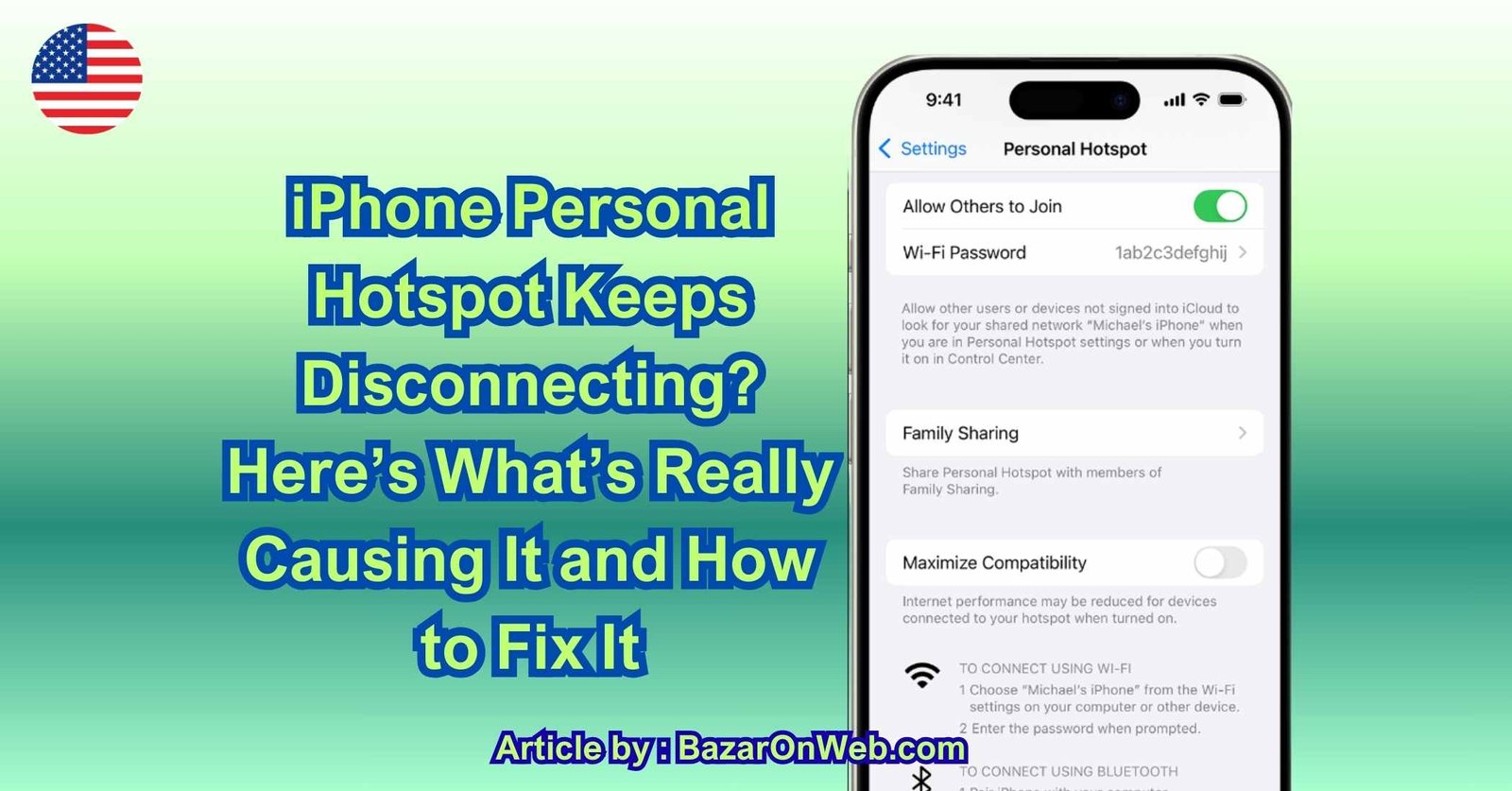
Hey, it’s Jessica. If your iPhone hotspot keeps disconnecting right when you need it most—during a work call, file upload, online class, or travel moment—you know how frustrating it feels. One minute everything is working perfectly, and the next your laptop says “No Internet,” even though your iPhone still shows signal. I’ve dealt with this more times than I’d like to admit, especially while traveling or working remotely. The problem is rarely random. When an iPhone hotspot disconnects repeatedly, there’s almost always a specific reason behind it. The trick is understanding what your iPhone is trying to manage behind the scenes.
Hotspot Isn’t Just Wi-Fi — It’s Multiple Systems Working Together
Personal Hotspot isn’t a simple Wi-Fi broadcast. It’s your iPhone using cellular data, converting it into a Wi-Fi signal, managing encryption, maintaining device connections, and regulating battery consumption — all at once. That’s a lot of responsibility for one device.
When hotspot disconnects, it’s usually because one of these systems hits a limit. It could be network instability, battery optimization, inactivity rules, overheating, or even device compatibility issues. The hotspot feature itself rarely “breaks.” Instead, the system makes a decision to pause or reset the connection.
Once I understood that hotspot behavior is controlled by iOS logic — not randomness — troubleshooting became much easier.
Weak Cellular Signal Is the Most Common Cause
The biggest reason hotspot disconnects is unstable mobile data. If your cellular signal fluctuates, your iPhone has to renegotiate the connection constantly. Your laptop might briefly lose internet, interpret it as a drop, and disconnect.
Even if your phone shows 2–3 signal bars, the connection quality may not be consistent. Upload-heavy tasks like video calls or file transfers amplify this issue because they demand stable upstream bandwidth.
In weak signal areas — trains, elevators, basements, moving vehicles — hotspot becomes unreliable. The phone isn’t malfunctioning. It’s struggling to maintain a stable data stream while broadcasting Wi-Fi.
Auto-Lock and Power Management Interrupt Connections
iPhones are aggressive about saving battery. When your screen locks and there’s minimal detected activity, iOS may reduce hotspot intensity or temporarily pause broadcasting to conserve power.
If the connected device goes idle — for example, your laptop screen turns off — the iPhone may assume the connection isn’t needed and shut it down quietly. This is especially common when Low Power Mode is enabled.
From the user’s perspective, it feels like random disconnection. From iOS’s perspective, it’s energy optimization.
Low Power Mode Quietly Disrupts Hotspot Stability
Low Power Mode reduces background activity, network refresh rates, and processing speed. While this is excellent for battery longevity, it can destabilize hotspot performance.
Hotspot requires consistent radio broadcasting and data throughput. When Low Power Mode throttles background systems, hotspot may weaken or disconnect entirely. If you notice hotspot instability, checking battery mode is often more effective than resetting network settings immediately.
iPhone Overheating Triggers Protective Shutdowns
Hotspot is one of the most heat-intensive features on an iPhone. It uses cellular radios, Wi-Fi transmitters, encryption processing, and battery output simultaneously. If the phone starts getting warm — especially during charging — iOS may temporarily disable hotspot to protect internal components.
This is extremely common during:
-
Charging while hotspot is active
-
Using hotspot outdoors in warm environments
-
Streaming or video calling while tethered
-
Thick phone cases trapping heat
When temperature rises too high, iOS prioritizes hardware safety over connection stability.
Too Many Connected Devices Create Instability
Each connected device increases load. A laptop downloading updates, a tablet streaming video, and another phone browsing at the same time puts strain on both cellular bandwidth and Wi-Fi broadcasting.
While hotspot technically supports multiple devices, stability drops when bandwidth is stretched thin. The iPhone may disconnect one device to stabilize the overall network.
If hotspot works fine with one device but disconnects with two or three, load management is likely the issue.
Wi-Fi and Bluetooth Interference Can Disrupt Hotspot
Hotspot uses Wi-Fi, but Bluetooth is also involved in device pairing and detection. Nearby routers, crowded networks, and 2.4GHz interference can weaken the connection.
In dense apartment buildings or public spaces, interference is common. The iPhone might still broadcast normally, but connected devices struggle to maintain a clean signal path.
Sometimes switching Wi-Fi bands or moving to a less crowded environment resolves what looks like a hotspot bug.
iOS Updates Can Temporarily Affect Network Stability
After major iOS updates, background tasks run silently: indexing, syncing, system recalibration. During this period, hotspot may behave inconsistently.
Additionally, some updates adjust modem firmware or carrier settings. Until everything stabilizes, network-dependent features like hotspot can feel unreliable.
If hotspot issues start immediately after an update, it’s often temporary — especially within the first 24–48 hours.
Carrier Restrictions or Data Throttling Play a Role
Not all hotspot problems originate from the phone. Some carriers limit tethering speed or restrict usage after certain data thresholds. If your connection slows dramatically or disconnects after extended use, it could be network-side throttling rather than device malfunction.
This is especially noticeable during heavy downloads or long streaming sessions.
The Illusion of Randomness
What makes hotspot disconnections so frustrating is unpredictability. It feels random because the trigger isn’t visible. But every disconnect usually ties back to one of these categories:
-
Signal instability
-
Battery optimization
-
Heat management
-
Load limits
-
Interference
-
Carrier behavior
Once you recognize these patterns, hotspot stops feeling unreliable — it starts feeling explainable.
Shift From Resetting Everything to Understanding Behavior
Most people immediately reset network settings or restart devices repeatedly. While restarts can help, the smarter approach is identifying which system is causing the drop.
Is the phone warm?
Is Low Power Mode on?
Is signal fluctuating?
Are multiple devices connected?
Did this start after an update?
Answering those questions saves time and avoids unnecessary resets.
Hotspot isn’t fragile — it’s protective. iOS is constantly balancing performance, battery health, and hardware safety. Disconnections are often the system choosing stability over strain.
Now that we understand why hotspot disconnects, let’s talk about how to actually fix it — calmly and systematically.
1. Stabilize Your Cellular Connection First
Before changing any settings, check your signal strength. If you’re in a low-signal area, move closer to a window or a more open space. If possible:
-
Switch between 5G/LTE in Cellular settings.
-
Turn Airplane Mode on for 10 seconds, then off.
-
Restart your iPhone.
Sometimes forcing the device to reconnect to the nearest tower stabilizes hotspot immediately. If the signal itself is unstable, no hotspot tweak will fix it long-term.
2. Turn Off Low Power Mode While Using Hotspot
Low Power Mode reduces network performance in the background.
To fix:
-
Go to Settings → Battery
-
Turn off Low Power Mode
If your hotspot works fine afterward, that was your issue. Use Low Power Mode when you’re not tethering — but avoid combining it with hotspot sessions.
3. Prevent Auto-Lock From Interrupting
When the screen locks too quickly, hotspot may reduce broadcasting strength.
To test this:
-
Go to Settings → Display & Brightness → Auto-Lock
-
Set it temporarily to Never while using hotspot.
This isn’t meant as a permanent setting, but if disconnects stop, you’ve identified power management as the cause.
4. Avoid Charging While Heavily Using Hotspot
If your iPhone feels warm while tethering and charging, unplug it and let it cool slightly.
Better practice:
-
Charge fully before using hotspot.
-
Use hotspot on battery for stability.
-
Avoid thick cases during long sessions.
-
Keep the phone on a hard surface, not soft materials.
Heat-triggered shutdowns are silent but protective. Reducing temperature stabilizes the connection.
5. Limit Connected Devices
Try connecting only one device at a time. If the connection becomes stable:
-
You’re likely hitting bandwidth or load limits.
-
Avoid streaming and large downloads simultaneously.
-
Pause background updates on your laptop while tethered.
Hotspot is powerful, but it isn’t a full router replacement.
6. Reset Network Settings (Only If Needed)
If hotspot instability persists despite stable signal and normal battery behavior, then:
Go to:
Settings → General → Transfer or Reset iPhone → Reset → Reset Network Settings
This removes saved Wi-Fi networks and Bluetooth pairings but does not delete personal data.
Use this step only after testing the easier fixes above.
7. Update iOS and Carrier Settings
Outdated modem firmware can cause instability.
Check:
-
Settings → General → Software Update
-
Settings → General → About (carrier update prompt may appear)
Carrier updates often fix hotspot behavior without users realizing it.
8. Disable Wi-Fi Assist (If Necessary)
Wi-Fi Assist automatically switches between Wi-Fi and cellular when signal weakens. While useful normally, it can create instability during hotspot broadcasting.
To check:
-
Settings → Cellular → Wi-Fi Assist
-
Turn it off temporarily and test.
If disconnects reduce, Wi-Fi Assist was interfering.
9. Change the Device Connecting to 2.4GHz Compatibility Mode
Some older laptops struggle with 5GHz hotspot signals.
In Personal Hotspot settings:
-
Enable Maximize Compatibility
This forces 2.4GHz, which is slower but more stable over distance.
10. Understand Carrier Throttling
If hotspot disconnects after long sessions or heavy downloads, check your carrier plan. Some providers:
-
Limit tethering data
-
Reduce speeds after thresholds
-
Restrict hotspot bandwidth during peak hours
If the issue only happens after extended use, this may not be a device problem at all.
Long-Term Stability Habits
Here’s what consistently keeps hotspot stable:
-
Keep at least 20% battery when tethering
-
Avoid hotspot + charging + streaming together
-
Use stable signal environments
-
Limit background updates on connected devices
-
Restart occasionally if hotspot hasn’t been used in weeks
Once these habits are in place, hotspot becomes predictable instead of frustrating.
Conclusion
When your iPhone hotspot keeps disconnecting, it’s rarely random and almost never hardware failure. Most disconnects come from signal instability, battery optimization, overheating protection, device load, or carrier limits. iOS is designed to protect performance and hardware first — even if that means dropping a connection temporarily. By understanding what triggers those protective behaviors and adjusting settings intentionally, hotspot becomes stable, reliable, and far less stressful to use. The goal isn’t forcing your iPhone to work harder — it’s helping it work smarter.
Disclaimer
This article is for informational purposes only. Hotspot performance may vary depending on iPhone model, iOS version, carrier policies, environmental conditions, and network strength. Always verify your carrier’s tethering policies if issues persist.

- Microsoft Edge Not Responding on Windows 11? 9 Proven Fixes That Actually Work in 2026

- How to Create a Device Manager Shortcut on Windows (Fastest Desktop Access Guide for 2026)

- How to Record Videos With Background Music on iPhone (iOS 18 Guide)
- How to Unhide Apps on iPhone in 2026: Step-by-Step Guide

- Fix iPhone App Icons Turn Grey or Show “Waiting” After iOS Update

Products
-
![Apple Watch Ultra 3 [GPS + Cellular 49mm] Running & Multisport Smartwatch w/Rugged Titanium Case w/Black Titanium Milanese Loop - M. Satellite Communications, Advanced Health & Fitness Tracking](https://bazaronweb.com/retailstores/wp-content/uploads/2025/09/apple-watch-320x320.jpg) Apple Watch Ultra 3 [GPS + Cellular 49mm] Running & Multisport Smartwatch w/Rugged Titanium Case w/Black Titanium Milanese Loop - M. Satellite Communications, Advanced Health & Fitness Tracking
Apple Watch Ultra 3 [GPS + Cellular 49mm] Running & Multisport Smartwatch w/Rugged Titanium Case w/Black Titanium Milanese Loop - M. Satellite Communications, Advanced Health & Fitness Tracking
-
 Apple iPad mini (A17 Pro): Apple Intelligence, 8.3-inch Liquid Retina Display, 256GB, Wi-Fi 6E, 12MP Front/12MP Back Camera, Touch ID, All-Day Battery Life — Purple
-
 Apple AirPods Max Wireless Over-Ear Headphones, Active Noise Cancelling, Transparency Mode, Personalized Spatial Audio, Dolby Atmos, Bluetooth Headphones for iPhone – Space Gray
-
 Apple AirPods Pro 2 Wireless Earbuds, Active Noise Cancellation, Hearing Aid Feature, Bluetooth Headphones, Transparency, Personalized Spatial Audio, High-Fidelity Sound, H2 Chip, USB-C Charging
-
Leo Creation 144 TC Cotton Double Jaipuri Prints Flat Bedsheet(Pack of 1, Blue, Gree, Red, Grey, Light Grey)
Original price was: ₹2,999.00.₹329.00Current price is: ₹329.00.
Leave a Reply