Discounted Products
-
 Leo Creation 144 TC Cotton Double Jaipuri Prints Flat Bedsheet(Pack of 1, Blue, Gree, Red, Grey, Light Grey)
Original price was: ₹2,999.00.₹329.00Current price is: ₹329.00.
Leo Creation 144 TC Cotton Double Jaipuri Prints Flat Bedsheet(Pack of 1, Blue, Gree, Red, Grey, Light Grey)
Original price was: ₹2,999.00.₹329.00Current price is: ₹329.00.
-
 Home Garage 210 TC Cotton King Floral Fitted (Elastic) Bedsheet(Pack of 1, Grey)
Original price was: ₹999.00.₹299.00Current price is: ₹299.00.
Home Garage 210 TC Cotton King Floral Fitted (Elastic) Bedsheet(Pack of 1, Grey)
Original price was: ₹999.00.₹299.00Current price is: ₹299.00.
-
 Goodrik 140 TC Cotton Double 3D Printed Flat Bedsheet(Pack of 1, Brown)
Original price was: ₹499.00.₹229.00Current price is: ₹229.00.
Goodrik 140 TC Cotton Double 3D Printed Flat Bedsheet(Pack of 1, Brown)
Original price was: ₹499.00.₹229.00Current price is: ₹229.00.
-
 GLOBALSHOP 350 TC Microfiber Double Floral Flat Bedsheet(Pack of 1, Multicolor)
Original price was: ₹1,250.00.₹263.00Current price is: ₹263.00.
GLOBALSHOP 350 TC Microfiber Double Floral Flat Bedsheet(Pack of 1, Multicolor)
Original price was: ₹1,250.00.₹263.00Current price is: ₹263.00.
-
 RisingStar 250 TC Microfiber King Printed Fitted (Elastic) Bedsheet(Pack of 1, FITTED-ROUND-CIRCLES-PREMIUM)
Original price was: ₹2,299.00.₹299.00Current price is: ₹299.00.
RisingStar 250 TC Microfiber King Printed Fitted (Elastic) Bedsheet(Pack of 1, FITTED-ROUND-CIRCLES-PREMIUM)
Original price was: ₹2,299.00.₹299.00Current price is: ₹299.00.
-
 Home Garage 210 TC Cotton King Floral Fitted (Elastic) Bedsheet(Pack of 1, Fitted Black Green)
Original price was: ₹1,299.00.₹299.00Current price is: ₹299.00.
Home Garage 210 TC Cotton King Floral Fitted (Elastic) Bedsheet(Pack of 1, Fitted Black Green)
Original price was: ₹1,299.00.₹299.00Current price is: ₹299.00.
-
 Home Garage 180 TC Cotton King 3D Printed Flat Bedsheet(Pack of 1, White)
Original price was: ₹999.00.₹229.00Current price is: ₹229.00.
Home Garage 180 TC Cotton King 3D Printed Flat Bedsheet(Pack of 1, White)
Original price was: ₹999.00.₹229.00Current price is: ₹229.00.
-
 Home Sizzler 153 cm (5 ft) Polyester Room Darkening Window Curtain (Pack Of 2)(Floral, Maroon)
Original price was: ₹799.00.₹299.00Current price is: ₹299.00.
Home Sizzler 153 cm (5 ft) Polyester Room Darkening Window Curtain (Pack Of 2)(Floral, Maroon)
Original price was: ₹799.00.₹299.00Current price is: ₹299.00.
-
 Panipat Textile Hub 152.4 cm (5 ft) Polyester Window Curtain (Pack Of 2)(Solid, Aqua)
Original price was: ₹1,899.00.₹299.00Current price is: ₹299.00.
Panipat Textile Hub 152.4 cm (5 ft) Polyester Window Curtain (Pack Of 2)(Solid, Aqua)
Original price was: ₹1,899.00.₹299.00Current price is: ₹299.00.
-
 Home Sizzler 214 cm (7 ft) Polyester Semi Transparent Door Curtain (Pack Of 2)(Floral, Maroon)
Original price was: ₹1,199.00.₹399.00Current price is: ₹399.00.
Home Sizzler 214 cm (7 ft) Polyester Semi Transparent Door Curtain (Pack Of 2)(Floral, Maroon)
Original price was: ₹1,199.00.₹399.00Current price is: ₹399.00.
-
 Home Sizzler 153 cm (5 ft) Polyester Room Darkening Window Curtain (Pack Of 2)(Floral, Brown)
Original price was: ₹799.00.₹299.00Current price is: ₹299.00.
Home Sizzler 153 cm (5 ft) Polyester Room Darkening Window Curtain (Pack Of 2)(Floral, Brown)
Original price was: ₹799.00.₹299.00Current price is: ₹299.00.
-
 Stella Creations 214 cm (7 ft) Polyester Room Darkening Door Curtain (Pack Of 2)(Abstract, Brown)
Original price was: ₹1,299.00.₹449.00Current price is: ₹449.00.
Stella Creations 214 cm (7 ft) Polyester Room Darkening Door Curtain (Pack Of 2)(Abstract, Brown)
Original price was: ₹1,299.00.₹449.00Current price is: ₹449.00.
-
 Homefab India 152.5 cm (5 ft) Polyester Room Darkening Window Curtain (Pack Of 2)(Floral, Light Blue)
Original price was: ₹1,199.00.₹319.00Current price is: ₹319.00.
Homefab India 152.5 cm (5 ft) Polyester Room Darkening Window Curtain (Pack Of 2)(Floral, Light Blue)
Original price was: ₹1,199.00.₹319.00Current price is: ₹319.00.
-
 Urban Home 214 cm (7 ft) PVC Transparent Door Curtain Single Curtain(Solid, Off White)
Original price was: ₹699.00.₹203.00Current price is: ₹203.00.
Urban Home 214 cm (7 ft) PVC Transparent Door Curtain Single Curtain(Solid, Off White)
Original price was: ₹699.00.₹203.00Current price is: ₹203.00.
-
 Panipat Textile Hub 213 cm (7 ft) Polyester Door Curtain (Pack Of 2)(Solid, Brown)
Original price was: ₹1,199.00.₹349.00Current price is: ₹349.00.
Panipat Textile Hub 213 cm (7 ft) Polyester Door Curtain (Pack Of 2)(Solid, Brown)
Original price was: ₹1,199.00.₹349.00Current price is: ₹349.00.
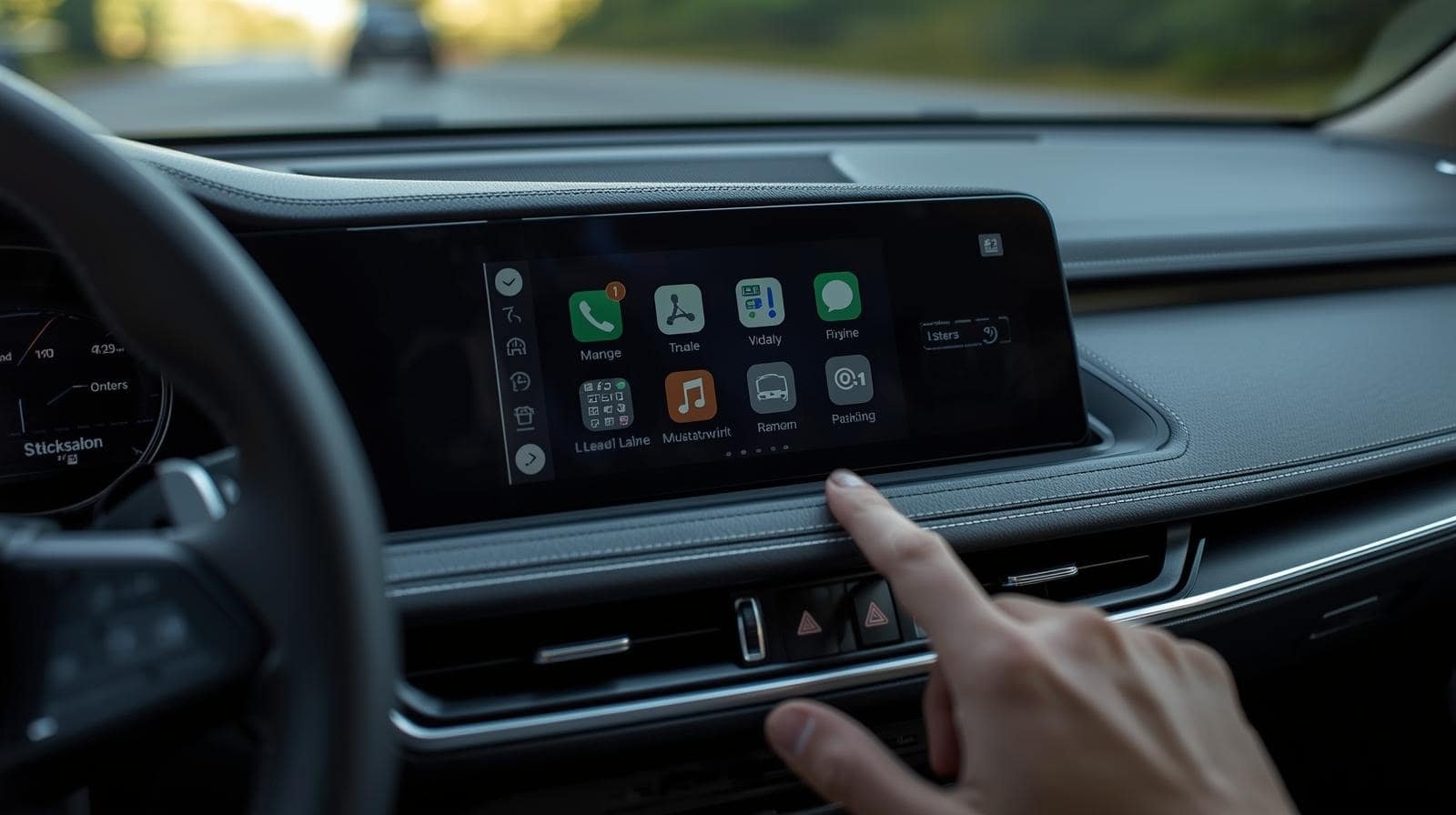
Hey everyone, I’m Jessica, and today we’re diving deep into a question I hear all the time from readers, friends, and car owners — “Will Android Auto work with my car?”
If you’re an Android user who spends a lot of time driving, you’ve probably heard about Android Auto — Google’s smart driving companion that connects your phone to your car’s infotainment system. But not every car supports it, and not every Android phone will connect smoothly the first time.
That’s why in this post, I’ll walk you through everything you need to know — from how Android Auto works, to checking compatibility, to troubleshooting when things don’t connect. By the end, you’ll know exactly whether your car can run Android Auto — and how to get the best experience possible.
What is Android Auto?
Let’s start with the basics.
Android Auto is a system developed by Google that lets you connect your Android smartphone to your car’s infotainment display. Once connected, it mirrors a simplified version of your phone on the car’s screen — letting you use Google Maps, Waze, Spotify, YouTube Music, phone calls, texts, and even Google Assistant — all hands-free.
The goal is safety and convenience. Instead of fumbling with your phone, Android Auto helps you use essential apps with voice commands, touchscreen controls, or steering wheel buttons.
You can use it in two ways:
- Wired Android Auto – Connect your phone using a USB cable.
- Wireless Android Auto – Connect your phone via Bluetooth and Wi-Fi for a cable-free experience.
How to Check if Your Car Supports Android Auto
The first thing you need to do is check whether your car is compatible.
As of 2025, most modern cars support Android Auto, either built-in or via updates. However, some older models might require an aftermarket solution.
Here’s how to check:
1. Official Google Compatibility List
Google maintains an updated list of car brands and models that support Android Auto. You can check it at:
👉 https://www.android.com/auto/compatibility/
It lists cars by manufacturer and model year, so you can quickly confirm if yours is supported.
2. Check Your Car’s Infotainment System
If you already have a built-in touchscreen, go to your infotainment menu and look for options like “Android Auto” or “Projection.”
If you see any of these, your car likely supports it.
3. Dealer or Manufacturer Website
If your car is newer (2020 or later), visit your manufacturer’s website or ask your local dealer. Some carmakers like Toyota, Ford, and Hyundai include Android Auto by default on almost all models.
Popular Car Brands That Support Android Auto
As of 2025, almost every major manufacturer has adopted Android Auto. Here are a few examples:
- Audi
- BMW
- Chevrolet
- Ford
- Honda
- Hyundai
- Kia
- Mazda
- Mercedes-Benz
- Nissan
- Skoda
- Subaru
- Toyota
- Volkswagen
- Volvo
Even luxury brands like Porsche and Jaguar now support Android Auto, often both wired and wireless.
What If Your Car Doesn’t Support Android Auto?
If your car doesn’t come with Android Auto, don’t worry — there are still options.
1. Install an Aftermarket Head Unit
You can buy an aftermarket infotainment system from brands like Pioneer, Sony, Kenwood, or Alpine that supports Android Auto.
These head units replace your existing stereo and instantly bring Android Auto functionality to your dashboard.
Prices range from $250 to $800, depending on screen size and features.
2. Use Android Auto on Your Phone Screen
Until a few years ago, Google allowed users to run Android Auto directly on their phones (without a car display). That standalone app has been replaced by Google Assistant Driving Mode inside Google Maps.
It’s not exactly the same interface, but it still gives you voice-based navigation, calls, and music while driving.
3. Wireless Adapters for Android Auto
If your car supports wired Android Auto but not wireless, you can buy a wireless Android Auto adapter like:
- Motorola MA1
- AAWireless
- Carsifi
These small devices plug into your car’s USB port and let you connect wirelessly to Android Auto.
What You Need for Android Auto to Work
Even if your car supports Android Auto, there are a few requirements you need to meet for a successful connection.
1. A Compatible Android Phone
Your phone must run Android 8.0 (Oreo) or higher to use Android Auto.
For wireless Android Auto, you need Android 11 or later, or Android 9 and 10 on specific models (like Pixel or Samsung phones).
2. The Android Auto App (if needed)
On modern Android phones, Android Auto is already built-in. But if you have an older phone, you can download it from the Google Play Store.
3. A High-Quality USB Cable
If you’re using wired Android Auto, make sure to use the original cable or a high-speed certified cable. Cheap cables often cause connection failures.
4. Updated Software
Make sure both your car firmware and Android Auto app are up to date. Manufacturers release regular updates to fix compatibility issues.
How to Set Up Android Auto (Step-by-Step)
Here’s how to set it up for the first time:
For Wired Connection:
- Start your car and unlock your phone.
- Plug your phone into the car’s USB port using a data cable.
- You’ll see a pop-up on your phone asking to connect Android Auto.
- Grant necessary permissions (access to contacts, calls, and location).
- Android Auto will automatically appear on your car’s screen.
Once it’s connected, you can say:
“Hey Google, navigate to the nearest gas station.”
“Hey Google, play some relaxing music.”
For Wireless Connection:
- Make sure your phone and car both support wireless Android Auto.
- Turn on Bluetooth and Wi-Fi on your phone.
- Pair your phone with the car’s Bluetooth system.
- A prompt should appear to “Use Android Auto wirelessly.” Tap Yes.
- It’ll connect automatically each time you start your car.
Common Problems and How to Fix Them
Sometimes Android Auto doesn’t connect or keeps disconnecting — frustrating, right? Here are a few quick fixes I’ve personally tested.
1. Phone Not Detected
- Try another USB cable.
- Make sure you’re plugging into the correct USB port (some cars have one port for charging and another for data).
- Restart your phone and car system.
2. Android Auto Keeps Disconnecting
- Turn off “Battery Optimization” for the Android Auto app.
- Check if the cable or adapter is loose.
- Clear Android Auto’s cache and data.
3. Voice Commands Not Working
- Check that Google Assistant is enabled.
- Make sure the car microphone is not muted or blocked.
4. Wireless Connection Fails
- Ensure Wi-Fi and Bluetooth are both active.
- Forget the Bluetooth connection and re-pair the devices.
- If all else fails, reconnect via cable once — that often resets the pairing.
Android Auto vs. Android Automotive: What’s the Difference?
You might have heard of Android Automotive and wondered how it’s different from Android Auto.
Here’s the key difference:
- Android Auto – Runs on your phone and projects apps onto your car’s screen.
- Android Automotive OS – Is built directly into the car’s system, no phone required.
Cars like the Volvo XC60, Polestar 2, and Chevrolet Blazer EV use Android Automotive OS. These systems have Google Maps, Assistant, and Play Store built-in, and you can download apps directly to your car.
So if you’re buying a new car in 2025 or later, you may not even need to connect your phone — the car itself is your Android device.
Tips for the Best Android Auto Experience
After years of using Android Auto on different cars and phones, here are my favorite pro tips:
- Keep your phone updated – Software updates often fix bugs and improve stability.
- Use voice commands often – It’s safer and faster than tapping the screen.
- Customize the app launcher – You can reorder or hide apps in Android Auto settings.
- Set “Do Not Disturb” – Keeps notifications from distracting you while driving.
- Try Google Assistant Routines – You can create routines like “Hey Google, let’s drive” to start navigation and music automatically.
Will Android Auto Work in Older Cars?
If your car was made before 2016, it’s unlikely to have Android Auto built-in — but you can still add it.
Aftermarket options from Pioneer, Sony, and Kenwood make it possible to retrofit even older cars with Android Auto support.
You can also use dash-mounted displays like Ottocast, RoadTop, or Carpuride, which act as external Android Auto screens without replacing your existing stereo.
So yes — even an older car can enjoy Android Auto with the right gear.
Jessica’s Take: Is Android Auto Worth It?
Absolutely, yes.
From my personal experience, Android Auto makes driving safer and smoother. The voice controls are excellent, Google Maps integration is unmatched, and it’s easy to switch between navigation, calls, and music without losing focus on the road.
It’s not perfect — wireless connection can sometimes be finicky, and some older cars need upgrades — but the benefits far outweigh the hiccups.
If your car supports it, set it up today. If not, consider an aftermarket solution. It’s one of the most practical upgrades you can add to your driving experience.
Final Thoughts
So, will Android Auto work with your car? Let’s recap:
- Check compatibility on Google’s website or your car’s infotainment system.
- If your car doesn’t support it, you can install an aftermarket head unit.
- You’ll need a compatible Android phone, a USB cable (or wireless adapter), and updated software.
- If something goes wrong, simple troubleshooting usually fixes it.
In 2025, Android Auto has become almost universal — and for good reason. It makes your drives safer, smarter, and far more connected.
So whether you’re driving a brand-new SUV or a trusty decade-old sedan, there’s a good chance Android Auto can work with your setup — and once you experience it, you’ll never want to go back to juggling your phone while driving.

- How to Fix Chrome Automatically Deleting Downloaded Files (Complete Step-by-Step Guide)

- How to View Apps That Windows Security Identifies as PUA (Step-by-Step Guide)

- How to Add Custom DNS Server on iPhone to Fix DNS Errors and Improve Internet Speed

- AI Automation in 2026: How It’s Transforming Jobs, Businesses, and Everyday Life

- How to Check Startup and Shutdown History in Windows for Better Troubleshooting

Products
-
![Apple Watch Ultra 3 [GPS + Cellular 49mm] Running & Multisport Smartwatch w/Rugged Titanium Case w/Black Titanium Milanese Loop - M. Satellite Communications, Advanced Health & Fitness Tracking](https://bazaronweb.com/retailstores/wp-content/uploads/2025/09/apple-watch-320x320.jpg) Apple Watch Ultra 3 [GPS + Cellular 49mm] Running & Multisport Smartwatch w/Rugged Titanium Case w/Black Titanium Milanese Loop - M. Satellite Communications, Advanced Health & Fitness Tracking
Apple Watch Ultra 3 [GPS + Cellular 49mm] Running & Multisport Smartwatch w/Rugged Titanium Case w/Black Titanium Milanese Loop - M. Satellite Communications, Advanced Health & Fitness Tracking
-
 Apple iPad mini (A17 Pro): Apple Intelligence, 8.3-inch Liquid Retina Display, 256GB, Wi-Fi 6E, 12MP Front/12MP Back Camera, Touch ID, All-Day Battery Life — Purple
-
 Apple AirPods Max Wireless Over-Ear Headphones, Active Noise Cancelling, Transparency Mode, Personalized Spatial Audio, Dolby Atmos, Bluetooth Headphones for iPhone – Space Gray
-
 Apple AirPods Pro 2 Wireless Earbuds, Active Noise Cancellation, Hearing Aid Feature, Bluetooth Headphones, Transparency, Personalized Spatial Audio, High-Fidelity Sound, H2 Chip, USB-C Charging
-
Leo Creation 144 TC Cotton Double Jaipuri Prints Flat Bedsheet(Pack of 1, Blue, Gree, Red, Grey, Light Grey)
Original price was: ₹2,999.00.₹329.00Current price is: ₹329.00.
Leave a Reply