Discounted Products
-
 Home Garage 210 TC Cotton King Floral Fitted (Elastic) Bedsheet(Pack of 1, Grey)
Original price was: ₹999.00.₹299.00Current price is: ₹299.00.
Home Garage 210 TC Cotton King Floral Fitted (Elastic) Bedsheet(Pack of 1, Grey)
Original price was: ₹999.00.₹299.00Current price is: ₹299.00.
-
 Goodrik 140 TC Cotton Double 3D Printed Flat Bedsheet(Pack of 1, Brown)
Original price was: ₹499.00.₹229.00Current price is: ₹229.00.
Goodrik 140 TC Cotton Double 3D Printed Flat Bedsheet(Pack of 1, Brown)
Original price was: ₹499.00.₹229.00Current price is: ₹229.00.
-
 GLOBALSHOP 350 TC Microfiber Double Floral Flat Bedsheet(Pack of 1, Multicolor)
Original price was: ₹1,250.00.₹263.00Current price is: ₹263.00.
GLOBALSHOP 350 TC Microfiber Double Floral Flat Bedsheet(Pack of 1, Multicolor)
Original price was: ₹1,250.00.₹263.00Current price is: ₹263.00.
-
 RisingStar 250 TC Microfiber King Printed Fitted (Elastic) Bedsheet(Pack of 1, FITTED-ROUND-CIRCLES-PREMIUM)
Original price was: ₹2,299.00.₹299.00Current price is: ₹299.00.
RisingStar 250 TC Microfiber King Printed Fitted (Elastic) Bedsheet(Pack of 1, FITTED-ROUND-CIRCLES-PREMIUM)
Original price was: ₹2,299.00.₹299.00Current price is: ₹299.00.
-
 Home Garage 210 TC Cotton King Floral Fitted (Elastic) Bedsheet(Pack of 1, Fitted Black Green)
Original price was: ₹1,299.00.₹299.00Current price is: ₹299.00.
Home Garage 210 TC Cotton King Floral Fitted (Elastic) Bedsheet(Pack of 1, Fitted Black Green)
Original price was: ₹1,299.00.₹299.00Current price is: ₹299.00.
-
 Home Garage 180 TC Cotton King 3D Printed Flat Bedsheet(Pack of 1, White)
Original price was: ₹999.00.₹229.00Current price is: ₹229.00.
Home Garage 180 TC Cotton King 3D Printed Flat Bedsheet(Pack of 1, White)
Original price was: ₹999.00.₹229.00Current price is: ₹229.00.
-
 Panipat Textile Hub 152.4 cm (5 ft) Polyester Window Curtain (Pack Of 2)(Solid, Aqua)
Original price was: ₹1,899.00.₹299.00Current price is: ₹299.00.
Panipat Textile Hub 152.4 cm (5 ft) Polyester Window Curtain (Pack Of 2)(Solid, Aqua)
Original price was: ₹1,899.00.₹299.00Current price is: ₹299.00.
-
 Home Sizzler 214 cm (7 ft) Polyester Semi Transparent Door Curtain (Pack Of 2)(Floral, Maroon)
Original price was: ₹1,199.00.₹399.00Current price is: ₹399.00.
Home Sizzler 214 cm (7 ft) Polyester Semi Transparent Door Curtain (Pack Of 2)(Floral, Maroon)
Original price was: ₹1,199.00.₹399.00Current price is: ₹399.00.
-
 Home Sizzler 153 cm (5 ft) Polyester Room Darkening Window Curtain (Pack Of 2)(Floral, Brown)
Original price was: ₹799.00.₹299.00Current price is: ₹299.00.
Home Sizzler 153 cm (5 ft) Polyester Room Darkening Window Curtain (Pack Of 2)(Floral, Brown)
Original price was: ₹799.00.₹299.00Current price is: ₹299.00.
-
 Stella Creations 214 cm (7 ft) Polyester Room Darkening Door Curtain (Pack Of 2)(Abstract, Brown)
Original price was: ₹1,299.00.₹449.00Current price is: ₹449.00.
Stella Creations 214 cm (7 ft) Polyester Room Darkening Door Curtain (Pack Of 2)(Abstract, Brown)
Original price was: ₹1,299.00.₹449.00Current price is: ₹449.00.
-
 Homefab India 152.5 cm (5 ft) Polyester Room Darkening Window Curtain (Pack Of 2)(Floral, Light Blue)
Original price was: ₹1,199.00.₹319.00Current price is: ₹319.00.
Homefab India 152.5 cm (5 ft) Polyester Room Darkening Window Curtain (Pack Of 2)(Floral, Light Blue)
Original price was: ₹1,199.00.₹319.00Current price is: ₹319.00.
-
 Urban Home 214 cm (7 ft) PVC Transparent Door Curtain Single Curtain(Solid, Off White)
Original price was: ₹699.00.₹203.00Current price is: ₹203.00.
Urban Home 214 cm (7 ft) PVC Transparent Door Curtain Single Curtain(Solid, Off White)
Original price was: ₹699.00.₹203.00Current price is: ₹203.00.
-
 Panipat Textile Hub 213 cm (7 ft) Polyester Door Curtain (Pack Of 2)(Solid, Brown)
Original price was: ₹1,199.00.₹349.00Current price is: ₹349.00.
Panipat Textile Hub 213 cm (7 ft) Polyester Door Curtain (Pack Of 2)(Solid, Brown)
Original price was: ₹1,199.00.₹349.00Current price is: ₹349.00.
-
 Home Sizzler 214 cm (7 ft) Polyester Semi Transparent Door Curtain (Pack Of 2)(Floral, Brown)
Original price was: ₹999.00.₹349.00Current price is: ₹349.00.
Home Sizzler 214 cm (7 ft) Polyester Semi Transparent Door Curtain (Pack Of 2)(Floral, Brown)
Original price was: ₹999.00.₹349.00Current price is: ₹349.00.
-
 Panipat Textile Hub 213 cm (7 ft) Polyester Semi Transparent Door Curtain (Pack Of 2)(Floral, Brown)
Original price was: ₹899.00.₹299.00Current price is: ₹299.00.
Panipat Textile Hub 213 cm (7 ft) Polyester Semi Transparent Door Curtain (Pack Of 2)(Floral, Brown)
Original price was: ₹899.00.₹299.00Current price is: ₹299.00.
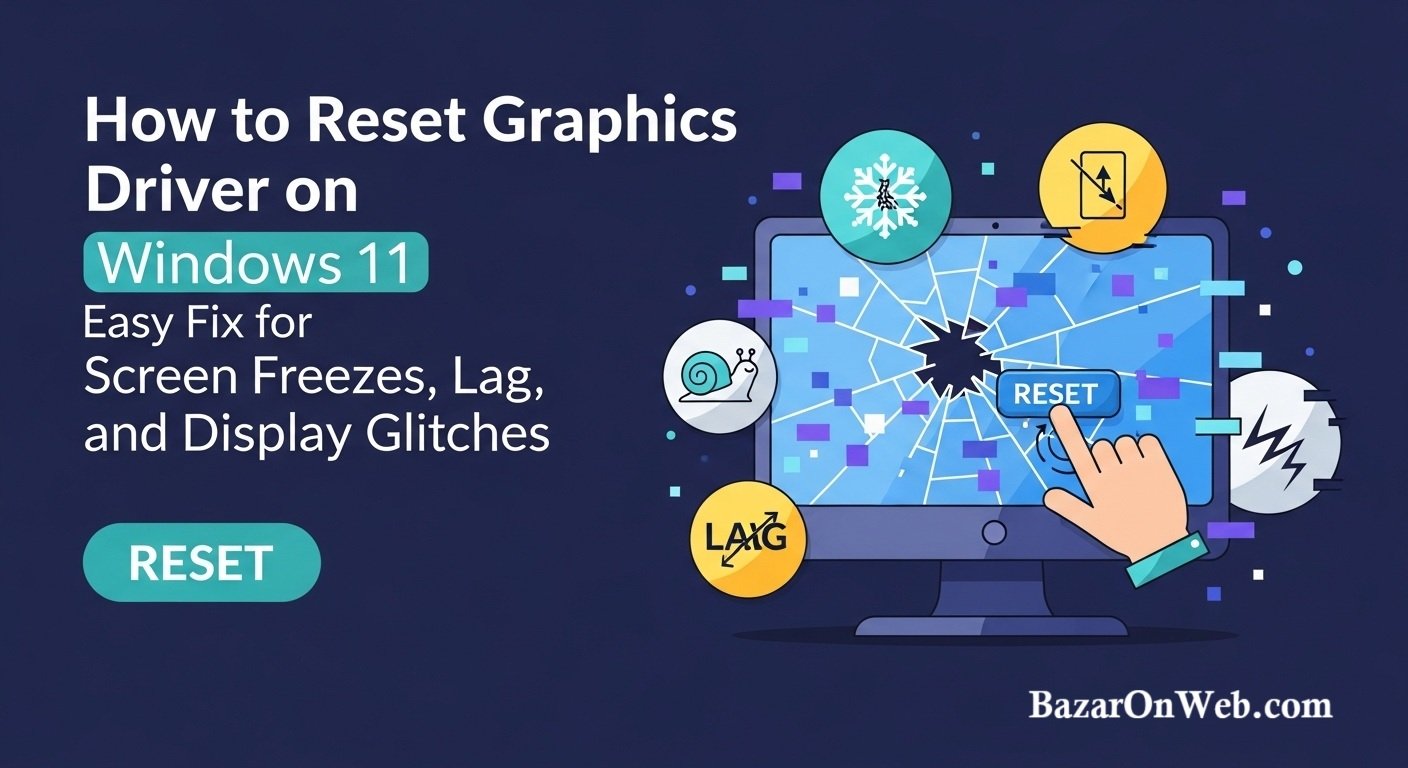
Introduction
Hi, I’m Jessica.
A few weeks ago, I ran into a strange problem with my Windows 11 laptop. I was in the middle of working on a document while streaming music in the background when suddenly my screen started flickering. The display froze for a moment, then the colors looked slightly distorted, and everything felt laggy. At first, I thought my laptop might be overheating or maybe too many apps were running at once.
Like most people, when something goes wrong with my computer, my first instinct is to check the basics. I closed a few applications, refreshed the page I was working on, and even restarted my browser. But the issue kept coming back. The screen would randomly freeze for a few seconds, and sometimes videos would stutter or display strange graphical glitches.
Since I rely on my laptop every day for work, online shopping, streaming shows, and helping my kids with their school assignments, I wanted to figure out what was causing the problem quickly. After a bit of research, I discovered something interesting: sometimes these kinds of display issues are related to the graphics driver.
If you’re not familiar with the term, a graphics driver is the software that allows your computer’s operating system to communicate with the graphics hardware inside your device. Whether your computer uses an Intel integrated GPU, NVIDIA graphics card, or AMD graphics processor, the driver acts like a translator that ensures everything displays correctly on your screen.
When the graphics driver stops responding, becomes corrupted, or encounters a temporary glitch, it can cause several frustrating issues. For example, you might experience:
-
Screen flickering
-
Frozen display
-
Black screens
-
Laggy animations
-
Videos not playing properly
-
Apps crashing when using graphics acceleration
What surprised me the most was learning that you don’t always need to reinstall drivers or restart your entire computer to fix these issues. Windows actually includes a quick shortcut that allows you to reset the graphics driver instantly.
This simple trick refreshes the graphics subsystem and reloads the driver without closing your apps or restarting the system. When I tried it myself, my screen briefly flickered for a second, and everything immediately started working normally again.
It felt like a quick refresh for the graphics system.
Since then, this has become one of those small troubleshooting tricks I keep in mind whenever something strange happens with the display. It’s especially helpful if you’re working on something important and don’t want to restart your computer right away.
Of course, resetting the graphics driver isn’t something you need to do regularly. In fact, most users will rarely need to use this feature unless they encounter specific problems with their display or graphics performance.
But when those problems do appear, knowing this trick can save you a lot of time and frustration.
Another reason this feature is useful is because modern computers rely heavily on graphics processing even for everyday tasks. Activities like streaming videos, browsing websites with animations, using design software, or even scrolling through social media all rely on the graphics driver functioning properly.
If the driver becomes unstable, it can affect many parts of the system.
Windows 11 has improved graphics handling significantly compared to older versions of Windows, but occasional glitches can still happen. This might occur after a driver update, while switching between applications, or when running resource-intensive programs.
Sometimes the problem isn’t even related to hardware at all. It can simply be a temporary software hiccup that a quick driver reset can resolve instantly.
In this guide, I’ll walk you through how to reset the graphics driver on Windows 11, when you should use this method, and what actually happens when the driver resets.
If you’ve ever experienced screen freezes, lag, or random display glitches on your computer, this quick solution might save you from a full system restart and get everything working smoothly again.
When You Should Reset the Graphics Driver
When I first learned about resetting the graphics driver, I assumed it was something that needed to be done regularly as part of system maintenance. But after looking into it a bit more, I realized that it’s actually more of a quick troubleshooting trick rather than a routine task.
In most situations, your graphics driver works quietly in the background without needing any attention. However, there are certain situations where resetting it can immediately solve display problems without restarting your computer.
For example, I usually try resetting the graphics driver if I notice things like screen freezing, sudden lag when opening apps, or videos not playing smoothly. Sometimes the screen may flicker briefly or certain programs may stop responding when using graphics acceleration.
Another situation where this trick can be helpful is when a game or heavy application suddenly causes the display to freeze for a few seconds. Instead of closing everything and restarting the entire system, resetting the graphics driver can quickly refresh the display system and bring everything back to normal.
It’s a simple solution, but surprisingly effective when the problem is caused by a temporary graphics glitch.
The Quick Keyboard Shortcut to Reset Graphics Driver
One of the easiest ways to reset the graphics driver in Windows 11 is by using a built-in keyboard shortcut. The first time I discovered this shortcut, I was honestly surprised that something so simple could fix display problems so quickly.
Here’s how to do it.
Press the following keys at the same time:
Windows Key + Ctrl + Shift + B
As soon as you press the shortcut, your screen will briefly go black or flicker for a second. You may also hear a short beep sound.
Don’t worry — this is completely normal.
What’s actually happening is that Windows temporarily restarts the graphics subsystem and reloads the driver. After a moment, your screen will return to normal and you can continue using your computer without closing any apps.
I’ve used this trick a few times when my display felt laggy, and it worked almost instantly.
What Happens When the Graphics Driver Resets
At first I wondered whether resetting the graphics driver might affect open programs or cause data loss. Fortunately, it doesn’t.
When you trigger the reset shortcut, Windows simply restarts the graphics driver while keeping your applications and files open.
Think of it like refreshing the visual layer of the operating system. The driver reloads, clears temporary glitches, and restores communication between the operating system and the graphics hardware.
Because the process only takes a second or two, it’s often much faster than restarting your computer.
However, if a program is heavily dependent on graphics processing—like a game or video editing software—it might briefly pause while the driver resets.
Other Ways to Restart the Graphics Driver
While the keyboard shortcut is the fastest method, there are a few other ways to refresh or restart the graphics driver in Windows 11.
One option is to restart the driver through Device Manager.
You can do this by right-clicking the Start button and opening Device Manager. Then expand the Display adapters section.
Here you’ll see the graphics device installed on your system, such as Intel, NVIDIA, or AMD graphics.
Right-click the device and choose Disable device, wait a few seconds, and then enable it again.
This effectively reloads the driver and may resolve certain display issues.
Another option is updating or reinstalling the graphics driver if problems occur frequently. Outdated drivers can sometimes cause compatibility issues with Windows updates or newer applications.
When Resetting the Driver Might Not Be Enough
Although resetting the graphics driver works well for minor glitches, it won’t fix every display-related problem.
If you notice issues happening repeatedly—like constant screen flickering, system crashes, or games failing to launch—the problem may be related to outdated drivers, hardware compatibility, or corrupted system files.
In those cases, it’s usually better to update the graphics driver from the manufacturer’s website or through Windows Update.
Laptop manufacturers and GPU companies regularly release driver updates that improve stability, performance, and compatibility with Windows 11.
Sometimes simply installing the latest driver resolves problems that a quick reset cannot fix.
A Few Tips to Prevent Graphics Issues
Since discovering this shortcut, I’ve also started paying more attention to a few habits that help prevent graphics-related problems in the first place.
One thing I try to do regularly is keep Windows and graphics drivers updated. Updates often include performance improvements and bug fixes that prevent display glitches.
Another helpful step is avoiding too many heavy applications running at the same time, especially on laptops with integrated graphics.
While modern systems are powerful, running multiple graphics-intensive programs simultaneously can sometimes push the GPU beyond its comfort zone.
Finally, restarting your computer occasionally can clear temporary system glitches that build up over time.
Conclusion
Resetting the graphics driver in Windows 11 is one of those simple troubleshooting tricks that many people don’t know about until they run into a display problem.
What I like most about this feature is how quick and easy it is. Instead of restarting your entire computer when the screen freezes or starts lagging, you can simply press a keyboard shortcut and refresh the graphics system in seconds.
For minor display glitches, frozen screens, or temporary graphics lag, the Windows + Ctrl + Shift + B shortcut can often resolve the issue instantly.
Of course, this isn’t something you need to do regularly. Most of the time your graphics driver works perfectly without any intervention.
But when those occasional display problems appear, knowing how to reset the driver can save you time and help you get back to work quickly.
It’s a small trick, but definitely one worth remembering.
Disclaimer
This article is for informational purposes only. System behavior may vary depending on hardware configuration, graphics drivers, and Windows updates. Always ensure your system drivers are obtained from trusted sources.






Products
-
![Apple Watch Ultra 3 [GPS + Cellular 49mm] Running & Multisport Smartwatch w/Rugged Titanium Case w/Black Titanium Milanese Loop - M. Satellite Communications, Advanced Health & Fitness Tracking](https://bazaronweb.com/retailstores/wp-content/uploads/2025/09/apple-watch-320x320.jpg) Apple Watch Ultra 3 [GPS + Cellular 49mm] Running & Multisport Smartwatch w/Rugged Titanium Case w/Black Titanium Milanese Loop - M. Satellite Communications, Advanced Health & Fitness Tracking
Apple Watch Ultra 3 [GPS + Cellular 49mm] Running & Multisport Smartwatch w/Rugged Titanium Case w/Black Titanium Milanese Loop - M. Satellite Communications, Advanced Health & Fitness Tracking
-
 Apple iPad mini (A17 Pro): Apple Intelligence, 8.3-inch Liquid Retina Display, 256GB, Wi-Fi 6E, 12MP Front/12MP Back Camera, Touch ID, All-Day Battery Life — Purple
-
 Apple AirPods Max Wireless Over-Ear Headphones, Active Noise Cancelling, Transparency Mode, Personalized Spatial Audio, Dolby Atmos, Bluetooth Headphones for iPhone – Space Gray
-
 Apple AirPods Pro 2 Wireless Earbuds, Active Noise Cancellation, Hearing Aid Feature, Bluetooth Headphones, Transparency, Personalized Spatial Audio, High-Fidelity Sound, H2 Chip, USB-C Charging
-
Home Garage 210 TC Cotton King Floral Fitted (Elastic) Bedsheet(Pack of 1, Grey)
Original price was: ₹999.00.₹299.00Current price is: ₹299.00.
Leave a Reply