Discounted Products
-
 Home Garage 210 TC Cotton King Floral Fitted (Elastic) Bedsheet(Pack of 1, Grey)
Original price was: ₹999.00.₹299.00Current price is: ₹299.00.
Home Garage 210 TC Cotton King Floral Fitted (Elastic) Bedsheet(Pack of 1, Grey)
Original price was: ₹999.00.₹299.00Current price is: ₹299.00.
-
 Goodrik 140 TC Cotton Double 3D Printed Flat Bedsheet(Pack of 1, Brown)
Original price was: ₹499.00.₹229.00Current price is: ₹229.00.
Goodrik 140 TC Cotton Double 3D Printed Flat Bedsheet(Pack of 1, Brown)
Original price was: ₹499.00.₹229.00Current price is: ₹229.00.
-
 GLOBALSHOP 350 TC Microfiber Double Floral Flat Bedsheet(Pack of 1, Multicolor)
Original price was: ₹1,250.00.₹263.00Current price is: ₹263.00.
GLOBALSHOP 350 TC Microfiber Double Floral Flat Bedsheet(Pack of 1, Multicolor)
Original price was: ₹1,250.00.₹263.00Current price is: ₹263.00.
-
 RisingStar 250 TC Microfiber King Printed Fitted (Elastic) Bedsheet(Pack of 1, FITTED-ROUND-CIRCLES-PREMIUM)
Original price was: ₹2,299.00.₹299.00Current price is: ₹299.00.
RisingStar 250 TC Microfiber King Printed Fitted (Elastic) Bedsheet(Pack of 1, FITTED-ROUND-CIRCLES-PREMIUM)
Original price was: ₹2,299.00.₹299.00Current price is: ₹299.00.
-
 Home Garage 210 TC Cotton King Floral Fitted (Elastic) Bedsheet(Pack of 1, Fitted Black Green)
Original price was: ₹1,299.00.₹299.00Current price is: ₹299.00.
Home Garage 210 TC Cotton King Floral Fitted (Elastic) Bedsheet(Pack of 1, Fitted Black Green)
Original price was: ₹1,299.00.₹299.00Current price is: ₹299.00.
-
 Home Garage 180 TC Cotton King 3D Printed Flat Bedsheet(Pack of 1, White)
Original price was: ₹999.00.₹229.00Current price is: ₹229.00.
Home Garage 180 TC Cotton King 3D Printed Flat Bedsheet(Pack of 1, White)
Original price was: ₹999.00.₹229.00Current price is: ₹229.00.
-
 Panipat Textile Hub 152.4 cm (5 ft) Polyester Window Curtain (Pack Of 2)(Solid, Aqua)
Original price was: ₹1,899.00.₹299.00Current price is: ₹299.00.
Panipat Textile Hub 152.4 cm (5 ft) Polyester Window Curtain (Pack Of 2)(Solid, Aqua)
Original price was: ₹1,899.00.₹299.00Current price is: ₹299.00.
-
 Home Sizzler 214 cm (7 ft) Polyester Semi Transparent Door Curtain (Pack Of 2)(Floral, Maroon)
Original price was: ₹1,199.00.₹399.00Current price is: ₹399.00.
Home Sizzler 214 cm (7 ft) Polyester Semi Transparent Door Curtain (Pack Of 2)(Floral, Maroon)
Original price was: ₹1,199.00.₹399.00Current price is: ₹399.00.
-
 Home Sizzler 153 cm (5 ft) Polyester Room Darkening Window Curtain (Pack Of 2)(Floral, Brown)
Original price was: ₹799.00.₹299.00Current price is: ₹299.00.
Home Sizzler 153 cm (5 ft) Polyester Room Darkening Window Curtain (Pack Of 2)(Floral, Brown)
Original price was: ₹799.00.₹299.00Current price is: ₹299.00.
-
 Stella Creations 214 cm (7 ft) Polyester Room Darkening Door Curtain (Pack Of 2)(Abstract, Brown)
Original price was: ₹1,299.00.₹449.00Current price is: ₹449.00.
Stella Creations 214 cm (7 ft) Polyester Room Darkening Door Curtain (Pack Of 2)(Abstract, Brown)
Original price was: ₹1,299.00.₹449.00Current price is: ₹449.00.
-
 Homefab India 152.5 cm (5 ft) Polyester Room Darkening Window Curtain (Pack Of 2)(Floral, Light Blue)
Original price was: ₹1,199.00.₹319.00Current price is: ₹319.00.
Homefab India 152.5 cm (5 ft) Polyester Room Darkening Window Curtain (Pack Of 2)(Floral, Light Blue)
Original price was: ₹1,199.00.₹319.00Current price is: ₹319.00.
-
 Urban Home 214 cm (7 ft) PVC Transparent Door Curtain Single Curtain(Solid, Off White)
Original price was: ₹699.00.₹203.00Current price is: ₹203.00.
Urban Home 214 cm (7 ft) PVC Transparent Door Curtain Single Curtain(Solid, Off White)
Original price was: ₹699.00.₹203.00Current price is: ₹203.00.
-
 Panipat Textile Hub 213 cm (7 ft) Polyester Door Curtain (Pack Of 2)(Solid, Brown)
Original price was: ₹1,199.00.₹349.00Current price is: ₹349.00.
Panipat Textile Hub 213 cm (7 ft) Polyester Door Curtain (Pack Of 2)(Solid, Brown)
Original price was: ₹1,199.00.₹349.00Current price is: ₹349.00.
-
 Home Sizzler 214 cm (7 ft) Polyester Semi Transparent Door Curtain (Pack Of 2)(Floral, Brown)
Original price was: ₹999.00.₹349.00Current price is: ₹349.00.
Home Sizzler 214 cm (7 ft) Polyester Semi Transparent Door Curtain (Pack Of 2)(Floral, Brown)
Original price was: ₹999.00.₹349.00Current price is: ₹349.00.
-
 Panipat Textile Hub 213 cm (7 ft) Polyester Semi Transparent Door Curtain (Pack Of 2)(Floral, Brown)
Original price was: ₹899.00.₹299.00Current price is: ₹299.00.
Panipat Textile Hub 213 cm (7 ft) Polyester Semi Transparent Door Curtain (Pack Of 2)(Floral, Brown)
Original price was: ₹899.00.₹299.00Current price is: ₹299.00.
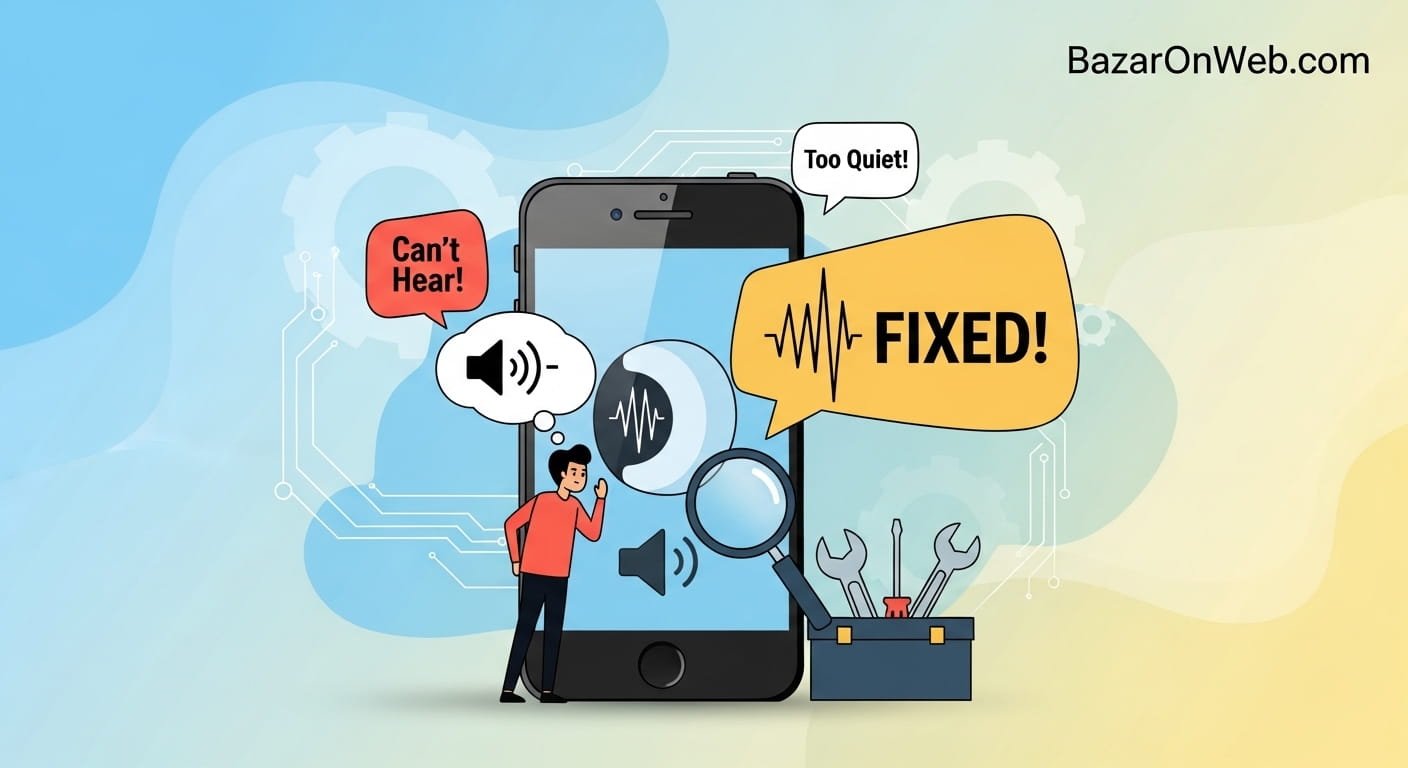
Hi, I’m Jessica, and if you’ve ever struggled to hear someone clearly during a call on your Apple iPhone, you’re definitely not alone. One day everything sounds fine, and the next, your call volume suddenly drops so low that you find yourself pressing the phone harder against your ear or switching to speaker mode just to understand the conversation. It can be frustrating, especially when you’re expecting important calls or handling work on the go.
Low call volume on an iPhone isn’t always caused by one single issue. Sometimes it’s a simple setting that got changed accidentally, while other times it could be due to software glitches, network problems, or even something as basic as dust blocking the earpiece. I personally faced this issue once during an important client call, and it turned out to be a tiny setting I had overlooked.
The good news is that most of these problems are fixable without visiting a service center. In this guide, I’ll walk you through all possible solutions step by step so you can identify the exact cause and fix it quickly. Whether it’s a hardware concern or a software tweak, we’ll cover everything you need to restore your iPhone’s call volume back to normal.
Check Call Volume During an Active Call
One of the most common reasons for low call volume is surprisingly simple—your call volume might actually be set too low. Many users adjust the volume while watching videos or listening to music but forget that call volume is controlled separately. This means even if your media volume is high, your call volume could still be minimal.
To fix this, make sure you adjust the volume during an active call. Start by making a phone call to someone or even calling your voicemail. Once the call connects, use the volume up button on the side of your iPhone to increase the sound level. You’ll notice that the volume indicator specifically adjusts call audio, not general sound.
Sometimes, users assume the phone is malfunctioning when in reality the volume was accidentally reduced during a previous call. This can happen easily if the phone is held in a way that presses the volume buttons unintentionally.
Also, ensure that your fingers are not covering the speaker area near the earpiece, as this can slightly muffle sound. If increasing the volume during the call fixes the issue, then no further troubleshooting may be needed. However, if the sound remains low even at maximum volume, you should move on to the next steps.
Remove Any Case or Screen Protector Blocking the Earpiece
Phone cases and screen protectors are essential for protecting your device, but sometimes they can interfere with sound quality. If your iPhone case is thick or poorly designed, it might partially block the earpiece speaker, causing the call volume to sound muffled or lower than usual.
Similarly, some screen protectors are not perfectly aligned or may cover the speaker grille slightly. Even a small obstruction can significantly impact how clearly you hear during calls. This is especially true for tempered glass protectors that are not precisely cut for your device model.
To check if this is the issue, remove your case and screen protector temporarily. Then make a test call and observe whether the sound improves. If the volume becomes noticeably louder and clearer, the accessory is likely the cause.
In such cases, consider switching to a better-quality case or a properly fitted screen protector. Look for accessories that are specifically designed for your iPhone model and ensure they do not interfere with the speaker areas.
This is one of the easiest fixes, yet it’s often overlooked. A simple accessory adjustment can sometimes solve what appears to be a complex hardware or software issue.
Clean the iPhone Earpiece Speaker
Over time, dust, dirt, and pocket lint can accumulate in the tiny holes of your iPhone’s earpiece speaker. This buildup can block sound output, making calls sound faint or unclear. If you frequently keep your phone in your pocket or bag, this is a very likely cause.
Cleaning the earpiece is a simple but delicate process. Start by inspecting the speaker area under good lighting. If you notice visible dust or debris, use a soft, dry brush such as a clean toothbrush to gently remove it. You can also use a microfiber cloth to wipe the area carefully.
Avoid using sharp objects like needles or pins, as they can damage the speaker mesh. Also, do not use liquids directly on the speaker, as moisture can seep inside and cause internal damage.
Another effective method is using compressed air in short bursts to blow out debris. However, ensure you do this gently and from a safe distance to avoid damaging internal components.
After cleaning, make another call to check if the volume has improved. Many users are surprised at how much of a difference this step can make. Regular maintenance of your iPhone can prevent this issue from recurring in the future.
Disable Phone Noise Cancellation
Your iPhone includes a feature called Phone Noise Cancellation, which is designed to reduce background noise during calls. While this feature is helpful in many situations, it can sometimes interfere with call clarity and reduce the perceived volume.
To check this, go to Settings, then Accessibility, and tap on Audio/Visual. Here, you’ll find the option for Phone Noise Cancellation. If it is enabled, try turning it off and then make a test call to see if the volume improves.
In some cases, this feature can create a compressed or muffled sound, especially in quieter environments. Disabling it allows the full audio signal to pass through without filtering, which can result in louder and clearer call audio.
This setting is often overlooked because it’s not located in the main sound settings. Many users don’t even realize it exists, yet it can significantly affect call quality.
If turning off noise cancellation improves your experience, you can leave it disabled. Otherwise, you can re-enable it and continue troubleshooting with other methods.
Check Bluetooth Connections
Sometimes your iPhone may still be connected to a Bluetooth device without you realizing it. This could be wireless earbuds, a car audio system, or even a previously paired speaker. When this happens, your call audio may be routed to that device instead of your phone’s earpiece.
To check this, open the Control Center and look for the Bluetooth icon. If it’s enabled, tap on it to see if any device is connected. You can also go to Settings and then Bluetooth to view connected devices.
If your iPhone is connected to another device, disconnect it and try making a call again. You may immediately notice that the sound returns to normal through the earpiece.
In some cases, even if the Bluetooth device is not actively in use, the phone may still attempt to route audio to it. This can create confusion, especially if the device is out of range or turned off.
Turning off Bluetooth temporarily is a quick way to rule out this issue. If the call volume improves after disabling Bluetooth, you’ve identified the cause and can manage your connections accordingly.
Restart Your iPhone
Restarting your iPhone is one of the simplest yet most effective troubleshooting steps. Temporary software glitches can sometimes affect audio performance, including call volume. A quick restart can refresh the system and resolve these minor issues.
To restart your iPhone, press and hold the power button along with the volume button until the power slider appears. Slide it to turn off the device, wait a few seconds, and then turn it back on.
This process clears temporary memory and resets background processes that may be causing the problem. It’s a basic step, but it often fixes issues that seem more complicated than they actually are.
Many users skip this step, assuming it won’t make a difference, but it’s always worth trying before moving on to more advanced solutions.
After restarting, make a call and check if the volume has improved. If the issue persists, continue with the next troubleshooting steps.
Update iOS to the Latest Version
Software bugs can sometimes cause audio-related issues, including low call volume. Apple regularly releases updates to fix bugs and improve performance, so keeping your iPhone updated is essential.
To check for updates, go to Settings, then General, and tap Software Update. If an update is available, download and install it. Make sure your device is connected to Wi-Fi and has sufficient battery before starting the update.
Updates often include fixes for known issues that users have reported. If your low call volume problem is due to a software bug, updating your iPhone can resolve it quickly.
In addition to fixing bugs, updates also improve system stability and compatibility with apps and accessories. This ensures your device runs smoothly and efficiently.
After updating, test your call volume again. If the issue was software-related, you should notice an improvement immediately.
Reset All Settings
If none of the previous solutions work, resetting all settings on your iPhone can help. This step restores all system settings to their default values without deleting your personal data such as photos, apps, or messages.
To do this, go to Settings, then General, and tap Transfer or Reset iPhone. Select Reset and then choose Reset All Settings. You may need to enter your passcode to confirm.
This process resets settings related to sound, display, network, and more. If a misconfigured setting is causing the low call volume, this step will fix it.
Keep in mind that you will need to reconfigure certain settings afterward, such as Wi-Fi passwords and display preferences. However, this is a small inconvenience compared to resolving the issue.
After the reset is complete, make a test call to check if the volume has improved.
Check Network and Carrier Issues
Sometimes the issue may not be with your iPhone at all but with the network or the person you’re calling. Poor network quality can affect call clarity and volume, making it seem like your phone has a problem.
Try making calls in different locations to see if the issue persists. If the volume improves in another area, the problem may be related to network coverage.
Additionally, the person you’re speaking with might have a faulty microphone or poor signal, which can affect how you hear them. To rule this out, call multiple contacts and compare the audio quality.
If you suspect a network issue, you can also try enabling and disabling Airplane Mode to reset your connection.
Understanding whether the problem is device-related or network-related can save you time and help you focus on the right solution.
Contact Apple Support or Visit a Service Center
If you’ve tried all the above steps and your iPhone still has low call volume, the issue may be hardware-related. This could include a damaged earpiece speaker or internal component failure.
In such cases, it’s best to contact Apple Support or visit an authorized service center. Professional technicians can diagnose the problem accurately and provide the necessary repairs.
Avoid attempting to open or repair the device yourself, as this can void your warranty and potentially cause more damage.
Before visiting a service center, back up your data to ensure it’s सुरक्षित. This will protect your information in case any repairs require resetting the device.
Getting expert help ensures that your iPhone is restored to proper working condition safely and effectively.
Disclaimer
This guide is intended for informational and educational purposes only. The steps provided are general troubleshooting methods and may not resolve all issues related to low call volume on iPhones. Always follow manufacturer guidelines and consult authorized professionals for hardware-related problems. The author is not responsible for any damage caused by improper handling or unauthorized repairs.






Products
-
![Apple Watch Ultra 3 [GPS + Cellular 49mm] Running & Multisport Smartwatch w/Rugged Titanium Case w/Black Titanium Milanese Loop - M. Satellite Communications, Advanced Health & Fitness Tracking](https://bazaronweb.com/retailstores/wp-content/uploads/2025/09/apple-watch-320x320.jpg) Apple Watch Ultra 3 [GPS + Cellular 49mm] Running & Multisport Smartwatch w/Rugged Titanium Case w/Black Titanium Milanese Loop - M. Satellite Communications, Advanced Health & Fitness Tracking
Apple Watch Ultra 3 [GPS + Cellular 49mm] Running & Multisport Smartwatch w/Rugged Titanium Case w/Black Titanium Milanese Loop - M. Satellite Communications, Advanced Health & Fitness Tracking
-
 Apple iPad mini (A17 Pro): Apple Intelligence, 8.3-inch Liquid Retina Display, 256GB, Wi-Fi 6E, 12MP Front/12MP Back Camera, Touch ID, All-Day Battery Life — Purple
-
 Apple AirPods Max Wireless Over-Ear Headphones, Active Noise Cancelling, Transparency Mode, Personalized Spatial Audio, Dolby Atmos, Bluetooth Headphones for iPhone – Space Gray
-
 Apple AirPods Pro 2 Wireless Earbuds, Active Noise Cancellation, Hearing Aid Feature, Bluetooth Headphones, Transparency, Personalized Spatial Audio, High-Fidelity Sound, H2 Chip, USB-C Charging
-
Home Garage 210 TC Cotton King Floral Fitted (Elastic) Bedsheet(Pack of 1, Grey)
Original price was: ₹999.00.₹299.00Current price is: ₹299.00.
Leave a Reply