Discounted Products
-
 Home Garage 210 TC Cotton King Floral Fitted (Elastic) Bedsheet(Pack of 1, Grey)
Original price was: ₹999.00.₹299.00Current price is: ₹299.00.
Home Garage 210 TC Cotton King Floral Fitted (Elastic) Bedsheet(Pack of 1, Grey)
Original price was: ₹999.00.₹299.00Current price is: ₹299.00.
-
 Goodrik 140 TC Cotton Double 3D Printed Flat Bedsheet(Pack of 1, Brown)
Original price was: ₹499.00.₹229.00Current price is: ₹229.00.
Goodrik 140 TC Cotton Double 3D Printed Flat Bedsheet(Pack of 1, Brown)
Original price was: ₹499.00.₹229.00Current price is: ₹229.00.
-
 GLOBALSHOP 350 TC Microfiber Double Floral Flat Bedsheet(Pack of 1, Multicolor)
Original price was: ₹1,250.00.₹263.00Current price is: ₹263.00.
GLOBALSHOP 350 TC Microfiber Double Floral Flat Bedsheet(Pack of 1, Multicolor)
Original price was: ₹1,250.00.₹263.00Current price is: ₹263.00.
-
 RisingStar 250 TC Microfiber King Printed Fitted (Elastic) Bedsheet(Pack of 1, FITTED-ROUND-CIRCLES-PREMIUM)
Original price was: ₹2,299.00.₹299.00Current price is: ₹299.00.
RisingStar 250 TC Microfiber King Printed Fitted (Elastic) Bedsheet(Pack of 1, FITTED-ROUND-CIRCLES-PREMIUM)
Original price was: ₹2,299.00.₹299.00Current price is: ₹299.00.
-
 Home Garage 210 TC Cotton King Floral Fitted (Elastic) Bedsheet(Pack of 1, Fitted Black Green)
Original price was: ₹1,299.00.₹299.00Current price is: ₹299.00.
Home Garage 210 TC Cotton King Floral Fitted (Elastic) Bedsheet(Pack of 1, Fitted Black Green)
Original price was: ₹1,299.00.₹299.00Current price is: ₹299.00.
-
 Home Garage 180 TC Cotton King 3D Printed Flat Bedsheet(Pack of 1, White)
Original price was: ₹999.00.₹229.00Current price is: ₹229.00.
Home Garage 180 TC Cotton King 3D Printed Flat Bedsheet(Pack of 1, White)
Original price was: ₹999.00.₹229.00Current price is: ₹229.00.
-
 Panipat Textile Hub 152.4 cm (5 ft) Polyester Window Curtain (Pack Of 2)(Solid, Aqua)
Original price was: ₹1,899.00.₹299.00Current price is: ₹299.00.
Panipat Textile Hub 152.4 cm (5 ft) Polyester Window Curtain (Pack Of 2)(Solid, Aqua)
Original price was: ₹1,899.00.₹299.00Current price is: ₹299.00.
-
 Home Sizzler 214 cm (7 ft) Polyester Semi Transparent Door Curtain (Pack Of 2)(Floral, Maroon)
Original price was: ₹1,199.00.₹399.00Current price is: ₹399.00.
Home Sizzler 214 cm (7 ft) Polyester Semi Transparent Door Curtain (Pack Of 2)(Floral, Maroon)
Original price was: ₹1,199.00.₹399.00Current price is: ₹399.00.
-
 Home Sizzler 153 cm (5 ft) Polyester Room Darkening Window Curtain (Pack Of 2)(Floral, Brown)
Original price was: ₹799.00.₹299.00Current price is: ₹299.00.
Home Sizzler 153 cm (5 ft) Polyester Room Darkening Window Curtain (Pack Of 2)(Floral, Brown)
Original price was: ₹799.00.₹299.00Current price is: ₹299.00.
-
 Stella Creations 214 cm (7 ft) Polyester Room Darkening Door Curtain (Pack Of 2)(Abstract, Brown)
Original price was: ₹1,299.00.₹449.00Current price is: ₹449.00.
Stella Creations 214 cm (7 ft) Polyester Room Darkening Door Curtain (Pack Of 2)(Abstract, Brown)
Original price was: ₹1,299.00.₹449.00Current price is: ₹449.00.
-
 Homefab India 152.5 cm (5 ft) Polyester Room Darkening Window Curtain (Pack Of 2)(Floral, Light Blue)
Original price was: ₹1,199.00.₹319.00Current price is: ₹319.00.
Homefab India 152.5 cm (5 ft) Polyester Room Darkening Window Curtain (Pack Of 2)(Floral, Light Blue)
Original price was: ₹1,199.00.₹319.00Current price is: ₹319.00.
-
 Urban Home 214 cm (7 ft) PVC Transparent Door Curtain Single Curtain(Solid, Off White)
Original price was: ₹699.00.₹203.00Current price is: ₹203.00.
Urban Home 214 cm (7 ft) PVC Transparent Door Curtain Single Curtain(Solid, Off White)
Original price was: ₹699.00.₹203.00Current price is: ₹203.00.
-
 Panipat Textile Hub 213 cm (7 ft) Polyester Door Curtain (Pack Of 2)(Solid, Brown)
Original price was: ₹1,199.00.₹349.00Current price is: ₹349.00.
Panipat Textile Hub 213 cm (7 ft) Polyester Door Curtain (Pack Of 2)(Solid, Brown)
Original price was: ₹1,199.00.₹349.00Current price is: ₹349.00.
-
 Home Sizzler 214 cm (7 ft) Polyester Semi Transparent Door Curtain (Pack Of 2)(Floral, Brown)
Original price was: ₹999.00.₹349.00Current price is: ₹349.00.
Home Sizzler 214 cm (7 ft) Polyester Semi Transparent Door Curtain (Pack Of 2)(Floral, Brown)
Original price was: ₹999.00.₹349.00Current price is: ₹349.00.
-
 Panipat Textile Hub 213 cm (7 ft) Polyester Semi Transparent Door Curtain (Pack Of 2)(Floral, Brown)
Original price was: ₹899.00.₹299.00Current price is: ₹299.00.
Panipat Textile Hub 213 cm (7 ft) Polyester Semi Transparent Door Curtain (Pack Of 2)(Floral, Brown)
Original price was: ₹899.00.₹299.00Current price is: ₹299.00.
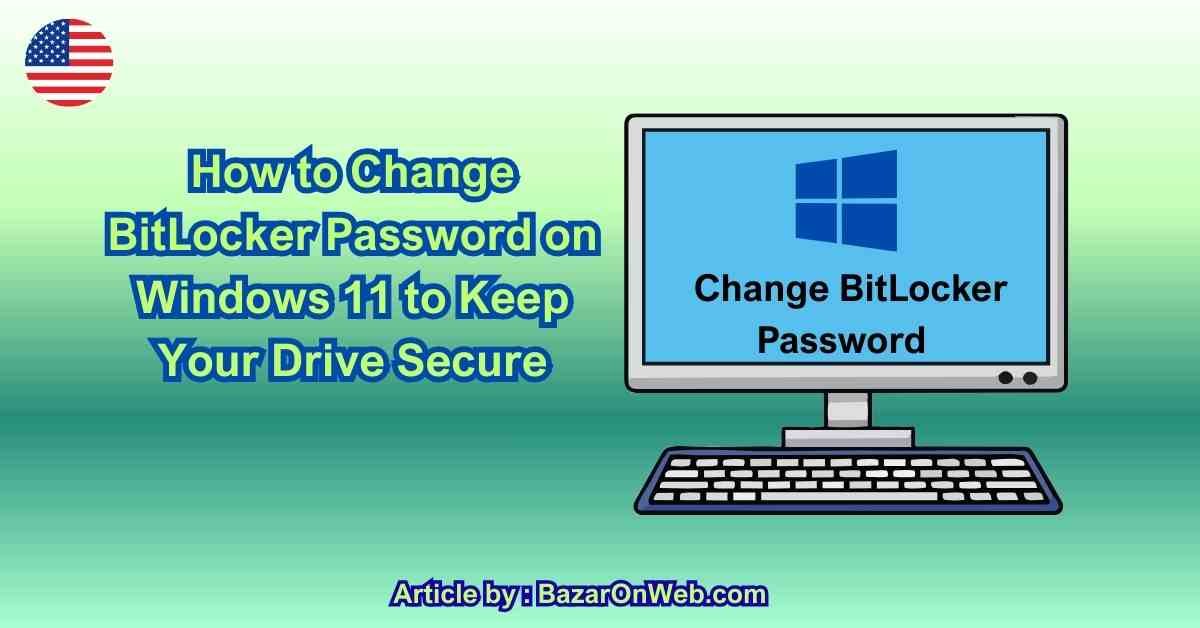
Introduction
Hi, I’m Jessica.
A few weeks ago, while organizing some files on my laptop, I started thinking about how much important information we actually store on our computers. Between work documents, personal photos, saved passwords, and financial records, our laptops often contain a huge portion of our digital lives. That thought alone made me realize how important it is to keep everything properly secured.
I use BitLocker on my Windows laptop to protect my drive. If you’re not familiar with it, BitLocker is a built-in encryption feature in Windows that helps secure your data by encrypting the entire drive. This means that even if someone physically takes your laptop or removes the storage drive, they can’t access the files without the correct password or recovery key.
When I first enabled BitLocker, I set up a password and saved the recovery key somewhere safe. After that, I honestly didn’t think about it much. The system simply asked for the password when needed, and everything worked smoothly.
But then I started thinking about something we often overlook with security tools — password hygiene.
Just like we regularly update our email passwords or banking credentials, it’s also a good idea to update security passwords that protect our devices. Over time, passwords can become outdated, reused, or potentially exposed through other accounts.
That’s when I realized it had been quite a while since I changed my BitLocker password.
The good news is that changing a BitLocker password in Windows is actually very simple. You don’t need to disable encryption or decrypt your entire drive. Windows provides a straightforward option that allows you to update the password while keeping the drive protected.
Updating the BitLocker password periodically can improve security in several ways. It reduces the risk of unauthorized access if someone learns your old password, and it ensures that your drive remains protected with stronger, updated credentials.
Another reason this matters is that laptops are often portable devices. We carry them to work, school, cafes, and while traveling. If a device ever gets lost or stolen, BitLocker encryption becomes the last line of defense protecting your files.
Changing the password occasionally adds an extra layer of protection, especially if the device is used frequently or shared between different environments.
The first time I changed my BitLocker password, I expected the process to be complicated. But to my surprise, it only took a few minutes and didn’t affect any of my files or system settings.
Since then, I’ve made it a small habit to review security settings occasionally and update passwords when needed.
In this guide, I’ll walk you through how to change the BitLocker password on Windows, along with a few helpful tips to ensure your encrypted drive remains secure.
If you’re using BitLocker to protect your drive, updating the password periodically is a simple step that can significantly improve your overall system security.
1. Understanding How BitLocker Protects Your Data
Before changing the BitLocker password, it’s helpful to understand what BitLocker actually does behind the scenes.
BitLocker is a full disk encryption feature built into Windows that encrypts the entire drive where your operating system and files are stored. Once enabled, the data on the drive is converted into encrypted form, which can only be accessed with the correct authentication method.
This authentication can include:
-
A password
-
A PIN
-
A USB security key
-
A recovery key
The purpose of BitLocker is to protect your files in case someone gains physical access to your device.
For example, if someone steals your laptop and tries to remove the storage drive, they won’t be able to read the files without the encryption key.
This protection is especially important for devices that store sensitive information such as business documents, financial records, or personal photos.
BitLocker encryption works silently in the background after it is enabled. Once the system verifies your password or authentication method, Windows loads normally and your files remain accessible.
The encryption process does not affect everyday usage, which is why many users enable BitLocker and forget about it afterward.
However, periodically updating the BitLocker password adds another layer of protection, ensuring that only authorized users can unlock the drive.
2. Why Changing Your BitLocker Password Is Important
Changing the BitLocker password regularly is a simple security habit that many users overlook.
When we set a password for the first time, we often keep using it for months or even years. While this may seem convenient, long-term password reuse can create potential security risks.
Over time, passwords may be exposed through:
-
Data breaches
-
Shared devices
-
Old backups
-
Saved password managers
Updating the BitLocker password ensures that older credentials cannot be used to access your encrypted drive.
Another reason to change the password is if your device has been used in multiple environments. For example, laptops that travel between home, office, and public spaces may face higher risks of unauthorized access.
If you ever suspect that someone might know your password, updating it immediately is the safest option.
Regular password updates also help maintain good cybersecurity practices.
Even though BitLocker encryption itself is extremely strong, the security of the system still depends on how well the password is protected.
By changing the password occasionally, you reduce the risk of unauthorized access and ensure that your encrypted drive remains protected.
3. Check if BitLocker Is Enabled on Your Drive
Before changing the BitLocker password, you should first confirm that BitLocker encryption is enabled on your drive.
To do this, open File Explorer and navigate to This PC.
Look for the drive where Windows is installed, usually labeled Local Disk (C:).
If BitLocker is active, you will see a small lock icon on the drive. This indicates that the drive is encrypted.
You can also confirm this through the Control Panel.
Open Control Panel → System and Security → BitLocker Drive Encryption.
This section shows the status of BitLocker on each drive and provides options for managing the encryption settings.
If BitLocker is not enabled, you will need to turn it on before using password protection features.
Once the drive encryption is active, you can proceed with changing the BitLocker password.
4. Open BitLocker Drive Encryption Settings
To change the BitLocker password, you first need to open the BitLocker management settings in Windows.
Open the Start Menu and search for Control Panel.
Once Control Panel opens, navigate to System and Security, then select BitLocker Drive Encryption.
You will see a list of drives along with their encryption status.
Next to the encrypted drive, you will see several options such as:
-
Change password
-
Back up recovery key
-
Turn off BitLocker
Click the option labeled Change password.
This will open the BitLocker password change interface where you can update your current password.
5. Enter Your Current BitLocker Password
After selecting the change password option, Windows will prompt you to enter the current BitLocker password.
This step verifies that you are the authorized user attempting to modify the encryption settings.
Enter your existing password carefully and proceed to the next step.
If you enter the wrong password multiple times, Windows may temporarily block the attempt for security reasons.
This verification step prevents unauthorized users from changing the password without proper authentication.
Once the current password is verified, Windows will allow you to create a new password for the encrypted drive.
6. Create a Strong New BitLocker Password
When creating a new BitLocker password, it’s important to choose a strong and secure password.
A good password should include a combination of:
-
Uppercase letters
-
Lowercase letters
-
Numbers
-
Special characters
Avoid using simple or predictable passwords such as birthdays, names, or common words.
A strong password makes it significantly harder for unauthorized users to access the encrypted drive.
After entering the new password, Windows will ask you to confirm it by typing it again.
Make sure the two entries match exactly.
Once confirmed, the system will update the password immediately.
The encryption itself remains intact, and your files remain protected.
7. Backup Your BitLocker Recovery Key
Whenever you update your BitLocker password, it’s also a good idea to review your recovery key backup.
The recovery key is a special code that allows you to unlock the drive if you forget the password.
Windows usually stores this key in several places, including:
-
Microsoft account
-
USB drive
-
Printed document
You can verify the backup by selecting Back up your recovery key in the BitLocker settings.
Keeping the recovery key safe ensures that you can still access your files if the password is lost.
8. Test the New Password
After changing the password, it’s helpful to confirm that everything works correctly.
Restart your computer and verify that the system unlocks the drive normally.
If your configuration requires a password at startup, you should be prompted to enter the new password.
Testing the new password ensures that the update was successful.
If the system unlocks properly, your BitLocker password change is complete.
9. Maintain Good BitLocker Security Practices
Changing the BitLocker password is just one part of maintaining good drive security.
You can further improve protection by following a few simple habits:
-
Keep your recovery key stored safely
-
Avoid sharing your BitLocker password
-
Update passwords periodically
-
Keep Windows updated
These practices help ensure that your encrypted drive remains secure.
Conclusion
BitLocker is one of the most powerful built-in security features available in Windows. By encrypting your entire drive, it protects your data from unauthorized access even if your device is lost or stolen.
However, encryption is only as strong as the password protecting it.
Changing your BitLocker password periodically is a simple yet effective way to strengthen your system’s security. The process takes only a few minutes and does not affect your files or system configuration.
By keeping your password updated and securely storing the recovery key, you can ensure that your encrypted drive remains protected against potential threats.
Disclaimer
This guide is for informational purposes only. Steps may vary depending on your Windows version and device configuration. Always store your BitLocker recovery key in a secure location.

- How to Convert a Bootable USB Drive to an ISO File in Windows

- How to Enable End Task on the Windows 11 Taskbar
- How to Add a Clock Widget to Your Windows 11 Desktop

- How to Check Battery Health on Android Phones: Samsung, Pixel, OnePlus, Xiaomi and More

- How to Turn Off Auto Capitalization on a Samsung Phone

Products
-
![Apple Watch Ultra 3 [GPS + Cellular 49mm] Running & Multisport Smartwatch w/Rugged Titanium Case w/Black Titanium Milanese Loop - M. Satellite Communications, Advanced Health & Fitness Tracking](https://bazaronweb.com/retailstores/wp-content/uploads/2025/09/apple-watch-320x320.jpg) Apple Watch Ultra 3 [GPS + Cellular 49mm] Running & Multisport Smartwatch w/Rugged Titanium Case w/Black Titanium Milanese Loop - M. Satellite Communications, Advanced Health & Fitness Tracking
Apple Watch Ultra 3 [GPS + Cellular 49mm] Running & Multisport Smartwatch w/Rugged Titanium Case w/Black Titanium Milanese Loop - M. Satellite Communications, Advanced Health & Fitness Tracking
-
 Apple iPad mini (A17 Pro): Apple Intelligence, 8.3-inch Liquid Retina Display, 256GB, Wi-Fi 6E, 12MP Front/12MP Back Camera, Touch ID, All-Day Battery Life — Purple
-
 Apple AirPods Max Wireless Over-Ear Headphones, Active Noise Cancelling, Transparency Mode, Personalized Spatial Audio, Dolby Atmos, Bluetooth Headphones for iPhone – Space Gray
-
 Apple AirPods Pro 2 Wireless Earbuds, Active Noise Cancellation, Hearing Aid Feature, Bluetooth Headphones, Transparency, Personalized Spatial Audio, High-Fidelity Sound, H2 Chip, USB-C Charging
-
Home Garage 210 TC Cotton King Floral Fitted (Elastic) Bedsheet(Pack of 1, Grey)
Original price was: ₹999.00.₹299.00Current price is: ₹299.00.
Leave a Reply