Discounted Products
-
 Home Garage 210 TC Cotton King Floral Fitted (Elastic) Bedsheet(Pack of 1, Grey)
Original price was: ₹999.00.₹299.00Current price is: ₹299.00.
Home Garage 210 TC Cotton King Floral Fitted (Elastic) Bedsheet(Pack of 1, Grey)
Original price was: ₹999.00.₹299.00Current price is: ₹299.00.
-
 Goodrik 140 TC Cotton Double 3D Printed Flat Bedsheet(Pack of 1, Brown)
Original price was: ₹499.00.₹229.00Current price is: ₹229.00.
Goodrik 140 TC Cotton Double 3D Printed Flat Bedsheet(Pack of 1, Brown)
Original price was: ₹499.00.₹229.00Current price is: ₹229.00.
-
 GLOBALSHOP 350 TC Microfiber Double Floral Flat Bedsheet(Pack of 1, Multicolor)
Original price was: ₹1,250.00.₹263.00Current price is: ₹263.00.
GLOBALSHOP 350 TC Microfiber Double Floral Flat Bedsheet(Pack of 1, Multicolor)
Original price was: ₹1,250.00.₹263.00Current price is: ₹263.00.
-
 RisingStar 250 TC Microfiber King Printed Fitted (Elastic) Bedsheet(Pack of 1, FITTED-ROUND-CIRCLES-PREMIUM)
Original price was: ₹2,299.00.₹299.00Current price is: ₹299.00.
RisingStar 250 TC Microfiber King Printed Fitted (Elastic) Bedsheet(Pack of 1, FITTED-ROUND-CIRCLES-PREMIUM)
Original price was: ₹2,299.00.₹299.00Current price is: ₹299.00.
-
 Home Garage 210 TC Cotton King Floral Fitted (Elastic) Bedsheet(Pack of 1, Fitted Black Green)
Original price was: ₹1,299.00.₹299.00Current price is: ₹299.00.
Home Garage 210 TC Cotton King Floral Fitted (Elastic) Bedsheet(Pack of 1, Fitted Black Green)
Original price was: ₹1,299.00.₹299.00Current price is: ₹299.00.
-
 Home Garage 180 TC Cotton King 3D Printed Flat Bedsheet(Pack of 1, White)
Original price was: ₹999.00.₹229.00Current price is: ₹229.00.
Home Garage 180 TC Cotton King 3D Printed Flat Bedsheet(Pack of 1, White)
Original price was: ₹999.00.₹229.00Current price is: ₹229.00.
-
 Panipat Textile Hub 152.4 cm (5 ft) Polyester Window Curtain (Pack Of 2)(Solid, Aqua)
Original price was: ₹1,899.00.₹299.00Current price is: ₹299.00.
Panipat Textile Hub 152.4 cm (5 ft) Polyester Window Curtain (Pack Of 2)(Solid, Aqua)
Original price was: ₹1,899.00.₹299.00Current price is: ₹299.00.
-
 Home Sizzler 214 cm (7 ft) Polyester Semi Transparent Door Curtain (Pack Of 2)(Floral, Maroon)
Original price was: ₹1,199.00.₹399.00Current price is: ₹399.00.
Home Sizzler 214 cm (7 ft) Polyester Semi Transparent Door Curtain (Pack Of 2)(Floral, Maroon)
Original price was: ₹1,199.00.₹399.00Current price is: ₹399.00.
-
 Home Sizzler 153 cm (5 ft) Polyester Room Darkening Window Curtain (Pack Of 2)(Floral, Brown)
Original price was: ₹799.00.₹299.00Current price is: ₹299.00.
Home Sizzler 153 cm (5 ft) Polyester Room Darkening Window Curtain (Pack Of 2)(Floral, Brown)
Original price was: ₹799.00.₹299.00Current price is: ₹299.00.
-
 Stella Creations 214 cm (7 ft) Polyester Room Darkening Door Curtain (Pack Of 2)(Abstract, Brown)
Original price was: ₹1,299.00.₹449.00Current price is: ₹449.00.
Stella Creations 214 cm (7 ft) Polyester Room Darkening Door Curtain (Pack Of 2)(Abstract, Brown)
Original price was: ₹1,299.00.₹449.00Current price is: ₹449.00.
-
 Homefab India 152.5 cm (5 ft) Polyester Room Darkening Window Curtain (Pack Of 2)(Floral, Light Blue)
Original price was: ₹1,199.00.₹319.00Current price is: ₹319.00.
Homefab India 152.5 cm (5 ft) Polyester Room Darkening Window Curtain (Pack Of 2)(Floral, Light Blue)
Original price was: ₹1,199.00.₹319.00Current price is: ₹319.00.
-
 Urban Home 214 cm (7 ft) PVC Transparent Door Curtain Single Curtain(Solid, Off White)
Original price was: ₹699.00.₹203.00Current price is: ₹203.00.
Urban Home 214 cm (7 ft) PVC Transparent Door Curtain Single Curtain(Solid, Off White)
Original price was: ₹699.00.₹203.00Current price is: ₹203.00.
-
 Panipat Textile Hub 213 cm (7 ft) Polyester Door Curtain (Pack Of 2)(Solid, Brown)
Original price was: ₹1,199.00.₹349.00Current price is: ₹349.00.
Panipat Textile Hub 213 cm (7 ft) Polyester Door Curtain (Pack Of 2)(Solid, Brown)
Original price was: ₹1,199.00.₹349.00Current price is: ₹349.00.
-
 Home Sizzler 214 cm (7 ft) Polyester Semi Transparent Door Curtain (Pack Of 2)(Floral, Brown)
Original price was: ₹999.00.₹349.00Current price is: ₹349.00.
Home Sizzler 214 cm (7 ft) Polyester Semi Transparent Door Curtain (Pack Of 2)(Floral, Brown)
Original price was: ₹999.00.₹349.00Current price is: ₹349.00.
-
 Panipat Textile Hub 213 cm (7 ft) Polyester Semi Transparent Door Curtain (Pack Of 2)(Floral, Brown)
Original price was: ₹899.00.₹299.00Current price is: ₹299.00.
Panipat Textile Hub 213 cm (7 ft) Polyester Semi Transparent Door Curtain (Pack Of 2)(Floral, Brown)
Original price was: ₹899.00.₹299.00Current price is: ₹299.00.
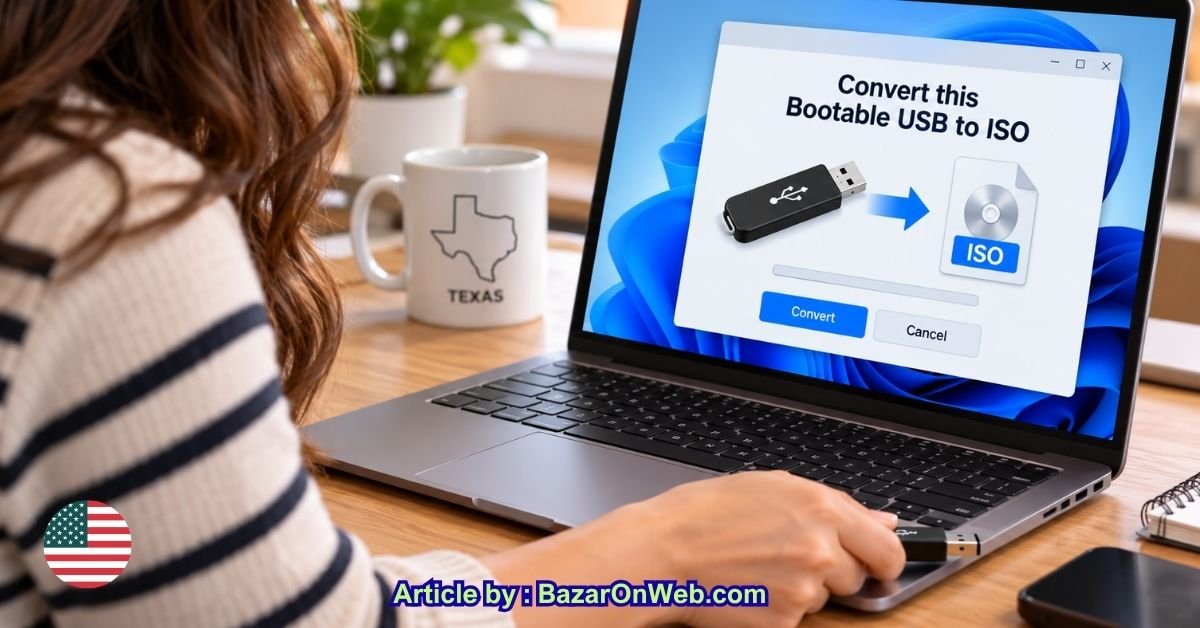
If you already have a bootable Windows USB drive, you may not need to download the Windows ISO file again. Whether you created the USB using Microsoft’s Media Creation Tool, Rufus, or another utility, you can create an ISO image from the existing bootable drive.
This can be particularly useful if you want to keep a backup of your bootable USB, create another bootable drive later, or store the installation files on your computer. Windows does not provide a simple built-in option for copying a bootable USB directly into an ISO file, but several reliable tools can do the job.
In this guide, I’ll show you two practical methods to convert a bootable USB drive into an ISO file on Windows.
Why Convert a Bootable USB to an ISO?
A bootable USB is convenient, but USB drives can be accidentally formatted, corrupted, lost, or damaged. Creating an ISO backup gives you another copy of the installation media.
An ISO file is essentially a digital image of a disc or installation medium. Instead of keeping the files only on the USB drive, you can save the complete image on your computer or an external drive.
You can later use the ISO to create another bootable USB, mount it in Windows, or use it with a virtual machine.
There is one important point to understand, though: simply copying the files from a bootable USB into a folder and compressing them into an ISO does not necessarily preserve the boot information. A proper ISO creation tool should capture the necessary boot structure.
Before You Start
Before creating the ISO, make sure the bootable USB is connected to your Windows PC.
You should also check the amount of free storage available on your computer. The resulting ISO can be several gigabytes in size, especially when the USB contains Windows installation media.
If the USB contains important personal files, keep another backup before experimenting with it.
Also, make sure you select the correct USB drive when using third-party tools. Accidentally selecting a destination drive instead of the source can result in data loss.
Method 1: Convert a Bootable USB to ISO Using ImgBurn
One of the straightforward ways to create an ISO from a bootable USB is to use an ISO creation utility such as ImgBurn.
Although ImgBurn is traditionally associated with optical discs, it can also create image files from folders and files.
Step 1: Connect the Bootable USB
Insert your bootable USB drive into your Windows PC.
Wait for Windows to recognize it and note its drive letter.
For example, Windows might identify it as:
E:
Open File Explorer and make sure the USB contains the installation files you expect.
Step 2: Install ImgBurn
Download and install ImgBurn from a trusted source.
During installation, pay close attention to the setup screens and avoid installing optional third-party software if offered.
Once installation is complete, launch ImgBurn.
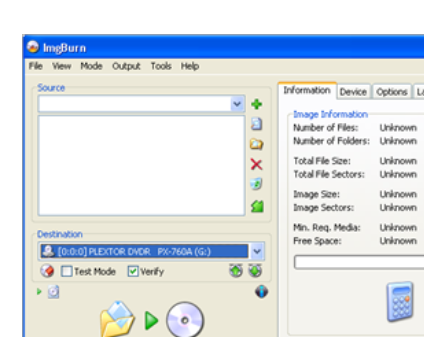
Step 3: Choose the ISO Creation Option
On the ImgBurn main screen, look for the option that allows you to Create image file from files/folders.
This option creates an ISO image from the contents you select.
Step 4: Add the USB Contents
In the source section, browse to your bootable USB drive.
Select the files and folders located on the USB.
Make sure hidden files are included if the bootable media contains them.
This is important because bootable installation media can contain files that aren’t immediately visible in normal File Explorer views.
Step 5: Select the Destination
Choose where you want to save the ISO file.
For example:
Windows 11 Installation.iso
Save it somewhere with several gigabytes of free space.
An external SSD or another internal drive can be useful if your system drive doesn’t have enough storage.
Step 6: Configure the Boot Information
This is the most important part.
Creating an ISO from files alone does not automatically guarantee that the resulting ISO will be bootable.
For Windows installation media, the ISO needs appropriate boot information for the firmware and boot environment you intend to use.
If your goal is simply to preserve the files, a normal ISO may be sufficient. However, if you intend to use the resulting ISO to create another bootable Windows USB, you should verify that the image contains the necessary boot information.
Step 7: Create the ISO
After configuring the source and destination, start the image creation process.
ImgBurn will read the selected data and build an ISO file.
The amount of time required depends on the USB’s speed, the amount of data, and the destination drive.
Once the process finishes, you should see the ISO file in your selected destination.
Method 2: Convert the USB to ISO Using PowerISO
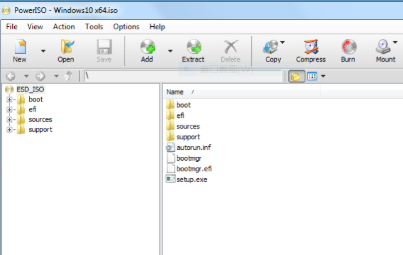
Another convenient option is PowerISO.
PowerISO provides tools for creating, opening, editing, and managing ISO images, and its interface makes the process relatively easy for beginners.
Step 1: Connect Your USB Drive
Insert the bootable USB into your Windows computer.
Open File Explorer and confirm the drive letter.
Again, make sure you’re working with the correct USB drive.
Step 2: Open PowerISO
Install and launch PowerISO.
From the main interface, locate the option for creating an image file.
Depending on the version, the wording and location of the option may vary slightly.
Step 3: Select the USB Contents
Choose the option to create an ISO image from files or folders.
Browse to the bootable USB and select the contents.
You can then configure the destination location for the ISO.
Step 4: Choose ISO as the Output Format
Make sure the output format is set to ISO.
Give the image an easy-to-identify name, such as:
Windows11-Bootable-Backup.iso
Then choose where you want to save it.
Step 5: Start the Conversion
Start the image creation process.
PowerISO will read the USB contents and create the ISO.
Depending on the size of the installation media, this can take several minutes.
When the process is complete, check the destination folder for the newly created ISO.
How to Check Whether the ISO Is Actually Bootable
This is an important step that many people skip.
Creating an ISO containing the same files as a USB does not always mean that the ISO will boot correctly.
You can test the ISO before relying on it as a backup.
One option is to mount the ISO in Windows and inspect its contents.
Right-click the ISO file and select Mount.
Windows should create a virtual DVD drive containing the files.
You can browse the contents and verify that the expected Windows installation files are present.
For a stronger test, you can use virtualization software to attempt to boot a virtual machine from the ISO.
Another practical test is to use the ISO to create a new bootable USB using a utility such as Rufus.
If the resulting USB successfully boots into Windows Setup, the ISO is likely usable for your intended purpose.
An Important Difference Between File Copying and Disk Imaging
There is a subtle but important distinction here.
Suppose your USB contains:
- boot files
- Windows installation files
- EFI files
- configuration files
- setup files
Copying those files into a folder preserves the files, but it doesn’t necessarily reproduce every property of the original bootable media.
A proper disk-image workflow can preserve additional information required for booting.
This is why you shouldn’t assume that an ISO created by simply packaging USB files is automatically identical to the original installation ISO.
If your main goal is to create another bootable Windows USB, test the resulting ISO before deleting the original USB.
Can You Convert a Windows Bootable USB Back Into the Original Microsoft ISO?
Not necessarily.
This is an important distinction.
If your USB was originally created from an official Microsoft ISO, creating a new ISO from the USB may produce a functionally equivalent installation image, but it isn’t guaranteed to be byte-for-byte identical to the original ISO.
The USB may have been modified during creation, and different tools can arrange files or boot information differently.
Therefore, if you need the exact original ISO for verification or archival purposes, downloading the official ISO again is the safest approach.
However, if your objective is simply to preserve your existing Windows installation media and create another bootable USB later, converting the USB into an ISO can be useful.
What If You Created the USB With Rufus?
Rufus is widely used for creating bootable Windows USB drives.
If you still have the original ISO, keeping that ISO is preferable because you can use it to recreate the USB whenever necessary.
If you no longer have the ISO, you can create an image from the USB using suitable imaging software.
However, pay particular attention to the boot configuration.
Rufus can apply different Windows installation options depending on the settings you selected when creating the USB.
For example, the USB could have been configured for a particular partition scheme or firmware environment.
That’s another reason why testing the resulting ISO is recommended.
What If the USB Contains Windows 10 or Windows 11?
The basic concept is the same.
You can create an ISO image from installation media containing Windows 10 or Windows 11.
However, the final ISO’s bootability depends on how the image was created.
For Windows 11 installation media, this becomes especially important because modern PCs commonly use UEFI firmware and GPT partitioning.
If you’re planning to reinstall Windows on a modern computer, test your recreated ISO before depending on it.
Should You Keep the Original USB?
Yes.
If the USB is currently working and contains important installation media, I recommend keeping it until you’ve successfully tested the ISO.
Think of the ISO as a backup rather than an immediate replacement.
Once you’ve created the ISO, you can create another bootable USB from it.
If that new USB successfully boots into Windows Setup, you’ll have confirmation that your backup works.
Common Problems
The ISO Is Too Large
Windows installation media can take several gigabytes.
Make sure your destination drive has enough free space.
If you’re saving the ISO on a nearly full system drive, move it to another internal drive or external storage.
The New USB Doesn’t Boot
This usually means the ISO creation process did not preserve or correctly configure the boot information.
Try creating the ISO again using a tool that supports bootable ISO creation and verify the boot configuration.
You can also compare the process by creating a test USB and checking whether it boots.
Some Files Are Missing
Check whether hidden or protected files were included when creating the image.
Bootable media can contain files that aren’t obvious in File Explorer.
Windows Shows the ISO as a Normal File Collection
An ISO can contain ordinary files and still not be bootable.
The presence of Windows Setup files alone doesn’t prove that the ISO has the required boot information.
Which Method Should You Use?
Both approaches can be useful, but the important thing is not simply creating an ISO with the correct extension.
You want an ISO that preserves the installation media in a way that matches your intended use.
If you want a simple graphical workflow, a dedicated ISO utility such as PowerISO can be convenient.
If you already use ImgBurn, it can also handle ISO creation.
For critical installation media, however, I recommend keeping the original USB until you’ve tested your recreated ISO.
Final Thoughts
If you already have a working bootable USB, you don’t necessarily need to download the Windows ISO again just to create a backup.
You can use an ISO creation utility to capture the contents of the USB and save them as an ISO file.
The biggest thing to remember is that copying files is not always the same as creating a bootable image. If you plan to use the ISO for reinstalling Windows, test it by creating another bootable USB or booting it in a virtual machine.
And if the original Microsoft ISO is still available to you, keeping that original file is always useful.
With a properly created and tested ISO backup, you can protect your Windows installation media and recreate a bootable USB whenever you need it.
Disclaimer: Creating an ISO from bootable media does not always reproduce the original ISO byte-for-byte. Always keep the original USB until you have tested the recreated ISO successfully.






Products
-
![Apple Watch Ultra 3 [GPS + Cellular 49mm] Running & Multisport Smartwatch w/Rugged Titanium Case w/Black Titanium Milanese Loop - M. Satellite Communications, Advanced Health & Fitness Tracking](https://bazaronweb.com/retailstores/wp-content/uploads/2025/09/apple-watch-320x320.jpg) Apple Watch Ultra 3 [GPS + Cellular 49mm] Running & Multisport Smartwatch w/Rugged Titanium Case w/Black Titanium Milanese Loop - M. Satellite Communications, Advanced Health & Fitness Tracking
Apple Watch Ultra 3 [GPS + Cellular 49mm] Running & Multisport Smartwatch w/Rugged Titanium Case w/Black Titanium Milanese Loop - M. Satellite Communications, Advanced Health & Fitness Tracking
-
 Apple iPad mini (A17 Pro): Apple Intelligence, 8.3-inch Liquid Retina Display, 256GB, Wi-Fi 6E, 12MP Front/12MP Back Camera, Touch ID, All-Day Battery Life — Purple
-
 Apple AirPods Max Wireless Over-Ear Headphones, Active Noise Cancelling, Transparency Mode, Personalized Spatial Audio, Dolby Atmos, Bluetooth Headphones for iPhone – Space Gray
-
 Apple AirPods Pro 2 Wireless Earbuds, Active Noise Cancellation, Hearing Aid Feature, Bluetooth Headphones, Transparency, Personalized Spatial Audio, High-Fidelity Sound, H2 Chip, USB-C Charging
-
Home Garage 210 TC Cotton King Floral Fitted (Elastic) Bedsheet(Pack of 1, Grey)
Original price was: ₹999.00.₹299.00Current price is: ₹299.00.
Leave a Reply