Discounted Products
-
 Home Garage 210 TC Cotton King Floral Fitted (Elastic) Bedsheet(Pack of 1, Grey)
Original price was: ₹999.00.₹299.00Current price is: ₹299.00.
Home Garage 210 TC Cotton King Floral Fitted (Elastic) Bedsheet(Pack of 1, Grey)
Original price was: ₹999.00.₹299.00Current price is: ₹299.00.
-
 Goodrik 140 TC Cotton Double 3D Printed Flat Bedsheet(Pack of 1, Brown)
Original price was: ₹499.00.₹229.00Current price is: ₹229.00.
Goodrik 140 TC Cotton Double 3D Printed Flat Bedsheet(Pack of 1, Brown)
Original price was: ₹499.00.₹229.00Current price is: ₹229.00.
-
 GLOBALSHOP 350 TC Microfiber Double Floral Flat Bedsheet(Pack of 1, Multicolor)
Original price was: ₹1,250.00.₹263.00Current price is: ₹263.00.
GLOBALSHOP 350 TC Microfiber Double Floral Flat Bedsheet(Pack of 1, Multicolor)
Original price was: ₹1,250.00.₹263.00Current price is: ₹263.00.
-
 RisingStar 250 TC Microfiber King Printed Fitted (Elastic) Bedsheet(Pack of 1, FITTED-ROUND-CIRCLES-PREMIUM)
Original price was: ₹2,299.00.₹299.00Current price is: ₹299.00.
RisingStar 250 TC Microfiber King Printed Fitted (Elastic) Bedsheet(Pack of 1, FITTED-ROUND-CIRCLES-PREMIUM)
Original price was: ₹2,299.00.₹299.00Current price is: ₹299.00.
-
 Home Garage 210 TC Cotton King Floral Fitted (Elastic) Bedsheet(Pack of 1, Fitted Black Green)
Original price was: ₹1,299.00.₹299.00Current price is: ₹299.00.
Home Garage 210 TC Cotton King Floral Fitted (Elastic) Bedsheet(Pack of 1, Fitted Black Green)
Original price was: ₹1,299.00.₹299.00Current price is: ₹299.00.
-
 Home Garage 180 TC Cotton King 3D Printed Flat Bedsheet(Pack of 1, White)
Original price was: ₹999.00.₹229.00Current price is: ₹229.00.
Home Garage 180 TC Cotton King 3D Printed Flat Bedsheet(Pack of 1, White)
Original price was: ₹999.00.₹229.00Current price is: ₹229.00.
-
 Panipat Textile Hub 152.4 cm (5 ft) Polyester Window Curtain (Pack Of 2)(Solid, Aqua)
Original price was: ₹1,899.00.₹299.00Current price is: ₹299.00.
Panipat Textile Hub 152.4 cm (5 ft) Polyester Window Curtain (Pack Of 2)(Solid, Aqua)
Original price was: ₹1,899.00.₹299.00Current price is: ₹299.00.
-
 Home Sizzler 214 cm (7 ft) Polyester Semi Transparent Door Curtain (Pack Of 2)(Floral, Maroon)
Original price was: ₹1,199.00.₹399.00Current price is: ₹399.00.
Home Sizzler 214 cm (7 ft) Polyester Semi Transparent Door Curtain (Pack Of 2)(Floral, Maroon)
Original price was: ₹1,199.00.₹399.00Current price is: ₹399.00.
-
 Home Sizzler 153 cm (5 ft) Polyester Room Darkening Window Curtain (Pack Of 2)(Floral, Brown)
Original price was: ₹799.00.₹299.00Current price is: ₹299.00.
Home Sizzler 153 cm (5 ft) Polyester Room Darkening Window Curtain (Pack Of 2)(Floral, Brown)
Original price was: ₹799.00.₹299.00Current price is: ₹299.00.
-
 Stella Creations 214 cm (7 ft) Polyester Room Darkening Door Curtain (Pack Of 2)(Abstract, Brown)
Original price was: ₹1,299.00.₹449.00Current price is: ₹449.00.
Stella Creations 214 cm (7 ft) Polyester Room Darkening Door Curtain (Pack Of 2)(Abstract, Brown)
Original price was: ₹1,299.00.₹449.00Current price is: ₹449.00.
-
 Homefab India 152.5 cm (5 ft) Polyester Room Darkening Window Curtain (Pack Of 2)(Floral, Light Blue)
Original price was: ₹1,199.00.₹319.00Current price is: ₹319.00.
Homefab India 152.5 cm (5 ft) Polyester Room Darkening Window Curtain (Pack Of 2)(Floral, Light Blue)
Original price was: ₹1,199.00.₹319.00Current price is: ₹319.00.
-
 Urban Home 214 cm (7 ft) PVC Transparent Door Curtain Single Curtain(Solid, Off White)
Original price was: ₹699.00.₹203.00Current price is: ₹203.00.
Urban Home 214 cm (7 ft) PVC Transparent Door Curtain Single Curtain(Solid, Off White)
Original price was: ₹699.00.₹203.00Current price is: ₹203.00.
-
 Panipat Textile Hub 213 cm (7 ft) Polyester Door Curtain (Pack Of 2)(Solid, Brown)
Original price was: ₹1,199.00.₹349.00Current price is: ₹349.00.
Panipat Textile Hub 213 cm (7 ft) Polyester Door Curtain (Pack Of 2)(Solid, Brown)
Original price was: ₹1,199.00.₹349.00Current price is: ₹349.00.
-
 Home Sizzler 214 cm (7 ft) Polyester Semi Transparent Door Curtain (Pack Of 2)(Floral, Brown)
Original price was: ₹999.00.₹349.00Current price is: ₹349.00.
Home Sizzler 214 cm (7 ft) Polyester Semi Transparent Door Curtain (Pack Of 2)(Floral, Brown)
Original price was: ₹999.00.₹349.00Current price is: ₹349.00.
-
 Panipat Textile Hub 213 cm (7 ft) Polyester Semi Transparent Door Curtain (Pack Of 2)(Floral, Brown)
Original price was: ₹899.00.₹299.00Current price is: ₹299.00.
Panipat Textile Hub 213 cm (7 ft) Polyester Semi Transparent Door Curtain (Pack Of 2)(Floral, Brown)
Original price was: ₹899.00.₹299.00Current price is: ₹299.00.
Introduction
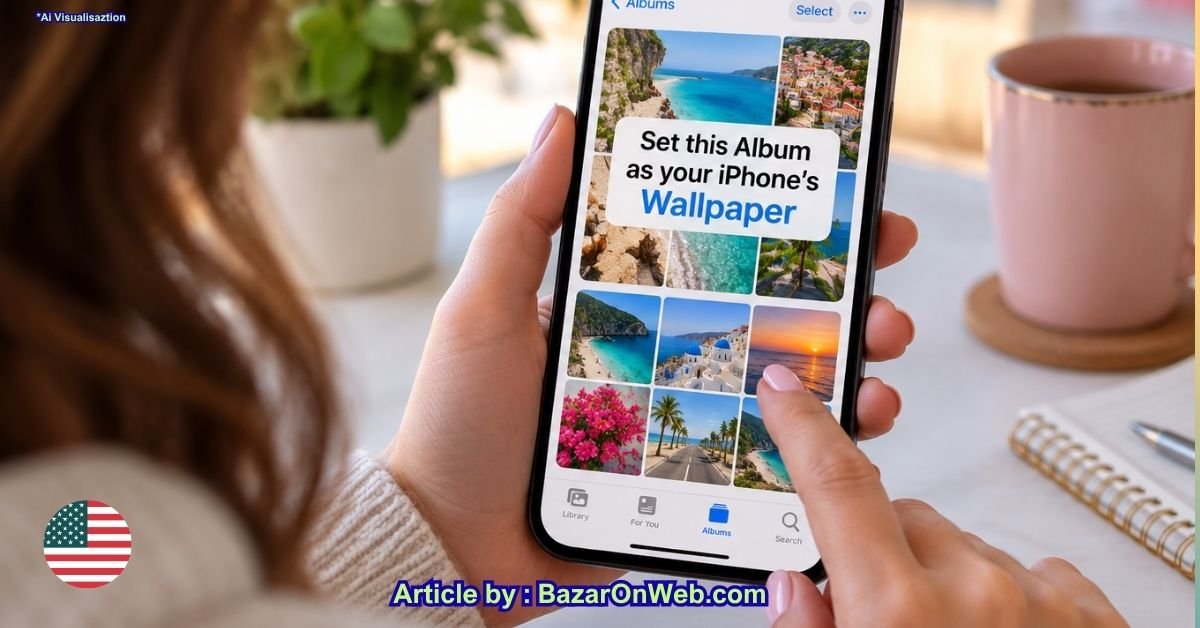
Your iPhone’s Lock Screen is one of the first things you see every time you pick up your phone. While choosing a single favorite photo works perfectly well, sometimes you may want something more dynamic. Maybe you have an album filled with family pictures, travel memories, pets, nature photography, or your favorite moments, and you want your iPhone to automatically display different pictures throughout the day.
Fortunately, you don’t have to manually change your wallpaper every time you want to see a different photo. Apple provides a feature called Photo Shuffle, which lets you create a wallpaper that automatically cycles through selected pictures.
The feature can be especially useful if you have a dedicated album containing your favorite images. Instead of selecting individual photos one by one, you can tell your iPhone to use pictures from a particular album and change them according to a schedule.
In this guide, I’ll walk you through how to set a photo album as wallpaper on an iPhone, how to choose the shuffle frequency, customize the Lock Screen, change the selected photos later, and troubleshoot common problems.
What Is Photo Shuffle on iPhone?
Photo Shuffle is an iPhone wallpaper feature that lets you display multiple photos on your Lock Screen and automatically switch between them.
Instead of having one static wallpaper, you can choose several pictures and tell your iPhone when to change them.
Depending on your iOS version and available settings, you may be able to change photos:
- On tap
- On lock
- Hourly
- Daily
This makes Photo Shuffle different from simply selecting a photo from your Photos library.
For example, suppose you have an album called Australia Trip containing 50 pictures. Rather than choosing just one image, you can use Photo Shuffle to display different pictures from that album as your wallpaper.
Before You Start
Before creating your wallpaper, make sure the photos you want to use are already organized in an album in the Photos app.
If you haven’t created an album yet, you can do that first.
Open the Photos app, select the pictures you want, tap the share or additional options button, and use the available option to add them to an album.
Give the album a recognizable name, such as:
- Favorite Photos
- Family
- Travel
- Vacation
- Pets
- Nature
- Memories
- Wallpaper Photos
Once your album is ready, you can use it for Photo Shuffle.
How to Set a Photo Album as Wallpaper on iPhone
Here’s the complete step-by-step process.
Step 1: Open the Settings App
Start by opening the Settings app on your iPhone.
The Settings app is represented by the familiar gear icon.
Once Settings opens, scroll through the available options until you find Wallpaper.
Tap Wallpaper to open your current wallpaper settings.
Step 2: Tap Add New Wallpaper
Inside the Wallpaper settings, you’ll see your current Lock Screen and Home Screen configuration.
Look for the option labeled Add New Wallpaper.
Tap it to open Apple’s wallpaper selection screen.
You’ll see several categories and wallpaper options that you can use to personalize your iPhone.
These may include Photos, Photo Shuffle, Emoji, Weather, Astronomy, and other available wallpaper collections depending on your iOS version.
Step 3: Select Photo Shuffle
From the wallpaper options, tap Photo Shuffle.
This is the feature you need if you want your iPhone to automatically rotate through multiple photos.
Photo Shuffle is designed specifically for displaying a collection of images instead of a single static picture.
Once you select it, your iPhone will show options for choosing which photos should be included.
Step 4: Choose Photos From an Album
Now you’ll need to tell your iPhone where the photos should come from.
Look for the option that allows you to select photos from an Album.
Tap Album.
Your iPhone should then display your available photo albums.
Find the album containing the pictures you want to use and select it.
For example, if you created an album called Travel Memories, select that album.
Your iPhone can then use pictures from that album for the Photo Shuffle wallpaper.
This is much easier than manually selecting dozens of photos.
Step 5: Select the Album You Want to Use
After tapping Album, browse through your available albums.
Tap the album you want to use.
Make sure you’ve selected the correct album before continuing.
If your album contains a large number of photos, your iPhone can use the images available within that collection for the wallpaper shuffle.
If you want more control over exactly which images appear, consider creating a dedicated wallpaper album containing only the pictures you want to see.
Step 6: Choose How Often the Wallpaper Changes
One of the most useful parts of Photo Shuffle is the ability to control when the picture changes.
Your iPhone may provide several shuffle-frequency options.
On Tap
With On Tap, your wallpaper changes when you tap the Lock Screen.
This option is useful if you want to manually move through your photos whenever you feel like seeing another picture.
On Lock
With On Lock, the wallpaper changes when you lock your iPhone.
Every time you return to the Lock Screen, you may see a different image from your selected collection.
Hourly
The Hourly option automatically changes the wallpaper approximately every hour.
This is a good choice if you want your Lock Screen to feel more dynamic throughout the day.
Daily
With Daily, your iPhone changes the wallpaper approximately once per day.
This is a more subtle option if you enjoy seeing a different image each day without constantly changing the Lock Screen.
Choose the frequency that best matches how you want your wallpaper to behave.
Step 7: Customize the Lock Screen
After selecting your album and shuffle settings, you’ll be taken to the Lock Screen customization screen.
Here, you can customize different parts of the wallpaper.
Depending on your iOS version and the wallpaper you’re using, you may be able to modify:
- Clock style
- Clock color
- Widgets
- Photo positioning
- Photo filters
- Depth-related effects
- Other Lock Screen elements
Take a moment to arrange everything so that important parts of your photos aren’t hidden behind the clock or widgets.
Step 8: Adjust the Photo
Some photos may not initially appear exactly how you want them to.
You can generally reposition or adjust the image within the wallpaper preview.
Pay attention to faces and important objects.
For example, if you’re using a family photo, make sure people’s faces aren’t covered by the Lock Screen clock.
Similarly, if you’re using a travel photograph, you may want to position the image so that the main landmark remains visible.
Step 9: Add Widgets If You Want
You can also add supported Lock Screen widgets if you want quick access to information.
Depending on your iPhone and iOS version, available widgets can provide information such as weather, calendar events, battery status, reminders, and other supported information.
However, remember that widgets take up space on the Lock Screen.
If your main goal is to showcase your photos, keeping the Lock Screen relatively clean can make the pictures more noticeable.
Step 10: Tap Add
Once you’re happy with your Photo Shuffle setup, tap Add in the upper-right corner.
Your iPhone will then provide options for applying the new wallpaper.
You may see an option such as Set as Wallpaper Pair as well as an option to customize the Home Screen separately.
Step 11: Choose How to Use the Wallpaper
If you want the same wallpaper setup associated with both your Lock Screen and Home Screen, select Set as Wallpaper Pair.
Alternatively, choose the option to customize the Home Screen separately.
This allows you to keep your rotating photos on the Lock Screen while using a different appearance on the Home Screen.
For example, you could use your favorite travel photos on the Lock Screen and a simple color or blurred version on the Home Screen.
How to Create a Dedicated Wallpaper Album
If your regular photo albums contain hundreds or thousands of pictures, creating a dedicated wallpaper album can make Photo Shuffle much easier to manage.
Open the Photos app and create a new album.
Give it a name such as iPhone Wallpapers.
Then add only the pictures you actually want to use as wallpapers.
This approach gives you more control over the images that appear.
You can remove old pictures from the album whenever you want and add new favorites later.
It also prevents unrelated screenshots, receipts, documents, and other images from accidentally becoming part of your wallpaper rotation.
How to Add More Photos to Your Wallpaper Album
If you take a new picture that you want to use as a wallpaper, simply add it to the album you’re using for Photo Shuffle.
Open the Photos app and locate the image.
Select it and add it to your dedicated wallpaper album.
Whether and when that new photo becomes part of an existing Photo Shuffle setup can depend on the specific iOS behavior and configuration, so if it doesn’t appear, check the wallpaper’s selected-photo settings.
How to Change Your Photo Shuffle Wallpaper
You don’t have to permanently keep the same Photo Shuffle setup.
To change your wallpaper, you can access the Lock Screen wallpaper gallery by pressing and holding the Lock Screen.
Authenticate with Face ID, Touch ID, or your passcode if requested.
From there, you can browse your existing wallpaper setups, customize them, or add a new wallpaper.
You can also access wallpaper settings through:
Settings → Wallpaper
From there, select the wallpaper configuration you want to modify.
How to Stop Your iPhone From Changing the Wallpaper
If you decide that you no longer want rotating photos, you can switch back to a standard wallpaper.
Open:
Settings → Wallpaper → Add New Wallpaper → Photos
Select the single image you want to use.
Then apply it as your wallpaper.
Your iPhone will use that selected photo instead of cycling through multiple pictures.
Why Can’t I See My Album in Photo Shuffle?
If your album isn’t appearing when you’re trying to create Photo Shuffle, check the following.
Make Sure the Album Exists
Open the Photos app and confirm that the album has actually been created.
Check That Photos Are in the Album
An empty album obviously won’t provide photos for the wallpaper.
Open the album and make sure the pictures you want are present.
Check Your iOS Version
Wallpaper features can vary between iOS versions.
If you’re using an older version of iOS, some Photo Shuffle options may look different or may not be available.
Open:
Settings → General → Software Update
Check whether an update is available for your iPhone.
Restart Your iPhone
If the album exists but doesn’t appear correctly, restarting your iPhone can sometimes resolve temporary software glitches.
Why Does My iPhone Show the Same Photo?
Photo Shuffle doesn’t necessarily mean that every photo will appear immediately.
If you have a large album, it can take time before you see different pictures depending on the shuffle configuration.
Also check whether you’ve accidentally created a wallpaper using a smaller set of manually selected photos instead of the entire album.
Review the Photo Shuffle configuration and confirm that the correct album is selected.
Tips for Choosing Photos for an iPhone Wallpaper
Not every photo works equally well as a Lock Screen wallpaper.
For the best results, consider using images with:
Vertical Composition
Portrait-oriented photos generally work well because they’re naturally suited to the tall iPhone display.
Clear Subjects
Photos with one obvious subject often look cleaner than extremely busy images.
Good Lighting
Bright, well-lit photos tend to remain easier to see behind Lock Screen elements.
Space Around Important Details
Try to choose pictures where important faces or objects aren’t positioned directly where the clock or widgets appear.
High Resolution
Whenever possible, use high-quality images so that they don’t look unnecessarily blurry or pixelated when enlarged.
Can You Use Different Albums for Different Wallpapers?
Yes, you can create multiple Lock Screen wallpaper setups and associate different Photo Shuffle collections with them.
For example, you could create one wallpaper setup using a Travel album and another using a Family album.
You can then switch between your Lock Screen configurations from the wallpaper gallery.
This is useful if you want different visual themes for different occasions.
Photo Shuffle vs. a Regular iPhone Wallpaper
A regular wallpaper uses one selected image.
Photo Shuffle, on the other hand, lets you create a collection of images that can rotate automatically.
A regular wallpaper is better if you have one specific picture you want to keep visible.
Photo Shuffle is more useful when you have a collection of favorite photos and don’t want to choose only one.
The biggest advantage is convenience: once you’ve configured Photo Shuffle, your iPhone can handle the rotation for you.
Frequently Asked Questions
Can I set an entire album as my iPhone wallpaper?
Yes. Apple’s Photo Shuffle feature can let you use photos from a selected album as a rotating wallpaper, depending on your iOS version and available settings.
Does Photo Shuffle change the Home Screen too?
You can configure the Home Screen separately from the Lock Screen. This gives you the option of using the photo collection on the Lock Screen while keeping a different Home Screen appearance.
Can I choose how often my wallpaper changes?
Yes. Photo Shuffle provides frequency options such as On Tap, On Lock, Hourly, and Daily, depending on your iOS version.
Can I use a personal photo album?
Yes. You can select an album containing your own photos and use it as the source for Photo Shuffle.
Can I stop Photo Shuffle later?
Yes. You can replace the Photo Shuffle wallpaper with a regular single-photo wallpaper whenever you want.
Will deleting a photo from the album affect Photo Shuffle?
Changes to the underlying album can affect which photos are available for your wallpaper. If you remove or add images, check your Photo Shuffle configuration if the wallpaper doesn’t behave as expected.
Final Thoughts
Setting a photo album as your iPhone wallpaper is a simple way to make your Lock Screen more personal and dynamic. Instead of manually changing your wallpaper every time you want to see a different picture, Apple’s Photo Shuffle feature can rotate through a collection of photos automatically.
The process is straightforward: prepare your album, open Settings → Wallpaper, add a new wallpaper, choose Photo Shuffle, select your album, choose how frequently the photos should change, and customize your Lock Screen.
For the best experience, consider creating a dedicated iPhone Wallpapers album containing only your favorite pictures. This gives you much more control over what appears on your Lock Screen and makes it easier to update your wallpaper collection over time.
Whether you want to rotate through vacation memories, family photographs, pet pictures, or your favorite photography, Photo Shuffle gives your iPhone Lock Screen a simple way to stay fresh without requiring constant manual changes.
Disclaimer: iPhone wallpaper features and menu names can vary depending on the iOS version and device model. If an option mentioned in this guide isn’t available, check your iPhone’s current software version and Apple’s latest documentation.






Products
-
![Apple Watch Ultra 3 [GPS + Cellular 49mm] Running & Multisport Smartwatch w/Rugged Titanium Case w/Black Titanium Milanese Loop - M. Satellite Communications, Advanced Health & Fitness Tracking](https://bazaronweb.com/retailstores/wp-content/uploads/2025/09/apple-watch-320x320.jpg) Apple Watch Ultra 3 [GPS + Cellular 49mm] Running & Multisport Smartwatch w/Rugged Titanium Case w/Black Titanium Milanese Loop - M. Satellite Communications, Advanced Health & Fitness Tracking
Apple Watch Ultra 3 [GPS + Cellular 49mm] Running & Multisport Smartwatch w/Rugged Titanium Case w/Black Titanium Milanese Loop - M. Satellite Communications, Advanced Health & Fitness Tracking
-
 Apple iPad mini (A17 Pro): Apple Intelligence, 8.3-inch Liquid Retina Display, 256GB, Wi-Fi 6E, 12MP Front/12MP Back Camera, Touch ID, All-Day Battery Life — Purple
-
 Apple AirPods Max Wireless Over-Ear Headphones, Active Noise Cancelling, Transparency Mode, Personalized Spatial Audio, Dolby Atmos, Bluetooth Headphones for iPhone – Space Gray
-
 Apple AirPods Pro 2 Wireless Earbuds, Active Noise Cancellation, Hearing Aid Feature, Bluetooth Headphones, Transparency, Personalized Spatial Audio, High-Fidelity Sound, H2 Chip, USB-C Charging
-
Home Garage 210 TC Cotton King Floral Fitted (Elastic) Bedsheet(Pack of 1, Grey)
Original price was: ₹999.00.₹299.00Current price is: ₹299.00.
Leave a Reply