Discounted Products
-
 Home Garage 210 TC Cotton King Floral Fitted (Elastic) Bedsheet(Pack of 1, Grey)
Original price was: ₹999.00.₹299.00Current price is: ₹299.00.
-
 Goodrik 140 TC Cotton Double 3D Printed Flat Bedsheet(Pack of 1, Brown)
Original price was: ₹499.00.₹229.00Current price is: ₹229.00.
-
 GLOBALSHOP 350 TC Microfiber Double Floral Flat Bedsheet(Pack of 1, Multicolor)
Original price was: ₹1,250.00.₹263.00Current price is: ₹263.00.
-
 RisingStar 250 TC Microfiber King Printed Fitted (Elastic) Bedsheet(Pack of 1, FITTED-ROUND-CIRCLES-PREMIUM)
Original price was: ₹2,299.00.₹299.00Current price is: ₹299.00.
-
 Home Garage 210 TC Cotton King Floral Fitted (Elastic) Bedsheet(Pack of 1, Fitted Black Green)
Original price was: ₹1,299.00.₹299.00Current price is: ₹299.00.
-
 Home Garage 180 TC Cotton King 3D Printed Flat Bedsheet(Pack of 1, White)
Original price was: ₹999.00.₹229.00Current price is: ₹229.00.
-
 Panipat Textile Hub 152.4 cm (5 ft) Polyester Window Curtain (Pack Of 2)(Solid, Aqua)
Original price was: ₹1,899.00.₹299.00Current price is: ₹299.00.
-
 Home Sizzler 214 cm (7 ft) Polyester Semi Transparent Door Curtain (Pack Of 2)(Floral, Maroon)
Original price was: ₹1,199.00.₹399.00Current price is: ₹399.00.
-
 Home Sizzler 153 cm (5 ft) Polyester Room Darkening Window Curtain (Pack Of 2)(Floral, Brown)
Original price was: ₹799.00.₹299.00Current price is: ₹299.00.
-
 Stella Creations 214 cm (7 ft) Polyester Room Darkening Door Curtain (Pack Of 2)(Abstract, Brown)
Original price was: ₹1,299.00.₹449.00Current price is: ₹449.00.
-
 Homefab India 152.5 cm (5 ft) Polyester Room Darkening Window Curtain (Pack Of 2)(Floral, Light Blue)
Original price was: ₹1,199.00.₹319.00Current price is: ₹319.00.
-
 Urban Home 214 cm (7 ft) PVC Transparent Door Curtain Single Curtain(Solid, Off White)
Original price was: ₹699.00.₹203.00Current price is: ₹203.00.
-
 Panipat Textile Hub 213 cm (7 ft) Polyester Door Curtain (Pack Of 2)(Solid, Brown)
Original price was: ₹1,199.00.₹349.00Current price is: ₹349.00.
-
 Home Sizzler 214 cm (7 ft) Polyester Semi Transparent Door Curtain (Pack Of 2)(Floral, Brown)
Original price was: ₹999.00.₹349.00Current price is: ₹349.00.
-
 Panipat Textile Hub 213 cm (7 ft) Polyester Semi Transparent Door Curtain (Pack Of 2)(Floral, Brown)
Original price was: ₹899.00.₹299.00Current price is: ₹299.00.
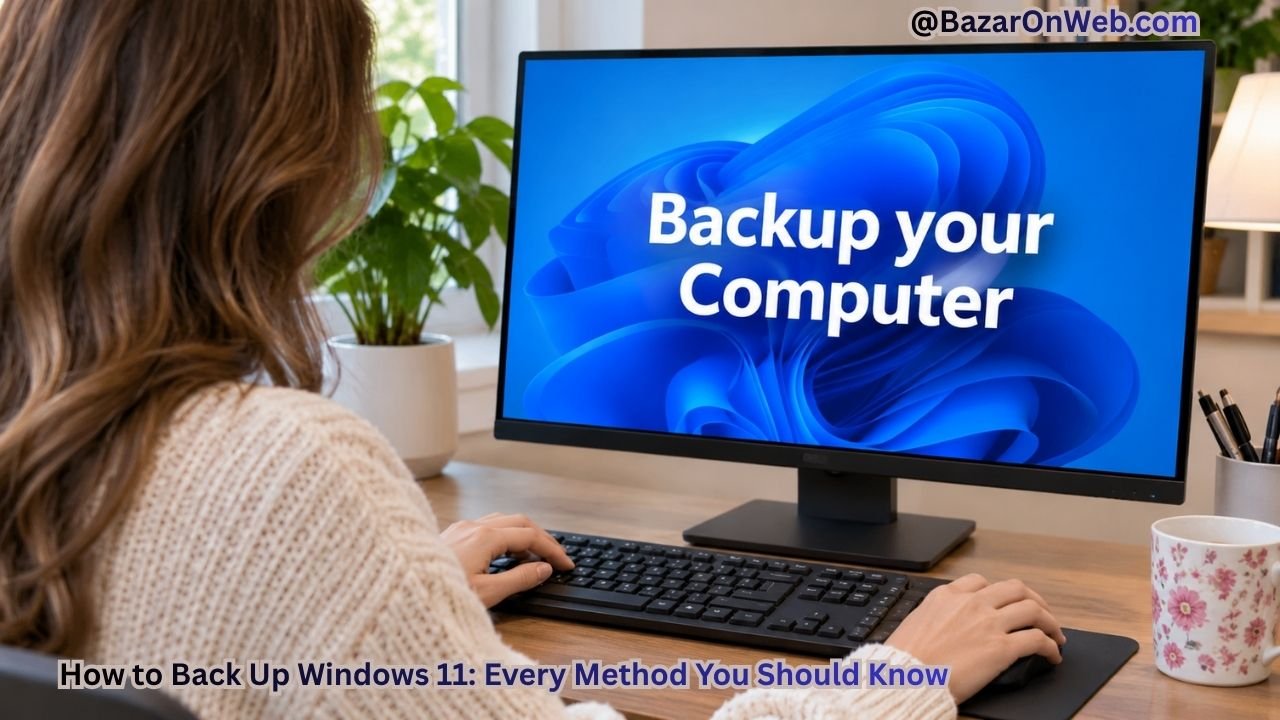
The good news is that Windows 11 comes with several built-in backup options that make protecting your important data relatively simple. You don’t necessarily need expensive third-party backup software to keep your files safe. Depending on your requirements, you can use Windows Backup, OneDrive, File History, an external storage drive, or even create a complete system image.
Each backup method serves a slightly different purpose. Some are designed to protect personal files, while others help you restore Windows settings, applications, or an entire system installation.
In this guide, I’ll explain all the major methods to back up Windows 11, how to configure them, and which option you should choose depending on your needs.
Why Should You Back Up Windows 11?
Before exploring the different methods, it’s important to understand why regular backups matter.
Windows 11 is generally reliable, but unexpected problems can still occur. A failed Windows update, corrupted system files, malware infection, hardware failure, or accidental deletion can put your important data at risk.
Here are some common situations where having a backup can help:
- Windows installation problems: If Windows becomes unstable or fails to boot, you may need to reinstall the operating system.
- Hardware failure: If your SSD or hard drive suddenly stops working, you could lose everything stored on it.
- Accidental deletion: A backup gives you another way to recover files that you accidentally remove.
- Malware infections: If your computer becomes infected, you may need to restore clean copies of your important files.
- Computer replacement: When purchasing a new PC, a backup makes transferring your personal files and settings easier.
- Windows resetting: If you frequently reset your computer, having your files backed up saves you from manually recovering everything afterward.
Ideally, you should maintain more than one copy of your important data. For example, you can keep one backup in cloud storage and another on an external hard drive.
Let’s look at the different ways to do this.
Method 1: Back Up Windows 11 Using Windows Backup
Windows Backup is Microsoft’s built-in backup solution that helps protect selected folders, system preferences, credentials, and other supported information through your Microsoft account.
It is particularly useful when you want to move to another Windows 11 computer or restore certain preferences after reinstalling Windows.
Here’s how to configure it.
Step 1: Press Windows + I to open the Settings application.
Step 2: From the left sidebar, select Accounts.
Step 3: Click Windows backup.
Step 4: You will find several backup options, depending on your Windows version and account configuration.
These may include:
- OneDrive folder syncing for Desktop, Documents, and Pictures.
- Remember my apps.
- Remember my preferences.
Step 5: Expand the available options and enable the backup features you want to use.
Step 6: If OneDrive setup is required, sign in using your Microsoft account and complete the configuration.
Step 7: Allow Windows to synchronize your selected information.
Once configured, Windows can help restore supported settings and information when you sign in with the same Microsoft account on a compatible Windows installation.
Important: Windows Backup is not a complete system backup. It does not create an exact copy of your Windows installation, installed desktop applications, and every file on your computer. You should use another backup method if you want to protect your entire system.
Method 2: Back Up Windows 11 Using OneDrive
OneDrive is Microsoft’s cloud storage service, and it is one of the easiest ways to protect your everyday files.
Instead of storing all your important documents and photos exclusively on your computer, you can synchronize selected folders with OneDrive.
The biggest advantage is that your synchronized files remain accessible through your Microsoft account, even if your computer stops working.
Here’s how to enable OneDrive folder backup.
Step 1: Open the Start menu and search for OneDrive.
Step 2: Launch the OneDrive application.
Step 3: Sign in using your Microsoft account.
Step 4: Once OneDrive is configured, locate its cloud icon in the Windows taskbar notification area.
Step 5: Click the OneDrive icon and select the Settings option.
Step 6: Open the Sync and backup section.
Step 7: Select Manage backup.
Step 8: You should see supported folders such as:
- Desktop
- Documents
- Pictures
Step 9: Enable backup for the folders you want to synchronize.
Step 10: Select Save changes or Start backup, depending on the version of OneDrive.
OneDrive will begin synchronizing the selected folders with cloud storage.
You can monitor the synchronization status using the OneDrive icon in the taskbar.
How to Check Whether OneDrive Backup Is Working
After enabling backup, don’t immediately assume that all your files are protected.
Open File Explorer and navigate to your OneDrive folder. Check whether the files you want to protect are appearing there.
You can also sign in to OneDrive through a web browser and verify that your important documents and pictures are available.
There is one important thing to remember: OneDrive offers limited free storage. If your files exceed your available storage capacity, synchronization may stop until you free up space or upgrade your storage plan.
Also, synchronization is not the same as maintaining an independent backup. If you delete a synchronized file, that deletion can also synchronize across devices. Consider keeping another copy of particularly important files on an external drive.
Method 3: Back Up Windows 11 Using File History
File History is another useful backup utility available in Windows 11.
Unlike basic cloud synchronization, File History is designed to periodically save copies of files stored in selected personal folders. It can also maintain older versions of files, allowing you to recover an earlier version if you accidentally modify or delete something.
You will need an external hard drive or another suitable network storage location to configure it.
Here’s how to use File History.
Step 1: Connect an external hard drive or USB storage device to your Windows 11 computer.
Step 2: Open the Start menu and search for Control Panel.
Step 3: Launch Control Panel.
Step 4: Change the View by option to Large icons or Small icons.
Step 5: Locate and open File History.
Step 6: Windows will search for available backup drives.
Step 7: Select the external drive you want to use.
Step 8: Click Turn on.
File History will now begin backing up supported personal folders.
By default, it can protect folders such as Documents, Pictures, Videos, Music, Desktop, and other libraries.
How to Restore Files Using File History
The biggest advantage of File History is that it allows you to restore previous versions of supported files.
Follow these steps:
Step 1: Connect the external hard drive containing your File History backup.
Step 2: Open Control Panel.
Step 3: Navigate to System and Security and select File History.
Step 4: Click Restore personal files.
Step 5: Browse through the available backup versions.
Step 6: Select the file or folder you want to recover.
Step 7: Click the Restore button.
Windows will restore the selected information to its original location.
If you want to restore a file without replacing the existing version, use the restore options to choose another destination when available.
Method 4: Create a Complete System Image Backup
If you want to create a more comprehensive backup of your Windows installation, a system image is worth considering.
A system image is essentially a snapshot of your Windows installation and selected system partitions at a particular point in time.
Depending on the configuration, it can include:
- Windows installation files.
- Installed desktop applications.
- System settings.
- Personal files stored on included partitions.
- Boot and recovery-related partitions required for restoring the system.
This is particularly useful if you frequently reinstall Windows or want to recover your computer after a major system failure.
Windows 11 still includes the legacy System Image Backup utility through Control Panel, although Microsoft has deprecated this feature and does not recommend it as the primary backup solution for newer Windows installations.
Here’s how to access it.
Step 1: Open Control Panel.
Step 2: Navigate to System and Security.
Step 3: Select Backup and Restore (Windows 7).
Step 4: From the left sidebar, select Create a system image.
Step 5: Windows will ask where you want to save the backup.
You may see options such as:
- On a hard disk.
- On one or more DVDs.
- On a network location.
Step 6: Select On a hard disk and choose a suitable external storage drive.
Step 7: Click Next.
Step 8: Windows will display the drives and partitions that will be included in the system image.
Step 9: Review the selected partitions and click Start backup.
Windows will begin creating the system image.
Depending on how much data is stored on your computer, the process may take some time.
How to Restore a System Image
Creating a system image is only half the process. You should also understand how to restore it if Windows becomes unusable.
Generally, you can access the recovery environment through Windows Recovery Environment.
If Windows still starts:
- Open Settings.
- Navigate to System.
- Select Recovery.
- Find Advanced startup.
- Click Restart now.
If Windows cannot start, you may need to boot using compatible Windows installation or recovery media.
Once inside the recovery environment:
- Select Troubleshoot.
- Open Advanced options.
- Select System Image Recovery, if available.
- Follow the instructions to locate your previously created system image.
- Select the image and complete the restoration process.
Important: Restoring a system image can overwrite existing data on the target partitions. Make sure you understand which drives will be affected before proceeding.
Method 5: Manually Back Up Windows 11 to an External Hard Drive
Sometimes, you don’t need complicated backup configurations. You simply want to copy your important documents, photos, videos, and other personal files to an external storage device.
This is one of the easiest backup methods for beginners.
Here’s how to do it.
Step 1: Connect an external hard drive or USB flash drive to your computer.
Step 2: Open File Explorer using Windows + E.
Step 3: Navigate to the folders containing your important files.
Common locations include:
- Desktop
- Documents
- Downloads
- Pictures
- Videos
- Music
Step 4: Select the folders or files you want to protect.
Step 5: Press Ctrl + C to copy the selected files.
Step 6: Open your external storage device from File Explorer.
Step 7: Create a folder named Windows 11 Backup or choose an existing backup folder.
Step 8: Press Ctrl + V to paste your selected files.
Wait until the copying process finishes.
You can repeat this process whenever you add new important files to your computer.
What Should You Back Up Manually?
Apart from your usual personal folders, consider saving these items:
- Important project files.
- Work-related documents.
- Downloaded installers and software configuration files.
- Browser bookmarks, if they are not synchronized.
- Important application data.
- Personal photos and videos.
- License information and product keys where applicable.
One advantage of manual backups is that you have direct control over what gets copied.
However, manual copying does not automatically update your backup when files change. You need to repeat the process regularly.
Method 6: Back Up Windows 11 Using a USB Flash Drive
If you don’t have an external hard drive, a USB flash drive can be a convenient alternative for backing up smaller amounts of data.
The process is almost identical to manually copying files to an external hard drive.
Step 1: Insert a USB flash drive into your computer.
Step 2: Open File Explorer.
Step 3: Locate the files you want to protect.
Step 4: Select the files and press Ctrl + C.
Step 5: Open the USB drive.
Step 6: Create a backup folder and paste your files using Ctrl + V.
Step 7: Wait for the transfer to finish.
Step 8: Safely eject the USB drive before disconnecting it.
A USB flash drive is useful for smaller backups, but it may not be suitable for storing large system images or extensive video collections.
For long-term storage, choose a reliable storage device with sufficient capacity. Keep another copy of particularly important information whenever possible.
Method 7: Back Up Important Files Using Google Drive or Other Cloud Storage
You don’t have to use OneDrive if you prefer another cloud storage service.
Services such as Google Drive and Dropbox allow you to store files online and access them from different devices.
The general process is straightforward.
Step 1: Open your preferred cloud storage service.
Step 2: Sign in using your account.
Step 3: Install its desktop application if you want automatic synchronization.
Step 4: Select the folders you want to synchronize or back up.
Step 5: Allow the application to upload your files.
Step 6: Open the cloud storage service through a browser to verify that your files are available.
Cloud storage is particularly helpful if you work across multiple computers or frequently access your documents while travelling.
However, remember that free storage plans usually have limitations. Large photo collections, videos, and project files can quickly consume the available space.
Also, cloud synchronization should not be treated as your only backup. Deleted or corrupted files can sometimes synchronize across devices, so maintaining an additional offline copy is a sensible precaution.
Which Windows 11 Backup Method Should You Choose?
Now that we’ve explored the different options, you might be wondering which backup method is best.
The answer depends on what you want to protect.
| Backup Method | Best For |
|---|---|
| Windows Backup | Supported Windows settings and migration |
| OneDrive | Documents, Desktop, and Pictures |
| File History | Personal files and previous file versions |
| System Image | Recovering a previous system installation |
| External Hard Drive | Offline copies of important files |
| USB Flash Drive | Small and portable backups |
| Google Drive | Cloud storage and file access |
My recommendation is to combine at least two methods.
For example, use OneDrive to synchronize your frequently accessed documents and pictures, while maintaining a separate backup on an external hard drive.
If you regularly reinstall Windows or work with complicated software configurations, consider maintaining a system image as an additional recovery option.
How Often Should You Back Up Windows 11?
Creating a backup once and forgetting about it is not a good strategy.
Your files change regularly, and an outdated backup may not contain the latest versions of your important documents.
Here is a simple backup schedule you can follow:
- Daily: Allow OneDrive or another cloud service to synchronize frequently updated files.
- Weekly: Copy important files to an external hard drive or use File History.
- Monthly: Review your backup folders and verify that your important files are available.
- Before major Windows updates: Consider creating an additional backup of important files.
- Before resetting Windows: Verify that your latest backup is complete and accessible.
If you work with important business documents, financial records, or large projects, you may want to back up your information more frequently.
Troubleshooting Common Windows 11 Backup Problems
Although Windows backup tools are relatively straightforward, you may occasionally encounter problems while configuring or restoring backups.
Here are some common issues and their possible solutions.
1. Windows Backup Is Not Working
If Windows Backup is not synchronizing your information, check whether you are signed in using the correct Microsoft account.
Also, verify that OneDrive is configured correctly and that sufficient cloud storage is available.
Restarting the OneDrive application may also resolve temporary synchronization issues.
2. External Hard Drive Is Not Showing Up
If Windows does not detect your external hard drive, try connecting it to another USB port.
You can also open Disk Management by right-clicking the Start button and selecting Disk Management.
Check whether the drive appears there.
If it appears without a drive letter, you may need to assign one. Avoid formatting the drive if it contains existing data you want to preserve.
3. File History Is Not Backing Up Files
Check whether the selected backup drive is connected and has sufficient free storage.
Open File History through Control Panel and verify that the correct drive is selected.
Also, check whether the folders you want to protect are included in the backup configuration.
4. OneDrive Synchronization Is Stuck
If OneDrive stops uploading files, check your internet connection and available cloud storage.
You should also look for synchronization errors by clicking the OneDrive cloud icon in the taskbar.
Files that are open in another application, exceed applicable file limits, or have unsupported names may also encounter synchronization problems.
5. System Image Backup Fails
System image creation can fail because of insufficient storage, disk errors, or problems with the selected backup destination.
Make sure your external drive has enough free space and is properly connected.
If the problem continues, check the health of your storage device before attempting another backup.
Final Thoughts
Backing up Windows 11 doesn’t have to be complicated. Microsoft provides several built-in utilities that can help you protect your important files, synchronize supported settings, and prepare for unexpected system problems.
For everyday users, OneDrive and Windows Backup are convenient starting points. If you want additional protection for personal files, File History and an external hard drive are worth considering. Meanwhile, a system image can provide another recovery option when you need to restore an earlier Windows installation.
My advice is simple: don’t depend on a single backup method. Keep your important files in at least two separate locations and periodically check whether your backups are working.
A few minutes spent creating a backup today can save you hours of frustration if something goes wrong with your Windows 11 computer tomorrow.
Disclaimer
The availability and functionality of Windows backup features may vary depending on your Windows 11 version, Microsoft account, storage configuration, and installed applications. Always verify your backups before resetting Windows or making major system changes. System image restoration may overwrite existing data on selected partitions.

- How to Back Up Windows 11: Every Method You Should Know

- Windows 11 Keeps Showing a Virus Protection Warning? Here’s How to Get Rid of It

- How to Disable Visual Effects in Windows 11 to Improve Performance

- How to Record Conversations and Automatically Convert Them into Text on iPhone

- How to Add Multiple Email Accounts on Windows 11

Products
-
 Samsung Galaxy S26 Ultra Unlocked Android Smartphone, 256GB, Black, Privacy Display, 200MP Camera, 5000mAh Battery, US 1 Year Warranty
-
 Apple Watch Ultra 3 [GPS + Cellular 49mm] Running & Multisport Smartwatch w/Rugged Titanium Case w/Black Titanium Milanese Loop - M. Satellite Communications, Advanced Health & Fitness Tracking
-
 Apple iPad mini (A17 Pro): Apple Intelligence, 8.3-inch Liquid Retina Display, 256GB, Wi-Fi 6E, 12MP Front/12MP Back Camera, Touch ID, All-Day Battery Life — Purple
-
 Apple AirPods Max Wireless Over-Ear Headphones, Active Noise Cancelling, Transparency Mode, Personalized Spatial Audio, Dolby Atmos, Bluetooth Headphones for iPhone – Space Gray
-
 Apple AirPods Pro 2 Wireless Earbuds, Active Noise Cancellation, Hearing Aid Feature, Bluetooth Headphones, Transparency, Personalized Spatial Audio, High-Fidelity Sound, H2 Chip, USB-C Charging
Leave a Reply