Discounted Products
-
 Home Garage 210 TC Cotton King Floral Fitted (Elastic) Bedsheet(Pack of 1, Grey)
Original price was: ₹999.00.₹299.00Current price is: ₹299.00.
-
 Goodrik 140 TC Cotton Double 3D Printed Flat Bedsheet(Pack of 1, Brown)
Original price was: ₹499.00.₹229.00Current price is: ₹229.00.
-
 GLOBALSHOP 350 TC Microfiber Double Floral Flat Bedsheet(Pack of 1, Multicolor)
Original price was: ₹1,250.00.₹263.00Current price is: ₹263.00.
-
 RisingStar 250 TC Microfiber King Printed Fitted (Elastic) Bedsheet(Pack of 1, FITTED-ROUND-CIRCLES-PREMIUM)
Original price was: ₹2,299.00.₹299.00Current price is: ₹299.00.
-
 Home Garage 210 TC Cotton King Floral Fitted (Elastic) Bedsheet(Pack of 1, Fitted Black Green)
Original price was: ₹1,299.00.₹299.00Current price is: ₹299.00.
-
 Home Garage 180 TC Cotton King 3D Printed Flat Bedsheet(Pack of 1, White)
Original price was: ₹999.00.₹229.00Current price is: ₹229.00.
-
 Panipat Textile Hub 152.4 cm (5 ft) Polyester Window Curtain (Pack Of 2)(Solid, Aqua)
Original price was: ₹1,899.00.₹299.00Current price is: ₹299.00.
-
 Home Sizzler 214 cm (7 ft) Polyester Semi Transparent Door Curtain (Pack Of 2)(Floral, Maroon)
Original price was: ₹1,199.00.₹399.00Current price is: ₹399.00.
-
 Home Sizzler 153 cm (5 ft) Polyester Room Darkening Window Curtain (Pack Of 2)(Floral, Brown)
Original price was: ₹799.00.₹299.00Current price is: ₹299.00.
-
 Stella Creations 214 cm (7 ft) Polyester Room Darkening Door Curtain (Pack Of 2)(Abstract, Brown)
Original price was: ₹1,299.00.₹449.00Current price is: ₹449.00.
-
 Homefab India 152.5 cm (5 ft) Polyester Room Darkening Window Curtain (Pack Of 2)(Floral, Light Blue)
Original price was: ₹1,199.00.₹319.00Current price is: ₹319.00.
-
 Urban Home 214 cm (7 ft) PVC Transparent Door Curtain Single Curtain(Solid, Off White)
Original price was: ₹699.00.₹203.00Current price is: ₹203.00.
-
 Panipat Textile Hub 213 cm (7 ft) Polyester Door Curtain (Pack Of 2)(Solid, Brown)
Original price was: ₹1,199.00.₹349.00Current price is: ₹349.00.
-
 Home Sizzler 214 cm (7 ft) Polyester Semi Transparent Door Curtain (Pack Of 2)(Floral, Brown)
Original price was: ₹999.00.₹349.00Current price is: ₹349.00.
-
 Panipat Textile Hub 213 cm (7 ft) Polyester Semi Transparent Door Curtain (Pack Of 2)(Floral, Brown)
Original price was: ₹899.00.₹299.00Current price is: ₹299.00.
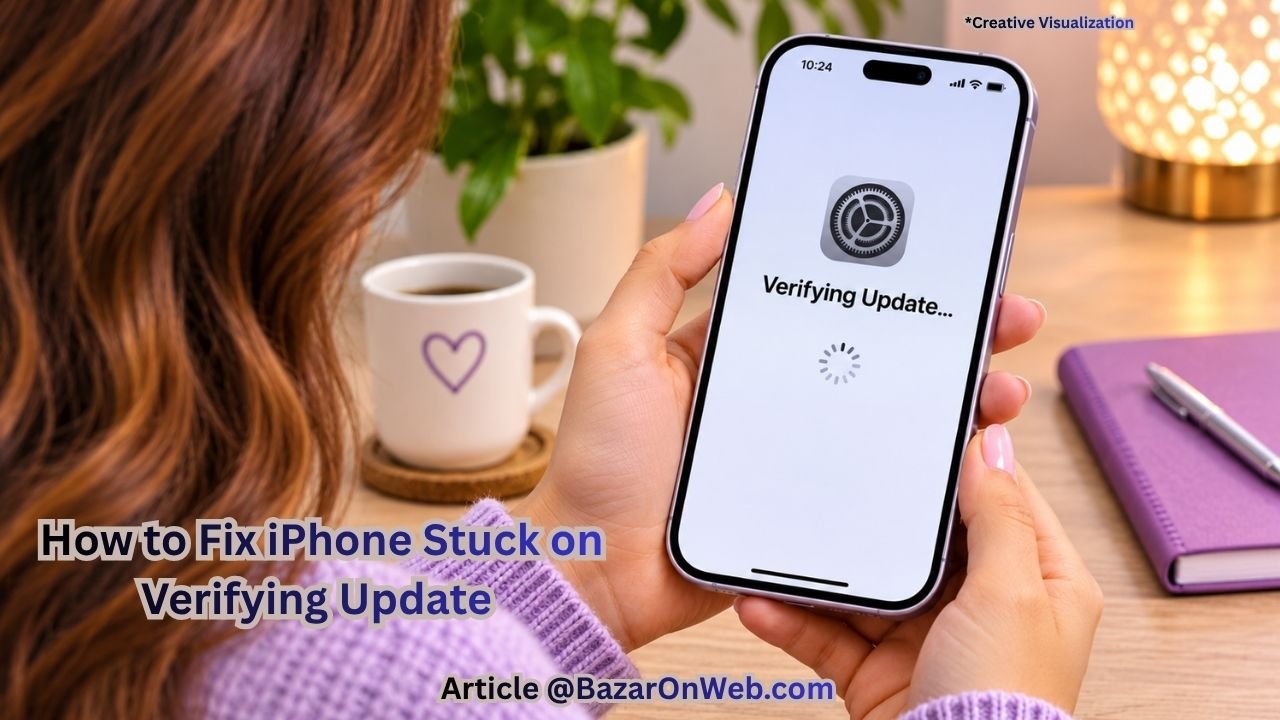
Updating your iPhone is usually a straightforward process. You open Settings, download the latest iOS update, and let your device install it. However, sometimes things don’t go as planned.
One common problem iPhone users encounter is getting stuck on the Verifying Update screen. Your iPhone downloads the update, prepares it for installation, and then displays a message saying that it is verifying the update. Unfortunately, the process doesn’t move forward.
Usually, the Verifying Update process takes a few seconds or minutes to complete. However, if it continues for an unusually long time, your iPhone could be stuck.
This can happen for several reasons, including unstable internet connectivity, insufficient storage space, temporary software glitches, corrupted update files, or problems communicating with Apple’s servers.
The good news is that you don’t necessarily need to visit an Apple service centre to resolve this problem. There are several troubleshooting methods you can try yourself.
In this guide, I’ll walk you through different ways to fix an iPhone stuck on Verifying Update and help you complete the iOS installation.
Here you can check Apple security releases https://support.apple.com/en-us/100100
Why Is My iPhone Stuck on Verifying Update?
Before trying the solutions, it helps to understand why your iPhone might be experiencing this problem.
When you download an iOS update, your iPhone doesn’t immediately install it. It first checks the downloaded update package to ensure that it is valid and ready for installation.
If something interrupts this verification process, your device might remain on the same screen.
Here are some common reasons:
- Unstable internet connection: Your iPhone might have difficulty communicating with Apple’s servers.
- Apple server problems: Temporary server outages or heavy traffic can affect the update verification process.
- Insufficient storage: Your iPhone might not have enough available space to prepare and install the update.
- Corrupted update files: An incomplete or damaged update download can prevent verification.
- Software glitches: Temporary iOS bugs can interfere with the update process.
- VPN or network restrictions: Certain network configurations may prevent your iPhone from communicating properly with Apple’s servers.
Now that you understand the possible causes, let’s look at the solutions.
How to Fix iPhone Stuck on Verifying Update
If your iPhone has been displaying Verifying Update for an unusually long time, try the following methods.
1. Wait for the Verification Process to Complete
The first thing you should do is give your iPhone some time.
Sometimes, the verification process takes longer than expected, particularly when installing a major iOS update. This can happen when Apple’s servers are experiencing heavy traffic or your internet connection is slow.
If you have just started the update, avoid immediately restarting your iPhone or interrupting the installation.
Here’s what you should do:
- Keep your iPhone connected to a stable Wi-Fi network.
- Connect your device to a charger.
- Leave the iPhone on the Verifying Update screen.
- Give it some time to complete the process.
If the screen remains unchanged for an unusually long period, you can proceed with the troubleshooting methods below.
Avoid waiting indefinitely if the verification process clearly appears frozen.
2. Check Your Internet Connection
An unstable internet connection is another possible reason your iPhone might get stuck on Verifying Update.
Although your iPhone has already downloaded the update, it may still need to communicate with Apple’s servers during verification.
If your Wi-Fi connection keeps disconnecting or has a weak signal, the process might not complete successfully.
To check your internet connection:
- Open Settings on your iPhone.
- Tap Wi-Fi.
- Check whether your iPhone is connected to a working network.
- If the connection is unstable, disconnect and reconnect to Wi-Fi.
- If possible, try another reliable Wi-Fi network.
You can also restart your Wi-Fi router if other devices are experiencing connectivity problems.
If you are using a VPN, temporarily disconnect it and try again.
Once your internet connection is stable, check whether the verification process continues.
3. Force Restart Your iPhone
If your iPhone remains stuck on Verifying Update, a force restart can help resolve temporary software glitches.
Unlike a normal restart, a force restart uses the physical buttons to restart an unresponsive iPhone.
The button combination depends on your iPhone model.
For iPhone 8 and newer models, including iPhone SE (2nd generation and newer):
- Quickly press and release the Volume Up button.
- Quickly press and release the Volume Down button.
- Press and hold the Side button.
- Keep holding it until the Apple logo appears.
- Release the button and allow your iPhone to restart.
For iPhone 7 and iPhone 7 Plus:
- Press and hold the Volume Down and Side buttons together.
- Keep holding both buttons until the Apple logo appears.
- Release the buttons.
For iPhone 6s, iPhone 6s Plus, and iPhone SE (1st generation):
- Press and hold the Home and Side or Top buttons together.
- Continue holding them until the Apple logo appears.
- Release the buttons.
Once your iPhone restarts, check whether the update has completed.
If it hasn’t, open Settings and see whether the update is still available.
Important: A force restart does not erase your personal data. However, avoid forcing a restart while an iOS installation is actively progressing with an Apple logo and progress bar.
4. Check Available Storage Space
Insufficient storage is another possible reason an iPhone update might fail.
Your iPhone needs enough free space to download, prepare, and install an iOS update. If storage is almost full, the installation process might encounter problems.
Here’s how to check your available storage:
- Open Settings.
- Tap General.
- Select iPhone Storage.
- Wait for the storage information to load.
- Check how much available space remains.
If your iPhone is running low on storage, consider removing unnecessary files.
You can try the following:
- Delete applications you no longer use.
- Remove downloaded videos and music.
- Delete large attachments from Messages.
- Transfer unnecessary photos and videos to another storage location.
- Clear downloaded files from applications that support this option.
You can also enable Offload Unused Apps from iPhone Storage recommendations.
This removes an application’s installation while keeping its documents and data.
Once you have freed up some space, restart the update process if necessary.
5. Delete the Downloaded iOS Update and Download It Again
Sometimes, the downloaded iOS update file becomes corrupted or incomplete.
If this happens, your iPhone might fail to verify the update even when your internet connection is working correctly.
One possible solution is to delete the downloaded update and download it again.
Follow these steps:
- Open Settings.
- Tap General.
- Select iPhone Storage.
- Scroll through the list and look for the downloaded iOS update.
- Tap the iOS update entry.
- Select Delete Update.
- Confirm your selection.
After deleting the update, download it again.
To do this:
- Return to Settings.
- Tap General.
- Select Software Update.
- Wait for your iPhone to check for available updates.
- Tap Download and Install.
Make sure your iPhone is connected to Wi-Fi and has sufficient battery power or is connected to a charger.
This method can help when the original update file was damaged during downloading.
6. Turn Off VPN and Other Network Restrictions
If you are using a VPN on your iPhone, it might interfere with communication between your device and Apple’s update servers.
This doesn’t happen with every VPN service, but certain network configurations can prevent the verification process from completing.
To temporarily disconnect a VPN:
- Open Settings.
- Tap General.
- Select VPN & Device Management.
- Open VPN if the option is available.
- Disconnect your active VPN connection.
You can also check whether your Wi-Fi network uses content filters or other restrictions that might interfere with Apple’s services.
Once disconnected, try checking for the update again.
If the VPN is managed by your workplace or school, consult the network administrator before changing its configuration.
7. Reset Network Settings
If your internet connection appears normal but your iPhone continues getting stuck on Verifying Update, resetting network settings is another option.
Sometimes, incorrect network configurations or corrupted connection settings can interfere with internet communication.
Resetting network settings restores the network-related settings to their defaults.
Here’s how:
- Open Settings.
- Tap General.
- Scroll down and select Transfer or Reset iPhone.
- Tap Reset.
- Select Reset Network Settings.
- Enter your passcode if requested.
- Confirm your selection.
Your iPhone will restart after resetting the network settings.
Once it turns on, reconnect to your Wi-Fi network and try the software update again.
Important: Resetting network settings does not delete your photos, applications, or personal files. However, it removes saved Wi-Fi passwords and resets cellular, VPN, and related network configurations.
Make sure you have access to your Wi-Fi password before proceeding.
8. Update Your iPhone Using a Computer
If none of the previous methods works, you can try installing the iOS update using a computer.
This is particularly useful when your iPhone cannot complete the update process directly through Settings.
You can use a Mac or a Windows computer.
On a Mac:
- Connect your iPhone to your Mac using a compatible USB cable.
- Open Finder.
- Select your iPhone from the sidebar.
- If prompted, trust the computer on your iPhone.
- Open the General section.
- Click Check for Update.
- If an update is available, select Update.
On Windows:
- Connect your iPhone to your Windows computer.
- Open the Apple Devices application. If you use an older setup, you can use iTunes.
- Select your iPhone.
- Open the General or Summary section, depending on the application.
- Select Check for Update.
- Choose Update if a newer iOS version is available.
Allow the computer to complete the update process.
Make sure you select Update rather than Restore. Restoring your iPhone can erase its data.
It is also a good idea to create a backup before attempting an update through a computer.
What If Your iPhone Is Still Stuck on Verifying Update?
If you have tried all the methods above and your iPhone still cannot complete the verification process, there might be a deeper software or hardware issue.
Before considering more advanced troubleshooting, check whether Apple’s update services are experiencing an outage.
If Apple’s servers are temporarily unavailable, waiting and trying again later might be the only practical solution.
You should also consider contacting Apple Support if:
- Your iPhone repeatedly fails to install available updates.
- The device becomes unresponsive during the installation process.
- You cannot restart your iPhone normally.
- Your iPhone displays repeated software installation errors.
- The device continues experiencing problems after updating through a computer.
Avoid attempting a factory reset unless you have exhausted the simpler options and created a backup of your important data.
Conclusion
An iPhone stuck on Verifying Update can be frustrating, particularly when you are trying to install the latest iOS version. However, the problem is often related to temporary software glitches, network connectivity, insufficient storage, or an incomplete update file.
Start by waiting for the verification process, checking your internet connection, and force restarting your iPhone if it is unresponsive. If the problem continues, try deleting the downloaded update, resetting network settings, or installing the update through a computer.
In most cases, these troubleshooting methods can help you get past the Verifying Update screen without losing your personal data.
Disclaimer: The troubleshooting methods in this article are intended for general iPhone software issues. Always back up your important data before performing advanced troubleshooting or restoring your device.




Products
-
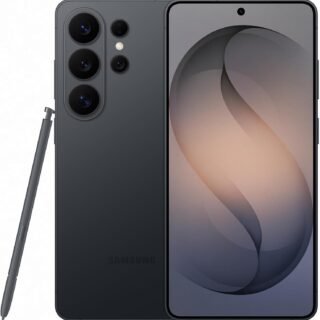 Samsung Galaxy S26 Ultra Unlocked Android Smartphone, 256GB, Black, Privacy Display, 200MP Camera, 5000mAh Battery, US 1 Year Warranty
-
 Apple Watch Ultra 3 [GPS + Cellular 49mm] Running & Multisport Smartwatch w/Rugged Titanium Case w/Black Titanium Milanese Loop - M. Satellite Communications, Advanced Health & Fitness Tracking
-
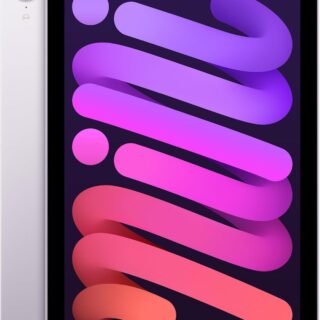 Apple iPad mini (A17 Pro): Apple Intelligence, 8.3-inch Liquid Retina Display, 256GB, Wi-Fi 6E, 12MP Front/12MP Back Camera, Touch ID, All-Day Battery Life — Purple
-
 Apple AirPods Max Wireless Over-Ear Headphones, Active Noise Cancelling, Transparency Mode, Personalized Spatial Audio, Dolby Atmos, Bluetooth Headphones for iPhone – Space Gray
-
 Apple AirPods Pro 2 Wireless Earbuds, Active Noise Cancellation, Hearing Aid Feature, Bluetooth Headphones, Transparency, Personalized Spatial Audio, High-Fidelity Sound, H2 Chip, USB-C Charging
Leave a Reply