Discounted Products
-
 Home Garage 210 TC Cotton King Floral Fitted (Elastic) Bedsheet(Pack of 1, Grey)
Original price was: ₹999.00.₹299.00Current price is: ₹299.00.
-
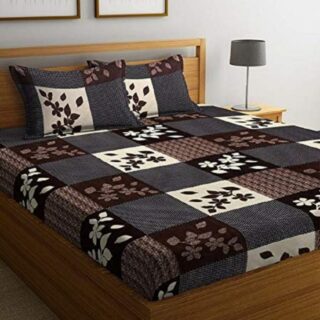 Goodrik 140 TC Cotton Double 3D Printed Flat Bedsheet(Pack of 1, Brown)
Original price was: ₹499.00.₹229.00Current price is: ₹229.00.
-
 GLOBALSHOP 350 TC Microfiber Double Floral Flat Bedsheet(Pack of 1, Multicolor)
Original price was: ₹1,250.00.₹263.00Current price is: ₹263.00.
-
 RisingStar 250 TC Microfiber King Printed Fitted (Elastic) Bedsheet(Pack of 1, FITTED-ROUND-CIRCLES-PREMIUM)
Original price was: ₹2,299.00.₹299.00Current price is: ₹299.00.
-
 Home Garage 210 TC Cotton King Floral Fitted (Elastic) Bedsheet(Pack of 1, Fitted Black Green)
Original price was: ₹1,299.00.₹299.00Current price is: ₹299.00.
-
 Home Garage 180 TC Cotton King 3D Printed Flat Bedsheet(Pack of 1, White)
Original price was: ₹999.00.₹229.00Current price is: ₹229.00.
-
 Panipat Textile Hub 152.4 cm (5 ft) Polyester Window Curtain (Pack Of 2)(Solid, Aqua)
Original price was: ₹1,899.00.₹299.00Current price is: ₹299.00.
-
 Home Sizzler 214 cm (7 ft) Polyester Semi Transparent Door Curtain (Pack Of 2)(Floral, Maroon)
Original price was: ₹1,199.00.₹399.00Current price is: ₹399.00.
-
 Home Sizzler 153 cm (5 ft) Polyester Room Darkening Window Curtain (Pack Of 2)(Floral, Brown)
Original price was: ₹799.00.₹299.00Current price is: ₹299.00.
-
 Stella Creations 214 cm (7 ft) Polyester Room Darkening Door Curtain (Pack Of 2)(Abstract, Brown)
Original price was: ₹1,299.00.₹449.00Current price is: ₹449.00.
-
 Homefab India 152.5 cm (5 ft) Polyester Room Darkening Window Curtain (Pack Of 2)(Floral, Light Blue)
Original price was: ₹1,199.00.₹319.00Current price is: ₹319.00.
-
 Urban Home 214 cm (7 ft) PVC Transparent Door Curtain Single Curtain(Solid, Off White)
Original price was: ₹699.00.₹203.00Current price is: ₹203.00.
-
 Panipat Textile Hub 213 cm (7 ft) Polyester Door Curtain (Pack Of 2)(Solid, Brown)
Original price was: ₹1,199.00.₹349.00Current price is: ₹349.00.
-
 Home Sizzler 214 cm (7 ft) Polyester Semi Transparent Door Curtain (Pack Of 2)(Floral, Brown)
Original price was: ₹999.00.₹349.00Current price is: ₹349.00.
-
 Panipat Textile Hub 213 cm (7 ft) Polyester Semi Transparent Door Curtain (Pack Of 2)(Floral, Brown)
Original price was: ₹899.00.₹299.00Current price is: ₹299.00.
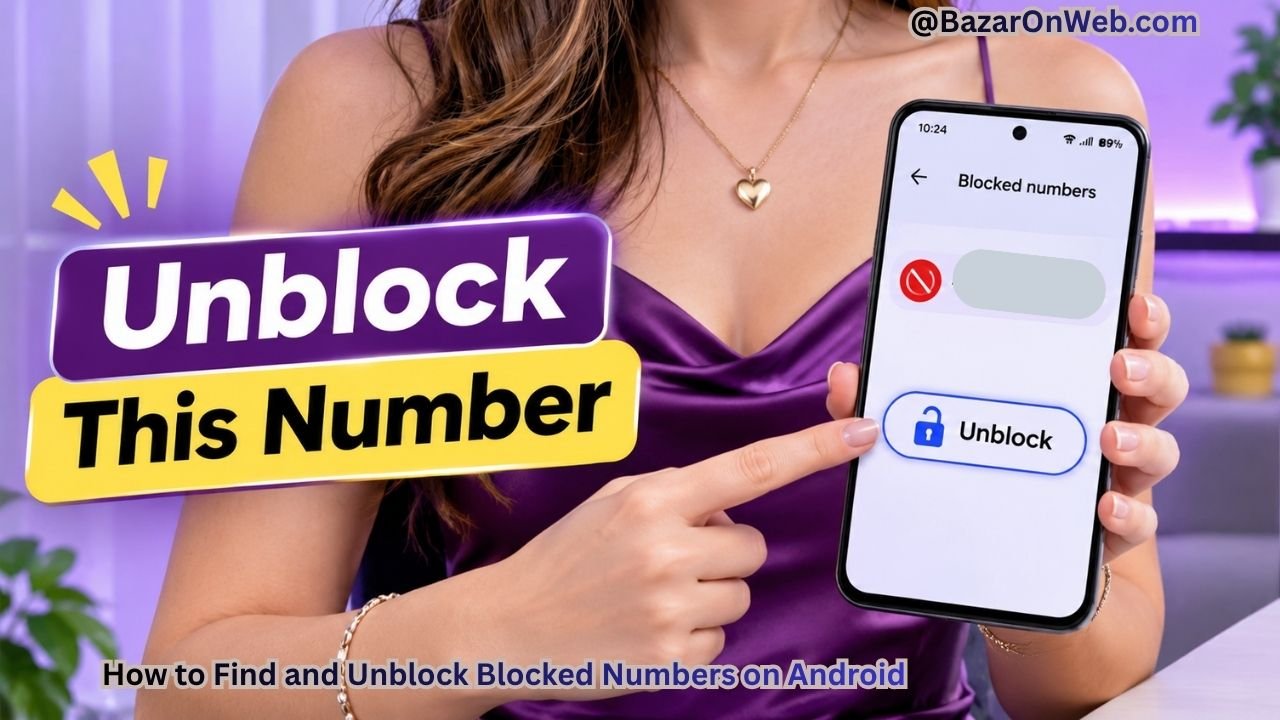
Blocking unwanted phone numbers on Android is an easy way to avoid spam calls, unwanted messages, and disturbances from unknown callers. However, there may come a time when you accidentally block someone or want to start receiving calls from a previously blocked contact again.
The good news is that Android gives you several ways to unblock a phone number. You can use the default Phone app, Google Contacts, or your device’s built-in contact management settings, depending on the smartphone you are using.
Once you unblock a number, the person will be able to call you again, provided there are no other call restrictions in place. However, the exact steps may vary slightly depending on your Android version and smartphone manufacturer.
In this guide, I’ll walk you through different ways to unblock a phone number on Android.
Method 1: Unblock a Phone Number Using the Phone App
The easiest way to unblock a phone number on Android is through the Phone app. Most Android smartphones, including Google Pixel and many Motorola devices, use Google’s Phone app as their default calling application.
If you previously blocked someone using the Phone app, you can remove that number from your blocklist by following these steps.
- Open the Phone app on your Android smartphone.
- Tap the three-dot menu in the upper-right corner.
- Select Settings from the available options.
- Look for the Blocked numbers or Blocked numbers and spam option.
- You will now see a list of phone numbers you have previously blocked.
- Find the phone number you want to unblock.
- Tap the X, minus icon, or Unblock option next to that number.
- Confirm your selection if prompted.
That’s it! The selected phone number will be removed from your blocked list.
The person associated with that number can now call you again. If you have blocked multiple numbers, you can repeat the same process for each one.
Note: The appearance of the Phone app may differ depending on your Android version. Some devices display a dedicated Unblock button, while others use a cross or remove icon.
Method 2: Unblock a Phone Number Using Google Contacts
If you use Google Contacts to manage your saved phone numbers, you can also unblock a contact through the application.
Google Contacts makes it easier to manage your saved contacts, including people whose numbers you have previously blocked.
Here’s how to do it:
- Open the Google Contacts app on your Android phone.
- Make sure you are using the correct Google account if you have multiple accounts.
- Tap the Organize option at the bottom of the screen, if available.
- Look for the Blocked numbers or blocked contacts section.
- Find the contact or phone number you want to unblock.
- Select the number or contact.
- Tap the Unblock option.
- Confirm your action if necessary.
Once you complete these steps, the contact will no longer be blocked through that feature.
If you don’t see the Blocked numbers option in Google Contacts, don’t worry. The available options depend on your app version. You can use the Phone app method explained earlier instead.
Method 3: Unblock a Number on Samsung Galaxy Phones
Samsung Galaxy smartphones use Samsung’s Phone app, which has a slightly different interface from Google’s Phone app.
If you own a Samsung Galaxy smartphone, you can manage blocked numbers directly through its calling settings.
Follow these steps:
- Open the Phone app on your Samsung Galaxy device.
- Tap the three-dot menu in the upper-right corner.
- Select Settings.
- Tap Block numbers.
- You will see a list of phone numbers that you have blocked.
- Find the number you want to unblock.
- Tap the minus (-) icon next to the phone number.
The selected number will immediately be removed from your blocked list.
Samsung also provides additional options for blocking unknown or private numbers.
If you previously enabled the option to block calls from unknown or private numbers, check that setting as well. Otherwise, removing an individual number from your blocklist may not resolve every incoming call restriction.
Method 4: Unblock a Number From Your Recent Calls List
Another convenient way to unblock someone on Android is through your recent call history.
This method is particularly useful when you remember the person’s recent call but don’t want to search through a long list of blocked numbers.
Here’s what you need to do:
- Open the Phone app on your Android smartphone.
- Navigate to the Recents or Call History section.
- Find the phone number you previously blocked.
- Tap the number or contact name.
- Open the contact details or call information.
- Look for an option such as Unblock number or Unblock.
- Tap the option to remove the number from your blocklist.
If the number is still blocked, your phone may display a blocked label or an option to unblock it.
However, this method isn’t available on every Android smartphone. If you cannot find the option, use the Blocked numbers section in your Phone app settings.
Method 5: Unblock a Contact From the Contacts App on Samsung
Samsung Galaxy users can also check their saved contacts when managing blocked numbers.
If you blocked someone from their contact profile, you may be able to manage the restriction through the Phone app’s contact information.
Follow these steps:
- Open the Contacts app on your Samsung smartphone.
- Search for the contact you want to unblock.
- Open their contact profile.
- Tap the three-dot menu.
- Check whether an option to unblock the contact is available.
- If available, select Unblock and confirm your action.
If you don’t see an unblock option, open the Samsung Phone app and navigate to Settings → Block numbers.
This is generally the most reliable place to manage numbers blocked through Samsung’s calling feature.
What Happens When You Unblock a Phone Number on Android?
Unblocking a phone number allows the person to contact you again through normal calls, provided no other blocking or filtering feature is preventing their calls.
However, there are a few important things to understand.
- Incoming calls: The unblocked person can call your phone number again.
- Missed calls: You won’t automatically receive notifications for calls they made while their number was blocked.
- Text messages: Unblocking a number does not necessarily restore messages that were sent while the number was blocked.
- Saved contacts: Unblocking someone does not delete their saved contact information.
- Call history: Previously recorded calls may remain in your call history, depending on your Phone app.
One important thing to keep in mind is that unblocking a phone number does not guarantee that every call or message will reach you. Spam protection, carrier restrictions, or other blocking applications may still prevent communication.
Troubleshooting: Can’t Unblock a Phone Number on Android?
Sometimes, you may not find the unblock option or may continue experiencing problems even after removing a number from your blocklist.
Here are a few things you can try.
1. Check the Correct Phone App
Some Android smartphones come with Google Phone, while others use manufacturer-specific calling applications.
If you blocked a number using Samsung Phone, for example, check its blocked numbers list rather than relying entirely on Google Contacts.
2. Check for Third-Party Call Blocking Apps
If you use applications such as Truecaller or other call management tools, the number may also be blocked within those applications.
Open the relevant application and check its blocklist.
3. Check Spam Protection Settings
Your Android phone may automatically identify and filter suspected spam calls.
Open your Phone app settings and review the caller ID and spam protection options. If a legitimate number is being incorrectly filtered, adjust the relevant settings.
4. Restart Your Smartphone
If you have successfully unblocked a number but are still experiencing calling issues, restart your Android smartphone.
This can help refresh the Phone app and resolve temporary software glitches.
5. Update Your Phone and Contacts Apps
An outdated Phone or Contacts app may have a different interface or experience unexpected issues.
Open the Google Play Store, search for your Phone or Contacts app, and install any available updates.
Final Words
Unblocking a phone number on Android is a straightforward process. You can remove blocked numbers through the Phone app, Google Contacts, or Samsung’s built-in calling settings.
If you use a Google Pixel or another Android smartphone with Google’s Phone app, the Blocked numbers section is usually the easiest option. Samsung Galaxy users can manage their blocked numbers directly through the Samsung Phone app.
Just remember that unblocking a number allows the person to contact you again, but it does not recover calls or messages that were blocked previously.
Disclaimer: The steps mentioned in this article may vary depending on your Android version, smartphone manufacturer, and installed Phone or Contacts app.

- How to Find and Unblock Blocked Numbers on Android

- How to Back Up Windows 11: Every Method You Should Know

- Windows 11 Keeps Showing a Virus Protection Warning? Here’s How to Get Rid of It

- How to Disable Visual Effects in Windows 11 to Improve Performance

- How to Record Conversations and Automatically Convert Them into Text on iPhone
Products
-
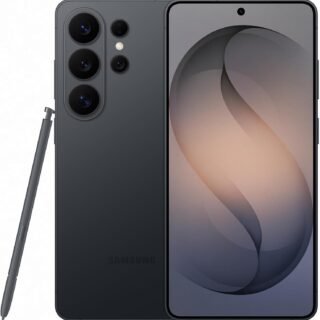 Samsung Galaxy S26 Ultra Unlocked Android Smartphone, 256GB, Black, Privacy Display, 200MP Camera, 5000mAh Battery, US 1 Year Warranty
-
 Apple Watch Ultra 3 [GPS + Cellular 49mm] Running & Multisport Smartwatch w/Rugged Titanium Case w/Black Titanium Milanese Loop - M. Satellite Communications, Advanced Health & Fitness Tracking
-
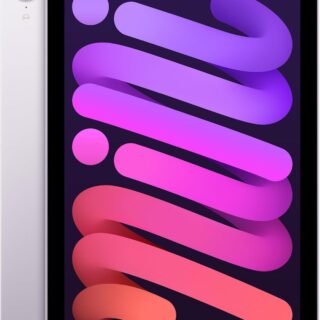 Apple iPad mini (A17 Pro): Apple Intelligence, 8.3-inch Liquid Retina Display, 256GB, Wi-Fi 6E, 12MP Front/12MP Back Camera, Touch ID, All-Day Battery Life — Purple
-
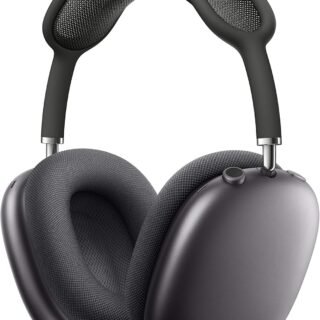 Apple AirPods Max Wireless Over-Ear Headphones, Active Noise Cancelling, Transparency Mode, Personalized Spatial Audio, Dolby Atmos, Bluetooth Headphones for iPhone – Space Gray
-
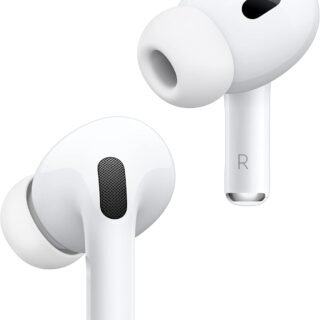 Apple AirPods Pro 2 Wireless Earbuds, Active Noise Cancellation, Hearing Aid Feature, Bluetooth Headphones, Transparency, Personalized Spatial Audio, High-Fidelity Sound, H2 Chip, USB-C Charging
Leave a Reply