Discounted Products
-
 Home Garage 210 TC Cotton King Floral Fitted (Elastic) Bedsheet(Pack of 1, Grey)
Original price was: ₹999.00.₹299.00Current price is: ₹299.00.
-
 Goodrik 140 TC Cotton Double 3D Printed Flat Bedsheet(Pack of 1, Brown)
Original price was: ₹499.00.₹229.00Current price is: ₹229.00.
-
 GLOBALSHOP 350 TC Microfiber Double Floral Flat Bedsheet(Pack of 1, Multicolor)
Original price was: ₹1,250.00.₹263.00Current price is: ₹263.00.
-
 RisingStar 250 TC Microfiber King Printed Fitted (Elastic) Bedsheet(Pack of 1, FITTED-ROUND-CIRCLES-PREMIUM)
Original price was: ₹2,299.00.₹299.00Current price is: ₹299.00.
-
 Home Garage 210 TC Cotton King Floral Fitted (Elastic) Bedsheet(Pack of 1, Fitted Black Green)
Original price was: ₹1,299.00.₹299.00Current price is: ₹299.00.
-
 Home Garage 180 TC Cotton King 3D Printed Flat Bedsheet(Pack of 1, White)
Original price was: ₹999.00.₹229.00Current price is: ₹229.00.
-
 Panipat Textile Hub 152.4 cm (5 ft) Polyester Window Curtain (Pack Of 2)(Solid, Aqua)
Original price was: ₹1,899.00.₹299.00Current price is: ₹299.00.
-
 Home Sizzler 214 cm (7 ft) Polyester Semi Transparent Door Curtain (Pack Of 2)(Floral, Maroon)
Original price was: ₹1,199.00.₹399.00Current price is: ₹399.00.
-
 Home Sizzler 153 cm (5 ft) Polyester Room Darkening Window Curtain (Pack Of 2)(Floral, Brown)
Original price was: ₹799.00.₹299.00Current price is: ₹299.00.
-
 Stella Creations 214 cm (7 ft) Polyester Room Darkening Door Curtain (Pack Of 2)(Abstract, Brown)
Original price was: ₹1,299.00.₹449.00Current price is: ₹449.00.
-
 Homefab India 152.5 cm (5 ft) Polyester Room Darkening Window Curtain (Pack Of 2)(Floral, Light Blue)
Original price was: ₹1,199.00.₹319.00Current price is: ₹319.00.
-
 Urban Home 214 cm (7 ft) PVC Transparent Door Curtain Single Curtain(Solid, Off White)
Original price was: ₹699.00.₹203.00Current price is: ₹203.00.
-
 Panipat Textile Hub 213 cm (7 ft) Polyester Door Curtain (Pack Of 2)(Solid, Brown)
Original price was: ₹1,199.00.₹349.00Current price is: ₹349.00.
-
 Home Sizzler 214 cm (7 ft) Polyester Semi Transparent Door Curtain (Pack Of 2)(Floral, Brown)
Original price was: ₹999.00.₹349.00Current price is: ₹349.00.
-
 Panipat Textile Hub 213 cm (7 ft) Polyester Semi Transparent Door Curtain (Pack Of 2)(Floral, Brown)
Original price was: ₹899.00.₹299.00Current price is: ₹299.00.
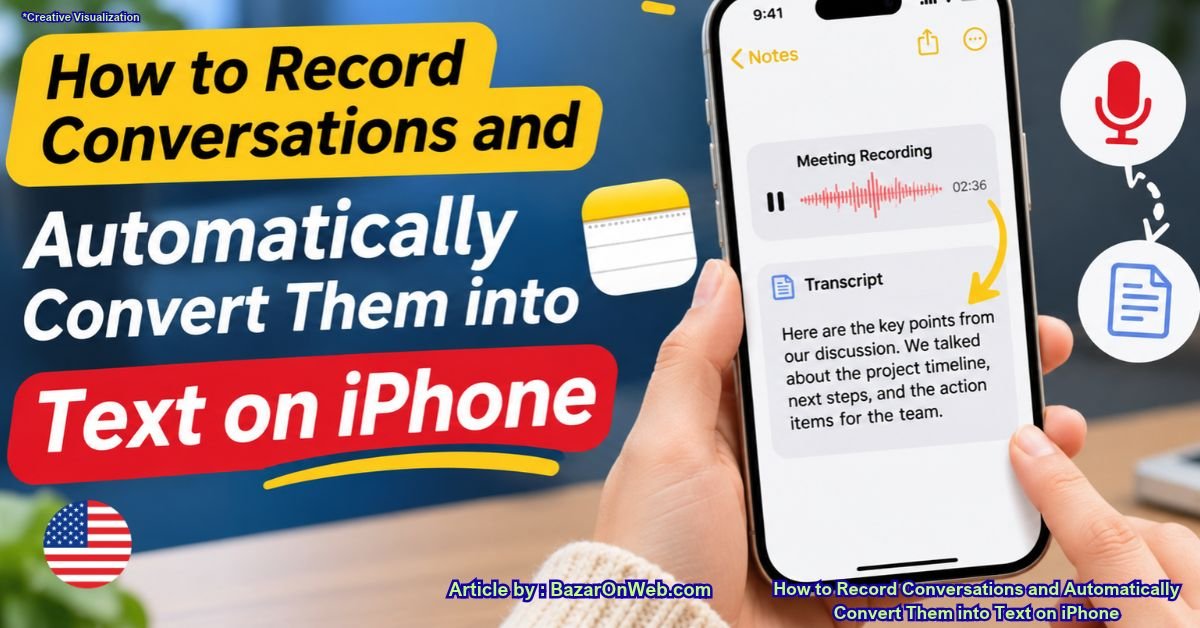
Have you ever attended an important meeting, listened to a lecture, or had a conversation that you wanted to save for later? Writing everything down while listening can be difficult. You might miss important details, forget a few points, or simply find it inconvenient to type while someone is speaking.
The good news is that your iPhone has a useful feature that can make this process much easier. With the built-in Notes app, you can record audio and automatically convert spoken words into written text. This feature is called Audio Transcription, and it can save you considerable time when capturing important information.
Instead of manually typing everything you hear, you can start an audio recording and let your iPhone generate a text transcript. You can then review the conversation, copy important information, and keep everything saved inside your Notes app.
Whether you are a student recording classroom discussions, a professional attending business meetings, or someone who wants to remember everyday conversations, this feature can be extremely useful.
In this guide, I’ll explain how to use live audio transcription on an iPhone, which devices support it, how to check language compatibility, and what to do if the transcription option is missing.
What Is Live Audio Transcription on iPhone?
Live Audio Transcription is a feature available in Apple’s Notes app that converts spoken words into written text while recording audio.
In simple terms, your iPhone listens to the recorded audio and automatically generates a text version of what is being said.
For example, imagine that you are attending a 30-minute business meeting. Instead of writing down every important point, you can open Notes, start recording, and let your iPhone create a transcript.
Once the recording is complete, you can access the generated text directly inside your note.
Here are some practical ways to use this feature:
-
Business meetings: Record discussions and keep a written record of important points.
-
Classroom lectures: Capture explanations from teachers and instructors.
-
Interviews: Save conversations and review answers later.
-
Personal notes: Record your thoughts and convert them into written information.
-
Research: Capture spoken information during discussions and brainstorming sessions.
-
Daily reminders: Record ideas when typing is inconvenient.
One important thing to understand is that audio recording and transcription are connected but separate outputs. You can keep the original recording and use the generated transcript to find information more easily.
Which iPhones Support Audio Transcription?
Before getting started, you should check whether your iPhone supports this feature.
Apple makes Notes audio transcription available on iPhone 12 and later models, provided the device is running a compatible version of iOS.
Some of the supported iPhone generations include:
-
iPhone 12, 12 mini, 12 Pro, and 12 Pro Max
-
iPhone 13 series
-
iPhone 14 series
-
iPhone 15 series
-
iPhone 16 series
-
iPhone 17 series
-
Newer compatible iPhone models
You should also make sure that your iPhone is updated to an iOS version that supports audio transcription.
There is another important requirement: language compatibility.
Even if you own a supported iPhone, you might not see the transcription feature if your device is configured to use an unsupported language.
Which Languages Are Supported?
Apple supports Audio Transcription in selected English language variants.
The supported languages include:
-
English (Australia)
-
English (Canada)
-
English (Ireland)
-
English (New Zealand)
-
English (South Africa)
-
English (UK)
-
English (U.S.)
This means that users who have configured their iPhones for one of these English language variants can use the feature, provided their device and software meet the other requirements.
For example, if your iPhone uses English (Australia), you can use the Notes app to record audio and generate a transcript.
However, if your device is configured for a language that is not supported, the transcription option may not appear.
In that situation, you may need to change your iPhone’s language and region settings to a supported configuration.
How to Enable Audio Transcription on iPhone
Once you have confirmed that your iPhone is compatible, you can start using the feature. You don’t need to download a third-party application because everything is available through Apple’s built-in Notes app.
Here’s how to do it.
Step 1: Open the Notes App
-
Unlock your iPhone.
-
Find and open the Notes app.
-
Open an existing note or tap the New Note button to create one.
-
Make sure you are using a note where you want to save the audio recording.
You can create a separate note for every meeting, interview, or lecture to keep your recordings organized.
Step 2: Select the Audio Recording Option
After opening a note, look for the Attachments button in the toolbar.
-
Tap the Attachments button.
-
Select Record Audio from the available options.
-
Your iPhone will open the audio recording interface.
Depending on your iOS version, the toolbar arrangement and appearance may look slightly different.
Step 3: Start Recording Your Conversation
Now you are ready to record.
-
Tap the Record button to start recording.
-
Place your iPhone somewhere it can capture the speaker’s voice clearly.
-
Allow the recording to continue while the conversation takes place.
Your iPhone will automatically process spoken words in supported languages.
You can also pause the recording whenever necessary and resume it later. This is particularly useful during longer meetings or classroom sessions.
Step 4: View the Live Audio Transcript
This is the most useful part of the feature.
While recording, tap the Transcription button to view the generated text. Your iPhone will display the recognized spoken words on the screen.
You can continue recording while checking the transcript.
For example, if someone is explaining a particular topic during a meeting, you can see the recognized words instead of relying entirely on your memory.
There is also a useful option for taking additional notes while recording. You can swipe down from the top of the screen to access the note and continue writing while the audio recording runs.
Step 5: Stop and Save the Recording
Once your conversation or meeting is finished, you can stop the recording.
-
Tap the Pause button.
-
Tap Done to finish the recording.
-
Your audio recording will be saved inside the current note.
-
You can return to the note whenever you want to access the recording.
Your transcript will remain associated with the audio recording, making it easier to review the conversation later.
How to View and Copy the Audio Transcript
Recording the conversation is only half the job. The real advantage is being able to access the written transcript whenever you need it.
Fortunately, Apple provides options to review, search, and copy the generated text.
Step 1: Open the Saved Recording
Open the Notes app and navigate to the note containing your audio recording.
Tap the saved recording to open its playback interface.
Step 2: Open the Transcript
Look for the Transcription button in the recording interface.
Tap it to view the generated text.
You can read through the conversation and check whether the important points have been captured correctly.
Step 3: Copy the Transcript
If you want to use the transcript somewhere else, follow these steps:
-
Open the transcript.
-
Tap the More button.
-
Select Copy Transcript to copy the entire text.
-
Alternatively, select Add Transcript to Note to insert the transcript directly into your note.
You can then paste the copied text into an email, document, message, or another application.
This is particularly helpful for people who regularly prepare meeting reports, study notes, or interview summaries.
Step 4: Search for Specific Words
Imagine that you have recorded a one-hour meeting and want to find a particular discussion.
Instead of listening to the entire recording again, you can use the transcript search feature.
-
Open the saved audio recording.
-
Open its transcript.
-
Tap the More button.
-
Select Find in Transcript.
-
Enter the word or phrase you want to locate.
Your iPhone can help you find the relevant section without requiring you to replay the entire conversation.
You can also tap a particular section of the transcript to play the corresponding part of the audio. This makes it easier to verify what someone actually said.
How to Change Language and Region Settings on iPhone
What if you have an iPhone 13, iPhone 14, or another supported model but cannot find the Audio Transcription option?
One possible reason is that your iPhone is configured to use a language that is not supported by your installed iOS version.
You can check your language settings by following these instructions.
-
Open the Settings app.
-
Scroll down and tap General.
-
Select Language & Region.
-
Check the language currently selected on your iPhone.
-
If necessary, add or select a supported English language variant, such as English (U.S.) or English (Australia).
After changing the language, return to the Notes app and check whether the transcription option is available.
Do you also need to change your region?
Not necessarily. Language and region are separate settings on an iPhone. Start by checking the device language and Apple’s current language availability requirements. Changing your region should not be treated as a universal requirement for audio transcription.
Also, keep in mind that changing your iPhone’s language affects the system interface, so menus and other settings may appear in a different language.
For the latest supported languages, check Apple’s official.
What to Do If Audio Transcription Is Not Working
Sometimes, you may find that your iPhone records audio successfully but does not display the generated transcript.
Here are a few things you can check.
1. Check Your iPhone Model
Audio transcription in Notes requires an iPhone 12 or later. If you are using an older model, the feature may not be available.
2. Check Your iOS Version
Open Settings, select General, and tap Software Update.
If an update is available, install it and check the Notes app again.
3. Check Your Device Language
Make sure your iPhone is configured to use a language supported by your installed iOS version.
Apple has expanded language availability over time. Its current iPhone User Guide lists English, Spanish, Portuguese, Italian, French, German, Japanese, Korean, Simplified Chinese, and Traditional Chinese for Notes audio transcription. Individual language variants and regional availability may differ.
4. Check Microphone Access
If your recording does not capture speech properly, check whether the Notes app has permission to access your microphone.
Go to Settings and check the app’s microphone permissions under Privacy & Security.
Also, make sure that your iPhone microphone is not blocked by a case or other obstruction.
5. Record in a Quiet Environment
Background noise can affect transcription accuracy.
For better results:
-
Keep your iPhone reasonably close to the speaker.
-
Avoid recording in crowded environments.
-
Reduce background music and unnecessary noise.
-
Make sure people speak clearly.
-
Review the transcript before using it professionally.
Is Live Audio Transcription Better Than Manually Taking Notes?
It depends on what you are trying to accomplish.
If you regularly attend meetings, lectures, interviews, or discussions, audio transcription can save considerable time.
Here are some advantages:
-
Saves time: You don’t have to type every sentence manually.
-
Easy reference: You can revisit conversations whenever necessary.
-
Searchable information: Find specific words and discussions inside long recordings.
-
Better organization: Keep audio recordings and transcripts together in Notes.
-
Easy sharing: Copy transcripts into other applications and documents.
However, transcription is not always perfect. Background noise, overlapping conversations, accents, and unfamiliar technical terms can affect the results.
I would recommend reviewing important transcripts before sharing them or using them as official meeting records.
Final Thoughts
Live Audio Transcription is one of those iPhone features that can make everyday tasks considerably easier. Instead of manually writing down everything during a meeting or lecture, you can record the conversation and let your iPhone convert the spoken words into text.
The best part is that you don’t need an additional transcription application. Everything is available directly through Apple’s Notes app.
If you have a compatible iPhone, take a few minutes to try this feature. It can be particularly useful for students, professionals, researchers, and anyone who wants to keep a written record of important conversations.
Disclaimer: Audio transcription availability depends on your iPhone model, iOS version, device language, and regional availability. Transcription accuracy may vary depending on recording quality and speaking conditions. Always obtain appropriate consent before recording other people.

- How to Record Conversations and Automatically Convert Them into Text on iPhone
- How to Add Multiple Email Accounts on Windows 11

- How to Fix Wi-Fi Disconnecting Automatically on Windows 11

- How to Remotely Control Another Computer Using Windows Quick Assist

- 5 Must-Have Electronics Gadgets for a More Comfortable Living Room

Products
-
 Samsung Galaxy S26 Ultra Unlocked Android Smartphone, 256GB, Black, Privacy Display, 200MP Camera, 5000mAh Battery, US 1 Year Warranty
-
 Apple Watch Ultra 3 [GPS + Cellular 49mm] Running & Multisport Smartwatch w/Rugged Titanium Case w/Black Titanium Milanese Loop - M. Satellite Communications, Advanced Health & Fitness Tracking
-
 Apple iPad mini (A17 Pro): Apple Intelligence, 8.3-inch Liquid Retina Display, 256GB, Wi-Fi 6E, 12MP Front/12MP Back Camera, Touch ID, All-Day Battery Life — Purple
-
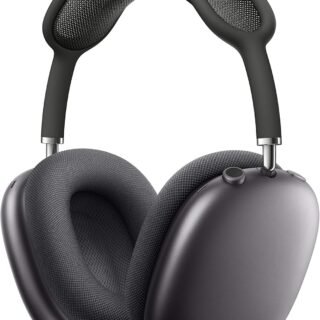 Apple AirPods Max Wireless Over-Ear Headphones, Active Noise Cancelling, Transparency Mode, Personalized Spatial Audio, Dolby Atmos, Bluetooth Headphones for iPhone – Space Gray
-
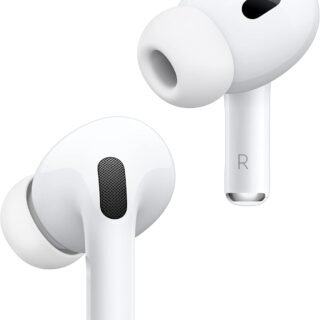 Apple AirPods Pro 2 Wireless Earbuds, Active Noise Cancellation, Hearing Aid Feature, Bluetooth Headphones, Transparency, Personalized Spatial Audio, High-Fidelity Sound, H2 Chip, USB-C Charging
Leave a Reply