Discounted Products
-
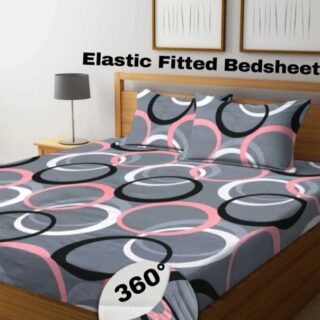 Home Garage 210 TC Cotton King Floral Fitted (Elastic) Bedsheet(Pack of 1, Grey)
Original price was: ₹999.00.₹299.00Current price is: ₹299.00.
-
 Goodrik 140 TC Cotton Double 3D Printed Flat Bedsheet(Pack of 1, Brown)
Original price was: ₹499.00.₹229.00Current price is: ₹229.00.
-
 GLOBALSHOP 350 TC Microfiber Double Floral Flat Bedsheet(Pack of 1, Multicolor)
Original price was: ₹1,250.00.₹263.00Current price is: ₹263.00.
-
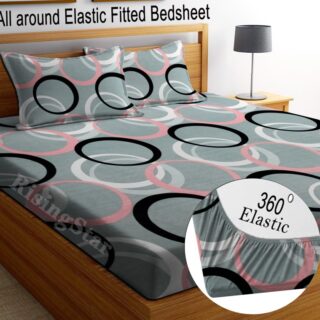 RisingStar 250 TC Microfiber King Printed Fitted (Elastic) Bedsheet(Pack of 1, FITTED-ROUND-CIRCLES-PREMIUM)
Original price was: ₹2,299.00.₹299.00Current price is: ₹299.00.
-
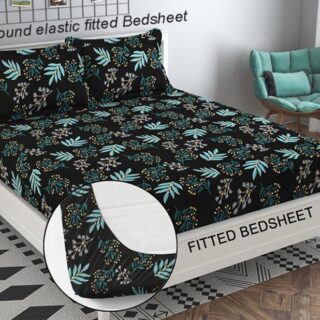 Home Garage 210 TC Cotton King Floral Fitted (Elastic) Bedsheet(Pack of 1, Fitted Black Green)
Original price was: ₹1,299.00.₹299.00Current price is: ₹299.00.
-
 Home Garage 180 TC Cotton King 3D Printed Flat Bedsheet(Pack of 1, White)
Original price was: ₹999.00.₹229.00Current price is: ₹229.00.
-
 Panipat Textile Hub 152.4 cm (5 ft) Polyester Window Curtain (Pack Of 2)(Solid, Aqua)
Original price was: ₹1,899.00.₹299.00Current price is: ₹299.00.
-
 Home Sizzler 214 cm (7 ft) Polyester Semi Transparent Door Curtain (Pack Of 2)(Floral, Maroon)
Original price was: ₹1,199.00.₹399.00Current price is: ₹399.00.
-
 Home Sizzler 153 cm (5 ft) Polyester Room Darkening Window Curtain (Pack Of 2)(Floral, Brown)
Original price was: ₹799.00.₹299.00Current price is: ₹299.00.
-
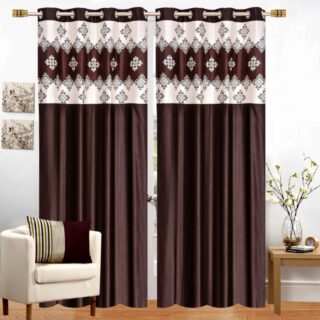 Stella Creations 214 cm (7 ft) Polyester Room Darkening Door Curtain (Pack Of 2)(Abstract, Brown)
Original price was: ₹1,299.00.₹449.00Current price is: ₹449.00.
-
 Homefab India 152.5 cm (5 ft) Polyester Room Darkening Window Curtain (Pack Of 2)(Floral, Light Blue)
Original price was: ₹1,199.00.₹319.00Current price is: ₹319.00.
-
 Urban Home 214 cm (7 ft) PVC Transparent Door Curtain Single Curtain(Solid, Off White)
Original price was: ₹699.00.₹203.00Current price is: ₹203.00.
-
 Panipat Textile Hub 213 cm (7 ft) Polyester Door Curtain (Pack Of 2)(Solid, Brown)
Original price was: ₹1,199.00.₹349.00Current price is: ₹349.00.
-
 Home Sizzler 214 cm (7 ft) Polyester Semi Transparent Door Curtain (Pack Of 2)(Floral, Brown)
Original price was: ₹999.00.₹349.00Current price is: ₹349.00.
-
 Panipat Textile Hub 213 cm (7 ft) Polyester Semi Transparent Door Curtain (Pack Of 2)(Floral, Brown)
Original price was: ₹899.00.₹299.00Current price is: ₹299.00.

Managing multiple email accounts can sometimes become confusing, especially when you use different email addresses for personal communication, work, shopping, and other online activities. Constantly switching between email services to check new messages can waste time and make it easier to miss important emails.
The good news is that Windows 11 makes it easier to manage multiple email accounts from your computer. You can add different email accounts and access them through supported email applications without having to log in and out of individual accounts repeatedly.
Whether you use Gmail, Outlook, Yahoo Mail, or another supported email service, setting up multiple accounts can help keep your digital communication organised.
In this guide, I’ll walk you through how to add multiple email accounts on Windows 11, manage them, switch between inboxes, and remove accounts you no longer need.
Why Add Multiple Email Accounts to Windows 11?
Many people maintain more than one email address for different purposes. For example, you might have a personal Gmail account, a separate work email address, and another account for online shopping or subscriptions.
Instead of opening multiple browser tabs, you can use an email application to access supported accounts from one place.
Here are some advantages of adding multiple email accounts:
- Better organisation: Keep personal and professional emails separate while accessing them from one application.
- Save time: Avoid repeatedly signing in and out of different email services.
- Easier email management: Read, send, and organise messages from supported accounts.
- Improved productivity: Keep important work emails accessible while managing personal communication.
- Centralised access: Check multiple inboxes without opening several email websites.
Now, let’s look at how you can set up multiple email accounts on your Windows 11 computer.
How to Add Multiple Email Accounts on Windows 11
Windows 11 users can manage email accounts through supported email applications. Microsoft has transitioned from the older Mail and Calendar application to the new Outlook for Windows, which provides a central place to manage multiple email accounts.
You can add Gmail, Yahoo, Outlook.com, and other supported email accounts to the new Outlook application.
Follow these steps:
Step 1: Open Outlook on Windows 11
- Click the Start button on your Windows 11 taskbar.
- Type Outlook in the search box.
- Select Outlook (new) from the search results.
- Wait for the application to open.
If Outlook is not installed, you can download it through the Microsoft Store or visit the official Microsoft Outlook website.
Step 2: Open Account Settings
Once Outlook opens, you need to access its account management options.
- Look for the Settings (gear) icon in the upper-right corner.
- Click the Settings icon.
- Select Accounts from the settings menu.
- Open the Email accounts section.
You should now see the email accounts currently connected to Outlook.
Step 3: Add Your First Email Account
If you have not added an email account yet, Outlook will prompt you to connect one.
- Click Add Account.
- Enter your email address in the provided field.
- Click Continue.
- Select your email provider if prompted.
- Enter your email account password.
- Complete any additional verification steps.
For example, if you want to add a Gmail account, Outlook may open a Google sign-in window. Enter your Gmail credentials and follow the on-screen instructions to grant Outlook the necessary permissions.
Once authentication is complete, Outlook will connect your email account.
Step 4: Add Another Email Account
Now comes the useful part. You can repeat the same process to add another email address.
- Open Outlook Settings.
- Select Accounts.
- Go to Email accounts.
- Click Add Account.
- Enter your second email address.
- Complete the sign-in and verification process.
You can repeat these steps to add additional supported email accounts.
For instance, you can connect:
- Your personal Gmail account.
- Your professional Outlook account.
- Your Yahoo Mail account.
- Another Gmail account used for subscriptions or online services.
All connected accounts will appear within Outlook.
How to Switch Between Multiple Email Accounts in Outlook
After adding multiple email accounts, you may want to check messages from a particular account.
Outlook makes this relatively straightforward.
- Open Outlook on your Windows 11 PC.
- Look at the left-hand navigation panel.
- Find the list of connected email accounts.
- Expand an account if its folders are collapsed.
- Select Inbox under the email account you want to access.
You can now view messages received in that particular inbox.
Similarly, you can open folders such as Sent Items, Drafts, Archive, and other available folders.
Tip: If you want to keep your personal and professional communication separate, select the relevant account before composing a new email. This helps ensure that your message is sent from the correct address.
How to Manage Multiple Email Accounts from One Inbox
Outlook also provides a way to view messages from multiple connected accounts together, depending on the version and available features.
If your Outlook version supports a combined inbox or unified message view, you can use it to see emails from different accounts without opening each inbox separately.
However, keep in mind that a combined inbox does not mean your accounts have been merged. Your messages still belong to their original email accounts.
If you don’t see a unified inbox option, you can continue using the individual account folders from the navigation panel.
How to Set a Default Email Account in Outlook
If you frequently send emails from one particular address, setting it as your default account can make things more convenient.
Here’s how to check the available options:
- Open Outlook.
- Click the Settings icon.
- Select Accounts.
- Open Email accounts.
- Find the account you want to use regularly.
- Check the available account management options.
Depending on your Outlook version, you may be able to configure the preferred sending account through the account settings or when composing a new message.
When writing a new email, check the From field to confirm which account will send your message.
This is particularly useful if you have connected both personal and business email addresses.
How to Remove an Email Account from Windows 11 Outlook
Sometimes, you may no longer need an email account connected to Outlook. Perhaps you have stopped using an old work address or want to remove an account you added by mistake.
Fortunately, removing an account is simple.
- Open Outlook on your Windows 11 PC.
- Click the Settings icon.
- Select Accounts.
- Open Email accounts.
- Locate the email account you want to remove.
- Click Manage or the available account options.
- Select Remove or Remove account from this device, depending on the interface.
- Confirm your selection.
The account will be disconnected from Outlook.
Important: Removing an account from Outlook does not delete the actual email account. Your Gmail, Yahoo, or Outlook email address will continue working normally through its respective website or another email application.
Can You Add Multiple Email Accounts Through Windows 11 Settings?
Yes. Windows 11 also provides account-related settings, but there is an important distinction.
The email accounts you add through Windows Settings are not necessarily the same as the accounts connected to your Outlook application.
To check the available options:
- Press Windows + I to open Settings.
- Select Accounts.
- Look for Email & accounts.
- Review the accounts listed under the available account sections.
- Select an account to access its management options, where available.
Depending on your Windows 11 version and account type, you may see options to add or manage accounts.
Remember that adding an account to Windows does not automatically guarantee that it will appear in every application. You may still need to add it separately to Outlook or another email client.
Troubleshooting: Unable to Add an Email Account on Windows 11?
Sometimes, Outlook may fail to connect an email account. This can happen because of incorrect passwords, security restrictions, or temporary connectivity problems.
Here are a few things you can try.
1. Check Your Email Password
Make sure you are entering the correct password. If you are unsure, try signing in to your email provider’s official website first.
2. Check Your Internet Connection
A weak or unstable internet connection can interrupt the account authentication process.
Try opening a website in your browser to confirm that your internet connection is working.
3. Complete Two-Step Verification
Some email providers require additional verification before allowing third-party applications to access an account.
Check your phone or authentication application for a verification request.
4. Update Outlook
An outdated Outlook application may cause account connection problems.
Open the Microsoft Store or your available Office update settings and check whether an update is available.
5. Check Email Provider Permissions
Services such as Gmail may require you to approve Outlook’s access to your account.
Make sure you complete the permissions process instead of closing the sign-in window prematurely.
6. Try Adding the Account Again
If the connection process fails, close Outlook and reopen it. Then try adding the account again.
If the problem continues, check whether your email provider is experiencing a temporary service interruption.
Final Thoughts
Adding multiple email accounts on Windows 11 is a convenient way to manage personal and professional communication from one place.
With the new Outlook application, you can connect supported email services, switch between inboxes, organise messages, and manage your accounts without repeatedly opening different email websites.
The most important thing is to ensure that you add each account correctly and check the sender address before sending important messages.
If you regularly use multiple email addresses, spending a few minutes setting them up in Outlook can make everyday email management much easier.
Happy emailing!
Disclaimer: The steps in this guide are based on the Windows 11 and new Outlook interfaces. Menu names and available features may vary depending on your Windows version, Outlook updates, and email service provider.

- How to Add Multiple Email Accounts on Windows 11

- How to Fix Wi-Fi Disconnecting Automatically on Windows 11

- How to Remotely Control Another Computer Using Windows Quick Assist
- 5 Must-Have Electronics Gadgets for a More Comfortable Living Room

- How to Create a Windows 11 System Backup on an External Hard Drive

Products
-
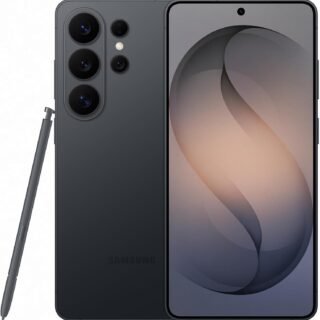 Samsung Galaxy S26 Ultra Unlocked Android Smartphone, 256GB, Black, Privacy Display, 200MP Camera, 5000mAh Battery, US 1 Year Warranty
-
 Apple Watch Ultra 3 [GPS + Cellular 49mm] Running & Multisport Smartwatch w/Rugged Titanium Case w/Black Titanium Milanese Loop - M. Satellite Communications, Advanced Health & Fitness Tracking
-
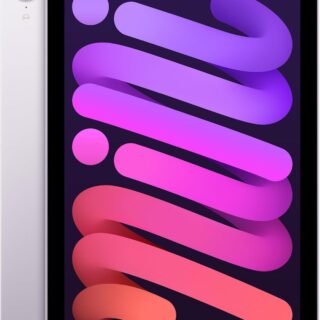 Apple iPad mini (A17 Pro): Apple Intelligence, 8.3-inch Liquid Retina Display, 256GB, Wi-Fi 6E, 12MP Front/12MP Back Camera, Touch ID, All-Day Battery Life — Purple
-
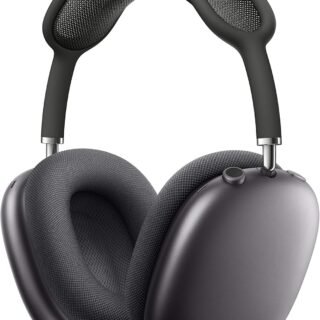 Apple AirPods Max Wireless Over-Ear Headphones, Active Noise Cancelling, Transparency Mode, Personalized Spatial Audio, Dolby Atmos, Bluetooth Headphones for iPhone – Space Gray
-
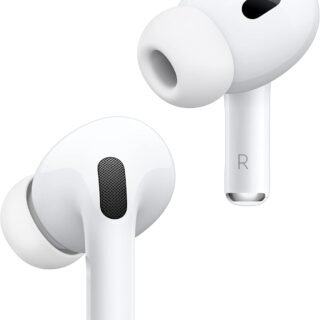 Apple AirPods Pro 2 Wireless Earbuds, Active Noise Cancellation, Hearing Aid Feature, Bluetooth Headphones, Transparency, Personalized Spatial Audio, High-Fidelity Sound, H2 Chip, USB-C Charging
Leave a Reply