Discounted Products
-
 Home Garage 210 TC Cotton King Floral Fitted (Elastic) Bedsheet(Pack of 1, Grey)
Original price was: ₹999.00.₹299.00Current price is: ₹299.00.
Home Garage 210 TC Cotton King Floral Fitted (Elastic) Bedsheet(Pack of 1, Grey)
Original price was: ₹999.00.₹299.00Current price is: ₹299.00.
-
 Goodrik 140 TC Cotton Double 3D Printed Flat Bedsheet(Pack of 1, Brown)
Original price was: ₹499.00.₹229.00Current price is: ₹229.00.
Goodrik 140 TC Cotton Double 3D Printed Flat Bedsheet(Pack of 1, Brown)
Original price was: ₹499.00.₹229.00Current price is: ₹229.00.
-
 GLOBALSHOP 350 TC Microfiber Double Floral Flat Bedsheet(Pack of 1, Multicolor)
Original price was: ₹1,250.00.₹263.00Current price is: ₹263.00.
GLOBALSHOP 350 TC Microfiber Double Floral Flat Bedsheet(Pack of 1, Multicolor)
Original price was: ₹1,250.00.₹263.00Current price is: ₹263.00.
-
 RisingStar 250 TC Microfiber King Printed Fitted (Elastic) Bedsheet(Pack of 1, FITTED-ROUND-CIRCLES-PREMIUM)
Original price was: ₹2,299.00.₹299.00Current price is: ₹299.00.
RisingStar 250 TC Microfiber King Printed Fitted (Elastic) Bedsheet(Pack of 1, FITTED-ROUND-CIRCLES-PREMIUM)
Original price was: ₹2,299.00.₹299.00Current price is: ₹299.00.
-
 Home Garage 210 TC Cotton King Floral Fitted (Elastic) Bedsheet(Pack of 1, Fitted Black Green)
Original price was: ₹1,299.00.₹299.00Current price is: ₹299.00.
Home Garage 210 TC Cotton King Floral Fitted (Elastic) Bedsheet(Pack of 1, Fitted Black Green)
Original price was: ₹1,299.00.₹299.00Current price is: ₹299.00.
-
 Home Garage 180 TC Cotton King 3D Printed Flat Bedsheet(Pack of 1, White)
Original price was: ₹999.00.₹229.00Current price is: ₹229.00.
Home Garage 180 TC Cotton King 3D Printed Flat Bedsheet(Pack of 1, White)
Original price was: ₹999.00.₹229.00Current price is: ₹229.00.
-
 Panipat Textile Hub 152.4 cm (5 ft) Polyester Window Curtain (Pack Of 2)(Solid, Aqua)
Original price was: ₹1,899.00.₹299.00Current price is: ₹299.00.
Panipat Textile Hub 152.4 cm (5 ft) Polyester Window Curtain (Pack Of 2)(Solid, Aqua)
Original price was: ₹1,899.00.₹299.00Current price is: ₹299.00.
-
 Home Sizzler 214 cm (7 ft) Polyester Semi Transparent Door Curtain (Pack Of 2)(Floral, Maroon)
Original price was: ₹1,199.00.₹399.00Current price is: ₹399.00.
Home Sizzler 214 cm (7 ft) Polyester Semi Transparent Door Curtain (Pack Of 2)(Floral, Maroon)
Original price was: ₹1,199.00.₹399.00Current price is: ₹399.00.
-
 Home Sizzler 153 cm (5 ft) Polyester Room Darkening Window Curtain (Pack Of 2)(Floral, Brown)
Original price was: ₹799.00.₹299.00Current price is: ₹299.00.
Home Sizzler 153 cm (5 ft) Polyester Room Darkening Window Curtain (Pack Of 2)(Floral, Brown)
Original price was: ₹799.00.₹299.00Current price is: ₹299.00.
-
 Stella Creations 214 cm (7 ft) Polyester Room Darkening Door Curtain (Pack Of 2)(Abstract, Brown)
Original price was: ₹1,299.00.₹449.00Current price is: ₹449.00.
Stella Creations 214 cm (7 ft) Polyester Room Darkening Door Curtain (Pack Of 2)(Abstract, Brown)
Original price was: ₹1,299.00.₹449.00Current price is: ₹449.00.
-
 Homefab India 152.5 cm (5 ft) Polyester Room Darkening Window Curtain (Pack Of 2)(Floral, Light Blue)
Original price was: ₹1,199.00.₹319.00Current price is: ₹319.00.
Homefab India 152.5 cm (5 ft) Polyester Room Darkening Window Curtain (Pack Of 2)(Floral, Light Blue)
Original price was: ₹1,199.00.₹319.00Current price is: ₹319.00.
-
 Urban Home 214 cm (7 ft) PVC Transparent Door Curtain Single Curtain(Solid, Off White)
Original price was: ₹699.00.₹203.00Current price is: ₹203.00.
Urban Home 214 cm (7 ft) PVC Transparent Door Curtain Single Curtain(Solid, Off White)
Original price was: ₹699.00.₹203.00Current price is: ₹203.00.
-
 Panipat Textile Hub 213 cm (7 ft) Polyester Door Curtain (Pack Of 2)(Solid, Brown)
Original price was: ₹1,199.00.₹349.00Current price is: ₹349.00.
Panipat Textile Hub 213 cm (7 ft) Polyester Door Curtain (Pack Of 2)(Solid, Brown)
Original price was: ₹1,199.00.₹349.00Current price is: ₹349.00.
-
 Home Sizzler 214 cm (7 ft) Polyester Semi Transparent Door Curtain (Pack Of 2)(Floral, Brown)
Original price was: ₹999.00.₹349.00Current price is: ₹349.00.
Home Sizzler 214 cm (7 ft) Polyester Semi Transparent Door Curtain (Pack Of 2)(Floral, Brown)
Original price was: ₹999.00.₹349.00Current price is: ₹349.00.
-
 Panipat Textile Hub 213 cm (7 ft) Polyester Semi Transparent Door Curtain (Pack Of 2)(Floral, Brown)
Original price was: ₹899.00.₹299.00Current price is: ₹299.00.
Panipat Textile Hub 213 cm (7 ft) Polyester Semi Transparent Door Curtain (Pack Of 2)(Floral, Brown)
Original price was: ₹899.00.₹299.00Current price is: ₹299.00.
Introduction as Jessica
Hi, I’m Jessica.
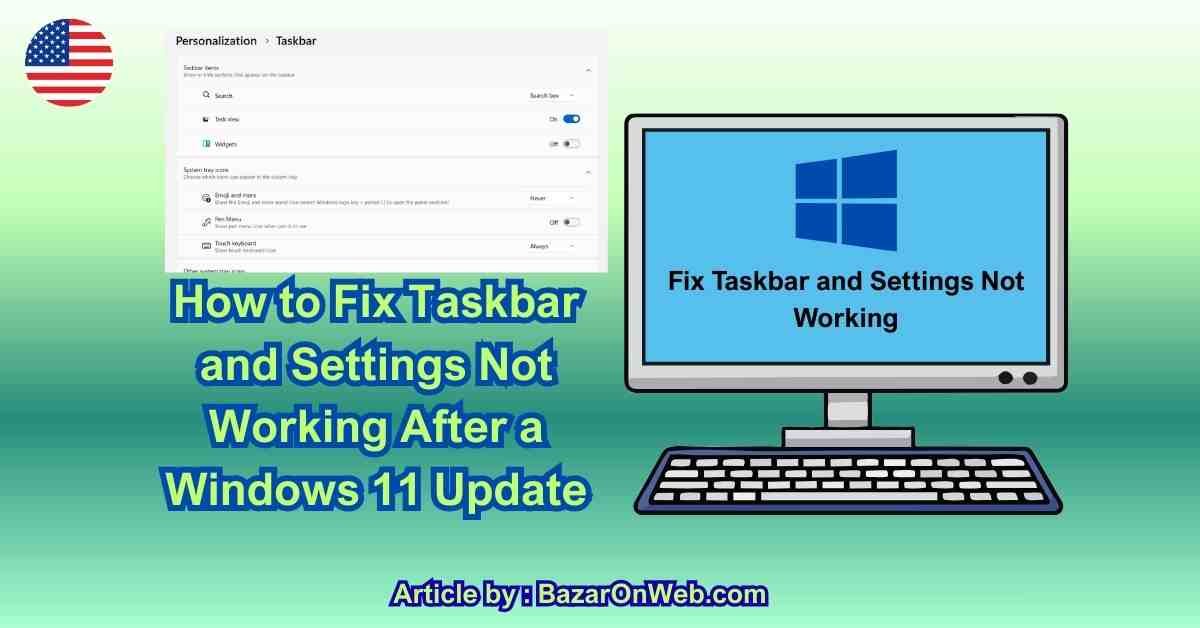
A few weeks ago, I installed a Windows 11 update on my laptop expecting the usual security improvements and system fixes. But right after the restart, something felt completely wrong. My taskbar stopped responding, the Start menu wouldn’t open, and when I tried to access the Settings app to see what was happening, nothing launched. It felt like a big part of Windows had suddenly stopped working.
If you’ve ever experienced something similar after a Windows update, you know how frustrating it can be. The taskbar and Settings are two of the most important parts of the Windows interface. Without them, it becomes difficult to open apps, manage system settings, or troubleshoot problems.
After doing some research, I discovered that this issue is surprisingly common, especially for people who are enrolled in the Windows Insider Program, particularly the Beta or Dev channels. These versions of Windows updates are released for testing purposes, which means they sometimes contain bugs or unfinished features.
When these updates introduce glitches, they can interfere with important components like the taskbar, Start menu, or Settings app.
Fortunately, the problem is usually fixable with a few troubleshooting steps. After trying several methods on my own system, I managed to restore everything back to normal.
If your taskbar or Settings stopped working after a Windows 11 update, the following solutions can help you fix the issue and regain full control of your system.
Restart Windows Explorer
One of the first things I tried when my taskbar stopped responding was restarting Windows Explorer. This process controls many parts of the Windows interface, including the taskbar, Start menu, and file explorer windows. If Explorer crashes or freezes during an update, parts of the interface may stop working properly.
To restart it, press Ctrl + Shift + Esc to open Task Manager. Once Task Manager opens, scroll through the list of processes until you find Windows Explorer. Right-click it and select Restart.
When you restart Explorer, Windows reloads the graphical interface components that manage the desktop and taskbar. During this process, the screen may briefly flicker or the taskbar may disappear for a moment before returning.
In my case, restarting Explorer immediately brought the taskbar back to life. The Start menu started responding again, and I could access pinned applications normally.
If the taskbar problem was caused by a temporary system glitch after the update, restarting Explorer often resolves the issue instantly. Even if it doesn’t completely fix the problem, it can sometimes restore enough functionality for you to access additional troubleshooting tools.
Because this method is quick and harmless, it’s usually the first step worth trying whenever Windows interface components stop responding.
Run the System File Checker Tool
When Windows updates install new components, sometimes system files become corrupted or incomplete. This can cause certain parts of the operating system—like the taskbar or Settings app—to stop functioning properly.
Windows includes a built-in repair tool called System File Checker, often referred to as SFC. This tool scans protected Windows system files and automatically replaces damaged or missing files with healthy copies.
To run the scan, open Command Prompt as Administrator. You can do this through Task Manager by selecting File → Run new task, typing cmd, and enabling the option to run with administrative privileges.
Once the command window opens, type:
Then press Enter.
The scan may take several minutes as Windows checks thousands of system files. If it detects corrupted files, it will attempt to repair them automatically.
After the scan finishes, restart your computer. When my system restarted after running SFC, I noticed that several Windows features that previously weren’t working began functioning normally again.
System File Checker is especially helpful when update installations interrupt system processes or damage important configuration files. Running this tool ensures the core Windows components are intact and functioning correctly.
Run the DISM Repair Tool
If the System File Checker doesn’t completely resolve the issue, the next tool worth trying is DISM, which stands for Deployment Image Servicing and Management. DISM repairs the Windows system image itself, which SFC relies on to restore system files.
When Windows updates modify system components, the underlying system image may occasionally become damaged. If that happens, SFC might not have access to the correct files needed for repairs.
To run DISM, open Command Prompt as Administrator again and enter the following command:
This process scans the Windows image for corruption and downloads replacement files from Windows Update if necessary.
The scan can take some time depending on system performance and internet speed. During the process, the command prompt will display the progress percentage as the repair continues.
Once DISM finishes, restart the computer and run the SFC scan again to ensure all system files are properly restored.
Using DISM helped stabilize several components on my system that were behaving unpredictably after the update.
Together, DISM and SFC form a powerful combination that can fix many update-related Windows problems.
Check for Additional Windows Updates
Sometimes the very update that causes a problem is followed shortly afterward by another update designed to fix it. Microsoft frequently releases patches to address bugs discovered in beta or development builds of Windows.
If you’re part of the Windows Insider Beta or Dev channels, these quick follow-up patches are even more common because testers often report issues after updates are released.
To check for updates, open Settings if possible. If Settings isn’t opening, you can search for Windows Update from the Start menu or launch it through system commands.
Click Check for Updates and allow Windows to search for any new patches.
When I experienced the taskbar issue on my system, installing the latest cumulative update resolved several glitches introduced by the earlier update.
Keeping Windows updated ensures that bug fixes and stability improvements are applied as soon as they become available.
Restart the Taskbar Using PowerShell
Another method that helped restore the taskbar functionality on my system involved restarting the taskbar components using PowerShell commands.
If the taskbar becomes unresponsive after an update, certain system packages related to the Windows shell may need to be re-registered.
Open Task Manager, select File → Run new task, type powershell, and enable administrative privileges.
Then run a command that reinstalls the Windows shell components associated with the taskbar.
When the command completes, Windows refreshes the system interface and reloads the taskbar environment.
This process can resolve issues where the taskbar stops responding or fails to appear after updates.
Although the screen may briefly refresh while PowerShell performs the operation, the interface should return quickly once the command completes.
This method often fixes taskbar glitches caused by incomplete update installations.
Disable Insider Preview Updates Temporarily
If your system is enrolled in the Windows Insider Program, particularly the Beta or Dev channels, the issue may be related to experimental features introduced in preview builds.
These builds are designed for testing purposes and may include unfinished components that occasionally disrupt system stability.
If you’re experiencing repeated issues after Insider updates, consider temporarily pausing preview builds.
Open Windows Update settings and locate the Insider Program options. From there, you can stop receiving preview builds or switch to a more stable release channel.
Using the stable version of Windows significantly reduces the chances of encountering interface problems like taskbar or Settings failures.
After switching channels, installing the next stable update may restore full functionality.
Perform a System Restore
If the taskbar and Settings stopped working immediately after a specific update, using System Restore can revert the system to an earlier state before the issue occurred.
System Restore creates snapshots of important system files and configuration settings. Restoring to one of these snapshots allows Windows to roll back problematic updates or changes.
Open the System Restore utility and choose a restore point created before the update that introduced the issue.
Once the restore process completes, Windows will restart and restore previous system settings.
This method is particularly useful when update-related bugs affect core interface components.
Restart Critical Windows Services
Several Windows services manage system components related to the taskbar and Settings app. If these services fail to start properly after an update, certain features may stop responding.
Opening the Windows Services panel allows you to check whether important services such as the Windows Shell Experience Host and related components are running correctly.
Restarting these services forces Windows to reload the processes responsible for the taskbar and interface elements.
After restarting the services and rebooting the computer, the taskbar often begins functioning normally again.
Check for User Profile Issues
Occasionally, problems with the taskbar or Settings may be related to a corrupted user profile rather than the entire operating system.
Creating a new Windows user account can help determine whether the issue is profile-specific.
If the taskbar works correctly in the new account, the problem may be tied to the original profile configuration.
Migrating files to the new account can sometimes resolve persistent interface issues.
Reset Windows as a Last Resort
If none of the troubleshooting methods resolve the issue, resetting Windows may be the final option.
The Reset This PC feature reinstalls the operating system while allowing you to keep personal files if you choose that option.
Resetting Windows removes problematic system configurations and reinstalls fresh system components.
Although this step is more time-consuming, it often resolves severe issues caused by corrupted updates or damaged system files.
Disclaimer
This guide is for informational purposes only. System behavior may vary depending on hardware configuration, installed updates, and Windows Insider participation. Always back up important data before performing major system changes.

- How to Remotely Control Another Computer Using Windows Quick Assist

- 5 Must-Have Electronics Gadgets for a More Comfortable Living Room

- How to Create a Windows 11 System Backup on an External Hard Drive

- 10 Smart Home Ideas That Make Everyday Life Easier

- Gemini Live Avatar: How to Talk to Gemini Face-to-Face

Products
-
![Apple Watch Ultra 3 [GPS + Cellular 49mm] Running & Multisport Smartwatch w/Rugged Titanium Case w/Black Titanium Milanese Loop - M. Satellite Communications, Advanced Health & Fitness Tracking](https://bazaronweb.com/retailstores/wp-content/uploads/2025/09/apple-watch-320x320.jpg) Apple Watch Ultra 3 [GPS + Cellular 49mm] Running & Multisport Smartwatch w/Rugged Titanium Case w/Black Titanium Milanese Loop - M. Satellite Communications, Advanced Health & Fitness Tracking
Apple Watch Ultra 3 [GPS + Cellular 49mm] Running & Multisport Smartwatch w/Rugged Titanium Case w/Black Titanium Milanese Loop - M. Satellite Communications, Advanced Health & Fitness Tracking
-
 Apple iPad mini (A17 Pro): Apple Intelligence, 8.3-inch Liquid Retina Display, 256GB, Wi-Fi 6E, 12MP Front/12MP Back Camera, Touch ID, All-Day Battery Life — Purple
-
 Apple AirPods Max Wireless Over-Ear Headphones, Active Noise Cancelling, Transparency Mode, Personalized Spatial Audio, Dolby Atmos, Bluetooth Headphones for iPhone – Space Gray
-
 Apple AirPods Pro 2 Wireless Earbuds, Active Noise Cancellation, Hearing Aid Feature, Bluetooth Headphones, Transparency, Personalized Spatial Audio, High-Fidelity Sound, H2 Chip, USB-C Charging
-
Home Garage 210 TC Cotton King Floral Fitted (Elastic) Bedsheet(Pack of 1, Grey)
Original price was: ₹999.00.₹299.00Current price is: ₹299.00.
Leave a Reply