Discounted Products
-
 Home Garage 210 TC Cotton King Floral Fitted (Elastic) Bedsheet(Pack of 1, Grey)
Original price was: ₹999.00.₹299.00Current price is: ₹299.00.
Home Garage 210 TC Cotton King Floral Fitted (Elastic) Bedsheet(Pack of 1, Grey)
Original price was: ₹999.00.₹299.00Current price is: ₹299.00.
-
 Goodrik 140 TC Cotton Double 3D Printed Flat Bedsheet(Pack of 1, Brown)
Original price was: ₹499.00.₹229.00Current price is: ₹229.00.
Goodrik 140 TC Cotton Double 3D Printed Flat Bedsheet(Pack of 1, Brown)
Original price was: ₹499.00.₹229.00Current price is: ₹229.00.
-
 GLOBALSHOP 350 TC Microfiber Double Floral Flat Bedsheet(Pack of 1, Multicolor)
Original price was: ₹1,250.00.₹263.00Current price is: ₹263.00.
GLOBALSHOP 350 TC Microfiber Double Floral Flat Bedsheet(Pack of 1, Multicolor)
Original price was: ₹1,250.00.₹263.00Current price is: ₹263.00.
-
 RisingStar 250 TC Microfiber King Printed Fitted (Elastic) Bedsheet(Pack of 1, FITTED-ROUND-CIRCLES-PREMIUM)
Original price was: ₹2,299.00.₹299.00Current price is: ₹299.00.
RisingStar 250 TC Microfiber King Printed Fitted (Elastic) Bedsheet(Pack of 1, FITTED-ROUND-CIRCLES-PREMIUM)
Original price was: ₹2,299.00.₹299.00Current price is: ₹299.00.
-
 Home Garage 210 TC Cotton King Floral Fitted (Elastic) Bedsheet(Pack of 1, Fitted Black Green)
Original price was: ₹1,299.00.₹299.00Current price is: ₹299.00.
Home Garage 210 TC Cotton King Floral Fitted (Elastic) Bedsheet(Pack of 1, Fitted Black Green)
Original price was: ₹1,299.00.₹299.00Current price is: ₹299.00.
-
 Home Garage 180 TC Cotton King 3D Printed Flat Bedsheet(Pack of 1, White)
Original price was: ₹999.00.₹229.00Current price is: ₹229.00.
Home Garage 180 TC Cotton King 3D Printed Flat Bedsheet(Pack of 1, White)
Original price was: ₹999.00.₹229.00Current price is: ₹229.00.
-
 Panipat Textile Hub 152.4 cm (5 ft) Polyester Window Curtain (Pack Of 2)(Solid, Aqua)
Original price was: ₹1,899.00.₹299.00Current price is: ₹299.00.
Panipat Textile Hub 152.4 cm (5 ft) Polyester Window Curtain (Pack Of 2)(Solid, Aqua)
Original price was: ₹1,899.00.₹299.00Current price is: ₹299.00.
-
 Home Sizzler 214 cm (7 ft) Polyester Semi Transparent Door Curtain (Pack Of 2)(Floral, Maroon)
Original price was: ₹1,199.00.₹399.00Current price is: ₹399.00.
Home Sizzler 214 cm (7 ft) Polyester Semi Transparent Door Curtain (Pack Of 2)(Floral, Maroon)
Original price was: ₹1,199.00.₹399.00Current price is: ₹399.00.
-
 Home Sizzler 153 cm (5 ft) Polyester Room Darkening Window Curtain (Pack Of 2)(Floral, Brown)
Original price was: ₹799.00.₹299.00Current price is: ₹299.00.
Home Sizzler 153 cm (5 ft) Polyester Room Darkening Window Curtain (Pack Of 2)(Floral, Brown)
Original price was: ₹799.00.₹299.00Current price is: ₹299.00.
-
 Stella Creations 214 cm (7 ft) Polyester Room Darkening Door Curtain (Pack Of 2)(Abstract, Brown)
Original price was: ₹1,299.00.₹449.00Current price is: ₹449.00.
Stella Creations 214 cm (7 ft) Polyester Room Darkening Door Curtain (Pack Of 2)(Abstract, Brown)
Original price was: ₹1,299.00.₹449.00Current price is: ₹449.00.
-
 Homefab India 152.5 cm (5 ft) Polyester Room Darkening Window Curtain (Pack Of 2)(Floral, Light Blue)
Original price was: ₹1,199.00.₹319.00Current price is: ₹319.00.
Homefab India 152.5 cm (5 ft) Polyester Room Darkening Window Curtain (Pack Of 2)(Floral, Light Blue)
Original price was: ₹1,199.00.₹319.00Current price is: ₹319.00.
-
 Urban Home 214 cm (7 ft) PVC Transparent Door Curtain Single Curtain(Solid, Off White)
Original price was: ₹699.00.₹203.00Current price is: ₹203.00.
Urban Home 214 cm (7 ft) PVC Transparent Door Curtain Single Curtain(Solid, Off White)
Original price was: ₹699.00.₹203.00Current price is: ₹203.00.
-
 Panipat Textile Hub 213 cm (7 ft) Polyester Door Curtain (Pack Of 2)(Solid, Brown)
Original price was: ₹1,199.00.₹349.00Current price is: ₹349.00.
Panipat Textile Hub 213 cm (7 ft) Polyester Door Curtain (Pack Of 2)(Solid, Brown)
Original price was: ₹1,199.00.₹349.00Current price is: ₹349.00.
-
 Home Sizzler 214 cm (7 ft) Polyester Semi Transparent Door Curtain (Pack Of 2)(Floral, Brown)
Original price was: ₹999.00.₹349.00Current price is: ₹349.00.
Home Sizzler 214 cm (7 ft) Polyester Semi Transparent Door Curtain (Pack Of 2)(Floral, Brown)
Original price was: ₹999.00.₹349.00Current price is: ₹349.00.
-
 Panipat Textile Hub 213 cm (7 ft) Polyester Semi Transparent Door Curtain (Pack Of 2)(Floral, Brown)
Original price was: ₹899.00.₹299.00Current price is: ₹299.00.
Panipat Textile Hub 213 cm (7 ft) Polyester Semi Transparent Door Curtain (Pack Of 2)(Floral, Brown)
Original price was: ₹899.00.₹299.00Current price is: ₹299.00.
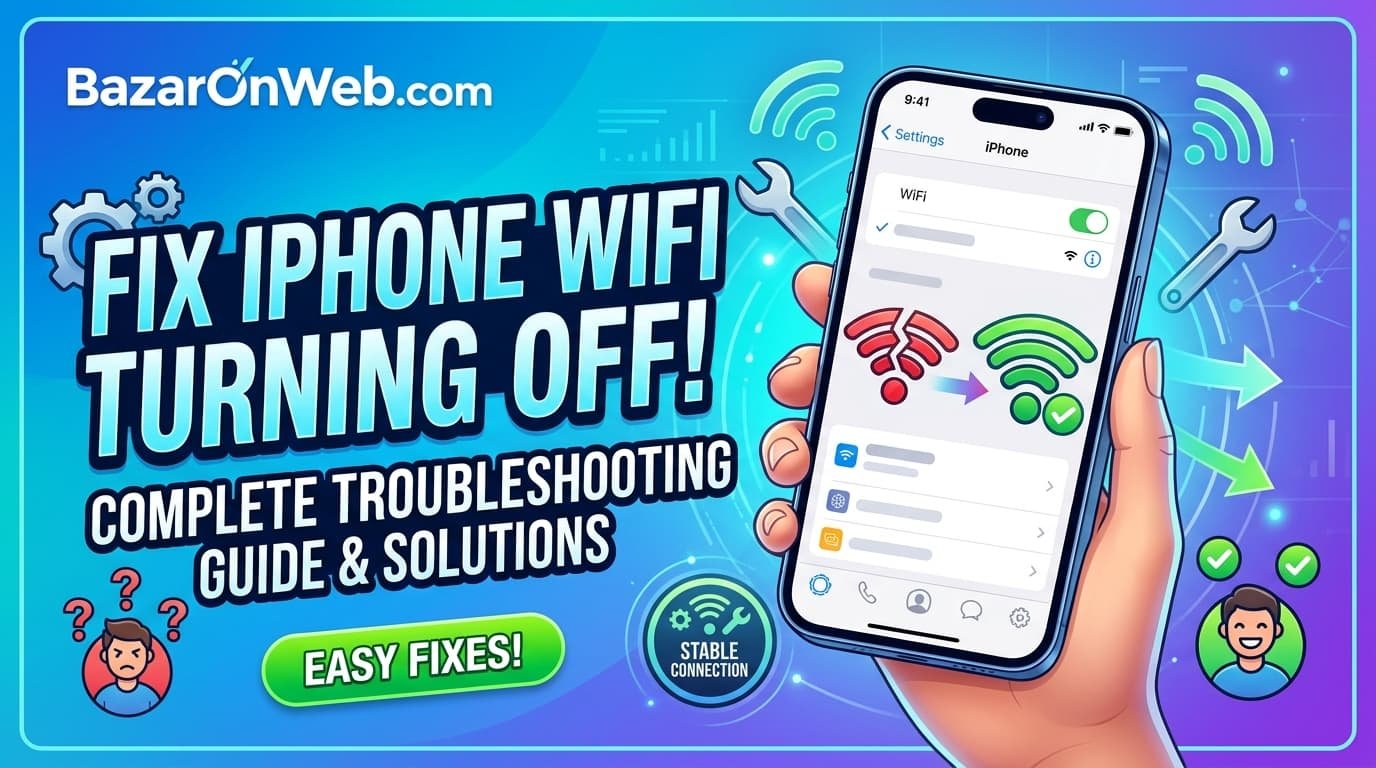
I was frustrated when my iPhone WiFi kept turning off unexpectedly, forcing me to manually re-enable it multiple times daily. What surprised me most was discovering that this isn’t a random glitch but rather a feature with specific causes—my iPhone was automatically disabling WiFi under particular circumstances, and understanding why helped me fix the problem. After investigating, I learned that iPhones turn off WiFi intentionally in various scenarios: when you leave home, when WiFi signal weakens, when switching networks, or through specific settings designed to conserve battery. Rather than viewing these disconnections as bugs, understanding them as intentional behavior helps you identify which setting or condition is causing the disconnections and implement appropriate solutions.
The frustrating reality is that iPhone WiFi behavior isn’t always intuitive, and Apple doesn’t clearly explain why WiFi turns off or how to prevent it. Users frequently encounter situations where they expect their iPhone to stay connected to WiFi but it unexpectedly disconnects, forcing them to troubleshoot without understanding what went wrong. Understanding the various reasons WiFi turns off—from battery optimization features to network switching to distance-based disconnection—transforms mysterious disconnections into diagnosable problems with concrete solutions. In this comprehensive guide, I’ll explain why iPhones turn off WiFi automatically, identify which settings control this behavior, and provide specific solutions for keeping WiFi connected reliably or adjusting settings to your preferences.
1. Understanding iPhone WiFi Behavior: Why iPhones Automatically Disconnect
iPhone WiFi doesn’t disconnect randomly—Apple designed iPhones to automatically disconnect WiFi under specific circumstances, prioritizing battery life and network efficiency over constant connectivity. Understanding these designed behaviors helps you distinguish between intentional features and actual problems requiring fixes. The most common auto-disconnect scenario is “WiFi Assist,” a feature that automatically switches from weak WiFi to cellular data when WiFi signal becomes too weak to provide good connectivity. Rather than keeping you on poor WiFi, iPhone intelligently switches to faster cellular, improving your browsing experience.
Additionally, iPhones disconnect from WiFi when you leave home or move out of WiFi range. This isn’t a bug but rather intentional design—your iPhone recognizes when you’ve traveled beyond your home WiFi’s range and stops attempting to use that network, saving battery by disabling WiFi searching. Furthermore, iPhones sometimes disconnect from WiFi when the device hasn’t used WiFi for extended periods while in sleep mode. This low-power behavior conserves battery, assuming you’ve moved to areas without WiFi coverage. Additionally, iOS includes a feature called “Auto-Logout” on some networks, disconnecting after inactivity to free network resources for active devices.
Understanding these intentional behaviors helps you identify whether WiFi disconnections result from features working as designed versus actual malfunctions. If your iPhone disconnects only when moving away from home, that’s WiFi Assist or range-based behavior, not a problem. If your iPhone disconnects while you’re actively using it near your router, that indicates a genuine issue requiring troubleshooting.
2. Cause 1: WiFi Assist Automatically Switching to Cellular
WiFi Assist is Apple’s intelligent feature that automatically switches from weak WiFi to cellular data when WiFi signal becomes insufficient. While this feature improves browsing experience by preventing you from using poor WiFi, it sometimes creates confusion—users believe their WiFi turned off when actually their iPhone switched to cellular. WiFi Assist doesn’t turn off WiFi; it leaves WiFi connected but uses cellular data for active connections, making it appear that WiFi disconnected.
To determine if WiFi Assist is causing your disconnections, open Settings > WiFi and look at your connected network. If the network shows connected but you’re using cellular data, WiFi Assist activated. WiFi Assist intelligently determines when WiFi is too weak to be useful—if your WiFi shows one bar but your cellular shows four bars, WiFi Assist might switch to cellular assuming cellular is more reliable. This is beneficial behavior if you have unlimited cellular data, but frustrating if you’re on limited cellular plans and intended to use WiFi.
To disable WiFi Assist, open Settings > Cellular (or Mobile Data) > WiFi Assist and toggle it off. Disabling WiFi Assist forces your iPhone to stay on WiFi regardless of signal strength, potentially slowing your connection when WiFi is weak. Conversely, keeping WiFi Assist enabled ensures you’re always using the fastest available connection, though this might consume cellular data unexpectedly. The appropriate choice depends on whether you prioritize staying on WiFi or maintaining fast connections regardless of network type.
3. Cause 2: Low Power Mode Disabling WiFi to Conserve Battery
Low Power Mode is a battery conservation feature that reduces various power-consuming processes when your battery is low. One of Low Power Mode’s effects is disabling or limiting WiFi functionality to conserve battery. When Low Power Mode activates (typically at 20% battery), your iPhone might stop actively searching for WiFi networks or disconnect from weak signals to reduce power consumption. This can create the impression that WiFi “turned off” when actually your iPhone stopped using it due to battery conservation.
To check if Low Power Mode is affecting WiFi, open Settings > Battery or Settings > Battery and Device Management, and check whether Low Power Mode is enabled. If it is, disable it by toggling it off (or open Control Center and disable the Low Power Mode toggle). After disabling, your iPhone resumes normal WiFi behavior. However, disabling Low Power Mode increases battery drain, so this is appropriate only if you have adequate battery remaining or have access to charging soon.
Understanding that Low Power Mode intentionally limits WiFi helps you appreciate the feature’s purpose—it extends battery life when you desperately need it. Rather than viewing it as a problem, recognize it as intentional power conservation. If you need WiFi while on low battery, disable Low Power Mode temporarily, use WiFi, then re-enable it. Alternatively, charge your iPhone so Low Power Mode isn’t necessary.
4. Cause 3: iCloud+ Private Relay Interfering with Certain Networks
iCloud+ subscribers can enable Private Relay, a privacy feature that routes your internet traffic through Apple’s servers before reaching destination websites, hiding your IP address and browsing activity from websites and your internet provider. While Private Relay provides privacy benefits, it sometimes causes WiFi connectivity issues or appears to disconnect you from networks because it blocks certain types of connections.
Some WiFi networks (particularly corporate, public, or older networks) don’t support all connection types that Private Relay requires. When connecting to such networks, Private Relay might disable or cause connection failures, making it appear that WiFi turned off. To check if Private Relay is enabled, open Settings > [Your Name] > iCloud > Private Relay. If it’s enabled, toggle it off to see if that resolves WiFi issues.
Additionally, if specific networks consistently cause problems while Private Relay is enabled, you can disable Private Relay for those specific networks. Open Settings > WiFi, select the problematic network, and toggle off “Private Relay” within that network’s settings. This allows Private Relay to work for most networks while disabling it only for networks where it causes problems. Understanding Private Relay’s role helps you determine whether apparent WiFi disconnections result from privacy protection interfering with network compatibility rather than actual connection problems.
5. Cause 4: WiFi Forgetting Networks and Requiring Reconnection
iPhones sometimes “forget” saved WiFi networks, requiring you to enter the password again and reconnect. This isn’t WiFi turning off—it’s your iPhone losing the network’s saved credentials. When your iPhone forgets a network, it no longer automatically connects when in range. If the network isn’t broadcasting its name (SSID), your iPhone can’t see it at all after forgetting.
Networks are “forgotten” through several scenarios: you manually tell your iPhone to forget the network through Settings > WiFi > [Network] > Forget, your iPhone automatically forgets networks it hasn’t connected to recently, or network credential changes (like password resets) cause authentication failures that prompt your iPhone to forget the network.
To prevent networks from being forgotten, keep your WiFi router’s name and password unchanged. If you change your network password, all connected devices must reconnect with the new password. To manually reconnect a forgotten network, open Settings > WiFi, find the network in the list, enter the password again, and your iPhone reconnects and remembers it. If networks you use frequently keep getting forgotten, ensure you’re connecting regularly—networks used consistently are less likely to be auto-forgotten than rarely-used networks.
6. Cause 5: Forgotten Networks in iCloud Settings Causing Disconnections
Beyond forgetting individual networks, iCloud can sync forgotten networks across your devices. If you forget a network on one Apple device, that forgotten status syncs to your other devices, potentially causing unexpected disconnections. This feature is intended to maintain security by preventing you from connecting to networks you’ve disabled, but it creates confusion when you forget a network accidentally and want to reconnect.
Check iCloud settings to see if network syncing is causing issues. Open Settings > [Your Name] > iCloud and look for “WiFi Password” or similar option indicating network sharing across devices. If enabled, this syncs network connections and forgotten status. If you’ve forgotten networks accidentally and they’re syncing as forgotten across devices, you’ll need to reconnect and forget network settings might need resetting.
To reset network settings entirely (clearing all saved networks and starting fresh), open Settings > General > Reset > Reset Network Settings. This clears all saved WiFi networks, requiring you to reconnect to networks and re-enter passwords. While drastic, this solution helps if network forgetting is causing persistent disconnection issues. After resetting, your WiFi should reconnect normally once you re-enter credentials.
7. Cause 6: Software Bugs or Outdated iOS Versions Causing WiFi Issues
Sometimes iPhone WiFi problems result from software bugs in iOS versions. If you’re running an older iOS version, bugs affecting WiFi connectivity might exist that newer versions have fixed. Updating to the latest iOS version often resolves unexplained WiFi issues. Open Settings > General > Software Update to check for and install available updates.
If you’re already on the latest iOS version but experiencing WiFi problems, the issue might be a newly discovered bug in the current version. Waiting for the next iOS update sometimes resolves issues, or you might need to troubleshoot using other methods. Additionally, force-restarting your iPhone sometimes resolves temporary software glitches affecting WiFi. For different iPhone models, force restart procedures vary, but typically involve quickly pressing and releasing volume up, then volume down, then holding the power button until “slide to power off” appears, then holding until Apple logo appears (without sliding to power off).
Understanding that software bugs can cause WiFi issues helps you appreciate why updating iOS is important—updates fix bugs including WiFi-related problems. If WiFi issues develop after an iOS update, that update might have introduced a new bug that Apple is working to fix in the next update.
8. Troubleshooting WiFi Disconnections: Step-by-Step Solutions
If your iPhone WiFi keeps turning off or disconnecting, systematic troubleshooting identifies the cause. First, verify the problem is actually WiFi disconnecting versus WiFi Assist switching to cellular. Open Settings > WiFi and check whether your network still shows connected. If it does, WiFi Assist likely switched to cellular—disable it if you want to force WiFi usage.
Next, check your WiFi router. Move closer to ensure strong signal (at least three bars). If signal improves when closer, weak signal is causing disconnections—move your router to a central location or consider a WiFi extender. Additionally, restart your router by unplugging it for 30 seconds, then plugging it back in. Router restarts resolve many WiFi issues by resetting the router’s network state.
Furthermore, forget the network through Settings > WiFi > [Network] > Forget, then reconnect by selecting the network and entering your password again. This refreshes your iPhone’s connection to the network, potentially resolving disconnection issues. Additionally, ensure your router’s firmware is updated—outdated firmware sometimes causes compatibility issues with iPhones. Check your router manufacturer’s website for firmware updates.
Finally, if disconnections persist, reset network settings through Settings > General > Reset > Reset Network Settings. This clears all network settings and requires reconnecting to networks, but often resolves persistent WiFi issues.
9. Best Practices for Maintaining Stable WiFi Connections on iPhone
After resolving WiFi disconnection issues, maintaining stable connections prevents future problems. Keep your WiFi router in a central location at elevated height—routers positioned in corners or on the floor have limited coverage. Ensure your router is away from interference sources like microwaves, cordless phones, and large metal objects that weaken signals.
Additionally, keep your iPhone’s iOS updated to the latest version. Security updates and bug fixes in new iOS versions often address WiFi-related issues. Enable automatic updates through Settings > General > Software Update > Automatic Updates to ensure you’re always running current software.
Furthermore, periodically restart your router and iPhone. Restarts clear temporary memory issues that might accumulate over weeks or months. Simple restarts often prevent problems from developing in the first place—restart your router monthly and your iPhone weekly for preventive maintenance.
Additionally, if you frequently experience WiFi issues in specific locations, contact your ISP (Internet Service Provider) to ensure your internet connection is functioning properly. WiFi issues sometimes result from poor internet connection quality rather than your iPhone. ISP diagnostics can identify whether your connection is the problem.
Finally, if you have multiple iPhones or iOS devices, ensure they’re not overwhelming your router by connecting too many simultaneous devices. Most home routers support 20-30 devices efficiently but struggle with more. If you have many devices connecting simultaneously, consider upgrading to a more capable router or using a mesh WiFi system providing better coverage and capacity.
10. When to Seek Professional Help and Advanced Troubleshooting
If WiFi disconnections persist despite troubleshooting, professional help might be necessary. Contact your router manufacturer’s support if you suspect hardware issues—routers sometimes fail or develop problems causing WiFi instability. Similarly, if your iPhone continues having WiFi issues across multiple networks (not just your home network), the problem might be your iPhone’s WiFi hardware rather than your network.
Contact Apple Support if you suspect iPhone hardware issues. They can run diagnostics determining whether your iPhone’s WiFi components are functioning correctly. If hardware failure is diagnosed, repair or replacement might be necessary. Additionally, if WiFi issues developed after a specific iOS update, contact Apple about known issues and potential workarounds.
For corporate or public network connections causing WiFi issues, network administrators might need to troubleshoot compatibility between your iPhone and their network. Contact their IT departments if you consistently experience problems on their networks.
Finally, if you’re unable to determine whether the problem is your iPhone, your router, or your internet connection, methodically test across multiple networks. If your iPhone connects fine to other WiFi networks (work, cafes, friends’ homes), the problem is likely your home network. If your iPhone has issues across multiple networks, the problem is likely your iPhone’s WiFi hardware or software.
Disclaimer
This article provides guidance on understanding and resolving iPhone WiFi that turns off automatically or disconnects unexpectedly. The information is intended for educational purposes to help users troubleshoot WiFi connectivity issues. Specific causes, solutions, and outcomes may vary depending on your iPhone model, iOS version, WiFi router, and individual circumstances.
Important Disclaimers:
- WiFi disconnections can result from numerous causes including iPhone settings, router issues, network problems, or hardware failures
- Some WiFi disconnections are intentional features (WiFi Assist, Low Power Mode) working as designed rather than problems
- Troubleshooting steps are safe and reversible, but resetting network settings requires re-entering all saved WiFi passwords
- Hardware issues require professional diagnosis; troubleshooting cannot fix hardware failures
- Internet service provider connection problems cannot be fixed through iPhone troubleshooting; ISP assistance is necessary
- Some WiFi networks (corporate, public, restricted) have limitations that iPhones cannot override
- Updating iOS can fix or introduce WiFi-related bugs; iOS version stability varies
WiFi Network Behavior:
- WiFi disconnections when moving away from router are normal range-based behavior
- Weak WiFi signals (one bar) often result in automatic disconnection or switching to cellular
- WiFi passwords changed on routers require reconnecting with new credentials
- Network names (SSIDs) not broadcasting prevent connection to networks even if saved
- Open networks without passwords sometimes disconnect due to inactivity protection
iPhone Settings Affecting WiFi:
- WiFi Assist intelligently switches to cellular based on signal strength and speed
- Low Power Mode intentionally limits WiFi to conserve battery
- Private Relay might interfere with certain network types
- Auto-join features on some networks can cause unexpected connections
- Background app refresh can cause network activity even when iPhone appears inactive
Router and Network Issues:
- Router placement significantly affects WiFi coverage; central elevated location provides best coverage
- WiFi interference from microwaves, cordless phones, and other 2.4GHz devices weakens signals
- Older router models might not support newer iPhone WiFi standards
- Router firmware updates sometimes improve iPhone compatibility
- Network congestion when many devices connect simultaneously can cause disconnections
iOS and Software Considerations:
- iOS updates fix WiFi-related bugs; staying current improves reliability
- Beta iOS versions sometimes have WiFi issues that production versions resolve
- Force restarting iPhone can resolve temporary software glitches affecting WiFi
- Restoring iPhone from backup after major iOS updates sometimes causes WiFi issues
- iPhone might need re-setup after major iOS updates if persistent WiFi problems develop
Hardware Concerns:
- iPhone WiFi hardware failures require professional repair
- Water damage can cause WiFi hardware malfunction requiring professional service
- Old iPhones (over 5 years) sometimes develop WiFi hardware degradation
- Physical damage to iPhone can damage WiFi antenna
- Professional diagnostics can confirm whether issues are hardware-related
Network and ISP Considerations:
- Internet connection quality problems cause WiFi issues even with good WiFi signal
- ISP outages or slow speeds manifest as WiFi disconnections or poor performance
- Poor gateway/modem quality affects entire network reliability
- Network troubleshooting by ISP can identify connection-level problems
- Mesh WiFi systems sometimes improve reliability if single router coverage is insufficient
Security and Privacy:
- Changing WiFi passwords affects all connected devices requiring reconnection
- Forgotten networks prevent automatic connection even if in range
- Network credentials synced across devices through iCloud affect all your Apple devices
- Disabling security features (like Private Relay) improves compatibility but reduces privacy
- Open networks without security should be avoided despite easier connection
Testing and Diagnosis:
- Testing across multiple networks helps isolate whether problem is iPhone or specific network
- Monitoring WiFi signal strength helps determine if weak signal is disconnecting you
- Comparing WiFi performance on different iPhone models helps identify device-specific issues
- Network speed testing shows whether problems are connectivity versus speed
- Router diagnostics help identify network-level issues
When Professional Help Is Needed:
- Persistent WiFi issues across multiple networks after troubleshooting warrant professional diagnosis
- Hardware issues require Apple Store assessment or professional repair
- ISP connection problems require ISP support to diagnose and resolve
- Router hardware failures require manufacturer support or replacement
- For enterprise/corporate networks, network administrators should troubleshoot compatibility
Liability:
We are not responsible for any WiFi connectivity issues, data loss, hardware problems, or other consequences resulting from troubleshooting steps described in this article. Users assume full responsibility for understanding issues before attempting fixes. Most WiFi disconnection problems are software-related and safely resolvable through troubleshooting, but some situations (hardware failure, ISP problems) require professional intervention. Resetting network settings is safe and reversible but requires re-entering saved passwords. If you’re uncomfortable with troubleshooting or persistent issues persist despite multiple attempts, consult Apple Support or professional IT assistance rather than continuing unsuccessful troubleshooting.
About the Author
Jessica Miller is a marketing manager and iPhone user who believes reliable WiFi connectivity is essential for mobile productivity. With expertise in iOS troubleshooting, WiFi optimization, and practical connectivity solutions, she helps busy professionals maintain stable connections and resolve frustrating disconnection issues. When she’s not writing comprehensive tech guides or managing her marketing team, she’s exploring networking technology, testing WiFi optimization techniques, and helping friends troubleshoot their iPhone connectivity challenges.

- How to Fix “Unable to Initialize Windows App SDK” Error in Windows 11

- How to Fix “Try Again Later – Something Happened on Our End” Error in Microsoft Store

- What Are iPhone Background Sounds? Their Uses and How to Enable Them
- How to Run a Safety Check in Google Chrome and Protect Your Browser

- Samsung Phone’s Keyboard Not Working? Here’s How to Fix It

Products
-
![Apple Watch Ultra 3 [GPS + Cellular 49mm] Running & Multisport Smartwatch w/Rugged Titanium Case w/Black Titanium Milanese Loop - M. Satellite Communications, Advanced Health & Fitness Tracking](https://bazaronweb.com/retailstores/wp-content/uploads/2025/09/apple-watch-320x320.jpg) Apple Watch Ultra 3 [GPS + Cellular 49mm] Running & Multisport Smartwatch w/Rugged Titanium Case w/Black Titanium Milanese Loop - M. Satellite Communications, Advanced Health & Fitness Tracking
Apple Watch Ultra 3 [GPS + Cellular 49mm] Running & Multisport Smartwatch w/Rugged Titanium Case w/Black Titanium Milanese Loop - M. Satellite Communications, Advanced Health & Fitness Tracking
-
 Apple iPad mini (A17 Pro): Apple Intelligence, 8.3-inch Liquid Retina Display, 256GB, Wi-Fi 6E, 12MP Front/12MP Back Camera, Touch ID, All-Day Battery Life — Purple
-
 Apple AirPods Max Wireless Over-Ear Headphones, Active Noise Cancelling, Transparency Mode, Personalized Spatial Audio, Dolby Atmos, Bluetooth Headphones for iPhone – Space Gray
-
 Apple AirPods Pro 2 Wireless Earbuds, Active Noise Cancellation, Hearing Aid Feature, Bluetooth Headphones, Transparency, Personalized Spatial Audio, High-Fidelity Sound, H2 Chip, USB-C Charging
-
Home Garage 210 TC Cotton King Floral Fitted (Elastic) Bedsheet(Pack of 1, Grey)
Original price was: ₹999.00.₹299.00Current price is: ₹299.00.
Leave a Reply