Discounted Products
-
 Home Garage 210 TC Cotton King Floral Fitted (Elastic) Bedsheet(Pack of 1, Grey)
Original price was: ₹999.00.₹299.00Current price is: ₹299.00.
Home Garage 210 TC Cotton King Floral Fitted (Elastic) Bedsheet(Pack of 1, Grey)
Original price was: ₹999.00.₹299.00Current price is: ₹299.00.
-
 Goodrik 140 TC Cotton Double 3D Printed Flat Bedsheet(Pack of 1, Brown)
Original price was: ₹499.00.₹229.00Current price is: ₹229.00.
Goodrik 140 TC Cotton Double 3D Printed Flat Bedsheet(Pack of 1, Brown)
Original price was: ₹499.00.₹229.00Current price is: ₹229.00.
-
 GLOBALSHOP 350 TC Microfiber Double Floral Flat Bedsheet(Pack of 1, Multicolor)
Original price was: ₹1,250.00.₹263.00Current price is: ₹263.00.
GLOBALSHOP 350 TC Microfiber Double Floral Flat Bedsheet(Pack of 1, Multicolor)
Original price was: ₹1,250.00.₹263.00Current price is: ₹263.00.
-
 RisingStar 250 TC Microfiber King Printed Fitted (Elastic) Bedsheet(Pack of 1, FITTED-ROUND-CIRCLES-PREMIUM)
Original price was: ₹2,299.00.₹299.00Current price is: ₹299.00.
RisingStar 250 TC Microfiber King Printed Fitted (Elastic) Bedsheet(Pack of 1, FITTED-ROUND-CIRCLES-PREMIUM)
Original price was: ₹2,299.00.₹299.00Current price is: ₹299.00.
-
 Home Garage 210 TC Cotton King Floral Fitted (Elastic) Bedsheet(Pack of 1, Fitted Black Green)
Original price was: ₹1,299.00.₹299.00Current price is: ₹299.00.
Home Garage 210 TC Cotton King Floral Fitted (Elastic) Bedsheet(Pack of 1, Fitted Black Green)
Original price was: ₹1,299.00.₹299.00Current price is: ₹299.00.
-
 Home Garage 180 TC Cotton King 3D Printed Flat Bedsheet(Pack of 1, White)
Original price was: ₹999.00.₹229.00Current price is: ₹229.00.
Home Garage 180 TC Cotton King 3D Printed Flat Bedsheet(Pack of 1, White)
Original price was: ₹999.00.₹229.00Current price is: ₹229.00.
-
 Panipat Textile Hub 152.4 cm (5 ft) Polyester Window Curtain (Pack Of 2)(Solid, Aqua)
Original price was: ₹1,899.00.₹299.00Current price is: ₹299.00.
Panipat Textile Hub 152.4 cm (5 ft) Polyester Window Curtain (Pack Of 2)(Solid, Aqua)
Original price was: ₹1,899.00.₹299.00Current price is: ₹299.00.
-
 Home Sizzler 214 cm (7 ft) Polyester Semi Transparent Door Curtain (Pack Of 2)(Floral, Maroon)
Original price was: ₹1,199.00.₹399.00Current price is: ₹399.00.
Home Sizzler 214 cm (7 ft) Polyester Semi Transparent Door Curtain (Pack Of 2)(Floral, Maroon)
Original price was: ₹1,199.00.₹399.00Current price is: ₹399.00.
-
 Home Sizzler 153 cm (5 ft) Polyester Room Darkening Window Curtain (Pack Of 2)(Floral, Brown)
Original price was: ₹799.00.₹299.00Current price is: ₹299.00.
Home Sizzler 153 cm (5 ft) Polyester Room Darkening Window Curtain (Pack Of 2)(Floral, Brown)
Original price was: ₹799.00.₹299.00Current price is: ₹299.00.
-
 Stella Creations 214 cm (7 ft) Polyester Room Darkening Door Curtain (Pack Of 2)(Abstract, Brown)
Original price was: ₹1,299.00.₹449.00Current price is: ₹449.00.
Stella Creations 214 cm (7 ft) Polyester Room Darkening Door Curtain (Pack Of 2)(Abstract, Brown)
Original price was: ₹1,299.00.₹449.00Current price is: ₹449.00.
-
 Homefab India 152.5 cm (5 ft) Polyester Room Darkening Window Curtain (Pack Of 2)(Floral, Light Blue)
Original price was: ₹1,199.00.₹319.00Current price is: ₹319.00.
Homefab India 152.5 cm (5 ft) Polyester Room Darkening Window Curtain (Pack Of 2)(Floral, Light Blue)
Original price was: ₹1,199.00.₹319.00Current price is: ₹319.00.
-
 Urban Home 214 cm (7 ft) PVC Transparent Door Curtain Single Curtain(Solid, Off White)
Original price was: ₹699.00.₹203.00Current price is: ₹203.00.
Urban Home 214 cm (7 ft) PVC Transparent Door Curtain Single Curtain(Solid, Off White)
Original price was: ₹699.00.₹203.00Current price is: ₹203.00.
-
 Panipat Textile Hub 213 cm (7 ft) Polyester Door Curtain (Pack Of 2)(Solid, Brown)
Original price was: ₹1,199.00.₹349.00Current price is: ₹349.00.
Panipat Textile Hub 213 cm (7 ft) Polyester Door Curtain (Pack Of 2)(Solid, Brown)
Original price was: ₹1,199.00.₹349.00Current price is: ₹349.00.
-
 Home Sizzler 214 cm (7 ft) Polyester Semi Transparent Door Curtain (Pack Of 2)(Floral, Brown)
Original price was: ₹999.00.₹349.00Current price is: ₹349.00.
Home Sizzler 214 cm (7 ft) Polyester Semi Transparent Door Curtain (Pack Of 2)(Floral, Brown)
Original price was: ₹999.00.₹349.00Current price is: ₹349.00.
-
 Panipat Textile Hub 213 cm (7 ft) Polyester Semi Transparent Door Curtain (Pack Of 2)(Floral, Brown)
Original price was: ₹899.00.₹299.00Current price is: ₹299.00.
Panipat Textile Hub 213 cm (7 ft) Polyester Semi Transparent Door Curtain (Pack Of 2)(Floral, Brown)
Original price was: ₹899.00.₹299.00Current price is: ₹299.00.
How to Remove Bloatware from Windows 11: Uninstall Pre-Installed Apps and Improve System Performance
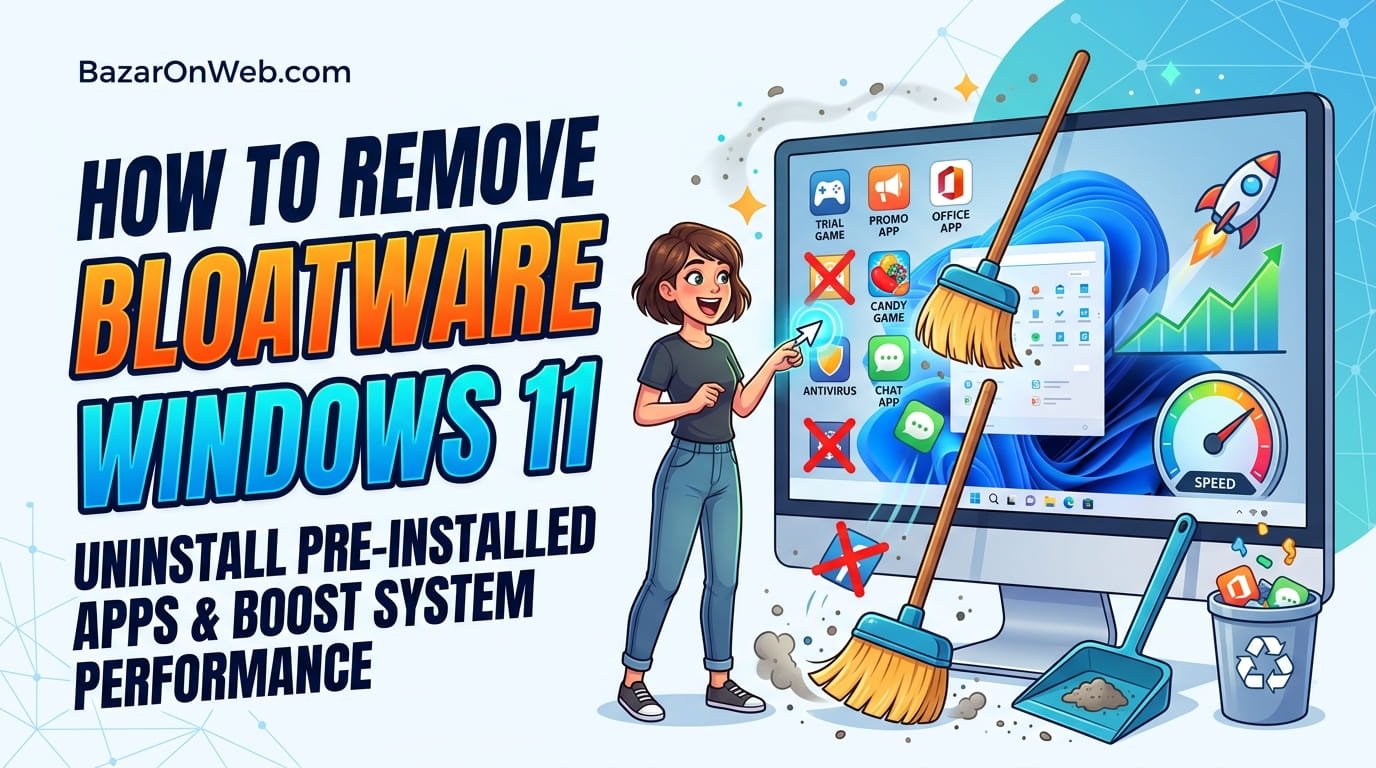
I was frustrated when I purchased a new Windows 11 laptop and discovered it came loaded with dozens of pre-installed applications I didn’t want or need. Beyond the frustration of unnecessary programs cluttering my Start Menu, I quickly realized these pre-installed applications—collectively called bloatware—consumed valuable storage space, ran background processes slowing my computer, and displayed unwanted notifications constantly. What surprised me most was discovering that manufacturers intentionally install this bloatware as part of their business model, often receiving payment from software companies for prominent placement on new computers. Rather than accepting this bloat as inevitable, I discovered systematic methods for removing these unnecessary applications, reclaiming storage space, and improving my computer’s performance. Understanding which applications are safe to remove, how to properly uninstall them, and which ones lurk in system processes transformed my new laptop from sluggish and cluttered to fast and clean.
The frustrating reality is that removing bloatware isn’t as straightforward as standard application uninstallation—some pre-installed applications resist removal, hide in system processes, or reinstall themselves through Windows updates. Manufacturers intentionally make bloatware difficult to remove, hoping users give up and keep the unwanted software. However, with knowledge of proper removal techniques, even the most stubborn bloatware can be eliminated. In this comprehensive guide, I’ll explain what bloatware is, why manufacturers include it, how to identify which applications are safe to remove, and exactly how to uninstall it through multiple methods. I’ll also discuss which pre-installed applications are actually valuable and worth keeping versus which ones are purely wasteful bloat.
1. Understanding Bloatware: Why Manufacturers Include It and What It Does
Bloatware refers to pre-installed applications and services that come with new computers but are rarely useful for most users. These applications include trial versions of antivirus software, weather applications, games, shopping assistants, cloud storage trial offers, manufacturer-specific utilities, and countless other programs that slow your system without providing value. Manufacturers include bloatware for several reasons, the most significant being financial incentive—software companies pay computer manufacturers substantial fees to pre-install their applications, essentially bribing manufacturers to make their software the default on millions of new computers.
From the manufacturer’s perspective, bloatware generates revenue—they earn money from software companies wanting prominent placement, and they recoup some manufacturing costs through these payments. However, this comes at the user’s expense. Bloatware consumes storage space—modern computers ship with limited solid-state storage, and bloatware sometimes consumes 20-30GB of this precious space. Additionally, bloatware runs background processes consuming CPU power and memory, noticeably slowing your computer especially during startup. Bloatware displays notifications, pushes you toward paid upgrades, and degrades the user experience with unwanted functionality. Understanding that bloatware is financially motivated rather than genuinely useful helps explain why manufacturers make it difficult to remove—they want users to keep it installed regardless of whether it’s wanted.
2. Common Bloatware Applications and What Each Does
Identifying bloatware requires knowing what commonly ships on new Windows 11 computers. Trial antivirus software (Norton, McAfee trial versions) frequently arrives pre-installed, hoping users will pay for full versions rather than switching to Windows Defender. Weather applications, news feeds, and search utilities attempt becoming your default applications. Games like Candy Crush and Minecraft Launcher ship pre-installed, consuming storage and displaying notifications. Microsoft Store pre-installed applications like 3D Paint, Mixed Reality Portal, and OneNote sometimes duplicate functionality available elsewhere. Shopping assistants and price comparison tools monitor your browsing, attempting to show advertisements.
Manufacturer-specific utilities (Dell support software, HP printer utilities, Lenovo system tools) sometimes provide value but often cause system conflicts or resource drain. Trial versions of Office 365 attempt converting you to subscribers. Cloud storage trials (OneDrive, Dropbox, Google Drive trial offers) attempt gaining subscriptions. Streaming service trials (Netflix, Spotify, Disney+ trial offers) push you toward paid subscriptions. Additionally, Windows 11 itself includes built-in applications you might not need (Photos app, Mail app, Calendar, Groove Music, etc.). Understanding what bloatware typically arrives on new computers helps you identify what’s unnecessary versus what might be worth keeping.
3. Distinguishing Bloatware from Essential Applications: What You Actually Need
Not all pre-installed software is bloatware—some serves genuine purposes worth keeping. Windows Defender (built-in antivirus) is essential and worth keeping unless you’re using superior third-party antivirus. Windows Update services, Windows Security, and system utilities are core functionality requiring retention. Microsoft 365 apps (Word, Excel, PowerPoint) provide genuine value if you subscribe. However, the key distinction is whether software provides value you actually use versus software existing purely for manufacturer profit.
Essential built-in utilities worth keeping include Disk Cleanup (helps manage storage), Device Manager (manages hardware), Task Manager (monitors performance), and System Information (provides diagnostics). These tools provide genuine functionality. Conversely, trial versions of expensive software (Antivirus trials, Office trial versions) are pure bloatware—they’re temporary versions trying to convert you to paid subscriptions, with no ongoing value. Games, entertainment applications, and shopping assistants are almost always bloatware unless you specifically want them.
The practical approach is determining which applications you actually use or need. If you’ve owned your computer for weeks and never opened an application, it’s bloatware worth removing. If an application serves purposes you value, keep it regardless of whether technically it’s bloatware. This pragmatic assessment prevents removing useful applications while eliminating genuine waste.
4. Method 1: Uninstalling Bloatware Through Settings and Control Panel
The simplest bloatware removal method is using Windows’s standard application uninstall functionality. Open Settings by pressing Windows Key + I, then navigate to Apps > Installed apps. You’ll see a comprehensive list of all installed applications organized alphabetically. Scroll through and identify applications you want to remove—click on any application and an “Uninstall” button appears. Click Uninstall and follow the uninstall process.
Alternatively, open Control Panel (type “Control Panel” in the Start menu), navigate to Programs > Programs and Features, and you’ll see the installed applications list. Right-click applications you want to remove and select Uninstall. Follow the uninstallation prompts completing removal. This method works for most bloatware, though some applications resist removal or claim they can’t be uninstalled because they’re system components (though they’re actually optional).
For applications claiming they can’t be uninstalled through normal methods, use the three-dot menu in Settings > Installed apps. Some applications have “Advanced options” allowing forced removal even if standard uninstall fails. Additionally, for manufacturer-specific utilities, visiting the manufacturer’s website sometimes provides updated uninstallation tools removing their software more completely than standard uninstall.
5. Method 2: Removing Bloatware Through PowerShell for Stubborn Applications
Some bloatware resists standard uninstallation methods—manufacturer software, Microsoft Store apps, and system-integrated applications sometimes claim they can’t be uninstalled. PowerShell, Windows’s command-line tool, provides methods for removing even stubborn applications. Open PowerShell as Administrator by right-clicking Start and selecting “Windows Terminal (Admin),” then switching to the PowerShell tab.
For Microsoft Store applications specifically, you can force removal through PowerShell. List installed Store apps with: “Get-AppxPackage | Select Name” to see what Store apps are installed. Then remove specific apps with: “Remove-AppxPackage -Package [PackageName]” where [PackageName] is the exact application name. For example, removing Candy Crush would be: “Remove-AppxPackage -Package king.com.CandyCrush_2.0.0.0_x64__cw5n1h2txyewy”
Additionally, you can create scripts uninstalling multiple applications at once. However, PowerShell uninstallation requires understanding command-line syntax and being careful not to remove system components. If you remove critical applications or system services, your computer might become unstable. Only use PowerShell removal if confident about what you’re removing. Documentation of what you remove helps restore functionality if problems result from overly aggressive removal.
6. Method 3: Using Third-Party Uninstaller Software for Complete Bloatware Removal
Third-party uninstaller applications like Revo Uninstaller, CCleaner, or Geek Uninstaller provide more comprehensive removal than Windows built-in tools, particularly for removing leftover files and registry entries after standard uninstallation. These tools scan your system identifying installed applications, help you uninstall them, then remove leftover files and registry entries that standard uninstall leaves behind. This thorough removal completely eliminates bloatware traces rather than leaving remnants.
Download reputable uninstallers from official websites only (Revo Uninstaller from revouninstaller.com, CCleaner from ccleaner.com, etc.). Launch the uninstaller application and it scans your system identifying installed software. Select bloatware applications you want to remove, and the uninstaller removes them along with associated files and registry entries. Most uninstallers include “safe mode” or “automatic” options handling removal details, making the process straightforward even for non-technical users.
However, third-party uninstallers can be aggressive, potentially removing shared files or system components critical for other applications. Use caution and understand what you’re removing before proceeding. Additionally, some uninstallers themselves are potentially unwanted—download only from reputable sources and avoid free uninstallers bundled with adware or other malicious software. Legitimate paid uninstallers like Revo Uninstaller Pro are generally safer than free alternatives.
7. Disabling Bloatware Background Services and Startup Processes
Beyond uninstalling applications, disabling bloatware’s background processes prevents resource consumption even if complete uninstallation isn’t possible. Some bloatware resists removal but can be disabled from running in the background. Open Task Manager by pressing Ctrl+Shift+Esc or right-clicking the taskbar and selecting “Task Manager.” Click the “Startup” tab showing applications launching automatically when Windows starts.
Look for bloatware applications in the startup list—common offenders include Norton startup, manufacturer utilities, trial software, and cloud storage applications. Right-click unnecessary startup applications and select “Disable” to prevent them from launching when Windows starts. This doesn’t uninstall the application but prevents it from consuming resources automatically. Disabling startup processes noticeably improves startup speed and reduces background resource consumption.
Additionally, disable bloatware services through Services. Press Windows Key + R, type “services.msc,” and press Enter. Look for services associated with bloatware (search by manufacturer name or software name). Right-click unnecessary services and select “Properties,” set Startup type to “Disabled,” and click OK. Services are more aggressive to disable than startup applications—services run with system privileges and disabling them might affect other functionality. Only disable services you’re confident are bloatware and not system-critical.
8. Managing Microsoft Store Bloatware and Built-in Windows Applications
Windows 11 includes numerous built-in applications through Microsoft Store (Maps, Weather, News, OneDrive, Photos, Mail, Calendar, Groove Music, etc.). While not technically bloatware since they provide some functionality, many users consider them unnecessary. These applications consume storage and might display unwanted notifications.
Remove Microsoft Store applications through Settings > Apps > Installed apps, finding each Store app and clicking Uninstall. Some built-in applications can be uninstalled this way. However, some core applications (OneDrive, Settings, etc.) claim they can’t be uninstalled because they’re system-integrated. For these stubborn applications, PowerShell removal (as described earlier) sometimes works where Settings removal fails.
Additionally, disable notifications from Store applications through Settings > System > Notifications & actions. Uncheck individual applications to prevent their notifications. This doesn’t remove applications but prevents them from bothering you. Furthermore, prevent Microsoft Store apps from launching automatically through Settings > Apps > Startup, disabling unnecessary Store app startup.
Consider that some built-in applications (OneDrive for cloud backup, Photos for photo management) provide value worth keeping. Only remove applications you’re completely confident you won’t need. Microsoft regularly updates Windows through Store apps, and removing some applications might prevent you from receiving critical updates.
9. Cleaning Up After Bloatware Removal: Disk Cleanup and Registry Cleaning
After uninstalling bloatware, leftover files and registry entries sometimes remain, wasting storage space. Use Windows Disk Cleanup to remove these remnants. Open Disk Cleanup by typing “Disk Cleanup” in the Start menu and running it. The application scans your system identifying temporary files, recycle bin contents, and other space-consuming items. Check boxes for what you want to delete (temporary files, recycle bin, old system files, etc.) and click “Clean up system files” to proceed. Disk Cleanup safely removes temporary data accumulated during normal computer use.
Additionally, use specialized registry cleaners to remove registry entries leftover from uninstalled applications. CCleaner (ccleaner.com) provides free registry cleaning—download it, scan for invalid registry entries, and clean them. Registry cleaning is generally safe when using reputable tools, though incorrect registry modifications can damage Windows. Legitimate registry cleaners take precautions preventing damage, backing up your registry before making changes.
Finally, restart your computer after uninstalling bloatware and cleaning. Restarting ensures removed services stop running and system processes initialize with new configurations. After restart, check Task Manager and startup applications to verify bloatware processes aren’t launching. If removed applications still appear in Task Manager, they didn’t fully uninstall—retry uninstallation through more aggressive methods.
10. Preventing Bloatware Installation on New Computers and Windows Reinstallation
Rather than removing bloatware after purchasing computers, preventing its installation in the first place is preferable. When purchasing new Windows computers, you have options preventing bloatware installation. Some manufacturers offer “bloatware-free” or minimal-installation options, though these sometimes cost more. Dell offers systems with “Windows only” installations at premium pricing. Microsoft Surface devices come with minimal pre-installed software.
Alternatively, immediately after purchasing a new computer, uninstall all bloatware during initial setup. Many users delay this, becoming accustomed to bloatware, while removing it immediately after purchase is more efficient. Additionally, when receiving computers from employers or institutions, request that IT departments remove bloatware before delivering systems.
For ultimate bloatware elimination, reinstalling Windows from scratch removes all manufacturer pre-installed software. Create Windows 11 installation media from another computer using Microsoft’s Windows 11 media creation tool, boot from that media on your new computer, and perform a fresh Windows installation. This completely removes bloatware, manufacturer utilities, and all pre-installed software, resulting in pristine Windows installation containing only essential components. However, this approach requires technical knowledge and time—reinstallation takes hours and requires understanding storage backup before wiping your drive.
For future updates, configure Windows to prevent manufacturers from reinstalling removed bloatware. Group Policy Editor (on Professional editions) allows disabling automatic restoration of removed applications. For Home Edition users, third-party tools or regularly monitoring for bloatware reinstallation help prevent re-infection.
Disclaimer
This article provides guidance on identifying and removing bloatware from Windows 11. The information is intended for educational purposes to help users improve system performance and storage usage. Specific applications, removal methods, and outcomes may vary depending on your computer manufacturer, Windows 11 version, and individual circumstances.
Important Disclaimers:
- Bloatware identification is subjective; applications considered bloatware by some users may be valuable to others
- Some pre-installed applications provide manufacturer-specific functionality worth keeping for that manufacturer’s hardware
- Aggressive uninstallation can remove applications or system components your computer depends on; proceed cautiously
- Third-party uninstaller software quality varies; use only reputable tools from official sources
- PowerShell and registry modification carry risks; incorrect commands can damage Windows requiring repair or reinstallation
- Some bloatware intentionally resists removal and may reinstall through Windows Update
- Removing system services can cause stability problems or prevent critical functionality
Application Removal Caution:
- Not all pre-installed applications are bloatware; some provide genuine functionality
- Cloud storage applications (OneDrive) integrate with Windows; removing them may affect backup functionality
- Manufacturer utilities (printer drivers, hardware support tools) provide necessary support for manufacturer’s hardware
- Trial applications should be removed rather than converting to paid versions unless genuinely needed
- Some applications claim to be system-critical and cannot be uninstalled; research whether claims are accurate before forcing removal
System Stability:
- Removing too many applications can cause Windows to become unstable
- System services (those in Services.msc) are more critical than user applications; extreme caution necessary before disabling
- Backup your system before aggressive bloatware removal in case problems result
- Test system stability after removing significant bloatware; restart in Safe Mode if problems appear
- Undo changes if system problems result from overly aggressive bloatware removal
Third-Party Tool Safety:
- Download uninstaller software only from official manufacturer websites
- Free uninstaller software sometimes includes unwanted applications or adware; paid versions from reputable companies are safer
- Research uninstaller software before downloading; reviews and ratings help identify trustworthy tools
- Some uninstallers require administrative privileges; understand what permissions you’re granting
- Backup your system before using unfamiliar third-party tools
Registry and PowerShell Safety:
- Registry modification carries significant risks; incorrect changes can make Windows unbootable
- Only use trusted registry cleaners from established companies with proven track records
- PowerShell commands require precise syntax; typos can uninstall unintended applications
- Always understand exactly what commands do before executing them
- Backup your registry before using registry cleaners or manual registry modification
Performance Impact:
- Bloatware removal noticeably improves startup speed and background performance
- Some users report improved battery life on laptops after bloatware removal
- Storage space freed by bloatware removal varies; older computers might free 20-30GB
- Performance improvement depends on how much bloatware was installed; lightly-bloated systems see smaller improvements
- Removal of startup processes shows immediate improvement in startup time
Reinstallation Considerations:
- Fresh Windows installation removes all bloatware but requires backup before wiping your drive
- Fresh installation takes hours and requires Windows installation media
- After fresh installation, you must manually reinstall applications you want
- Some computer features (manufacturer utilities, support tools) may not function after fresh installation without proper drivers
- System restore points after fresh installation help revert if problems result
Manufacturer-Specific Software:
- Dell, HP, Lenovo, and other manufacturers include support utilities potentially providing value
- Manufacturer software sometimes causes system conflicts; uninstalling can resolve issues
- Updated versions of manufacturer software from their websites often work better than pre-installed versions
- Consider whether you need manufacturer support before removing their utilities
- Printer and hardware drivers are more important to retain than general manufacturer utilities
Cloud Storage and Sync:
- OneDrive integrates deeply with Windows; removing it disables Windows backup features
- Other cloud storage (Google Drive, Dropbox) can be removed without affecting Windows
- Backup your data before removing cloud storage applications
- After removing cloud storage apps, verify your data is safely backed up elsewhere
When Professional Help Is Needed:
- If system becomes unstable after bloatware removal, professional IT support can help restore stability
- If you’re uncomfortable with removal procedures, technicians can safely remove bloatware
- If system won’t boot after aggressive removal, professional recovery services may be necessary
- For corporate devices, IT departments should manage bloatware removal
Liability:
We are not responsible for any system problems, data loss, application removal errors, or other consequences resulting from bloatware removal described in this article. Users assume full responsibility for understanding what they’re removing before proceeding. Most bloatware removal through Settings is safe and reversible, but aggressive methods (PowerShell, registry modification, third-party tools) carry risks. If you’re uncomfortable with removal procedures, consult professional IT support rather than attempting removal independently. Backup your data and system before aggressive bloatware removal to ensure recovery options if problems result.
About the Author
Jessica Miller is a marketing manager and computer user who believes new computers should arrive clean and optimized rather than bloated with manufacturer compromise software. With expertise in Windows system optimization, bloatware identification and removal, and practical performance improvement, she helps busy professionals clean up their computers and maximize performance. When she’s not writing comprehensive tech guides or managing her marketing team, she’s exploring new optimization techniques, testing removal tools, and helping friends reclaim their computer’s performance and storage.

- How to Remotely Control Another Computer Using Windows Quick Assist

- 5 Must-Have Electronics Gadgets for a More Comfortable Living Room

- How to Create a Windows 11 System Backup on an External Hard Drive

- 10 Smart Home Ideas That Make Everyday Life Easier

- Gemini Live Avatar: How to Talk to Gemini Face-to-Face

Products
-
![Apple Watch Ultra 3 [GPS + Cellular 49mm] Running & Multisport Smartwatch w/Rugged Titanium Case w/Black Titanium Milanese Loop - M. Satellite Communications, Advanced Health & Fitness Tracking](https://bazaronweb.com/retailstores/wp-content/uploads/2025/09/apple-watch-320x320.jpg) Apple Watch Ultra 3 [GPS + Cellular 49mm] Running & Multisport Smartwatch w/Rugged Titanium Case w/Black Titanium Milanese Loop - M. Satellite Communications, Advanced Health & Fitness Tracking
Apple Watch Ultra 3 [GPS + Cellular 49mm] Running & Multisport Smartwatch w/Rugged Titanium Case w/Black Titanium Milanese Loop - M. Satellite Communications, Advanced Health & Fitness Tracking
-
 Apple iPad mini (A17 Pro): Apple Intelligence, 8.3-inch Liquid Retina Display, 256GB, Wi-Fi 6E, 12MP Front/12MP Back Camera, Touch ID, All-Day Battery Life — Purple
-
 Apple AirPods Max Wireless Over-Ear Headphones, Active Noise Cancelling, Transparency Mode, Personalized Spatial Audio, Dolby Atmos, Bluetooth Headphones for iPhone – Space Gray
-
 Apple AirPods Pro 2 Wireless Earbuds, Active Noise Cancellation, Hearing Aid Feature, Bluetooth Headphones, Transparency, Personalized Spatial Audio, High-Fidelity Sound, H2 Chip, USB-C Charging
-
Home Garage 210 TC Cotton King Floral Fitted (Elastic) Bedsheet(Pack of 1, Grey)
Original price was: ₹999.00.₹299.00Current price is: ₹299.00.
Leave a Reply