Discounted Products
-
 Home Garage 210 TC Cotton King Floral Fitted (Elastic) Bedsheet(Pack of 1, Grey)
Original price was: ₹999.00.₹299.00Current price is: ₹299.00.
Home Garage 210 TC Cotton King Floral Fitted (Elastic) Bedsheet(Pack of 1, Grey)
Original price was: ₹999.00.₹299.00Current price is: ₹299.00.
-
 Goodrik 140 TC Cotton Double 3D Printed Flat Bedsheet(Pack of 1, Brown)
Original price was: ₹499.00.₹229.00Current price is: ₹229.00.
Goodrik 140 TC Cotton Double 3D Printed Flat Bedsheet(Pack of 1, Brown)
Original price was: ₹499.00.₹229.00Current price is: ₹229.00.
-
 GLOBALSHOP 350 TC Microfiber Double Floral Flat Bedsheet(Pack of 1, Multicolor)
Original price was: ₹1,250.00.₹263.00Current price is: ₹263.00.
GLOBALSHOP 350 TC Microfiber Double Floral Flat Bedsheet(Pack of 1, Multicolor)
Original price was: ₹1,250.00.₹263.00Current price is: ₹263.00.
-
 RisingStar 250 TC Microfiber King Printed Fitted (Elastic) Bedsheet(Pack of 1, FITTED-ROUND-CIRCLES-PREMIUM)
Original price was: ₹2,299.00.₹299.00Current price is: ₹299.00.
RisingStar 250 TC Microfiber King Printed Fitted (Elastic) Bedsheet(Pack of 1, FITTED-ROUND-CIRCLES-PREMIUM)
Original price was: ₹2,299.00.₹299.00Current price is: ₹299.00.
-
 Home Garage 210 TC Cotton King Floral Fitted (Elastic) Bedsheet(Pack of 1, Fitted Black Green)
Original price was: ₹1,299.00.₹299.00Current price is: ₹299.00.
Home Garage 210 TC Cotton King Floral Fitted (Elastic) Bedsheet(Pack of 1, Fitted Black Green)
Original price was: ₹1,299.00.₹299.00Current price is: ₹299.00.
-
 Home Garage 180 TC Cotton King 3D Printed Flat Bedsheet(Pack of 1, White)
Original price was: ₹999.00.₹229.00Current price is: ₹229.00.
Home Garage 180 TC Cotton King 3D Printed Flat Bedsheet(Pack of 1, White)
Original price was: ₹999.00.₹229.00Current price is: ₹229.00.
-
 Panipat Textile Hub 152.4 cm (5 ft) Polyester Window Curtain (Pack Of 2)(Solid, Aqua)
Original price was: ₹1,899.00.₹299.00Current price is: ₹299.00.
Panipat Textile Hub 152.4 cm (5 ft) Polyester Window Curtain (Pack Of 2)(Solid, Aqua)
Original price was: ₹1,899.00.₹299.00Current price is: ₹299.00.
-
 Home Sizzler 214 cm (7 ft) Polyester Semi Transparent Door Curtain (Pack Of 2)(Floral, Maroon)
Original price was: ₹1,199.00.₹399.00Current price is: ₹399.00.
Home Sizzler 214 cm (7 ft) Polyester Semi Transparent Door Curtain (Pack Of 2)(Floral, Maroon)
Original price was: ₹1,199.00.₹399.00Current price is: ₹399.00.
-
 Home Sizzler 153 cm (5 ft) Polyester Room Darkening Window Curtain (Pack Of 2)(Floral, Brown)
Original price was: ₹799.00.₹299.00Current price is: ₹299.00.
Home Sizzler 153 cm (5 ft) Polyester Room Darkening Window Curtain (Pack Of 2)(Floral, Brown)
Original price was: ₹799.00.₹299.00Current price is: ₹299.00.
-
 Stella Creations 214 cm (7 ft) Polyester Room Darkening Door Curtain (Pack Of 2)(Abstract, Brown)
Original price was: ₹1,299.00.₹449.00Current price is: ₹449.00.
Stella Creations 214 cm (7 ft) Polyester Room Darkening Door Curtain (Pack Of 2)(Abstract, Brown)
Original price was: ₹1,299.00.₹449.00Current price is: ₹449.00.
-
 Homefab India 152.5 cm (5 ft) Polyester Room Darkening Window Curtain (Pack Of 2)(Floral, Light Blue)
Original price was: ₹1,199.00.₹319.00Current price is: ₹319.00.
Homefab India 152.5 cm (5 ft) Polyester Room Darkening Window Curtain (Pack Of 2)(Floral, Light Blue)
Original price was: ₹1,199.00.₹319.00Current price is: ₹319.00.
-
 Urban Home 214 cm (7 ft) PVC Transparent Door Curtain Single Curtain(Solid, Off White)
Original price was: ₹699.00.₹203.00Current price is: ₹203.00.
Urban Home 214 cm (7 ft) PVC Transparent Door Curtain Single Curtain(Solid, Off White)
Original price was: ₹699.00.₹203.00Current price is: ₹203.00.
-
 Panipat Textile Hub 213 cm (7 ft) Polyester Door Curtain (Pack Of 2)(Solid, Brown)
Original price was: ₹1,199.00.₹349.00Current price is: ₹349.00.
Panipat Textile Hub 213 cm (7 ft) Polyester Door Curtain (Pack Of 2)(Solid, Brown)
Original price was: ₹1,199.00.₹349.00Current price is: ₹349.00.
-
 Home Sizzler 214 cm (7 ft) Polyester Semi Transparent Door Curtain (Pack Of 2)(Floral, Brown)
Original price was: ₹999.00.₹349.00Current price is: ₹349.00.
Home Sizzler 214 cm (7 ft) Polyester Semi Transparent Door Curtain (Pack Of 2)(Floral, Brown)
Original price was: ₹999.00.₹349.00Current price is: ₹349.00.
-
 Panipat Textile Hub 213 cm (7 ft) Polyester Semi Transparent Door Curtain (Pack Of 2)(Floral, Brown)
Original price was: ₹899.00.₹299.00Current price is: ₹299.00.
Panipat Textile Hub 213 cm (7 ft) Polyester Semi Transparent Door Curtain (Pack Of 2)(Floral, Brown)
Original price was: ₹899.00.₹299.00Current price is: ₹299.00.
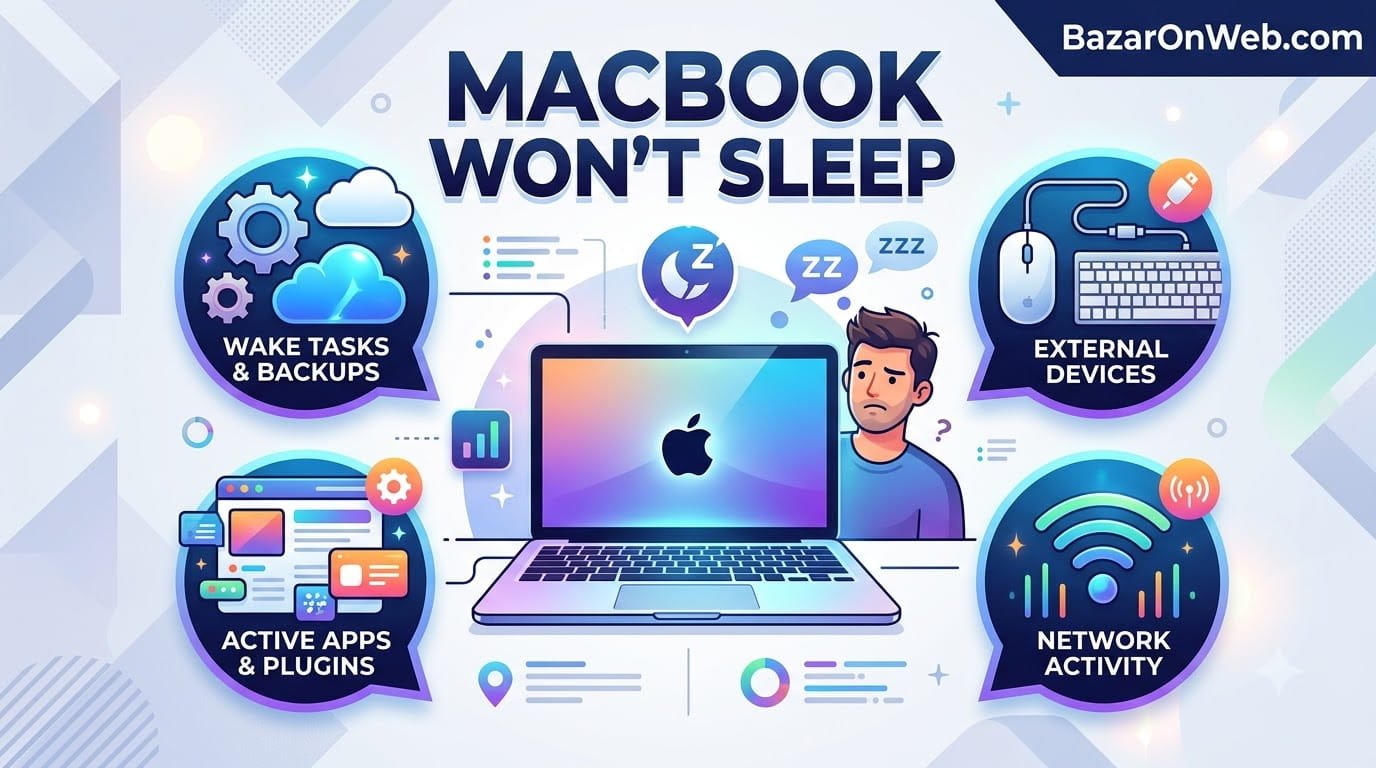
When Your MacBook Becomes an Insomniac
I closed my MacBook, set it on the desk, and walked away. Twenty minutes later, I came back to grab it and discovered it was hot. Not just slightly warm. Actually hot. The fans were running. The keyboard was warm. My closed laptop was actively running.
I opened it to see what was happening. The screen lit up immediately, fully awake, running whatever had kept it from sleeping.
This became a pattern. I’d close my MacBook, assuming it would sleep. Minutes later, it would wake up. The fans would spin. Battery would drain. By the time I actually needed to use it, the battery had lost 10-15% in standby.
I checked my battery settings. Sleep settings looked normal. I hadn’t changed anything. But something was keeping my MacBook awake even when closed.
Turns out MacBooks not sleeping properly is surprisingly common. Something is preventing sleep. Could be a background process, a USB device, WiFi activity, or dozens of other things. But the MacBook can’t sleep if something keeps waking it up.
Most people don’t realize their MacBook isn’t actually sleeping. They think it’s in standby using minimal power. Meanwhile, it’s running at full power, draining battery, and getting hot.
Understanding why this happens and how to fix it prevents this frustration and saves battery life.
Why MacBooks Need Sleep (And What Prevents It)
Before troubleshooting, understanding why MacBooks sleep and what can prevent it helps explain the problem.
Sleep is a low-power state where your MacBook shuts down most hardware but remains ready to wake instantly when needed. The display turns off, the hard drive spins down, the processor reduces to minimal activity. In sleep, your MacBook uses minimal battery—maybe 1-2% per hour instead of the 10-20% per hour it uses while awake.
Sleep is different from shutdown. Shutdown completely powers off. Sleep keeps just enough powered to respond to wake events (opening the lid, clicking the mouse, network activity, etc.).
For sleep to work, nothing must be actively using resources. If something is constantly accessing the network, playing audio, accessing storage, or otherwise requiring processor activity, your MacBook can’t sleep. It stays awake.
Additionally, certain events are configured to wake your MacBook from sleep. Your Mac might wake for WiFi network changes, incoming calls, Bluetooth devices connecting, or various other configured wake triggers.
When something keeps using resources or constantly triggering wake events, your MacBook never actually enters sleep despite appearing to be asleep when the lid is closed.
Quick Diagnosis: Is Your MacBook Actually Sleeping?
First, verify your MacBook isn’t actually sleeping despite appearing to be.
Close your MacBook lid. Wait 30 seconds. Carefully feel the bottom or side near the keyboard. Is it warm?
A sleeping MacBook should be cool or barely warm. If it’s warm, it’s not actually sleeping.
Alternatively, listen for fan noise. A sleeping MacBook is silent. If you hear fans running with the lid closed, it’s definitely awake.
If your MacBook is staying warm or running fans despite the lid being closed, something is preventing sleep.
Cause 1: Clamshell Sleep Settings Disabled
MacBooks can be configured to sleep when you close the lid or stay awake with lid closed. If this setting is disabled, closing the lid won’t trigger sleep.
System Settings > Battery > Sleep.
Look for an option like “Put display to sleep after” or similar. This controls when the display turns off during inactivity.
Additionally, check if there’s a specific “Close lid to sleep” or “Clamshell mode” setting. Some older MacBook settings had explicit toggle for this behavior.
On some MacBook models, closing the lid doesn’t automatically trigger sleep—you have to manually put it to sleep through the menu or keyboard shortcut (Option+Command+Eject or Control+Shift+Eject).
If you’re expecting automatic sleep on lid close but it’s not happening, your settings might not have this configured.
Cause 2: External Monitor Prevents Lid Sleep
If you have an external monitor connected to your MacBook, closing the lid doesn’t trigger sleep. Your MacBook keeps running to continue powering the external display.
This is intentional behavior—if you have an external monitor, you probably want your MacBook to keep running even with the lid closed.
If you want your MacBook to sleep, disconnect the external monitor or put it to sleep manually before closing the lid.
Alternatively, if you want automatic sleep with external monitor connected, you might need to use a third-party tool or script to force sleep regardless of monitor status.
Cause 3: USB and Bluetooth Devices Triggering Wake
External USB devices, mice, keyboards, and Bluetooth devices can be configured to wake your MacBook from sleep.
Any device activity—a Bluetooth mouse movement, a USB device receiving power, even just being connected—can wake your Mac.
Check System Settings > Battery > Wake for network access. Disable this if you don’t need it. This setting allows network activity (like incoming calls, Siri requests, or WiFi notifications) to wake your MacBook.
Additionally, check if specific Bluetooth devices are configured to wake your Mac. Some mice and keyboards have this option. It’s useful at a desk but problematic if you want sleep while traveling.
Try disconnecting USB devices or turning off Bluetooth and see if your MacBook now sleeps properly.
Cause 4: WiFi and Network Activity Preventing Sleep
Network activity can keep your MacBook awake. If something is constantly accessing the network, your MacBook won’t sleep.
Background apps syncing, iCloud operations, email checking, or even just WiFi scanning for networks can prevent sleep.
Try disabling WiFi and Bluetooth completely, then closing your MacBook lid. If it stays cool and quiet now, network activity was the culprit.
To prevent this going forward:
System Settings > WiFi > Turn off WiFi before traveling with a closed MacBook if you want guaranteed sleep.
Alternatively, configure specific apps to not perform background syncing. System Settings > General > Background App Refresh. Disable it for apps you don’t need updating constantly.
Cause 5: Background Apps and Processes Running
Specific applications might have background processes that prevent sleep.
Open Activity Monitor (Applications > Utilities > Activity Monitor). Look at the processes running. Sometimes an app is doing something in the background even though you’re not actively using it.
Music app playing audio (even silently, just to be running) might prevent sleep. Zoom or other videoconferencing apps might prevent sleep while connected to meeting. Recording or streaming apps definitely prevent sleep.
Force quit any apps you don’t need running, then try sleeping again.
Additionally, check System Settings > Battery > Low Power Mode. If you enable this, it reduces background activity which sometimes prevents sleep from working properly. Disable Low Power Mode and try again.
Cause 6: Specific macOS Bug or Configuration Issue
Occasionally, macOS bugs prevent sleep functionality. This is rare but happens after certain updates.
Try resetting your Mac’s SMC (System Management Controller), which manages power and sleep functions.
For Apple Silicon Macs (M1, M2, etc.): Simply restart your Mac. SMC resets automatically on restart.
For Intel Macs: Shut down completely. Press and hold Shift+Control+Option (all on left side) + Power button for 10 seconds. Release. Wait 5 seconds. Turn back on.
After resetting SMC, test sleep functionality again.
Cause 7: External Power Source Interfering
Some MacBooks won’t sleep if plugged into power. This is configurable behavior.
If your MacBook won’t sleep while plugged in but does sleep on battery, check power settings.
System Settings > Battery > Power Adapter. Look for options about sleep behavior while powered. Configure it to sleep even while plugged in if you want that behavior.
Cause 8: Do Not Disturb or Focus Modes
Certain Focus modes or Do Not Disturb configurations might interfere with sleep.
System Settings > Focus. Review your active Focus modes. Some Focus modes can be configured to keep your Mac awake.
Additionally, if Do Not Disturb is enabled, it sometimes prevents sleep to ensure you’re notified of important events.
Try disabling active Focus modes and Do Not Disturb, then testing sleep.
When Your MacBook Won’t Wake From Sleep
Opposite problem: your MacBook goes to sleep but won’t wake up when you need it.
Try these wake methods:
- Open the lid (should wake if lid-close sleep is configured)
- Click the trackpad
- Press any key on keyboard
- Move an external mouse
- Press Power button (gentle press, not holding)
If none of these wake your MacBook, it might be in a deep sleep state or actually shut down rather than sleeping.
Press and hold Power button for a few seconds to force it to wake or startup.
Battery Drain Indicates Sleep Isn’t Working
If your MacBook’s battery drains 10-15% overnight despite being in sleep, it’s definitely not actually sleeping.
Battery drain in actual sleep should be minimal—maybe 1-3% overnight. Rapid drain indicates your MacBook is running despite appearing asleep.
Check battery usage: System Settings > Battery > Battery Health. It shows recent battery usage patterns. If usage seems high during sleep period, processes are running when they shouldn’t be.
Energy Saver Settings (Older MacBook Terminology)
Older MacBooks used “Energy Saver” settings instead of “Battery” settings.
System Preferences > Energy Saver.
This has similar options to modern Battery settings. Configure sleep times and behaviors here.
Safe Boot Testing
If you’ve tried everything and your MacBook still won’t sleep, boot into Safe Mode to test if a third-party app is causing issues.
Restart your MacBook. As it boots, hold Shift key. Keep holding through startup.
In Safe Mode, third-party apps and background services are disabled.
Try putting your MacBook to sleep now. If it sleeps properly in Safe Mode, third-party software was the culprit.
After confirming this, identify which app is problematic by enabling apps one-by-one until sleep stops working.
When to Accept Your MacBook and Move On
Sometimes you just have to accept that your MacBook’s sleep behavior is imperfect and work around it.
If you need your MacBook to stay awake for specific reasons (running backups, staying on a network, etc.), forcing it to sleep defeats the purpose.
Alternatively, just ensure it’s truly shut down when you’re traveling to guarantee no battery drain.
Or use Low Power Mode while traveling to reduce power consumption even if your MacBook isn’t actually sleeping.
Disclaimer: This article provides troubleshooting guidance for MacBook sleep issues. Results vary by MacBook model, macOS version, and configuration. Sleep behavior depends on hardware, software, and user settings. Some third-party applications may interfere with sleep. Users assume responsibility for testing solutions. Seek professional support if persistent sleep issues prevent normal operation.

- How to Remotely Control Another Computer Using Windows Quick Assist

- 5 Must-Have Electronics Gadgets for a More Comfortable Living Room

- How to Create a Windows 11 System Backup on an External Hard Drive

- 10 Smart Home Ideas That Make Everyday Life Easier

- Gemini Live Avatar: How to Talk to Gemini Face-to-Face

Products
-
![Apple Watch Ultra 3 [GPS + Cellular 49mm] Running & Multisport Smartwatch w/Rugged Titanium Case w/Black Titanium Milanese Loop - M. Satellite Communications, Advanced Health & Fitness Tracking](https://bazaronweb.com/retailstores/wp-content/uploads/2025/09/apple-watch-320x320.jpg) Apple Watch Ultra 3 [GPS + Cellular 49mm] Running & Multisport Smartwatch w/Rugged Titanium Case w/Black Titanium Milanese Loop - M. Satellite Communications, Advanced Health & Fitness Tracking
Apple Watch Ultra 3 [GPS + Cellular 49mm] Running & Multisport Smartwatch w/Rugged Titanium Case w/Black Titanium Milanese Loop - M. Satellite Communications, Advanced Health & Fitness Tracking
-
 Apple iPad mini (A17 Pro): Apple Intelligence, 8.3-inch Liquid Retina Display, 256GB, Wi-Fi 6E, 12MP Front/12MP Back Camera, Touch ID, All-Day Battery Life — Purple
-
 Apple AirPods Max Wireless Over-Ear Headphones, Active Noise Cancelling, Transparency Mode, Personalized Spatial Audio, Dolby Atmos, Bluetooth Headphones for iPhone – Space Gray
-
 Apple AirPods Pro 2 Wireless Earbuds, Active Noise Cancellation, Hearing Aid Feature, Bluetooth Headphones, Transparency, Personalized Spatial Audio, High-Fidelity Sound, H2 Chip, USB-C Charging
-
Home Garage 210 TC Cotton King Floral Fitted (Elastic) Bedsheet(Pack of 1, Grey)
Original price was: ₹999.00.₹299.00Current price is: ₹299.00.
Leave a Reply