Discounted Products
-
 Home Garage 210 TC Cotton King Floral Fitted (Elastic) Bedsheet(Pack of 1, Grey)
Original price was: ₹999.00.₹299.00Current price is: ₹299.00.
Home Garage 210 TC Cotton King Floral Fitted (Elastic) Bedsheet(Pack of 1, Grey)
Original price was: ₹999.00.₹299.00Current price is: ₹299.00.
-
 Goodrik 140 TC Cotton Double 3D Printed Flat Bedsheet(Pack of 1, Brown)
Original price was: ₹499.00.₹229.00Current price is: ₹229.00.
Goodrik 140 TC Cotton Double 3D Printed Flat Bedsheet(Pack of 1, Brown)
Original price was: ₹499.00.₹229.00Current price is: ₹229.00.
-
 GLOBALSHOP 350 TC Microfiber Double Floral Flat Bedsheet(Pack of 1, Multicolor)
Original price was: ₹1,250.00.₹263.00Current price is: ₹263.00.
GLOBALSHOP 350 TC Microfiber Double Floral Flat Bedsheet(Pack of 1, Multicolor)
Original price was: ₹1,250.00.₹263.00Current price is: ₹263.00.
-
 RisingStar 250 TC Microfiber King Printed Fitted (Elastic) Bedsheet(Pack of 1, FITTED-ROUND-CIRCLES-PREMIUM)
Original price was: ₹2,299.00.₹299.00Current price is: ₹299.00.
RisingStar 250 TC Microfiber King Printed Fitted (Elastic) Bedsheet(Pack of 1, FITTED-ROUND-CIRCLES-PREMIUM)
Original price was: ₹2,299.00.₹299.00Current price is: ₹299.00.
-
 Home Garage 210 TC Cotton King Floral Fitted (Elastic) Bedsheet(Pack of 1, Fitted Black Green)
Original price was: ₹1,299.00.₹299.00Current price is: ₹299.00.
Home Garage 210 TC Cotton King Floral Fitted (Elastic) Bedsheet(Pack of 1, Fitted Black Green)
Original price was: ₹1,299.00.₹299.00Current price is: ₹299.00.
-
 Home Garage 180 TC Cotton King 3D Printed Flat Bedsheet(Pack of 1, White)
Original price was: ₹999.00.₹229.00Current price is: ₹229.00.
Home Garage 180 TC Cotton King 3D Printed Flat Bedsheet(Pack of 1, White)
Original price was: ₹999.00.₹229.00Current price is: ₹229.00.
-
 Panipat Textile Hub 152.4 cm (5 ft) Polyester Window Curtain (Pack Of 2)(Solid, Aqua)
Original price was: ₹1,899.00.₹299.00Current price is: ₹299.00.
Panipat Textile Hub 152.4 cm (5 ft) Polyester Window Curtain (Pack Of 2)(Solid, Aqua)
Original price was: ₹1,899.00.₹299.00Current price is: ₹299.00.
-
 Home Sizzler 214 cm (7 ft) Polyester Semi Transparent Door Curtain (Pack Of 2)(Floral, Maroon)
Original price was: ₹1,199.00.₹399.00Current price is: ₹399.00.
Home Sizzler 214 cm (7 ft) Polyester Semi Transparent Door Curtain (Pack Of 2)(Floral, Maroon)
Original price was: ₹1,199.00.₹399.00Current price is: ₹399.00.
-
 Home Sizzler 153 cm (5 ft) Polyester Room Darkening Window Curtain (Pack Of 2)(Floral, Brown)
Original price was: ₹799.00.₹299.00Current price is: ₹299.00.
Home Sizzler 153 cm (5 ft) Polyester Room Darkening Window Curtain (Pack Of 2)(Floral, Brown)
Original price was: ₹799.00.₹299.00Current price is: ₹299.00.
-
 Stella Creations 214 cm (7 ft) Polyester Room Darkening Door Curtain (Pack Of 2)(Abstract, Brown)
Original price was: ₹1,299.00.₹449.00Current price is: ₹449.00.
Stella Creations 214 cm (7 ft) Polyester Room Darkening Door Curtain (Pack Of 2)(Abstract, Brown)
Original price was: ₹1,299.00.₹449.00Current price is: ₹449.00.
-
 Homefab India 152.5 cm (5 ft) Polyester Room Darkening Window Curtain (Pack Of 2)(Floral, Light Blue)
Original price was: ₹1,199.00.₹319.00Current price is: ₹319.00.
Homefab India 152.5 cm (5 ft) Polyester Room Darkening Window Curtain (Pack Of 2)(Floral, Light Blue)
Original price was: ₹1,199.00.₹319.00Current price is: ₹319.00.
-
 Urban Home 214 cm (7 ft) PVC Transparent Door Curtain Single Curtain(Solid, Off White)
Original price was: ₹699.00.₹203.00Current price is: ₹203.00.
Urban Home 214 cm (7 ft) PVC Transparent Door Curtain Single Curtain(Solid, Off White)
Original price was: ₹699.00.₹203.00Current price is: ₹203.00.
-
 Panipat Textile Hub 213 cm (7 ft) Polyester Door Curtain (Pack Of 2)(Solid, Brown)
Original price was: ₹1,199.00.₹349.00Current price is: ₹349.00.
Panipat Textile Hub 213 cm (7 ft) Polyester Door Curtain (Pack Of 2)(Solid, Brown)
Original price was: ₹1,199.00.₹349.00Current price is: ₹349.00.
-
 Home Sizzler 214 cm (7 ft) Polyester Semi Transparent Door Curtain (Pack Of 2)(Floral, Brown)
Original price was: ₹999.00.₹349.00Current price is: ₹349.00.
Home Sizzler 214 cm (7 ft) Polyester Semi Transparent Door Curtain (Pack Of 2)(Floral, Brown)
Original price was: ₹999.00.₹349.00Current price is: ₹349.00.
-
 Panipat Textile Hub 213 cm (7 ft) Polyester Semi Transparent Door Curtain (Pack Of 2)(Floral, Brown)
Original price was: ₹899.00.₹299.00Current price is: ₹299.00.
Panipat Textile Hub 213 cm (7 ft) Polyester Semi Transparent Door Curtain (Pack Of 2)(Floral, Brown)
Original price was: ₹899.00.₹299.00Current price is: ₹299.00.
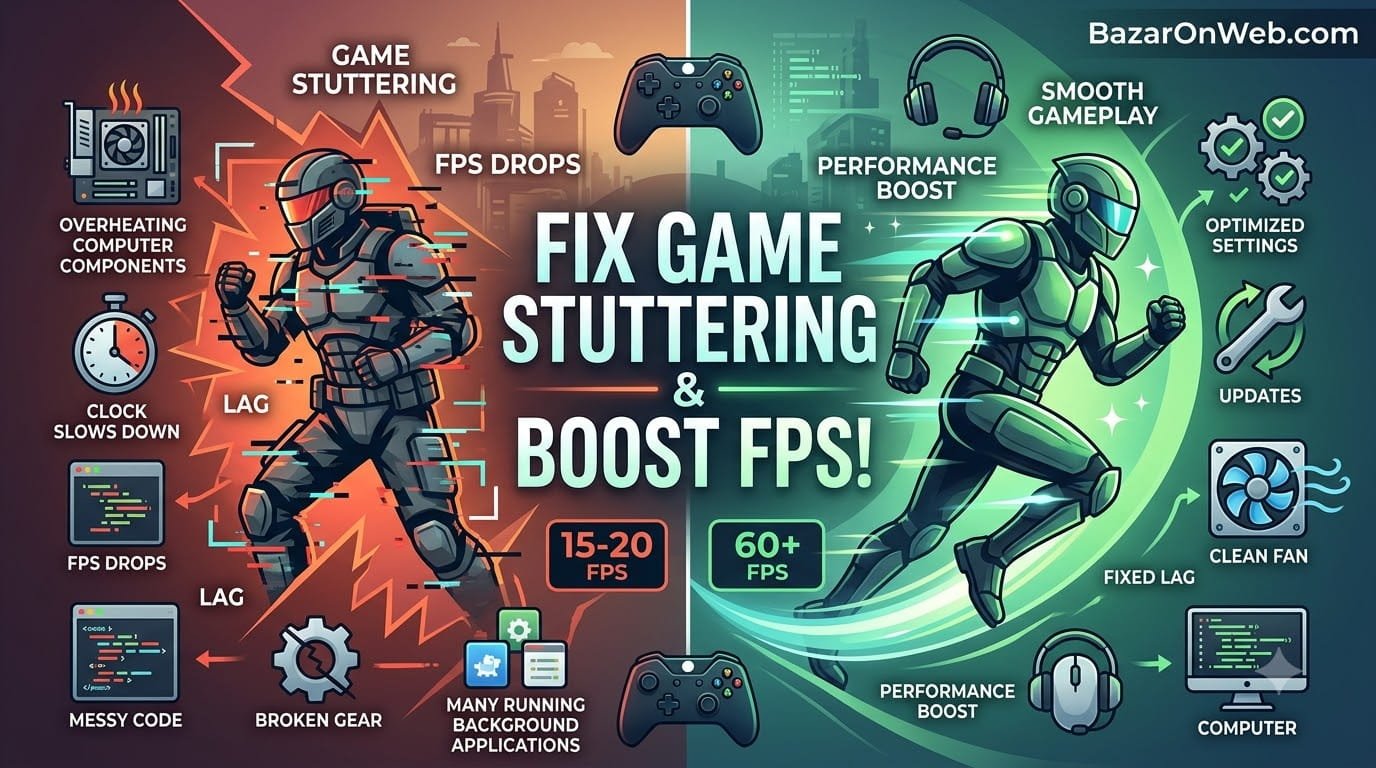
When Your Favorite Game Became Unplayable!
I spent three months waiting for a new game release. Pre-ordered it, cleared my schedule launch day, downloaded it immediately. I was excited. This was supposed to be incredible.
Then I loaded it up and immediately discovered my expensive gaming setup couldn’t run it properly. The game stuttered constantly. Every few seconds, the frame rate would tank. Smooth gameplay for a moment, then sudden freeze-frame stutter lasting half a second, then back to normal. This repeated endlessly.
It wasn’t unplayable exactly. But it was unpleasant. Stuttering in a competitive game means you miss shots or get killed. In single-player games, it breaks immersion. Either way, $60 game wasn’t delivering the experience I expected.
I assumed my hardware was outdated. My graphics card was a few years old. Maybe it couldn’t handle new game requirements. But then I tested other games and they ran perfectly fine. So it wasn’t my hardware universally failing—just this game.
I spent weeks troubleshooting. Updated drivers. Changed graphics settings. Tweaked frame rate caps. Disabled overlays. Checked temperatures. Monitored CPU and GPU usage. Closed background applications. Nothing consistently fixed it.
Then I discovered the problem had nothing to do with my hardware at all. It was a software configuration issue. One simple setting, once changed, eliminated the stuttering entirely. Suddenly the game ran beautifully.
This experience taught me that game performance problems rarely indicate hardware failure. Usually, it’s something misconfigured, something running in the background, or a driver issue. Understanding what actually causes stuttering prevents wasting hours on unnecessary troubleshooting.
Understanding Stuttering vs. Lag (And Why The Difference Matters)
Before troubleshooting performance issues, understanding what’s actually happening helps identify the cause.
Stuttering is when your game’s frame rate drops temporarily but then recovers. You see smooth gameplay, then a sudden hitch where the frame rate dips, then smooth again. It’s characterized by irregular, intermittent freezing.
Lag is consistent poor performance where your frame rate stays low continuously. Your game might run at 30 FPS instead of 60. It’s smooth but noticeably slower.
Input lag is different—it’s delay between your input (mouse click, keyboard press) and the game responding. You click to shoot and there’s a noticeable delay before your character reacts.
These are different problems with different causes. Stuttering is usually caused by temporary performance spikes—something consuming resources suddenly. Lag indicates your hardware can’t handle the game’s demands. Input lag might be a controller issue, network problem, or graphics setting.
Diagnosing which problem you actually have guides your troubleshooting direction.
Most people describe any performance problem as “lag” colloquially. But technically, stuttering is intermittent frame rate drops while lag is continuous poor performance. The distinction matters for fixes.
Cause 1: Graphics Driver Outdated or Corrupted
The most common cause of sudden game performance problems is graphics driver issues.
Your graphics card’s driver is software that communicates between Windows and your GPU. Outdated drivers sometimes don’t support new games properly. Corrupted drivers cause stuttering and crashes.
Check your GPU driver version and update if needed.
For NVIDIA cards: Search for “NVIDIA GeForce Experience” and open it. It shows your current driver version and whether updates are available. Install any available updates.
For AMD cards: Download AMD Radeon Software. It checks for driver updates automatically. Install any available.
For Intel integrated graphics: Windows Update usually handles Intel driver updates automatically, but you can manually check at intel.com.
After updating drivers, restart your computer and test the game.
Additionally, if stuttering started after a recent driver update, the new driver might be broken. Roll back to the previous driver version. NVIDIA GeForce Experience and AMD Radeon Software both allow rolling back drivers.
Cause 2: Background Applications Consuming Resources
Something running in the background might be consuming CPU or GPU resources, causing stuttering when game performance matters.
Open Task Manager (Ctrl+Shift+Esc). Look at CPU and GPU usage. What’s consuming resources?
Common culprits:
- Chrome or other browsers with many tabs open
- Discord or other communication apps
- Streaming services
- Cloud sync services (OneDrive, Dropbox, iCloud)
- Antivirus scanning
- Windows Update checking for updates
- Overlay software (Discord overlay, Xbox Game Pass overlay)
Close unnecessary applications before gaming. Close your browser. Close Discord if you’re not actively using it. Pause cloud sync services.
Additionally, check if Windows is installing updates. Settings > System > Windows Update. If updates are installing, that’s consuming resources. Wait for updates to complete or disable automatic updates temporarily while gaming.
Each background application takes CPU cycles and potentially GPU resources. Remove them and your game has more resources available.
Cause 3: Graphics Settings Too Demanding
Game stuttering sometimes indicates your graphics settings are set higher than your hardware can handle smoothly.
Open your game’s graphics settings. Look for settings like:
- Resolution
- Texture quality
- Shadow quality
- Draw distance
- Anti-aliasing
- Ray tracing (very demanding)
- DLSS or FSR (can help or hurt depending on settings)
Try lowering graphics settings one at a time and testing performance.
Often, just lowering resolution by one step (1440p to 1080p) or disabling ray tracing eliminates stuttering. You sacrifice visual quality for smooth performance.
Finding the balance between visual quality and performance is personal preference. Some people prefer higher resolution with lower frame rate. Others prefer lower resolution with consistently smooth frame rate.
Experiment with settings until you find the balance that feels right.
Cause 4: Frame Rate Not Capped (GPU Working Too Hard)
Sometimes stuttering results from your GPU working at maximum trying to achieve maximum frame rate.
Open graphics settings and look for “Frame Rate Cap,” “VSync,” or “Framerate Limiter.”
Try capping frame rate at 60 FPS (or your monitor’s refresh rate). This tells your GPU “don’t try to render more frames than this.” It can actually improve smoothness because your GPU isn’t constantly pushing to its absolute limit.
VSync synchronizes your game’s frame rate with your monitor’s refresh rate, which can reduce stuttering caused by frame rate inconsistency.
Counterintuitively, limiting frame rate sometimes improves smoothness because it prevents your GPU from spiking to maximum usage trying to hit 300+ FPS.
Cause 5: Monitor Settings and Cable Issues
Sometimes the issue isn’t your game or computer—it’s how your monitor is configured.
Check your monitor’s refresh rate. If your game is rendering at 144 FPS but your monitor only refreshes at 60 Hz, you’ll see stuttering and tearing as the monitor can’t display all those frames properly.
To check refresh rate: Right-click desktop > Display settings > Advanced display settings. Look for “Refresh rate.”
Set it to your monitor’s maximum (usually 60 Hz, 144 Hz, or 240 Hz depending on your monitor).
Additionally, check your monitor cable. Loose or damaged cables cause display issues that appear as stuttering or tearing. Reconnect your cable firmly.
Try a different cable if you have one available. Sometimes cables degrade over time or have internal damage.
Cause 6: Overheating Causing Thermal Throttling
If your GPU or CPU gets too hot, it automatically reduces performance (thermal throttling) to cool down. This causes stuttering.
Download GPU-Z or CPU-Z to monitor temperatures while gaming. Keep an eye on temps during gameplay.
GPU temperatures above 85°C and CPU temperatures above 95°C are concerning. If you see temperatures climbing and performance dropping, thermal throttling is happening.
Check your computer’s cooling:
- Are air vents clear of dust? Blow compressed air through them.
- Is your laptop on a hard surface (table) or soft surface (bed/blanket) that blocks vents? Use a hard surface.
- Do you have adequate case airflow? Rearrange fans or add additional cooling.
- Is your thermal paste degraded? Extreme temperatures might indicate dried thermal paste between GPU and heatsink (requires professional replacement).
Better cooling = better performance and no thermal throttling.
Cause 7: Disk Usage Spiking
If your disk is running at 100% usage, it can cause stuttering because the system can’t read game assets fast enough.
Open Task Manager. Look at the Disk column. If it’s consistently at 100%, something is consuming disk resources.
Common causes:
- Windows Update installing
- Antivirus scanning
- Cloud sync downloading/uploading files
- Another application copying large files
- Hard drive failing (clicking sounds from hard drive = imminent failure)
Close the application using disk. Wait for antivirus scans to complete. Disable cloud sync temporarily.
If disk usage stays at 100% with nothing obvious consuming it, your hard drive might be failing. Back up immediately and consider replacement.
Gaming requires fast disk access. If disk is slow or failing, performance suffers.
Cause 8: Inadequate Power Supply
For gaming desktops, insufficient power supply can cause stuttering and performance issues.
If your power supply isn’t powerful enough to handle your GPU and CPU simultaneously under load, voltage can fluctuate, causing performance drops.
Check your PSU wattage. Most gaming setups need 650W minimum, 750W for high-end GPUs.
If you’ve upgraded your GPU recently and didn’t upgrade PSU, your PSU might be inadequate. Consider PSU upgrade.
Cause 9: Network Issues (For Online Games)
If you’re playing online games and experiencing stuttering, it might not be your computer—it’s your network connection.
Network lag manifests as stuttering when playing online because network latency causes game state inconsistencies.
Test your internet: speedtest.net. Check your ping and latency.
Anything under 50ms ping is good for gaming. 50-100ms is acceptable. Over 100ms causes noticeable lag.
If ping is high:
- Move closer to your WiFi router
- Use ethernet cable instead of WiFi
- Close other applications using network (downloads, streaming, etc.)
- Restart your router
- Contact your ISP if speeds are far below what you’re paying for
Network-related stuttering is frustrating because your computer isn’t the problem.
Cause 10: Game-Specific Issues
Sometimes games have bugs or performance problems specific to certain configurations.
Check game forums or Reddit communities. Often other players report similar issues with solutions.
Common fixes:
- Update or reinstall the game (files might be corrupted)
- Try different graphics API if the game supports it (DirectX 12 vs DirectX 11, Vulkan vs OpenGL)
- Disable specific game settings known to cause issues
- Verify game files through Steam or Epic Games launcher
Game developers often release patches fixing performance issues. Keep your games updated.
Testing Your Changes: Proper Benchmarking
After making changes, properly test to see if they actually fixed performance.
Don’t just play for five minutes. Play for 20-30 minutes in various conditions (intense scenes, calm areas, online gameplay).
Watch frame rate using an FPS counter. Press Alt+Z (NVIDIA) or Ctrl+Shift+R (AMD) to overlay FPS counter on screen. Or use third-party tools like FRAPS or MSI Afterburner.
Monitor temperatures while gaming to ensure you’re not thermally throttling.
Only after extended testing can you confirm whether your changes actually fixed performance.
Preventing Future Performance Problems
After fixing stuttering, prevent it from recurring:
Keep drivers updated: Check monthly for GPU driver updates.
Monitor temperatures: Ensure adequate cooling. Clean dust regularly.
Limit background apps: Close unnecessary applications before gaming.
Manage graphics settings: Balance quality and performance for your hardware.
Keep games updated: Updates often include performance improvements.
Monitor disk health: Watch for signs of hard drive failure. Replace before it fails completely.
Upgrade when needed: Eventually, your hardware becomes outdated. Upgrade GPU or CPU when performance no longer meets your needs.
The Reality
Game stuttering is frustrating, but it’s rarely caused by hardware failure. Usually, it’s something misconfigured, something running in the background, or outdated drivers.
Systematic troubleshooting—starting with drivers, checking background apps, adjusting settings—identifies the problem.
Most people can fix their own stuttering with this guidance. You don’t need new hardware. You just need to find what’s causing the problem and fix it.
Your expensive gaming setup is probably fine. It’s just something temporary preventing it from performing properly.
Disclaimer: This article provides troubleshooting guidance for game performance issues. Results vary by hardware, game, graphics driver version, and system configuration. Performance depends on GPU, CPU, RAM, and storage speed. Some games may require hardware upgrades. Thermal management requires proper ventilation. Users assume responsibility for testing changes. Seek professional support for hardware diagnostics or if performance issues persist. Graphics driver updates can introduce new issues—roll back if necessary.

- How to Remotely Control Another Computer Using Windows Quick Assist

- 5 Must-Have Electronics Gadgets for a More Comfortable Living Room

- How to Create a Windows 11 System Backup on an External Hard Drive

- 10 Smart Home Ideas That Make Everyday Life Easier

- Gemini Live Avatar: How to Talk to Gemini Face-to-Face

Products
-
![Apple Watch Ultra 3 [GPS + Cellular 49mm] Running & Multisport Smartwatch w/Rugged Titanium Case w/Black Titanium Milanese Loop - M. Satellite Communications, Advanced Health & Fitness Tracking](https://bazaronweb.com/retailstores/wp-content/uploads/2025/09/apple-watch-320x320.jpg) Apple Watch Ultra 3 [GPS + Cellular 49mm] Running & Multisport Smartwatch w/Rugged Titanium Case w/Black Titanium Milanese Loop - M. Satellite Communications, Advanced Health & Fitness Tracking
Apple Watch Ultra 3 [GPS + Cellular 49mm] Running & Multisport Smartwatch w/Rugged Titanium Case w/Black Titanium Milanese Loop - M. Satellite Communications, Advanced Health & Fitness Tracking
-
 Apple iPad mini (A17 Pro): Apple Intelligence, 8.3-inch Liquid Retina Display, 256GB, Wi-Fi 6E, 12MP Front/12MP Back Camera, Touch ID, All-Day Battery Life — Purple
-
 Apple AirPods Max Wireless Over-Ear Headphones, Active Noise Cancelling, Transparency Mode, Personalized Spatial Audio, Dolby Atmos, Bluetooth Headphones for iPhone – Space Gray
-
 Apple AirPods Pro 2 Wireless Earbuds, Active Noise Cancellation, Hearing Aid Feature, Bluetooth Headphones, Transparency, Personalized Spatial Audio, High-Fidelity Sound, H2 Chip, USB-C Charging
-
Home Garage 210 TC Cotton King Floral Fitted (Elastic) Bedsheet(Pack of 1, Grey)
Original price was: ₹999.00.₹299.00Current price is: ₹299.00.
Leave a Reply