Discounted Products
-
 Home Garage 210 TC Cotton King Floral Fitted (Elastic) Bedsheet(Pack of 1, Grey)
Original price was: ₹999.00.₹299.00Current price is: ₹299.00.
Home Garage 210 TC Cotton King Floral Fitted (Elastic) Bedsheet(Pack of 1, Grey)
Original price was: ₹999.00.₹299.00Current price is: ₹299.00.
-
 Goodrik 140 TC Cotton Double 3D Printed Flat Bedsheet(Pack of 1, Brown)
Original price was: ₹499.00.₹229.00Current price is: ₹229.00.
Goodrik 140 TC Cotton Double 3D Printed Flat Bedsheet(Pack of 1, Brown)
Original price was: ₹499.00.₹229.00Current price is: ₹229.00.
-
 GLOBALSHOP 350 TC Microfiber Double Floral Flat Bedsheet(Pack of 1, Multicolor)
Original price was: ₹1,250.00.₹263.00Current price is: ₹263.00.
GLOBALSHOP 350 TC Microfiber Double Floral Flat Bedsheet(Pack of 1, Multicolor)
Original price was: ₹1,250.00.₹263.00Current price is: ₹263.00.
-
 RisingStar 250 TC Microfiber King Printed Fitted (Elastic) Bedsheet(Pack of 1, FITTED-ROUND-CIRCLES-PREMIUM)
Original price was: ₹2,299.00.₹299.00Current price is: ₹299.00.
RisingStar 250 TC Microfiber King Printed Fitted (Elastic) Bedsheet(Pack of 1, FITTED-ROUND-CIRCLES-PREMIUM)
Original price was: ₹2,299.00.₹299.00Current price is: ₹299.00.
-
 Home Garage 210 TC Cotton King Floral Fitted (Elastic) Bedsheet(Pack of 1, Fitted Black Green)
Original price was: ₹1,299.00.₹299.00Current price is: ₹299.00.
Home Garage 210 TC Cotton King Floral Fitted (Elastic) Bedsheet(Pack of 1, Fitted Black Green)
Original price was: ₹1,299.00.₹299.00Current price is: ₹299.00.
-
 Home Garage 180 TC Cotton King 3D Printed Flat Bedsheet(Pack of 1, White)
Original price was: ₹999.00.₹229.00Current price is: ₹229.00.
Home Garage 180 TC Cotton King 3D Printed Flat Bedsheet(Pack of 1, White)
Original price was: ₹999.00.₹229.00Current price is: ₹229.00.
-
 Panipat Textile Hub 152.4 cm (5 ft) Polyester Window Curtain (Pack Of 2)(Solid, Aqua)
Original price was: ₹1,899.00.₹299.00Current price is: ₹299.00.
Panipat Textile Hub 152.4 cm (5 ft) Polyester Window Curtain (Pack Of 2)(Solid, Aqua)
Original price was: ₹1,899.00.₹299.00Current price is: ₹299.00.
-
 Home Sizzler 214 cm (7 ft) Polyester Semi Transparent Door Curtain (Pack Of 2)(Floral, Maroon)
Original price was: ₹1,199.00.₹399.00Current price is: ₹399.00.
Home Sizzler 214 cm (7 ft) Polyester Semi Transparent Door Curtain (Pack Of 2)(Floral, Maroon)
Original price was: ₹1,199.00.₹399.00Current price is: ₹399.00.
-
 Home Sizzler 153 cm (5 ft) Polyester Room Darkening Window Curtain (Pack Of 2)(Floral, Brown)
Original price was: ₹799.00.₹299.00Current price is: ₹299.00.
Home Sizzler 153 cm (5 ft) Polyester Room Darkening Window Curtain (Pack Of 2)(Floral, Brown)
Original price was: ₹799.00.₹299.00Current price is: ₹299.00.
-
 Stella Creations 214 cm (7 ft) Polyester Room Darkening Door Curtain (Pack Of 2)(Abstract, Brown)
Original price was: ₹1,299.00.₹449.00Current price is: ₹449.00.
Stella Creations 214 cm (7 ft) Polyester Room Darkening Door Curtain (Pack Of 2)(Abstract, Brown)
Original price was: ₹1,299.00.₹449.00Current price is: ₹449.00.
-
 Homefab India 152.5 cm (5 ft) Polyester Room Darkening Window Curtain (Pack Of 2)(Floral, Light Blue)
Original price was: ₹1,199.00.₹319.00Current price is: ₹319.00.
Homefab India 152.5 cm (5 ft) Polyester Room Darkening Window Curtain (Pack Of 2)(Floral, Light Blue)
Original price was: ₹1,199.00.₹319.00Current price is: ₹319.00.
-
 Urban Home 214 cm (7 ft) PVC Transparent Door Curtain Single Curtain(Solid, Off White)
Original price was: ₹699.00.₹203.00Current price is: ₹203.00.
Urban Home 214 cm (7 ft) PVC Transparent Door Curtain Single Curtain(Solid, Off White)
Original price was: ₹699.00.₹203.00Current price is: ₹203.00.
-
 Panipat Textile Hub 213 cm (7 ft) Polyester Door Curtain (Pack Of 2)(Solid, Brown)
Original price was: ₹1,199.00.₹349.00Current price is: ₹349.00.
Panipat Textile Hub 213 cm (7 ft) Polyester Door Curtain (Pack Of 2)(Solid, Brown)
Original price was: ₹1,199.00.₹349.00Current price is: ₹349.00.
-
 Home Sizzler 214 cm (7 ft) Polyester Semi Transparent Door Curtain (Pack Of 2)(Floral, Brown)
Original price was: ₹999.00.₹349.00Current price is: ₹349.00.
Home Sizzler 214 cm (7 ft) Polyester Semi Transparent Door Curtain (Pack Of 2)(Floral, Brown)
Original price was: ₹999.00.₹349.00Current price is: ₹349.00.
-
 Panipat Textile Hub 213 cm (7 ft) Polyester Semi Transparent Door Curtain (Pack Of 2)(Floral, Brown)
Original price was: ₹899.00.₹299.00Current price is: ₹299.00.
Panipat Textile Hub 213 cm (7 ft) Polyester Semi Transparent Door Curtain (Pack Of 2)(Floral, Brown)
Original price was: ₹899.00.₹299.00Current price is: ₹299.00.
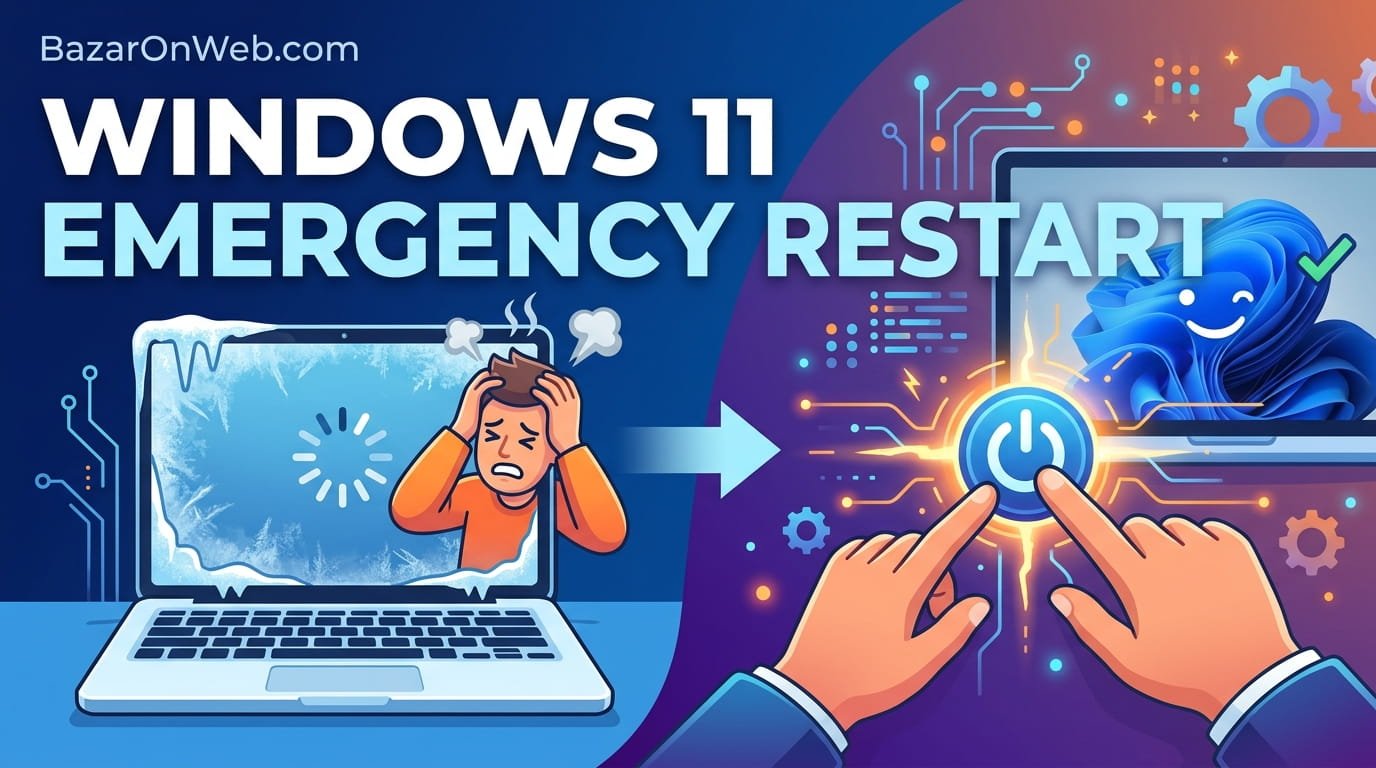
It happened at the worst possible time for me. I was editing a document, everything was fine, and then suddenly my entire computer froze. Not sluggish. Not slow. Completely frozen. The mouse wouldn’t move. Clicking did nothing. Typing produced no response. My screen was basically a still photograph at that point.
I waited. Sometimes computers freeze temporarily and then recover. Thirty seconds passed. Nothing. A minute passed. Still nothing. I tried the obvious stuff. Alt+Tab to switch windows. Nope. Ctrl+Alt+Delete to open Task Manager. Nope. Even that wouldn’t respond.
I started to panic. My document had unsaved changes. My computer was locked up. The only thing I could think to do was hold the power button until the computer shut down forcibly. But I’d heard that’s bad—can corrupt your system, destroy unsaved data, that sort of thing.
I sat there for probably five minutes trying everything. Clicking. Typing. Keyboard shortcuts. Nothing worked. My computer was genuinely, completely unresponsive. Holding the power button seemed like my only option, but I was hesitant to do it without knowing if there was a better way.
Then someone told me about Emergency Restart. Apparently Windows 11 has a feature specifically for this situation—a way to force your computer to restart without losing data or corrupting your system. It’s designed exactly for moments when your computer is completely frozen and nothing else works.
I’d never heard of it before. And apparently I’m not alone. Most Windows users don’t know about Emergency Restart. It’s this hidden feature that solves a problem we all face eventually, but it’s so well hidden that most people never discover it.
What Emergency Restart Actually Is (And Why It’s Different From Just Holding the Power Button)
Before I explain how to use Emergency Restart, understanding what it is and why it exists helps explain why you’d want to use it instead of just forcibly powering off your computer.
Windows has a graceful shutdown process. You go to Start menu > Shut Down. Windows tells all your running programs to close. Each program gets a few seconds to save data and clean up. Then Windows itself shuts down cleanly. Everything is coordinated and orderly.
Forcibly holding the power button bypasses all that. You’re yanking the power cord, essentially. Windows doesn’t get to tell programs to close. Programs don’t get to save data. The computer just dies mid-operation. This can corrupt files, lose unsaved work, leave databases in inconsistent states, and generally cause chaos.
Emergency Restart is the middle ground. It’s a Windows system feature that force-restarts your computer but does it in a way that’s safer than just holding the power button. Instead of cutting power immediately, Emergency Restart tells Windows “restart now, I don’t care if things are stuck, just do it.” Windows then proceeds with restart, but it doesn’t wait for stuck programs or frozen processes to respond. It just goes.
The result is that your computer restarts faster than holding the power button, but more safely than holding the power button. Windows gets to clean up some things, and your system is less likely to be corrupted.
It’s specifically designed for frozen computers where normal restart won’t work.
How to Actually Trigger Emergency Restart (And Why It’s So Weirdly Hidden)
Here’s the frustrating part: Emergency Restart is a real feature, but Microsoft hid it so thoroughly that most people don’t know it exists. There’s no obvious button for it. No obvious menu option. You have to know the specific keyboard combination.
The keyboard shortcut for Emergency Restart is: Ctrl+Alt+Delete, then Ctrl+Alt+Delete again
Yes, you press Ctrl+Alt+Delete twice. Let me explain why this works.
First Ctrl+Alt+Delete: Opens the secure attention sequence screen (the lock screen with buttons for signing out, shutting down, etc.). This screen is special—it’s one of the few things that works even when your computer is frozen, because it runs at a very low system level before your normal programs and processes.
Second Ctrl+Alt+Delete: While on that secure attention sequence screen, press Ctrl+Alt+Delete again. This triggers Emergency Restart.
Your computer immediately begins restarting. You’ll see a message saying something like “Your device will restart in one minute” or similar. Then it counts down and restarts.
That’s it. That’s how you emergency restart a frozen Windows 11 computer.
The absurd part is that Microsoft never explains this. It’s not in any obvious help documentation. It’s not mentioned in Settings. It’s just… a thing that exists that you have to somehow discover. I only found out about it because someone mentioned it in a forum. Most people never learn about it because it’s so poorly advertised.
Why This Works When Everything Else Fails
Understanding why Emergency Restart works when normal shutdown doesn’t helps explain why it’s so useful.
When your computer freezes, usually a program or process has gotten stuck. It’s consuming processor resources and preventing normal operations. You try to shut down through the Start menu, but the Start menu itself might be frozen. You try Ctrl+Alt+Delete to open Task Manager, but that might not respond either because the system is so stuck.
Normal shutdown requires various system components to cooperate and respond in sequence. If everything is frozen, none of that can happen.
Ctrl+Alt+Delete works even on frozen computers because it’s handled at an extremely low system level—it’s processed before normal system operations get a chance to block it. It’s almost like a backdoor into your computer’s core systems.
The first Ctrl+Alt+Delete gets you to the secure attention sequence screen. At this point, you’ve bypassed the normal desktop and its stuck programs. You’re in a special system-level interface.
The second Ctrl+Alt+Delete from that screen triggers an interrupt that tells Windows “stop what you’re doing and restart now.” It’s forceful but controlled.
The result is that your computer restarts, but Windows gets notified of the restart and can do some cleanup rather than just dying instantly.
It’s not perfect. You might still lose unsaved work in programs. But it’s way better than holding the power button.
When Emergency Restart Is Actually Necessary (Real Scenarios)
Emergency Restart is useful specifically when your computer is completely frozen. Not slow. Not laggy. Actually frozen.
Scenario 1: A program crashes but won’t close. You try closing the application, it won’t respond. You try Force Quit, the quit button does nothing. You try restarting normally, but because the program won’t close, restart hangs. You end up stuck with a frozen computer and a program that refuses to die. Emergency Restart forces the restart despite the frozen program.
Scenario 2: Your graphics driver crashes. Graphics drivers sometimes crash catastrophically, leaving your screen frozen but your computer technically still running. Your cursor won’t move. Keyboard won’t respond. The screen is completely locked up. Normal restart might not even be possible because nothing responds. Emergency Restart forces a restart.
Scenario 3: Windows Update installs and something goes terribly wrong. You install an update, the installation process gets stuck, your computer becomes completely unresponsive. You can’t shut down. You can’t restart normally. Emergency Restart is your way out.
Scenario 4: A background process goes haywire. Sometimes a malware, system service, or legitimate background process gets into an infinite loop consuming all processor resources. Your computer becomes completely unresponsive even though technically it’s still running. Normal shutdown doesn’t work because everything is frozen. Emergency Restart forces a restart.
These aren’t theoretical scenarios. They happen to real people regularly. And when they happen, most people don’t know what to do except hold the power button. Emergency Restart provides a better option.
The Emergency Restart Countdown (And What It Means)
When you trigger Emergency Restart, Windows doesn’t immediately shut down. Instead, you see a countdown message saying something like “Your device will restart in one minute” or “Preparing for emergency restart.”
This countdown exists for a reason. It gives you a final chance to cancel if you accidentally triggered Emergency Restart. If you’re not actually trying to restart, you can press a key or move your mouse to cancel the countdown before it reaches zero.
The countdown also gives Windows a brief window to prepare for restart. It’s not much time—usually only 60 seconds—but it allows Windows to flag running programs and prepare for an emergency shutdown rather than a complete power loss.
After the countdown expires, your computer restarts. You’ll see the normal Windows startup screen.
After Emergency Restart: What You Need to Know
When your computer boots back up after an Emergency Restart, several things might happen.
Programs might not have saved data. If you had unsaved work in applications, it’s probably lost. The programs didn’t get the chance to save before the forced restart. This is the main downside of Emergency Restart—data loss in programs that were running.
Windows Defender might run scans. Windows sometimes runs additional scans after emergency shutdown to check for corruption or problems. This might slow startup.
Programs might start in recovery mode. Some applications (especially Office programs, databases) might detect that they didn’t shut down cleanly and launch in recovery mode, offering to recover unsaved work. This is actually helpful—recovery mode sometimes recovers some of your lost work.
Your computer might take longer to boot. Emergency restart isn’t as gentle as normal shutdown, so Windows might need extra time to verify the file system and check for problems during startup.
You might get warning messages. Windows might show notifications saying “Your computer didn’t shut down properly” or similar. These are just informational—your computer isn’t broken.
After your computer boots, check your programs for unsaved work. Office programs often have recovery files. If you had unsaved documents, there’s a chance you can recover some of them.
Before Resorting to Emergency Restart: Other Things to Try
Emergency Restart should be your last resort, not your first choice. Before going nuclear, try these first.
Wait longer. Sometimes computers appear frozen but are actually just very slow. Wait five minutes. Sometimes they recover on their own.
Try Ctrl+Alt+Delete once (without the second press). This opens the secure attention sequence screen. From here, you can try restarting normally through the Restart button instead of triggering Emergency Restart. This is gentler because it gives Windows more time to shut down properly.
Try Alt+F4. This keyboard shortcut closes the currently active window. If a specific program is frozen, Alt+F4 might close just that program without affecting others.
Try Ctrl+Shift+Esc. This opens Task Manager directly without going through Ctrl+Alt+Delete. If Task Manager opens, you can close the frozen program from there.
Try clicking different windows. Sometimes one window is frozen but others aren’t. Click on the taskbar. Click on the desktop. Try clicking different windows to see if any of them respond. Sometimes your entire computer isn’t frozen—just one application is stuck.
Try restarting normally one more time. Even if your computer seems frozen, try starting a normal restart through Start menu > Restart. Sometimes it works even when everything appears frozen.
Unplug external devices. Sometimes USB devices, printers, or external drives cause the computer to freeze. Unplug them and see if your computer recovers.
Only after genuinely trying these should you resort to Emergency Restart.
When Emergency Restart Doesn’t Work
Rarely, even Emergency Restart fails. You press Ctrl+Alt+Delete twice and nothing happens. Your computer remains frozen.
In this case, your computer is so badly frozen that even the emergency restart mechanism can’t function. At this point, you have no choice but to hold the power button.
Press and hold the power button for about 10 seconds. Your computer will forcibly shut down. There’s nothing gentle about this—it’s the nuclear option.
Wait 30 seconds. Press the power button to turn it back on. Your computer boots from a complete power-off state.
This is worst-case scenario, but it’s the only option when Emergency Restart doesn’t work. Your computer might take longer to boot (Windows might run disk checks), and you’ll probably lose unsaved work, but the computer will eventually recover.
The fact that even this extreme scenario is recoverable shows how robust modern computers are. Even completely forced shutdowns don’t permanently damage your hardware.
Preventing Situations Where You’d Need Emergency Restart
After going through an emergency restart, you probably want to prevent needing it again.
Keep Windows updated. Many crashes and freezes are fixed by Windows updates. Keep your system current.
Update your drivers. Graphics drivers, chipset drivers, and other hardware drivers are common culprits. Keep them updated.
Manage startup programs. Too many programs launching at startup can cause your computer to freeze or respond slowly during startup. Keep startup programs minimal.
Monitor background processes. Open Task Manager occasionally (Ctrl+Shift+Esc) and look at what’s consuming CPU or memory. If something is using excessive resources constantly, it’s a problem waiting to freeze your computer.
Don’t install random software. Malware and poorly-written applications cause crashes and freezes. Only install software from trusted sources.
Restart regularly. Weekly restarts clear accumulated issues and prevent problems from building up. Many computer freezes result from processes accumulating over weeks of uptime.
Close unused programs. The more programs you have running simultaneously, the more likely freezes become.
Check your hardware. If your computer constantly freezes despite software troubleshooting, hardware might be failing. Hard drive problems, RAM issues, or overheating can cause constant freezes.
The Different Types of “Frozen”
Worth noting that not all frozen computers require Emergency Restart. Understanding what “frozen” means helps you troubleshoot appropriately.
Computer responds slowly but not frozen: Your computer is just slow. This doesn’t require Emergency Restart. Just wait or try closing programs using Task Manager (Ctrl+Shift+Esc).
One program is frozen but others work: Close the frozen program through Task Manager. You don’t need Emergency Restart for this.
Screen is frozen but computer is running: This is graphics driver freeze. Your computer is running but the display isn’t updating. Try Ctrl+Alt+Delete. If that works, your computer isn’t actually frozen. If Ctrl+Alt+Delete doesn’t work, then Emergency Restart is appropriate.
Completely unresponsive—nothing works: This is genuine freeze requiring Emergency Restart.
The distinction matters because Emergency Restart is drastic. You only want to use it when genuinely necessary.
Emergency Restart vs. Safe Mode vs. Recovery Mode
Windows has several different startup modes and reset options. Emergency Restart is one of them. Understanding the differences prevents confusion.
Emergency Restart: Forces an immediate restart when your computer is frozen. Useful when nothing else responds.
Safe Mode: Boots Windows with minimal drivers and services. Useful for troubleshooting. Not useful when your computer is currently frozen.
Recovery Mode: Provides options to repair Windows or reset your computer. Requires your computer to at least boot.
Hard Shutdown (power button): Completely cuts power. Worst option but necessary if Emergency Restart doesn’t work.
Emergency Restart is specifically for when your computer is frozen right now and you need it to restart immediately.
The Weird Edge Case: What If Emergency Restart Doesn’t Show Countdown?
Sometimes you trigger Emergency Restart (Ctrl+Alt+Delete twice) and your computer immediately restarts without showing the countdown message.
This is actually fine. It means the restart is happening, just without the visual countdown. Your computer is still restarting.
You’ll see the Windows startup screen and your computer will boot normally. Everything works the same as if the countdown had appeared.
Documenting Emergency Restarts: When They Indicate Bigger Problems
If you’re using Emergency Restart occasionally—maybe once every few months—that’s normal. Every computer occasionally needs a restart.
But if you’re using Emergency Restart weekly or more frequently, your computer has a problem that needs investigation.
Document when Emergency Restarts happen. Write down what you were doing when it froze. Note if specific programs are involved. Over time, you might notice a pattern.
If freezes always happen when using a specific program, that program is the problem. Uninstall it or find an alternative.
If freezes happen randomly, it might be hardware failing. Hard drives have a predictable failure pattern. RAM sometimes goes bad. Components overheat.
If freezes happen during startup or after installing an update, the update might be problematic. Try rolling back the update.
Frequent freezes that require Emergency Restart suggest something is wrong that Emergency Restart is just temporarily fixing.
The Reality
Emergency Restart is a feature most people don’t know about, solving a problem most people face eventually.
Your computer will eventually freeze completely. It happens to everyone. When it does, you need a way to recover without data corruption or permanent damage.
Emergency Restart provides that recovery mechanism. It’s not perfect—you might lose unsaved work. But it’s vastly better than holding the power button.
Knowing about this feature means you have options when your computer freezes. You’re not helpless. You’re not forced to risk corruption by holding the power button. You have an official Windows feature designed exactly for this situation.
Most people go years without needing it. But when the moment comes—and eventually it will—you’ll be grateful you know about it.
Quick Reference: Emergency Restart Steps
Computer completely frozen and won’t respond?
- Press Ctrl+Alt+Delete (opens secure attention sequence screen)
- Press Ctrl+Alt+Delete again (triggers Emergency Restart)
- Wait for countdown to expire (or it restarts immediately)
- Your computer restarts
- After booting, check programs for unsaved work recovery
If Emergency Restart doesn’t work:
- Hold power button for 10 seconds (forces complete shutdown)
- Wait 30 seconds
- Press power button to turn back on
- Computer boots from complete power-off
One of these will always work.
Disclaimer
This article provides guidance on using Windows 11’s Emergency Restart feature and general troubleshooting for frozen computers. The information is intended for educational purposes to help users understand and utilize available system features when computers become unresponsive. Specific outcomes and results may vary depending on your Windows 11 version, system configuration, installed software, and individual circumstances.

- How to Remotely Control Another Computer Using Windows Quick Assist

- 5 Must-Have Electronics Gadgets for a More Comfortable Living Room

- How to Create a Windows 11 System Backup on an External Hard Drive

- 10 Smart Home Ideas That Make Everyday Life Easier

- Gemini Live Avatar: How to Talk to Gemini Face-to-Face

Products
-
![Apple Watch Ultra 3 [GPS + Cellular 49mm] Running & Multisport Smartwatch w/Rugged Titanium Case w/Black Titanium Milanese Loop - M. Satellite Communications, Advanced Health & Fitness Tracking](https://bazaronweb.com/retailstores/wp-content/uploads/2025/09/apple-watch-320x320.jpg) Apple Watch Ultra 3 [GPS + Cellular 49mm] Running & Multisport Smartwatch w/Rugged Titanium Case w/Black Titanium Milanese Loop - M. Satellite Communications, Advanced Health & Fitness Tracking
Apple Watch Ultra 3 [GPS + Cellular 49mm] Running & Multisport Smartwatch w/Rugged Titanium Case w/Black Titanium Milanese Loop - M. Satellite Communications, Advanced Health & Fitness Tracking
-
 Apple iPad mini (A17 Pro): Apple Intelligence, 8.3-inch Liquid Retina Display, 256GB, Wi-Fi 6E, 12MP Front/12MP Back Camera, Touch ID, All-Day Battery Life — Purple
-
 Apple AirPods Max Wireless Over-Ear Headphones, Active Noise Cancelling, Transparency Mode, Personalized Spatial Audio, Dolby Atmos, Bluetooth Headphones for iPhone – Space Gray
-
 Apple AirPods Pro 2 Wireless Earbuds, Active Noise Cancellation, Hearing Aid Feature, Bluetooth Headphones, Transparency, Personalized Spatial Audio, High-Fidelity Sound, H2 Chip, USB-C Charging
-
Home Garage 210 TC Cotton King Floral Fitted (Elastic) Bedsheet(Pack of 1, Grey)
Original price was: ₹999.00.₹299.00Current price is: ₹299.00.
Leave a Reply