Discounted Products
-
 Home Garage 210 TC Cotton King Floral Fitted (Elastic) Bedsheet(Pack of 1, Grey)
Original price was: ₹999.00.₹299.00Current price is: ₹299.00.
Home Garage 210 TC Cotton King Floral Fitted (Elastic) Bedsheet(Pack of 1, Grey)
Original price was: ₹999.00.₹299.00Current price is: ₹299.00.
-
 Goodrik 140 TC Cotton Double 3D Printed Flat Bedsheet(Pack of 1, Brown)
Original price was: ₹499.00.₹229.00Current price is: ₹229.00.
Goodrik 140 TC Cotton Double 3D Printed Flat Bedsheet(Pack of 1, Brown)
Original price was: ₹499.00.₹229.00Current price is: ₹229.00.
-
 GLOBALSHOP 350 TC Microfiber Double Floral Flat Bedsheet(Pack of 1, Multicolor)
Original price was: ₹1,250.00.₹263.00Current price is: ₹263.00.
GLOBALSHOP 350 TC Microfiber Double Floral Flat Bedsheet(Pack of 1, Multicolor)
Original price was: ₹1,250.00.₹263.00Current price is: ₹263.00.
-
 RisingStar 250 TC Microfiber King Printed Fitted (Elastic) Bedsheet(Pack of 1, FITTED-ROUND-CIRCLES-PREMIUM)
Original price was: ₹2,299.00.₹299.00Current price is: ₹299.00.
RisingStar 250 TC Microfiber King Printed Fitted (Elastic) Bedsheet(Pack of 1, FITTED-ROUND-CIRCLES-PREMIUM)
Original price was: ₹2,299.00.₹299.00Current price is: ₹299.00.
-
 Home Garage 210 TC Cotton King Floral Fitted (Elastic) Bedsheet(Pack of 1, Fitted Black Green)
Original price was: ₹1,299.00.₹299.00Current price is: ₹299.00.
Home Garage 210 TC Cotton King Floral Fitted (Elastic) Bedsheet(Pack of 1, Fitted Black Green)
Original price was: ₹1,299.00.₹299.00Current price is: ₹299.00.
-
 Home Garage 180 TC Cotton King 3D Printed Flat Bedsheet(Pack of 1, White)
Original price was: ₹999.00.₹229.00Current price is: ₹229.00.
Home Garage 180 TC Cotton King 3D Printed Flat Bedsheet(Pack of 1, White)
Original price was: ₹999.00.₹229.00Current price is: ₹229.00.
-
 Panipat Textile Hub 152.4 cm (5 ft) Polyester Window Curtain (Pack Of 2)(Solid, Aqua)
Original price was: ₹1,899.00.₹299.00Current price is: ₹299.00.
Panipat Textile Hub 152.4 cm (5 ft) Polyester Window Curtain (Pack Of 2)(Solid, Aqua)
Original price was: ₹1,899.00.₹299.00Current price is: ₹299.00.
-
 Home Sizzler 214 cm (7 ft) Polyester Semi Transparent Door Curtain (Pack Of 2)(Floral, Maroon)
Original price was: ₹1,199.00.₹399.00Current price is: ₹399.00.
Home Sizzler 214 cm (7 ft) Polyester Semi Transparent Door Curtain (Pack Of 2)(Floral, Maroon)
Original price was: ₹1,199.00.₹399.00Current price is: ₹399.00.
-
 Home Sizzler 153 cm (5 ft) Polyester Room Darkening Window Curtain (Pack Of 2)(Floral, Brown)
Original price was: ₹799.00.₹299.00Current price is: ₹299.00.
Home Sizzler 153 cm (5 ft) Polyester Room Darkening Window Curtain (Pack Of 2)(Floral, Brown)
Original price was: ₹799.00.₹299.00Current price is: ₹299.00.
-
 Stella Creations 214 cm (7 ft) Polyester Room Darkening Door Curtain (Pack Of 2)(Abstract, Brown)
Original price was: ₹1,299.00.₹449.00Current price is: ₹449.00.
Stella Creations 214 cm (7 ft) Polyester Room Darkening Door Curtain (Pack Of 2)(Abstract, Brown)
Original price was: ₹1,299.00.₹449.00Current price is: ₹449.00.
-
 Homefab India 152.5 cm (5 ft) Polyester Room Darkening Window Curtain (Pack Of 2)(Floral, Light Blue)
Original price was: ₹1,199.00.₹319.00Current price is: ₹319.00.
Homefab India 152.5 cm (5 ft) Polyester Room Darkening Window Curtain (Pack Of 2)(Floral, Light Blue)
Original price was: ₹1,199.00.₹319.00Current price is: ₹319.00.
-
 Urban Home 214 cm (7 ft) PVC Transparent Door Curtain Single Curtain(Solid, Off White)
Original price was: ₹699.00.₹203.00Current price is: ₹203.00.
Urban Home 214 cm (7 ft) PVC Transparent Door Curtain Single Curtain(Solid, Off White)
Original price was: ₹699.00.₹203.00Current price is: ₹203.00.
-
 Panipat Textile Hub 213 cm (7 ft) Polyester Door Curtain (Pack Of 2)(Solid, Brown)
Original price was: ₹1,199.00.₹349.00Current price is: ₹349.00.
Panipat Textile Hub 213 cm (7 ft) Polyester Door Curtain (Pack Of 2)(Solid, Brown)
Original price was: ₹1,199.00.₹349.00Current price is: ₹349.00.
-
 Home Sizzler 214 cm (7 ft) Polyester Semi Transparent Door Curtain (Pack Of 2)(Floral, Brown)
Original price was: ₹999.00.₹349.00Current price is: ₹349.00.
Home Sizzler 214 cm (7 ft) Polyester Semi Transparent Door Curtain (Pack Of 2)(Floral, Brown)
Original price was: ₹999.00.₹349.00Current price is: ₹349.00.
-
 Panipat Textile Hub 213 cm (7 ft) Polyester Semi Transparent Door Curtain (Pack Of 2)(Floral, Brown)
Original price was: ₹899.00.₹299.00Current price is: ₹299.00.
Panipat Textile Hub 213 cm (7 ft) Polyester Semi Transparent Door Curtain (Pack Of 2)(Floral, Brown)
Original price was: ₹899.00.₹299.00Current price is: ₹299.00.
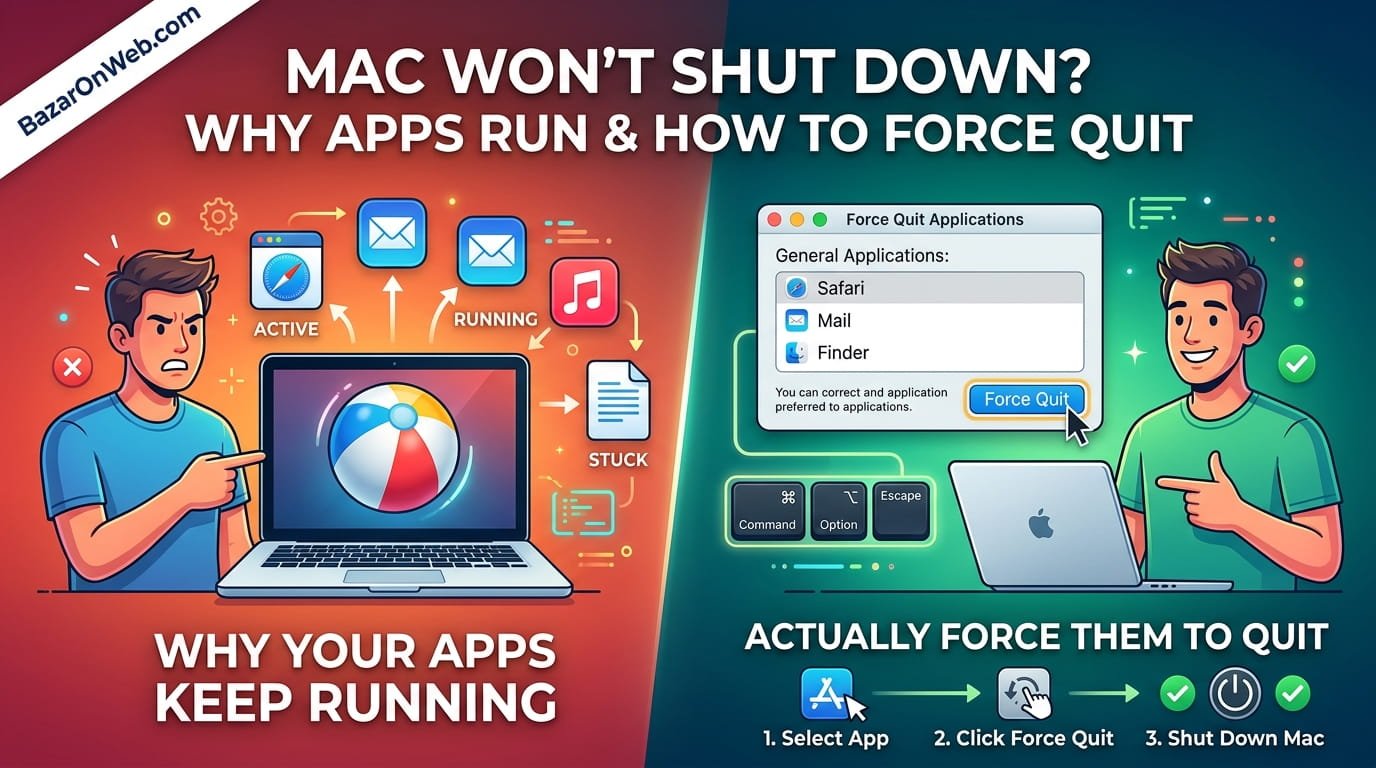
It started small. I tried closing an app and it just… didn’t close. The window disappeared but the app was still running according to the menu bar. No big deal. I’ll force quit it.
Except force quit didn’t work. I pressed Command+Option+Esc to open Force Quit Applications, selected the app, clicked Force Quit, and the app window closed but the process kept running. I could still see it in the menu bar. Still active. Still refusing to actually quit.
Then it got worse. I tried shutting down my MacBook for the night. I went to Apple menu > Shut Down. The screen went dark for a second, then the MacBook immediately woke back up. Shut down didn’t work. Something was waking it up immediately.
I tried again. Same thing. Shut Down, screen goes dark, instantly wakes back. It’s like my MacBook was saying “no, I’m not done yet.”
After the third attempt, I got frustrated. I just closed the laptop and put it in my bag. Figured I’d deal with it later. Then my bag got warm. The MacBook was still running. Still burning battery. Still refusing to actually shut down or sleep properly.
That’s when I realized something was seriously wrong with how my MacBook was managing apps and shutdown. And after investigating, I discovered this is surprisingly common. Apps get stuck. MacBooks refuse to shut down. Force quit becomes ineffective. And there’s no obvious way to actually force your Mac to do what you want.
Why MacBooks Sometimes Refuse to Shut Down (And It’s Not Broken)
Understanding why shutdowns fail helps you fix them properly.
When you tell your MacBook to shut down, macOS does several things. It tells all running applications to quit. Each app gets a few seconds to save data and clean up before being terminated. If all apps quit gracefully, shutdown proceeds normally. If any app refuses to quit or gets stuck, shutdown hangs.
Your MacBook is trying to be polite to your applications. It gives them time to save work, close files properly, and shut down safely. This is considerate software design. But when an app misbehaves or gets into a weird state where it can’t actually quit, this politeness becomes a problem.
Additionally, your MacBook might have background processes or login items that automatically relaunch. You quit an app, it immediately relaunches. You shut down, something wakes the Mac back up. These are usually intentional (security software, backup processes, etc.), but sometimes they interfere with proper shutdown.
The reason shutdown hangs instead of force-quitting stuck apps is that Apple assumes apps should have the chance to save work before termination. Force-quitting immediately kills the process without warning. It might lose unsaved data. So macOS tries the polite approach first.
When politeness doesn’t work, you need to bypass it and force things to actually close.
The Obvious First Step: Actually Try Force Quit
I know I mentioned Force Quit didn’t work in my situation. But for most people and most apps, Force Quit actually does work. It’s worth trying before escalating to more extreme measures.
Press Command+Option+Esc simultaneously. (Or you can go Apple menu > Force Quit.)
The Force Quit Applications window opens showing all currently running applications. Look for the app that won’t quit. Click it to select it.
Click the “Force Quit” button at the bottom of the window.
macOS force-quits the application immediately. The app terminates whether it likes it or not.
For most stuck apps, this resolves the issue. The app closes, you move on with your life.
The rare cases where Force Quit doesn’t work indicate something deeper. The app is so badly stuck that even Force Quit can’t kill it. Or it’s not actually an application window but a background process that Force Quit can’t access.
When Force Quit Fails: Activity Monitor Finds Hidden Processes
Sometimes Force Quit doesn’t show an app or doesn’t successfully kill it. This means the app has background processes you’re not seeing in Force Quit.
Open Activity Monitor. (Applications > Utilities > Activity Monitor, or Command+Space search for it.)
Activity Monitor shows every single process running on your MacBook, not just visible applications.
Look for the app you’re trying to kill. You might see multiple processes related to it (for example, “Chrome” might show several processes: “Google Chrome,” “Chrome Helper,” “Chrome Renderer,” etc.).
Click the process you want to terminate. Click the X button in the top left corner. Confirm you want to force quit it.
Activity Monitor force-quits the process with no mercy. Usually this works when regular Force Quit fails.
The advantage of Activity Monitor is visibility. You see everything running, including processes you didn’t realize existed. This helps you identify what’s actually consuming resources or refusing to quit.
For apps with multiple processes, you might need to kill all of them. Kill the main process first, then any helper processes still running.
Restart Instead of Shutdown: The Practical Workaround
If your MacBook won’t shut down but you need to turn it off, restarting sometimes works when shutdown doesn’t.
Apple menu > Restart instead of Shut Down.
Restart goes through a different process than shutdown. It might succeed where shutdown fails. The MacBook shuts down but immediately boots back up. Not ideal if you want it off, but it does stop all running apps.
After restart completes and your Mac boots, you’re back to a clean slate. Stuck apps have been killed. Background processes have restarted cleanly. Your Mac is back to normal.
If restart works but shutdown doesn’t, something is specifically preventing shutdown while allowing restart. Usually this is a login item or background service that’s misconfigured.
Login Items Relaunching Apps: The Hidden Culprit
Sometimes apps keep relaunching even after you quit them. You close the app, it’s gone for five seconds, then it’s back. This is maddening and usually indicates the app is configured to launch at login.
Check your login items. Apple menu > System Settings > General > Login Items.
You’ll see two sections: “Allow in the Login Window” and “Open at Login.”
The “Open at Login” section shows apps that automatically launch whenever you log in or restart. If an app that’s misbehaving is listed here, that’s why it keeps relaunching.
Select the problematic app and click the minus (-) button to remove it. The app stops automatically launching.
After removing it from login items, quit the app. It should stay quit because it’s no longer configured to relaunch.
Additionally, check “Allow in the Login Window” section. Some apps listed there might be causing issues too, though these are usually system services rather than regular applications.
What’s Actually Preventing Shutdown: The Energy Saver Clues
Sometimes your MacBook refuses to shut down because something is actively preventing it. Your Mac might show a message about what’s preventing shutdown, or you might have no idea.
If you see a message, it usually says something like “Microsoft Word is preventing shutdown” or similar. The message identifies the culprit. Force quit that app and try shutting down again.
If you don’t see a message but suspect something is blocking shutdown, check what processes are active right before shutdown.
Open Activity Monitor. Look at CPU usage. Is something using significant processor power? That might be the culprit preventing shutdown.
If your MacBook has been on for weeks without restarting, many background processes might be stuck. Restart your Mac. This clears everything and gives you a fresh start.
The Stuck Login: When Your MacBook Won’t Respond at All
Different problem: your MacBook gets stuck during startup or login. The screen shows the login window but won’t respond to input. Or the login spinner spins forever without actually logging in.
This is less about apps refusing to quit and more about the system being hung. Force restart is sometimes necessary.
Press and hold the power button for 10 seconds. Your MacBook shuts down forcibly (not graceful, but effective).
Wait 30 seconds. Press power button to restart.
Your MacBook boots fresh. The stuck login process is cleared.
This is harsh and not ideal—any unsaved work in running applications is lost, and it’s like yanking the power cord. But when your MacBook is completely unresponsive, forced shutdown is the only option.
Safe Mode: When Background Processes Are the Problem
If apps keep relaunching or processes keep interfering even after you’ve removed them from login items, Safe Mode can help identify the culprit.
Restart your MacBook (Apple menu > Restart).
As soon as you hear the startup sound or see the Apple logo, hold Shift key and keep holding it.
Keep holding Shift throughout the boot process. When you see the login window, you can release Shift.
Your MacBook boots in Safe Mode. This disables most background processes and login items, allowing only essential system services.
In Safe Mode, try the problematic action. If it works fine, some background process or login item was interfering. If the problem persists, it’s likely a core system issue.
After testing, restart normally to exit Safe Mode.
Safe Mode helps narrow down whether problems are caused by background processes or something more fundamental.
Terminal Nuclear Option: For When Everything Else Fails
If graphical methods don’t work, Terminal commands can force-quit processes that refuse to die through normal means.
Open Terminal (Applications > Utilities > Terminal, or Command+Space search).
Type: ps aux | grep [AppName]
Replace [AppName] with the app you’re trying to kill (e.g., ps aux | grep Chrome).
This shows all processes related to that app with their process IDs (PIDs).
To force-kill a process, type: kill -9 [PID]
Replace [PID] with the process ID number. For example: kill -9 1234
This terminates the process immediately. It’s the nuclear option—no grace period, no chance to save, just death.
For multiple processes related to one app: killall [AppName]
For example: killall Chrome kills all Chrome-related processes.
Terminal is powerful and reliable. If an app refuses to die through normal means, Terminal commands usually work.
Login Items Causing Startup Problems: The Cascading Failure
Sometimes your MacBook gets stuck because login items keep relaunching something that crashes, which crashes something else, which creates a cascade of failures.
Boot into Safe Mode (hold Shift during startup).
Go to System Settings > General > Login Items.
Remove or disable login items one by one until your Mac boots cleanly.
Once you’ve identified which login item was causing problems, you can decide whether to keep it disabled or find an alternative.
This is tedious but effective. It narrows down exactly which startup item is problematic.
Background App Refresh Causing Constant Activity
Even with all apps quit, background processes might keep running, preventing proper shutdown or sleep.
System Settings > General > Background App Refresh.
Review which apps have background refresh enabled. Disable it for apps you don’t need constantly updated.
Fewer background processes means cleaner shutdowns and less interference.
When Your MacBook Actually Wakes Itself Up
Different issue: you shut down your MacBook, but it wakes back up immediately, or wakes up in your bag, or wakes repeatedly throughout the day when closed.
Check what’s configured to wake your Mac. System Settings > Energy Saver > Check “Wake for network access” and similar options.
Disable options that might be causing unwanted wake-ups.
Additionally, USB devices connected to your Mac sometimes trigger wake events. Disconnect USB devices and try shutting down again.
Motion sensors in newer MacBooks sometimes trigger wake-up. Close your MacBook completely when shutting down—don’t just close the lid halfway.
Sometimes a stuck trackpad or keyboard triggers wake-up. Disconnect external devices and try again.
Recovery Mode: When Your Mac Needs Serious Intervention
If nothing else has worked, Recovery Mode provides deep access to your Mac’s system.
Shut down your MacBook completely.
Power on and immediately hold Command+R.
Keep holding until you see the Apple logo and Recovery Mode loads.
In Recovery Mode, you can run Disk Utility to repair disk errors, reinstall macOS, reset SMC (System Management Controller, which manages power and shutdown), or access other advanced tools.
This is nuclear territory. Use Recovery Mode only if you’ve tried everything else.
When to Just Accept Defeat and Restart
Sometimes the most practical solution is just restarting your MacBook.
Yes, it’s not ideal if you want it shut down. But if it won’t shut down after reasonable troubleshooting, restart it anyway. Restart clears everything, kills all stuck processes, resets the system.
After restart completes, you have a clean MacBook. Shutdown might work better now that everything has been cleared.
If the same problem immediately recurs, something systematic is wrong (corrupted preference file, problematic login item, malware, etc.) and you need to investigate further.
But often, one restart resolves stuck apps and shutdown problems.
Preventing Shutdown Problems Long-Term
After fixing shutdown issues, prevention helps avoid them recurring.
Restart regularly: Weekly or at least monthly. Restarting clears accumulated junk and stuck processes.
Keep login items minimal: Only keep apps in login items that truly need to launch at startup. Everything else slows startup and can cause problems.
Update macOS regularly: System updates include fixes for shutdown and power management issues.
Uninstall unused software: Old apps sometimes get stuck or interfere with shutdown. Clean them out.
Keep Activity Monitor open sometimes: Watch what processes are running. Unusual processes that consume resources might be causing problems.
Disable unnecessary background features: Background App Refresh, Location Services, iCloud sync for folders you don’t need—these all consume resources and can interfere with shutdown.
The Reality
MacBooks usually shut down cleanly without issues. But when they don’t, the problem is frustrating because shutdown should be one of the simplest operations your computer performs.
Most stuck app problems resolve with Force Quit or Activity Monitor. Most shutdown problems resolve with restart or by removing problematic login items.
Only rare cases require Recovery Mode or Terminal commands.
Start with the simple solutions. Work up to more complex troubleshooting only if simple solutions fail.
Your MacBook will shut down properly eventually. You just need to find what’s preventing it and remove that obstacle.
Quick Priority List: MacBook Won’t Shut Down
Mac refusing to shut down or apps won’t quit?
- Try Force Quit (Command+Option+Esc)
- Use Activity Monitor to force-quit stuck processes
- Check System Settings > General > Login Items and remove problematic apps
- Disable Background App Refresh for unnecessary apps
- Try restart instead of shutdown (Apple menu > Restart)
- Boot into Safe Mode to identify interfering processes
- Use Terminal commands to kill stubborn processes
- Restart your Mac to clear everything
- Use Recovery Mode for disk repairs if nothing else works
- Contact Apple if hardware might be the issue
One of these will usually resolve the problem.

- How to Remotely Control Another Computer Using Windows Quick Assist

- 5 Must-Have Electronics Gadgets for a More Comfortable Living Room

- How to Create a Windows 11 System Backup on an External Hard Drive

- 10 Smart Home Ideas That Make Everyday Life Easier

- Gemini Live Avatar: How to Talk to Gemini Face-to-Face

Products
-
![Apple Watch Ultra 3 [GPS + Cellular 49mm] Running & Multisport Smartwatch w/Rugged Titanium Case w/Black Titanium Milanese Loop - M. Satellite Communications, Advanced Health & Fitness Tracking](https://bazaronweb.com/retailstores/wp-content/uploads/2025/09/apple-watch-320x320.jpg) Apple Watch Ultra 3 [GPS + Cellular 49mm] Running & Multisport Smartwatch w/Rugged Titanium Case w/Black Titanium Milanese Loop - M. Satellite Communications, Advanced Health & Fitness Tracking
Apple Watch Ultra 3 [GPS + Cellular 49mm] Running & Multisport Smartwatch w/Rugged Titanium Case w/Black Titanium Milanese Loop - M. Satellite Communications, Advanced Health & Fitness Tracking
-
 Apple iPad mini (A17 Pro): Apple Intelligence, 8.3-inch Liquid Retina Display, 256GB, Wi-Fi 6E, 12MP Front/12MP Back Camera, Touch ID, All-Day Battery Life — Purple
-
 Apple AirPods Max Wireless Over-Ear Headphones, Active Noise Cancelling, Transparency Mode, Personalized Spatial Audio, Dolby Atmos, Bluetooth Headphones for iPhone – Space Gray
-
 Apple AirPods Pro 2 Wireless Earbuds, Active Noise Cancellation, Hearing Aid Feature, Bluetooth Headphones, Transparency, Personalized Spatial Audio, High-Fidelity Sound, H2 Chip, USB-C Charging
-
Home Garage 210 TC Cotton King Floral Fitted (Elastic) Bedsheet(Pack of 1, Grey)
Original price was: ₹999.00.₹299.00Current price is: ₹299.00.
Leave a Reply