Discounted Products
-
 Home Garage 210 TC Cotton King Floral Fitted (Elastic) Bedsheet(Pack of 1, Grey)
Original price was: ₹999.00.₹299.00Current price is: ₹299.00.
Home Garage 210 TC Cotton King Floral Fitted (Elastic) Bedsheet(Pack of 1, Grey)
Original price was: ₹999.00.₹299.00Current price is: ₹299.00.
-
 Goodrik 140 TC Cotton Double 3D Printed Flat Bedsheet(Pack of 1, Brown)
Original price was: ₹499.00.₹229.00Current price is: ₹229.00.
Goodrik 140 TC Cotton Double 3D Printed Flat Bedsheet(Pack of 1, Brown)
Original price was: ₹499.00.₹229.00Current price is: ₹229.00.
-
 GLOBALSHOP 350 TC Microfiber Double Floral Flat Bedsheet(Pack of 1, Multicolor)
Original price was: ₹1,250.00.₹263.00Current price is: ₹263.00.
GLOBALSHOP 350 TC Microfiber Double Floral Flat Bedsheet(Pack of 1, Multicolor)
Original price was: ₹1,250.00.₹263.00Current price is: ₹263.00.
-
 RisingStar 250 TC Microfiber King Printed Fitted (Elastic) Bedsheet(Pack of 1, FITTED-ROUND-CIRCLES-PREMIUM)
Original price was: ₹2,299.00.₹299.00Current price is: ₹299.00.
RisingStar 250 TC Microfiber King Printed Fitted (Elastic) Bedsheet(Pack of 1, FITTED-ROUND-CIRCLES-PREMIUM)
Original price was: ₹2,299.00.₹299.00Current price is: ₹299.00.
-
 Home Garage 210 TC Cotton King Floral Fitted (Elastic) Bedsheet(Pack of 1, Fitted Black Green)
Original price was: ₹1,299.00.₹299.00Current price is: ₹299.00.
Home Garage 210 TC Cotton King Floral Fitted (Elastic) Bedsheet(Pack of 1, Fitted Black Green)
Original price was: ₹1,299.00.₹299.00Current price is: ₹299.00.
-
 Home Garage 180 TC Cotton King 3D Printed Flat Bedsheet(Pack of 1, White)
Original price was: ₹999.00.₹229.00Current price is: ₹229.00.
Home Garage 180 TC Cotton King 3D Printed Flat Bedsheet(Pack of 1, White)
Original price was: ₹999.00.₹229.00Current price is: ₹229.00.
-
 Panipat Textile Hub 152.4 cm (5 ft) Polyester Window Curtain (Pack Of 2)(Solid, Aqua)
Original price was: ₹1,899.00.₹299.00Current price is: ₹299.00.
Panipat Textile Hub 152.4 cm (5 ft) Polyester Window Curtain (Pack Of 2)(Solid, Aqua)
Original price was: ₹1,899.00.₹299.00Current price is: ₹299.00.
-
 Home Sizzler 214 cm (7 ft) Polyester Semi Transparent Door Curtain (Pack Of 2)(Floral, Maroon)
Original price was: ₹1,199.00.₹399.00Current price is: ₹399.00.
Home Sizzler 214 cm (7 ft) Polyester Semi Transparent Door Curtain (Pack Of 2)(Floral, Maroon)
Original price was: ₹1,199.00.₹399.00Current price is: ₹399.00.
-
 Home Sizzler 153 cm (5 ft) Polyester Room Darkening Window Curtain (Pack Of 2)(Floral, Brown)
Original price was: ₹799.00.₹299.00Current price is: ₹299.00.
Home Sizzler 153 cm (5 ft) Polyester Room Darkening Window Curtain (Pack Of 2)(Floral, Brown)
Original price was: ₹799.00.₹299.00Current price is: ₹299.00.
-
 Stella Creations 214 cm (7 ft) Polyester Room Darkening Door Curtain (Pack Of 2)(Abstract, Brown)
Original price was: ₹1,299.00.₹449.00Current price is: ₹449.00.
Stella Creations 214 cm (7 ft) Polyester Room Darkening Door Curtain (Pack Of 2)(Abstract, Brown)
Original price was: ₹1,299.00.₹449.00Current price is: ₹449.00.
-
 Homefab India 152.5 cm (5 ft) Polyester Room Darkening Window Curtain (Pack Of 2)(Floral, Light Blue)
Original price was: ₹1,199.00.₹319.00Current price is: ₹319.00.
Homefab India 152.5 cm (5 ft) Polyester Room Darkening Window Curtain (Pack Of 2)(Floral, Light Blue)
Original price was: ₹1,199.00.₹319.00Current price is: ₹319.00.
-
 Urban Home 214 cm (7 ft) PVC Transparent Door Curtain Single Curtain(Solid, Off White)
Original price was: ₹699.00.₹203.00Current price is: ₹203.00.
Urban Home 214 cm (7 ft) PVC Transparent Door Curtain Single Curtain(Solid, Off White)
Original price was: ₹699.00.₹203.00Current price is: ₹203.00.
-
 Panipat Textile Hub 213 cm (7 ft) Polyester Door Curtain (Pack Of 2)(Solid, Brown)
Original price was: ₹1,199.00.₹349.00Current price is: ₹349.00.
Panipat Textile Hub 213 cm (7 ft) Polyester Door Curtain (Pack Of 2)(Solid, Brown)
Original price was: ₹1,199.00.₹349.00Current price is: ₹349.00.
-
 Home Sizzler 214 cm (7 ft) Polyester Semi Transparent Door Curtain (Pack Of 2)(Floral, Brown)
Original price was: ₹999.00.₹349.00Current price is: ₹349.00.
Home Sizzler 214 cm (7 ft) Polyester Semi Transparent Door Curtain (Pack Of 2)(Floral, Brown)
Original price was: ₹999.00.₹349.00Current price is: ₹349.00.
-
 Panipat Textile Hub 213 cm (7 ft) Polyester Semi Transparent Door Curtain (Pack Of 2)(Floral, Brown)
Original price was: ₹899.00.₹299.00Current price is: ₹299.00.
Panipat Textile Hub 213 cm (7 ft) Polyester Semi Transparent Door Curtain (Pack Of 2)(Floral, Brown)
Original price was: ₹899.00.₹299.00Current price is: ₹299.00.
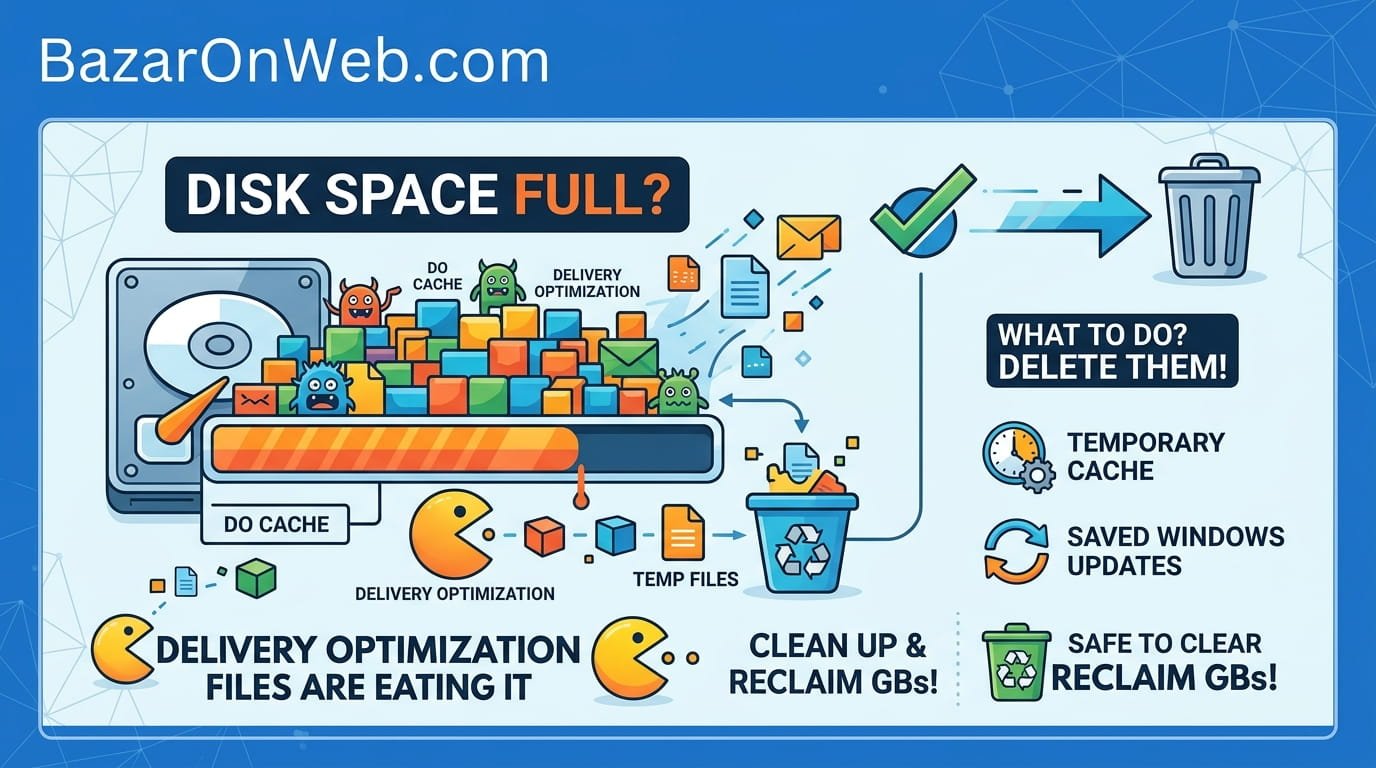
The Day I Realized Windows Was Hoarding Gigabytes Without Asking
My laptop’s storage was mysteriously disappearing. I had 250GB of storage when I bought it. After a year of normal use—some documents, some photos, some programs—I should have had plenty of space left. Instead, I was down to maybe 15GB free.
I did the obvious troubleshooting. I looked for large files. I deleted old downloads. I uninstalled programs I wasn’t using anymore. I cleared my browser cache. Nothing was adding up. I was losing gigabytes but couldn’t find where they were going.
So I opened Disk Cleanup (the built-in Windows tool for freeing space) and started scrolling through categories of stuff Windows could delete. Most of it was obvious—temporary files, cache, that sort of thing. But then I saw something called “Delivery Optimization files” taking up nearly 8GB.
Eight gigabytes. On a 250GB drive, that’s meaningful. I had no idea what Delivery Optimization even was. Why was Windows storing 8GB of mysterious files? Should I delete them? Would deleting them break something?
I did some investigation and discovered that Delivery Optimization is a Windows feature most people don’t even realize exists. It silently hoards files on your computer without asking permission. You can safely delete these files, but the actual process is confusing because you have multiple options, some of which are safer than others.
Turns out this is a common problem. People’s drives mysteriously fill up, they discover these Delivery Optimization files, and have no idea what to do about them.
What Delivery Optimization Actually Is (And Why It’s Quietly Consuming Your Storage)
Before deleting anything, understanding what Delivery Optimization does helps you decide whether you actually want to remove it.
Delivery Optimization is a Windows feature that downloads updates and application files to your computer and then helps distribute those files to other computers on your network or the internet. It’s Microsoft’s attempt to reduce server load by making your computer part of a distributed content delivery network.
Here’s how it works in theory: When Windows Update releases a new update, Microsoft has millions of computers downloading the update simultaneously from their servers. This creates massive bandwidth demand on Microsoft’s infrastructure. Delivery Optimization tries to reduce this by having computers share update files with each other peer-to-peer.
Your computer downloads an update. Delivery Optimization stores a copy of that update file locally. Later, if another computer on your network needs the same update, instead of both computers downloading from Microsoft’s servers, your computer can share its local copy with the other computer. This reduces bandwidth usage on both Microsoft’s network and potentially on your internet connection (though you’re uploading data).
It sounds efficient. The reality is messier. Delivery Optimization stores these files and doesn’t always clean them up properly. You end up with gigabytes of cached update files taking up disk space. And since most of us don’t have multiple computers sharing updates over our home network, we’re just storing files that serve no purpose.
Additionally, Delivery Optimization can use your internet connection to upload content to other computers over the internet (not just your local network), essentially using your bandwidth to help other people get updates faster. Many people find this objectionable. They’re paying for internet bandwidth and Windows is using it without clear notification or easy opt-out.
So you have two reasons to delete Delivery Optimization files: they’re wasting disk space, and they’re potentially using your internet bandwidth for purposes you didn’t consciously authorize.
Why Manually Deleting These Files Is Risky (And Why Disk Cleanup Is Safer)
You could theoretically delete Delivery Optimization files manually by navigating to the folder where they’re stored and deleting them. This would work immediately and free up space fast.
The problem is that Delivery Optimization service might actively be using these files when you try to delete them. If you delete files while the service is accessing them, you could corrupt the service, cause errors, or break Delivery Optimization entirely.
Even worse, if you accidentally delete the wrong files or if Delivery Optimization’s folder structure gets confused after partial deletion, you might end up with stuck files, orphaned data, or system errors.
So while you can manually delete these files, it’s risky. Disk Cleanup is safer because it’s specifically designed to delete these files safely. It pauses the Delivery Optimization service, deletes the files cleanly, and restarts the service properly.
The Safe Way: Using Disk Cleanup to Delete Delivery Optimization Files
The safest and most straightforward way to delete Delivery Optimization files is through Windows’s built-in Disk Cleanup tool.
Search for “Disk Cleanup” in your Start menu. Click it to open the Disk Cleanup utility.
Disk Cleanup scans your system for temporary files and other deletable content. This might take a minute or two depending on your disk size.
Once scanning completes, you’ll see a list of file categories with checkboxes. Look for “Delivery Optimization files” in the list. If it’s not visible, scroll down—sometimes it appears lower in the list.
Click the checkbox next to “Delivery Optimization files.” Make sure it’s checked.
Review what else is checked. You’ll probably see other items like “Temporary files,” “Recycle Bin,” “Windows Update Cleanup,” etc. These are fine to delete too if you want. Just make sure “Delivery Optimization files” is selected.
Click “OK” or “Delete Files” (wording varies). Disk Cleanup asks for confirmation.
Confirm that you want to delete the files. Disk Cleanup handles the deletion safely. The Delivery Optimization service temporarily pauses, files get deleted, and the service resumes.
Once deletion completes, you’ve freed up whatever space those files were consuming. For most people, this is several gigabytes of reclaimed storage.
Advanced Option: Disk Cleanup System Files (More Aggressive)
Disk Cleanup has a basic version (what I described above) and an advanced version that shows more deletable file categories.
To access advanced Disk Cleanup, right-click your C: drive in File Explorer, select “Properties,” and click “Disk Cleanup” button. Then click “Clean up system files.”
This opens Disk Cleanup with administrative privileges and shows additional file categories, including “Windows Update Cleanup,” which can free up even more space by removing old Windows installation files.
In this advanced version, you’ll see more detailed categories. “Delivery Optimization files” appears here too. Select it and delete like the basic version.
The difference is that system files cleanup can delete more stuff and requires administrator permission. Use it if you’re comfortable and if you want to be more aggressive about freeing space.
The Manual Method (If You’re Determined Despite the Risks)
If Disk Cleanup doesn’t show Delivery Optimization files for some reason, or if you’re determined to do it manually despite the risks, you can delete the files directly.
The Delivery Optimization files are typically stored in: C:\ProgramData\Microsoft\Windows\DeliveryOptimization\State
And also in: C:\Users\[YourUsername]\AppData\Local\Microsoft\Windows\DeliveryOptimization
To access these folders manually:
First, disable the Delivery Optimization service temporarily. This prevents the service from accessing files while you delete them.
Open Services. Right-click Start and search for “Services.” Open it.
Find “Connected User Experiences and Telemetry” and “DiagTrack” services. These are related to Delivery Optimization. Right-click each, select “Stop.”
Now you can manually navigate to the Delivery Optimization folders using File Explorer. (You might need to enable “Show hidden files” to see AppData folder. View > Options > change folder and search options > View > check “Show hidden files, folders, and drives.”)
Navigate to the folders listed above. Select all files (Ctrl+A), delete them.
After deleting, restart the services you stopped: Services panel > right-click “Connected User Experiences and Telemetry” > Start.
This works, but it’s more complex and riskier than Disk Cleanup. If something goes wrong, you might need to restart your computer or reinstall services. Most people should just use Disk Cleanup.
Completely Disabling Delivery Optimization (If You Don’t Want It At All)
If you don’t just want to delete the files but actually don’t want Delivery Optimization running at all, you can disable it.
Open Settings > System > Troubleshoot > Other troubleshoot options > View advanced options. (Or search for “Delivery Optimization” in Settings search.)
Look for “Delivery Optimization settings.” Open it.
You’ll see options for how Delivery Optimization is configured. There’s usually a toggle allowing you to completely disable Delivery Optimization.
Toggle it off. Delivery Optimization stops running. It won’t download or store update files anymore.
The advantage is that you completely disable the feature and prevent it from consuming space in the future. The disadvantage is that if you have multiple computers on your network, they won’t be able to share updates with each other anymore. But for most home users, this doesn’t matter.
After disabling, run Disk Cleanup to delete any existing Delivery Optimization files. Future updates won’t create these files anymore.
Why Disk Cleanup Might Not Show Delivery Optimization Option
Sometimes you open Disk Cleanup and Delivery Optimization files aren’t listed as an option. This can happen for several reasons.
You don’t have administrator privileges: Disk Cleanup might be running in limited mode without showing all deletable categories. Right-click Disk Cleanup, select “Run as administrator,” and try again.
No Delivery Optimization files exist: If you’ve never had Delivery Optimization create files, or if they’ve already been cleaned up, Disk Cleanup won’t show them. They only appear if they exist.
Disk Cleanup isn’t showing system files: The basic Disk Cleanup only shows certain categories. Use the advanced version (right-click drive > Properties > Disk Cleanup > Clean up system files) to see more options.
Windows version difference: Older Windows 11 builds might not have this option. Ensure you’re updated to the latest Windows 11 version (Settings > System > Windows Update > Check for updates).
If Disk Cleanup genuinely doesn’t show Delivery Optimization files, use manual deletion or disable the feature entirely through Settings.
How Much Space Can You Actually Recover?
The amount of space Delivery Optimization consumes varies wildly depending on your computer’s age, update history, and network setup.
For most people, Delivery Optimization files consume 1-5GB. Some people report 10GB or more if they’ve never cleaned it up and have multiple Windows installations or version upgrades.
On a computer with a 250GB or 500GB drive, 5-10GB is significant. On a massive storage setup, it’s negligible.
Run Disk Cleanup and it will show you exactly how much space will be freed before you actually delete anything. This helps you understand whether it’s worth your effort.
Even if it’s only 1-2GB, on a drive getting full, every gigabyte counts. Freeing up space can prevent your computer from slowing down when storage gets critically low.
Should You Actually Delete These Files? The Real Answer
Here’s the honest take: Yes, you should probably delete Delivery Optimization files if:
- Your drive is running low on storage (under 15% free space)
- You don’t have multiple Windows computers on your network that would benefit from sharing updates
- You don’t want Windows using your internet bandwidth for peer-to-peer file distribution
- You’ve noticed storage mysteriously disappearing
You can probably leave them alone if:
- You have abundant storage (500GB+ free)
- You have multiple computers and want them to share updates efficiently
- You’re fine with Windows doing background optimization
- You never run low on storage
Most people should delete them. There’s minimal downside. Delivery Optimization will just re-create files as new updates come out, but at least you’ll have freed up space now.
After Deletion: What Happens Next
Once you’ve deleted Delivery Optimization files, several things happen:
Your disk space is immediately freed. Whatever storage was consumed by those files is now available.
Delivery Optimization continues functioning if you haven’t disabled it. It might re-create files as new updates install, but it typically manages storage better going forward.
If you disabled Delivery Optimization, it stops consuming space entirely. Future updates won’t create these files.
Your computer might feel slightly faster if you were running critically low on storage. Low storage sometimes slows computers because they struggle to find free space for temporary operations.
Nothing breaks. Deleting these files doesn’t affect Windows functionality, installed programs, or your personal files.
When To Worry About Delivery Optimization (And When Not To)
Delivery Optimization gets a lot of criticism online, much of it overblown. Some people treat it like malware. It’s not malware. It’s just an aggressive caching feature.
You should worry about it if:
- You’re on a limited or metered internet connection and Delivery Optimization is potentially using your bandwidth
- Your drive is running critically low on space
- You don’t understand what it is and that’s bothering you
You shouldn’t worry about it if:
- You have plenty of storage
- You have an unlimited internet connection
- The space it’s using doesn’t affect your computer
It’s not a security risk. It’s not stealing your data. It’s just storing cached update files. But those files are taking up space most people don’t need.
Disk Cleanup for Other Space-Wasting Categories
While you’re in Disk Cleanup deleting Delivery Optimization files, notice the other categories of deletable files. Some worth considering:
Temporary files: Safe to delete. These are temporary system files that shouldn’t exist long-term.
Recycle Bin: Safe to delete if you’ve confirmed everything in Recycle Bin is actually garbage.
Windows Update Cleanup: Deletes old Windows installation files from version upgrades. Safe to delete but frees enormous space (often 5-20GB).
Thumbnail cache: Safe to delete. Windows recreates thumbnails as needed.
Error reporting files: Safe to delete unless you’re actively troubleshooting a problem.
Temporary internet files: Safe to delete. Your browser maintains its own cache anyway.
Most categories in Disk Cleanup are safe to delete. It’s specifically designed to show you things that can be safely removed without affecting your computer.
Preventing Disk Space Issues Going Forward
After deleting Delivery Optimization files, prevent future space problems:
Run Disk Cleanup monthly: Just make it a habit. Once a month, run Disk Cleanup and delete accumulated temporary files and cache.
Disable unnecessary services: If you’re not using Delivery Optimization’s features, disable it. Same with other services consuming space unnecessarily.
Monitor storage: Occasionally check how much free space you have (Settings > System > Storage). If you’re dropping below 15% free, start deleting stuff.
Store files in the cloud: Use OneDrive, Google Drive, or similar to store large files off your local drive. This keeps your C: drive lean.
Uninstall unused programs: Programs take up space. Uninstall things you don’t use.
Archive old downloads: Move old download files to external storage or archive. Keep your Downloads folder clean.
These practices prevent you from ever running dangerously low on storage.
The Reality
Delivery Optimization is a behind-the-scenes Windows feature most people never think about until their storage mysteriously fills up.
Deleting the files is safe, easy through Disk Cleanup, and frees up useful storage space. Do it without guilt or worry.
If you don’t want Delivery Optimization at all, disable it entirely. If you’re fine with it but want to clean up the cache, just use Disk Cleanup monthly.
Your computer will work fine either way. These files aren’t essential. They’re just cache. Clearing cache is always safe.
So if you’ve noticed your storage disappearing and found gigabytes of Delivery Optimization files, delete them confidently. You’re freeing up space your computer actually needs.
Quick Reference: Step-By-Step
Need to delete Delivery Optimization files?
- Search for “Disk Cleanup” in Start menu
- Open Disk Cleanup
- Wait for scan to complete
- Look for “Delivery Optimization files” in the list
- Check the checkbox next to it
- Click “Delete Files”
- Confirm deletion
- Done—you’ve freed up space
Takes about 5 minutes total.
If Disk Cleanup doesn’t show the option, use advanced cleanup (right-click C: drive > Properties > Disk Cleanup > Clean up system files).
Disclaimer: This article provides educational troubleshooting guidance. Procedures may have unintended consequences including data loss or system damage. Results vary by device model, OS version, and configuration. Always backup critical data before attempting system modifications. Seek professional support if problems persist or you’re uncomfortable with technical procedures. Users assume full responsibility for outcomes.

- How to Remotely Control Another Computer Using Windows Quick Assist

- 5 Must-Have Electronics Gadgets for a More Comfortable Living Room

- How to Create a Windows 11 System Backup on an External Hard Drive

- 10 Smart Home Ideas That Make Everyday Life Easier

- Gemini Live Avatar: How to Talk to Gemini Face-to-Face

Products
-
![Apple Watch Ultra 3 [GPS + Cellular 49mm] Running & Multisport Smartwatch w/Rugged Titanium Case w/Black Titanium Milanese Loop - M. Satellite Communications, Advanced Health & Fitness Tracking](https://bazaronweb.com/retailstores/wp-content/uploads/2025/09/apple-watch-320x320.jpg) Apple Watch Ultra 3 [GPS + Cellular 49mm] Running & Multisport Smartwatch w/Rugged Titanium Case w/Black Titanium Milanese Loop - M. Satellite Communications, Advanced Health & Fitness Tracking
Apple Watch Ultra 3 [GPS + Cellular 49mm] Running & Multisport Smartwatch w/Rugged Titanium Case w/Black Titanium Milanese Loop - M. Satellite Communications, Advanced Health & Fitness Tracking
-
 Apple iPad mini (A17 Pro): Apple Intelligence, 8.3-inch Liquid Retina Display, 256GB, Wi-Fi 6E, 12MP Front/12MP Back Camera, Touch ID, All-Day Battery Life — Purple
-
 Apple AirPods Max Wireless Over-Ear Headphones, Active Noise Cancelling, Transparency Mode, Personalized Spatial Audio, Dolby Atmos, Bluetooth Headphones for iPhone – Space Gray
-
 Apple AirPods Pro 2 Wireless Earbuds, Active Noise Cancellation, Hearing Aid Feature, Bluetooth Headphones, Transparency, Personalized Spatial Audio, High-Fidelity Sound, H2 Chip, USB-C Charging
-
Home Garage 210 TC Cotton King Floral Fitted (Elastic) Bedsheet(Pack of 1, Grey)
Original price was: ₹999.00.₹299.00Current price is: ₹299.00.
Leave a Reply