Discounted Products
-
 Home Garage 210 TC Cotton King Floral Fitted (Elastic) Bedsheet(Pack of 1, Grey)
Original price was: ₹999.00.₹299.00Current price is: ₹299.00.
Home Garage 210 TC Cotton King Floral Fitted (Elastic) Bedsheet(Pack of 1, Grey)
Original price was: ₹999.00.₹299.00Current price is: ₹299.00.
-
 Goodrik 140 TC Cotton Double 3D Printed Flat Bedsheet(Pack of 1, Brown)
Original price was: ₹499.00.₹229.00Current price is: ₹229.00.
Goodrik 140 TC Cotton Double 3D Printed Flat Bedsheet(Pack of 1, Brown)
Original price was: ₹499.00.₹229.00Current price is: ₹229.00.
-
 GLOBALSHOP 350 TC Microfiber Double Floral Flat Bedsheet(Pack of 1, Multicolor)
Original price was: ₹1,250.00.₹263.00Current price is: ₹263.00.
GLOBALSHOP 350 TC Microfiber Double Floral Flat Bedsheet(Pack of 1, Multicolor)
Original price was: ₹1,250.00.₹263.00Current price is: ₹263.00.
-
 RisingStar 250 TC Microfiber King Printed Fitted (Elastic) Bedsheet(Pack of 1, FITTED-ROUND-CIRCLES-PREMIUM)
Original price was: ₹2,299.00.₹299.00Current price is: ₹299.00.
RisingStar 250 TC Microfiber King Printed Fitted (Elastic) Bedsheet(Pack of 1, FITTED-ROUND-CIRCLES-PREMIUM)
Original price was: ₹2,299.00.₹299.00Current price is: ₹299.00.
-
 Home Garage 210 TC Cotton King Floral Fitted (Elastic) Bedsheet(Pack of 1, Fitted Black Green)
Original price was: ₹1,299.00.₹299.00Current price is: ₹299.00.
Home Garage 210 TC Cotton King Floral Fitted (Elastic) Bedsheet(Pack of 1, Fitted Black Green)
Original price was: ₹1,299.00.₹299.00Current price is: ₹299.00.
-
 Home Garage 180 TC Cotton King 3D Printed Flat Bedsheet(Pack of 1, White)
Original price was: ₹999.00.₹229.00Current price is: ₹229.00.
Home Garage 180 TC Cotton King 3D Printed Flat Bedsheet(Pack of 1, White)
Original price was: ₹999.00.₹229.00Current price is: ₹229.00.
-
 Panipat Textile Hub 152.4 cm (5 ft) Polyester Window Curtain (Pack Of 2)(Solid, Aqua)
Original price was: ₹1,899.00.₹299.00Current price is: ₹299.00.
Panipat Textile Hub 152.4 cm (5 ft) Polyester Window Curtain (Pack Of 2)(Solid, Aqua)
Original price was: ₹1,899.00.₹299.00Current price is: ₹299.00.
-
 Home Sizzler 214 cm (7 ft) Polyester Semi Transparent Door Curtain (Pack Of 2)(Floral, Maroon)
Original price was: ₹1,199.00.₹399.00Current price is: ₹399.00.
Home Sizzler 214 cm (7 ft) Polyester Semi Transparent Door Curtain (Pack Of 2)(Floral, Maroon)
Original price was: ₹1,199.00.₹399.00Current price is: ₹399.00.
-
 Home Sizzler 153 cm (5 ft) Polyester Room Darkening Window Curtain (Pack Of 2)(Floral, Brown)
Original price was: ₹799.00.₹299.00Current price is: ₹299.00.
Home Sizzler 153 cm (5 ft) Polyester Room Darkening Window Curtain (Pack Of 2)(Floral, Brown)
Original price was: ₹799.00.₹299.00Current price is: ₹299.00.
-
 Stella Creations 214 cm (7 ft) Polyester Room Darkening Door Curtain (Pack Of 2)(Abstract, Brown)
Original price was: ₹1,299.00.₹449.00Current price is: ₹449.00.
Stella Creations 214 cm (7 ft) Polyester Room Darkening Door Curtain (Pack Of 2)(Abstract, Brown)
Original price was: ₹1,299.00.₹449.00Current price is: ₹449.00.
-
 Homefab India 152.5 cm (5 ft) Polyester Room Darkening Window Curtain (Pack Of 2)(Floral, Light Blue)
Original price was: ₹1,199.00.₹319.00Current price is: ₹319.00.
Homefab India 152.5 cm (5 ft) Polyester Room Darkening Window Curtain (Pack Of 2)(Floral, Light Blue)
Original price was: ₹1,199.00.₹319.00Current price is: ₹319.00.
-
 Urban Home 214 cm (7 ft) PVC Transparent Door Curtain Single Curtain(Solid, Off White)
Original price was: ₹699.00.₹203.00Current price is: ₹203.00.
Urban Home 214 cm (7 ft) PVC Transparent Door Curtain Single Curtain(Solid, Off White)
Original price was: ₹699.00.₹203.00Current price is: ₹203.00.
-
 Panipat Textile Hub 213 cm (7 ft) Polyester Door Curtain (Pack Of 2)(Solid, Brown)
Original price was: ₹1,199.00.₹349.00Current price is: ₹349.00.
Panipat Textile Hub 213 cm (7 ft) Polyester Door Curtain (Pack Of 2)(Solid, Brown)
Original price was: ₹1,199.00.₹349.00Current price is: ₹349.00.
-
 Home Sizzler 214 cm (7 ft) Polyester Semi Transparent Door Curtain (Pack Of 2)(Floral, Brown)
Original price was: ₹999.00.₹349.00Current price is: ₹349.00.
Home Sizzler 214 cm (7 ft) Polyester Semi Transparent Door Curtain (Pack Of 2)(Floral, Brown)
Original price was: ₹999.00.₹349.00Current price is: ₹349.00.
-
 Panipat Textile Hub 213 cm (7 ft) Polyester Semi Transparent Door Curtain (Pack Of 2)(Floral, Brown)
Original price was: ₹899.00.₹299.00Current price is: ₹299.00.
Panipat Textile Hub 213 cm (7 ft) Polyester Semi Transparent Door Curtain (Pack Of 2)(Floral, Brown)
Original price was: ₹899.00.₹299.00Current price is: ₹299.00.
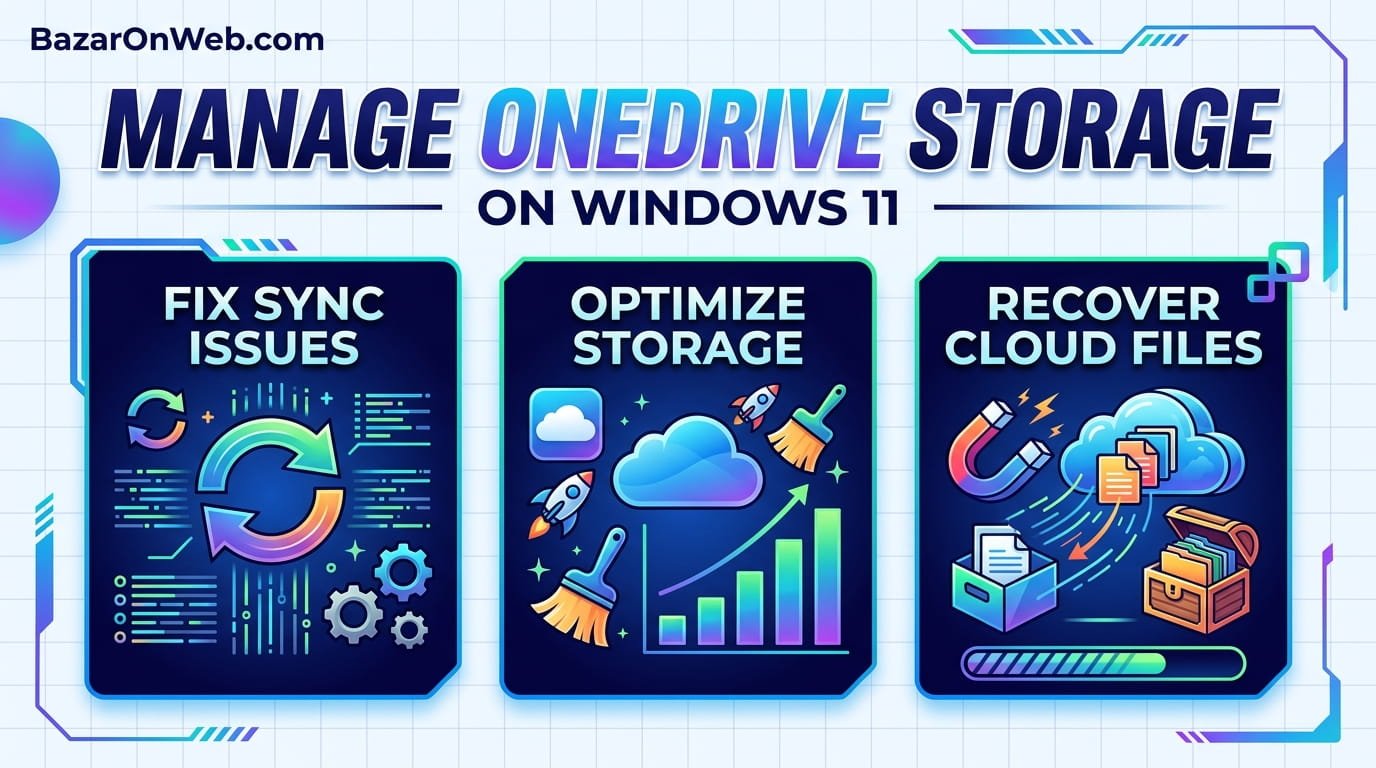
Introduction
OneDrive integration in Windows 11 is simultaneously one of the most useful and frustrating features I encounter regularly. As someone who works across multiple devices and relies on cloud storage for file synchronization, I appreciate OneDrive’s seamless integration with Windows 11. However, I’ve also experienced the maddening situations where OneDrive stops syncing without explanation, consumes excessive storage space without obvious reason, and creates confusion about whether files are stored locally or in the cloud. When I discovered that most OneDrive problems result from misunderstanding how the service works rather than actual malfunction, my entire approach to cloud storage management changed. Understanding OneDrive’s architecture, sync behavior, storage management, and troubleshooting methods transformed OneDrive from a source of frustration to a powerful productivity tool that actually works as intended.
What surprised me most was discovering that the vast majority of OneDrive issues—sync failures, mysterious storage consumption, confusion about file locations—stem from users not understanding how OneDrive fundamentally operates rather than bugs or failures. OneDrive isn’t simply a folder on your computer that syncs to the cloud; it’s a complex system managing local copies, cloud storage, bandwidth, and permissions in sophisticated ways. Windows 11’s deep OneDrive integration makes this relationship even more complex, creating opportunities for misunderstanding. In this comprehensive guide, I’ll explain how OneDrive actually works, why common problems occur, exactly how to resolve them, and how to optimize your cloud storage strategy for your specific needs. Whether you’re struggling with sync issues, storage limitations, or simply want to understand what OneDrive is doing with your files, this guide provides complete clarity.
1. Understanding OneDrive Architecture: How Cloud Storage Works in Windows 11
OneDrive on Windows 11 functions as a hybrid cloud storage system rather than simple cloud backup. Understanding this architecture explains why OneDrive behaves the way it does and prevents misunderstandings about how your files are stored and synchronized. OneDrive operates through a concept called “selective sync”—files on your OneDrive cloud storage don’t necessarily exist on your local computer. Instead, you choose which folders to sync, and only those folders create local copies on your computer. Files in unsynced folders exist only in the cloud and can be accessed through onedrive.com but not through File Explorer on your computer.
Additionally, OneDrive uses “file on-demand” (also called cloud-only files) where files exist primarily in the cloud with only metadata stored locally. This appears as a small cloud icon next to the filename in File Explorer, indicating the file isn’t taking up local storage. When you open an on-demand file, it downloads temporarily and opens, then the local copy might delete afterward to free space. This system optimizes storage—your OneDrive can contain terabytes of files while your computer’s local storage remains relatively free. However, this also creates confusion—files appear to exist on your computer through File Explorer, but many don’t actually consume local storage.
Understanding this hybrid architecture explains many OneDrive behaviors. Files appear in File Explorer even if not stored locally. Sync status changes as files transition between cloud-only, locally cached, and fully downloaded states. Your local storage usage might be much smaller than your OneDrive storage usage. Learning this architecture transforms OneDrive from mysterious to comprehensible—behaviors that seemed like bugs make perfect sense once you understand the design.
2. Common OneDrive Sync Problems: Why Synchronization Fails
OneDrive sync failures are among the most frustrating issues because files appear to be syncing but aren’t updating across devices, or new files don’t appear in the cloud. Understanding why sync fails helps you both prevent and resolve these problems. The most common cause is poor internet connectivity—OneDrive requires stable, reasonably fast internet to sync files. If your internet connection is unreliable or extremely slow, sync delays or fails. Additionally, bandwidth throttling sometimes occurs if you’re syncing large files or OneDrive is syncing in the background while you’re doing other bandwidth-intensive activities.
Another frequent cause is OneDrive being paused—you might have paused syncing temporarily and forgotten to resume it. Check OneDrive’s status by clicking the OneDrive icon in the system tray; if it shows “Paused,” resume syncing immediately. Additionally, file locking causes sync failures when files are open in applications. OneDrive can’t sync files currently being modified—attempting to sync a Word document currently open in Word, for example, fails until you close the document. Furthermore, filename or path issues sometimes prevent syncing. Windows has restrictions on certain characters in filenames and path length limitations; files with problematic names or paths won’t sync until renamed.
Additionally, OneDrive account issues prevent syncing—if your subscription expired, your account has space limitations, or you’ve been logged out, sync fails. Checking your account status through Settings > Accounts > OneDrive identifies account problems. Finally, corrupted local OneDrive files sometimes prevent sync—reinitializing your OneDrive or signing out and back in often resolves corruption-based sync failures. Understanding these various sync failure causes helps you systematically diagnose which issue applies to your situation and implement appropriate fixes.
3. Resolving OneDrive Sync Issues: Step-by-Step Troubleshooting Methods
When OneDrive sync fails, systematic troubleshooting identifies and resolves the issue. First, verify your internet connection is stable and working properly. Open a web browser and verify websites load normally. If internet is fine, check OneDrive’s pause status—click the OneDrive system tray icon and ensure it shows “Syncing” rather than “Paused.” If paused, click “Resume syncing” to restart sync.
Next, ensure files aren’t locked by open applications. Close all applications that might have the non-syncing files open—including Word, Excel, Outlook, browsers, and other applications. Try syncing again. If files still won’t sync, check file names for problematic characters—OneDrive cannot sync files with names containing * ? : ” < > | characters or names ending with periods or spaces. Rename such files removing problematic characters.
Additionally, check your OneDrive storage space—if you’ve exceeded your storage limit, OneDrive stops syncing until you delete files or purchase additional storage. Open OneDrive Settings > Storage to check remaining storage. If storage is full, delete unnecessary files from OneDrive or reduce synced folder size. Furthermore, sign out of OneDrive and sign back in to refresh the connection and potentially resolve temporary issues. Open OneDrive Settings > Account > Sign out, restart your computer, then sign back into OneDrive. This refreshes the sync connection and sometimes resolves persistent issues.
If problems persist, reinitialize OneDrive by uninstalling it (Settings > Apps > Apps & features > OneDrive > Uninstall) and reinstalling from Microsoft Store. This comprehensive re-installation sometimes resolves corruption-based issues that simpler troubleshooting doesn’t address. After reinstalling, reconfigure sync settings, selecting which folders to sync.
4. Managing OneDrive Storage Space: Optimization and Quota Management
OneDrive provides storage—typically 5GB free for basic accounts, 100GB or more for Microsoft 365 subscribers—and managing this storage appropriately prevents sync failures and ensures all important files remain accessible. Understanding what consumes your OneDrive storage helps you optimize usage. Every file stored in OneDrive consumes quota—documents, photos, videos, backups all count toward your limit. Large files like video projects or extensive photo libraries consume significant storage, quickly approaching limits.
Windows 11 can automatically backup your Desktop, Documents, and Pictures folders to OneDrive, and while this ensures files are protected, it consumes storage quickly if your folders are large. You can disable automatic backup in Settings > System > Storage > Backup options, or carefully manage these folders to prevent excess backup. Additionally, Outlook emails stored in OneDrive consume quota if you save attachments. OneDrive’s web interface shows your storage usage—visit onedrive.com and click Settings > Storage to see what’s consuming space.
To optimize storage, identify large files consuming excessive space and determine whether they’re necessary. Videos, project files, and large media consume the most storage. Move rarely-accessed files to external storage or archive them outside OneDrive. Additionally, delete duplicate files or old project versions you no longer need. Use OneDrive’s “Storage insights” feature (Settings > Storage insights) to identify which file types and locations consume the most space, helping you target optimization efforts.
If you consistently exceed storage, upgrade to Microsoft 365 which provides 1TB of OneDrive storage (100GB for Office 365 Basic users). This provides substantially more storage than free accounts, typically sufficient for most users’ needs. Additionally, consider whether all files truly need cloud storage—local backups on external drives can store archived files, freeing OneDrive storage for active files.
5. Controlling Sync: Selecting What Syncs and What Remains Cloud-Only
Rather than syncing your entire OneDrive to every device (which would require enormous local storage), you can selectively sync specific folders. This provides flexibility—sync only work folders to work computers, personal folders to personal devices, freeing storage on computers where entire OneDrive isn’t necessary. Access sync settings by right-clicking the OneDrive system tray icon and selecting “Settings.” In the Accounts tab, click “Choose folders” to access selective sync.
A dialog displays all your OneDrive folders with checkboxes indicating which sync to your computer. Unchecked folders remain in the cloud accessible through onedrive.com but don’t sync to your local computer. This dramatically reduces local storage consumption if you have extensive files in OneDrive. For example, you might sync only your Documents folder to your laptop while keeping Photo Library, Project Archives, and other large folders cloud-only. This approach provides cloud protection for all files while keeping local storage manageable.
Additionally, use the “Always keep on this device” feature in File Explorer to prevent specific files from being cloud-only. Right-click files or folders and select “Always keep on this device” to ensure they’re permanently stored locally, not deleted after temporary access. This is valuable for frequently-accessed or critical files requiring guaranteed local availability. Conversely, you can “Free up space” on specific files, moving them to cloud-only storage when you know you won’t need them locally soon.
Understanding these sync controls prevents frustration where files you expect on your computer aren’t there, or conversely, files consume local storage unexpectedly. Deliberately configuring sync based on your needs optimizes storage usage across your devices.
6. Recovering Deleted Files from OneDrive: Restoration Options and Time Limits
OneDrive provides file recovery through its recycle bin, allowing restoration of accidentally deleted files within specific time limits. Unlike permanent deletion on your computer, OneDrive maintains deleted files for recovery. When you delete files from OneDrive (either through File Explorer or onedrive.com), they move to OneDrive’s recycle bin rather than being permanently deleted. Files remain recoverable from recycle bin for a limited period—typically 93 days for personal accounts, though specific retention depends on your account type.
To recover deleted files, access OneDrive’s recycle bin through onedrive.com by signing in, clicking Settings (gear icon), selecting “Recycle bin,” and browsing deleted files. Select files you want to restore and click “Restore.” Restored files return to their original locations in OneDrive, and sync resumes for those files on your local computer. This recovery is straightforward and reliable for files deleted recently. However, if 93 days have passed since deletion or if files were permanently deleted (through Shift+Delete or other permanent deletion methods), OneDrive recycle bin recovery isn’t available.
For permanently deleted files or recoveries beyond recycle bin retention, specialized data recovery software sometimes recovers data from your local computer’s storage if OneDrive had cached the files locally. Services like EaseUS Data Recovery or Recuva scan your local storage for file traces. However, this recovery is complex and less reliable than OneDrive recycle bin recovery. The lesson is to maintain backups outside OneDrive for critical files—local backups or secondary cloud storage ensure recovery options even if OneDrive recovery fails. Additionally, using versioning features—OneDrive keeps file version history for Microsoft 365 subscribers—allows restoring previous versions of files even without deletion.
7. Understanding File Versions and Collaborative Editing in OneDrive
OneDrive provides file versioning allowing you to restore previous versions of files, valuable for recovering from accidental edits or corruption. Microsoft 365 subscribers have extensive version history (typically 500 versions per file or 93 days of history). Basic OneDrive accounts have limited versioning. To access versions, right-click a file in File Explorer or onedrive.com and select “Version history” or “See all versions.” Previous versions display with timestamps showing when each version was saved.
Select a version to restore and click “Restore” to replace the current version with that previous version. This is valuable if you accidentally overwrite a file with unwanted changes—you can restore an earlier version before the bad edits. For Office files (Word, Excel, PowerPoint), version history is particularly robust because Office applications create versions automatically as you edit.
Additionally, OneDrive supports collaborative editing through Office Online or desktop Office applications. Multiple people can edit the same document simultaneously, and OneDrive automatically manages merging changes. Understanding that multiple users are editing the same file prevents confusion about file sync—OneDrive handles multi-user collaboration through its version and change tracking system. Comments and suggestions features allow collaborative feedback without permanently modifying documents.
These collaboration features make OneDrive valuable for teams, but also require understanding that you’re not directly controlling file modifications—OneDrive and Office applications manage collaborative changes behind the scenes. This prevents accidental overwrites or edit conflicts that plagued earlier cloud storage systems.
8. Configuring OneDrive for Different Scenarios: Personal vs. Work vs. Multiple Accounts
OneDrive configurations should match your specific usage scenario. Personal users might prioritize syncing Documents and Pictures while keeping other folders cloud-only. Work users might sync only work-related folders while maintaining separate personal storage. Users with multiple OneDrive accounts (personal and work, for example) need careful configuration to prevent confusion about which account owns which files.
Windows 11 supports adding multiple OneDrive accounts—you might have both personal Microsoft account OneDrive and work Microsoft 365 OneDrive. Each account syncs separately and appears as distinct folders in File Explorer. This separation provides isolation but requires careful file organization to know which files are in which account. Many users create different folder structures for each account to maintain clarity.
Additionally, if you switch jobs or change accounts, migrating OneDrive files requires planning. You can’t simply copy files between accounts through normal methods—you must either migrate through OneDrive’s web interface or manually re-upload files. Understanding these account limitations helps prevent file loss during account transitions. For users with multiple accounts, establishing clear organizational schemes—perhaps “Personal” vs. “Work” folder structures or separate devices for different accounts—prevents confusion.
Furthermore, family group settings allow sharing OneDrive storage with family members and controlling which folders individuals can access. Parents can set up family groups where children’s accounts have limited storage or parental oversight. These collaborative and organizational features make OneDrive flexible for various scenarios, but require deliberate configuration rather than relying on defaults.
9. Best Practices for OneDrive Security and Data Protection
OneDrive provides cloud backup protecting against local computer failures, but understanding OneDrive’s security features ensures your data remains protected. OneDrive uses encryption for data in transit and at rest—files are encrypted when uploading and downloading, and stored encrypted on Microsoft’s servers. However, this encryption doesn’t mean Microsoft or hackers can’t theoretically access your data. For additional security, you can encrypt sensitive files locally before uploading, though this reduces OneDrive’s usefulness for accessing files across devices.
Additionally, enable two-factor authentication on your Microsoft account—OneDrive security depends on account security. If someone gains access to your account, they access your OneDrive files. Two-factor authentication (Settings > Security > Advanced security options > Two-step verification) substantially improves account security by requiring authentication through a second device.
Furthermore, be cautious about sharing files through OneDrive—sharing creates links allowing access by anyone with the link (depending on sharing settings). Understand your sharing settings before sharing sensitive files. OneDrive allows granular sharing control—you can set links as “Specific people,” “Organization,” or “Anyone,” and configure whether people can edit or only view files. Deliberately setting appropriate permissions prevents accidental oversharing of sensitive information.
Additionally, regularly review who has access to your shared files (Settings > Sharing) and remove people no longer needing access. OneDrive doesn’t automatically revoke access when people change jobs or leave your organization, so manual review is necessary. Finally, maintain backups outside OneDrive for truly critical files—while OneDrive is reliable, single points of failure exist. Maintaining secondary backups on external drives or alternative cloud services ensures recovery options if OneDrive becomes inaccessible.
10. Optimizing Bandwidth and Performance: OneDrive Configuration for Slow Connections
If you have slow internet or limited bandwidth, OneDrive’s constant syncing can consume excessive bandwidth, slowing your internet for other activities. Configuring OneDrive for bandwidth-constrained situations prevents this conflict. In OneDrive Settings > Network, you can throttle upload and download speeds, preventing OneDrive from consuming all available bandwidth. You can set maximum upload and download speeds, allowing other activities to function while OneDrive syncs slowly in the background.
Additionally, pause OneDrive syncing when you need full bandwidth for other activities (video calls, streaming, downloads), then resume syncing when bandwidth is available. This manual approach provides explicit control over when OneDrive consumes bandwidth. Furthermore, configure OneDrive to sync only during specific hours—Settings > Network > Sync settings allows scheduling sync for off-peak hours (nights and weekends) when you’re less likely to need bandwidth for other purposes.
Additionally, disable automatic uploading of new photos and screenshots if you’re on metered connections. Settings > Photos allows disabling automatic photo backup, preventing OneDrive from uploading every screenshot and photo automatically. While automatic backup provides convenience, metered connections make manual upload more appropriate. After controlling photo upload, manually upload batches of photos when on reliable networks.
Finally, consider using offline files feature for files you access frequently but bandwidth is constrained. Offline files ensure specific files are always available locally without requiring constant sync status monitoring. This provides guaranteed local access regardless of sync status. These optimization approaches ensure OneDrive supports rather than hinders your productivity when working with limited bandwidth.
Disclaimer
This article provides guidance on managing OneDrive cloud storage and addressing sync issues on Windows 11. The information is intended for educational purposes to help users optimize cloud storage usage and resolve common problems. Specific features, procedures, and availability may vary depending on your OneDrive account type, Windows 11 version, and individual circumstances.
Important Disclaimers:
- OneDrive storage quotas and features vary by account type; free accounts have different capabilities than Microsoft 365 accounts
- Deleted files in OneDrive recycle bin are recoverable only within specific retention periods; files deleted beyond that period cannot be recovered through recycle bin
- Sync status changes can affect file availability; files in cloud-only mode require internet access to open
- File sharing through OneDrive creates persistent access; manually revoking sharing is necessary to prevent unauthorized continued access
- Multiple OneDrive accounts require careful configuration to prevent file confusion or accidental overwrites
- OneDrive sync depends on account access; lost account access prevents file recovery without alternative backup methods
- Some file types or names prevent OneDrive syncing; renaming or converting formats may be necessary
File Protection and Backup:
- OneDrive provides cloud backup protection but shouldn’t be sole backup method
- Version history retention varies by account type; critical files need external backup for permanent protection
- Deleted files are eventually permanently deleted after retention periods; regular backups are essential
- Local computer failures affect OneDrive cached files; cloud copies remain protected
- Multiple backup methods provide redundancy ensuring recovery options
Storage and Sync Configuration:
- Sync settings affect which files consume local storage; selective sync prevents local storage depletion
- Cloud-only files require internet access to open; offline planning needed for travel or no-connectivity periods
- Storage quota affects sync capability; exceeding quota stops syncing until space is freed
- Large file syncing requires time and bandwidth; multiple large files syncing simultaneously can overwhelm connections
- Bandwidth throttling helps manage sync impact on other internet activities
Collaboration and Sharing:
- Collaborative editing requires understanding OneDrive manages changes automatically; manual coordination isn’t necessary
- File sharing creates persistent access until explicitly revoked; sharing revocation requires active management
- Multiple users editing same files create version branches that must be manually resolved
- Offline editing while collaboratively working can create conflicts requiring manual resolution
- Sharing permissions should balance convenience with security; overly permissive sharing creates security risks
Security Considerations:
- Account security is fundamental to OneDrive security; account compromise exposes all stored files
- Encryption provides protection in transit but doesn’t prevent Microsoft access; sensitive files may need additional encryption
- Sharing links are discoverable through URL prediction; permanent links create long-term exposure risks
- Two-factor authentication substantially improves account security; should be enabled for all OneDrive users
- Third-party apps with OneDrive access require reviewing permissions; apps with excessive permissions create security risks
Account and Subscription:
- OneDrive features vary by account type; free accounts have limited versioning and sharing capabilities
- Microsoft 365 subscriptions include larger storage and extended version history
- Account transitions require file migration; files don’t automatically transfer between accounts
- Family groups allow shared storage but with reduced privacy for individual users
- Business accounts have additional compliance and retention requirements
Technical Limitations:
- Filename character restrictions apply to OneDrive syncing; special characters prevent sync
- File path length limitations affect deeply nested folder structures
- File locking by applications prevents simultaneous syncing; exclusive access by applications is required
- Some file types have special handling affecting sync behavior (Office documents, images, etc.)
- Network interruptions can interrupt large file syncing; automatic resume handles temporary disruptions
Performance and Bandwidth:
- OneDrive sync impacts network performance; bandwidth throttling helps manage impact
- Large file syncing takes time proportional to file size and connection speed
- First-time syncing of large folders takes extended time; patience is necessary
- Metered connections (cellular) should have upload/sync carefully managed to prevent exceeding limits
- WiFi connectivity for initial sync is recommended for large file volumes
When Professional Help Is Needed:
- If account access is lost, Microsoft account recovery services are necessary
- Persistent sync failures despite troubleshooting may require OneDrive support assistance
- File corruption affecting many files may require professional recovery services
- Account security compromises require Microsoft security assistance
- Organizational OneDrive deployments should involve IT professionals
Liability:
We are not responsible for any file loss, sync failures, data corruption, account access problems, or other consequences resulting from OneDrive management as described in this article. Users assume full responsibility for maintaining backups and understanding OneDrive functionality before making configuration changes. Most OneDrive issues are resolvable through troubleshooting, but some situations may require professional assistance or alternative recovery methods. Critical files should be maintained in multiple backup locations regardless of OneDrive usage to ensure recovery options if primary storage fails.
About the Author
Jessica Miller is a marketing manager and remote worker who understands how critical reliable cloud storage is for managing files across multiple devices. With expertise in OneDrive management, cloud storage optimization, and practical technology solutions, she helps busy professionals maintain organized, protected digital files. When she’s not writing comprehensive tech guides or managing her marketing team, she’s exploring new cloud storage features, testing sync configurations, and helping friends troubleshoot their cloud storage challenges.

- How to Remotely Control Another Computer Using Windows Quick Assist

- 5 Must-Have Electronics Gadgets for a More Comfortable Living Room

- How to Create a Windows 11 System Backup on an External Hard Drive

- 10 Smart Home Ideas That Make Everyday Life Easier

- Gemini Live Avatar: How to Talk to Gemini Face-to-Face

Products
-
![Apple Watch Ultra 3 [GPS + Cellular 49mm] Running & Multisport Smartwatch w/Rugged Titanium Case w/Black Titanium Milanese Loop - M. Satellite Communications, Advanced Health & Fitness Tracking](https://bazaronweb.com/retailstores/wp-content/uploads/2025/09/apple-watch-320x320.jpg) Apple Watch Ultra 3 [GPS + Cellular 49mm] Running & Multisport Smartwatch w/Rugged Titanium Case w/Black Titanium Milanese Loop - M. Satellite Communications, Advanced Health & Fitness Tracking
Apple Watch Ultra 3 [GPS + Cellular 49mm] Running & Multisport Smartwatch w/Rugged Titanium Case w/Black Titanium Milanese Loop - M. Satellite Communications, Advanced Health & Fitness Tracking
-
 Apple iPad mini (A17 Pro): Apple Intelligence, 8.3-inch Liquid Retina Display, 256GB, Wi-Fi 6E, 12MP Front/12MP Back Camera, Touch ID, All-Day Battery Life — Purple
-
 Apple AirPods Max Wireless Over-Ear Headphones, Active Noise Cancelling, Transparency Mode, Personalized Spatial Audio, Dolby Atmos, Bluetooth Headphones for iPhone – Space Gray
-
 Apple AirPods Pro 2 Wireless Earbuds, Active Noise Cancellation, Hearing Aid Feature, Bluetooth Headphones, Transparency, Personalized Spatial Audio, High-Fidelity Sound, H2 Chip, USB-C Charging
-
Home Garage 210 TC Cotton King Floral Fitted (Elastic) Bedsheet(Pack of 1, Grey)
Original price was: ₹999.00.₹299.00Current price is: ₹299.00.
Leave a Reply