Discounted Products
-
 Home Garage 210 TC Cotton King Floral Fitted (Elastic) Bedsheet(Pack of 1, Grey)
Original price was: ₹999.00.₹299.00Current price is: ₹299.00.
Home Garage 210 TC Cotton King Floral Fitted (Elastic) Bedsheet(Pack of 1, Grey)
Original price was: ₹999.00.₹299.00Current price is: ₹299.00.
-
 Goodrik 140 TC Cotton Double 3D Printed Flat Bedsheet(Pack of 1, Brown)
Original price was: ₹499.00.₹229.00Current price is: ₹229.00.
Goodrik 140 TC Cotton Double 3D Printed Flat Bedsheet(Pack of 1, Brown)
Original price was: ₹499.00.₹229.00Current price is: ₹229.00.
-
 GLOBALSHOP 350 TC Microfiber Double Floral Flat Bedsheet(Pack of 1, Multicolor)
Original price was: ₹1,250.00.₹263.00Current price is: ₹263.00.
GLOBALSHOP 350 TC Microfiber Double Floral Flat Bedsheet(Pack of 1, Multicolor)
Original price was: ₹1,250.00.₹263.00Current price is: ₹263.00.
-
 RisingStar 250 TC Microfiber King Printed Fitted (Elastic) Bedsheet(Pack of 1, FITTED-ROUND-CIRCLES-PREMIUM)
Original price was: ₹2,299.00.₹299.00Current price is: ₹299.00.
RisingStar 250 TC Microfiber King Printed Fitted (Elastic) Bedsheet(Pack of 1, FITTED-ROUND-CIRCLES-PREMIUM)
Original price was: ₹2,299.00.₹299.00Current price is: ₹299.00.
-
 Home Garage 210 TC Cotton King Floral Fitted (Elastic) Bedsheet(Pack of 1, Fitted Black Green)
Original price was: ₹1,299.00.₹299.00Current price is: ₹299.00.
Home Garage 210 TC Cotton King Floral Fitted (Elastic) Bedsheet(Pack of 1, Fitted Black Green)
Original price was: ₹1,299.00.₹299.00Current price is: ₹299.00.
-
 Home Garage 180 TC Cotton King 3D Printed Flat Bedsheet(Pack of 1, White)
Original price was: ₹999.00.₹229.00Current price is: ₹229.00.
Home Garage 180 TC Cotton King 3D Printed Flat Bedsheet(Pack of 1, White)
Original price was: ₹999.00.₹229.00Current price is: ₹229.00.
-
 Panipat Textile Hub 152.4 cm (5 ft) Polyester Window Curtain (Pack Of 2)(Solid, Aqua)
Original price was: ₹1,899.00.₹299.00Current price is: ₹299.00.
Panipat Textile Hub 152.4 cm (5 ft) Polyester Window Curtain (Pack Of 2)(Solid, Aqua)
Original price was: ₹1,899.00.₹299.00Current price is: ₹299.00.
-
 Home Sizzler 214 cm (7 ft) Polyester Semi Transparent Door Curtain (Pack Of 2)(Floral, Maroon)
Original price was: ₹1,199.00.₹399.00Current price is: ₹399.00.
Home Sizzler 214 cm (7 ft) Polyester Semi Transparent Door Curtain (Pack Of 2)(Floral, Maroon)
Original price was: ₹1,199.00.₹399.00Current price is: ₹399.00.
-
 Home Sizzler 153 cm (5 ft) Polyester Room Darkening Window Curtain (Pack Of 2)(Floral, Brown)
Original price was: ₹799.00.₹299.00Current price is: ₹299.00.
Home Sizzler 153 cm (5 ft) Polyester Room Darkening Window Curtain (Pack Of 2)(Floral, Brown)
Original price was: ₹799.00.₹299.00Current price is: ₹299.00.
-
 Stella Creations 214 cm (7 ft) Polyester Room Darkening Door Curtain (Pack Of 2)(Abstract, Brown)
Original price was: ₹1,299.00.₹449.00Current price is: ₹449.00.
Stella Creations 214 cm (7 ft) Polyester Room Darkening Door Curtain (Pack Of 2)(Abstract, Brown)
Original price was: ₹1,299.00.₹449.00Current price is: ₹449.00.
-
 Homefab India 152.5 cm (5 ft) Polyester Room Darkening Window Curtain (Pack Of 2)(Floral, Light Blue)
Original price was: ₹1,199.00.₹319.00Current price is: ₹319.00.
Homefab India 152.5 cm (5 ft) Polyester Room Darkening Window Curtain (Pack Of 2)(Floral, Light Blue)
Original price was: ₹1,199.00.₹319.00Current price is: ₹319.00.
-
 Urban Home 214 cm (7 ft) PVC Transparent Door Curtain Single Curtain(Solid, Off White)
Original price was: ₹699.00.₹203.00Current price is: ₹203.00.
Urban Home 214 cm (7 ft) PVC Transparent Door Curtain Single Curtain(Solid, Off White)
Original price was: ₹699.00.₹203.00Current price is: ₹203.00.
-
 Panipat Textile Hub 213 cm (7 ft) Polyester Door Curtain (Pack Of 2)(Solid, Brown)
Original price was: ₹1,199.00.₹349.00Current price is: ₹349.00.
Panipat Textile Hub 213 cm (7 ft) Polyester Door Curtain (Pack Of 2)(Solid, Brown)
Original price was: ₹1,199.00.₹349.00Current price is: ₹349.00.
-
 Home Sizzler 214 cm (7 ft) Polyester Semi Transparent Door Curtain (Pack Of 2)(Floral, Brown)
Original price was: ₹999.00.₹349.00Current price is: ₹349.00.
Home Sizzler 214 cm (7 ft) Polyester Semi Transparent Door Curtain (Pack Of 2)(Floral, Brown)
Original price was: ₹999.00.₹349.00Current price is: ₹349.00.
-
 Panipat Textile Hub 213 cm (7 ft) Polyester Semi Transparent Door Curtain (Pack Of 2)(Floral, Brown)
Original price was: ₹899.00.₹299.00Current price is: ₹299.00.
Panipat Textile Hub 213 cm (7 ft) Polyester Semi Transparent Door Curtain (Pack Of 2)(Floral, Brown)
Original price was: ₹899.00.₹299.00Current price is: ₹299.00.
The Moment Everything Stopped Working
Last Tuesday, I was in the middle of comparing two spreadsheets side-by-side on my iPad when the whole thing fell apart. One app just… closed. Then the other one. I tried dragging the second app back in—nothing. I tried swiping from the edge—nothing. My iPad, which I’d bought specifically because I thought I could finally work from anywhere, was refusing to do the one thing I needed it to do.
After an hour of frustrated troubleshooting (and more than a few curse words), I got it working again. But I realized something: I had no idea what I was actually doing. I was just tapping buttons until something worked. And I bet a lot of other iPad users are doing exactly the same thing.
Split screen and multitasking are supposed to be iPad’s killer features. The marketing materials show people effortlessly working on multiple apps at once, gliding between tasks, appearing impossibly productive. Reality? It’s a lot messier. Apps crash. Gestures don’t register. The iPad decides it doesn’t feel like splitting anymore. And when it breaks, there’s virtually no guidance on how to fix it because Apple’s documentation assumes everything just works.
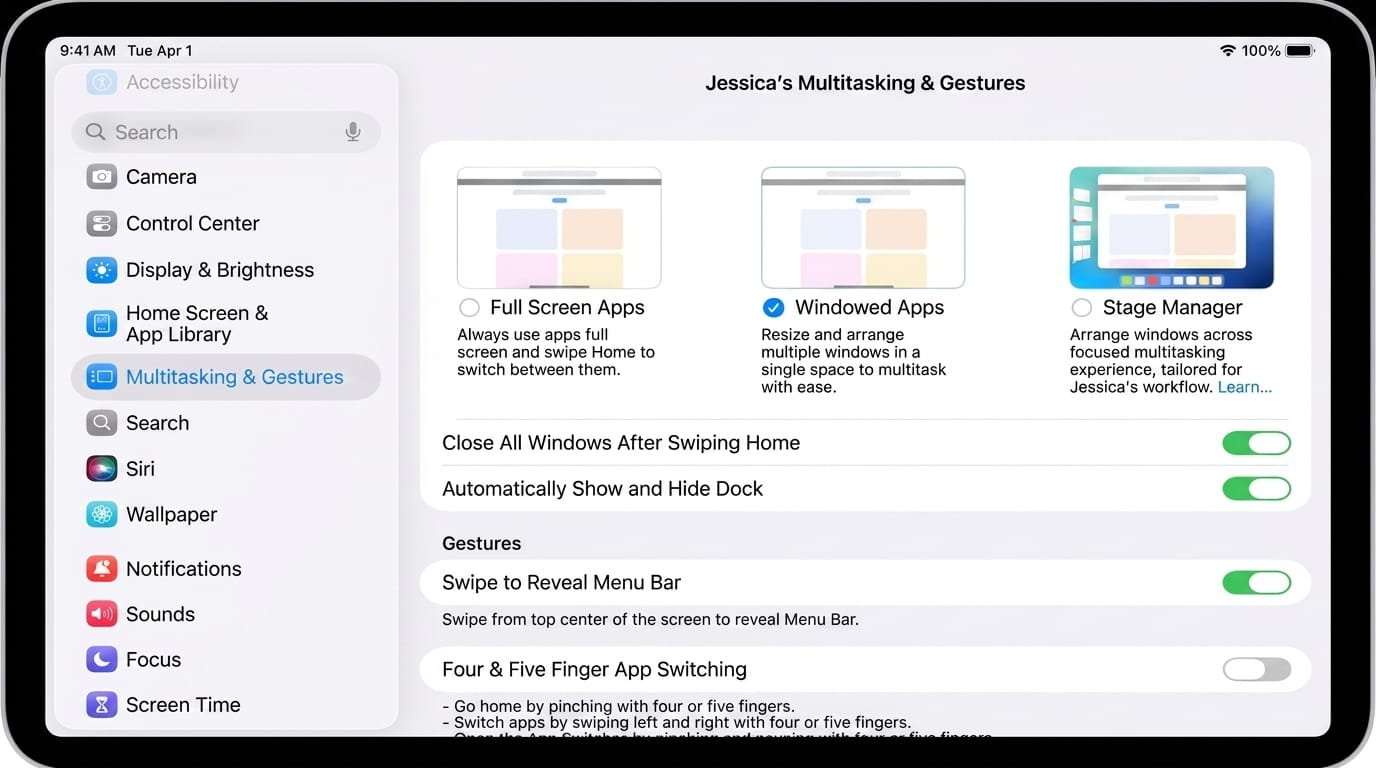
So here’s what I learned after actually figuring out what was wrong with mine—and what went wrong with everyone else’s.
The Basics (That Apple Doesn’t Explain Very Well)
Your iPad can theoretically run multiple apps at once in different configurations. Slide Over lets you open a second app in a floating window. Split View divides your screen between two apps. Picture-in-Picture lets video play while you do other stuff. And then there’s Stage Manager on newer iPads, which basically reimagines the whole interface.
The confusing part? These features don’t work on every app. Apple never explains which apps support multitasking and which don’t. Your email app might support split screen while your banking app absolutely refuses. You’ll discover this the hard way—by trying to drag an app into split view and watching absolutely nothing happen.
Additionally, not all iPads can use all these features. Older iPads (anything before iPad Air 2, basically) don’t support split screen. Stage Manager only works on iPad Pro and iPad Air models from 2022 onward. Your iPad might be perfectly fine; the feature just isn’t available.
But if you have a recent-enough iPad and the app theoretically supports multitasking, and it still isn’t working? That’s when things get weird. That’s what happened to me.
When Apps Just Won’t Cooperate
The most infuriating problem is when an app simply refuses to participate in multitasking. You try dragging it into split view. Nothing happens. You try swiping from the edge to open Slide Over. Your iPad ignores you completely.
Sometimes this is intentional on the developer’s part. Games, for example, usually don’t support split screen because games are demanding and unpredictable. Streaming apps sometimes restrict split screen for licensing reasons—they don’t want you showing the app in split view on video because it looks bad. Some apps are just poorly designed and the developer never bothered implementing multitasking properly.
But sometimes the app should support split screen and just… doesn’t. This is usually a bug. The fix is surprisingly simple: force-close the app completely. Swipe up from the bottom of your iPad (or use the gesture Apple insists you use, depending on your model), find the app in the app switcher, and swipe up on it to close it. Then try opening it again and attempting split screen.
If that doesn’t work, try the nuclear option: uninstall and reinstall. Sounds dramatic, but app data corruption happens more often than people realize. Delete the app from your home screen, go to the App Store, and reinstall it fresh. This clears out any corrupted files that might be preventing multitasking from working.
If the app still won’t split screen and you’re certain it should, the problem might be with your iPad’s system files rather than the app itself. We’ll get to that.
The Disappearing Gesture Problem
This one drove me absolutely insane. I’d read that you can swipe from the left edge of the screen to open Slide Over apps. I’d swipe. Nothing. I’d try again. Still nothing. I’d position my finger slightly differently. Nope.
Turns out, the gesture is extremely finicky. You have to start your swipe from the absolute edge of the screen—not even slightly inward. And you have to do it slowly and deliberately, not quickly like you’re swiping normally. It’s unintuitive and Apple’s documentation doesn’t explain the precise technique.
Even more annoying: sometimes the gesture just stops working. You can swipe perfectly fine, and then suddenly it won’t respond. Restarting your iPad usually fixes this—hold down the power button and volume up together, slide to power off, wait 30 seconds, turn it back on. This clears temporary glitches that sometimes disable the multitasking gestures.
If restarting doesn’t work, go into Settings > Accessibility > Pointer and check if “Pointer Interaction” is enabled. If your iPad has a trackpad or mouse connected, this setting sometimes interferes with gestures. Disable it, test your gestures, then re-enable it if needed.
Also: make sure you’re actually running a recent enough version of iPadOS. Multitasking features sometimes get buggy on older OS versions. Go to Settings > General > Software Update and see if there’s an update available. Install it even if it seems unrelated to your problem—iPad updates frequently fix multitasking glitches.
When Split Screen Just Closes Itself
This happened to me constantly at first. I’d split my screen between two apps, maybe use them for 30 seconds or a minute, and then one app would just close. Poof. Gone. Back to a single full-screen app.
The usual culprit is low available RAM. iPads have less memory than most people realize, especially older models. When you split screen between two demanding apps (like two heavy games, or a video streaming app plus a video editing app), your iPad runs out of memory. Instead of crashing both apps visibly, it just closes one to free up resources. It’s elegant from a system design perspective. It’s infuriating from a user perspective.
You can’t really add more RAM to an iPad—that’s determined by the model you bought. But you can reduce what’s running in the background. Go to Settings > General > Background App Refresh and disable it for apps you don’t actively need refreshing constantly. The more apps you have refreshing in the background, the less RAM available for your split screen apps.
Additionally, close apps you’re not actively using. I know this sounds obvious, but keeping every app open in the background consumes memory. Actually fully close apps you’re done with through the app switcher.
If you’re consistently running out of RAM with split screen, there’s also this reality: your iPad model might just not be powerful enough for what you’re trying to do. iPad Air and iPad Pro models have more RAM than base iPad models. If you’re consistently hitting memory limits, upgrading might be the only real solution. I know that’s not what anyone wants to hear.
Storage Full = Multitasking Broken
Here’s something Apple really should explain better: if your iPad storage is nearly full, multitasking sometimes fails completely.
Your iPad needs free storage space for system operations. When you’re down to your last 5-10% of storage, iOS starts making decisions to preserve what’s left. One of those decisions is sometimes disabling multitasking features to prevent creating temporary files. It’s a safety measure that feels like a bug.
Check your storage by going to Settings > General > iPad Storage. Look at how much free space you actually have. If it’s under 10GB (or proportionally low compared to your total storage), you’ve found your culprit.
Clear space by deleting apps you don’t use, clearing photos and videos (or moving them to iCloud), and deleting email attachments you’ve saved. If you use iCloud Photos, enabling “Optimize iPad Storage” reduces what’s stored locally. Go to Settings > Photos and toggle it on.
After clearing 10-15% of your storage, try multitasking again. Usually, this immediately fixes things.
The Settings That Nobody Knows About
There are actual settings that disable multitasking features. Not security restrictions or parental controls—just settings buried in the preferences that most people never find.
Go to Settings > Display & Brightness. On some iPad models, there’s an option for “Multitasking.” Check if it’s actually enabled. I’m not joking—it’s easy to accidentally disable this.
Additionally, go to Settings > General > iPad Settings and scroll down. Look for anything mentioning multitasking, split view, or slide over. Different iPad models organize this differently, which is its own problem, but there might be a setting you accidentally toggled off.
If you’re using parental controls (Settings > Screen Time > Parental Controls), multitasking might be restricted. Even if you set this up yourself and forgot about it, these restrictions remain until you explicitly change them. Go through Screen Time settings and verify multitasking isn’t restricted.
When You’ve Tried Everything
If none of this worked—and I mean you’ve restarted, updated, cleared space, force-closed apps, checked settings, and everything still doesn’t work—you might need to reset your iPad’s system settings.
Go to Settings > General > Reset > Reset All Settings. This doesn’t erase your data or apps; it just resets all system preferences back to defaults. Everything you’ve customized gets reverted, but it clears any corrupted system settings that might be breaking multitasking.
After the reset, spend an hour reconfiguring your preferences (screen brightness, WiFi connections, keyboard settings, etc.). Then test multitasking again.
If even that doesn’t work, the problem might be hardware-related—potentially an issue with your iPad’s RAM or display connector. At that point, professional service might be necessary. Before going down that road though, try backing up your entire iPad (Settings > [Your Name] > iCloud > iCloud Backup), then performing a full restore through Finder or iTunes on a Mac/PC. This wipes everything and reinstalls iPadOS fresh, which sometimes resolves hardware issues that appear to be software.
Making Multitasking Actually Work for You
Once you get it working again, here are practical tips so you don’t end up back here:
Keep your most-used apps updated. Developers constantly fix multitasking bugs. Always update apps when updates are available.
Don’t split screen between two resource-hungry apps. Pairing a light app (Notes, Mail) with a heavy one (video editing, gaming) works way better than combining two heavy apps.
Close what you’re not using. Aggressively close apps you’re finished with. This prevents the memory issues that break split screen.
Check storage regularly. Make it a monthly thing—go to iPad Storage, see what’s taking up space, and delete unnecessary stuff. Preventing storage fullness prevents future problems.
Use the right tool for the job. Split View (side-by-side) works well for reference and data comparison. Slide Over (floating window) works better when one app needs just quick access. Picture-in-Picture is perfect for video while you do something else. Choose based on what you’re actually trying to accomplish.
The Actual Reality
Here’s the truth that Apple marketing won’t tell you: iPad multitasking is genuinely useful, but it’s also genuinely fragile. It works great most of the time, but when it breaks, troubleshooting is more art than science. There’s no clear error message telling you what’s wrong. You just have to systematically eliminate possibilities until something works.
The features are powerful enough to justify keeping your iPad, but they’re not reliable enough to bet your workflow on them without knowing how to fix them when they inevitably break.
Now that you know the common culprits and how to fix them, you’re ahead of most iPad users who just give up and go back to single-app mode. Multitasking can actually work. You just have to know the tricks.
Quick Reference: What to Try First
- App won’t split screen: Force-close it, then try again. If that fails, reinstall it.
- Gesture not working: Make sure you’re swiping from the absolute edge. Restart your iPad if gestures feel broken.
- Split screen closes itself: Check RAM usage. Close unnecessary background apps.
- Storage issues: Clear 10-15% of storage space. Multitasking often fails when storage is critically low.
- Still broken: Reset All Settings, then try again. If nothing works after that, back up and restore your iPad completely.
Most problems resolve with the first fix. If not, work through the list systematically. One of them will usually work.
Disclaimer: This article provides educational troubleshooting guidance. Procedures may have unintended consequences including data loss or system damage. Results vary by device model, OS version, and configuration. Always backup critical data before attempting system modifications. Seek professional support if problems persist or you’re uncomfortable with technical procedures. Users assume full responsibility for outcomes.

- What Are iPhone Background Sounds? Their Uses and How to Enable Them

- How to Run a Safety Check in Google Chrome and Protect Your Browser

- Samsung Phone’s Keyboard Not Working? Here’s How to Fix It

- How to Take Screenshot While in Gaming on My Windows 11 PC

- Microsoft Store Blocked on Windows 11 Error 0x800704EC, How to Fix It

Products
-
![Apple Watch Ultra 3 [GPS + Cellular 49mm] Running & Multisport Smartwatch w/Rugged Titanium Case w/Black Titanium Milanese Loop - M. Satellite Communications, Advanced Health & Fitness Tracking](https://bazaronweb.com/retailstores/wp-content/uploads/2025/09/apple-watch-320x320.jpg) Apple Watch Ultra 3 [GPS + Cellular 49mm] Running & Multisport Smartwatch w/Rugged Titanium Case w/Black Titanium Milanese Loop - M. Satellite Communications, Advanced Health & Fitness Tracking
Apple Watch Ultra 3 [GPS + Cellular 49mm] Running & Multisport Smartwatch w/Rugged Titanium Case w/Black Titanium Milanese Loop - M. Satellite Communications, Advanced Health & Fitness Tracking
-
 Apple iPad mini (A17 Pro): Apple Intelligence, 8.3-inch Liquid Retina Display, 256GB, Wi-Fi 6E, 12MP Front/12MP Back Camera, Touch ID, All-Day Battery Life — Purple
-
 Apple AirPods Max Wireless Over-Ear Headphones, Active Noise Cancelling, Transparency Mode, Personalized Spatial Audio, Dolby Atmos, Bluetooth Headphones for iPhone – Space Gray
-
 Apple AirPods Pro 2 Wireless Earbuds, Active Noise Cancellation, Hearing Aid Feature, Bluetooth Headphones, Transparency, Personalized Spatial Audio, High-Fidelity Sound, H2 Chip, USB-C Charging
-
Home Garage 210 TC Cotton King Floral Fitted (Elastic) Bedsheet(Pack of 1, Grey)
Original price was: ₹999.00.₹299.00Current price is: ₹299.00.
Leave a Reply