Discounted Products
-
 Home Garage 210 TC Cotton King Floral Fitted (Elastic) Bedsheet(Pack of 1, Grey)
Original price was: ₹999.00.₹299.00Current price is: ₹299.00.
Home Garage 210 TC Cotton King Floral Fitted (Elastic) Bedsheet(Pack of 1, Grey)
Original price was: ₹999.00.₹299.00Current price is: ₹299.00.
-
 Goodrik 140 TC Cotton Double 3D Printed Flat Bedsheet(Pack of 1, Brown)
Original price was: ₹499.00.₹229.00Current price is: ₹229.00.
Goodrik 140 TC Cotton Double 3D Printed Flat Bedsheet(Pack of 1, Brown)
Original price was: ₹499.00.₹229.00Current price is: ₹229.00.
-
 GLOBALSHOP 350 TC Microfiber Double Floral Flat Bedsheet(Pack of 1, Multicolor)
Original price was: ₹1,250.00.₹263.00Current price is: ₹263.00.
GLOBALSHOP 350 TC Microfiber Double Floral Flat Bedsheet(Pack of 1, Multicolor)
Original price was: ₹1,250.00.₹263.00Current price is: ₹263.00.
-
 RisingStar 250 TC Microfiber King Printed Fitted (Elastic) Bedsheet(Pack of 1, FITTED-ROUND-CIRCLES-PREMIUM)
Original price was: ₹2,299.00.₹299.00Current price is: ₹299.00.
RisingStar 250 TC Microfiber King Printed Fitted (Elastic) Bedsheet(Pack of 1, FITTED-ROUND-CIRCLES-PREMIUM)
Original price was: ₹2,299.00.₹299.00Current price is: ₹299.00.
-
 Home Garage 210 TC Cotton King Floral Fitted (Elastic) Bedsheet(Pack of 1, Fitted Black Green)
Original price was: ₹1,299.00.₹299.00Current price is: ₹299.00.
Home Garage 210 TC Cotton King Floral Fitted (Elastic) Bedsheet(Pack of 1, Fitted Black Green)
Original price was: ₹1,299.00.₹299.00Current price is: ₹299.00.
-
 Home Garage 180 TC Cotton King 3D Printed Flat Bedsheet(Pack of 1, White)
Original price was: ₹999.00.₹229.00Current price is: ₹229.00.
Home Garage 180 TC Cotton King 3D Printed Flat Bedsheet(Pack of 1, White)
Original price was: ₹999.00.₹229.00Current price is: ₹229.00.
-
 Panipat Textile Hub 152.4 cm (5 ft) Polyester Window Curtain (Pack Of 2)(Solid, Aqua)
Original price was: ₹1,899.00.₹299.00Current price is: ₹299.00.
Panipat Textile Hub 152.4 cm (5 ft) Polyester Window Curtain (Pack Of 2)(Solid, Aqua)
Original price was: ₹1,899.00.₹299.00Current price is: ₹299.00.
-
 Home Sizzler 214 cm (7 ft) Polyester Semi Transparent Door Curtain (Pack Of 2)(Floral, Maroon)
Original price was: ₹1,199.00.₹399.00Current price is: ₹399.00.
Home Sizzler 214 cm (7 ft) Polyester Semi Transparent Door Curtain (Pack Of 2)(Floral, Maroon)
Original price was: ₹1,199.00.₹399.00Current price is: ₹399.00.
-
 Home Sizzler 153 cm (5 ft) Polyester Room Darkening Window Curtain (Pack Of 2)(Floral, Brown)
Original price was: ₹799.00.₹299.00Current price is: ₹299.00.
Home Sizzler 153 cm (5 ft) Polyester Room Darkening Window Curtain (Pack Of 2)(Floral, Brown)
Original price was: ₹799.00.₹299.00Current price is: ₹299.00.
-
 Stella Creations 214 cm (7 ft) Polyester Room Darkening Door Curtain (Pack Of 2)(Abstract, Brown)
Original price was: ₹1,299.00.₹449.00Current price is: ₹449.00.
Stella Creations 214 cm (7 ft) Polyester Room Darkening Door Curtain (Pack Of 2)(Abstract, Brown)
Original price was: ₹1,299.00.₹449.00Current price is: ₹449.00.
-
 Homefab India 152.5 cm (5 ft) Polyester Room Darkening Window Curtain (Pack Of 2)(Floral, Light Blue)
Original price was: ₹1,199.00.₹319.00Current price is: ₹319.00.
Homefab India 152.5 cm (5 ft) Polyester Room Darkening Window Curtain (Pack Of 2)(Floral, Light Blue)
Original price was: ₹1,199.00.₹319.00Current price is: ₹319.00.
-
 Urban Home 214 cm (7 ft) PVC Transparent Door Curtain Single Curtain(Solid, Off White)
Original price was: ₹699.00.₹203.00Current price is: ₹203.00.
Urban Home 214 cm (7 ft) PVC Transparent Door Curtain Single Curtain(Solid, Off White)
Original price was: ₹699.00.₹203.00Current price is: ₹203.00.
-
 Panipat Textile Hub 213 cm (7 ft) Polyester Door Curtain (Pack Of 2)(Solid, Brown)
Original price was: ₹1,199.00.₹349.00Current price is: ₹349.00.
Panipat Textile Hub 213 cm (7 ft) Polyester Door Curtain (Pack Of 2)(Solid, Brown)
Original price was: ₹1,199.00.₹349.00Current price is: ₹349.00.
-
 Home Sizzler 214 cm (7 ft) Polyester Semi Transparent Door Curtain (Pack Of 2)(Floral, Brown)
Original price was: ₹999.00.₹349.00Current price is: ₹349.00.
Home Sizzler 214 cm (7 ft) Polyester Semi Transparent Door Curtain (Pack Of 2)(Floral, Brown)
Original price was: ₹999.00.₹349.00Current price is: ₹349.00.
-
 Panipat Textile Hub 213 cm (7 ft) Polyester Semi Transparent Door Curtain (Pack Of 2)(Floral, Brown)
Original price was: ₹899.00.₹299.00Current price is: ₹299.00.
Panipat Textile Hub 213 cm (7 ft) Polyester Semi Transparent Door Curtain (Pack Of 2)(Floral, Brown)
Original price was: ₹899.00.₹299.00Current price is: ₹299.00.
I was surprised when I discovered that my iPhone had a unique identifier broadcasted on every WiFi network I connected to—a MAC address that remained identical across networks, potentially allowing tracking across different locations. What frustrated me most was realizing that marketers, network administrators, and other parties could theoretically track my movements by monitoring this persistent identifier. After discovering iOS’s Rotating WiFi Address feature, which periodically changes this identifier, I finally understood how Apple is attempting to address WiFi-based tracking. However, learning how the feature actually works revealed that it’s not a complete privacy solution—it’s a partial mitigation providing some protection while introducing its own complexities and potential issues.
What surprised me most was discovering that many iOS users don’t understand what a WiFi address is, why it matters for privacy, or how Rotating WiFi Address actually protects them. Additionally, I learned that enabling this privacy feature sometimes creates unexpected problems—network connectivity issues, authentication failures on certain networks, and compatibility problems with specific services. Understanding these limitations and tradeoffs helps you make informed decisions about whether Rotating WiFi Address suits your privacy needs or whether alternative approaches might be more appropriate. Rather than blindly enabling a privacy feature and hoping it works, understanding how it functions, what it protects against, and what problems it might cause helps you optimize your privacy strategy. In this comprehensive guide, I’ll explain what Rotating WiFi Address is, why Apple introduced it, how to enable and manage it, and how to troubleshoot issues it might cause.
1. Understanding WiFi Addresses and MAC Addresses: What They Are and Why They Matter
Every device connecting to WiFi networks has a unique identifier called a MAC address (Media Access Control address), also referred to as a hardware address or physical address. This 48-bit identifier is supposed to be unique to each device, allowing networks to identify and manage devices. Unlike your IP address which can change when connecting to different networks, your MAC address remains constant across all networks, making it a persistent identifier that potentially allows tracking your movements.
Understanding MAC addresses requires understanding how WiFi networks function. When your iPhone searches for available WiFi networks, it broadcasts its MAC address as part of the network discovery process. Networks, routers, and network administrators can observe this MAC address and identify your specific device. Additionally, if you connect to the same WiFi network repeatedly (your home network, favorite coffee shop, office network), the network server records your MAC address as associated with your device. This creates a persistent link—whenever that MAC address appears, the network knows it’s your device.
The privacy concern is that this MAC address can theoretically be tracked across locations. If a tracking company places monitoring devices in multiple locations (stores, streets, transit stations), they can observe your MAC address passing through these locations, building a map of your movements. Your iPhone broadcasts its MAC address even when not actively connecting to networks—it searches for previously-known networks, broadcasting those network names and your MAC address in search packets. This means you could potentially be tracked even in locations without networks you’ve previously connected to, through passive observation of these broadcast signals.
Understanding that MAC addresses are persistent and broadcast across networks helps explain why privacy-conscious users are concerned about tracking. Your MAC address is essentially a unique identifier tying your physical device to locations it visits, similar to a license plate on a car. This tracking capability is why Apple introduced features to protect against it.
2. Introducing Rotating WiFi Address: Apple’s Advanced Privacy Feature
Apple introduced the Private WiFi Address feature in iOS 14, allowing users to use a randomized MAC address on WiFi networks instead of their actual MAC address. This randomization prevents networks from identifying your specific device through MAC address tracking. However, Private WiFi Address had limitations—it randomized your MAC address per network, meaning your address remained consistent within a single network but changed between networks.
Rotating WiFi Address, introduced in iOS 17 and later, provides more sophisticated protection by periodically changing your MAC address even within the same network. Rather than maintaining a consistent randomized address throughout your connection to a network, Rotating WiFi Address changes your MAC address at intervals, further reducing the ability to track your device by MAC address over time. This advanced approach provides stronger privacy than Private WiFi Address by preventing even extended monitoring within a single network from building a consistent profile of your device.
Rotating WiFi Address is enabled by default on compatible iPhones running iOS 17+, though users can disable it if they prefer. The feature works quietly in the background—you don’t notice it changing, but your device’s WiFi identity periodically shifts. Understanding that this is an automatic privacy feature (rather than something you need to manually activate for each network) helps appreciate Apple’s approach to privacy—they’re building privacy into the default experience rather than making users opt-in to protection.
3. How Rotating WiFi Address Works: Technical Details and Privacy Mechanisms
Rotating WiFi Address functions by periodically regenerating your device’s MAC address on WiFi networks. Rather than using your actual MAC address (which remains constant) or a single randomized address (which stays consistent), Rotating WiFi Address generates new randomized MAC addresses at intervals, typically every few hours or when reconnecting to networks. When your iPhone connects to a WiFi network, it presents a randomized MAC address rather than its real one. After a period of time or under certain conditions, it generates a new randomized address and re-authenticates to the network with this new identity.
From the network’s perspective, this appears as different devices connecting and disconnecting—the initial device (with MAC address A) disconnects, then a new device (with MAC address B) connects. The network server doesn’t recognize these as the same physical device because the MAC addresses don’t match. This prevents the network from building a consistent device profile. Additionally, when your iPhone reconnects to the network (perhaps after leaving and returning), it uses another new randomized address, making it appear as yet another different device.
The technical implementation involves your iPhone maintaining a list of randomized addresses it’s used on each network, re-using the same randomized address if you reconnect to the same network within a certain timeframe, then generating new addresses after sufficient time has passed. This balances privacy (changing addresses prevents consistent tracking) with practicality (reusing addresses within short timeframes avoids confusing network servers with constant “new devices”).
Understanding this technical mechanism helps you appreciate what protection Rotating WiFi Address actually provides—it prevents tracking based on persistent MAC addresses by making your device’s identifier non-persistent. However, it doesn’t hide your IP address, your browsing activity, or the fact that you’re on the network; it only obscures your device’s MAC-level identity.
4. Privacy Benefits: What Rotating WiFi Address Protects Against
Rotating WiFi Address provides specific privacy benefits protecting against certain tracking methods. The primary benefit is preventing MAC address-based tracking where observers monitor MAC addresses across multiple networks to build movement profiles. If you regularly visit the same locations (coffee shops, stores, transit stations), those locations’ networks could previously track you through your MAC address. Rotating WiFi Address prevents this by making your MAC address non-persistent.
Additionally, the feature prevents network administrators from building detailed profiles of your device based on MAC address history. If you connect to public WiFi networks, the network admin might observe your MAC address and correlate it with your browsing activity or usage patterns. Rotating WiFi Address prevents this correlation by changing your address periodically, making it difficult to attribute all activity to a single device.
Furthermore, Rotating WiFi Address provides some protection against marketing companies operating tracking infrastructure. If a marketing firm operates WiFi monitoring equipment in shopping centers or public spaces, they track MAC addresses to build visitor profiles and analyze traffic patterns. Rotating WiFi Address reduces the effectiveness of this tracking by preventing consistent MAC identification.
However, it’s crucial to understand the limitations—Rotating WiFi Address doesn’t prevent tracking based on IP addresses, login credentials, or behavioral patterns. If you sign into websites or apps while connected to WiFi, those services identify you through your credentials, not your MAC address. Your ISP can still observe your internet activity through your IP address regardless of MAC address rotation. Networks can still observe your browsing if they perform deep packet inspection. Rotating WiFi Address addresses one specific tracking vector (MAC-based tracking) while leaving others untouched.
5. Privacy Limitations: What Rotating WiFi Address Doesn’t Protect Against
Understanding privacy limitations is as important as understanding benefits. Rotating WiFi Address protects your MAC address but doesn’t protect your IP address. When you connect to WiFi, your router assigns you an IP address, and all your internet traffic is routed through that address. Your ISP, network administrators, and websites can observe your IP address and track your activity through it. Rotating your MAC address doesn’t change your IP address, so IP-based tracking remains possible regardless of MAC rotation.
Additionally, if you log into accounts or services while on WiFi, those services identify you through your credentials and behavioral patterns rather than your MAC address. Facebook, Google, your email provider, and countless other services identify you through your login and can track your activity regardless of your MAC address. Rotating WiFi Address doesn’t prevent this account-based tracking.
Furthermore, WiFi networks can observe your traffic and identify you through behavioral patterns. If you consistently visit the same websites, check emails at specific times, or exhibit distinctive usage patterns, networks can identify you even with a changing MAC address. Additionally, websites you visit can track you through cookies, login credentials, and device fingerprinting regardless of your WiFi privacy settings.
Additionally, Rotating WiFi Address provides no protection if you connect to networks you own or networks where administrators can observe your IP address directly. Your home network knows your device’s actual MAC address regardless of rotation (you can view all connected devices on your router). Similarly, corporate networks using detailed device management observe actual MAC addresses regardless of privacy settings.
Understanding these limitations helps you recognize that Rotating WiFi Address is one component of privacy protection, not a complete solution. Comprehensive privacy requires managing IP-based tracking, account credentials, cookies, and other tracking vectors alongside MAC address rotation.
6. Enabling and Disabling Rotating WiFi Address
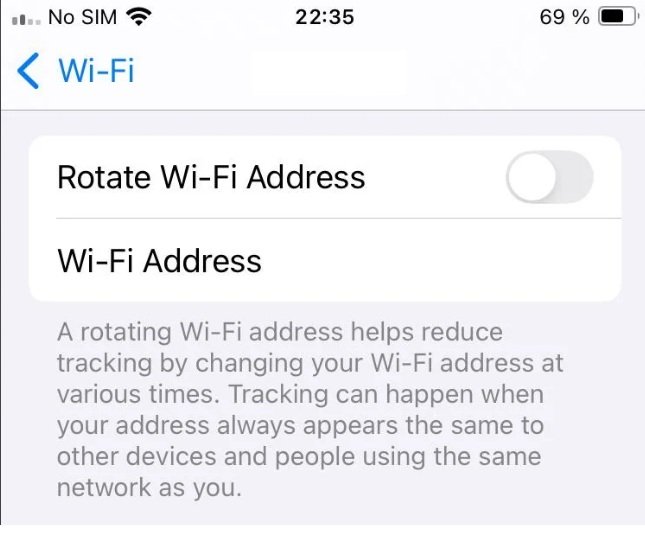
Rotating WiFi Address is enabled by default on iPhone running iOS 17 and later. However, you can verify it’s enabled and configure it if needed. Open Settings on your iPhone and navigate to WiFi. Look for “Privacy” or “MAC Address” settings—the exact location varies by iOS version. You should see an option for “Private WiFi Address” or “Rotate MAC Address” with a toggle indicating whether it’s enabled.
If the toggle shows enabled (green/blue), Rotating WiFi Address is active and your device rotates MAC addresses on WiFi networks. If disabled, you can enable it by tapping the toggle. Additionally, some iOS versions allow configuring the rotation behavior per-network—you can tap on individual WiFi networks and enable or disable MAC rotation for specific networks.
On some iPhones, you might see separate options for “Private WiFi Address” (the older feature) and “Rotate MAC Address” (the newer feature). If both are available, ensure both are enabled for maximum privacy. Older iPhones running iOS 14-16 have only Private WiFi Address available; they don’t have Rotating WiFi Address functionality.
Additionally, you can view your device’s MAC address and verify rotation is working. In Settings > General > About, you’ll see several identifiers including “WiFi Address” showing your current MAC address on the network. If you enable Rotating WiFi Address and reconnect to the network at different times, this address should change, confirming rotation is functioning.
For most users, the default enabled state is appropriate—privacy protection happens automatically without requiring configuration. However, if you experience connectivity issues (described later), you might need to disable rotation for specific networks where compatibility problems occur.
7. Troubleshooting Connectivity Issues Caused by Rotating WiFi Address
While Rotating WiFi Address provides privacy benefits, it sometimes causes unexpected connectivity problems, particularly on older or misconfigured networks. The most common issue is authentication failures where your device cannot connect to or stay connected to networks when MAC rotation is enabled. This occurs because some routers or network authentication systems expect your MAC address to remain consistent—when it changes unexpectedly, they misidentify your device as a new device attempting access.
Additionally, some networks use MAC address filtering (whitelisting specific MAC addresses allowed to connect). When your iPhone rotates its MAC address, the new address isn’t in the whitelist, causing connection failures. This particularly affects corporate networks, public WiFi with access restrictions, or networks where device registration is required.
Furthermore, some IoT devices or network services rely on persistent MAC addresses for proper functioning. If your iPhone changes its MAC address while these services are active, they might lose connection or behave unexpectedly. For example, HomeKit accessories on WiFi sometimes struggle when your iPhone’s MAC address rotates while HomeKit is actively communicating.
To troubleshoot connectivity issues, the simplest solution is disabling Rotating WiFi Address for problematic networks. Open Settings > WiFi > [Network Name] (tap the info icon next to your network) and toggle off “Private WiFi Address” or “Rotate MAC Address” for that specific network. This disables MAC rotation only for that network while keeping rotation enabled elsewhere, providing privacy on most networks while maintaining compatibility on problematic ones.
For networks requiring device registration (like corporate WiFi or public networks requiring login), you might need to re-register your device after disabling MAC rotation. Some networks detect a “new device” (your rotated MAC address) and require re-authentication. Disabling rotation stabilizes your MAC address, preventing constant re-authentication attempts.
If you continue experiencing issues even after disabling rotation, the problem might be unrelated to MAC rotation. Try forgetting the network (Settings > WiFi > [Network] > Forget) and reconnecting fresh, resetting your network settings entirely (Settings > General > Reset > Reset Network Settings), or contacting network administrators for compatibility assistance.
8. Network Compatibility Considerations: Which Networks Have Issues
Certain types of networks are more prone to experiencing problems with Rotating WiFi Address. Older WiFi routers (pre-2015 models) sometimes struggle with MAC address rotation because their authentication systems expect consistent MAC addresses. Modern routers typically handle MAC rotation gracefully, but very old equipment might not.
Corporate and enterprise networks frequently have issues because they implement strict device management and MAC address filtering. Corporate networks often register devices and expect specific MAC addresses for security purposes. Rotating WiFi Address conflicts with these security measures, causing authentication failures or access denials.
Public WiFi networks with captive portals (login pages you see when first connecting) sometimes struggle with MAC rotation. If your MAC address changes after you’ve logged into the captive portal, the new address isn’t registered, blocking your access. Disabling MAC rotation on public networks sometimes resolves these issues.
Healthcare and educational institution networks sometimes implement MAC-based access controls. Hospitals, universities, and schools might whitelist specific MAC addresses for their networks. Rotating WiFi Address makes your device appear to be different devices, violating MAC whitelisting rules.
HomeKit and IoT networks sometimes experience issues because these systems expect device MAC addresses to remain consistent for proper functionality. If your iPhone’s MAC address rotates while HomeKit is actively controlling devices, HomeKit might lose its connection to your iPhone as a controller.
Understanding which networks are likely to have issues helps you make informed decisions about where to disable MAC rotation. For public networks, coffee shops, and home networks, keeping MAC rotation enabled provides privacy without significant compatibility concerns. For corporate, institutional, or IoT networks, disabling rotation might be necessary for reliable operation.
9. Comparing Rotating WiFi Address with Other Privacy Features
Rotating WiFi Address is one component of comprehensive WiFi privacy, working alongside other privacy features to provide layered protection. Understanding how it compares to other approaches helps you optimize your privacy strategy. VPN services provide IP address hiding and traffic encryption, addressing privacy concerns that Rotating WiFi Address doesn’t—VPN masks your IP address from networks and your ISP. Using VPN alongside Rotating WiFi Address provides more comprehensive protection than either alone.
Additionally, DNS over HTTPS (DoH) prevents networks from observing which websites you visit by encrypting DNS requests. Enabling DoH in iOS Settings > WiFi > DNS Settings provides this protection. Combined with Rotating WiFi Address, it prevents networks from identifying you through either MAC addresses or website visits.
Furthermore, Safari’s Intelligent Tracking Prevention and app privacy labels address tracking through different mechanisms than MAC rotation—they prevent tracking through cookies and behavioral analysis rather than MAC addresses. These features complement Rotating WiFi Address by addressing different tracking vectors.
Additionally, connecting through WiFi networks you trust (your home network, work network, trusted public networks) provides implicit protection because you trust the network administrators. Rotating WiFi Address provides additional protection on untrusted networks where you’re concerned about tracking.
Understanding that Rotating WiFi Address addresses one specific tracking method helps you recognize it as part of a broader privacy strategy rather than complete privacy protection. Comprehensive privacy involves VPN, encrypted DNS, tracking prevention, and careful management of what information you share online—Rotating WiFi Address contributes to this comprehensive approach but doesn’t replace other protective measures.
10. Best Practices for WiFi Privacy and Security
Developing a comprehensive WiFi privacy strategy requires combining Rotating WiFi Address with other protective measures. Keep Rotating WiFi Address enabled by default on all networks—the privacy benefits outweigh the rare compatibility issues on most networks. When you encounter connectivity problems, disable rotation only for the specific problematic network, maintaining rotation elsewhere.
Additionally, use VPN services on public WiFi networks. VPN encrypts your traffic and masks your IP address, protecting against network eavesdropping that MAC address rotation doesn’t address. For private networks (home, work), VPN is less critical since you trust the administrators, but using VPN provides defense-in-depth protection.
Furthermore, enable DNS over HTTPS to prevent networks from observing your website visits. In Settings > WiFi > [Network Name] > DNS, select “Automatic (DoH)” or “Manual” and configure a privacy-focused DNS service like Cloudflare (1.1.1.1) or Quad9. This prevents DNS snooping of your browsing even on networks where you otherwise leave MAC rotation disabled.
Additionally, be cautious connecting to open WiFi networks with no password protection. These networks are inherently insecure—anyone can observe traffic. Even with Rotating WiFi Address and VPN, avoid entering sensitive information or logging into accounts on completely open networks.
Furthermore, regularly review your WiFi settings to ensure Rotating WiFi Address remains enabled for networks where you want privacy. If you disable rotation for compatibility reasons on specific networks, verify you’ve only disabled it where necessary rather than accidentally disabling it system-wide.
Finally, recognize that complete WiFi privacy is impossible if you’re logged into services. When you log into Facebook, email, or other services while on WiFi, those services identify you regardless of MAC rotation. The most effective privacy approach is selective trust—enable full privacy protections on untrusted networks and accept that privacy is limited on networks where you authenticate to services you use.
Disclaimer
This article provides guidance on understanding and using iOS Rotating WiFi Address for privacy protection. The information is intended for educational purposes to help users understand WiFi privacy features and configure them appropriately. Specific features, compatibility, and privacy implications may vary depending on your iPhone model, iOS version, and network configuration.
Important Disclaimers:
- Rotating WiFi Address protects against MAC address-based tracking but doesn’t address IP address-based tracking or account-based tracking
- The feature is not a complete privacy solution; comprehensive privacy requires additional measures including VPN and encrypted DNS
- Rotating WiFi Address sometimes causes compatibility issues on certain networks, particularly older routers or networks with MAC address filtering
- Disabling Rotating WiFi Address for compatibility reasons reduces privacy protection on those networks
- Networks you own or where you are administratively logged in might still observe your actual MAC address regardless of rotation
- Some services relying on persistent MAC addresses (certain IoT devices or network management systems) might experience issues with rotation enabled
- Websites, online services, and other internet-based tracking continue despite Rotating WiFi Address
- Private WiFi Address (older feature) and Rotating WiFi Address (newer feature) are different; both should be enabled for maximum protection
Privacy and Tracking:
- MAC address-based tracking is one of numerous tracking vectors; Rotating WiFi Address addresses only this vector
- IP address tracking remains possible despite MAC rotation; VPN provides IP protection
- Website tracking through cookies, logins, and device fingerprinting continues despite MAC rotation
- Behavioral pattern tracking can identify you through usage patterns regardless of MAC rotation
- Account-based tracking through logins occurs regardless of MAC address changes
- Comprehensive privacy requires addressing multiple tracking mechanisms
Compatibility and Network Issues:
- Older routers sometimes struggle with MAC address rotation
- Networks using MAC address filtering or whitelisting require compatible MAC addresses
- Corporate and institutional networks might have policies incompatible with rotation
- Captive portals sometimes require re-authentication when MAC changes
- HomeKit and IoT systems might need disabled rotation for reliability
- Network authentication systems expecting consistent MAC addresses can conflict with rotation
Configuration and Management:
- Rotating WiFi Address is enabled by default on iOS 17+
- Disabling rotation per-network is preferable to disabling system-wide
- Private WiFi Address (iOS 14-16) and Rotating WiFi Address (iOS 17+) serve similar purposes
- MAC address rotation settings appear in WiFi network details
- Current MAC address visible in Settings > General > About under “WiFi Address”
VPN and Additional Protection:
- VPN services provide IP address protection that Rotating WiFi Address doesn’t
- VPN encrypts traffic preventing network eavesdropping
- Using VPN with Rotating WiFi Address provides more comprehensive protection than either alone
- Not all VPN services provide equal privacy; select privacy-focused providers
- Free VPN services often collect data themselves; paid services from reputable companies preferred
DNS and Traffic Protection:
- DNS over HTTPS prevents DNS queries from being observed by networks
- Standard DNS allows networks to see every website you visit regardless of MAC rotation
- Privacy-focused DNS services (Cloudflare 1.1.1.1, Quad9) provide additional privacy
- DNS protection complements MAC rotation by addressing different tracking vectors
- Configuring DNS privacy in iOS Settings provides permanent protection across all apps
Network Trust Levels:
- Trusted networks (home, work) where you trust administrators require less privacy protection
- Untrusted public networks require maximum privacy protection
- Open WiFi networks with no password are inherently insecure regardless of rotation
- Networks where you authenticate to services identify you through credentials
- Privacy protection varies based on whether you trust the network
Logging and Authentication:
- Logging into accounts on WiFi reveals your identity regardless of MAC rotation
- Service-based tracking (Google, Facebook, etc.) continues despite privacy features
- Email and account-based services identify you through credentials
- Websites track users through login information independent of MAC addresses
- Selective authentication (avoiding logins on untrusted networks) improves privacy
Troubleshooting Steps:
- Disabling rotation per-network is first step for compatibility issues
- Forgetting and reconnecting to networks sometimes resolves issues
- Resetting network settings addresses persistent connectivity problems
- Contacting network administrators helps for network-specific compatibility
- Testing without rotation confirms whether rotation is cause of problems
When Professional Help Is Needed:
- Network administrators should troubleshoot enterprise network compatibility
- Apple Support can assist with iPhone-specific privacy settings questions
- ISP support might help with network connectivity issues related to privacy settings
- Security professionals can advise on comprehensive privacy strategies
- Privacy advocates can provide guidance on privacy protection approaches
Liability:
We are not responsible for any privacy breaches, connectivity issues, data loss, or other consequences resulting from configuring Rotating WiFi Address or other privacy settings as described in this article. Users assume full responsibility for understanding privacy limitations and implementing appropriate protections for their specific needs. Rotating WiFi Address provides protection against specific tracking methods but not comprehensive privacy—users relying solely on this feature for complete privacy are likely inadequately protected. Most compatibility issues are resolvable through disabling rotation per-network, but some situations might require technical assistance to properly configure. If you experience persistent connectivity problems or have concerns about your privacy protection, consult technical support or privacy professionals rather than attempting troubleshooting you’re uncomfortable with.

- How to Remotely Control Another Computer Using Windows Quick Assist

- 5 Must-Have Electronics Gadgets for a More Comfortable Living Room

- How to Create a Windows 11 System Backup on an External Hard Drive

- 10 Smart Home Ideas That Make Everyday Life Easier

- Gemini Live Avatar: How to Talk to Gemini Face-to-Face

Products
-
![Apple Watch Ultra 3 [GPS + Cellular 49mm] Running & Multisport Smartwatch w/Rugged Titanium Case w/Black Titanium Milanese Loop - M. Satellite Communications, Advanced Health & Fitness Tracking](https://bazaronweb.com/retailstores/wp-content/uploads/2025/09/apple-watch-320x320.jpg) Apple Watch Ultra 3 [GPS + Cellular 49mm] Running & Multisport Smartwatch w/Rugged Titanium Case w/Black Titanium Milanese Loop - M. Satellite Communications, Advanced Health & Fitness Tracking
Apple Watch Ultra 3 [GPS + Cellular 49mm] Running & Multisport Smartwatch w/Rugged Titanium Case w/Black Titanium Milanese Loop - M. Satellite Communications, Advanced Health & Fitness Tracking
-
 Apple iPad mini (A17 Pro): Apple Intelligence, 8.3-inch Liquid Retina Display, 256GB, Wi-Fi 6E, 12MP Front/12MP Back Camera, Touch ID, All-Day Battery Life — Purple
-
 Apple AirPods Max Wireless Over-Ear Headphones, Active Noise Cancelling, Transparency Mode, Personalized Spatial Audio, Dolby Atmos, Bluetooth Headphones for iPhone – Space Gray
-
 Apple AirPods Pro 2 Wireless Earbuds, Active Noise Cancellation, Hearing Aid Feature, Bluetooth Headphones, Transparency, Personalized Spatial Audio, High-Fidelity Sound, H2 Chip, USB-C Charging
-
Home Garage 210 TC Cotton King Floral Fitted (Elastic) Bedsheet(Pack of 1, Grey)
Original price was: ₹999.00.₹299.00Current price is: ₹299.00.
Leave a Reply