Discounted Products
-
 Home Garage 210 TC Cotton King Floral Fitted (Elastic) Bedsheet(Pack of 1, Grey)
Original price was: ₹999.00.₹299.00Current price is: ₹299.00.
Home Garage 210 TC Cotton King Floral Fitted (Elastic) Bedsheet(Pack of 1, Grey)
Original price was: ₹999.00.₹299.00Current price is: ₹299.00.
-
 Goodrik 140 TC Cotton Double 3D Printed Flat Bedsheet(Pack of 1, Brown)
Original price was: ₹499.00.₹229.00Current price is: ₹229.00.
Goodrik 140 TC Cotton Double 3D Printed Flat Bedsheet(Pack of 1, Brown)
Original price was: ₹499.00.₹229.00Current price is: ₹229.00.
-
 GLOBALSHOP 350 TC Microfiber Double Floral Flat Bedsheet(Pack of 1, Multicolor)
Original price was: ₹1,250.00.₹263.00Current price is: ₹263.00.
GLOBALSHOP 350 TC Microfiber Double Floral Flat Bedsheet(Pack of 1, Multicolor)
Original price was: ₹1,250.00.₹263.00Current price is: ₹263.00.
-
 RisingStar 250 TC Microfiber King Printed Fitted (Elastic) Bedsheet(Pack of 1, FITTED-ROUND-CIRCLES-PREMIUM)
Original price was: ₹2,299.00.₹299.00Current price is: ₹299.00.
RisingStar 250 TC Microfiber King Printed Fitted (Elastic) Bedsheet(Pack of 1, FITTED-ROUND-CIRCLES-PREMIUM)
Original price was: ₹2,299.00.₹299.00Current price is: ₹299.00.
-
 Home Garage 210 TC Cotton King Floral Fitted (Elastic) Bedsheet(Pack of 1, Fitted Black Green)
Original price was: ₹1,299.00.₹299.00Current price is: ₹299.00.
Home Garage 210 TC Cotton King Floral Fitted (Elastic) Bedsheet(Pack of 1, Fitted Black Green)
Original price was: ₹1,299.00.₹299.00Current price is: ₹299.00.
-
 Home Garage 180 TC Cotton King 3D Printed Flat Bedsheet(Pack of 1, White)
Original price was: ₹999.00.₹229.00Current price is: ₹229.00.
Home Garage 180 TC Cotton King 3D Printed Flat Bedsheet(Pack of 1, White)
Original price was: ₹999.00.₹229.00Current price is: ₹229.00.
-
 Panipat Textile Hub 152.4 cm (5 ft) Polyester Window Curtain (Pack Of 2)(Solid, Aqua)
Original price was: ₹1,899.00.₹299.00Current price is: ₹299.00.
Panipat Textile Hub 152.4 cm (5 ft) Polyester Window Curtain (Pack Of 2)(Solid, Aqua)
Original price was: ₹1,899.00.₹299.00Current price is: ₹299.00.
-
 Home Sizzler 214 cm (7 ft) Polyester Semi Transparent Door Curtain (Pack Of 2)(Floral, Maroon)
Original price was: ₹1,199.00.₹399.00Current price is: ₹399.00.
Home Sizzler 214 cm (7 ft) Polyester Semi Transparent Door Curtain (Pack Of 2)(Floral, Maroon)
Original price was: ₹1,199.00.₹399.00Current price is: ₹399.00.
-
 Home Sizzler 153 cm (5 ft) Polyester Room Darkening Window Curtain (Pack Of 2)(Floral, Brown)
Original price was: ₹799.00.₹299.00Current price is: ₹299.00.
Home Sizzler 153 cm (5 ft) Polyester Room Darkening Window Curtain (Pack Of 2)(Floral, Brown)
Original price was: ₹799.00.₹299.00Current price is: ₹299.00.
-
 Stella Creations 214 cm (7 ft) Polyester Room Darkening Door Curtain (Pack Of 2)(Abstract, Brown)
Original price was: ₹1,299.00.₹449.00Current price is: ₹449.00.
Stella Creations 214 cm (7 ft) Polyester Room Darkening Door Curtain (Pack Of 2)(Abstract, Brown)
Original price was: ₹1,299.00.₹449.00Current price is: ₹449.00.
-
 Homefab India 152.5 cm (5 ft) Polyester Room Darkening Window Curtain (Pack Of 2)(Floral, Light Blue)
Original price was: ₹1,199.00.₹319.00Current price is: ₹319.00.
Homefab India 152.5 cm (5 ft) Polyester Room Darkening Window Curtain (Pack Of 2)(Floral, Light Blue)
Original price was: ₹1,199.00.₹319.00Current price is: ₹319.00.
-
 Urban Home 214 cm (7 ft) PVC Transparent Door Curtain Single Curtain(Solid, Off White)
Original price was: ₹699.00.₹203.00Current price is: ₹203.00.
Urban Home 214 cm (7 ft) PVC Transparent Door Curtain Single Curtain(Solid, Off White)
Original price was: ₹699.00.₹203.00Current price is: ₹203.00.
-
 Panipat Textile Hub 213 cm (7 ft) Polyester Door Curtain (Pack Of 2)(Solid, Brown)
Original price was: ₹1,199.00.₹349.00Current price is: ₹349.00.
Panipat Textile Hub 213 cm (7 ft) Polyester Door Curtain (Pack Of 2)(Solid, Brown)
Original price was: ₹1,199.00.₹349.00Current price is: ₹349.00.
-
 Home Sizzler 214 cm (7 ft) Polyester Semi Transparent Door Curtain (Pack Of 2)(Floral, Brown)
Original price was: ₹999.00.₹349.00Current price is: ₹349.00.
Home Sizzler 214 cm (7 ft) Polyester Semi Transparent Door Curtain (Pack Of 2)(Floral, Brown)
Original price was: ₹999.00.₹349.00Current price is: ₹349.00.
-
 Panipat Textile Hub 213 cm (7 ft) Polyester Semi Transparent Door Curtain (Pack Of 2)(Floral, Brown)
Original price was: ₹899.00.₹299.00Current price is: ₹299.00.
Panipat Textile Hub 213 cm (7 ft) Polyester Semi Transparent Door Curtain (Pack Of 2)(Floral, Brown)
Original price was: ₹899.00.₹299.00Current price is: ₹299.00.
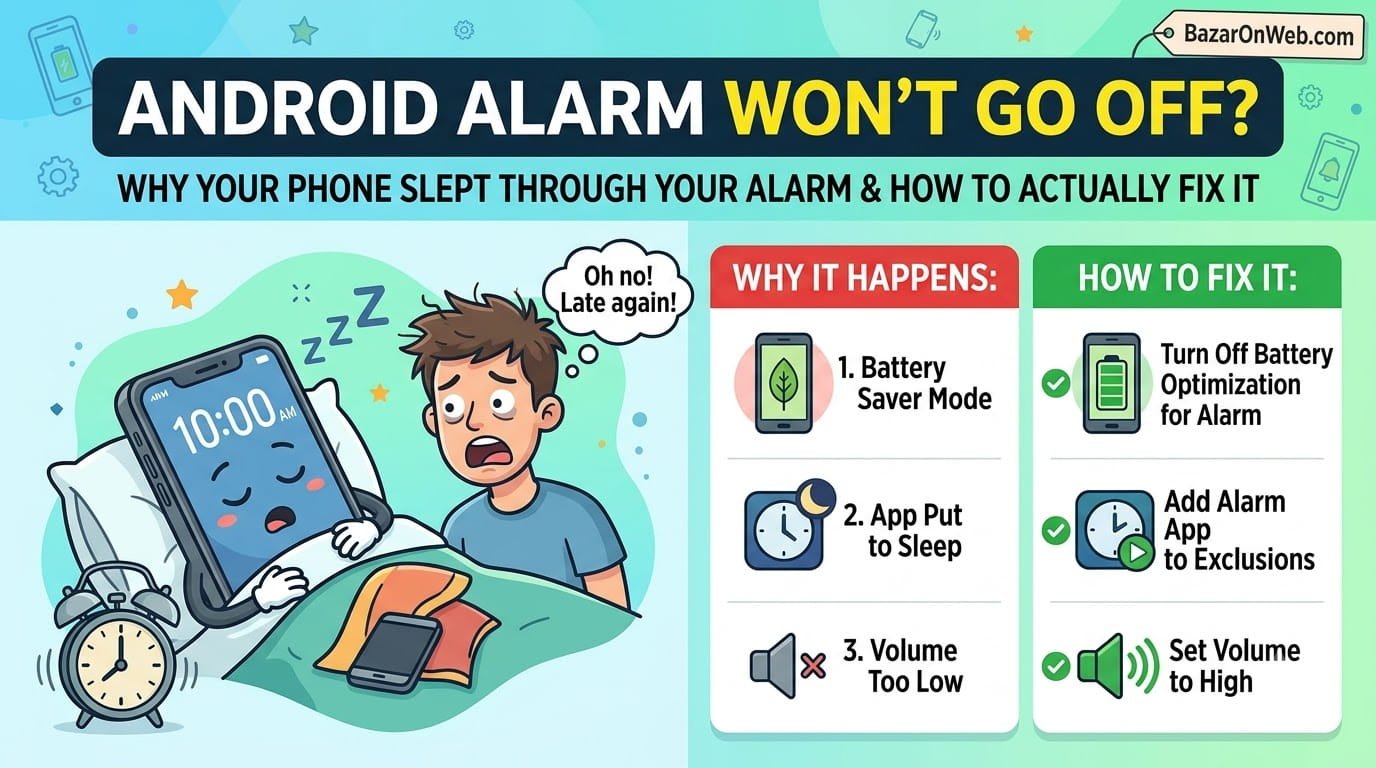
The Morning Everything Went Wrong
I woke up naturally at 7:47 AM. My alarm should have gone off at 6:30 AM. I had a 7:00 AM meeting. I was already 47 minutes late before I even realized what happened.
Panic. Immediate panic. I grabbed my phone expecting to see a missed alarm notification. Nothing. No notification. No indication the alarm had even tried to go off.
I opened my Clock app to check the alarm. It was there. Set for 6:30 AM. Enabled (the toggle was on). Everything looked correct. But it hadn’t actually gone off.
I’ve relied on my alarm for years. It’s never failed before. I didn’t even consider that my phone’s alarm might not work. That’s such a basic function. Like, if your phone can’t reliably wake you up in the morning, what’s the point of having a smartphone?
After frantic rescheduling and apologizing to my team, I spent the rest of the day investigating what happened. Turned out there are actually multiple reasons Android alarms fail silently. Your alarm can be set correctly, enabled, everything configured properly, and still not go off.
Most people never discover what went wrong. They just start using their alarm more cautiously, setting multiple alarms, maybe switching to a different alarm app. But the underlying problem—whatever prevented the alarm from working—remains unfixed.
That’s unacceptable for something this critical. Your phone’s alarm is basically a contract: you set it, and it wakes you when scheduled. When that contract breaks, you need to know why and how to fix it.
Why Android Alarms Fail (It’s Usually Not Your Fault)
Before troubleshooting, understanding why alarms fail helps explain which fix will actually work.
Your Android phone has multiple systems that need to work together for an alarm to function. The Clock app sets the alarm. Android’s alarm service stores and manages it. The system needs to wake your phone from sleep at the scheduled time. Audio needs to play. Your phone needs to display the alarm screen. All of these have to work perfectly, or the alarm fails silently.
If any single component fails—your phone’s system clock is wrong, the alarm service is disabled, Do Not Disturb is blocking the sound, the alarm app’s data is corrupted, a system update broke something—your alarm won’t go off.
Additionally, many users don’t realize their actions have been silently disabling alarms. You enable Do Not Disturb and forget about it. Your phone updates and a setting resets. You disable permissions for the Clock app. You switch to a different alarm app but it doesn’t have the same permissions. Suddenly alarms stop working and you have no idea why.
The frustrating part is that Android doesn’t warn you when something prevents alarms from working. There’s no error message. No notification. The alarm just silently fails to trigger.
Quick Diagnosis: Is Your Alarm Actually Enabled?
First, verify your alarm is actually enabled and set correctly.
Open your Clock app (might be labeled “Clock,” “Alarms,” or similar depending on your phone manufacturer).
Look at your alarm. Is the toggle switch next to it ON (usually shown as a blue switch or checkmark)?
If the toggle is OFF, that’s why it didn’t go off. Turn it ON.
Check the alarm time. Is it set for the correct time? (Sounds obvious, but people set alarms at night when tired and make mistakes.)
Check if it’s set to repeat (should show something like “Every weekday” or “Repeats: Mon, Tue, Wed…” if you want it repeating). If it’s a one-time alarm and it already passed, it won’t repeat.
If your alarm looks configured correctly, the problem is something preventing it from actually triggering despite being enabled.
Cause 1: Do Not Disturb Is Blocking Your Alarm
Do Not Disturb is probably the most common culprit. It silences notifications and sounds while active. The problem is that alarms can be configured to be blocked by Do Not Disturb.
Check if Do Not Disturb is enabled. Look in Quick Settings (swipe down from top twice) for “Do Not Disturb” toggle.
If it’s enabled, disable it.
Additionally, check Do Not Disturb settings: Settings > Notifications > Do Not Disturb. Look at the settings, particularly anything related to alarms or allowed notifications.
Some phones allow you to configure Do Not Disturb to allow alarms even when active. Look for options like “Allow alarms” or “Allow priority notifications.” Enable it so alarms work even during Do Not Disturb.
The fix is simple but critical: Do Not Disturb shouldn’t block alarms. Alarms are supposed to wake you. If Do Not Disturb silences them, it defeats the purpose.
Cause 2: Phone Volume Is Muted or Too Low
Your phone’s alarm uses the system volume setting. If your phone is on silent or vibrate, the alarm might not produce sound.
Check your phone’s physical volume buttons. Press the volume up button while on home screen (not in any app). Your phone should show volume level. If volume is at zero or very low, that’s your problem.
Increase volume to a reasonable level (at least halfway).
Additionally, check if your phone is in vibrate mode. Look for the silent/vibrate switch (usually on the side of the phone). If it’s in vibrate mode, move it to normal mode. Vibration isn’t reliable for waking you—sound is necessary.
Alarms should override silent mode, but on some Android phones or in some configurations, they don’t. Ensuring your phone isn’t on silent prevents this issue.
Cause 3: Clock App Permissions Denied
Your Clock app needs specific permissions to function properly. If you’ve denied permissions, alarms won’t work.
Settings > Apps > Clock (or “Alarms” depending on your phone). Look for “Permissions.”
Check if the Clock app has these permissions:
- Notifications (essential for alarm notification)
- Schedule exact alarm (might be labeled differently)
- Phone state access
- Alarm permission (on newer Android versions)
If any of these show “Denied,” tap it and change to “Allow.”
After granting permissions, close and reopen the Clock app. Test setting an alarm.
Permissions are often denied during Android updates. Updates might reset app permissions, requiring you to re-grant them.
Cause 4: System Date and Time Are Incorrect
This sounds weird, but if your phone’s system date and time are wrong, alarms trigger at incorrect times or not at all.
Settings > System > Date & time.
Verify the date and time are actually correct. If your phone thinks it’s Tuesday when it’s Wednesday, or thinks it’s 3 PM when it’s 6 AM, alarms trigger at wrong times.
Ensure “Set automatically” is enabled. This tells your phone to get the correct time from the network instead of relying on manual setting.
If you recently traveled across time zones, your phone might not have updated automatically. Manually set the correct time zone or enable automatic time zone detection.
Cause 5: Airplane Mode Is Enabled
Airplane Mode disables radio communications and can interfere with various phone functions including alarms.
Check Quick Settings for “Airplane Mode.” If it’s enabled, disable it.
Airplane Mode is useful when flying but should never be enabled during normal use if you need alarms to work.
Cause 6: Clock App Data Is Corrupted
App data can become corrupted, preventing the app from functioning properly.
Go to Settings > Apps > Clock > Storage > Clear cache.
This deletes temporary files the app uses but keeps your alarms intact.
If alarms still don’t work, try: Settings > Apps > Clock > Storage > Clear data.
WARNING: This deletes all your saved alarms. You’ll have to reset them. But it fixes corruption that might be preventing alarms from working.
After clearing data, reopen the Clock app and set your alarms again.
Cause 7: Battery Saver or Power Saving Mode
Battery Saver mode can disable background processes and features to extend battery life. Alarms might be affected.
Check if Battery Saver is enabled. Settings > Battery > Battery saver (or “Power saving mode” depending on phone).
If enabled, disable it temporarily to test if alarms work.
Alternatively, configure Battery Saver to allow alarms even when active. Some phones have this option: Settings > Battery > Battery saver > Allow alarms.
You want your alarms to work even if battery is low, so alarms should be exempted from power saving restrictions.
Cause 8: Android Version or Update Issues
Android updates sometimes introduce bugs that break alarms. Conversely, newer updates sometimes fix alarm-related bugs.
Check if your Android version is current: Settings > System > System update > Check for updates.
Install any available updates. Updates often include bug fixes for system apps including Clock.
If alarms broke after a recent update, check your phone manufacturer’s support website to see if known issues exist with that update version. Sometimes the issue is documented with workarounds.
Cause 9: Different Alarm App Causing Problems
If you’ve installed a third-party alarm app, it might be conflicting with Android’s default Clock app.
Uninstall third-party alarm apps or disable them. Stick with your phone’s built-in Clock app which is integrated with the system.
If you want a third-party alarm app, disable the built-in Clock app alarms entirely (remove alarms or disable the app). Only use one alarm app—running multiple alarm apps causes conflicts.
Different alarm apps might have different permission requirements or compatibility issues. Sticking with the built-in app is most reliable.
Cause 10: Your Phone Goes Into Deep Sleep
Some phones have aggressive battery optimization that puts them into deep sleep, preventing alarms from triggering.
Check your phone’s battery optimization settings. This varies significantly by manufacturer (Samsung, Google Pixel, OnePlus, etc. all handle it differently).
Generally: Settings > Battery > App power management or similar. Look for apps that are being “optimized” aggressively. Some phones put all apps into deep sleep except critical system apps.
Make sure your Clock app isn’t being aggressively optimized. Add it to a whitelist or allowlist if your phone has such an option.
Cause 11: Malware Interfering With System Functions
Malware sometimes interferes with system apps like Clock to prevent you from being notified or woken up (so you don’t realize your phone is compromised).
Run malware scan: Settings > Security > Google Play Protect (or use Malwarebytes Android app).
Let it scan and remove detected threats.
If malware is the culprit, removing it should restore alarm functionality.
Testing Your Fix: Actually Verify It Works
After attempting any fix, actually test that alarms work before relying on them.
Set an alarm for 5 minutes from now. Enable the alarm. Close the Clock app.
Put your phone in sleep mode (lock it) or place it face-down on a table.
Wait 5+ minutes for the alarm to trigger. If it goes off reliably, your fix worked.
Only after confirming alarms work should you trust your phone to wake you for important events.
Backup: Multiple Alarms for Critical Times
Even after fixing the issue, never rely on a single alarm for critical wake-ups.
Set multiple alarms (15 minutes apart) to ensure at least one triggers if something goes wrong.
Consider using a backup alarm method: a second device (tablet, smart speaker), asking a friend to call you, or using a traditional alarm clock alongside your phone.
This redundancy ensures you won’t oversleep even if one alarm fails.
When Professional Help Is Needed
If you’ve tried all troubleshooting and alarms still don’t work:
- Your phone’s alarm service might be fundamentally broken requiring professional repair
- Hardware components controlling the speaker or system functions might be failing
- Malware might be embedded too deeply to remove through normal scanning
In these cases, contact your phone manufacturer or visit a repair shop.
Preventing Future Alarm Failures
After fixing your alarm:
Check alarms monthly: Occasionally test that your alarms actually go off.
Keep Android updated: Updates fix bugs including alarm-related issues.
Don’t use aggressive battery optimization: Balance battery life with functionality. Alarms are more important than squeezing extra battery life.
Use Do Not Disturb carefully: If you use it, ensure alarms are allowed to bypass it.
Maintain reasonable volume: Don’t keep your phone on silent if you need alarms to work.
Keep Clock app updated: Update your Clock app through Play Store if updates are available.
The Reality
Android alarms are usually reliable, but multiple things can break them silently. The frustrating part is that your alarm looks enabled, everything appears configured correctly, and it still doesn’t work.
Most of the time, the problem is something simple: Do Not Disturb silencing it, phone on silent, or permissions denied.
Systematically checking these possibilities identifies the issue quickly.
Your alarm is a critical function. It deserves your attention to ensure it actually works when you need it.
Disclaimer: This article provides troubleshooting guidance for Android alarm failures. Results vary by Android version, phone manufacturer, and specific configuration. Some fixes require clearing app data which removes saved alarms. Users assume responsibility for testing alarms before relying on them. Hardware failure requires professional service. Malware removal should use trusted antivirus only. Seek professional support if alarms fail persistently despite troubleshooting.

- How to Remotely Control Another Computer Using Windows Quick Assist

- 5 Must-Have Electronics Gadgets for a More Comfortable Living Room

- How to Create a Windows 11 System Backup on an External Hard Drive

- 10 Smart Home Ideas That Make Everyday Life Easier

- Gemini Live Avatar: How to Talk to Gemini Face-to-Face

Products
-
![Apple Watch Ultra 3 [GPS + Cellular 49mm] Running & Multisport Smartwatch w/Rugged Titanium Case w/Black Titanium Milanese Loop - M. Satellite Communications, Advanced Health & Fitness Tracking](https://bazaronweb.com/retailstores/wp-content/uploads/2025/09/apple-watch-320x320.jpg) Apple Watch Ultra 3 [GPS + Cellular 49mm] Running & Multisport Smartwatch w/Rugged Titanium Case w/Black Titanium Milanese Loop - M. Satellite Communications, Advanced Health & Fitness Tracking
Apple Watch Ultra 3 [GPS + Cellular 49mm] Running & Multisport Smartwatch w/Rugged Titanium Case w/Black Titanium Milanese Loop - M. Satellite Communications, Advanced Health & Fitness Tracking
-
 Apple iPad mini (A17 Pro): Apple Intelligence, 8.3-inch Liquid Retina Display, 256GB, Wi-Fi 6E, 12MP Front/12MP Back Camera, Touch ID, All-Day Battery Life — Purple
-
 Apple AirPods Max Wireless Over-Ear Headphones, Active Noise Cancelling, Transparency Mode, Personalized Spatial Audio, Dolby Atmos, Bluetooth Headphones for iPhone – Space Gray
-
 Apple AirPods Pro 2 Wireless Earbuds, Active Noise Cancellation, Hearing Aid Feature, Bluetooth Headphones, Transparency, Personalized Spatial Audio, High-Fidelity Sound, H2 Chip, USB-C Charging
-
Home Garage 210 TC Cotton King Floral Fitted (Elastic) Bedsheet(Pack of 1, Grey)
Original price was: ₹999.00.₹299.00Current price is: ₹299.00.
Leave a Reply