Discounted Products
-
 Home Garage 210 TC Cotton King Floral Fitted (Elastic) Bedsheet(Pack of 1, Grey)
Original price was: ₹999.00.₹299.00Current price is: ₹299.00.
Home Garage 210 TC Cotton King Floral Fitted (Elastic) Bedsheet(Pack of 1, Grey)
Original price was: ₹999.00.₹299.00Current price is: ₹299.00.
-
 Goodrik 140 TC Cotton Double 3D Printed Flat Bedsheet(Pack of 1, Brown)
Original price was: ₹499.00.₹229.00Current price is: ₹229.00.
Goodrik 140 TC Cotton Double 3D Printed Flat Bedsheet(Pack of 1, Brown)
Original price was: ₹499.00.₹229.00Current price is: ₹229.00.
-
 GLOBALSHOP 350 TC Microfiber Double Floral Flat Bedsheet(Pack of 1, Multicolor)
Original price was: ₹1,250.00.₹263.00Current price is: ₹263.00.
GLOBALSHOP 350 TC Microfiber Double Floral Flat Bedsheet(Pack of 1, Multicolor)
Original price was: ₹1,250.00.₹263.00Current price is: ₹263.00.
-
 RisingStar 250 TC Microfiber King Printed Fitted (Elastic) Bedsheet(Pack of 1, FITTED-ROUND-CIRCLES-PREMIUM)
Original price was: ₹2,299.00.₹299.00Current price is: ₹299.00.
RisingStar 250 TC Microfiber King Printed Fitted (Elastic) Bedsheet(Pack of 1, FITTED-ROUND-CIRCLES-PREMIUM)
Original price was: ₹2,299.00.₹299.00Current price is: ₹299.00.
-
 Home Garage 210 TC Cotton King Floral Fitted (Elastic) Bedsheet(Pack of 1, Fitted Black Green)
Original price was: ₹1,299.00.₹299.00Current price is: ₹299.00.
Home Garage 210 TC Cotton King Floral Fitted (Elastic) Bedsheet(Pack of 1, Fitted Black Green)
Original price was: ₹1,299.00.₹299.00Current price is: ₹299.00.
-
 Home Garage 180 TC Cotton King 3D Printed Flat Bedsheet(Pack of 1, White)
Original price was: ₹999.00.₹229.00Current price is: ₹229.00.
Home Garage 180 TC Cotton King 3D Printed Flat Bedsheet(Pack of 1, White)
Original price was: ₹999.00.₹229.00Current price is: ₹229.00.
-
 Panipat Textile Hub 152.4 cm (5 ft) Polyester Window Curtain (Pack Of 2)(Solid, Aqua)
Original price was: ₹1,899.00.₹299.00Current price is: ₹299.00.
Panipat Textile Hub 152.4 cm (5 ft) Polyester Window Curtain (Pack Of 2)(Solid, Aqua)
Original price was: ₹1,899.00.₹299.00Current price is: ₹299.00.
-
 Home Sizzler 214 cm (7 ft) Polyester Semi Transparent Door Curtain (Pack Of 2)(Floral, Maroon)
Original price was: ₹1,199.00.₹399.00Current price is: ₹399.00.
Home Sizzler 214 cm (7 ft) Polyester Semi Transparent Door Curtain (Pack Of 2)(Floral, Maroon)
Original price was: ₹1,199.00.₹399.00Current price is: ₹399.00.
-
 Home Sizzler 153 cm (5 ft) Polyester Room Darkening Window Curtain (Pack Of 2)(Floral, Brown)
Original price was: ₹799.00.₹299.00Current price is: ₹299.00.
Home Sizzler 153 cm (5 ft) Polyester Room Darkening Window Curtain (Pack Of 2)(Floral, Brown)
Original price was: ₹799.00.₹299.00Current price is: ₹299.00.
-
 Stella Creations 214 cm (7 ft) Polyester Room Darkening Door Curtain (Pack Of 2)(Abstract, Brown)
Original price was: ₹1,299.00.₹449.00Current price is: ₹449.00.
Stella Creations 214 cm (7 ft) Polyester Room Darkening Door Curtain (Pack Of 2)(Abstract, Brown)
Original price was: ₹1,299.00.₹449.00Current price is: ₹449.00.
-
 Homefab India 152.5 cm (5 ft) Polyester Room Darkening Window Curtain (Pack Of 2)(Floral, Light Blue)
Original price was: ₹1,199.00.₹319.00Current price is: ₹319.00.
Homefab India 152.5 cm (5 ft) Polyester Room Darkening Window Curtain (Pack Of 2)(Floral, Light Blue)
Original price was: ₹1,199.00.₹319.00Current price is: ₹319.00.
-
 Urban Home 214 cm (7 ft) PVC Transparent Door Curtain Single Curtain(Solid, Off White)
Original price was: ₹699.00.₹203.00Current price is: ₹203.00.
Urban Home 214 cm (7 ft) PVC Transparent Door Curtain Single Curtain(Solid, Off White)
Original price was: ₹699.00.₹203.00Current price is: ₹203.00.
-
 Panipat Textile Hub 213 cm (7 ft) Polyester Door Curtain (Pack Of 2)(Solid, Brown)
Original price was: ₹1,199.00.₹349.00Current price is: ₹349.00.
Panipat Textile Hub 213 cm (7 ft) Polyester Door Curtain (Pack Of 2)(Solid, Brown)
Original price was: ₹1,199.00.₹349.00Current price is: ₹349.00.
-
 Home Sizzler 214 cm (7 ft) Polyester Semi Transparent Door Curtain (Pack Of 2)(Floral, Brown)
Original price was: ₹999.00.₹349.00Current price is: ₹349.00.
Home Sizzler 214 cm (7 ft) Polyester Semi Transparent Door Curtain (Pack Of 2)(Floral, Brown)
Original price was: ₹999.00.₹349.00Current price is: ₹349.00.
-
 Panipat Textile Hub 213 cm (7 ft) Polyester Semi Transparent Door Curtain (Pack Of 2)(Floral, Brown)
Original price was: ₹899.00.₹299.00Current price is: ₹299.00.
Panipat Textile Hub 213 cm (7 ft) Polyester Semi Transparent Door Curtain (Pack Of 2)(Floral, Brown)
Original price was: ₹899.00.₹299.00Current price is: ₹299.00.
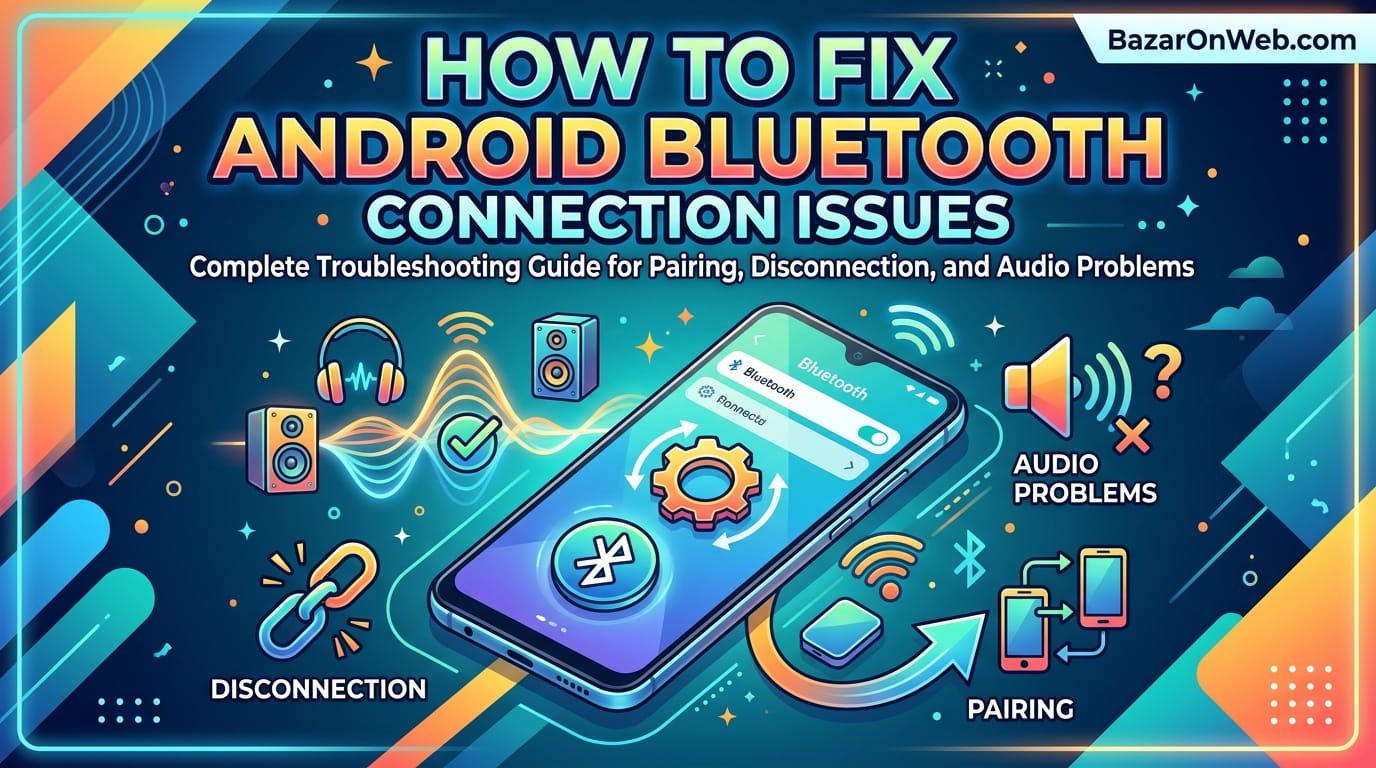
I was frustrated when my Android phone’s Bluetooth suddenly stopped working reliably, disconnecting from my car stereo mid-drive and refusing to reconnect to my wireless headphones despite previously working perfectly. What surprised me most was discovering that Bluetooth connectivity issues are incredibly common on Android devices, but diagnosing the cause requires understanding how Bluetooth works and systematically troubleshooting various potential culprits. After investigating my own Bluetooth problems, I discovered that most connection issues aren’t hardware failures but rather software conflicts, misconfigured settings, or compatibility problems between devices. Understanding what causes Bluetooth to disconnect, how to identify which device is responsible for the problem, and knowing systematic troubleshooting steps transformed my Bluetooth experience from unreliable and frustrating to stable and consistent.
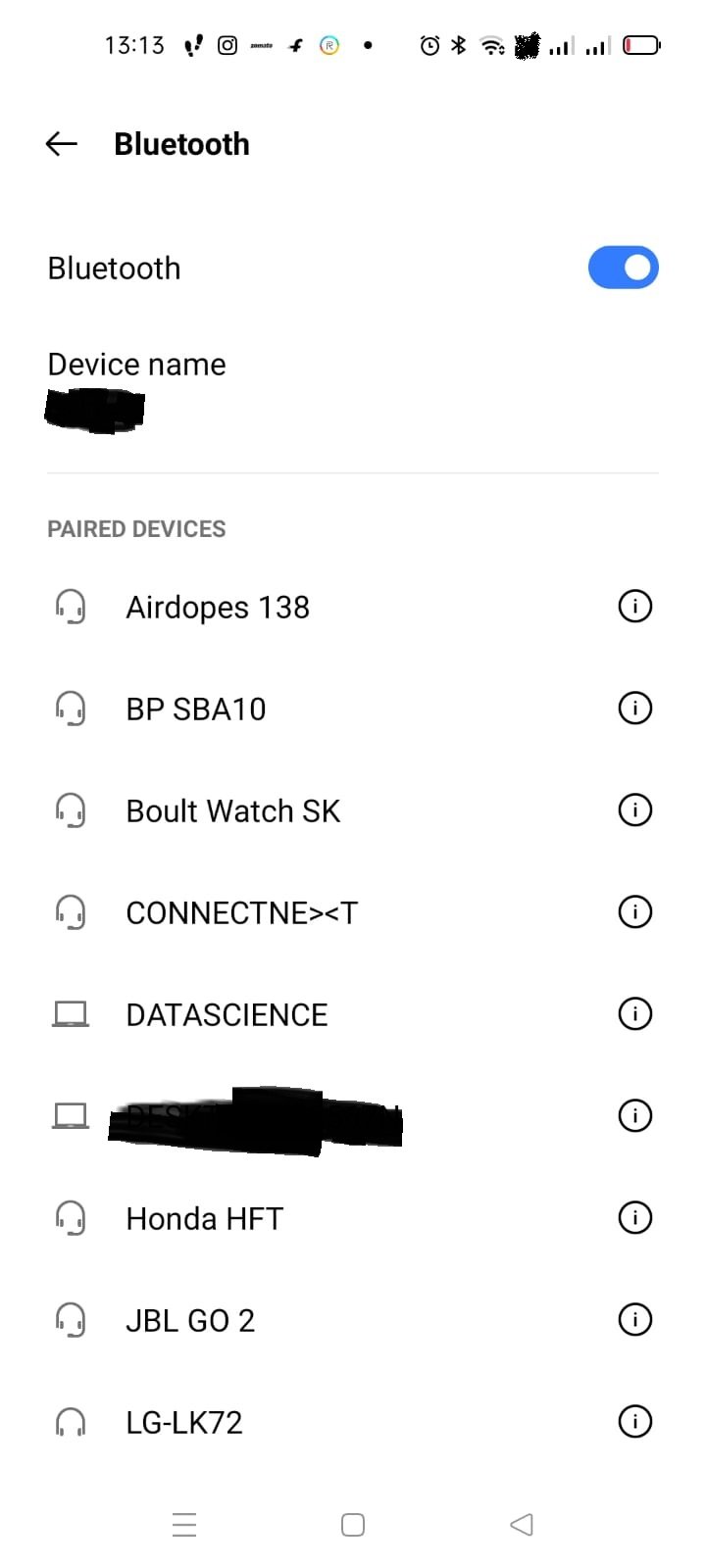
The frustrating reality is that Android Bluetooth implementation is complex, involving numerous services and settings that can interfere with each other. Different Android manufacturers implement Bluetooth differently, third-party apps sometimes disable Bluetooth, and outdated device firmware causes compatibility issues. Combined with the fact that Bluetooth is notoriously difficult to troubleshoot—there’s no unified error message explaining what went wrong, just “connection failed” or silent disconnection—users frequently give up on fixing Bluetooth problems and resort to using wired connections. However, systematic troubleshooting identifies the actual cause in most cases, enabling targeted solutions that actually work. In this comprehensive guide, I’ll explain how Android Bluetooth works, why connection issues occur, and provide specific step-by-step solutions for resolving the most common problems.
1. Understanding Android Bluetooth: How It Works and Common Connection Problems
Bluetooth is a wireless communication standard allowing devices to connect and transfer data over short distances (typically 10-30 meters depending on version and power class). Android devices use Bluetooth for numerous purposes—connecting to car stereos, wireless headphones, smartwatches, fitness trackers, and countless other accessories. Despite being ubiquitous, Bluetooth is notoriously finicky, with connection problems ranging from complete pairing failures to intermittent disconnections to degraded audio quality.
Understanding how Bluetooth pairing works helps you troubleshoot connection issues. Pairing is the initial bonding process where two devices exchange security information and credentials, allowing them to recognize each other in the future. After pairing, connecting is the process of establishing an active connection using the previously stored credentials. Many users confuse pairing and connecting—you pair a device once, establishing trust, then connect to it repeatedly each time you want to use it. Connection problems can occur either during initial pairing or during subsequent connection attempts even with previously paired devices.
Additionally, Bluetooth connections require both devices to support compatible profiles—specific communication protocols for specific purposes. Audio devices use the Audio/Video Remote Control Profile (AVRCP) for audio output, headsets use Headset Profile (HSP), and other devices use different profiles. If devices don’t support compatible profiles, they can pair but can’t perform the desired function. Understanding these basics helps you distinguish between pairing problems, connection problems, and compatibility problems.
2. Cause 1: Bluetooth Cache and Settings Corruption Causing Connection Failures
One of the most common causes of Bluetooth problems is corrupted cache or settings files. Like all Android services, Bluetooth maintains cache files containing connection information, device pairings, and other operational data. If these cache files become corrupted, Bluetooth service malfunctions—connections fail even for previously paired devices, or new pairing attempts fail mysteriously.
Clearing Bluetooth cache is the simplest fix for many connection problems. Open Settings > Apps > System apps > Bluetooth (or Settings > Apps > Bluetooth depending on manufacturer), then select “Storage” or “Storage and cache,” and tap “Clear cache.” This removes corrupted cache files while preserving your paired device list. After clearing cache, restart Bluetooth by toggling it off and on, then attempt connecting to your devices again.
If cache clearing doesn’t resolve issues, you can clear both cache and data by selecting “Clear storage” or “Clear data,” but this erases your entire paired device list requiring re-pairing all devices. This more drastic solution is appropriate if cache clearing alone doesn’t help. After clearing storage, you’ll need to re-pair all devices by opening Bluetooth settings, making your devices discoverable, and pairing them afresh.
Additionally, restart your Android device completely—power off, wait 30 seconds, and power on. Restarting clears temporary memory issues that sometimes affect Bluetooth, and often resolves connection problems without requiring cache clearing. This simple step resolves many Bluetooth issues, making it worth trying before more drastic troubleshooting.
3. Cause 2: Bluetooth Device Firmware Outdated or Incompatible
The device you’re attempting to connect to (car stereo, headphones, smartwatch, etc.) also has software controlling its Bluetooth functionality. Outdated firmware in these devices sometimes causes compatibility issues with newer Android versions. Conversely, your Android device running an older version might not be compatible with newer Bluetooth devices expecting more current implementation.
To resolve firmware issues, check if your Bluetooth device has available firmware updates. For many devices, updates occur through companion apps (manufacturer apps for headphones, car stereos, or smartwatches). Open the device manufacturer’s app and look for firmware update options. Alternatively, visit the manufacturer’s website to see if updated firmware is available for your specific device model. Following manufacturer instructions, update the device’s firmware, then attempt re-pairing with your Android phone.
Additionally, ensure your Android phone’s firmware is current by opening Settings > System > System update (or similar depending on manufacturer) and checking for available updates. Install any pending updates, restart your phone, and attempt Bluetooth connection again. Sometimes new Android versions include Bluetooth compatibility improvements that fix existing connection problems.
Furthermore, if your Bluetooth device is very old (several years old), it might use Bluetooth versions or profiles incompatible with current Android devices. Bluetooth standards evolve, and very old devices sometimes lack compatibility with new implementations. If the device is old and firmware updates don’t exist, device replacement might be necessary for reliable compatibility.
4. Cause 3: Interference and Environmental Factors Disrupting Bluetooth Signals
Bluetooth operates on the 2.4GHz frequency, the same frequency used by WiFi, cordless phones, microwaves, and numerous other devices. When multiple devices use the same frequency, they interfere with each other, causing Bluetooth connection failures or disconnections. Additionally, physical obstacles like metal objects, water, and dense materials block Bluetooth signals, reducing range and stability.
To troubleshoot interference, attempt connecting in different locations. If your Bluetooth connection works fine in one location but fails in another, environmental interference is likely the culprit. Try connecting in locations away from WiFi routers, microwaves, cordless phones, and other 2.4GHz devices. If Bluetooth works better in these locations, interference is the problem.
To mitigate interference, move your Android phone and Bluetooth device closer together, reducing the distance signals must travel. Additionally, move away from known interference sources—turn off nearby WiFi routers temporarily, move the microwave to a different room, or ask others to stop using cordless phones while you connect. Additionally, ensure Bluetooth device antennas have clear line-of-sight to your phone; don’t place devices in pockets or bags that obstruct signals.
For persistent interference issues in specific locations, consider switching your WiFi to 5GHz band (available on modern routers and phones), which doesn’t interfere with 2.4GHz Bluetooth. This requires configuring your router and reconnecting devices to the 5GHz network, but eliminates WiFi-Bluetooth interference. Alternatively, use USB Bluetooth adapters (for connecting to computers) or Bluetooth extenders (for increasing range), though these add complexity.
5. Cause 4: Bluetooth Device Not Properly Disconnected or Still Paired Elsewhere
Bluetooth devices can only maintain active connections to one device at a time, though they can be paired with multiple devices. If your Bluetooth device is already connected to another device (your car stereo might still be connected to your friend’s phone in your car, for example), attempting to connect from your Android phone fails because the device is busy. Additionally, if a Bluetooth device is paired with multiple devices and doesn’t properly forget the previous connection, it might attempt reconnecting to the other device rather than your Android phone.
To resolve this, unpair the Bluetooth device from other devices. If the device was previously paired with another phone, computer, or device, access that device’s Bluetooth settings and unpair (forget) the Bluetooth device. Once unrecognized by all devices except your Android phone, remove the device from your Android’s Bluetooth list and re-pair it fresh.
Additionally, some Bluetooth devices have primary device preferences—they remember which device they connected to first and attempt reconnecting to that device preferentially. To change the primary device, forget the device from your Android phone, then pair it from your Android phone again, making your Android the primary device. After establishing your Android as primary, the device should connect to it preferentially.
Furthermore, some Bluetooth devices have limited pairing capacity—they can only remember a certain number of paired devices. If your device is full (remembers too many previously-paired devices), remove some devices from its memory before pairing new devices. Consult your Bluetooth device’s manual for instructions on removing specific paired devices from memory.
6. Cause 5: Restricted Battery Optimization Disabling Bluetooth
Android’s aggressive battery optimization sometimes restricts Bluetooth services, preventing connections or forcibly disconnecting them to conserve power. If your phone is in Low Power Mode or Battery Saver mode, Bluetooth might be restricted even if it appears enabled. Additionally, app-specific battery restrictions can limit what Bluetooth-dependent apps can do.
Check your battery settings and disable Low Power Mode. Open Settings > Battery or Settings > Battery and Device Care, and look for Low Power Mode or Battery Saver mode. If enabled, toggle it off. Additionally, check individual app battery restrictions through Settings > Apps > [Bluetooth App Name] > Battery, and adjust restrictions to allow normal operation.
Furthermore, some Android phones include aggressive per-app battery optimization that automatically restricts apps consuming resources. Bluetooth-dependent apps might be restricted, preventing them from using Bluetooth even when the service is available. Open Settings > Apps > [Bluetooth App Name] > Battery optimization (exact naming varies), and disable battery optimization for apps that need Bluetooth access.
Additionally, some manufacturers implement additional battery-saving features beyond standard Android. Samsung’s Adaptive Battery, for example, restricts services of infrequently-used apps. Check your specific manufacturer’s battery settings for additional Bluetooth-related restrictions.
7. Cause 6: Malware and Third-Party Applications Interfering with Bluetooth
Malware and rogue applications sometimes disable or interfere with Bluetooth functionality as part of their malicious operations. Additionally, legitimate applications sometimes interfere with Bluetooth—apps attempting to access Bluetooth might request excessive permissions or behave unexpectedly, breaking Bluetooth for other apps.
Scan your phone for malware using Malwarebytes, Norton, or similar antivirus applications. Download from Google Play Store, run comprehensive scans, and remove detected threats. Additionally, review your installed applications for suspicious or unfamiliar apps, and uninstall any you don’t recognize or trust.
Furthermore, review recent app installations coinciding with Bluetooth problems. If Bluetooth stopped working after installing a specific app, that app might be responsible. Uninstall the suspect app and see if Bluetooth resumes working. If it does, the app was the culprit—consider avoiding it or finding an alternative that doesn’t interfere with Bluetooth.
Additionally, check application permissions through Settings > Apps > Permissions > Bluetooth. Review which applications have Bluetooth access and disable access for apps that shouldn’t need it. Restricting Bluetooth access to only applications that legitimately need it reduces the likelihood of interference.
8. Troubleshooting Persistent Connection Issues: Step-by-Step Solutions
If Bluetooth problems persist despite attempting basic troubleshooting, systematic diagnostic steps identify the culprit. First, determine whether the problem is your Android phone, the Bluetooth device, or both. Attempt connecting your Android phone to multiple different Bluetooth devices. If it fails to connect to all of them, the problem is likely your phone’s Bluetooth hardware or software. If it connects to some devices but not others, specific device compatibility or that particular device’s settings might be the problem.
Conversely, attempt connecting the problematic Bluetooth device to multiple different Android phones or other devices. If the device connects to other phones but not yours, your phone’s Bluetooth is likely the culprit. If the device fails to connect to any phone, the device itself has problems requiring troubleshooting or repair.
Additionally, boot your phone into Safe Mode, which disables third-party applications. Open Settings > System > Advanced > Reset options > Restart in Safe Mode (exact navigation varies). In Safe Mode, attempt connecting Bluetooth devices. If connections work in Safe Mode but fail in normal mode, third-party applications are interfering—uninstall recently installed apps one by one to identify the culprit.
Furthermore, perform a factory reset as a last resort. Factory reset completely removes all applications and settings, often resolving persistent Bluetooth issues. However, backup your data first (Settings > System > Backup), as factory reset erases everything. After resetting, selectively reinstall only essential applications to avoid reinstalling problematic apps.
9. Optimizing Bluetooth Performance: Configuration Tips and Best Practices
After resolving Bluetooth connection problems, optimize settings for stable performance. Keep Bluetooth toggled off when not in use—active Bluetooth searches for devices, consuming battery. Toggle it on only when you need to connect, then toggle it off afterward.
Additionally, periodically remove paired devices you no longer use. Open Settings > Bluetooth > Paired devices, and delete old devices no longer connected. Excessive paired devices sometimes cause issues; maintaining a list of only currently-used devices improves performance.
Furthermore, keep your Bluetooth-compatible devices and your Android phone in reasonable proximity when connecting. While Bluetooth works at 10-30 meters distance, establishing initial connections works more reliably when devices are close (within 5 meters). After establishing connection, you can move devices farther apart.
Additionally, avoid using Bluetooth while charging over USB, as charging cables sometimes interfere with Bluetooth signals. If possible, use wireless charging while using Bluetooth, or disconnect USB cables when using Bluetooth extensively.
Finally, update your Bluetooth-compatible devices’ firmware regularly. Manufacturers release firmware updates addressing compatibility issues and improving reliability. Check manufacturer websites or companion apps periodically for available updates and install them when found.
10. When to Seek Professional Help and Hardware Limitations
If Bluetooth problems persist despite extensive troubleshooting, hardware issues might be responsible. Android phones have Bluetooth radio hardware that can fail or degrade, preventing connections regardless of software fixes. If your phone’s Bluetooth radio hardware is failing, professional repair is necessary.
Visit an authorized repair service or manufacturer service center for hardware diagnostics. They can test your phone’s Bluetooth hardware and determine whether replacement or repair is necessary. If the phone is under warranty, hardware failures might be covered.
Additionally, if your Bluetooth device hardware is damaged or failing, replacement might be necessary. Wireless headphones, car stereos, and other Bluetooth devices also have hardware that degrades or fails with age. If a device is very old and fails frequently despite troubleshooting, replacement is often more practical than continued troubleshooting.
Furthermore, consult manufacturer support for device-specific issues. Some manufacturer support teams specialize in their devices and can provide specific troubleshooting steps for their particular Bluetooth implementation.
Finally, recognize that some compatibility issues are unfixable without equipment changes. If your Android phone and Bluetooth device use incompatible Bluetooth versions or profiles, no software troubleshooting resolves the issue—device upgrade or replacement is necessary.
Disclaimer
This article provides guidance on troubleshooting Android Bluetooth connection issues. The information is intended for educational purposes to help users identify and resolve common Bluetooth problems. Specific causes, solutions, and outcomes may vary depending on your Android device model, Android version, Bluetooth device model, and individual circumstances.
Important Disclaimers:
- Bluetooth connection problems can result from numerous causes; systematic troubleshooting is necessary to identify the correct cause
- Some Bluetooth issues result from hardware failures requiring professional repair
- Clearing Bluetooth cache or data removes paired device information requiring re-pairing
- Bluetooth interference from environmental factors cannot always be eliminated without major changes
- Some Bluetooth devices have limited pairing capacity or compatibility with Android versions
- Factory reset erases all data; backup data before performing factory reset
- Malware detection and removal might not resolve all Bluetooth issues if underlying compatibility problems exist
Device Compatibility:
- Different Bluetooth versions (2.0, 3.0, 4.0, 4.1, 5.0, 5.1, 5.2, 5.3, 5.4) have varying compatibility
- Bluetooth profiles (A2DP, AVRCP, HSP, HFP) must be compatible between devices
- Very old Bluetooth devices (10+ years old) might not support modern Android versions
- Newer Bluetooth devices might expect current Android versions for full compatibility
- Mixed Bluetooth versions (old device with new phone or vice versa) sometimes work but with reduced features
Environmental Factors:
- 2.4GHz interference from WiFi, microwaves, cordless phones affects Bluetooth stability
- Physical obstructions (walls, metal objects, water) reduce Bluetooth range
- Distance between devices significantly affects connection stability and reliability
- High-density environments (offices, apartments) might have more WiFi interference
- Weather conditions sometimes affect Bluetooth signals, particularly in outdoor environments
Software and Settings:
- Low Power Mode and Battery Saver mode restrict Bluetooth functionality
- Per-app battery optimization can disable Bluetooth for specific applications
- Corrupted Bluetooth cache can cause widespread connection failures
- Outdated Android versions sometimes have Bluetooth compatibility issues
- Third-party applications can interfere with Bluetooth service
Hardware Considerations:
- Bluetooth radio hardware can fail or degrade, requiring professional repair
- Water damage affects Bluetooth hardware functionality
- Old devices sometimes develop Bluetooth hardware degradation
- Bluetooth antennas can become damaged affecting reception
- Professional diagnostics can confirm hardware failure
Malware and Security:
- Malware can disable or interfere with Bluetooth functionality
- Rogue applications sometimes request excessive Bluetooth permissions
- Antivirus scans can identify malware interfering with Bluetooth
- Uninstalling problem applications often resolves Bluetooth interference
- Regular malware scanning helps prevent Bluetooth-related security issues
Firmware and Updates:
- Outdated Bluetooth device firmware sometimes causes compatibility issues
- Android system updates sometimes include Bluetooth compatibility improvements
- Firmware updates in companion apps can resolve device-specific issues
- Very old devices might not have available firmware updates
- Updating both Android and Bluetooth device firmware improves compatibility
Testing and Diagnosis:
- Testing with multiple Bluetooth devices helps identify whether problem is your phone or a specific device
- Testing with multiple Android phones helps identify device-specific problems
- Safe Mode testing identifies whether third-party applications cause problems
- Hard restart sometimes resolves temporary Bluetooth glitches
- Professional diagnostics confirm hardware failure
When Professional Help Is Needed:
- Bluetooth hardware failures require professional repair or replacement
- Water damage affecting Bluetooth requires professional service
- Persistent software issues despite troubleshooting might require professional diagnostics
- Manufacturer support can provide device-specific troubleshooting
- Authorized repair centers can diagnose and repair Bluetooth hardware
Liability:
We are not responsible for any Bluetooth connection failures, data loss, device damage, or other consequences resulting from troubleshooting steps described in this article. Users assume full responsibility for understanding issues before attempting fixes. Most Bluetooth problems are software-related and safely resolvable through troubleshooting, but some situations (hardware failure, compatibility limitations) require professional assistance. Clearing Bluetooth storage erases paired device information requiring re-pairing; factory reset erases all data. If you’re uncomfortable with troubleshooting or persistent issues persist despite multiple attempts, consult manufacturer support or professional device repair rather than continuing unsuccessful troubleshooting.

- How to Remotely Control Another Computer Using Windows Quick Assist

- 5 Must-Have Electronics Gadgets for a More Comfortable Living Room

- How to Create a Windows 11 System Backup on an External Hard Drive

- 10 Smart Home Ideas That Make Everyday Life Easier

- Gemini Live Avatar: How to Talk to Gemini Face-to-Face

Products
-
![Apple Watch Ultra 3 [GPS + Cellular 49mm] Running & Multisport Smartwatch w/Rugged Titanium Case w/Black Titanium Milanese Loop - M. Satellite Communications, Advanced Health & Fitness Tracking](https://bazaronweb.com/retailstores/wp-content/uploads/2025/09/apple-watch-320x320.jpg) Apple Watch Ultra 3 [GPS + Cellular 49mm] Running & Multisport Smartwatch w/Rugged Titanium Case w/Black Titanium Milanese Loop - M. Satellite Communications, Advanced Health & Fitness Tracking
Apple Watch Ultra 3 [GPS + Cellular 49mm] Running & Multisport Smartwatch w/Rugged Titanium Case w/Black Titanium Milanese Loop - M. Satellite Communications, Advanced Health & Fitness Tracking
-
 Apple iPad mini (A17 Pro): Apple Intelligence, 8.3-inch Liquid Retina Display, 256GB, Wi-Fi 6E, 12MP Front/12MP Back Camera, Touch ID, All-Day Battery Life — Purple
-
 Apple AirPods Max Wireless Over-Ear Headphones, Active Noise Cancelling, Transparency Mode, Personalized Spatial Audio, Dolby Atmos, Bluetooth Headphones for iPhone – Space Gray
-
 Apple AirPods Pro 2 Wireless Earbuds, Active Noise Cancellation, Hearing Aid Feature, Bluetooth Headphones, Transparency, Personalized Spatial Audio, High-Fidelity Sound, H2 Chip, USB-C Charging
-
Home Garage 210 TC Cotton King Floral Fitted (Elastic) Bedsheet(Pack of 1, Grey)
Original price was: ₹999.00.₹299.00Current price is: ₹299.00.
Leave a Reply