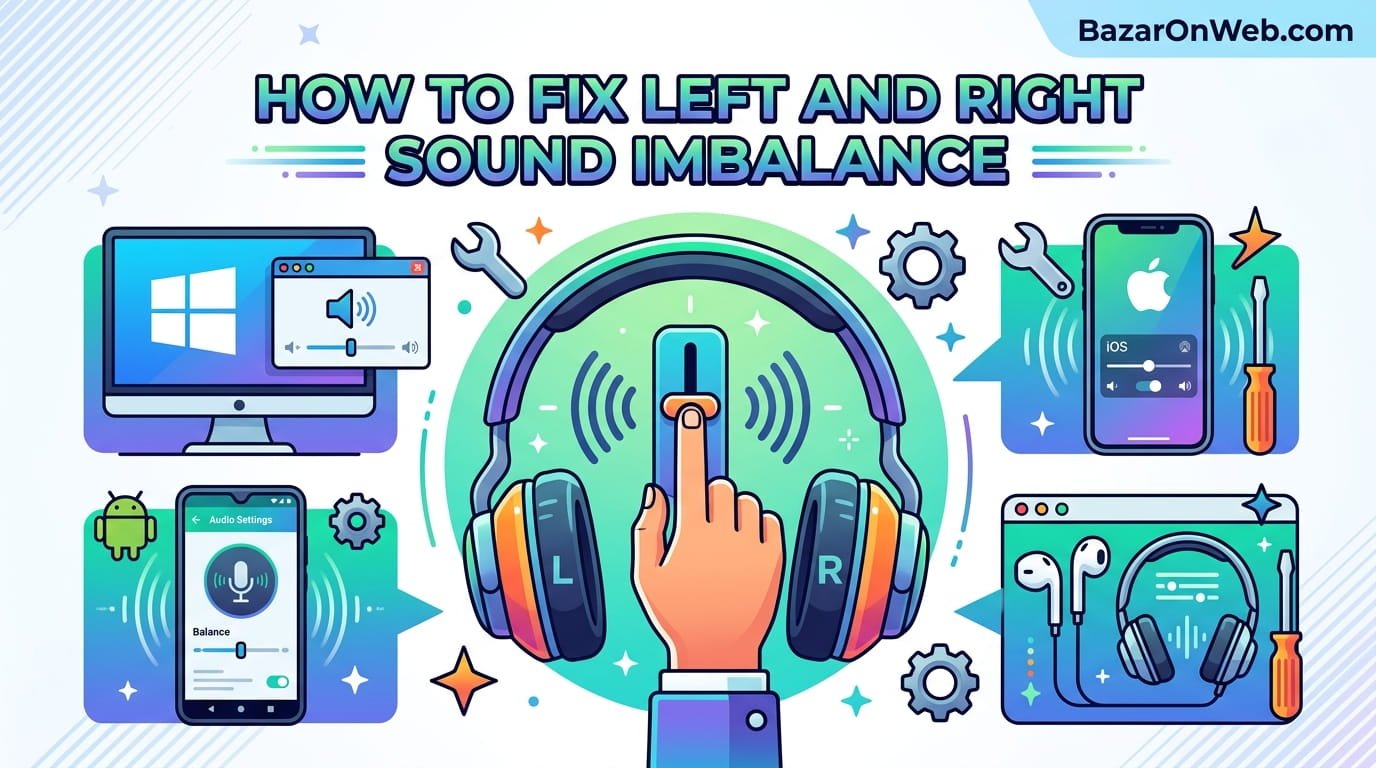
How to Fix Left and Right Sound Imbalance on Windows, Android, iPhone, and Headphones

How to Fix Left and Right Sound Imbalance on Windows, Android, iPhone, and Headphones

Hi, I’m Jessica, and I recently noticed something frustrating while watching a movie late at night. The sound from my left earbud suddenly felt much louder than the right one. At first, I thought my earbuds were damaged, but after testing different apps and devices, I realized the issue was actually caused by audio balance settings and a few simple software glitches. If you’ve ever experienced one side sounding louder than the other, you are definitely not alone. This issue is extremely common across smartphones, laptops, Bluetooth headphones, gaming headsets, and even smart TVs.

Sound imbalance can happen for many reasons. Sometimes dirt blocks one speaker grill, while in other cases accessibility settings accidentally shift audio more toward the left or right channel. Software updates, damaged cables, outdated drivers, Bluetooth interference, or incorrect equalizer settings can also create uneven sound. The good news is that most of these problems can be fixed without replacing your headphones or spending money on repairs.

In this guide, I’ll walk you through practical methods to identify and fix left and right sound imbalance issues across different devices. Whether you use Windows, Android, iPhone, wired earphones, or Bluetooth speakers, these detailed steps can help restore balanced and clear audio.


Understanding Why Left and Right Audio Imbalance Happens

Audio imbalance occurs when one speaker or earbud produces louder or clearer sound than the other. This can happen gradually over time or appear suddenly after a software update, accidental settings change, or physical damage. In many cases, users initially assume their headphones are broken, but the root cause is often much simpler.

Modern devices use stereo audio channels to distribute sound separately between the left and right sides. When these channels become uneven, the listening experience becomes uncomfortable and distracting. The imbalance may be mild during music playback or very obvious while gaming, streaming movies, or making voice calls.

One major reason behind audio imbalance is incorrect accessibility settings. Many operating systems include audio balance sliders designed for users with hearing differences. If these sliders move accidentally, one side becomes louder. Another common issue is accumulated dust or earwax inside earbuds and headphone grills, reducing sound output from one side.

Hardware-related causes can also contribute to uneven sound. Damaged wires, partially broken connectors, water exposure, or worn-out speaker components often reduce audio performance on one side. Bluetooth connectivity problems may create lag or channel inconsistency, especially in wireless earbuds.

Software conflicts are another overlooked factor. Audio enhancement tools, equalizer applications, outdated drivers, or corrupted system updates can interfere with stereo sound output. Understanding these causes is important because identifying the correct source of the problem makes troubleshooting much faster and more effective.


Checking Audio Balance Settings on Windows PCs

Windows computers include built-in audio balance controls that many users accidentally modify without realizing it. If your left speaker sounds louder than the right, checking these settings should be your first troubleshooting step.

Begin by right-clicking the speaker icon located on the taskbar. Open “Sound Settings” and select your active playback device. Once you access the device properties, look for additional settings or balance controls. Depending on your Windows version, you may find separate sliders for left and right audio channels.

If one slider is higher than the other, the imbalance becomes immediately noticeable during music playback or video streaming. Set both channels to the same level and test your audio again. Many users instantly solve the issue after correcting this simple setting.

You should also inspect audio enhancement features. Some sound drivers enable spatial audio, bass boosts, loudness equalization, or virtual surround sound. While these tools can improve listening experiences, they sometimes create inconsistent stereo output. Temporarily disabling enhancements can help determine whether software processing is causing the imbalance.

Updating audio drivers is another important step. Open Device Manager and check your sound hardware drivers for updates. Corrupted or outdated drivers can interfere with channel output and cause one side to sound weaker. Restarting the system after driver updates often restores proper balance.

If the issue persists, test another pair of headphones on the same computer. This helps determine whether the problem originates from the headphones or the Windows audio system itself.


Fixing Uneven Audio on Android Smartphones

Android devices offer several audio customization features, and sometimes these settings accidentally create left and right sound imbalance. Fortunately, most Android phones provide easy ways to restore balanced stereo sound.

Start by opening your phone’s accessibility settings. Many Android devices include a “Hearing Enhancements” or “Audio Balance” section. Inside this menu, you may find a slider controlling left and right audio channels. If the slider is not centered, your sound output will feel uneven. Move it back to the center position and test audio playback.

Bluetooth earbuds can also experience imbalance due to connection issues. Disconnect the device completely, forget it from Bluetooth settings, and pair it again. This process refreshes wireless communication and can fix channel synchronization problems.

Another useful step involves checking equalizer apps or sound enhancement software. Many music applications allow users to customize frequencies, bass levels, and stereo effects. Incorrect presets may boost one side more aggressively than the other. Resetting equalizer settings to default often restores normal audio balance.

Physical cleaning is extremely important for Android users who frequently use earbuds outdoors or during workouts. Sweat, lint, and dust easily block speaker grills, especially on wireless earbuds. Use a soft dry brush or microfiber cloth to carefully clean both earbuds without damaging internal components.

You should also test audio using different applications such as YouTube, Spotify, or phone calls. Sometimes a single app contains audio bugs or mono playback settings that create the illusion of imbalance. Comparing multiple apps helps isolate the actual source of the issue.


Solving Left and Right Audio Problems on iPhone and iPad

Apple devices include accessibility features that can unintentionally shift audio balance toward one side. If your AirPods or wired earphones suddenly sound uneven, reviewing these settings can quickly solve the issue.

Open the Settings app and navigate to Accessibility, then Audio/Visual settings. Here, you will find a balance slider controlling left and right stereo channels. If the slider is shifted away from the center, audio becomes noticeably louder on one side. Returning the slider to the middle position usually fixes the imbalance immediately.

Mono Audio settings are another important feature to inspect. When enabled, mono audio combines stereo channels into a single output. While useful for accessibility purposes, it can affect how stereo sound feels during music playback or gaming. Disabling mono audio restores normal channel separation.

AirPods users should also reset their earbuds if imbalance continues. Place both AirPods inside the charging case, hold the setup button until the status light flashes amber and white, and reconnect them to the iPhone. This reset often resolves synchronization and audio calibration problems.

Cleaning AirPods carefully can dramatically improve sound consistency. Earwax buildup frequently blocks speaker meshes, reducing volume on one side. Use a dry cotton swab or soft brush to clean speaker openings gently. Avoid sharp objects or liquid cleaners that may damage internal components.

Additionally, ensure your iPhone is running the latest iOS version. Apple occasionally releases audio-related bug fixes that improve Bluetooth stability and stereo performance across connected devices.


Cleaning Headphones and Earbuds Properly

Many audio imbalance issues are caused by dirt rather than technical failures. Earbuds and headphones collect dust, sweat, skin oils, and earwax over time, which gradually blocks sound output from one side.

Wireless earbuds are especially vulnerable because of their compact speaker openings. Even a thin layer of debris can reduce audio clarity and volume significantly. Users often mistake this for hardware damage when the solution is simply proper cleaning.

Begin by turning off your headphones or disconnecting them from devices. Use a dry microfiber cloth to wipe the exterior surfaces. For speaker grills, use a soft-bristled brush or clean toothbrush to gently loosen trapped debris. Avoid applying excessive pressure because delicate speaker meshes can become damaged easily.

Cotton swabs can help clean tight corners around ear tips. If your earbuds include removable silicone tips, remove them and wash them separately using mild soap and water. Ensure they dry completely before reattaching them.

Compressed air may help remove stubborn dust particles, but it should be used carefully. Excessive air pressure can push debris deeper into the speaker housing or damage internal components. Gentle bursts from a safe distance work best.

Never pour liquids directly onto headphones or earbuds. Moisture entering internal circuitry can permanently damage drivers and charging systems. For disinfecting purposes, lightly dampen a cloth with isopropyl alcohol instead of applying liquid directly.

Regular cleaning not only improves sound balance but also extends the lifespan of your audio devices and maintains better listening quality overall.


Testing Whether the Problem Is Hardware or Software Related

Before spending money on replacements, it is important to determine whether your sound imbalance issue comes from hardware damage or software settings. Proper testing can save time and prevent unnecessary purchases.

The easiest method is testing the same headphones on multiple devices. Connect your earbuds to another smartphone, laptop, tablet, or gaming console. If the imbalance remains consistent across all devices, the headphones themselves are likely the problem. However, if the issue disappears on another device, the original device’s software settings or audio drivers may be responsible.

You should also test different headphones on the affected device. This comparison helps isolate whether the problem originates from the device or the audio accessory. Many users discover that their computer or smartphone settings caused the imbalance rather than their headphones.

Wired headphones can develop hidden cable damage over time. Bending or twisting wires near the connector may interrupt one audio channel. Try gently moving the cable during playback to see whether sound fluctuates. Crackling or temporary restoration of sound usually indicates internal wire damage.

Bluetooth devices require additional testing because wireless interference can affect audio quality. Resetting Bluetooth connections, disabling nearby wireless devices temporarily, or updating firmware may improve stereo consistency.

Audio testing applications can also help diagnose problems. Many apps play separate left and right channel sounds, allowing users to confirm whether both sides are functioning correctly. These tests are useful for identifying subtle imbalance issues that may not be obvious during casual listening.


How Equalizer Apps and Audio Enhancements Affect Stereo Balance

Equalizer settings and sound enhancement applications can dramatically change how audio feels across left and right channels. While these tools are designed to improve sound quality, incorrect configurations sometimes create imbalance problems.

Many smartphones, gaming laptops, and media players include built-in equalizers that allow users to boost bass, treble, or vocal clarity. Aggressive presets can unintentionally emphasize certain frequencies more heavily on one side if stereo calibration becomes inconsistent.

Third-party audio applications may also interfere with stereo output. Apps designed for virtual surround sound, gaming enhancements, or bass amplification sometimes create audio distortions or uneven channel processing. If you recently installed a sound enhancement app before noticing imbalance, disabling it temporarily is a smart troubleshooting step.

Gaming headsets often include companion software with advanced sound customization tools. Features such as directional audio, positional enhancement, or environmental effects can alter stereo balance during gameplay. Resetting audio profiles to factory defaults may restore normal sound distribution.

Music streaming apps occasionally include crossfade, spatial audio, or adaptive sound settings that affect stereo perception. Testing different playback modes helps identify whether application-level processing contributes to the imbalance.

If you frequently adjust equalizer settings manually, take screenshots of your preferred presets before resetting them. Restoring default audio settings allows you to test whether custom sound tuning caused the issue. Once balanced audio returns, you can gradually reapply preferred adjustments more carefully.

Understanding how audio processing tools influence stereo sound helps users maintain better sound quality while avoiding unintended channel imbalance.


Preventing Future Audio Imbalance Issues

Preventing sound imbalance is much easier than constantly troubleshooting it. With proper maintenance and careful handling, headphones and earbuds can deliver balanced audio performance for years.

Storage habits play a major role in headphone longevity. Tossing earbuds loosely into bags or pockets often damages cables, speaker meshes, and connectors. Using protective carrying cases helps prevent physical wear and reduces dust accumulation.

Avoid exposing audio devices to excessive moisture or extreme temperatures. Sweat from workouts, accidental rain exposure, or humid environments can gradually damage internal speaker components. If you exercise frequently while wearing earbuds, cleaning them afterward becomes especially important.

Cable management matters for wired headphones. Wrapping cables too tightly or pulling them forcefully from devices weakens internal wiring. Always disconnect headphones by gripping the connector rather than yanking the cable itself.

Keeping software updated is equally important. Operating system updates, Bluetooth firmware improvements, and driver updates often include audio stability fixes that improve stereo consistency. Ignoring updates may leave devices vulnerable to unresolved sound issues.

Periodic audio testing can help identify early problems before they worsen. Listening to stereo test tracks occasionally allows users to notice subtle channel differences sooner. Detecting issues early may prevent complete speaker failure later.

Finally, avoid listening at excessively high volumes for long periods. Extremely loud audio strains headphone drivers and may contribute to uneven wear between speakers over time. Moderate listening levels protect both your hearing and your audio equipment.


When to Repair or Replace Your Headphones

Sometimes audio imbalance persists despite trying every troubleshooting method. In such cases, hardware damage may require professional repair or full replacement of the headphones or earbuds.

Persistent imbalance often indicates worn speaker drivers, damaged internal circuits, or severe cable failures. Wireless earbuds may also experience battery-related issues that affect audio performance unevenly between left and right units.

Before replacing expensive headphones, check warranty coverage. Many manufacturers provide limited warranties for hardware defects or premature failures. If your device is still under warranty, contacting customer support could save significant repair costs.

Professional repair services can sometimes replace damaged headphone jacks, speaker components, or internal wiring. High-end headphones are often worth repairing because replacement costs may be much higher than repair expenses.

However, extremely cheap earbuds are usually not cost-effective to repair. In those situations, replacing them with better-quality models may provide improved durability and sound performance in the long run.

When purchasing new headphones, consider models with strong user reviews regarding durability, audio consistency, and Bluetooth stability. Features such as water resistance and replaceable ear tips can also improve long-term reliability.

Investing in reliable audio equipment reduces the likelihood of recurring sound imbalance issues and delivers a more enjoyable listening experience across music, gaming, movies, and voice calls.


Final Thoughts on Restoring Balanced Audio

Left and right sound imbalance can feel frustrating, especially when it disrupts music, movies, gaming sessions, or important calls. Fortunately, most cases are easier to fix than people initially assume. Small issues like accidental balance adjustments, dirty earbuds, Bluetooth glitches, or equalizer settings are often responsible for uneven sound.

The key to solving the problem efficiently is identifying whether the issue originates from software settings or hardware damage. Testing your headphones across multiple devices, inspecting accessibility options, cleaning speaker grills carefully, and updating drivers or firmware can resolve many audio problems within minutes.

Modern smartphones and computers include numerous sound customization tools, but these features can occasionally create unintended stereo inconsistencies. Understanding how audio balance settings, enhancements, and wireless connectivity work helps users troubleshoot problems more confidently.

Regular maintenance also plays a huge role in preventing future imbalance. Cleaning earbuds routinely, protecting cables from stress, and storing devices properly can extend the life of your headphones significantly. Taking care of audio equipment not only improves sound quality but also protects your investment over time.

If the imbalance persists even after thorough troubleshooting, professional repair or replacement may be the best option. Choosing quality headphones with reliable reviews and proper support can minimize future audio frustrations and ensure a consistently balanced listening experience.


Disclaimer

The information provided in this article is for general educational and troubleshooting purposes only. Device settings, audio configurations, and repair methods may vary depending on the manufacturer, operating system version, and headphone model. Always follow official manufacturer guidelines before making hardware or software changes. The author and publisher are not responsible for any damage, data loss, or device malfunction resulting from the use of the methods discussed in this article.

Leave a Reply

Your email address will not be published. Required fields are marked *

Select the fields to be shown. Others will be hidden. Drag and drop to rearrange the order.
  • Image
  • SKU
  • Rating
  • Price
  • Stock
  • Availability
  • Add to cart
  • Description
  • Content
  • Weight
  • Dimensions
  • Additional information
Click outside to hide the comparison bar
Compare