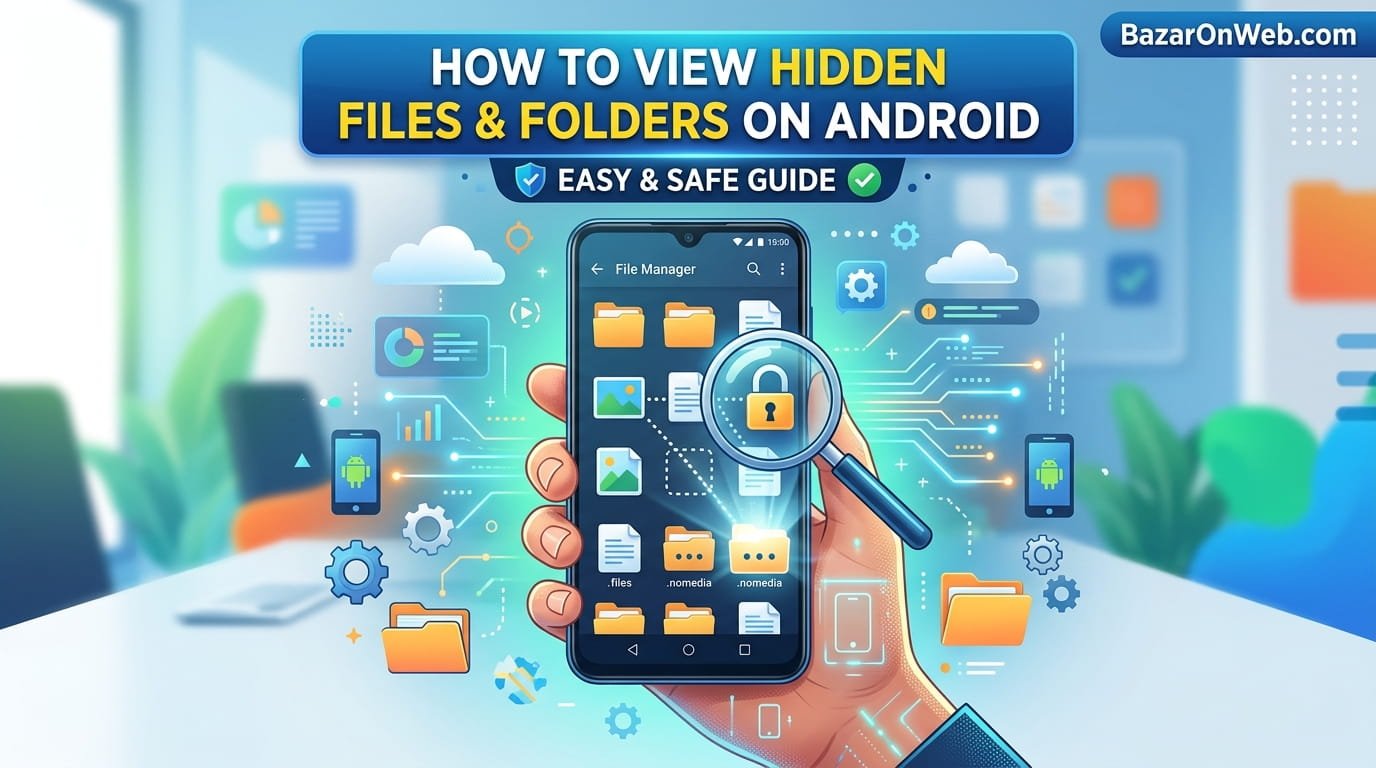
How to View Hidden Files and Folders on Android Safely and Easily

How to View Hidden Files and Folders on Android Safely and Easily

Hi, I’m Jessica,

Have you ever been looking for an important file on your Android phone only to realize that it seems to have disappeared? In many cases, the file is not deleted at all. Android devices often contain hidden files and folders that are concealed from regular users to prevent accidental modifications. These hidden files can include app data, system settings, cached information, configuration files, and even personal media hidden by apps. Understanding how to view hidden files and folders can help you locate missing content, troubleshoot storage issues, manage backups, and gain better control over your device. Whether you use a Samsung, Xiaomi, OnePlus, Vivo, Oppo, Google Pixel, or any other Android smartphone, learning this process can save time and reduce frustration when important data appears to be missing.

Many Android users never realize that their devices contain hidden directories storing critical information. Accessing these files can be useful for advanced file management, data recovery, app troubleshooting, and storage optimization. However, users should proceed carefully because modifying hidden system files may affect device performance, app functionality, or system stability. This guide explains everything you need to know about viewing hidden files and folders safely on Android devices.

Understanding Hidden Files and Folders on Android

Hidden files and folders are files intentionally concealed from standard file browsing views. Android uses hidden directories to store system configurations, application settings, cache data, logs, temporary files, and security-related information. These files are hidden primarily to prevent accidental deletion or modification by users who may not understand their purpose.

Most hidden files begin with a period (.) in their file name. For example, a folder named “.thumbnails” or “.nomedia” is typically hidden from normal file browsing views. Android applications frequently create such folders to store data that supports app functionality without cluttering the user’s file manager.

Hidden folders are not necessarily dangerous or malicious. In fact, many apps rely on these directories to operate properly. Messaging apps, photo editing applications, cloud storage services, and social media platforms often use hidden folders for cached images and temporary data.

Understanding the role of hidden files helps users make informed decisions when accessing them. While viewing hidden content is generally safe, editing or deleting files without understanding their purpose can lead to app crashes, data loss, or unexpected system behavior. Therefore, it is important to distinguish between viewing hidden files and modifying them.

Why Android Hides Certain Files and Directories

Android’s file-hiding mechanism serves multiple practical purposes. One major reason is to protect essential operating system components from accidental user interference. System files contain instructions and settings required for proper device functionality.

Another reason is user experience. Imagine opening your file manager and seeing thousands of configuration files, logs, cache records, and temporary app data mixed with your personal photos and documents. The file manager would become cluttered and difficult to navigate. Hiding these files keeps the interface clean and organized.

Application developers also hide files to improve performance and security. Cached images, downloaded resources, databases, and temporary storage files often remain hidden because users typically do not need direct access to them. This approach prevents accidental deletion that could disrupt application functionality.

Privacy is another important consideration. Certain hidden files contain user preferences, authentication tokens, and app-specific settings. Although hiding does not provide true security, it adds a layer of protection against accidental access.

For advanced users, hidden files can reveal valuable information about app behavior, storage usage, and system operations. However, Android’s default configuration assumes most users do not need frequent interaction with these files, making hidden mode the safest and most practical choice.

Using the Built-In Android File Manager

Most modern Android smartphones include a built-in file manager capable of displaying hidden files. While menu options vary between manufacturers, the overall process remains similar across devices.

Begin by opening the file management application on your device. Common names include Files, My Files, File Manager, or File Explorer. Once inside the application, look for a menu icon represented by three dots or a settings button.

Within the settings menu, locate an option labeled “Show Hidden Files,” “Display Hidden Files,” or “Show System Files.” Enabling this setting instructs the file manager to display directories and files normally concealed from view.

After activating the feature, navigate through your internal storage. You may notice new folders beginning with a period. These folders were previously hidden and are now visible for inspection.

The built-in file manager approach is ideal because it does not require additional software installation. It provides a safe method for exploring hidden content while maintaining Android’s built-in protections. Users can browse files, check storage consumption, and identify app-generated directories without requiring advanced technical knowledge or root access.

Viewing Hidden Files with Google Files App

Google’s Files application offers a simple and user-friendly method for accessing hidden files. Many Android devices already include this app, while others can install it from the Play Store.

Open the Files app and tap the menu icon located in the upper corner. Select Settings from the available options. Scroll through the settings menu until you find the “Show Hidden Files” toggle.

Once activated, the application immediately reveals hidden folders and files stored on your device. You can browse internal storage, SD cards, downloads, documents, and app-specific directories with enhanced visibility.

Google Files is particularly beneficial because it combines file management with storage cleanup features. Users can identify unnecessary files, duplicate content, large files, and hidden folders contributing to storage consumption.

The interface remains intuitive even when hidden files are displayed. Unlike some advanced file explorers, Google Files focuses on simplicity while still offering access to concealed directories. This balance makes it suitable for both beginners and experienced Android users.

Because the app comes from Google, users can also trust that it integrates well with Android security standards and receives regular updates designed to improve functionality and performance.

Accessing Hidden Files Through Third-Party File Managers

Advanced file management applications often provide enhanced visibility and control over hidden files. Popular Android file managers include specialized tools designed for power users who require deeper storage exploration.

After installing a third-party file manager, navigate to the application’s settings menu. Most professional file explorers include an option labeled “Show Hidden Files and Folders.” Enabling this feature reveals directories that remain concealed in standard browsing mode.

These applications often provide additional capabilities such as root access support, network storage integration, cloud synchronization, archive management, and advanced search functions. Such features make them valuable for users managing large amounts of data.

Third-party file managers may also display file permissions, ownership details, modification dates, and system-level information unavailable in simpler applications. This information can assist users in troubleshooting storage issues and understanding device organization.

However, users should download file managers only from trusted sources. Since these applications often request extensive storage permissions, choosing reputable software helps minimize privacy and security risks.

A well-designed third-party file manager can transform the Android file browsing experience while providing safe access to hidden content when used responsibly.

Finding Hidden Photos, Videos, and Media Files

One common reason users search for hidden files is locating missing photos, videos, or downloaded media. Many applications store media in hidden directories to reduce gallery clutter or support internal app functionality.

Messaging apps frequently download images and videos into hidden folders. Social media applications may cache viewed content within concealed directories. Similarly, editing apps often store project files and temporary exports in hidden locations.

After enabling hidden file visibility, browse internal storage for folders associated with specific applications. Hidden media folders often contain images, videos, documents, or audio files that do not appear in standard gallery applications.

The “.nomedia” file deserves special attention. This hidden file instructs Android’s media scanner to ignore specific directories. As a result, photos and videos within those folders may remain invisible in gallery apps even though they exist on the device.

Viewing hidden folders can help recover media that appears lost. Users often discover cached copies, downloaded attachments, or backed-up files they were unaware existed. This process can be especially useful when troubleshooting missing images or recovering important content stored by applications.

Understanding the Risks of Modifying Hidden Files

Viewing hidden files is generally safe, but modifying them introduces potential risks. Many hidden files support critical application functions or Android system processes. Deleting or editing these files without proper understanding can create unexpected problems.

For example, removing configuration files may cause applications to reset settings or stop functioning correctly. Deleting cache-related files can trigger app performance issues until data is rebuilt. More severe consequences may occur when system files are altered.

Hidden folders often contain databases storing user information, preferences, login credentials, and app-specific records. Accidental deletion could result in data loss that cannot easily be recovered.

Even experienced users should exercise caution when interacting with hidden content. Before making changes, consider creating backups of important files and directories. This precaution ensures that accidental mistakes can be reversed if necessary.

Viewing files for educational purposes, storage analysis, or troubleshooting is typically low risk. Problems arise primarily when users begin deleting unknown files or modifying data without understanding its role. Responsible file management requires careful evaluation before any changes are made.

How Hidden Files Affect Android Storage Space

Hidden files can consume substantial storage space over time. Cached media, application databases, logs, temporary downloads, and backup files often accumulate unnoticed because they remain invisible during routine browsing.

Many users experience storage warnings despite having relatively few visible files. Hidden directories frequently explain this discrepancy. Applications continuously generate temporary data designed to improve performance and reduce loading times.

Viewing hidden files allows users to identify storage-intensive directories. Messaging applications, video streaming platforms, social media services, and browsers often create large caches containing hundreds or thousands of files.

Instead of deleting files randomly, users should analyze folder contents carefully. Some hidden data can be safely cleared through app settings, which is generally preferable to manual deletion. Using built-in storage management tools reduces the likelihood of removing essential files.

Regular monitoring of hidden storage usage can help maintain device performance. Identifying oversized directories allows users to reclaim storage space while preserving important data. Understanding where storage is being consumed leads to more effective device management and fewer performance-related issues.

Viewing Hidden Files on Samsung, Xiaomi, and Other Brands

Although Android serves as the foundation for most smartphones, manufacturers customize file management interfaces. Fortunately, hidden file access remains available on most brands with only minor variations in menu layout.

Samsung devices typically use the My Files application. Users can access settings and enable the “Show Hidden System Files” option. Once activated, hidden content becomes visible throughout internal storage.

Xiaomi smartphones often include the File Manager app with a dedicated setting for displaying hidden files. The option usually appears within advanced settings or display preferences.

OnePlus, Oppo, Vivo, Realme, Motorola, and Google Pixel devices offer similar functionality through their respective file management tools. The exact wording may differ, but the underlying feature remains largely consistent.

If the option is difficult to locate, searching the file manager settings for terms such as hidden files, system files, or display settings usually reveals the necessary control. Most modern Android devices allow hidden file access without requiring root permissions.

Regardless of device brand, users should remember that visibility does not equal permission to modify files. Viewing hidden content can be informative and useful, but responsible handling remains essential across all Android platforms.

Best Practices for Managing Hidden Files Safely

Safe management of hidden files begins with understanding their purpose before taking action. Users should approach hidden directories as informational resources rather than targets for immediate cleanup or modification.

Always create backups before making significant changes. Cloud storage, external drives, or local backups can provide protection against accidental data loss. Even experienced users occasionally remove files that later prove important.

Avoid deleting unknown folders simply because they appear large. Many applications regenerate cache data, but some hidden directories contain irreplaceable information. Research unfamiliar files before removing them.

Use trusted file management applications that receive regular updates and maintain strong security practices. Reliable software reduces the risk of accidental file corruption and unauthorized access.

Keep Android updated to ensure compatibility and security improvements. Updated systems often include better storage management tools that reduce the need for manual intervention.

Most importantly, treat hidden files with caution. Viewing them can improve understanding of device behavior, storage usage, and application functionality. However, modifications should be performed only when users fully understand the consequences. Responsible management allows users to benefit from hidden file access while minimizing potential risks.

Disclaimer

How to View Hidden Files and Folders on Android

While it’s not recommended to modify hidden files and folders, advanced users may choose to access them for troubleshooting, storage management, backups, or application analysis. The information provided in this article is intended for educational and informational purposes only. Hidden files often contain important system data, application settings, cached content, and configuration files required for proper device operation.

Before deleting, editing, moving, or renaming any hidden file or folder, create a complete backup of your important data. Incorrect modifications may lead to application errors, loss of personal data, reduced device performance, or system instability. Procedures and menu options may vary depending on Android version, device manufacturer, and installed file management applications.

The author and publisher are not responsible for any data loss, device malfunction, security issues, or other consequences resulting from the use of information presented in this guide. Proceed carefully and make changes only if you fully understand the purpose and function of the files involved.

Leave a Reply

Your email address will not be published. Required fields are marked *

Select the fields to be shown. Others will be hidden. Drag and drop to rearrange the order.
  • Image
  • SKU
  • Rating
  • Price
  • Stock
  • Availability
  • Add to cart
  • Description
  • Content
  • Weight
  • Dimensions
  • Additional information
Click outside to hide the comparison bar
Compare