Discounted Products
-
 Home Garage 210 TC Cotton King Floral Fitted (Elastic) Bedsheet(Pack of 1, Grey)
Original price was: ₹999.00.₹299.00Current price is: ₹299.00.
Home Garage 210 TC Cotton King Floral Fitted (Elastic) Bedsheet(Pack of 1, Grey)
Original price was: ₹999.00.₹299.00Current price is: ₹299.00.
-
 Goodrik 140 TC Cotton Double 3D Printed Flat Bedsheet(Pack of 1, Brown)
Original price was: ₹499.00.₹229.00Current price is: ₹229.00.
Goodrik 140 TC Cotton Double 3D Printed Flat Bedsheet(Pack of 1, Brown)
Original price was: ₹499.00.₹229.00Current price is: ₹229.00.
-
 GLOBALSHOP 350 TC Microfiber Double Floral Flat Bedsheet(Pack of 1, Multicolor)
Original price was: ₹1,250.00.₹263.00Current price is: ₹263.00.
GLOBALSHOP 350 TC Microfiber Double Floral Flat Bedsheet(Pack of 1, Multicolor)
Original price was: ₹1,250.00.₹263.00Current price is: ₹263.00.
-
 RisingStar 250 TC Microfiber King Printed Fitted (Elastic) Bedsheet(Pack of 1, FITTED-ROUND-CIRCLES-PREMIUM)
Original price was: ₹2,299.00.₹299.00Current price is: ₹299.00.
RisingStar 250 TC Microfiber King Printed Fitted (Elastic) Bedsheet(Pack of 1, FITTED-ROUND-CIRCLES-PREMIUM)
Original price was: ₹2,299.00.₹299.00Current price is: ₹299.00.
-
 Home Garage 210 TC Cotton King Floral Fitted (Elastic) Bedsheet(Pack of 1, Fitted Black Green)
Original price was: ₹1,299.00.₹299.00Current price is: ₹299.00.
Home Garage 210 TC Cotton King Floral Fitted (Elastic) Bedsheet(Pack of 1, Fitted Black Green)
Original price was: ₹1,299.00.₹299.00Current price is: ₹299.00.
-
 Home Garage 180 TC Cotton King 3D Printed Flat Bedsheet(Pack of 1, White)
Original price was: ₹999.00.₹229.00Current price is: ₹229.00.
Home Garage 180 TC Cotton King 3D Printed Flat Bedsheet(Pack of 1, White)
Original price was: ₹999.00.₹229.00Current price is: ₹229.00.
-
 Panipat Textile Hub 152.4 cm (5 ft) Polyester Window Curtain (Pack Of 2)(Solid, Aqua)
Original price was: ₹1,899.00.₹299.00Current price is: ₹299.00.
Panipat Textile Hub 152.4 cm (5 ft) Polyester Window Curtain (Pack Of 2)(Solid, Aqua)
Original price was: ₹1,899.00.₹299.00Current price is: ₹299.00.
-
 Home Sizzler 214 cm (7 ft) Polyester Semi Transparent Door Curtain (Pack Of 2)(Floral, Maroon)
Original price was: ₹1,199.00.₹399.00Current price is: ₹399.00.
Home Sizzler 214 cm (7 ft) Polyester Semi Transparent Door Curtain (Pack Of 2)(Floral, Maroon)
Original price was: ₹1,199.00.₹399.00Current price is: ₹399.00.
-
 Home Sizzler 153 cm (5 ft) Polyester Room Darkening Window Curtain (Pack Of 2)(Floral, Brown)
Original price was: ₹799.00.₹299.00Current price is: ₹299.00.
Home Sizzler 153 cm (5 ft) Polyester Room Darkening Window Curtain (Pack Of 2)(Floral, Brown)
Original price was: ₹799.00.₹299.00Current price is: ₹299.00.
-
 Stella Creations 214 cm (7 ft) Polyester Room Darkening Door Curtain (Pack Of 2)(Abstract, Brown)
Original price was: ₹1,299.00.₹449.00Current price is: ₹449.00.
Stella Creations 214 cm (7 ft) Polyester Room Darkening Door Curtain (Pack Of 2)(Abstract, Brown)
Original price was: ₹1,299.00.₹449.00Current price is: ₹449.00.
-
 Homefab India 152.5 cm (5 ft) Polyester Room Darkening Window Curtain (Pack Of 2)(Floral, Light Blue)
Original price was: ₹1,199.00.₹319.00Current price is: ₹319.00.
Homefab India 152.5 cm (5 ft) Polyester Room Darkening Window Curtain (Pack Of 2)(Floral, Light Blue)
Original price was: ₹1,199.00.₹319.00Current price is: ₹319.00.
-
 Urban Home 214 cm (7 ft) PVC Transparent Door Curtain Single Curtain(Solid, Off White)
Original price was: ₹699.00.₹203.00Current price is: ₹203.00.
Urban Home 214 cm (7 ft) PVC Transparent Door Curtain Single Curtain(Solid, Off White)
Original price was: ₹699.00.₹203.00Current price is: ₹203.00.
-
 Panipat Textile Hub 213 cm (7 ft) Polyester Door Curtain (Pack Of 2)(Solid, Brown)
Original price was: ₹1,199.00.₹349.00Current price is: ₹349.00.
Panipat Textile Hub 213 cm (7 ft) Polyester Door Curtain (Pack Of 2)(Solid, Brown)
Original price was: ₹1,199.00.₹349.00Current price is: ₹349.00.
-
 Home Sizzler 214 cm (7 ft) Polyester Semi Transparent Door Curtain (Pack Of 2)(Floral, Brown)
Original price was: ₹999.00.₹349.00Current price is: ₹349.00.
Home Sizzler 214 cm (7 ft) Polyester Semi Transparent Door Curtain (Pack Of 2)(Floral, Brown)
Original price was: ₹999.00.₹349.00Current price is: ₹349.00.
-
 Panipat Textile Hub 213 cm (7 ft) Polyester Semi Transparent Door Curtain (Pack Of 2)(Floral, Brown)
Original price was: ₹899.00.₹299.00Current price is: ₹299.00.
Panipat Textile Hub 213 cm (7 ft) Polyester Semi Transparent Door Curtain (Pack Of 2)(Floral, Brown)
Original price was: ₹899.00.₹299.00Current price is: ₹299.00.
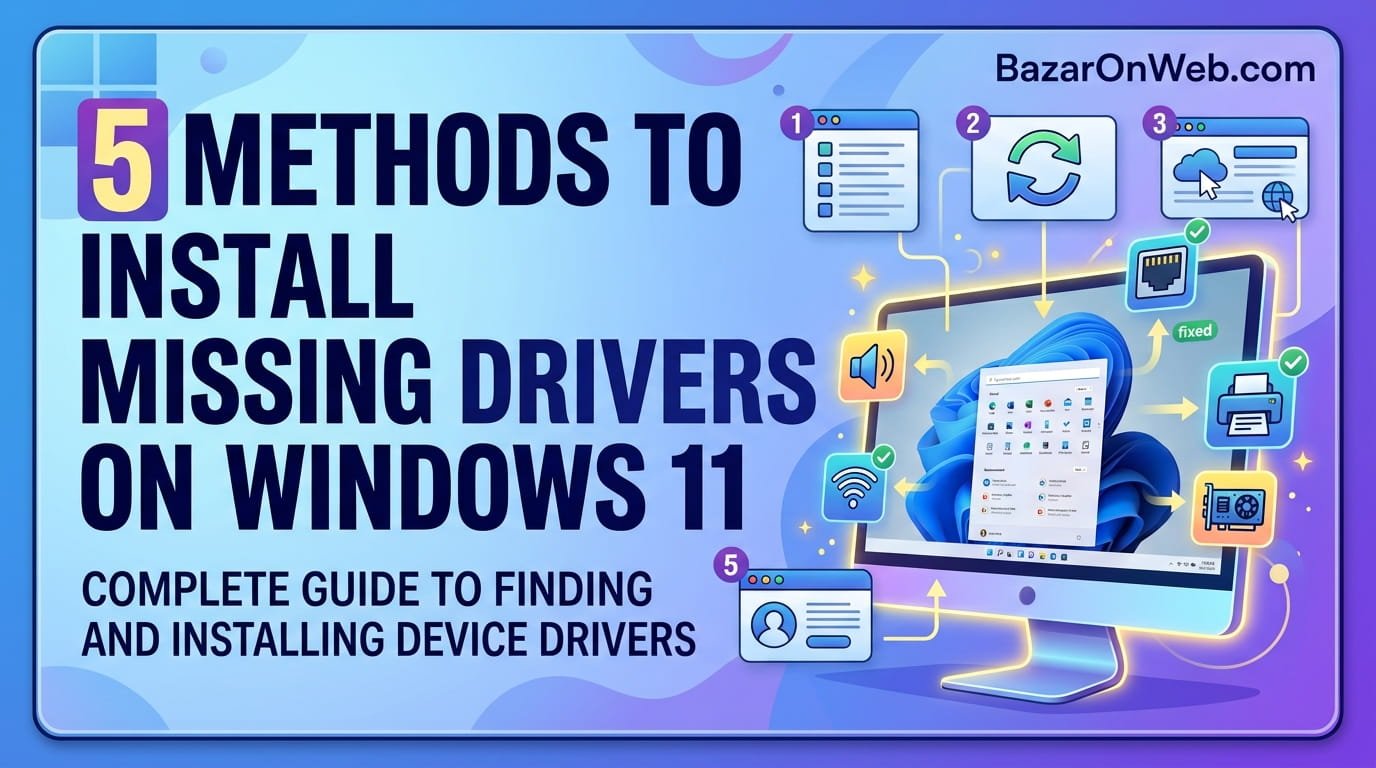
I learned the hard way that missing drivers are one of the most frustrating yet easily overlooked problems on Windows 11. After a fresh Windows installation, I noticed my printer wasn’t responding, my audio sounded terrible, and my external devices weren’t working properly. I assumed something was broken until I discovered that the actual problem was simply missing drivers. What surprised me most was that Windows 11 didn’t automatically detect and install all necessary drivers—some devices were completely ignored by the system. As someone who values efficiency, I was frustrated by how much time I wasted troubleshooting problems that would have been instantly solved with proper drivers. After researching and experimenting with different methods to find and install missing drivers, I discovered multiple approaches that range from completely automatic to manual, each useful in different situations.
In this comprehensive guide, I’ll walk you through five distinct methods for finding and installing missing drivers on Windows 11, from the simplest automated approaches to more advanced manual techniques. I’ll explain what each method does, when to use it, and exactly how to implement it successfully. I’ll also help you understand how to identify which devices need drivers, what to do when automatic detection fails, and how to troubleshoot driver installation problems. By understanding these multiple approaches, you’ll be equipped to handle any driver situation—whether you’re dealing with a single missing driver or need to install drivers after completely reinstalling Windows. You’ll learn how to maintain driver health going forward and prevent driver-related problems before they affect your system performance.
1. Understanding Device Drivers and Why They’re Critical for Windows 11 Performance
Device drivers are specialized software that enables Windows 11 to communicate with hardware components like printers, graphics cards, sound cards, network adapters, and external devices. Without proper drivers, Windows can’t interact with hardware effectively—devices either don’t work at all or function at reduced capacity. A graphics card without proper drivers might display at wrong resolution or with poor performance. Audio devices without drivers produce no sound. Network adapters without drivers prevent internet connectivity. Printers without drivers can’t receive print jobs. Understanding that drivers are the essential bridge between Windows and your hardware helps explain why missing drivers cause so many problems.
Device drivers handle complex hardware-specific functions that Windows can’t implement universally. Each printer model requires different driver code because manufacturers design printers differently. Each graphics card requires specialized driver code because GPU architectures vary. Each network card requires unique driver code reflecting its specific hardware design. This specialization means Windows can’t function without proper drivers—the operating system provides only generic support for basic device categories. Missing drivers mean your hardware isn’t fully utilized, your system can’t communicate with devices, or your system uses inefficient generic drivers that waste processing power. Windows 11 automatically detects some devices and installs drivers from its built-in driver library, but many devices require downloading specific drivers from manufacturers or using manual installation methods. Understanding that drivers are critical infrastructure rather than optional software helps you appreciate why properly managing them is important for Windows 11 stability and performance.
2. Identifying Missing and Outdated Drivers: Finding Problems Before They Cause Issues
Before installing missing drivers, you need to identify which devices lack proper drivers or have outdated drivers. Device Manager provides a comprehensive view of all hardware connected to your system and their driver status. Open Device Manager by right-clicking the Start button and selecting “Device Manager.” You’ll see a tree of device categories—Graphics adapters, Network adapters, Sound, video and game controllers, Display adapters, and many others. Expand each category to see individual devices. Look for yellow exclamation marks (!) next to device names—these indicate devices with problems, usually missing or incompatible drivers.
Additionally, scroll to the top of the device list to find “Other devices” category. Any devices listed here are likely unrecognized by Windows and need driver installation. Devices appearing in “Other devices” with names like “Unknown Device” definitely need driver identification and driver installation. Also check for devices showing “Standard” in their names, such as “Standard VGA Graphics Adapter”—these generic drivers indicate Windows is using fallback drivers rather than manufacturer-specific drivers. Right-click any device showing problems and select “Properties” to see detailed information about its status and driver version. Additionally, third-party tools like DriverEasy or Driver Booster automatically scan your system and identify missing or outdated drivers, though these aren’t necessary if you’re comfortable using Device Manager. Understanding which devices need drivers helps you focus installation efforts on actual problems rather than attempting to update every driver unnecessarily.
3. Method 1: Automatic Driver Detection Through Windows Update and Built-in Scanning
Windows 11’s first line of driver installation is automatic detection and installation through Windows Update. Many drivers are included with Windows or available through Windows Update, and Windows attempts to install these automatically when you connect devices. This automatic process works for common devices—printers, standard USB devices, basic graphics cards, and network adapters often get proper drivers this way without any user intervention. To ensure Windows has all available updates including drivers, open Settings > System > Windows Update, then click “Check for updates.” Windows scans for all available updates including driver updates and optional driver packages.
Additionally, Windows Update periodically offers optional driver updates for devices already installed on your system. After checking for updates, click “Advanced options” then “Optional updates” to see available driver updates for your hardware. Select drivers you want to install—prioritize graphics card drivers, network drivers, and chipset drivers as these most significantly affect system performance. After selecting drivers, click “Download and install” to automatically download and install them. This method is simplest because it requires no manual searching—Windows finds and installs drivers for you. However, Windows Update doesn’t include drivers for all devices, particularly specialized hardware or new devices released after Windows 11 shipped. If automatic detection fails to find drivers for specific devices, you’ll need additional methods. This automatic approach should always be your first step—ensure all available Windows updates and optional drivers are installed before attempting other methods.
4. Method 2: Device Manager Manual Driver Installation and Update Process
If automatic detection fails, Device Manager allows manually installing drivers for specific devices. Open Device Manager, find a device needing a driver (indicated by warning icons or Generic/Standard driver names), right-click it, and select “Update driver.” You’ll see two options: “Search automatically for updated driver software” and “Browse my computer for driver software.” The first option searches Windows built-in driver library and Windows Update for drivers—this is essentially a manual version of automatic detection and sometimes finds drivers the automatic process missed.
If automatic searching fails, select “Browse my computer for driver software.” This allows you to manually specify a driver file location. You’ll need to have the driver file already downloaded or located somewhere on your system. Driver files typically come as .INF files (installation information files) that Windows uses to install drivers. If you’re installing a driver from a manufacturer’s download, you likely have either an executable installer that installs the driver automatically, or a folder containing driver files. If it’s an executable installer, run that installer outside of Device Manager and it will handle driver installation for you. If it’s a folder of driver files, specify that folder location when Device Manager asks you to browse for driver software.
Additionally, Device Manager allows rolling back drivers if you update to a driver version that causes problems. Right-click a device and select “Properties,” then the “Driver” tab. If “Roll Back Driver” button is available, clicking it removes the current driver and restores the previous version. This is valuable if a recent driver update caused system problems or incompatibilities. Using Device Manager for manual driver installation gives you control but requires having driver files available, which you must download separately.
5. Method 3: Downloading Drivers Directly from Manufacturer Websites
The most reliable method for obtaining the newest and most optimized drivers is downloading directly from the hardware manufacturer’s website. This approach bypasses Windows’s limited driver library and ensures you get manufacturer-recommended drivers specifically designed for your hardware. Different manufacturers organize their websites differently, but the process is generally consistent. For graphics cards, visit nvidia.com (NVIDIA cards), amd.com (AMD cards), or intel.com (Intel integrated graphics). For motherboards, visit the motherboard manufacturer’s website (ASUS, MSI, Gigabyte, etc.).
For printers, visit the printer manufacturer’s website (HP, Canon, Brother, etc.). For other devices, search the internet for “[Device Manufacturer] drivers” and navigate to their support page. Once on the manufacturer’s site, look for a “Downloads,” “Support,” or “Drivers” section. You’ll typically need to specify your exact device model and Windows version (Windows 11, 64-bit in most cases). Enter this information and the site displays available drivers. Download the latest driver version—usually presented as an executable installer (.EXE file). After downloading, run the installer, which guides you through the installation process. Most manufacturer installers automatically install drivers and may provide additional software like control panels for device configuration.
After installation, restart your computer to ensure drivers fully load. This manual approach takes more time than automatic detection but ensures you have the absolutely latest drivers with all available features and optimizations. Visit manufacturer websites periodically to check for newer driver versions—staying current with drivers often provides performance improvements and bug fixes. Most power users prefer this method because it gives them control and ensures they have the best possible drivers.
6. Method 4: Using Device Manager’s “Add Legacy Hardware” Wizard for Problematic Devices
For devices that Windows doesn’t recognize at all or that refuse to install properly through standard methods, Device Manager includes an “Add Legacy Hardware” wizard that allows manually specifying devices and drivers. While the name suggests this is only for old devices, it’s valuable for any device that standard installation methods fail to handle. Open Device Manager, right-click the computer name at the top, and select “Add legacy hardware.” This launches a wizard guiding you through manually adding hardware and specifying drivers.
The wizard first asks whether you want Windows to search for hardware or whether you’ll specify it manually. If you select “Manually specify,” you’ll see a list of hardware categories. Select the category matching your device—for example, select “Network adapters” if installing a network driver, or “Display adapters” for graphics drivers. After selecting the category, you’ll see a list of devices within that category—look for your specific device model. If it’s not listed, you can specify a driver file location directly. This wizard is particularly useful when Windows fails to recognize a device entirely or when the standard installation methods produce errors. After completing the wizard, Windows installs the device using the specified driver. This manual approach requires more effort but successfully resolves even stubborn driver installation problems that normal methods fail to handle.
7. Method 5: Advanced Techniques Using Command Line and System File Restoration
For advanced users comfortable with command-line tools, Windows 11 includes powerful driver management tools accessible through Command Prompt or PowerShell. Open Command Prompt as Administrator (right-click Start, select “Windows Terminal (Admin)” then switch to Command Prompt tab). Use the command “pnputil” (Plug and Play Utility) for various driver operations. For example, “pnputil /enum-devices” lists all devices on your system with their driver information. “pnputil /add-driver [path to driver] /install” installs a driver from a specified file path. “pnputil /delete-driver [driver name]” removes specific drivers.
Additionally, use “sfc /scannow” (System File Checker) command to scan for and repair corrupted system files that might be preventing driver installation. Run “DISM /Online /Cleanup-Image /RepairHealth” to repair Windows system image, which sometimes resolves driver-related problems. For graphics drivers specifically, you might use “DxDiag” (DirectX Diagnostic Tool) to verify graphics driver functionality and identify problems. These command-line approaches require understanding what each command does and careful execution to avoid unintended consequences. However, they provide capabilities not available through graphical interfaces and can resolve complex driver problems that other methods fail to address. Document any commands you execute so you remember what changes you made if problems develop.
8. Troubleshooting Driver Installation Problems and Failed Installations
Sometimes driver installation fails or produces errors, requiring troubleshooting to identify and resolve problems. The most common issue is driver incompatibility—attempting to install 32-bit drivers on 64-bit Windows (or vice versa) causes failure. Verify you’re downloading the correct driver version matching your Windows version. Open Settings > System > About to confirm your Windows version and system type (32-bit or 64-bit). Most modern systems are 64-bit—if you’re unsure, assume 64-bit. Download the 64-bit driver version and installation should succeed.
Another common problem is outdated driver installations conflicting with new driver installations. If installation fails, uninstall the old driver first through Device Manager by right-clicking the device and selecting “Uninstall device.” When prompted about deleting driver files, select “Delete the driver software for this device” to completely remove the old driver. Restart your computer, then install the new driver. Additionally, ensure the installation file isn’t corrupted by re-downloading it if installation repeatedly fails. Sometimes antivirus software interferes with driver installation—temporarily disable your antivirus during installation, then re-enable it afterward. After installing, restart your computer; many driver problems resolve after restart because drivers don’t fully load until the system restarts. If problems persist after installation, verify the driver actually installed by checking Device Manager—if the device still shows as problematic despite successful installation, the driver might be incompatible with your specific hardware configuration, and you may need a different driver version.
9. Maintaining Driver Health and Preventing Future Driver Problems
After successfully installing drivers, maintaining them ensures continued optimal performance. Schedule periodic driver updates—check for updates monthly or every few months depending on how often manufacturers release updates. For critical drivers like graphics and chipset drivers, check more frequently as these receive regular updates. Use the three methods that work best for your situation: Windows Update for simplicity, manufacturer websites for reliability, or third-party tools for convenience. Set calendar reminders to check for driver updates regularly, particularly before gaming or performance-demanding activities—updated drivers often provide performance improvements.
Additionally, avoid outdated practices like cleaning registry entries related to drivers or attempting to “optimize” driver settings—these actions rarely provide benefits and risk causing problems. Trust Windows’s driver management; it’s designed to work correctly without extensive manual intervention. Also avoid installing drivers you don’t need—some manufacturer websites tempt you to download software beyond just drivers (bloatware utilities, driver-checking tools). Download only actual driver files, not auxiliary software. If installing manufacturer-provided software alongside drivers, review what’s being installed and decline anything you don’t actually need. Finally, maintain regular backups so if driver installation causes problems requiring Windows repair or reinstallation, you can restore from backup. Taking these preventive measures keeps your system running smoothly with properly functioning hardware and optimal performance.
10. When to Seek Professional Help and Advanced Diagnostics
If despite trying all five methods you still can’t get drivers working properly, professional help might be necessary. Hardware diagnostics can identify whether problems are truly driver-related or whether underlying hardware failure is responsible. Run Windows’s built-in Hardware Diagnostics by restarting your computer and pressing a specific key during startup (often F2, F10, or Esc depending on your hardware manufacturer). This tool tests hardware and reports problems. If hardware diagnostics show failures, the hardware itself is likely defective and requires replacement rather than driver updates.
Alternatively, contact Microsoft Support or professional technicians for assistance. Provide them with Device Manager screenshots showing problematic devices, information about what drivers you’ve attempted to install, and what error messages you received. Professional technicians can access specialized tools and knowledge bases that help resolve even complex driver problems. Additionally, if you’re uncomfortable with command-line tools or downloading drivers from manufacturer websites, professional technicians can handle driver installation for you. While this costs money, it saves frustration and ensures proper installation. For enterprise environments with many systems needing driver management, professional IT services often provide driver deployment solutions that automatically keep all systems updated. Most users find success with the methods described here, but seeking professional help is appropriate when standard approaches exhaust your comfort level or abilities.
Disclaimer
This article provides guidance on finding and installing device drivers on Windows 11. The information is intended for educational purposes to help users resolve driver-related issues. Specific procedures, driver availability, and installation outcomes may vary depending on your hardware configuration, Windows version, and individual circumstances.
Important Disclaimers:
- Driver installation procedures vary depending on your specific devices and hardware configuration
- Not all devices require driver installation; Windows includes generic drivers for many devices that function adequately
- Driver availability varies by manufacturer; some older hardware may no longer have available drivers from manufacturers
- Downloading drivers from unofficial sources risks malware infection; only download from manufacturer websites or Windows Update
- Some drivers may be incompatible with your specific hardware model despite appearing compatible; test thoroughly after installation
- Incorrect driver installation can cause hardware malfunctions or system instability; ensure you understand procedures before attempting them
Hardware Compatibility:
- Verify you’re downloading the correct driver version matching your exact hardware model and Windows version (32-bit vs 64-bit)
- Some older devices may not have Windows 11 drivers available; in this case, you may need Windows 10 drivers or older
- Windows 11 64-bit is the standard for modern systems; 32-bit Windows 11 installations are rare
- Check your system specifications before downloading drivers; incorrect versions won’t install properly
Installation Safety:
- Back up important data before attempting driver installation, particularly for system-critical drivers
- Restart your computer after driver installation to ensure drivers load properly
- Test device functionality immediately after installation to verify proper operation
- If driver installation causes problems, roll back to previous driver version through Device Manager if available
Troubleshooting Approaches:
- If automatic driver detection fails, attempting manual installation may help, but some devices may have no available drivers
- Uninstall problematic drivers completely before installing updated versions to prevent conflicts
- Temporarily disable security software if installation fails, as antivirus may be interfering
- Command-line procedures require careful execution; document changes you make
Performance and Stability:
- Outdated drivers may degrade performance; keeping drivers current maintains optimal functionality
- Some driver updates provide significant performance improvements, particularly for graphics and storage devices
- However, some updates introduce problems; if performance degrades after updating, roll back to previous version
- Test system stability after installing new drivers before assuming installation was successful
Manufacturer Support:
- Only download drivers from official manufacturer websites to ensure authenticity and safety
- Third-party driver download sites may contain outdated or corrupted drivers
- If drivers are unavailable from manufacturer, contact manufacturer support before attempting alternative sources
- Some manufacturers provide driver update utilities that automatically check for and install updates
Older Hardware and Legacy Devices:
- Older hardware may not support Windows 11 natively; check manufacturer websites for Windows 11 compatibility
- Some older devices may only have Windows 10 or earlier drivers; using older drivers may work but not guaranteed
- Extremely old devices may no longer be supported by manufacturers; you may need to replace hardware for Windows 11 compatibility
Third-Party Tools:
- While third-party driver management tools exist, Windows’s built-in driver management is reliable and safe
- Only use third-party tools from reputable developers with strong user reviews and security track records
- Be cautious of tools promising to “clean” driver registry entries; these rarely provide benefits and may cause problems
When Professional Help Is Needed:
- If hardware diagnostics show hardware failures, professional service or replacement may be necessary
- If you’re uncomfortable with driver installation procedures, professional technicians can assist
- If attempting multiple installation methods still fails, the hardware may be incompatible or defective
Liability:
We are not responsible for any hardware damage, system instability, data loss, or other consequences resulting from driver installation procedures described in this article. Users assume full responsibility for understanding and implementing driver installation methods. Most driver installation is reversible through uninstalling or rolling back drivers, but some modifications may require professional assistance to undo. If you’re uncomfortable with driver management, consult professional assistance rather than attempting procedures you don’t understand.
About the Author
Jessica Miller is a marketing manager and PC troubleshooter who believes every Windows user should understand device drivers and how to maintain them. With expertise in Windows driver management, hardware troubleshooting, and practical technology solutions, she helps busy professionals keep their systems running smoothly and efficiently. When she’s not writing comprehensive tech guides or managing her marketing team, she’s exploring new hardware, testing drivers, and helping friends troubleshoot their Windows systems.

- How to Remotely Control Another Computer Using Windows Quick Assist

- 5 Must-Have Electronics Gadgets for a More Comfortable Living Room

- How to Create a Windows 11 System Backup on an External Hard Drive

- 10 Smart Home Ideas That Make Everyday Life Easier

- Gemini Live Avatar: How to Talk to Gemini Face-to-Face

Products
-
![Apple Watch Ultra 3 [GPS + Cellular 49mm] Running & Multisport Smartwatch w/Rugged Titanium Case w/Black Titanium Milanese Loop - M. Satellite Communications, Advanced Health & Fitness Tracking](https://bazaronweb.com/retailstores/wp-content/uploads/2025/09/apple-watch-320x320.jpg) Apple Watch Ultra 3 [GPS + Cellular 49mm] Running & Multisport Smartwatch w/Rugged Titanium Case w/Black Titanium Milanese Loop - M. Satellite Communications, Advanced Health & Fitness Tracking
Apple Watch Ultra 3 [GPS + Cellular 49mm] Running & Multisport Smartwatch w/Rugged Titanium Case w/Black Titanium Milanese Loop - M. Satellite Communications, Advanced Health & Fitness Tracking
-
 Apple iPad mini (A17 Pro): Apple Intelligence, 8.3-inch Liquid Retina Display, 256GB, Wi-Fi 6E, 12MP Front/12MP Back Camera, Touch ID, All-Day Battery Life — Purple
-
 Apple AirPods Max Wireless Over-Ear Headphones, Active Noise Cancelling, Transparency Mode, Personalized Spatial Audio, Dolby Atmos, Bluetooth Headphones for iPhone – Space Gray
-
 Apple AirPods Pro 2 Wireless Earbuds, Active Noise Cancellation, Hearing Aid Feature, Bluetooth Headphones, Transparency, Personalized Spatial Audio, High-Fidelity Sound, H2 Chip, USB-C Charging
-
Home Garage 210 TC Cotton King Floral Fitted (Elastic) Bedsheet(Pack of 1, Grey)
Original price was: ₹999.00.₹299.00Current price is: ₹299.00.
Leave a Reply