Discounted Products
-
 Home Garage 210 TC Cotton King Floral Fitted (Elastic) Bedsheet(Pack of 1, Grey)
Original price was: ₹999.00.₹299.00Current price is: ₹299.00.
Home Garage 210 TC Cotton King Floral Fitted (Elastic) Bedsheet(Pack of 1, Grey)
Original price was: ₹999.00.₹299.00Current price is: ₹299.00.
-
 Goodrik 140 TC Cotton Double 3D Printed Flat Bedsheet(Pack of 1, Brown)
Original price was: ₹499.00.₹229.00Current price is: ₹229.00.
Goodrik 140 TC Cotton Double 3D Printed Flat Bedsheet(Pack of 1, Brown)
Original price was: ₹499.00.₹229.00Current price is: ₹229.00.
-
 GLOBALSHOP 350 TC Microfiber Double Floral Flat Bedsheet(Pack of 1, Multicolor)
Original price was: ₹1,250.00.₹263.00Current price is: ₹263.00.
GLOBALSHOP 350 TC Microfiber Double Floral Flat Bedsheet(Pack of 1, Multicolor)
Original price was: ₹1,250.00.₹263.00Current price is: ₹263.00.
-
 RisingStar 250 TC Microfiber King Printed Fitted (Elastic) Bedsheet(Pack of 1, FITTED-ROUND-CIRCLES-PREMIUM)
Original price was: ₹2,299.00.₹299.00Current price is: ₹299.00.
RisingStar 250 TC Microfiber King Printed Fitted (Elastic) Bedsheet(Pack of 1, FITTED-ROUND-CIRCLES-PREMIUM)
Original price was: ₹2,299.00.₹299.00Current price is: ₹299.00.
-
 Home Garage 210 TC Cotton King Floral Fitted (Elastic) Bedsheet(Pack of 1, Fitted Black Green)
Original price was: ₹1,299.00.₹299.00Current price is: ₹299.00.
Home Garage 210 TC Cotton King Floral Fitted (Elastic) Bedsheet(Pack of 1, Fitted Black Green)
Original price was: ₹1,299.00.₹299.00Current price is: ₹299.00.
-
 Home Garage 180 TC Cotton King 3D Printed Flat Bedsheet(Pack of 1, White)
Original price was: ₹999.00.₹229.00Current price is: ₹229.00.
Home Garage 180 TC Cotton King 3D Printed Flat Bedsheet(Pack of 1, White)
Original price was: ₹999.00.₹229.00Current price is: ₹229.00.
-
 Panipat Textile Hub 152.4 cm (5 ft) Polyester Window Curtain (Pack Of 2)(Solid, Aqua)
Original price was: ₹1,899.00.₹299.00Current price is: ₹299.00.
Panipat Textile Hub 152.4 cm (5 ft) Polyester Window Curtain (Pack Of 2)(Solid, Aqua)
Original price was: ₹1,899.00.₹299.00Current price is: ₹299.00.
-
 Home Sizzler 214 cm (7 ft) Polyester Semi Transparent Door Curtain (Pack Of 2)(Floral, Maroon)
Original price was: ₹1,199.00.₹399.00Current price is: ₹399.00.
Home Sizzler 214 cm (7 ft) Polyester Semi Transparent Door Curtain (Pack Of 2)(Floral, Maroon)
Original price was: ₹1,199.00.₹399.00Current price is: ₹399.00.
-
 Home Sizzler 153 cm (5 ft) Polyester Room Darkening Window Curtain (Pack Of 2)(Floral, Brown)
Original price was: ₹799.00.₹299.00Current price is: ₹299.00.
Home Sizzler 153 cm (5 ft) Polyester Room Darkening Window Curtain (Pack Of 2)(Floral, Brown)
Original price was: ₹799.00.₹299.00Current price is: ₹299.00.
-
 Stella Creations 214 cm (7 ft) Polyester Room Darkening Door Curtain (Pack Of 2)(Abstract, Brown)
Original price was: ₹1,299.00.₹449.00Current price is: ₹449.00.
Stella Creations 214 cm (7 ft) Polyester Room Darkening Door Curtain (Pack Of 2)(Abstract, Brown)
Original price was: ₹1,299.00.₹449.00Current price is: ₹449.00.
-
 Homefab India 152.5 cm (5 ft) Polyester Room Darkening Window Curtain (Pack Of 2)(Floral, Light Blue)
Original price was: ₹1,199.00.₹319.00Current price is: ₹319.00.
Homefab India 152.5 cm (5 ft) Polyester Room Darkening Window Curtain (Pack Of 2)(Floral, Light Blue)
Original price was: ₹1,199.00.₹319.00Current price is: ₹319.00.
-
 Urban Home 214 cm (7 ft) PVC Transparent Door Curtain Single Curtain(Solid, Off White)
Original price was: ₹699.00.₹203.00Current price is: ₹203.00.
Urban Home 214 cm (7 ft) PVC Transparent Door Curtain Single Curtain(Solid, Off White)
Original price was: ₹699.00.₹203.00Current price is: ₹203.00.
-
 Panipat Textile Hub 213 cm (7 ft) Polyester Door Curtain (Pack Of 2)(Solid, Brown)
Original price was: ₹1,199.00.₹349.00Current price is: ₹349.00.
Panipat Textile Hub 213 cm (7 ft) Polyester Door Curtain (Pack Of 2)(Solid, Brown)
Original price was: ₹1,199.00.₹349.00Current price is: ₹349.00.
-
 Home Sizzler 214 cm (7 ft) Polyester Semi Transparent Door Curtain (Pack Of 2)(Floral, Brown)
Original price was: ₹999.00.₹349.00Current price is: ₹349.00.
Home Sizzler 214 cm (7 ft) Polyester Semi Transparent Door Curtain (Pack Of 2)(Floral, Brown)
Original price was: ₹999.00.₹349.00Current price is: ₹349.00.
-
 Panipat Textile Hub 213 cm (7 ft) Polyester Semi Transparent Door Curtain (Pack Of 2)(Floral, Brown)
Original price was: ₹899.00.₹299.00Current price is: ₹299.00.
Panipat Textile Hub 213 cm (7 ft) Polyester Semi Transparent Door Curtain (Pack Of 2)(Floral, Brown)
Original price was: ₹899.00.₹299.00Current price is: ₹299.00.
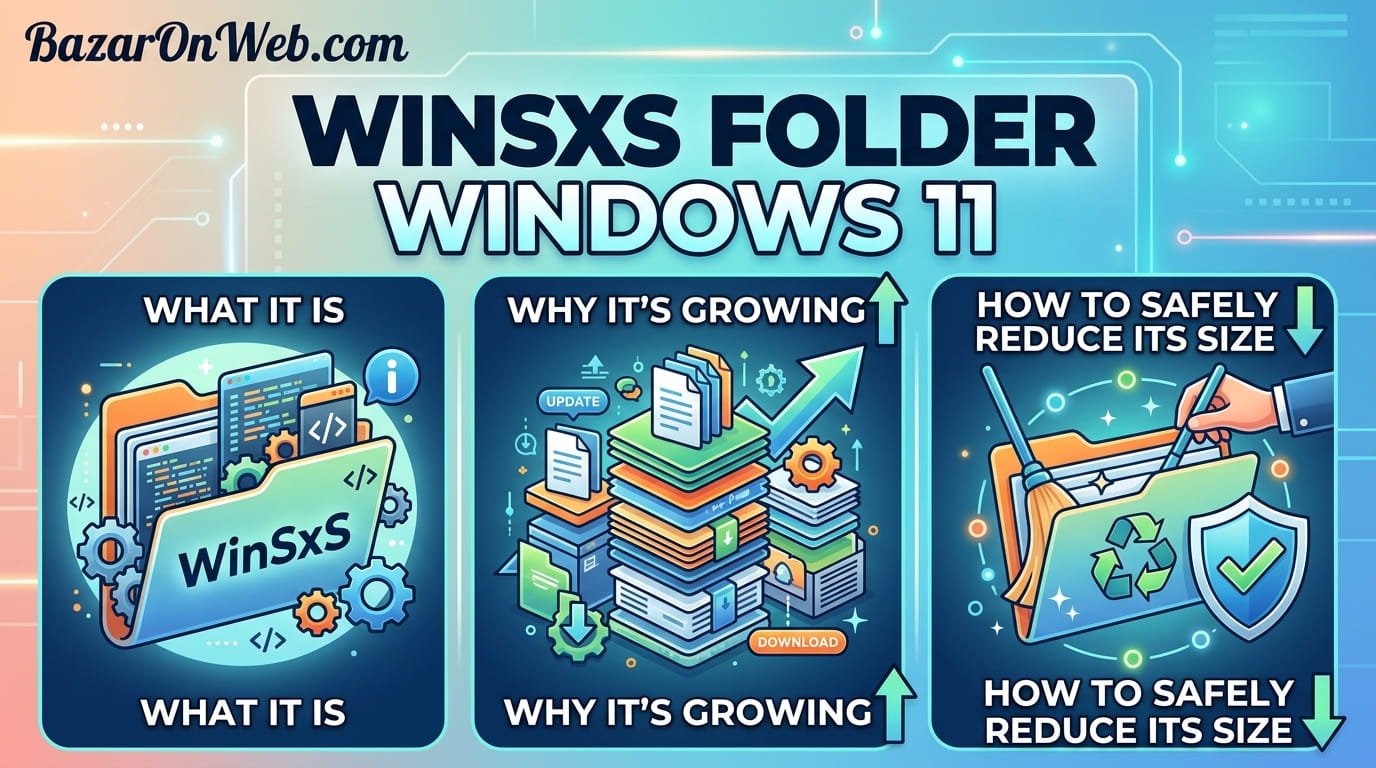
I was shocked when I discovered that the WinSxS folder on my Windows PC was consuming over 30 gigabytes of disk space. As someone who’s always careful about storage management, I couldn’t believe I’d missed such a massive storage drain. My curiosity led me to research what this mysterious folder actually was, and I learned that WinSxS (Windows Side by Side) is actually one of the most important system folders on Windows, despite being almost completely invisible to typical users. Understanding what WinSxS does, why it grows so large, and how to manage it safely has transformed my approach to Windows storage management. Rather than viewing it as a folder to delete, I now understand it as a critical system component requiring thoughtful management.
The frustrating reality is that WinSxS’s importance is inversely proportional to how well most users understand it. Microsoft doesn’t promote awareness of this folder, and most users only discover it when they’re desperately searching for disk space to free up. What I discovered through extensive research is that while WinSxS can legitimately be cleaned and reduced, aggressive deletion of this folder can cause serious system stability issues. In this comprehensive guide, I’ll explain exactly what WinSxS contains, why it grows so large, why it’s important to leave most of it intact, and most importantly, how to safely reduce its size without compromising your Windows system. I’ll walk you through proven methods that work while protecting critical system functionality.
1. Understanding WinSxS: Purpose, Importance, and System Role
WinSxS (Windows Side by Side) is a system folder located at C:\Windows\WinSxS that serves as Windows’s library of system components, drivers, and files necessary for the operating system to function properly. The name “Side by Side” reflects its original purpose—allowing multiple versions of the same component to exist simultaneously on the system. This design enables Windows to support legacy applications that depend on older component versions while simultaneously running newer applications requiring current versions. WinSxS essentially functions as a recovery repository and component library that Windows references constantly during operation.
The folder contains backup copies of every important Windows system file, previous versions of system components, drivers, and support files needed for updates and system repairs. When you install Windows updates, the original versions of modified files are stored in WinSxS as backups. If an update causes problems, Windows can restore from these backups. Additionally, WinSxS contains files needed for optional Windows features—if you enable a feature like .NET Framework or Hyper-V, WinSxS contains the necessary files to install that feature. This repository approach means Windows doesn’t need to keep original installation media or require internet access to repair itself. Understanding WinSxS’s critical role helps explain why deleting from this folder can cause serious system problems. This isn’t a cache folder you can safely delete—it’s infrastructure that Windows depends on for stability and functionality.
2. Why WinSxS Grows So Large: Understanding Accumulation Patterns
WinSxS grows large through several mechanisms, and understanding these mechanisms helps you manage the folder intelligently. Each Windows update adds files to WinSxS because the original versions of modified components are backed up before being updated. Over years of regular Windows updates, WinSxS accumulates hundreds of backup copies of components that have been updated multiple times. Additionally, optional Windows features store their installation files in WinSxS. If you’ve ever enabled then disabled optional features, WinSxS still contains files from those features. Furthermore, WinSxS contains files for multiple languages, keyboard layouts, and regional formats, even if you only use one language configuration.
Another major contributor to WinSxS growth is Windows driver storage. Old driver versions are stored in WinSxS as backups even after updates. Additionally, WinSxS contains support files for system services that may never be used on your specific system. On a typical Windows installation, WinSxS grows to 20-50 gigabytes because it accumulates files from years of updates, driver installations, and optional features. On systems with many optional features enabled or installed software requiring various system components, WinSxS can exceed 100 gigabytes. Understanding that this growth is normal and expected helps you avoid panic about “bloat”—this isn’t wasted space from poor design but rather accumulated backup files necessary for system stability and recovery.
3. Why You Shouldn’t Delete WinSxS Directly: Dangers and System Risks
Deleting files from WinSxS directly is one of the most dangerous actions you can take on Windows, and understanding why helps you avoid catastrophic mistakes. WinSxS is protected by file permissions and access controls specifically because Microsoft recognized how dangerous uncontrolled deletion from this folder would be. Attempting to delete WinSxS files directly usually fails due to these protections, but if you use administrator privileges or specialized deletion tools to force deletion, you risk corrupting your Windows installation in ways that make your system unstable or completely unusable.
If you delete a file that Windows currently needs, your system crashes immediately. If you delete a file needed by a running application, that application crashes. If you delete backup copies of system files that an installed program depends on, uninstalling or updating that program becomes impossible. Furthermore, many tools claiming to “safely clean WinSxS” actually delete important files that appear to be duplicates but serve specific purposes. After such deletions, users report system instability, application crashes, Windows Update failures, and inability to repair the system when problems occur. In worst cases, WinSxS deletion requires Windows reinstallation to restore functionality. Understanding these risks explains why Microsoft provides no easy “cleanup” button for WinSxS—the risks of wrong deletion far outweigh the benefit of recovered disk space. Rather than direct deletion, you should use safe reduction methods that remove only genuinely redundant data while preserving everything Windows actually needs.
4. Safe Methods to Reduce WinSxS Size: Disk Cleanup and Component Cleanup
Windows includes built-in tools specifically designed for safely reducing WinSxS size without risking system stability. These tools have been tested by Microsoft and ensure that only truly unnecessary files are removed. The primary safe method is Disk Cleanup, a built-in utility designed for removing temporary and redundant files safely. Open Disk Cleanup by clicking the Start button, typing “Disk Cleanup,” and opening the application. Select your system drive (usually C:), and Disk Cleanup analyzes what files can be safely deleted.
Most importantly, look for “Device Driver Packages” in the Disk Cleanup window—this option safely removes old driver backup copies that Windows no longer needs. You can safely select this for deletion if you don’t plan to rollback to older drivers. However, avoid selecting other options unless you understand them—options like “Windows Update Cleanup” should only be selected if you’ve confirmed they won’t remove critical update files. Additionally, Windows 10 and later include “Storage Sense,” an automated cleanup tool. Open Settings > System > Storage, enable Storage Sense, and configure automatic cleanup schedules. Storage Sense automatically manages WinSxS by removing old backup copies of system files after you uninstall updates, which safely reclaims space without requiring manual intervention.
For more aggressive cleanup, open Command Prompt as Administrator and run: “Disk Cleanup: cleanmgr /sageset:1” then “Disk Cleanup: cleanmgr /sagerun:1”. This provides additional cleanup options beyond the standard Disk Cleanup interface. The Windows Update Cleanup option in this advanced mode can safely remove old Windows Update backup files, potentially freeing several gigabytes. However, use this only if you’re confident you won’t need to rollback recent updates. These built-in methods are safe because Microsoft designed them to recognize which WinSxS files can be removed without compromising system functionality.
5. Component Cleanup Tool: Removing Unnecessary Windows Features Safely
If you’ve previously enabled optional Windows features and later disabled them, those features’ files remain in WinSxS consuming space. Windows includes the Component Cleanup Tool specifically for removing these orphaned feature files. Open Command Prompt as Administrator and run: “Dism.exe /online /Cleanup-Image /StartComponentCleanup” to remove backup files from disabled features. This command safely removes files associated with Windows features you’ve disabled, potentially freeing 1-5 gigabytes depending on how many features you’ve disabled over time.
Additionally, if you’ve enabled multiple Windows features you never actually use, disabling them can reduce WinSxS size. Open Settings > Programs > Programs and Features > Turn Windows features on or off, then review the enabled features. Optional features like Hyper-V, Windows Sandbox, Internet Information Services (IIS), Media Feature Pack, and others consume significant WinSxS space. If you don’t use these features, disable them. After disabling features, run the Component Cleanup Tool command above to remove their associated files. This approach is safe because you’re removing files associated with features you actively disabled, not deleting critical system components. The risk of system problems is minimal because you’re removing support for features you don’t need. The potential space savings can be substantial—if you’ve enabled Hyper-V and later disabled it, removing its files can free 2-3 gigabytes.
6. Reset Windows Components to Factory State: Advanced Cleanup Method
For users comfortable with command-line tools and willing to accept more aggressive cleanup, Windows includes tools to reset WinSxS to factory state by removing accumulated backup copies of updated components. This is appropriate only if you’re comfortable with the risk that you won’t be able to rollback recent updates without reinstalling them. Open Command Prompt as Administrator and run: “Dism.exe /online /Cleanup-Image /AnalyzeComponentStore” to analyze how much space can be recovered by component store cleanup.
If analysis shows significant reclaimable space, you can run: “Dism.exe /online /Cleanup-Image /ResetBase” to perform aggressive WinSxS cleanup. This command removes backup copies of superseded components, potentially freeing 5-20 gigabytes depending on how many updates have accumulated. However, this action is one-way—you cannot rollback updates after this cleanup. If a recent update causes problems, you cannot revert to the previous version through system restore. You must uninstall the problematic update or perform Windows repair. For this reason, only perform ResetBase cleanup if you’re confident recent updates are stable and you don’t plan to rollback. Additionally, run Windows Update after ResetBase to download and cache the current component store, ensuring your system has necessary files going forward.
7. Registry Cleanup and Obsolete File Removal: Targeted Space Recovery
Beyond component cleanup, WinSxS sometimes contains files associated with outdated software, drivers, or language packs you no longer use. Safely identifying and removing these files requires understanding their purpose. If your Windows installation includes language files for languages you don’t use, you can remove them through Settings > Time & Language > Language & Region. Remove languages you don’t need—Windows will delete associated files from WinSxS. Similarly, if you have driver backups for devices no longer connected to your system, you can remove those driver packages through Device Manager. Right-click hardware devices and select “Uninstall device,” then check “Delete the driver software for this device” to remove old driver backup copies.
Additionally, some third-party software installation tools create unnecessary copies of system files in WinSxS. Ensuring your installed software is up-to-date helps prevent such accumulation going forward. Use Microsoft’s official driver update tools rather than manufacturer-provided driver software that might add files to WinSxS unnecessarily. Furthermore, if you’ve experimented with different .NET Framework versions, older versions may remain in WinSxS. You can uninstall unused .NET Framework versions through Settings > Programs > Programs and Features > Turn Windows features on or off, then unchecking .NET Framework versions you don’t need. After removing these optional components, space is freed for other uses.
8. Monitoring WinSxS Growth and Maintaining Optimal Size
After reducing WinSxS size, monitoring its growth helps you maintain it at reasonable levels without requiring aggressive cleanup in the future. Enable Storage Sense for automatic background cleanup, which periodically removes unnecessary WinSxS files without user intervention. Open Settings > System > Storage > Storage Sense, ensure it’s enabled, and configure cleanup frequency (daily, weekly, or monthly). Storage Sense automatically removes old update backup files after specified time periods, preventing excessive accumulation.
Additionally, check WinSxS size periodically by right-clicking the Windows folder, selecting Properties, and monitoring size changes. If WinSxS grows beyond 50 gigabytes on typical systems or 100 gigabytes on systems with many optional features, it’s time for cleanup. Regular cleanups prevent the situation where WinSxS consumes extreme amounts of space. Furthermore, staying current with Windows updates helps—Windows Update sometimes includes cleanup tools in major updates that automatically reduce WinSxS size. Uninstalling very old updates you don’t need to rollback to frees their backup files. Open Settings > System > Recovery > Recovery options > Previous versions, and uninstall old restore points to remove associated WinSxS files.
9. Understanding When Professional Recovery Is Necessary
If WinSxS corruption occurs or becomes severely fragmented, professional Windows recovery tools might be necessary. Signs of WinSxS problems include Windows Update failures, system repair failures, inability to enable/disable Windows features, or system instability after aggressive WinSxS cleaning. If you suspect WinSxS corruption, attempt Windows repair before considering complete reinstallation. Open Settings > System > Recovery > Recovery options > Reset this PC. Choose “Keep my files” to reset Windows while preserving your personal data and installed applications, or “Remove everything” for complete fresh installation. Both options repair WinSxS corruption by restoring it from your current Windows version.
If you suspect corruption from aggressive cleaning requiring specific file restoration, you can use Windows Repair installation from installation media. Create Windows installation media on a USB drive using Microsoft’s Media Creation Tool, boot from it, and select “Repair your computer.” This allows accessing recovery options that might restore specific WinSxS files without complete reinstallation. Professional data recovery services can retrieve important data if Windows becomes unbootable due to WinSxS corruption, though this is expensive and usually unnecessary if you maintain regular backups. The best approach is preventing WinSxS corruption through careful management using only safe cleanup methods rather than aggressive tools or manual deletion.
10. Best Practices for Long-Term WinSxS Management and Prevention
Maintaining healthy WinSxS size long-term requires developing sustainable practices rather than periodic aggressive cleanups. First, enable Storage Sense for automatic background maintenance—this prevents WinSxS from ever becoming extremely large because unnecessary files are periodically removed. Second, stay current with Windows updates, which sometimes include improved cleanup mechanisms. Third, avoid enabling optional Windows features you won’t actually use—each enabled feature increases WinSxS size even if you never use that feature.
Fourth, maintain regular backups of important data so if WinSxS cleanup causes problems, you can restore from backup. Cloud backup services like OneDrive, Google Drive, or third-party backup solutions ensure important data is protected regardless of WinSxS issues. Fifth, educate yourself before using aggressive cleanup tools—understand what each tool does before running it. Never delete WinSxS files directly through File Explorer or third-party deletion tools. Sixth, document your system configuration—if you’ve enabled specific optional features or installed special software, document this so you understand what files in WinSxS serve what purposes. Finally, consider upgrading to larger storage capacity rather than aggressively cleaning WinSxS if you find yourself constantly fighting disk space limitations. Modern SSDs are affordable, and having excess storage eliminates the need for risky WinSxS optimization. For most users, maintaining WinSxS at 20-50 gigabytes through automatic cleanup is perfectly acceptable and requires no manual intervention.
Disclaimer
This article provides guidance on understanding and managing the WinSxS (Windows Side by Side) folder in Windows. The information is intended for educational purposes to help users understand WinSxS’s purpose and safely reduce its size. Specific commands, procedures, and space recovery amounts may vary depending on your Windows version, update history, installed features, and system configuration.
Important Disclaimers:
- WinSxS is a critical system folder; improper management can cause serious system instability or complete Windows failure
- We strongly recommend backing up important data before performing any WinSxS cleanup operations
- Direct deletion of WinSxS files through File Explorer or third-party tools is extremely dangerous and can render Windows unusable
- Commands and procedures described are for Windows 10 and Windows 11; other Windows versions may have different tools and procedures
- Aggressive cleanup methods may prevent system rollback to previous Windows states; only use these methods if you’re confident recent updates are stable
- The amount of space recovered varies significantly based on your update history, installed features, and driver accumulation
- Some cleanup operations cannot be undone; ensure you understand implications before proceeding
Backup Requirements:
- Maintain current backups of important data before attempting any WinSxS cleanup
- Cloud-based backups (OneDrive, Google Drive) provide protection even if local Windows repair becomes necessary
- System image backups allow restoring your entire Windows installation if cleanup causes problems
Safe Cleanup Only:
- Use only Microsoft-provided tools for WinSxS cleanup: Disk Cleanup, Storage Sense, DISM commands
- Avoid third-party “WinSxS cleanup” tools that claim to safely clean this folder; most are unreliable and dangerous
- Test any cleanup on non-critical systems before applying to your primary computer if possible
- Never delete individual files from WinSxS directly
System Configuration Variations:
- Systems with multiple optional Windows features enabled have larger WinSxS folders; reducing size while maintaining features requires removing unused features
- Systems with extensive driver history may have larger WinSxS folders requiring more aggressive cleanup
- Virtual machines and systems with development tools may have significantly larger WinSxS folders due to additional component requirements
Update Rollback Considerations:
- ResetBase cleanup prevents rollback to previous Windows Update states
- Only perform ResetBase cleanup if you’re confident recent updates don’t cause problems
- System restore points are distinct from update backups; you cannot rollback updates after ResetBase cleanup
Performance and Stability:
- WinSxS corruption can cause severe system instability, update failures, and inability to repair Windows
- If system problems occur after WinSxS cleanup, immediate Windows repair or recovery is necessary
- Do not continue using an unstable system hoping problems will resolve; repair immediately
Professional Assistance:
- If WinSxS cleanup causes system failure, consult Microsoft Support or professional technicians
- Data recovery services may be necessary if WinSxS corruption causes Windows to become unbootable
- Attempting complex recovery without expertise may worsen problems; seek professional help if unsure
Disk Space Alternatives:
- Rather than aggressive WinSxS cleanup, consider upgrading storage to larger capacity
- External drives can supplement system storage without risking Windows system files
- Cloud services can reduce local storage pressure by moving user files off your system drive
Liability:
We are not responsible for any system failures, data loss, Windows corruption, or other negative consequences resulting from WinSxS management procedures described in this article. Users assume full responsibility for understanding each procedure before implementing it and for maintaining backups before attempting any cleanup. Some WinSxS management operations are reversible through Windows Update or repair, but others may require complete Windows reinstallation. If you’re uncomfortable with command-line procedures or system maintenance, consult professional assistance rather than attempting risky operations independently.
About the Author
Jessica Miller is a marketing manager and Windows system administrator who believes users deserve to understand critical system components like WinSxS. With expertise in Windows optimization, disk management, and practical technology solutions, she helps users maintain healthy Windows installations without risking system stability. When she’s not writing comprehensive tech guides or managing her marketing team, she’s exploring Windows features, testing optimization techniques, and helping friends maintain their Windows systems effectively.

- How to Remotely Control Another Computer Using Windows Quick Assist

- 5 Must-Have Electronics Gadgets for a More Comfortable Living Room

- How to Create a Windows 11 System Backup on an External Hard Drive

- 10 Smart Home Ideas That Make Everyday Life Easier

- Gemini Live Avatar: How to Talk to Gemini Face-to-Face

Products
-
![Apple Watch Ultra 3 [GPS + Cellular 49mm] Running & Multisport Smartwatch w/Rugged Titanium Case w/Black Titanium Milanese Loop - M. Satellite Communications, Advanced Health & Fitness Tracking](https://bazaronweb.com/retailstores/wp-content/uploads/2025/09/apple-watch-320x320.jpg) Apple Watch Ultra 3 [GPS + Cellular 49mm] Running & Multisport Smartwatch w/Rugged Titanium Case w/Black Titanium Milanese Loop - M. Satellite Communications, Advanced Health & Fitness Tracking
Apple Watch Ultra 3 [GPS + Cellular 49mm] Running & Multisport Smartwatch w/Rugged Titanium Case w/Black Titanium Milanese Loop - M. Satellite Communications, Advanced Health & Fitness Tracking
-
 Apple iPad mini (A17 Pro): Apple Intelligence, 8.3-inch Liquid Retina Display, 256GB, Wi-Fi 6E, 12MP Front/12MP Back Camera, Touch ID, All-Day Battery Life — Purple
-
 Apple AirPods Max Wireless Over-Ear Headphones, Active Noise Cancelling, Transparency Mode, Personalized Spatial Audio, Dolby Atmos, Bluetooth Headphones for iPhone – Space Gray
-
 Apple AirPods Pro 2 Wireless Earbuds, Active Noise Cancellation, Hearing Aid Feature, Bluetooth Headphones, Transparency, Personalized Spatial Audio, High-Fidelity Sound, H2 Chip, USB-C Charging
-
Home Garage 210 TC Cotton King Floral Fitted (Elastic) Bedsheet(Pack of 1, Grey)
Original price was: ₹999.00.₹299.00Current price is: ₹299.00.
Leave a Reply