Discounted Products
-
 Home Garage 210 TC Cotton King Floral Fitted (Elastic) Bedsheet(Pack of 1, Grey)
Original price was: ₹999.00.₹299.00Current price is: ₹299.00.
Home Garage 210 TC Cotton King Floral Fitted (Elastic) Bedsheet(Pack of 1, Grey)
Original price was: ₹999.00.₹299.00Current price is: ₹299.00.
-
 Goodrik 140 TC Cotton Double 3D Printed Flat Bedsheet(Pack of 1, Brown)
Original price was: ₹499.00.₹229.00Current price is: ₹229.00.
Goodrik 140 TC Cotton Double 3D Printed Flat Bedsheet(Pack of 1, Brown)
Original price was: ₹499.00.₹229.00Current price is: ₹229.00.
-
 GLOBALSHOP 350 TC Microfiber Double Floral Flat Bedsheet(Pack of 1, Multicolor)
Original price was: ₹1,250.00.₹263.00Current price is: ₹263.00.
GLOBALSHOP 350 TC Microfiber Double Floral Flat Bedsheet(Pack of 1, Multicolor)
Original price was: ₹1,250.00.₹263.00Current price is: ₹263.00.
-
 RisingStar 250 TC Microfiber King Printed Fitted (Elastic) Bedsheet(Pack of 1, FITTED-ROUND-CIRCLES-PREMIUM)
Original price was: ₹2,299.00.₹299.00Current price is: ₹299.00.
RisingStar 250 TC Microfiber King Printed Fitted (Elastic) Bedsheet(Pack of 1, FITTED-ROUND-CIRCLES-PREMIUM)
Original price was: ₹2,299.00.₹299.00Current price is: ₹299.00.
-
 Home Garage 210 TC Cotton King Floral Fitted (Elastic) Bedsheet(Pack of 1, Fitted Black Green)
Original price was: ₹1,299.00.₹299.00Current price is: ₹299.00.
Home Garage 210 TC Cotton King Floral Fitted (Elastic) Bedsheet(Pack of 1, Fitted Black Green)
Original price was: ₹1,299.00.₹299.00Current price is: ₹299.00.
-
 Home Garage 180 TC Cotton King 3D Printed Flat Bedsheet(Pack of 1, White)
Original price was: ₹999.00.₹229.00Current price is: ₹229.00.
Home Garage 180 TC Cotton King 3D Printed Flat Bedsheet(Pack of 1, White)
Original price was: ₹999.00.₹229.00Current price is: ₹229.00.
-
 Panipat Textile Hub 152.4 cm (5 ft) Polyester Window Curtain (Pack Of 2)(Solid, Aqua)
Original price was: ₹1,899.00.₹299.00Current price is: ₹299.00.
Panipat Textile Hub 152.4 cm (5 ft) Polyester Window Curtain (Pack Of 2)(Solid, Aqua)
Original price was: ₹1,899.00.₹299.00Current price is: ₹299.00.
-
 Home Sizzler 214 cm (7 ft) Polyester Semi Transparent Door Curtain (Pack Of 2)(Floral, Maroon)
Original price was: ₹1,199.00.₹399.00Current price is: ₹399.00.
Home Sizzler 214 cm (7 ft) Polyester Semi Transparent Door Curtain (Pack Of 2)(Floral, Maroon)
Original price was: ₹1,199.00.₹399.00Current price is: ₹399.00.
-
 Home Sizzler 153 cm (5 ft) Polyester Room Darkening Window Curtain (Pack Of 2)(Floral, Brown)
Original price was: ₹799.00.₹299.00Current price is: ₹299.00.
Home Sizzler 153 cm (5 ft) Polyester Room Darkening Window Curtain (Pack Of 2)(Floral, Brown)
Original price was: ₹799.00.₹299.00Current price is: ₹299.00.
-
 Stella Creations 214 cm (7 ft) Polyester Room Darkening Door Curtain (Pack Of 2)(Abstract, Brown)
Original price was: ₹1,299.00.₹449.00Current price is: ₹449.00.
Stella Creations 214 cm (7 ft) Polyester Room Darkening Door Curtain (Pack Of 2)(Abstract, Brown)
Original price was: ₹1,299.00.₹449.00Current price is: ₹449.00.
-
 Homefab India 152.5 cm (5 ft) Polyester Room Darkening Window Curtain (Pack Of 2)(Floral, Light Blue)
Original price was: ₹1,199.00.₹319.00Current price is: ₹319.00.
Homefab India 152.5 cm (5 ft) Polyester Room Darkening Window Curtain (Pack Of 2)(Floral, Light Blue)
Original price was: ₹1,199.00.₹319.00Current price is: ₹319.00.
-
 Urban Home 214 cm (7 ft) PVC Transparent Door Curtain Single Curtain(Solid, Off White)
Original price was: ₹699.00.₹203.00Current price is: ₹203.00.
Urban Home 214 cm (7 ft) PVC Transparent Door Curtain Single Curtain(Solid, Off White)
Original price was: ₹699.00.₹203.00Current price is: ₹203.00.
-
 Panipat Textile Hub 213 cm (7 ft) Polyester Door Curtain (Pack Of 2)(Solid, Brown)
Original price was: ₹1,199.00.₹349.00Current price is: ₹349.00.
Panipat Textile Hub 213 cm (7 ft) Polyester Door Curtain (Pack Of 2)(Solid, Brown)
Original price was: ₹1,199.00.₹349.00Current price is: ₹349.00.
-
 Home Sizzler 214 cm (7 ft) Polyester Semi Transparent Door Curtain (Pack Of 2)(Floral, Brown)
Original price was: ₹999.00.₹349.00Current price is: ₹349.00.
Home Sizzler 214 cm (7 ft) Polyester Semi Transparent Door Curtain (Pack Of 2)(Floral, Brown)
Original price was: ₹999.00.₹349.00Current price is: ₹349.00.
-
 Panipat Textile Hub 213 cm (7 ft) Polyester Semi Transparent Door Curtain (Pack Of 2)(Floral, Brown)
Original price was: ₹899.00.₹299.00Current price is: ₹299.00.
Panipat Textile Hub 213 cm (7 ft) Polyester Semi Transparent Door Curtain (Pack Of 2)(Floral, Brown)
Original price was: ₹899.00.₹299.00Current price is: ₹299.00.
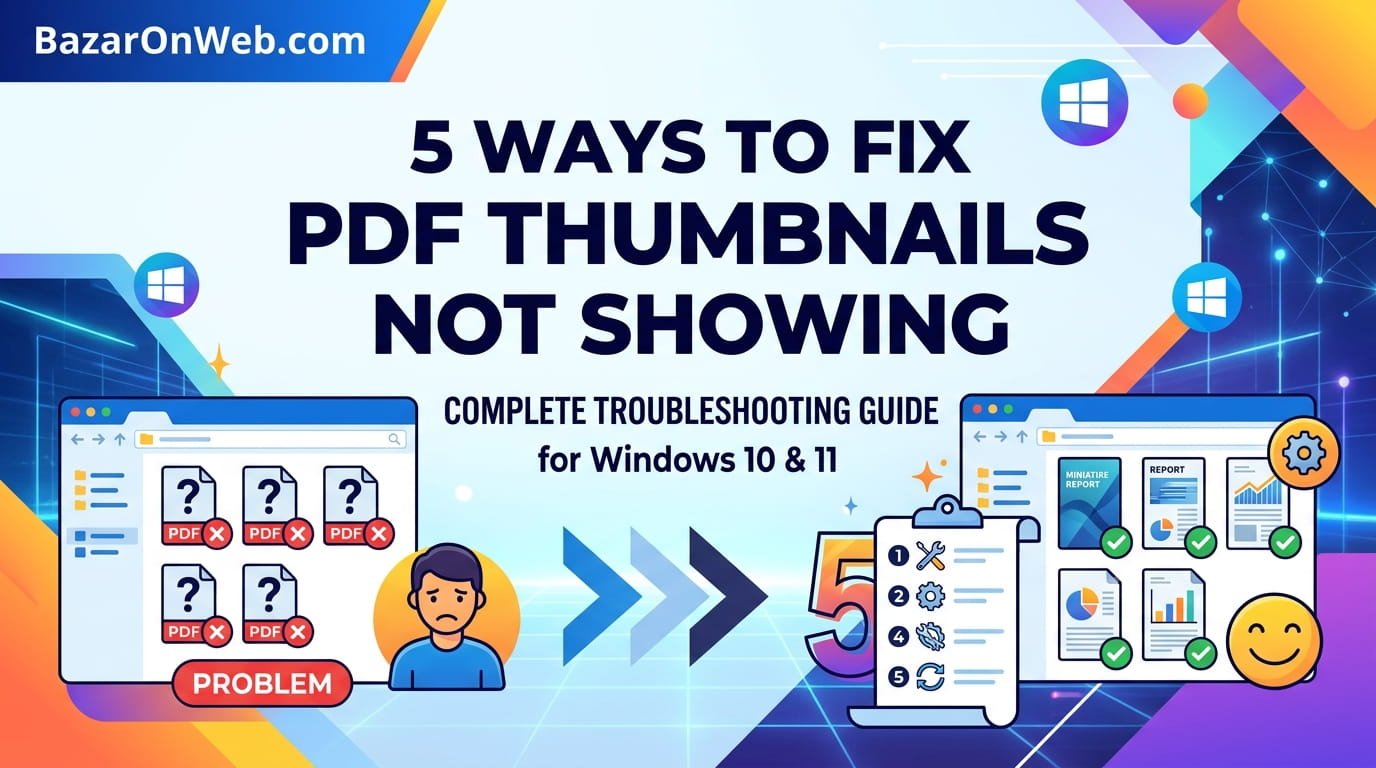
There’s nothing more frustrating than opening your Documents folder and seeing a bunch of blank generic PDF icons instead of actual preview thumbnails of your files. I’ve been there—you’re searching for a specific document, and you have to click on multiple files just to figure out which one you need because the thumbnails aren’t displaying. This common Windows issue affects countless users and can significantly impact productivity, especially if you work with a lot of PDF files. The good news is that this problem is almost always fixable with a few straightforward adjustments.
I’ve spent considerable time researching and testing various solutions to PDF thumbnail display issues on Windows, from simple setting adjustments to more involved cache rebuilding processes. What I’ve discovered is that the fix is rarely complicated—it usually comes down to a disabled preview feature, outdated software, or a corrupted thumbnail cache that needs refreshing. In this comprehensive guide, I’ll walk you through each solution step-by-step, explaining exactly what’s causing the problem and how to resolve it. Whether you’re using Windows 10 or Windows 11, whether you prefer Adobe Reader or an alternative PDF viewer, I’ve got practical solutions that actually work. By the end of this article, you’ll not only understand why your PDF thumbnails disappeared, but you’ll also know exactly how to prevent this frustration from happening again in the future.
Meta Description: Fix PDF thumbnails not showing on Windows with these 5 proven solutions. Learn how to rebuild cache, update PDF readers, and enable thumbnail previews in File Explorer.
Meta Social OG Description: 📄 PDF thumbnails disappeared on your Windows PC? We’ve got 5 tested solutions to get your previews back. Step-by-step guide + prevention tips inside!
1. Understanding PDF Thumbnails and Why They Matter for Productivity
PDF thumbnails are those small preview images that appear when you’re browsing files in Windows File Explorer. When working properly, you can see a miniature version of the first page of each PDF file, allowing you to identify documents at a glance without opening them. This functionality is incredibly useful when you’re managing large collections of PDFs—contracts, invoices, research papers, user manuals, or any other documents. Instead of clicking through files one by one to find what you’re looking for, thumbnail previews save enormous amounts of time and frustration.
The thumbnail preview system on Windows involves multiple components working together. When you open a folder containing image files, Windows automatically generates and caches small preview images. For PDFs, this process is slightly more complex because Windows doesn’t natively understand PDF file formats the way it understands common image formats like JPG or PNG. Instead, Windows relies on your installed PDF reader application to provide thumbnail data. Adobe Reader, for example, includes built-in functionality to generate PDF previews, as do many alternative PDF viewers. When thumbnails stop displaying, it typically means one of these components has failed or been disabled. Understanding this system helps you identify which fix will solve your specific problem. The thumbnail cache that Windows maintains can also become corrupted, preventing previews from displaying even when everything else is configured correctly. This is why troubleshooting requires a systematic approach—you need to check each potential problem area.
2. Why PDF Thumbnails Stop Showing on Windows: Common Causes
Several different issues can cause PDF thumbnails to disappear on your Windows system, and understanding the root cause helps you apply the correct fix. The most common culprit is that thumbnail preview functionality is simply disabled in Windows File Explorer settings. Many users accidentally disable this feature while adjusting other settings, or it may be disabled by default depending on your Windows configuration. Another frequent cause is that your PDF reader application doesn’t have thumbnail generation enabled, or the application has crashed and needs to be reinstalled. Windows also maintains a hidden cache of thumbnail images to speed up file browsing; this cache sometimes becomes corrupted and prevents any thumbnails from displaying, even for applications that are configured correctly.
Updates can also trigger this issue—when Windows updates or when you update your PDF reader application, thumbnail functionality might be inadvertently disabled or broken. Some security software also interferes with thumbnail generation by preventing applications from creating preview files. In less common cases, file association problems occur where your system no longer associates PDF files with an application capable of generating thumbnails, resulting in generic document icons instead of previews. Some users also experience this issue after malware infections or overzealous system cleanup utilities that delete the thumbnail cache or modify system settings. The good news is that regardless of which of these causes applies to your situation, the fixes I’ll outline address each potential problem systematically. By working through them in order, you’ll identify and resolve the specific issue affecting your system.
3. Solution 1: Enable Thumbnail Preview in Windows File Explorer Settings
The first and easiest solution is to verify that thumbnail preview functionality is actually enabled in Windows File Explorer. On Windows 11, open File Explorer and click the View menu at the top. Look for an option that says “Preview Pane” or similar thumbnail-related settings. On Windows 10, click the View tab in File Explorer, then look for preview or thumbnail options. The settings menu might show options like “Preview pane” or “Details pane.” Ensure these are enabled—if they’re already enabled, try toggling them off and back on again, as this sometimes refreshes the preview system.
Additionally, check the View menu for options related to how files are displayed. Your view might be set to “List” or “Details” view, which doesn’t show thumbnails by default. Switch to “Large Icons” or “Extra Large Icons” view, which displays thumbnail previews. On Windows 11, you can access additional view options by clicking the View menu and looking for “Display options.” Here you’ll find settings for showing or hiding file extensions, hiding hidden files, and importantly, options related to thumbnail display. If you see an option to “Show preview handlers” or similar, ensure it’s enabled. These simple changes resolve thumbnail display issues in a surprising number of cases because the feature might simply be disabled or the view mode isn’t set to display thumbnails. Restart File Explorer after making changes by closing all File Explorer windows and reopening them to ensure changes take effect immediately.
4. Solution 2: Rebuild the Windows Thumbnail Cache to Fix Corruption
If enabling thumbnails in settings didn’t work, the problem might be a corrupted thumbnail cache. Windows maintains a hidden database of thumbnail images to speed up folder browsing; when this cache becomes corrupted, no thumbnails display regardless of your settings. Fortunately, Windows provides a built-in way to clear and rebuild this cache. First, open File Explorer and navigate to View menu, then access the Options or Folder Options depending on your Windows version. Click the View tab if you’re not already there. Scroll down to find an option that says “Always show icons, never thumbnails” or similar—if this is checked, uncheck it. Then look for an option to clear thumbnail cache or delete cached thumbnails, which might be labeled as “Clear thumbnail cache” or accessible through an advanced settings button.
Alternatively, you can clear the cache manually through Windows settings. Press Windows Key + R to open the Run dialog, then type “%LocalAppData%\Packages\Microsoft.Windows.ShellExperience_cw5n1h2txyewy\LocalState\Indexed DB” and press Enter. Look for a folder named “thumbcache” and delete all files within it. Windows will automatically rebuild this cache the next time you browse folders containing images or other thumbnailable content. After clearing the cache, restart your computer to ensure Windows properly rebuilds the cache from scratch. This process often takes a few minutes as Windows regenerates previews for the files you browse. If you’re still not seeing PDF thumbnails after this process, move on to the next solution, as the problem likely involves your PDF reader application rather than the cache itself.
5. Solution 3: Update Your PDF Reader Application to Latest Version
Outdated PDF reader software is a surprisingly common cause of missing thumbnail previews. If you’re using Adobe Reader, check for updates by opening the application and clicking Help menu, then “Check for Updates.” Adobe releases regular updates that fix bugs and maintain compatibility with current Windows versions. If updates are available, install them completely and restart your computer afterward. Many users don’t realize that application updates often include fixes for thumbnail generation and preview functionality. If you’re using an alternative PDF viewer like Foxit Reader, Preview, or another application, check their preferences or settings menu for an updates option. Most modern applications have automatic update checking built in, but you can also manually force an update check through the help or settings menu.
If you’re running a very old version of your PDF reader, consider that the application might simply not be compatible with your current Windows version. Windows 11, in particular, has stricter requirements for applications, and older PDF readers might not generate thumbnails properly. If you’re using a relatively old version and updates aren’t available, you might need to upgrade to a newer application or switch to a different PDF viewer. Before reinstalling, uninstall your current PDF reader completely by going to Settings > Apps > Apps & Features, finding the application, and clicking Uninstall. Restart your computer, then download the latest version directly from the official website and reinstall it. This clean installation ensures that all thumbnail generation components are properly configured. After reinstalling and restarting, navigate to a folder containing PDFs and check whether thumbnails now display.
6. Solution 4: Change PDF File Association Settings to Repair Broken Links
Sometimes Windows loses track of which application should handle PDF files, causing thumbnails to fail. This problem, called file association issues, is easily fixed through Windows Settings. Right-click on any PDF file and select “Open With” from the context menu. If you see a suitable PDF reader listed, click it and check the “Always use this app” checkbox, then confirm. This reestablishes the file association. If you don’t see your preferred PDF reader in the list, click “Choose another app” and browse for it. This ensures that Windows knows which application should handle your PDFs and which application provides thumbnail functionality.
Alternatively, open Windows Settings by pressing Windows Key + I, then navigate to Apps > Default apps. Scroll down to find “File type associations” or similar. Search for “.pdf” in the list. If it’s associated with an unrecognized application or a generic document viewer, click it and change the associated application to your preferred PDF reader. On Windows 11, you might need to search for “.pdf” in the settings search bar to find PDF-specific associations. If your preferred application isn’t available in the list, click the plus icon or “Add an app” button to locate and add it. After changing the file association, close Settings and navigate back to your PDF folder. Windows should now use the correct application for providing thumbnails. You might need to restart File Explorer or clear the thumbnail cache again (using the method from Solution 2) to see immediate results.
7. Solution 5: Use Third-Party PDF Viewers With Superior Thumbnail Support
If you’ve worked through the previous solutions and PDF thumbnails still aren’t displaying, your current PDF reader might simply lack robust thumbnail support for Windows. Switching to a different PDF viewer often resolves this issue permanently. Adobe Reader, while popular, isn’t always the best option for thumbnail generation on Windows. Foxit Reader is an excellent alternative that offers excellent thumbnail support and generally performs better on modern Windows systems. It’s lightweight, fast, and specifically designed to work well with Windows File Explorer’s preview system. Foxit includes built-in thumbnail generation and displays previews beautifully without configuration.
Other solid alternatives include Sumatra PDF, which is lightweight and opens files quickly while providing excellent preview functionality, or Windows 11’s native Microsoft Edge, which can now open and display PDF files with thumbnail support. If you’re using Windows 11, the built-in Preview app actually provides decent thumbnail display for many PDFs. To test a different viewer without fully committing, download the application and set it as your default PDF handler temporarily. Open your PDF folder and see if thumbnails display. If they do, you’ve found your solution. You can then either continue using the new application or investigate why your original application wasn’t generating thumbnails properly. One advantage of switching viewers is that many modern alternatives are lighter weight than Adobe Reader, consuming fewer system resources while providing better performance overall. Before completely abandoning your previous application, try the installation and update process mentioned in Solution 3, but if that doesn’t work, switching applications is a straightforward fix.
8. Preventative Measures and Best Practices for Maintaining Thumbnail Display
Now that you’ve fixed your PDF thumbnail display, you’ll want to prevent this issue from recurring. Regular software updates are crucial—enable automatic updates on your PDF reader application if available, and regularly check for Windows updates. Many users disable Windows updates to avoid unexpected restarts, but these updates often include important fixes for file preview functionality. Set aside time monthly to check for and install available updates. Keep your system clean by avoiding installation of excessive third-party file managers or shell extensions that can interfere with Windows’ native preview system.
Be cautious with system cleaning utilities and registry cleaners, as overzealous cleanup tools sometimes delete important cache files or system settings needed for thumbnail generation. If you need to clean your system, use trusted tools like Windows’ built-in Disk Cleanup utility rather than aggressive third-party applications. Maintain regular backups of important files, and periodically check your thumbnail functionality in a folder with diverse file types to ensure nothing has changed. If you notice thumbnails starting to disappear, address it immediately before it becomes a widespread problem. Keep your computer free from malware by using Windows Defender or another reputable antivirus, as malware sometimes targets system functions including thumbnail display. Finally, consider the PDF viewer you’re using—invest in a quality reader that’s actively maintained and updated. The small difference in quality between free and paid versions often manifests in features like thumbnail display, preview functionality, and overall integration with Windows.
9. When to Seek Professional Help and Advanced Troubleshooting Options
If you’ve worked through all five solutions and PDF thumbnails still aren’t displaying, you may have a more complex system issue that requires professional diagnosis. At this point, consider whether recent changes preceded the thumbnail problem. Did you install new software, update Windows, install a security tool, or make system changes? If so, try uninstalling or rolling back the recent change to see if that resolves the issue. Some security software installed with antivirus packages interferes with file preview functionality; temporarily disabling your security software might help identify whether it’s the culprit. However, don’t leave security software disabled permanently.
If you’re technically comfortable, you might try creating a new user account on your Windows computer and checking whether PDF thumbnails display in that account’s File Explorer. If thumbnails work in the new account but not your main account, the issue is localized to your account’s settings rather than a system-wide problem. You can then attempt to copy over working settings or files from the new account. If the problem persists across accounts, you’re dealing with a system-level issue that might require professional help. Additionally, if you suspect malware or virus infection, running a full system scan with Windows Defender or a dedicated antivirus tool is important. Some malware specifically targets Windows system functions including preview generation. A professional technician can systematically diagnose the issue, identify corrupted system files, and repair Windows components that might be preventing thumbnail display. Don’t hesitate to seek help if these solutions don’t resolve your problem.
10. Conclusion: Restoring Your PDF Workflow and Staying Productive
Dealing with missing PDF thumbnails is frustrating, but as you’ve discovered, it’s almost always fixable without extensive technical knowledge. Whether your issue stems from disabled settings, corrupted cache, outdated software, broken file associations, or incompatible applications, one of these five solutions will restore your thumbnail display and make managing your PDF files enjoyable again. The beauty of these solutions is that they progress from simplest to more involved, so you can start with the quick fixes and only move to more complex troubleshooting if necessary. Most users find that either enabling thumbnails in File Explorer settings or rebuilding the thumbnail cache resolves the problem within minutes.
As you go forward, remember that staying on top of software updates and maintaining your Windows system goes a long way toward preventing this issue from recurring. Taking a few minutes each month to ensure your PDF reader is current and your system is clean prevents countless problems down the road. If you work with PDFs regularly, they’re worth the investment—whether that’s ensuring you’re using a quality PDF reader or taking time to optimize your system’s preview functionality. Your productivity will improve dramatically when you can quickly scan PDF thumbnails and identify the documents you need without clicking through multiple files. I hope this guide has helped you resolve your thumbnail issues and get back to productive work. Share this guide with colleagues or friends who might be experiencing the same frustration—you’d be surprised how many people unknowingly suffer through this problem without realizing it’s easily fixable!
Disclaimer
This article provides technical guidance for troubleshooting PDF thumbnail display issues on Windows operating systems. The solutions and information presented are intended for educational purposes to help users resolve common display problems. Results may vary depending on your specific Windows version, installed applications, system configuration, and hardware.
Important Disclaimers:
- This guide covers Windows 10 and Windows 11; some procedures may differ on other Windows versions or older operating systems
- We recommend creating system backups before making significant changes to system settings or deleting cache files
- Instructions involving clearing cache files or modifying system settings should only be performed if you’re comfortable with basic Windows administration tasks
- If you’re unsure about any steps, consult Windows Help documentation or seek assistance from a qualified technician
- Third-party software recommendations are based on performance at time of publication; features and compatibility may change
- Installing or switching to different PDF readers may affect other functionality; ensure you test thoroughly before committing to a new application
- We are not responsible for any system issues, data loss, or damage resulting from following these instructions
- Some steps may require administrator privileges; if you lack administrative access to your computer, contact your system administrator
Before Making Changes:
- Ensure you have administrator access to your computer
- Close all open applications, especially file management tools
- If clearing system cache, be aware that thumbnails will need to regenerate, which may temporarily slow down folder browsing
- If modifying file associations, verify you’re selecting a functional PDF reader application
Antivirus and Security Note:
If your antivirus or security software blocks any of these troubleshooting steps, consult your security software documentation or your system administrator before proceeding. Some enterprise security configurations intentionally restrict thumbnail generation for security reasons.
When to Seek Professional Help:
If you’ve attempted all solutions without success, if your system is performing slowly, or if you suspect malware infection, contact a qualified IT professional or take your computer to an authorized service center for diagnosis.
About the Author
Jessica Miller is a marketing manager and technology troubleshooter who specializes in helping busy professionals solve everyday tech problems quickly and effectively. With years of experience managing files, documents, and digital workflows, she understands the frustration that comes with technical glitches that impact productivity. When she’s not writing practical tech guides, she’s helping friends and family navigate their digital challenges.

- How to Remotely Control Another Computer Using Windows Quick Assist

- 5 Must-Have Electronics Gadgets for a More Comfortable Living Room

- How to Create a Windows 11 System Backup on an External Hard Drive

- 10 Smart Home Ideas That Make Everyday Life Easier

- Gemini Live Avatar: How to Talk to Gemini Face-to-Face

Products
-
![Apple Watch Ultra 3 [GPS + Cellular 49mm] Running & Multisport Smartwatch w/Rugged Titanium Case w/Black Titanium Milanese Loop - M. Satellite Communications, Advanced Health & Fitness Tracking](https://bazaronweb.com/retailstores/wp-content/uploads/2025/09/apple-watch-320x320.jpg) Apple Watch Ultra 3 [GPS + Cellular 49mm] Running & Multisport Smartwatch w/Rugged Titanium Case w/Black Titanium Milanese Loop - M. Satellite Communications, Advanced Health & Fitness Tracking
Apple Watch Ultra 3 [GPS + Cellular 49mm] Running & Multisport Smartwatch w/Rugged Titanium Case w/Black Titanium Milanese Loop - M. Satellite Communications, Advanced Health & Fitness Tracking
-
 Apple iPad mini (A17 Pro): Apple Intelligence, 8.3-inch Liquid Retina Display, 256GB, Wi-Fi 6E, 12MP Front/12MP Back Camera, Touch ID, All-Day Battery Life — Purple
-
 Apple AirPods Max Wireless Over-Ear Headphones, Active Noise Cancelling, Transparency Mode, Personalized Spatial Audio, Dolby Atmos, Bluetooth Headphones for iPhone – Space Gray
-
 Apple AirPods Pro 2 Wireless Earbuds, Active Noise Cancellation, Hearing Aid Feature, Bluetooth Headphones, Transparency, Personalized Spatial Audio, High-Fidelity Sound, H2 Chip, USB-C Charging
-
Home Garage 210 TC Cotton King Floral Fitted (Elastic) Bedsheet(Pack of 1, Grey)
Original price was: ₹999.00.₹299.00Current price is: ₹299.00.
Leave a Reply