Discounted Products
-
 Home Garage 210 TC Cotton King Floral Fitted (Elastic) Bedsheet(Pack of 1, Grey)
Original price was: ₹999.00.₹299.00Current price is: ₹299.00.
Home Garage 210 TC Cotton King Floral Fitted (Elastic) Bedsheet(Pack of 1, Grey)
Original price was: ₹999.00.₹299.00Current price is: ₹299.00.
-
 Goodrik 140 TC Cotton Double 3D Printed Flat Bedsheet(Pack of 1, Brown)
Original price was: ₹499.00.₹229.00Current price is: ₹229.00.
Goodrik 140 TC Cotton Double 3D Printed Flat Bedsheet(Pack of 1, Brown)
Original price was: ₹499.00.₹229.00Current price is: ₹229.00.
-
 GLOBALSHOP 350 TC Microfiber Double Floral Flat Bedsheet(Pack of 1, Multicolor)
Original price was: ₹1,250.00.₹263.00Current price is: ₹263.00.
GLOBALSHOP 350 TC Microfiber Double Floral Flat Bedsheet(Pack of 1, Multicolor)
Original price was: ₹1,250.00.₹263.00Current price is: ₹263.00.
-
 RisingStar 250 TC Microfiber King Printed Fitted (Elastic) Bedsheet(Pack of 1, FITTED-ROUND-CIRCLES-PREMIUM)
Original price was: ₹2,299.00.₹299.00Current price is: ₹299.00.
RisingStar 250 TC Microfiber King Printed Fitted (Elastic) Bedsheet(Pack of 1, FITTED-ROUND-CIRCLES-PREMIUM)
Original price was: ₹2,299.00.₹299.00Current price is: ₹299.00.
-
 Home Garage 210 TC Cotton King Floral Fitted (Elastic) Bedsheet(Pack of 1, Fitted Black Green)
Original price was: ₹1,299.00.₹299.00Current price is: ₹299.00.
Home Garage 210 TC Cotton King Floral Fitted (Elastic) Bedsheet(Pack of 1, Fitted Black Green)
Original price was: ₹1,299.00.₹299.00Current price is: ₹299.00.
-
 Home Garage 180 TC Cotton King 3D Printed Flat Bedsheet(Pack of 1, White)
Original price was: ₹999.00.₹229.00Current price is: ₹229.00.
Home Garage 180 TC Cotton King 3D Printed Flat Bedsheet(Pack of 1, White)
Original price was: ₹999.00.₹229.00Current price is: ₹229.00.
-
 Panipat Textile Hub 152.4 cm (5 ft) Polyester Window Curtain (Pack Of 2)(Solid, Aqua)
Original price was: ₹1,899.00.₹299.00Current price is: ₹299.00.
Panipat Textile Hub 152.4 cm (5 ft) Polyester Window Curtain (Pack Of 2)(Solid, Aqua)
Original price was: ₹1,899.00.₹299.00Current price is: ₹299.00.
-
 Home Sizzler 214 cm (7 ft) Polyester Semi Transparent Door Curtain (Pack Of 2)(Floral, Maroon)
Original price was: ₹1,199.00.₹399.00Current price is: ₹399.00.
Home Sizzler 214 cm (7 ft) Polyester Semi Transparent Door Curtain (Pack Of 2)(Floral, Maroon)
Original price was: ₹1,199.00.₹399.00Current price is: ₹399.00.
-
 Home Sizzler 153 cm (5 ft) Polyester Room Darkening Window Curtain (Pack Of 2)(Floral, Brown)
Original price was: ₹799.00.₹299.00Current price is: ₹299.00.
Home Sizzler 153 cm (5 ft) Polyester Room Darkening Window Curtain (Pack Of 2)(Floral, Brown)
Original price was: ₹799.00.₹299.00Current price is: ₹299.00.
-
 Stella Creations 214 cm (7 ft) Polyester Room Darkening Door Curtain (Pack Of 2)(Abstract, Brown)
Original price was: ₹1,299.00.₹449.00Current price is: ₹449.00.
Stella Creations 214 cm (7 ft) Polyester Room Darkening Door Curtain (Pack Of 2)(Abstract, Brown)
Original price was: ₹1,299.00.₹449.00Current price is: ₹449.00.
-
 Homefab India 152.5 cm (5 ft) Polyester Room Darkening Window Curtain (Pack Of 2)(Floral, Light Blue)
Original price was: ₹1,199.00.₹319.00Current price is: ₹319.00.
Homefab India 152.5 cm (5 ft) Polyester Room Darkening Window Curtain (Pack Of 2)(Floral, Light Blue)
Original price was: ₹1,199.00.₹319.00Current price is: ₹319.00.
-
 Urban Home 214 cm (7 ft) PVC Transparent Door Curtain Single Curtain(Solid, Off White)
Original price was: ₹699.00.₹203.00Current price is: ₹203.00.
Urban Home 214 cm (7 ft) PVC Transparent Door Curtain Single Curtain(Solid, Off White)
Original price was: ₹699.00.₹203.00Current price is: ₹203.00.
-
 Panipat Textile Hub 213 cm (7 ft) Polyester Door Curtain (Pack Of 2)(Solid, Brown)
Original price was: ₹1,199.00.₹349.00Current price is: ₹349.00.
Panipat Textile Hub 213 cm (7 ft) Polyester Door Curtain (Pack Of 2)(Solid, Brown)
Original price was: ₹1,199.00.₹349.00Current price is: ₹349.00.
-
 Home Sizzler 214 cm (7 ft) Polyester Semi Transparent Door Curtain (Pack Of 2)(Floral, Brown)
Original price was: ₹999.00.₹349.00Current price is: ₹349.00.
Home Sizzler 214 cm (7 ft) Polyester Semi Transparent Door Curtain (Pack Of 2)(Floral, Brown)
Original price was: ₹999.00.₹349.00Current price is: ₹349.00.
-
 Panipat Textile Hub 213 cm (7 ft) Polyester Semi Transparent Door Curtain (Pack Of 2)(Floral, Brown)
Original price was: ₹899.00.₹299.00Current price is: ₹299.00.
Panipat Textile Hub 213 cm (7 ft) Polyester Semi Transparent Door Curtain (Pack Of 2)(Floral, Brown)
Original price was: ₹899.00.₹299.00Current price is: ₹299.00.
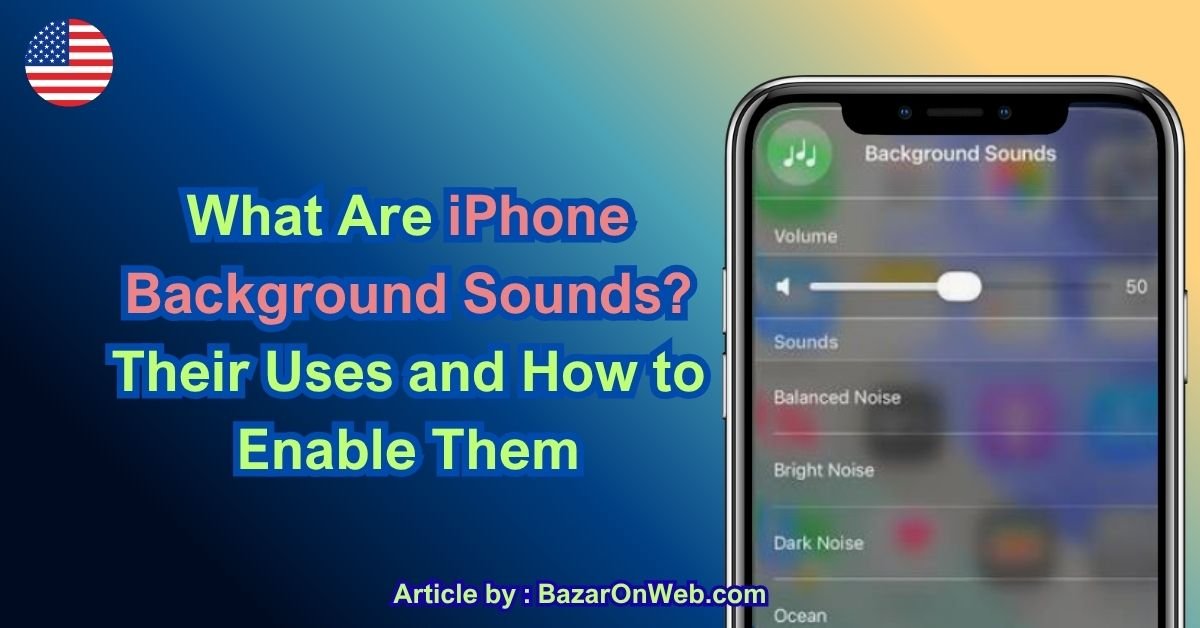
If you find yourself distracted by background noise while working, studying, reading, or trying to fall asleep, your iPhone has a surprisingly useful feature that can help. It is called Background Sounds, and it lets you play calming ambient sounds directly from your iPhone.
You don’t need to download a separate white-noise app or search for long audio tracks on YouTube. Background Sounds is built into iOS as an Accessibility feature and can play sounds such as rain, ocean, or other ambient noise while you use your iPhone.
I personally think this is one of those iPhone features that many people overlook because it is tucked away inside the Accessibility settings. Once enabled, however, you can access it much more quickly through Control Center.
So, what exactly are iPhone Background Sounds, what can you use them for, and how do you turn them on?
Let’s take a closer look.
What Are Background Sounds on iPhone?
Background Sounds is an iPhone feature designed to play continuous ambient audio in the background.
The idea is simple. Instead of listening to music, podcasts, or videos, you can play a steady sound that can help mask unwanted environmental noise or create a more relaxing listening environment.
Depending on your iOS version, you may have several sound options available, including:
- Balanced Noise
- Bright Noise
- Dark Noise
- Ocean
- Rain
- Stream
Apple can change or expand the available sounds in different iOS versions, so the exact list may vary slightly on your iPhone.
The sounds can continue playing while you use other apps. For example, you could open Safari, Notes, Microsoft Word, or another app while Background Sounds continues running.
You can also control the Background Sounds volume separately from your regular media volume.
Why Would You Use Background Sounds?
There are several situations where Background Sounds can be useful.
1. Masking Unwanted Noise
If you’re working in a busy environment, occasional conversations, traffic, construction, or other noises can become distracting.
A consistent background sound can help make those sudden environmental sounds less noticeable.
For example, you might use rain sounds while working in a noisy office or studying in a shared room.
2. Studying and Concentration
Some people prefer complete silence when studying, while others concentrate better with consistent ambient noise.
If you’re in the second group, Background Sounds can provide a simple alternative to music.
Instead of switching between songs or dealing with distracting lyrics, you can use something like rain or ocean sounds as a steady audio backdrop.
3. Relaxation
Background Sounds can also be useful when you’re trying to create a calmer environment.
Ocean waves, rain, or a stream can provide gentle ambient audio while you’re relaxing, reading, or taking a break from your screen.
Of course, everyone’s response to these sounds is different. What feels relaxing to one person might be distracting to someone else.
4. Sleeping
Some people like having consistent background noise when they are getting ready for bed.
For example, rain sounds can help cover intermittent noises from outside your room.
However, it’s worth remembering that Background Sounds isn’t specifically a medical treatment for sleep problems. If you regularly have difficulty sleeping, it’s better to discuss persistent sleep issues with a healthcare professional.
How to Enable Background Sounds on an iPhone
Turning on Background Sounds is relatively easy, although the setting isn’t located with your normal Music or Sound settings.
Here’s what you need to do.
Step 1: Open Settings
First, open the Settings app on your iPhone.
Scroll down and tap Accessibility.
Step 2: Find Audio & Visual
Inside Accessibility, look for the Audio & Visual option.
Tap it to open the audio-related settings.
Step 3: Select Background Sounds
Now look for Background Sounds.
Tap the option to open its settings.
Step 4: Turn On Background Sounds
You’ll see a switch labeled Background Sounds.
Turn the switch on.
Your iPhone should immediately begin playing the selected background sound.
If you don’t hear anything, check your iPhone’s volume and make sure the selected sound has finished downloading if your iOS version requires an initial download.
How to Change the Background Sound
You don’t have to stick with the default sound.
Inside the Background Sounds settings, tap Sound.
You’ll see the available audio options.
Choose the one you prefer.
For example, you might choose:
Rain if you want a gentle, consistent sound.
Ocean if you prefer wave-like ambient noise.
Stream if you want something that sounds more like flowing water.
You can experiment with the different options and choose whichever one is least distracting for your particular environment.
How to Adjust Background Sounds Volume
Background Sounds has its own volume control.
While you’re inside the Background Sounds settings, look for the volume slider.
Move the slider to adjust how loud the ambient sound is.
I recommend starting with a relatively low volume. The goal is usually to create a subtle audio background rather than overpower everything else you’re doing.
You can then increase the volume if necessary.
Can Background Sounds Play With Music?
Yes, your iPhone can play Background Sounds alongside other media in supported situations.
Inside the Background Sounds settings, you may see an option called Use When Media Is Playing.
If you enable this option, the background sound can continue playing when you listen to other media.
You’ll also find a volume slider for adjusting how loud the background sound should be while other media is playing.
This can be useful if you want a very subtle ambient sound underneath music or another audio source.
However, not every app handles simultaneous audio in exactly the same way. Some apps or audio sources may pause or change how Background Sounds behaves.
How to Stop Background Sounds Automatically
Another useful option is the ability to stop Background Sounds when your iPhone is locked.
Depending on your iOS version, you may see an option such as Stop Sounds When Locked.
If enabled, your iPhone will stop playing the background sound when the device is locked.
This can be useful if you don’t want Background Sounds running indefinitely.
For example, you might use it while working and then lock your iPhone when you’re finished.
If you’re using Background Sounds as part of your bedtime routine, check this setting carefully because you may want the sound to continue after the screen turns off.
How to Access Background Sounds Quickly
Going into Settings every time you want to turn Background Sounds on isn’t particularly convenient.
Thankfully, Apple provides a faster method through Control Center.
First, make sure the Hearing control is available in Control Center.
On newer versions of iOS, open Control Center by swiping down from the top-right corner of the screen.
Look for the ear icon, which represents Hearing.
Tap it.
You should see options related to hearing features, including Background Sounds if it has been enabled and is available on your iPhone.
From there, you can quickly turn Background Sounds on or off.
This is much more convenient than navigating through Settings every time.
How to Add Hearing to Control Center
If you don’t see the Hearing option in Control Center, you may need to add it.
Open Settings and go to Control Center.
Look through the available controls and find Hearing.
Add it to your Control Center.
The exact Control Center customization interface can vary depending on your iOS version, so don’t worry if the layout looks slightly different from instructions written for an older version of iOS.
Once added, open Control Center and tap the Hearing control whenever you want quick access to Background Sounds.
Does Background Sounds Use Battery?
Like any feature that continuously plays audio, Background Sounds uses some battery power.
The actual impact depends on several factors, including your iPhone model, volume level, whether you’re using speakers or headphones, and what other apps and services are running.
If you’re trying to conserve battery, you may want to use Background Sounds only when necessary.
Using headphones or earbuds can also provide a more private listening experience, particularly if you’re using the feature in a shared environment.
Can You Use Background Sounds With AirPods?
Yes. Background Sounds can be used with compatible headphones and earbuds, including AirPods.
This can be particularly useful when you’re working in a public place because you can create your own consistent audio environment without playing the sound through your iPhone’s speakers.
Just remember to keep the volume at a comfortable level.
Listening to audio at excessive volume for extended periods can damage your hearing, so louder isn’t necessarily better.
Is Background Sounds the Same as White Noise?
Not exactly.
White noise is a specific type of sound containing frequencies across the audible range.
Background Sounds is a broader feature that includes different types of noise and natural ambient sounds.
Some of Apple’s options may resemble different types of noise, while others recreate environmental sounds such as rain, ocean waves, or flowing water.
So, if you’re specifically looking for traditional white noise, experiment with the available noise options to find the sound that works best for you.
Background Sounds vs. Streaming Apps
You might be wondering why you should use Background Sounds when apps such as YouTube, Spotify, and dedicated sleep-sound apps already provide similar audio.
The biggest advantage is convenience.
Background Sounds is built directly into iOS. You don’t have to install another app, search for a particular track, or worry about advertisements interrupting a video.
It is also integrated with the iPhone’s Accessibility features and can be accessed through Control Center once configured.
That makes it a great option if you simply want straightforward ambient audio without additional apps.
A Few Things to Keep in Mind
Although Background Sounds can be useful, there are a few things worth remembering.
First, don’t treat it as a guaranteed solution for concentration, anxiety, or sleep. People respond differently to background noise.
Second, keep the volume at a comfortable level, particularly if you’re using headphones.
Third, remember that continuous audio can consume some battery.
And finally, if you don’t see exactly the options described in an older guide, don’t panic. Apple occasionally changes the appearance and organization of Settings and Control Center when it releases new versions of iOS.
Final Thoughts
iPhone Background Sounds is a simple feature, but it can be surprisingly useful.
Whether you’re trying to block out distracting noise while working, create a calmer environment while reading, or simply enjoy the sound of rain or ocean waves, you can do it without installing another app.
To get started, go to Settings > Accessibility > Audio & Visual > Background Sounds and turn the feature on.
From there, choose your preferred sound and adjust the volume. Once you’ve added the Hearing control to Control Center, you can also access the feature much more quickly.
It’s one of those iPhone features that can easily remain hidden in Settings, but once you discover it, you may find yourself using it far more often than expected.
And honestly, if you already have an iPhone, there’s little reason not to give it a try.

- How to Remotely Control Another Computer Using Windows Quick Assist

- 5 Must-Have Electronics Gadgets for a More Comfortable Living Room

- How to Create a Windows 11 System Backup on an External Hard Drive

- 10 Smart Home Ideas That Make Everyday Life Easier

- Gemini Live Avatar: How to Talk to Gemini Face-to-Face

Products
-
![Apple Watch Ultra 3 [GPS + Cellular 49mm] Running & Multisport Smartwatch w/Rugged Titanium Case w/Black Titanium Milanese Loop - M. Satellite Communications, Advanced Health & Fitness Tracking](https://bazaronweb.com/retailstores/wp-content/uploads/2025/09/apple-watch-320x320.jpg) Apple Watch Ultra 3 [GPS + Cellular 49mm] Running & Multisport Smartwatch w/Rugged Titanium Case w/Black Titanium Milanese Loop - M. Satellite Communications, Advanced Health & Fitness Tracking
Apple Watch Ultra 3 [GPS + Cellular 49mm] Running & Multisport Smartwatch w/Rugged Titanium Case w/Black Titanium Milanese Loop - M. Satellite Communications, Advanced Health & Fitness Tracking
-
 Apple iPad mini (A17 Pro): Apple Intelligence, 8.3-inch Liquid Retina Display, 256GB, Wi-Fi 6E, 12MP Front/12MP Back Camera, Touch ID, All-Day Battery Life — Purple
-
 Apple AirPods Max Wireless Over-Ear Headphones, Active Noise Cancelling, Transparency Mode, Personalized Spatial Audio, Dolby Atmos, Bluetooth Headphones for iPhone – Space Gray
-
 Apple AirPods Pro 2 Wireless Earbuds, Active Noise Cancellation, Hearing Aid Feature, Bluetooth Headphones, Transparency, Personalized Spatial Audio, High-Fidelity Sound, H2 Chip, USB-C Charging
-
Home Garage 210 TC Cotton King Floral Fitted (Elastic) Bedsheet(Pack of 1, Grey)
Original price was: ₹999.00.₹299.00Current price is: ₹299.00.
Leave a Reply